הערה
גישה לעמוד זה דורשת אישור. אתה יכול לנסות להיכנס או לשנות תיקיות.
גישה לעמוד זה דורשת אישור. אתה יכול לנסות לשנות מדריכים.
As organizations increasingly adopt cloud services, ensuring secure and efficient access to these resources becomes paramount. FinOps hubs offer flexible options to support public or private access to data networking, depending on your needs. This guide explains how each data access option works and how to configure private networking to securely access data in FinOps hubs.
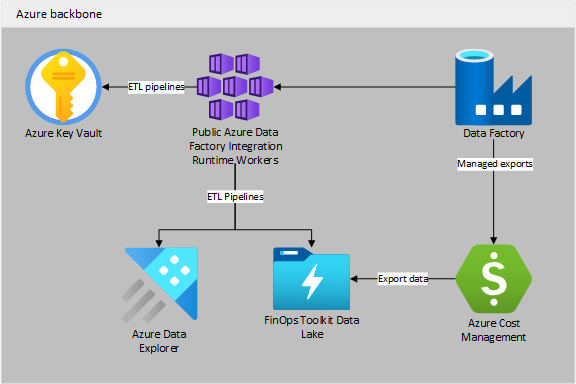
How public access works
Public access in FinOps hubs has the following traits:
- Access is controlled via role-based access control (RBAC) and communications encrypted via transport layer security (TLS).
- Storage is accessible via public IP addresses (firewall set to public).
- Data Explorer (if deployed) is accessible via public IP addresses (firewall set to public).
- Key Vault is accessible via public IP addresses (firewall set to public).
- Azure Data Factory is configured to use the public integration runtime.
How private access works
Private access is a more secure option that places FinOps hubs resources on an isolated network and limits access via private networking:
- Public network access is disabled by default.
- Storage is accessible via private IP address and trusted Azure services - firewall is set to default deny with bypass for services on trusted list.
- Data Explorer (if deployed) is accessible via private IP address - firewall is set to default deny with no exceptions.
- Key vault is accessible via private IP address and trusted Azure services - firewall is set to default deny with bypass for services on trusted list.
- Azure Data Factory is configured to use the public integration runtime, which helps reduce costs.
- A virtual network is deployed to ensure communication between all components during deployment and at runtime remains private.
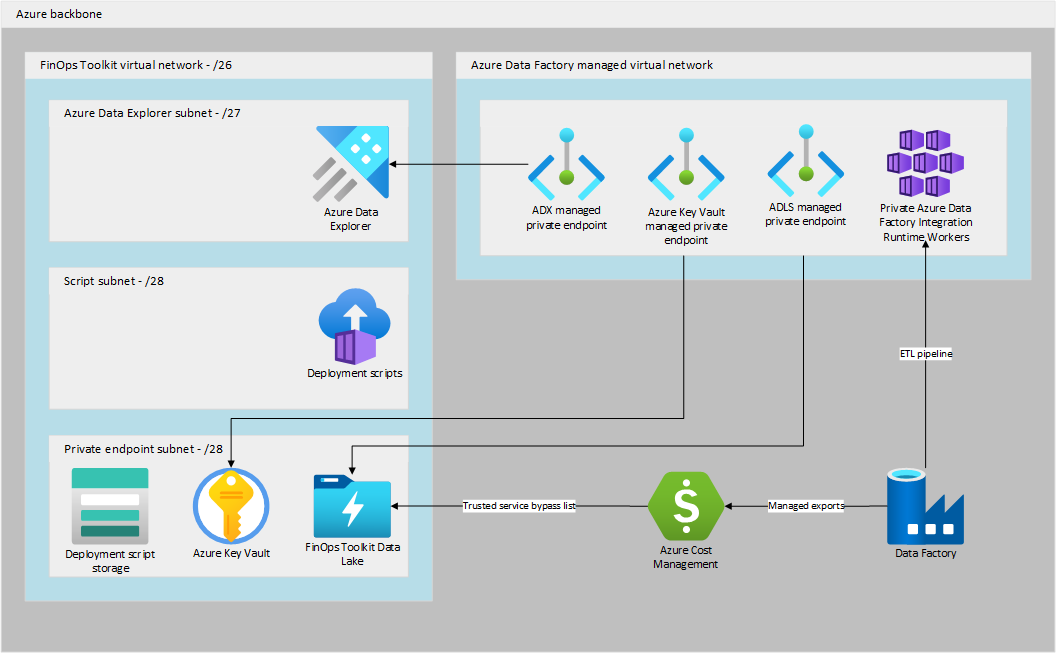
Note that private networking incurs extra cost for networking resources, connectivity, and dedicated compute in Azure Data Factory. For a detailed cost estimate, please refer to the Azure pricing calculator.
Comparing network access options
The following table compares the network access options available in FinOps hubs:
| Component | Public | Private | Benefit |
|---|---|---|---|
| Storage | Accessible over the internet¹ | Access restricted to the FinOps hub network, peered networks (for example, corporate vNet), and trusted Azure services | Data only accessible when at work or on the corporate VPN |
| Azure Data Explorer | Accessible over the internet¹ | Access restricted to the FinOps hub network, peered networks (for example, corporate vNet), and trusted Azure services | Data only accessible when at work or on the corporate VPN |
| Key vault | Accessible over the internet¹ | Access restricted to the FinOps hub network, peered networks (for example, corporate vNet), and trusted Azure services | Keys and secrets are never accessible via to the open internet |
| Azure Data Factory | Uses public compute pool | Managed integration runtime in a private network with Data Explorer, storage, and key vault | All data processing happens inside the network |
| Virtual Network | Not used | FinOps hub traffic happens within an isolated vNet | Everything remains private; ideal for regulated environments |
¹ While resources are accessible over the internet, access is still protected by role-based access control (RBAC).
Enabling private networking
To enable private networking when deploying a new or updating an existing FinOps hub instance, set Access to Private on the Advanced tab.
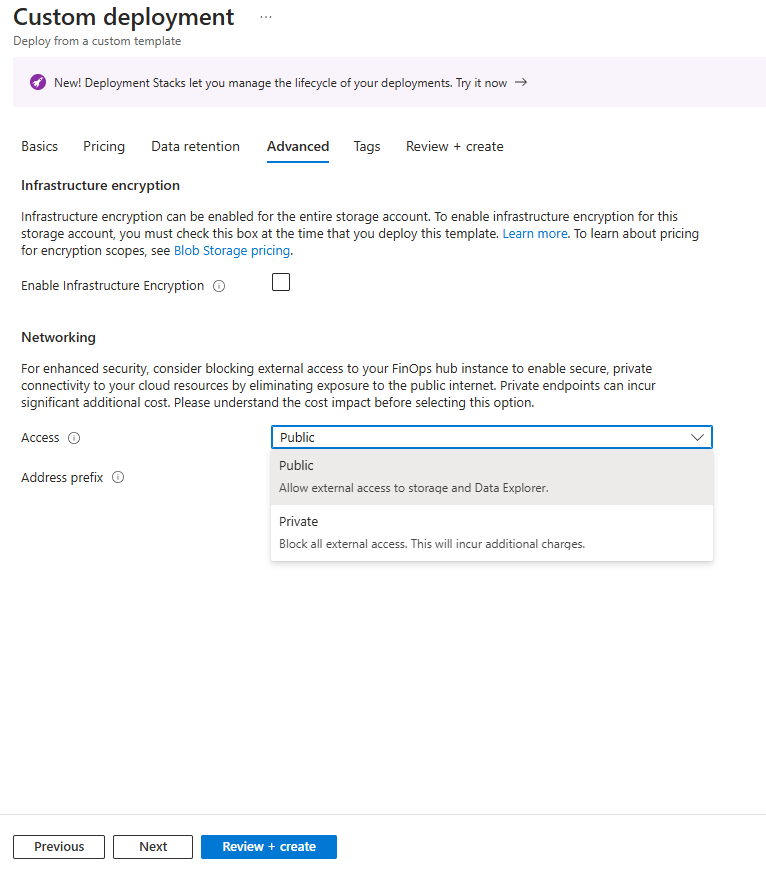
Before enabling private access, review the networking details on this page to understand the extra configuration required in order to connect to your hub instance. Once enabled, your FinOps hub instance is inaccessible until network access is configured outside of the FinOps hub instance. We recommend sharing this with your network admins to ensure the IP range meets network standards and they understand how to connect your hub instance to the existing network.
Removing private networking
If you need to reduce costs or simplify your FinOps hub deployment, you can remove private networking and switch back to public access. This change will:
- Remove the virtual network and associated networking costs
- Disable private endpoints and DNS zones
- Configure storage, Data Explorer, and Key Vault to use public access
- Switch Azure Data Factory back to the public integration runtime
Warning
Removing private networking is a significant change that will affect how you access your FinOps hub. Ensure all stakeholders understand the security implications before proceeding.
Steps to remove private networking
Plan the transition:
- Identify all users and systems currently accessing the hub via private networking
- Coordinate with your network administrators about the change
- Schedule maintenance window as the hub will be temporarily inaccessible during the transition
Update the FinOps hub deployment:
You have two options to redeploy your FinOps hub with public access:
Option 1: Redeploy from existing deployment
- Navigate to your FinOps hub resource group in the Azure portal
- Go to the Deployments tab on the resource group
- Find and open the original FinOps hub deployment
- Click Redeploy
- On the Advanced tab, set Access to Public
- Review all other settings to ensure they remain as desired
- Deploy the updated configuration
Option 2: Deploy latest toolkit version
- Install the latest current version of the FinOps toolkit
- Use the same resource group name, hub name, and Data Explorer cluster name as your existing deployment
- These values can be obtained from the original deployment template or the config.json file in your hub storage account
- On the Advanced tab, set Access to Public
- Deploy with the same configuration to update your existing hub
Verify the changes:
- Confirm that storage accounts, Data Explorer, and Key Vault are accessible via public endpoints
- Test data access from Power BI and other connected systems
- Verify that Azure Data Factory pipelines continue to run successfully
Clean up networking resources (optional):
- Once you've confirmed the hub is working correctly with public access, you can delete the networking resources to stop incurring networking costs
- Delete resources in the following order to avoid dependency conflicts:
- Private endpoints
- Private DNS zones
- Virtual network and network security groups (NSGs)
- Be cautious when deleting resources manually - ensure they're not being used by other systems
Remove Azure Data Factory managed integration runtime (optional):
- When private networking was enabled, Azure Data Factory may have created a managed integration runtime for secure data processing
- While leaving the managed integration runtime won't break functionality, it does carry ongoing costs
- To remove the managed integration runtime:
- Navigate to your Azure Data Factory instance in the Azure portal
- Go to Manage > Integration runtimes
- Identify any managed integration runtimes that were created for private networking (typically named with your hub instance)
- Stop and delete the managed integration runtime if it's no longer needed
- Verify that your data pipelines continue to work with the public integration runtime
- Only remove managed integration runtimes that were specifically created for the FinOps hub private networking setup
Note
After removing private networking, your FinOps hub data will be accessible over the internet, though still protected by role-based access control (RBAC) and transport layer security (TLS). Review your organization's security policies to ensure this meets your requirements.
Security recommendations:
- Check the security settings on storage accounts and Azure Data Explorer clusters to ensure they align with your security requirements
- Consider using network security groups (NSGs) or firewall rules to restrict access to well-known IP addresses such as your corporate firewall, VPN endpoints, or specific office locations
- Review and configure storage account network access rules to limit access from trusted networks if needed
- Verify that Azure Data Explorer cluster network settings are properly configured for your access requirements
FinOps hub virtual network
When private access is selected, your FinOps hub instance includes a virtual network to ensure communication between its various components remain private.
- The virtual network can be any subnet size from /8 to /26, with a minimum of /26 (64 IP addresses) required. The default is /26 to conserve IP addresses while providing the minimum required subnet sizes for Container Services (used during deployments for running scripts) and Data Explorer.
- The IP range can be set at the time of deployment and defaults to 10.20.30.0/26. Choose a larger subnet (like /24 or smaller) if you need additional address space for services such as Power BI VNet Data Gateway.
If necessary, you can create the virtual network, subnets, and optionally peer it with your hub network before deploying FinOps hubs if you follow these requirements:
- The virtual network should be a minimum of /26 in size (64 IP addresses) but can be any size up to /8 (16,777,216 IP addresses).
- The name should be
<HubName>-vNet. - The virtual network must be divided into three subnets with the service delegations as specified:
- private-endpoint-subnet (/28) – no service delegations configured; hosts private endpoints for storage and key vault.
- script-subnet (/28) – delegated to container services for running scripts during deployment.
- dataExplorer-subnet (/27) – delegated to Azure Data Explorer.
Private endpoints and DNS
Communication between the various FinOps hub components is encrypted using TLS. For TLS certificate validation to succeed when using private networking, reliable domain name system (DNS) name resolution is required. DNS zones, private endpoints, and DNS entries guarantee name resolution between FinOps hub components.
- privatelink.blob.core.windows.net – for Data Explorer and storage used by deployment scripts
- privatelink.dfs.core.windows.net – for Data Explorer and the data lake hosting the FinOps data and pipeline configuration
- privatelink.table.core.windows.net – for Data Explorer
- privatelink.queue.core.windows.net – for Data Explorer
- privatelink.vaultcore.azure.net – for Azure Key Vault
- privatelink.{location}.kusto.windows.net – for Data Explorer
Important
Altering the DNS configuration of the FinOps hub virtual network isn't recommended. FinOps hub components require reliable name resolution for deployments and upgrades to succeed. Data Factory pipelines also require reliable name resolution between components.
Network peering, routing, and name resolution
When private access is selected, the FinOps hub instance is deployed to an isolated spoke virtual network. Multiple options exist to enable private connectivity to the FinOps hub virtual network including:
- Peering the FinOps hub network with another Azure vNet.
- Peering the FinOps hub network with an Azure vWAN hub.
- Extending the FinOps hub network address space and deploying a VPN gateway.
- Extending the FinOps hub network address space and deploying a Power BI data gateway.
- Allowing one's corporate firewall and VPN IP ranges access over the public internet via the storage and Data Explorer firewalls.
To access FinOps hub data from an existing virtual network, configure A records in your existing virtual network to access storage or Data Explorer. CNAME records may also be required depending on your DNS solution.
| Required | Name | Description |
|---|---|---|
| Required | <storage_account_name>.privatelink.dfs.core.windows.net | A record to access storage |
| Optional | <storage_account_name>.dfs.core.windows.net | CNAME to the storage A record |
| Required | <data_explorer_name>.privatelink.<azure_location>.kusto.windows.net | A record to access Data Explorer |
| Optional | <data_explorer_name>.<azure_location>.kusto.windows.net | CNAME to the Data Explorer A record |
Important
When using private endpoints in conjunction with a Power BI data gateway, make sure to use the fully qualified domain name (FQDN) of the Azure Data Explorer cluster (like clustername.region.kusto.windows.net) rather than the abbreviated version (like clustername.region). This ensures proper name resolution for the private endpoint functions as expected.
Network peering example
In this example:
- The FinOps hub virtual network is peered to a network hub.
- Azure firewall acts as core the router.
- DNS entries for storage and Data Explorer are added to Azure DNS Resolver to ensure reliable name resolution.
- A route table is attached to the network gateway subnet to ensure traffic from on-premises can route to the peered vNet.
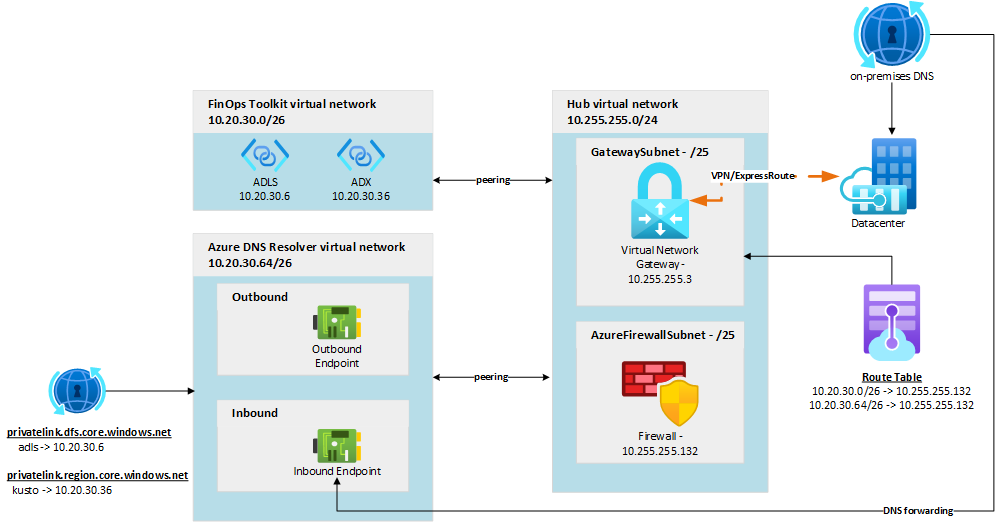
This network topology follows the Hub-Spoke network architecture guidance outlined in the Cloud Adoption Framework for Azure and the Azure Architecture Center.
Give feedback
Let us know how we're doing with a quick review. We use these reviews to improve and expand FinOps tools and resources.
If you're looking for something specific, vote for an existing or create a new idea. Share ideas with others to get more votes. We focus on ideas with the most votes.