הערה
הגישה לדף זה מחייבת הרשאה. באפשרותך לנסות להיכנס או לשנות מדריכי כתובות.
הגישה לדף זה מחייבת הרשאה. באפשרותך לנסות לשנות מדריכי כתובות.
With VS Code VFS (Virtual File System) mode, you can open and develop your notebooks directly in VS Code without downloading notebook files or managing local copies. Changes are automatically synchronized to the remote workspace when you save the notebook. To track the full history of changes, see the live versioning of the notebook in the Fabric portal.
Open a notebook with the VFS mode
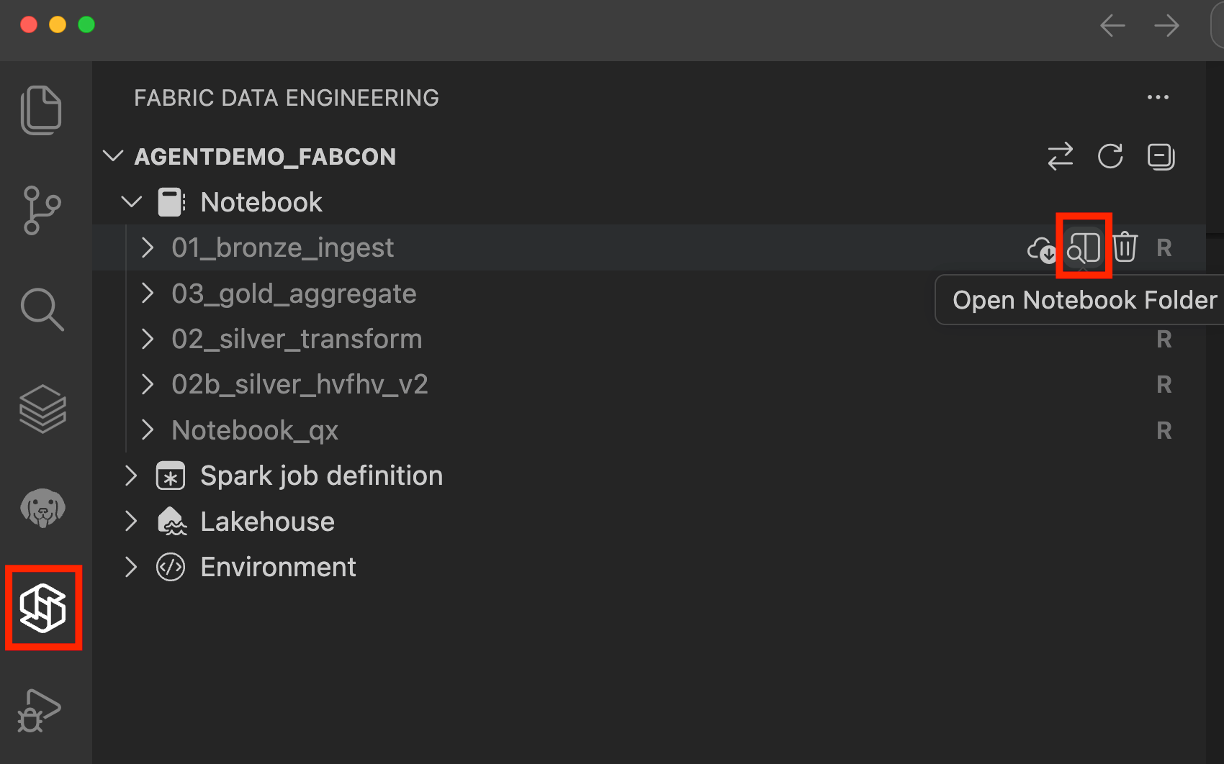
To open a notebook in VFS mode, select the Open In VS Code (Desktop) button on the notebook authoring page in the Fabric portal. After the notebook opens in VS Code, the workspace connects automatically. You can also open the notebook by selecting the Open Notebook Folder button next to the notebook name in the extension panel.
Run notebook with the VFS mode
Select Microsoft Fabric Runtime to run the notebook in VFS mode. This runs the notebook on the remote Spark compute directly, without downloading the notebook file or managing local copies.
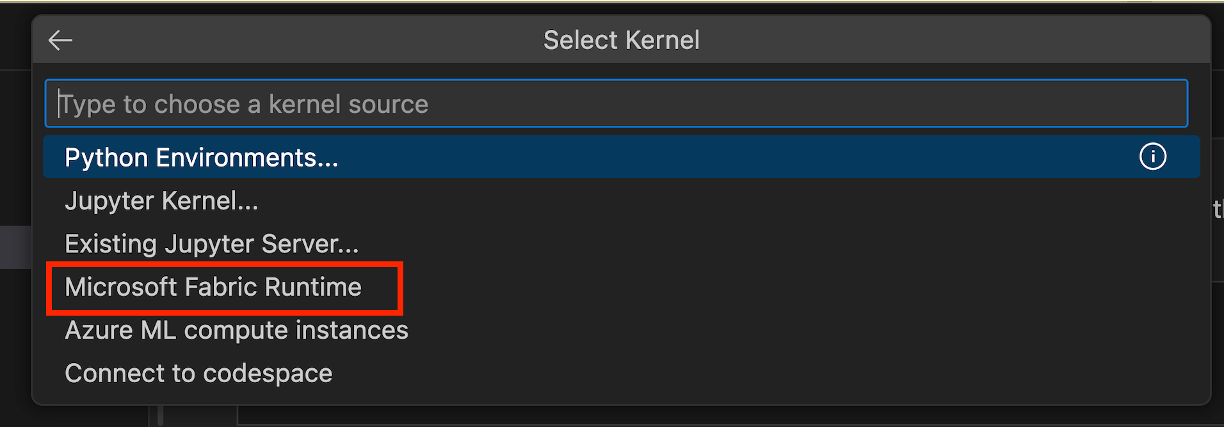
The Fabric Runtime supports multiple languages, including:
- PySpark
- Spark SQL
- Scala
- Python
Monitor the execution history of the notebook
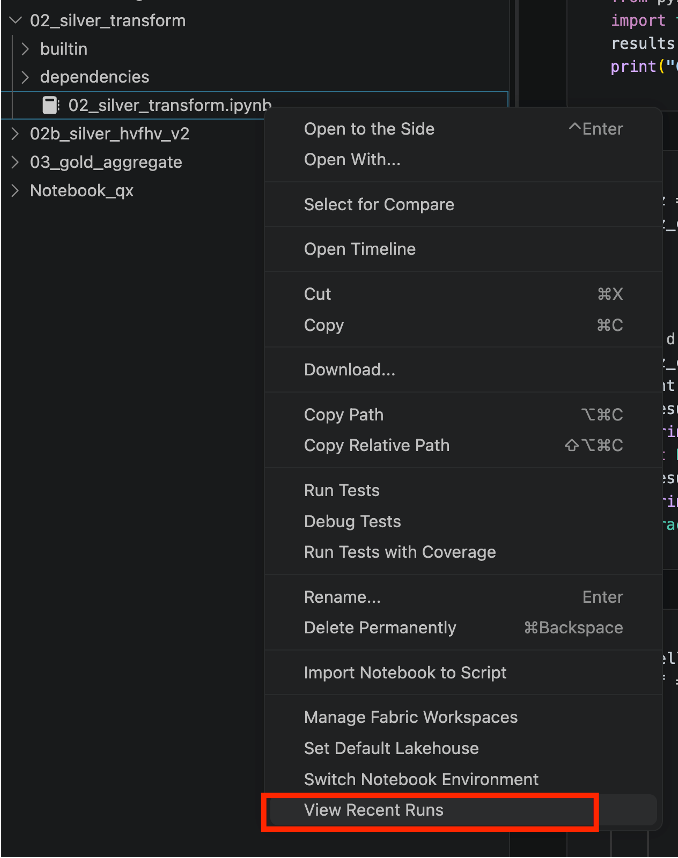
To track the execution history of the notebook, select View Recent Runs from the context menu of the notebook .ipynb file. This opens the execution history view in the VS Code panel, where you can see the list of recent runs. Select a run to see more details about the execution, such as the Spark configuration. You can also download logs for the run, including stdout, stderr, and the Spark driver log, or open the Spark History Server UI for more details.
Select the Activity name to see the details of each run.

To cancel a running notebook, select the Cancel Job button.

Work with lakehouses in a notebook
In VFS mode, you can add and remove lakehouses associated with your notebook, and the changes are automatically synchronized to the remote workspace. You can also set the default lakehouse for the notebook.
Expand the Dependencies section in the notebook, then expand the Lakehouses section to see the list of lakehouses associated with the notebook. To add a lakehouse, right-click the Lakehouses section and select Add Lakehouse.
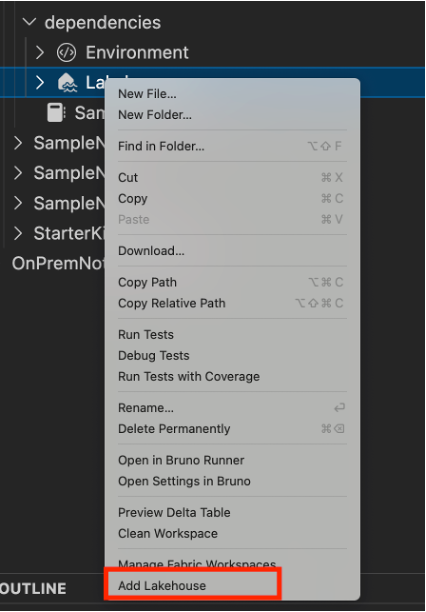
To remove a lakehouse, right-click the lakehouse and select Remove Lakehouse.
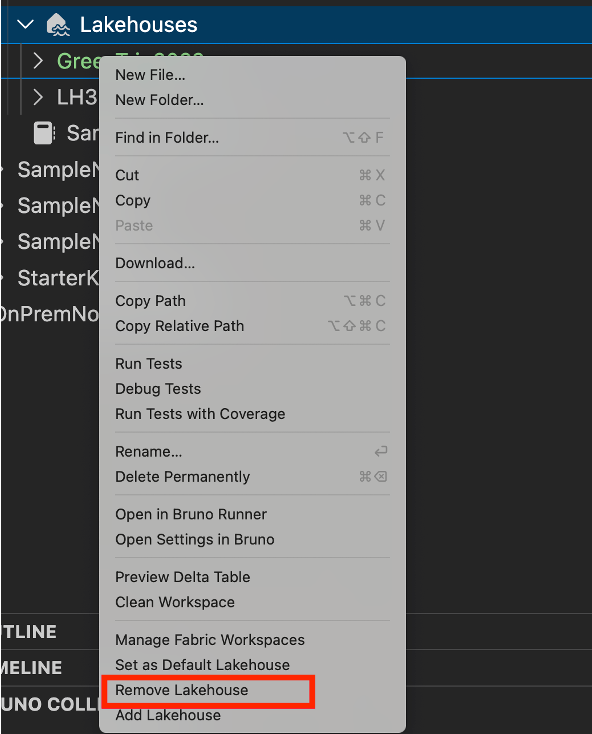
To set the default lakehouse, right-click the lakehouse and select Set as Default Lakehouse.
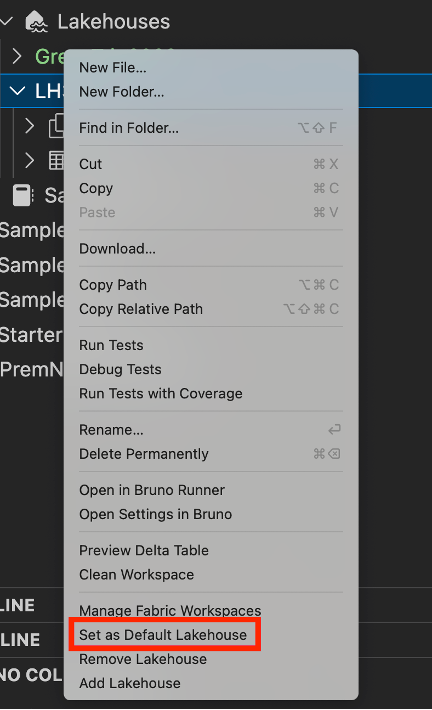
Expand a lakehouse to see its details, including the tables and files it contains.
Switch the environment for a notebook
In VFS mode, you can switch the environment associated with your notebook. Expand the Dependencies section in the notebook, then expand the Environments section to see the current environment. To switch to a different environment, right-click the Environments section and select Switch Notebook Environment. This opens the list of available environments in the workspace. Select the environment you want to use. After you switch, the notebook uses the new environment for running code cells.
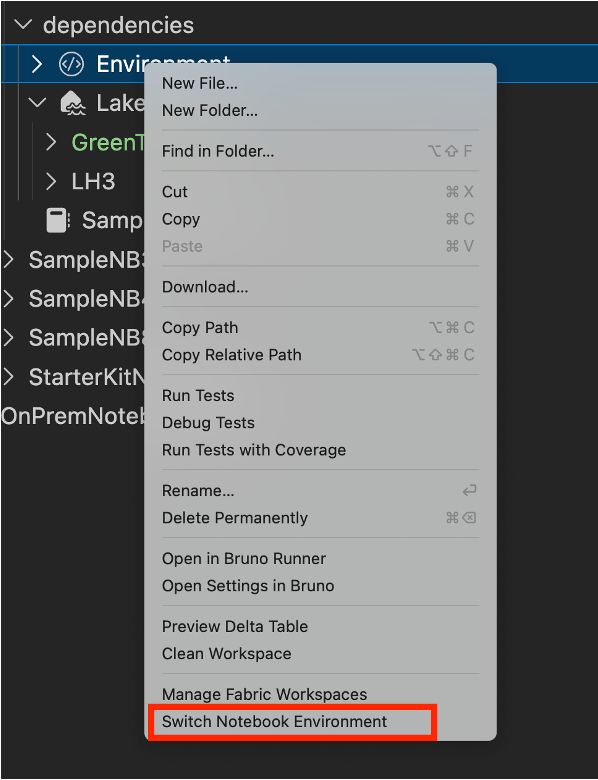
To edit an environment, see Manage Spark environments in VS Code under VFS mode.