הערה
הגישה לדף זה מחייבת הרשאה. באפשרותך לנסות להיכנס או לשנות מדריכי כתובות.
הגישה לדף זה מחייבת הרשאה. באפשרותך לנסות לשנות מדריכי כתובות.
In this tutorial step, you create a graph model and load data from OneLake. A graph model is the foundation for building your graph and defines the structure of your nodes and edges.
This step assumes you already loaded the sample data into a lakehouse within your workspace.
Create a graph model
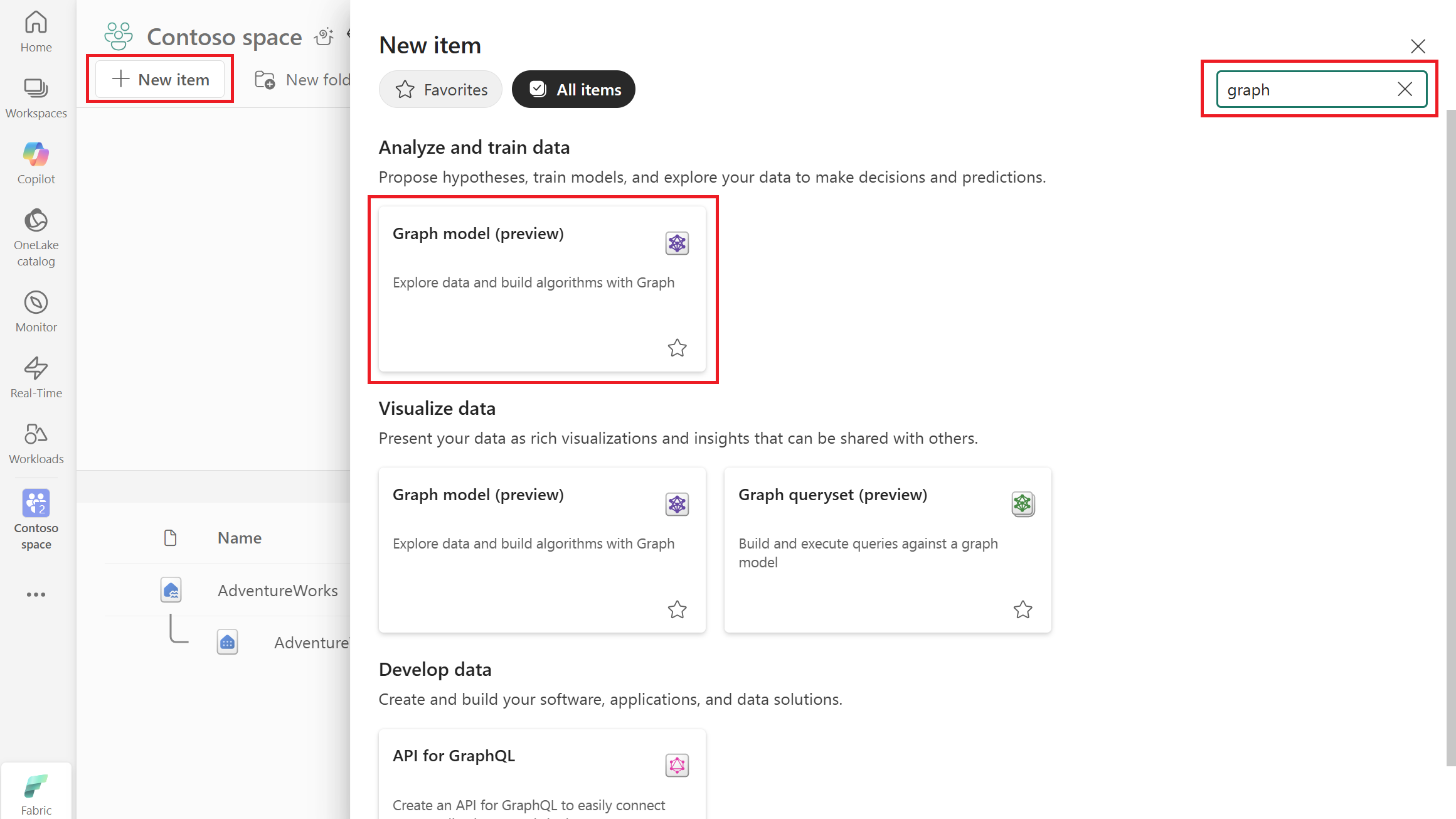
In your Microsoft Fabric workspace, select + New item.
Enter graph in the search box, press Enter to search for graph items, and select Graph model. Alternatively, scroll down to Analyze and train data > Graph model.
Enter a name for your graph model, such as AdventureWorksGraph, and select Create.
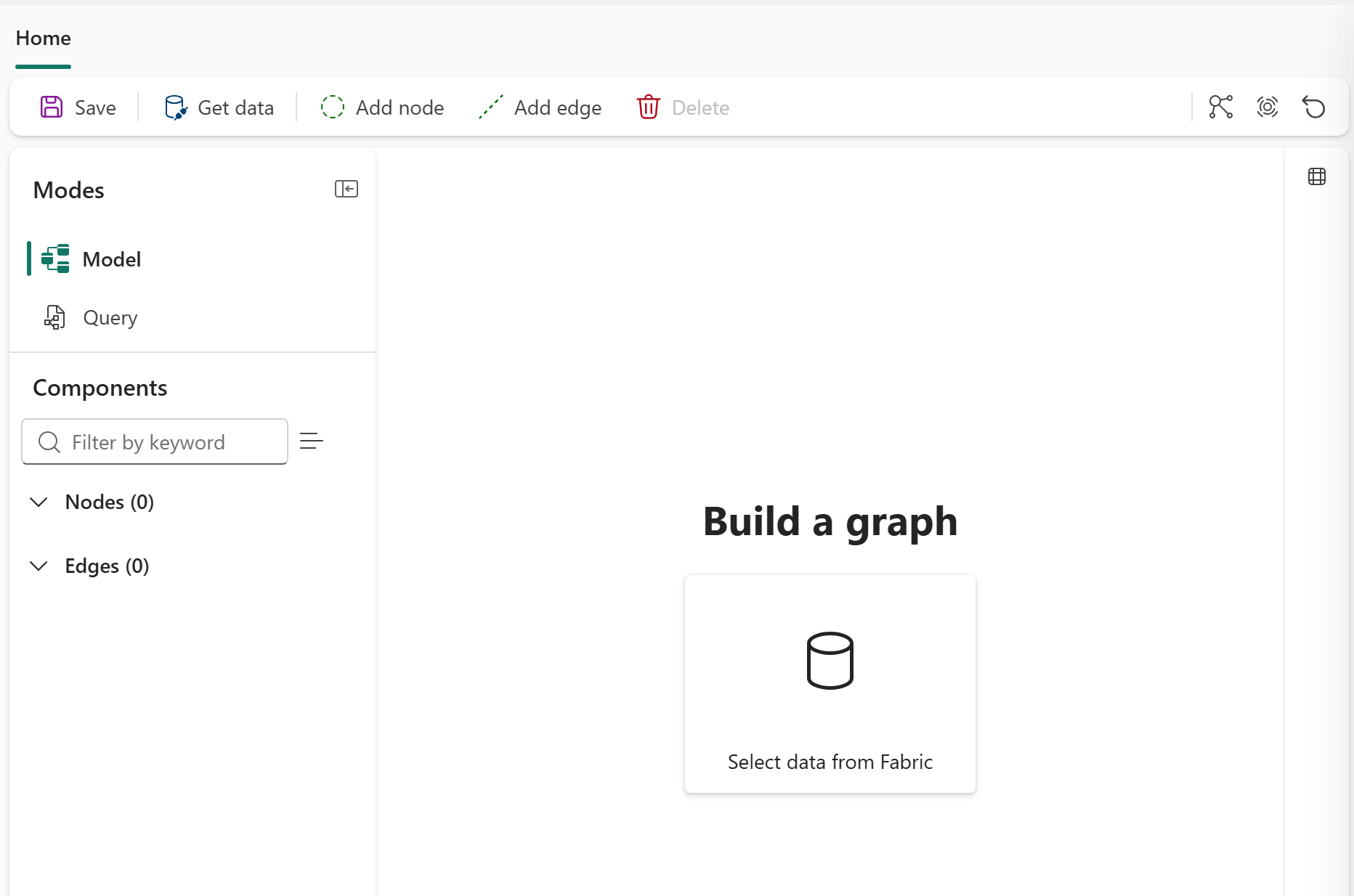
After creating the graph model, you're taken to the graph view where you can see the default mode is set to Model. Across the top ribbons, you see buttons for Save, Get data, Add node, Add edge, and Delete.
Load data into the graph
To load data into your graph from OneLake, follow these steps:
In your graph model, select Get data.
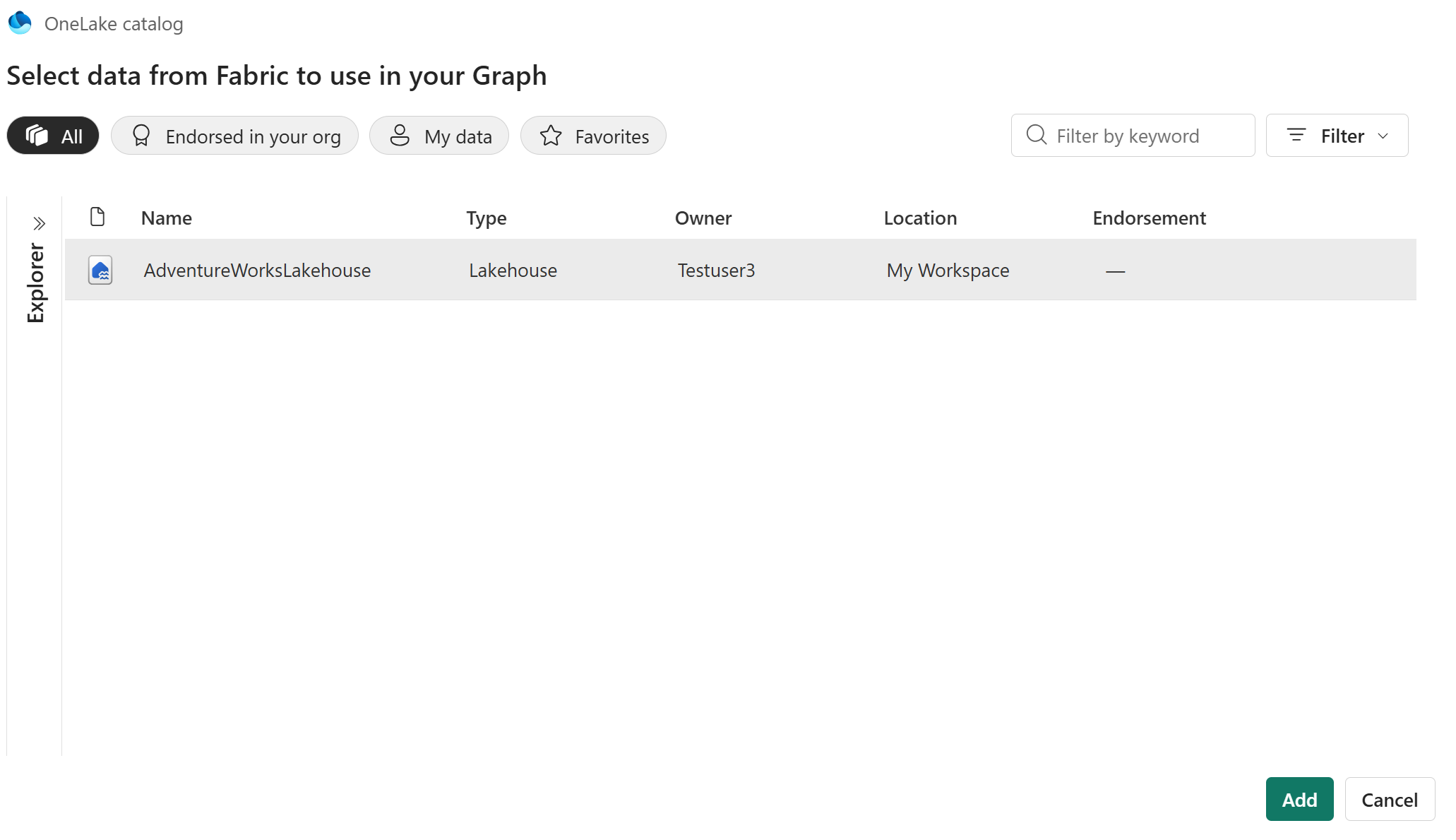
In the OneLake catalog dialog, select your lakehouse (for example, AdventureWorksLakehouse), and then select Add.
In the Choose data pane, select the name of your lakehouse (for example, AdventureWorksLakehouse) to automatically select all tables under it.
Select Load.
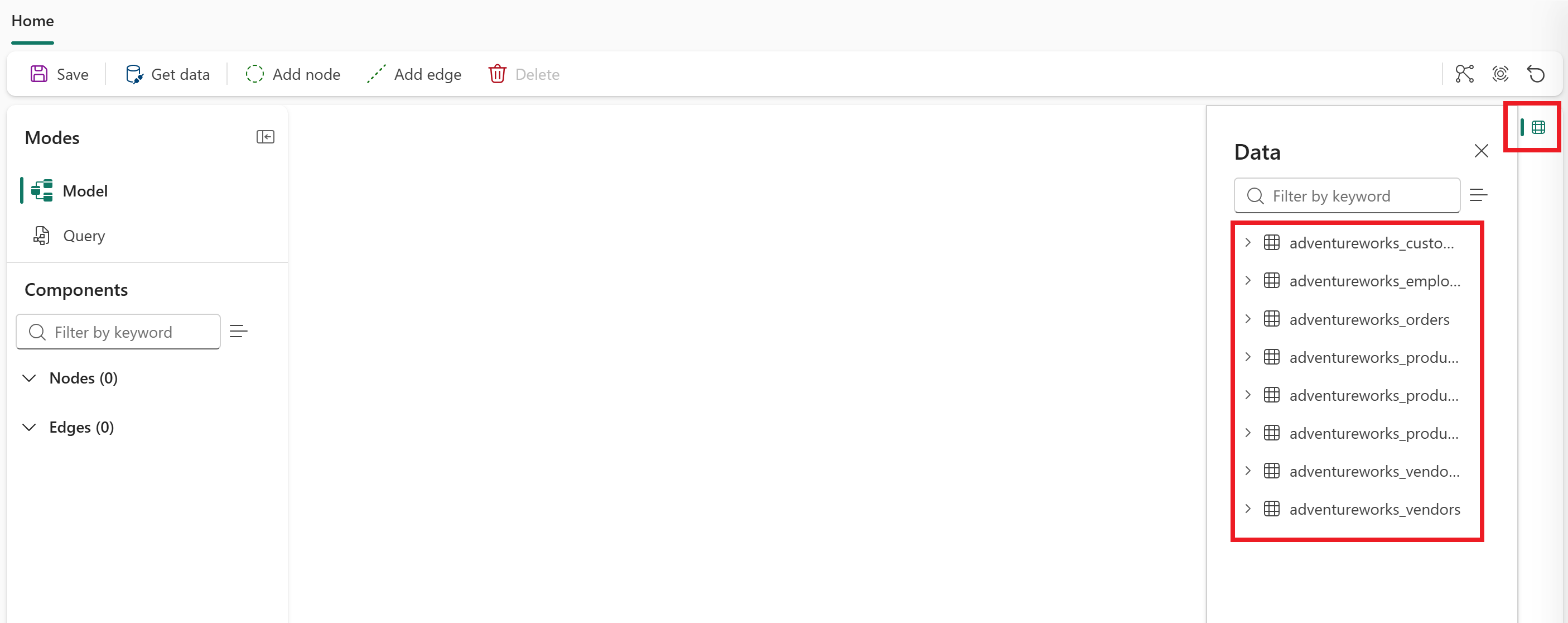
Select the Data icon on the right of the screen to open the data pane. You see the eight tables from your lakehouse listed in the data pane, available for use in your graph.