הערה
הגישה לדף זה מחייבת הרשאה. באפשרותך לנסות להיכנס או לשנות מדריכי כתובות.
הגישה לדף זה מחייבת הרשאה. באפשרותך לנסות לשנות מדריכי כתובות.
תבנית להתחלה מהירה זו מנחה אותך לאורך יצירת סוכן מנוע מותאם אישית שמשיב בכל הודעה שתשלח לו.
דרישות מוקדמות
Python 3.9 ואילך.
- כדי להתקין Python, עבור אל https://www.python.org/downloads/ ובצע את ההוראות עבור מערכת ההפעלה שלך.
- כדי לאמת את הגירסה, בחלון מסוף הקלד
python --version.
עורך קוד שתבחר. הוראות אלה משתמשות Visual Studio Code.
אם אתה משתמש Visual Studio Code, התקן את הסיומת Python
אתחל את הפרוייקט והתקן את ערכת ה- SDK
צור פרוייקט Python והתקן את יחסי התלות הנדרשים.
פתיחת מסוף וייצור תיקיה חדשה
mkdir echo
cd echo
פתח את התיקיה באמצעות Visual Studio Code באמצעות פקודה זו:
code .צור סביבה וירטואלית באמצעות השיטה שתבחר והפעל אותה באמצעות Visual Studio Code או במסוף.
בעת שימוש Visual Studio Code, באפשרותך להשתמש בשלבים אלה עם Python מותקנת.
הקש F1, הקלד
Python: Create environmentוהקש Enter.בחר Venv כדי ליצור סביבה
.venvוירטואלית בסביבת העבודה הנוכחית.בחר התקנה Python כדי ליצור את הסביבה הווירטואלית.
הערך עשוי להיראות כך:
Python 1.13.6 ~\AppData\Local\Programs\Python\Python313\python.exe
התקן את ה- SDK של הסוכנים
השתמש ב- pip כדי להתקין את חבילת microsoft-agents-hosting-aiohttp עם פקודה זו:
pip install microsoft-agents-hosting-aiohttp
צור את יישום השרת ויבא את הספריות הנדרשות
צור קובץ בשם
start_server.py, העתק את הקוד הבא והדבק אותו ב:# start_server.py from os import environ from microsoft_agents.hosting.core import AgentApplication, AgentAuthConfiguration from microsoft_agents.hosting.aiohttp import ( start_agent_process, jwt_authorization_middleware, CloudAdapter, ) from aiohttp.web import Request, Response, Application, run_app def start_server( agent_application: AgentApplication, auth_configuration: AgentAuthConfiguration ): async def entry_point(req: Request) -> Response: agent: AgentApplication = req.app["agent_app"] adapter: CloudAdapter = req.app["adapter"] return await start_agent_process( req, agent, adapter, ) APP = Application(middlewares=[jwt_authorization_middleware]) APP.router.add_post("/api/messages", entry_point) APP.router.add_get("/api/messages", lambda _: Response(status=200)) APP["agent_configuration"] = auth_configuration APP["agent_app"] = agent_application APP["adapter"] = agent_application.adapter try: run_app(APP, host="localhost", port=environ.get("PORT", 3978)) except Exception as error: raise errorקוד זה מגדיר פונקציה
start_serverשנשתמש בה בקובץ הבא.באותה ספריה, צור קובץ בשם
app.pyעם הקוד הבא.# app.py from microsoft_agents.hosting.core import ( AgentApplication, TurnState, TurnContext, MemoryStorage, ) from microsoft_agents.hosting.aiohttp import CloudAdapter from start_server import start_server
יצירת מופע של הסוכן כ- AgentApplication
בapp.py, הוסף את הקוד הבא כדי ליצור את הAGENT_APP כשל AgentApplication, ולהגדיר שלושה מסלולים שיגיבו לשלושה אירועים:
- עדכון שיחה
- ההודעה
/help - כל פעילות אחרת
AGENT_APP = AgentApplication[TurnState](
    storage=MemoryStorage(), adapter=CloudAdapter()
)

async def _help(context: TurnContext, _: TurnState):
    await context.send_activity(
        "Welcome to the Echo Agent sample 🚀. "
        "Type /help for help or send a message to see the echo feature in action."
    )

AGENT_APP.conversation_update("membersAdded")(_help)

AGENT_APP.message("/help")(_help)


@AGENT_APP.activity("message")
async def on_message(context: TurnContext, _):
    await context.send_activity(f"you said: {context.activity.text}")
הפעלת שרת האינטרנט להאזנה ב- localhost:3978
בסוף , הפעל app.pyאת שרת האינטרנט באמצעות start_server.
if __name__ == "__main__":
    try:
        start_server(AGENT_APP, None)
    except Exception as error:
        raise error
הפעל את הסוכן באופן מקומי במצב אנונימי
מהמסוף שלך, הפעל פקודה זו:
python app.py
המסוף אמור להחזיר את הפריטים הבאים:
======== Running on http://localhost:3978 ========
(Press CTRL+C to quit)
בדוק את הסוכן באופן מקומי
ממסוף אחר (כדי להשאיר את הסוכן פועל) התקן את Microsoft 365 Agents Playground באמצעות פקודה זו:
npm install -g @microsoft/teams-app-test-toolהערה
פקודה זו משתמשת ב- npm מאחר ש- Microsoft 365 Agents Playground אינו זמין באמצעות pip.
המסוף אמור להחזיר משהו כמו:
added 1 package, and audited 130 packages in 1s

19 packages are looking for funding
run `npm fund` for details

found 0 vulnerabilities
הפעל את כלי הבדיקה כדי לקיים אינטראקציה עם הסוכן שלך באמצעות פקודה זו:
teamsapptesterהמסוף אמור להחזיר משהו כמו:
Telemetry: agents-playground-cli/serverStart {"cleanProperties":{"options":"{\"configFileOptions\":{\"path\":\"<REDACTED: user-file-path>\"},\"appConfig\":{},\"port\":56150,\"disableTelemetry\":false}"}}

Telemetry: agents-playground-cli/cliStart {"cleanProperties":{"isExec":"false","argv":"<REDACTED: user-file-path>,<REDACTED: user-file-path>"}}

Listening on 56150
Microsoft 365 Agents Playground is being launched for you to debug the app: http://localhost:56150
started web socket client
started web socket client
Waiting for connection of endpoint: http://127.0.0.1:3978/api/messages
waiting for 1 resources: http://127.0.0.1:3978/api/messages
wait-on(37568) complete
Telemetry: agents-playground-server/getConfig {"cleanProperties":{"internalConfig":"{\"locale\":\"en-US\",\"localTimezone\":\"America/Los_Angeles\",\"channelId\":\"msteams\"}"}}

Telemetry: agents-playground-server/sendActivity {"cleanProperties":{"activityType":"installationUpdate","conversationId":"5305bb42-59c9-4a4c-a2b6-e7a8f4162ede","headers":"{\"x-ms-agents-playground\":\"true\"}"}}

Telemetry: agents-playground-server/sendActivity {"cleanProperties":{"activityType":"conversationUpdate","conversationId":"5305bb42-59c9-4a4c-a2b6-e7a8f4162ede","headers":"{\"x-ms-agents-playground\":\"true\"}"}}
הפקודה teamsapptester פותחת את דפדפן ברירת המחדל שלך והתחברות לסוכן שלך.
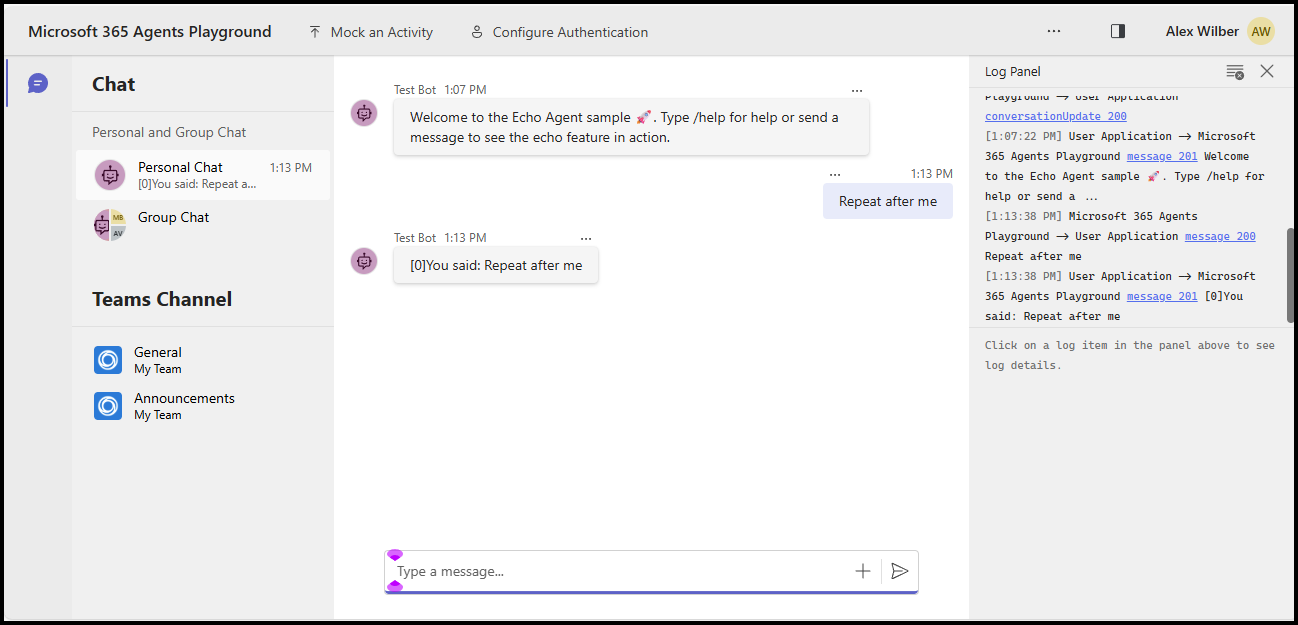
כעת באפשרותך לשלוח כל הודעה כדי לראות את תשובת ההד, /help או לשלוח את ההודעה כדי לראות כיצד הודעה זו מנותב למטפל _help .
תבנית להתחלה מהירה זו מנחה אותך לאורך יצירת סוכן מנוע מותאם אישית שמשיב בכל הודעה שתשלח לו.
דרישות מוקדמות
Node.js גירסה 22 ואילך
- כדי להתקין Node.js עבור אל nodejs.org, ובצע את ההוראות עבור מערכת ההפעלה שלך.
- כדי לאמת את הגירסה, בחלון מסוף הקלד
node --version.
עורך קוד שתבחר. הוראות אלה משתמשות Visual Studio Code.
אתחל את הפרוייקט והתקן את ערכת ה- SDK
השתמש npm כדי לאתחל פרוייקט node.js-ידי יצירת package.json והתקנה של יחסי התלות הדרושים
פתיחת מסוף וייצור תיקיה חדשה
mkdir echo
cd echo
אתחל את node.js הפרוייקט
npm init -yהתקן את ה- SDK של הסוכנים
npm install @microsoft/agents-hosting-expressפתח את התיקיה באמצעות Visual Studio Code באמצעות הפקודה הבאה:
code .
ייבוא הספריות הנדרשות
צור את הקובץ ויבא index.mjs את חבילות ה- NPM הבאות לתוך קוד היישום שלך:
// index.mjs
import { startServer } from '@microsoft/agents-hosting-express'
import { AgentApplication, MemoryStorage } from '@microsoft/agents-hosting'
יישום EchoAgent כ- AgentApplication
ב index.mjs- , הוסף את הקוד הבא כדי ליצור EchoAgent את ההרחבה של AgentApplication וליישם שלושה מסלולים כדי להגיב לשלושה אירועים:
- עדכון שיחה
- ההודעה
/help - כל פעילות אחרת
class EchoAgent extends AgentApplication {
  constructor (storage) {
    super({ storage })

    this.onConversationUpdate('membersAdded', this._help)
    this.onMessage('/help', this._help)
    this.onActivity('message', this._echo)
  }

  _help = async context =>
    await context.sendActivity(`Welcome to the Echo Agent sample 🚀.
      Type /help for help or send a message to see the echo feature in action.`)

  _echo = async (context, state) => {
    let counter= state.getValue('conversation.counter') || 0
    await context.sendActivity(`[${counter++}]You said: ${context.activity.text}`)
    state.setValue('conversation.counter', counter)
  }
}
הפעלת שרת האינטרנט להאזנה ב- localhost:3978
בסוף index.mjs הפעל את שרת האינטרנט באמצעות startServer המבוסס על express תוך שימוש ב-MemoryStorage כאחסון מצב התור.
startServer(new EchoAgent(new MemoryStorage()))
הפעל את הסוכן באופן מקומי במצב אנונימי
מהמסוף שלך, הפעל פקודה זו:
node index.mjs
המסוף אמור להחזיר את התוצאות הבאות:
Server listening to port 3978 on sdk 0.6.18 for appId undefined debug undefined
בדוק את הסוכן באופן מקומי
ממסוף אחר (כדי להשאיר את הסוכן פועל) התקן את Microsoft 365 Agents Playground באמצעות פקודה זו:
npm install -D @microsoft/teams-app-test-toolהמסוף אמור להחזיר משהו כמו:
added 1 package, and audited 130 packages in 1s

19 packages are looking for funding
run `npm fund` for details

found 0 vulnerabilities
הפעל את כלי הבדיקה כדי לקיים אינטראקציה עם הסוכן שלך באמצעות פקודה זו:
node_modules/.bin/teamsapptesterהמסוף אמור להחזיר משהו כמו:
Telemetry: agents-playground-cli/serverStart {"cleanProperties":{"options":"{\"configFileOptions\":{\"path\":\"<REDACTED: user-file-path>\"},\"appConfig\":{},\"port\":56150,\"disableTelemetry\":false}"}}

Telemetry: agents-playground-cli/cliStart {"cleanProperties":{"isExec":"false","argv":"<REDACTED: user-file-path>,<REDACTED: user-file-path>"}}

Listening on 56150
Microsoft 365 Agents Playground is being launched for you to debug the app: http://localhost:56150
started web socket client
started web socket client
Waiting for connection of endpoint: http://127.0.0.1:3978/api/messages
waiting for 1 resources: http://127.0.0.1:3978/api/messages
wait-on(37568) complete
Telemetry: agents-playground-server/getConfig {"cleanProperties":{"internalConfig":"{\"locale\":\"en-US\",\"localTimezone\":\"America/Los_Angeles\",\"channelId\":\"msteams\"}"}}

Telemetry: agents-playground-server/sendActivity {"cleanProperties":{"activityType":"installationUpdate","conversationId":"5305bb42-59c9-4a4c-a2b6-e7a8f4162ede","headers":"{\"x-ms-agents-playground\":\"true\"}"}}

Telemetry: agents-playground-server/sendActivity {"cleanProperties":{"activityType":"conversationUpdate","conversationId":"5305bb42-59c9-4a4c-a2b6-e7a8f4162ede","headers":"{\"x-ms-agents-playground\":\"true\"}"}}
הפקודה teamsapptester פותחת את דפדפן ברירת המחדל שלך והתחברות לסוכן שלך.
כעת באפשרותך לשלוח כל הודעה כדי לראות את תשובת ההד, /help או לשלוח את ההודעה כדי לראות כיצד הודעה זו מנותב למטפל _help .
תבנית להתחלה מהירה זו מנחה אותך לאורך יצירת סוכן מנוע מותאם אישית שמשיב בכל הודעה שתשלח לו.
דרישות מוקדמות
.NET 8.0 SDK ואילך
- כדי להתקין את .NET SDK, עבור אל dotnet.microsoft.com ובצע את ההוראות עבור מערכת ההפעלה שלך.
- כדי לאמת את הגירסה, בחלון מסוף הקלד
dotnet --version.
עורך קוד שתבחר. הוראות אלה משתמשות Visual Studio Code.
אתחל את הפרוייקט והתקן את ערכת ה- SDK
השתמש dotnet כדי ליצור פרוייקט אינטרנט חדש ולהתקין את יחסי התלות הנדרשים.
פתיחת מסוף וייצור תיקיה חדשה
mkdir echo
cd echo
אתחל את .NET הפרוייקט
dotnet new webהתקן את ה- SDK של הסוכנים
dotnet add package Microsoft.Agents.Hosting.AspNetCoreפתח את התיקיה באמצעות Visual Studio Code באמצעות פקודה זו:
code .
ייבוא הספריות הנדרשות
ב Program.cs- , החלף את התוכן הקיים והוסף את המשפטים using הבאים כדי לייבא את חבילות ה- SDK לתוך קוד היישום שלך:
// Program.cs
using Microsoft.Agents.Builder;
using Microsoft.Agents.Builder.App;
using Microsoft.Agents.Builder.State;
using Microsoft.Agents.Core.Models;
using Microsoft.Agents.Hosting.AspNetCore;
using Microsoft.Agents.Storage;
using Microsoft.AspNetCore.Builder;
יישום EchoAgent כ- AgentApplication
בProgram.cs, לאחר משפטי using, הוסף את הקוד הבא ב-EchoAgent כדי ליצור את AgentApplication המרחיב, ויש ליישם נתיבים כדי להגיב לאירועים:
- עדכון שיחה
- כל פעילות אחרת
public class EchoAgent : AgentApplication
{
   public EchoAgent(AgentApplicationOptions options) : base(options)
   {
      OnConversationUpdate(ConversationUpdateEvents.MembersAdded, WelcomeMessageAsync);
      OnActivity(ActivityTypes.Message, OnMessageAsync, rank: RouteRank.Last);
   }

   private async Task WelcomeMessageAsync(ITurnContext turnContext, ITurnState turnState, CancellationToken cancellationToken)
   {
        foreach (ChannelAccount member in turnContext.Activity.MembersAdded)
        {
            if (member.Id != turnContext.Activity.Recipient.Id)
            {
                await turnContext.SendActivityAsync(MessageFactory.Text("Hello and Welcome!"), cancellationToken);
            }
        }
    }

   private async Task OnMessageAsync(ITurnContext turnContext, ITurnState turnState, CancellationToken cancellationToken)
   {
      await turnContext.SendActivityAsync($"You said: {turnContext.Activity.Text}", cancellationToken: cancellationToken);
   }
}
הגדרת שרת האינטרנט ורישום יישום הסוכן
בProgram.cs לאחר המשפטים using, הוסף את הקוד הבא כדי לקבוע את תצורת מארח האינטרנט, לרשום את הסוכן ולמפות את נקודת הקצה /api/messages.
var builder = WebApplication.CreateBuilder(args);

builder.Services.AddHttpClient();
builder.AddAgentApplicationOptions();
builder.AddAgent<EchoAgent>();
builder.Services.AddSingleton<IStorage, MemoryStorage>();

var app = builder.Build();

app.MapPost("/api/messages", async (HttpRequest request, HttpResponse response, IAgentHttpAdapter adapter, IAgent agent, CancellationToken cancellationToken) =>
{
    await adapter.ProcessAsync(request, response, agent, cancellationToken);
});

app.Run();
הגדרת שרת האינטרנט להאזנה ב- localhost:3978
בעדכן את launchSettings.json לapplicationURL בhttp://localhost:3978, כך שהאפליקציה תמאזין על הפורט הנכון.
הפעל את הסוכן באופן מקומי במצב אנונימי
מהמסוף שלך, הפעל פקודה זו:
dotnet run
המסוף אמור להחזיר משהו כמו:
info: Microsoft.Hosting.Lifetime[14]
      Now listening on: http://localhost:3978
בדוק את הסוכן באופן מקומי
ממסוף אחר (כדי להשאיר את הסוכן פועל) התקן את Microsoft 365 Agents Playground עם הפקודה הבאה:
npm install -g @microsoft/teams-app-test-toolהערה
פקודה זו משתמשת ב- npm מאחר Microsoft 365 Agents Playground מופצת כחבילה npm.
המסוף אמור להחזיר משהו כמו:
added 1 package, and audited 130 packages in 1s

19 packages are looking for funding
run `npm fund` for details

found 0 vulnerabilities
הפעל את כלי הבדיקה כדי לקיים אינטראקציה עם הסוכן שלך באמצעות פקודה זו:
teamsapptesterהמסוף אמור להחזיר משהו כמו:
Telemetry: agents-playground-cli/serverStart {"cleanProperties":{"options":"{\"configFileOptions\":{\"path\":\"<REDACTED: user-file-path>\"},\"appConfig\":{},\"port\":56150,\"disableTelemetry\":false}"}}

Telemetry: agents-playground-cli/cliStart {"cleanProperties":{"isExec":"false","argv":"<REDACTED: user-file-path>,<REDACTED: user-file-path>"}}

Listening on 56150
Microsoft 365 Agents Playground is being launched for you to debug the app: http://localhost:56150
started web socket client
started web socket client
Waiting for connection of endpoint: http://127.0.0.1:3978/api/messages
waiting for 1 resources: http://127.0.0.1:3978/api/messages
wait-on(37568) complete
Telemetry: agents-playground-server/getConfig {"cleanProperties":{"internalConfig":"{\"locale\":\"en-US\",\"localTimezone\":\"America/Los_Angeles\",\"channelId\":\"msteams\"}"}}

Telemetry: agents-playground-server/sendActivity {"cleanProperties":{"activityType":"installationUpdate","conversationId":"5305bb42-59c9-4a4c-a2b6-e7a8f4162ede","headers":"{\"x-ms-agents-playground\":\"true\"}"}}

Telemetry: agents-playground-server/sendActivity {"cleanProperties":{"activityType":"conversationUpdate","conversationId":"5305bb42-59c9-4a4c-a2b6-e7a8f4162ede","headers":"{\"x-ms-agents-playground\":\"true\"}"}}
הפקודה teamsapptester פותחת את דפדפן ברירת המחדל שלך והתחברות לסוכן שלך.
בקלט הטקסט, הזן ושלח הודעה כלשהי כדי לראות את תשובת ההד.
השלבים הבאים
- בדוק דוגמאות SDK של סוכנים ב- GitHub
- למדו עוד על פרוטוקול הפעילות ועבודה עם פעילויות
- סקור את אירועי AgentApplication שבאפשרותך להגיב לגבים מהלקוח
- סקור את אירועי TurnContext שניתן לשלוח בחזרה ללקוח
- ספק משאבי Azure לשימוש עם Agents SDK
- קבע את תצורת סוכן .NET שלך לשימוש ב- OAuth
ה- Agents Playground זמין כברירת מחדל אם אתה כבר משתמש בערכת הכלים Microsoft 365 Agents Toolkit. באפשרותך להשתמש באחד מהקווי היישור הבאים אם ברצונך להתחיל בעבודה עם ערכת הכלים: