הערה
הגישה לדף זה מחייבת הרשאה. באפשרותך לנסות להיכנס או לשנות מדריכי כתובות.
הגישה לדף זה מחייבת הרשאה. באפשרותך לנסות לשנות מדריכי כתובות.
This article explains how to reorder or delete an action, copy and paste actions, add advanced options, and other related tasks.
You can customize a cloud flow by adding one or more advanced options and multiple actions for the same trigger. For example, add an advanced option that sends an email message as high priority. In addition to sending mail when an item is added to a list created in Microsoft Lists, create a file in Dropbox that contains the same information.
Reorder or delete an action
To receive email after the file is created in Dropbox, move the Dropbox action by dragging its title bar above the email action. Release the Dropbox action over the arrow between the trigger (When a new tweet is posted) and the email action. (The cursor indicates whether the action is positioned correctly.)
You can't move a step before another if you're using any outputs from that step.
To delete an action, select ... (the ellipsis) near the right edge of the title bar for the action you want to delete, select Delete, and then select OK.
You can't delete an action if you're using any outputs from it anywhere in the flow. First, remove those outputs from the fields, and then you can delete the action.
Copy and paste actions
If you want to duplicate actions while designing a cloud flow, you can copy and paste them. For example, if you're building a condition and want similar actions in the If yes/true side and the If no/false side, you can build the first action in one side and then copy it to the other side. This is an alternative to creating both actions from scratch.
On the action menu heading, select ... (the ellipsis).
Select Copy to my clipboard.
Select New step where you want your action to be located.
Notice the My clipboard tab that lets you choose from all of the actions that you copied.
Select the item you want to paste.
Customize a cloud flow by adding one or more advanced options and multiple actions for the same trigger. For example, add an advanced option that sends an email message as high priority. In addition to sending mail when an item is added to a list created in Microsoft Lists, create a file in Dropbox that contains the same information.
Tip
Learn about using SharePoint with Power Automate in the SharePoint documentation.
Add advanced options
Advanced options are options that appear beyond the basic options in an action. For example, in the Send an email (V2) action, you can set the importance of the email to high by using the advanced options.
Start with a cloud flow that has a Send an email (V2) action.
On the bottom of the Send an email (V2) card, select Show advanced options.
The advanced options for sending an email appear. The word Show changes to Hide so that you can toggle the advanced options.
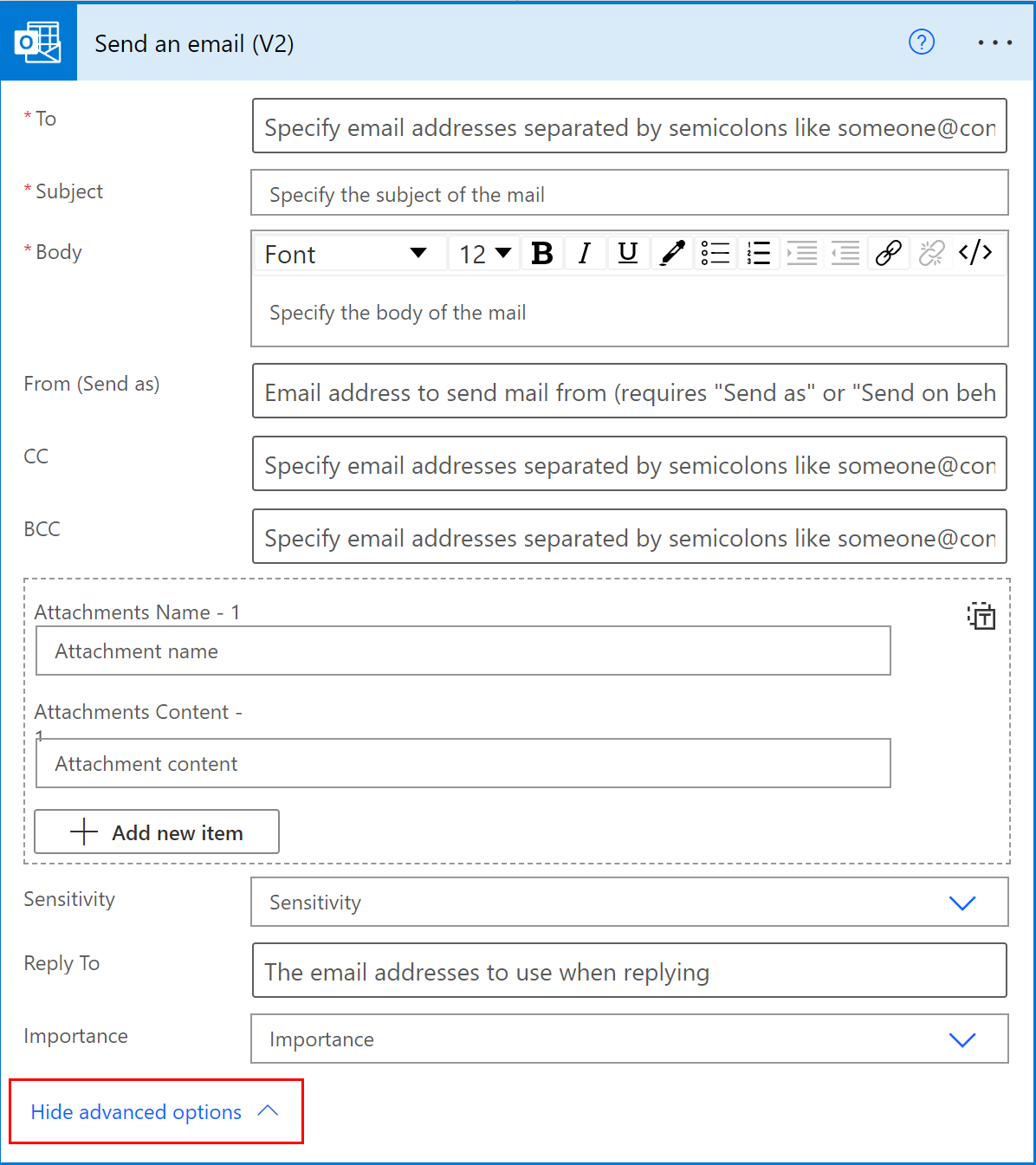
From the Importance dropdown list, select High.
Select Hide advanced options.
Save your flow.
Use co-presence to get notified of all editors
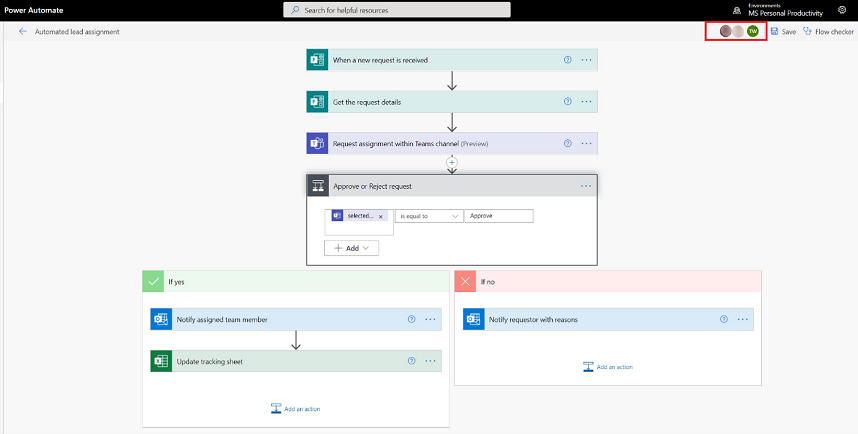
Power Automate displays the list of other makers who are editing a flow simultaneously. The list of editors is updated periodically.
Add comments to actions and triggers
If you're using the classic designer, you can have threaded comments with colleagues as you build your flows. You can add or edit comments, reply to comment threads, and resolve and delete comment threads. It's possible to have multiple comment threads for both actions and triggers.
Comments are supported for environments that have a Dataverse database.
Note
A variation of this feature is available in the new designer, but it doesn't support threaded comments. You can add a comment (referred to as a Note) to an action or trigger, but you can't reply to notes or resolve them. Learn how to use the Notes feature in More commands.
Learn how to determine the designer you're using in Identify differences between the new designer and the classic designer.
Follow these steps to add a comment to any action or trigger in your flow.
On the trigger or action heading, select ... (the ellipsis).
Select New Comment.
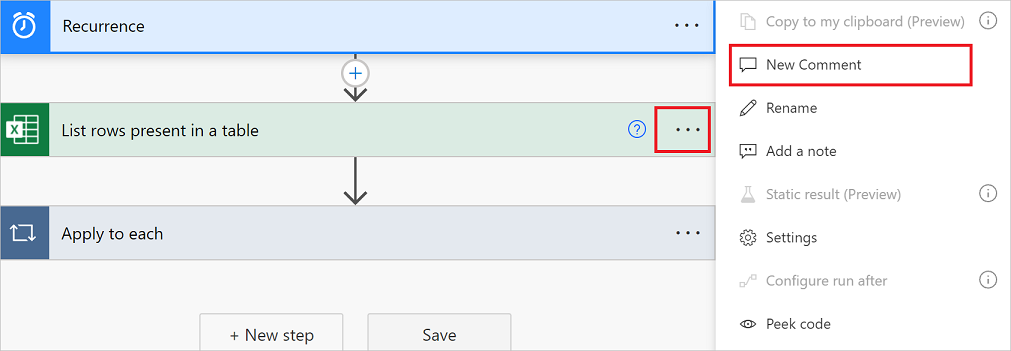
The comments pane opens.
Enter a comment to your action with an @mention to others. If you do this, an email notification is sent to them when you select the Send icon.
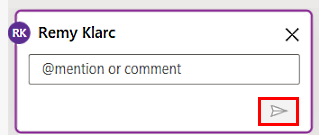
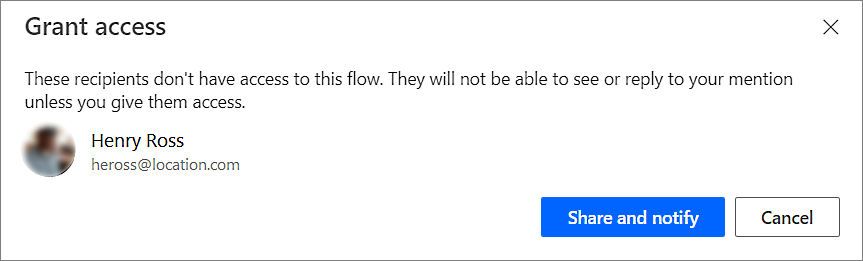
If the person you want to @mention isn't a co-owner of the flow, they get the Share and notify option. Select this option to share the flow with the other user, and send an email notification automatically.
Enter your comments in the Start a conversation box on the Comments pane, and then post it.
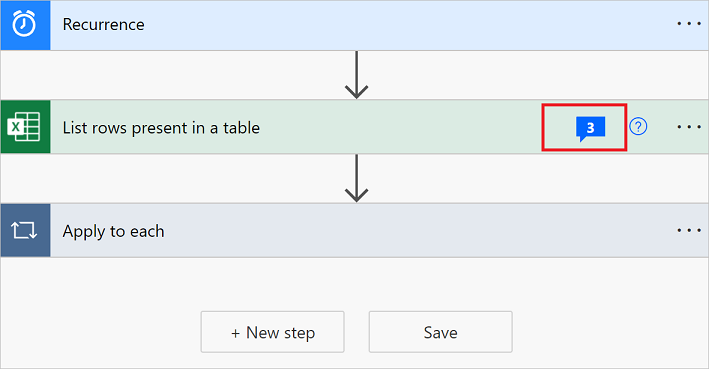
The Power Automate designer provides visual cues on the action cards to display the number of comment threads contained within each.
Limitations
- Makers must save the flow at least once before they can add a comment.
- The comment thread count icons don't appear for control actions such as condition, switch, and scope.
- Comments aren't allowed for managed solution flows.
- The Share and notify option is available only for non-solution aware flows. For solution aware flows, @mentioning is limited to users who are already co-owners of the flow.
Address conflicts from multiple edits
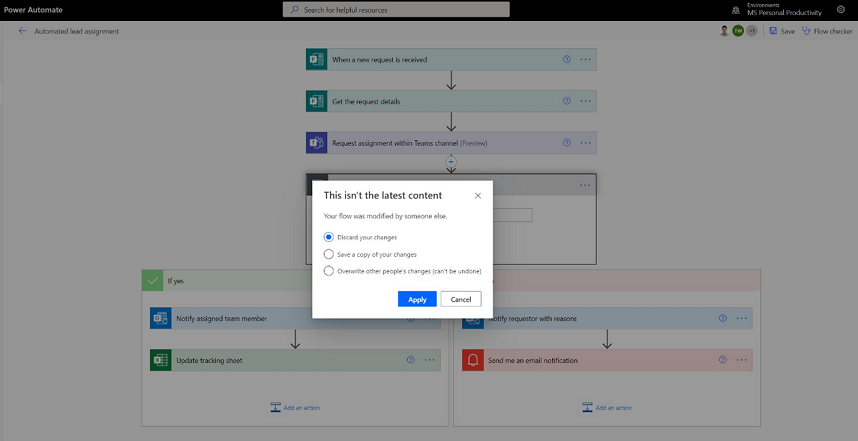
If multiple users make changes to the flow simultaneously, Power Automate presents appropriate options to the maker to minimize conflicts during a save operation. A maker can choose to refresh the flow definition or save a copy of the flow to keep their changes.
New expression editor for actions (experimental feature)
Do you struggle with writing expressions in your flow actions? You can make use of the improved expression editor in experimental mode. To use the improved expression editor, enable the Experimental Features setting and select fx on an action.
The large expression editor view helps you manage rich and complex expressions.
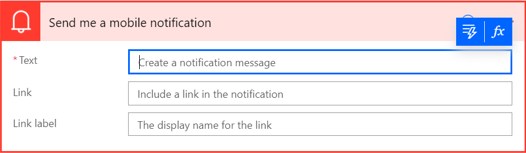
The expression editor allows you to choose dynamic content in the expressions without having to switch tabs.
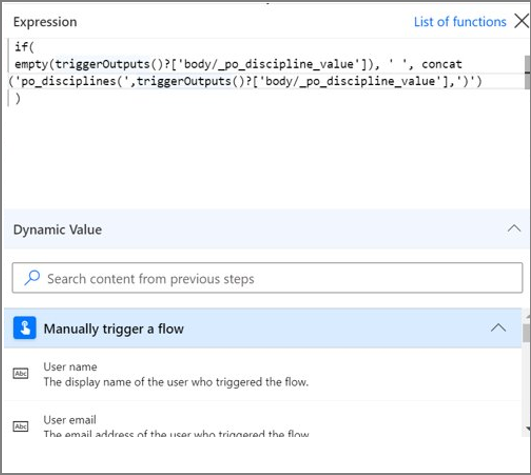
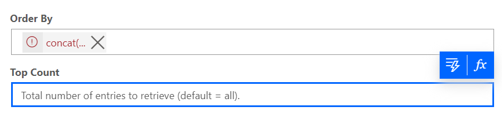
The expression editor preserves expressions with errors and unblocks the view to work in parallel on other parts of flow.
Note
Some actions might not support the new expression editor.