הערה
הגישה לדף זה מחייבת הרשאה. באפשרותך לנסות להיכנס או לשנות מדריכי כתובות.
הגישה לדף זה מחייבת הרשאה. באפשרותך לנסות לשנות מדריכי כתובות.
ניתן להשתמש ב- API של Power Platform כדי לחלץ פרטים ומטה-נתונים שונים מהסביבות שלך ב- Microsoft Power Platform עם או ללא מסד נתונים של Microsoft Dataverse. ה- API נמצא בשימוש פנימי על-ידי לקוחות שונים הזמינים כיום, כגון PowerShell.
במדריך זה, אתה לומד כיצד:
- ליצור Power Automate או קובץ Script של זרימת עבודה של Logic Apps (Azure) או PowerShell שמבצעת אימות עם ה- API של Power Platform.
- להתקשר לנקודת הקצה של סביבות הרשימה כדי לאחזר את פרטי הסביבה של Microsoft Power Platform.
- לחזור דרך אובייקט הקיבולת כדי לאחזר את הצריכה בפועל.
- לשמור את נתוני הצריכה בטבלה לתצוגה.
כדוגמה לתרחיש זה, לקוח מנסה להתמודד עם צריכת הקיבולת שלו כדי שיוכל להבין טוב יותר את חלוקת קיבולת הדיירים הכוללת שלהם לפי מחלקה. זה עוזר ללקוח לבצע כמה פונקציות של חשבונאות עלויות פנימיות ולגבות החזר על סמך כמה כל מחלקה צורכת מסך הקיבולת הזמינה. לקוח זה משתמש בתיאור הסביבה כדי לקרוא למחלקה שבבעלות כל סביבה.
חיבור והגדרת משנים
השתמש בפרטים הבאים על התחברות ל Power Platform באופן תכנותי. אתה יכול לבחור בין חוויית Azure או PowerShell סקריפטים.
צור את זרימת העבודה והגדר את המשתנים
כדי להתחיל, במדריך זה אנו משתמשים בזרימת עבודה Logic Apps. זרימה של Power Automate מקובלת גם היא, וכל מנוע תיאום אחר שהחברה שלך מעדיפה להשתמש בו לאוטומציה. כל הקריאות לאחזור הנתונים משתמשות בממשקי API של RESTful כך שכל כלי שתומך ב-REST עובד עם הדרכה זו.
בקר בפורטל Azure, ואז צור יישום לוגיקה חדש ותן לו שם:
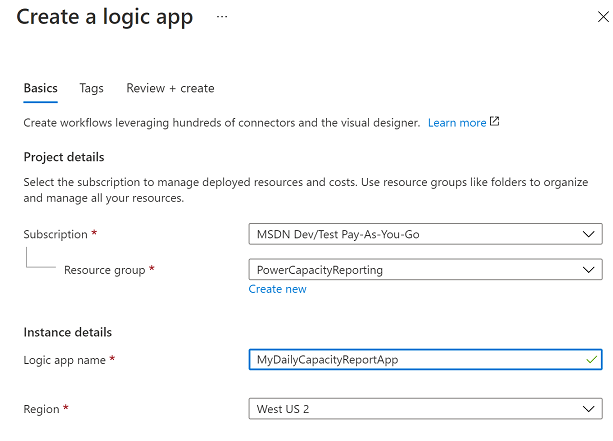
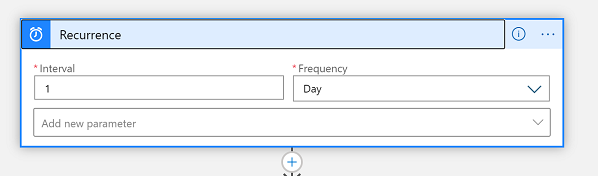
לאחר סיום ההקצאה, ערוך את זרימת העבודה באמצעות המעצב והגדר מפעיל מופע חוזר שיופעל מדי יום:
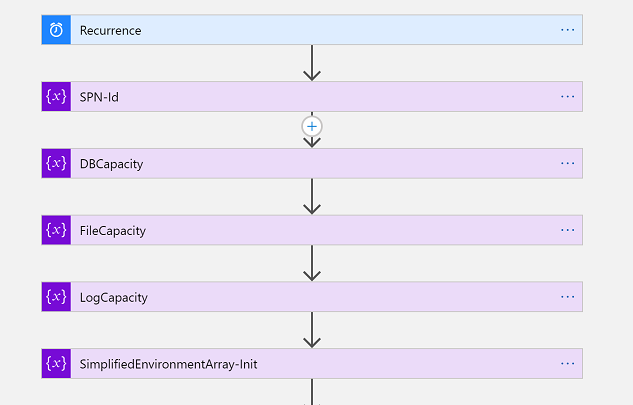
לאחר מכן, עלינו לאתחל חמישה משתנים:
- SPN-Id – זהו זיהוי הלקוח הראשי של השירות שלך. הוא משמש מאוחר יותר לביצוע האימות בהקשר של עיקרי שירות. אם אתה משתמש בהקשר של שם משתמש/סיסמה, באפשרותך לדלג על משתנה זה.
- DBCapacity – זהו משתנה Float עבור קיבולת מסד הנתונים הנצרכת במגה-בייט.
- FileCapacity – זהו משתנה Float עבור קיבולת הקובץ הנצרכת במגה-בייט.
- LogCapacity – זהו משתנה Float עבור קיבולת היומן הנצרכת במגה-בייט.
- SimplifiedEnvironmentArray-Init – זהו משתנה מערך שאנו מאכלסים בכמה מאפייני סביבה. זה מפשט באופן דרסטי את הפלט הסופי של דוח טבלת HTML.
לאחר מכן, אנו מאמתים עם Microsoft Entra ומשלפים אסימון לקריאה ל Power Platform API. אם לא השלמת את הגדרת ה- Microsoft Entra שלך, ראה אימות - דור קודם .
במדריך זה אנחנו משתמשים ב- key vault כדי לאחסן את הערך הסודי של מנהל השירות שלנו. באופן זה, מנהל IT יכול להפוך ערך זה לזמין באופן מאובטח עבור זרימת העבודה שלך. לאחר מכן זה מאוכלס בקריאת POST ל Microsoft Entra כדי לאחזר את האסימון.
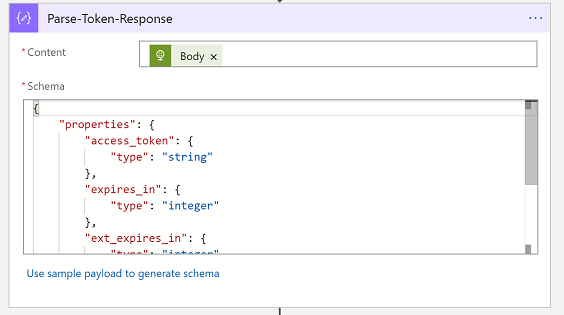
לאחר מכן נמיר תגובת אסימון Microsoft Entra לאובייקט טיפוסי באמצעות סכימת JSON זו בפעולה 'נתח JSON':
{
    "properties": {
        "access_token": {
            "type": "string"
        },
        "expires_in": {
            "type": "integer"
        },
        "ext_expires_in": {
            "type": "integer"
        },
        "token_type": {
            "type": "string"
        }
    },
    "type": "object"
}
הבאת סביבות
בסעיף זה, אנו מביאים את רשימת הסביבה שאתה מנהל. ניתן לבצע זאת באמצעות API ו- PowerShell.
התקשר לנקודת הקצה של סביבות הרשימה
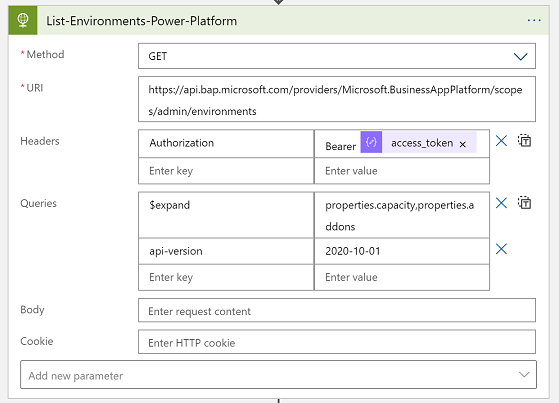
זה הזמן להתקשר לממשק API של Power Platform. השתמש בסביבות הרשימה נקודת קצה כדי לאחזר את כל הסביבות שלנו ואת המטא נתונים שלהן, במיוחד עם הפרמטר $expand עבור קיבולת. זה גם משתמש בכותרת ההרשאה עם אסימון הנושא שקיבלנו בסעיף הקודם מ- Microsoft Entra ID. אם השתמשת בהקשר של שם משתמש / סיסמה, תוכל להזין את אסימון הנושא גם בשלב זה.
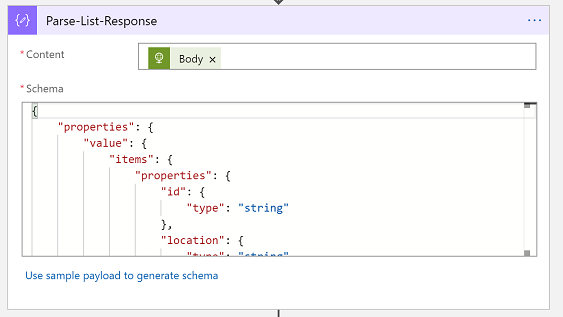
לאחר מכן ננתח את ה Power Platform API תגובה לתוך אובייקט מוקלד באמצעות סכימת JSON זו עם הפעולה 'נתח JSON':
{
"properties": {
"value": {
"items": {
"properties": {
"description": {
"type": "string"
},
"id": {
"type": "string"
},
"location": {
"type": "string"
},
"name": {
"type": "string"
},
"properties": {
"properties": {
"addons": {
"type": "array"
},
"azureRegion": {
"type": "string"
},
"capacity": {
"items": {
"properties": {
"actualConsumption": {
"type": "number"
},
"capacityType": {
"type": "string"
},
"capacityUnit": {
"type": "string"
},
"ratedConsumption": {
"type": "number"
},
"updatedOn": {
"type": "string"
}
},
"required": [
"capacityType",
"actualConsumption",
"ratedConsumption",
"capacityUnit",
"updatedOn"
],
"type": "object"
},
"type": "array"
},
"clientUris": {
"properties": {
"admin": {
"type": "string"
},
"maker": {
"type": "string"
}
},
"type": "object"
},
"cluster": {
"properties": {
"category": {
"type": "string"
},
"number": {
"type": "string"
}
},
"type": "object"
},
"connectedGroups": {
"type": "array"
},
"createdBy": {
"properties": {
"displayName": {
"type": "string"
},
"id": {
"type": "string"
},
"type": {
"type": "string"
}
},
"type": "object"
},
"createdTime": {
"type": "string"
},
"creationType": {
"type": "string"
},
"databaseType": {
"type": "string"
},
"displayName": {
"type": "string"
},
"environmentSku": {
"type": "string"
},
"isDefault": {
"type": "boolean"
},
"linkedEnvironmentMetadata": {
"properties": {
"backgroundOperationsState": {
"type": "string"
},
"baseLanguage": {
"type": "number"
},
"createdTime": {
"type": "string"
},
"domainName": {
"type": "string"
},
"friendlyName": {
"type": "string"
},
"instanceApiUrl": {
"type": "string"
},
"instanceState": {
"type": "string"
},
"instanceUrl": {
"type": "string"
},
"platformSku": {
"type": "string"
},
"resourceId": {
"type": "string"
},
"scaleGroup": {
"type": "string"
},
"uniqueName": {
"type": "string"
},
"version": {
"type": "string"
}
},
"type": "object"
},
"protectionStatus": {
"properties": {
"keyManagedBy": {
"type": "string"
}
},
"type": "object"
},
"provisioningState": {
"type": "string"
},
"retentionDetails": {
"properties": {
"backupsAvailableFromDateTime": {
"type": "string"
},
"retentionPeriod": {
"type": "string"
}
},
"type": "object"
},
"retentionPeriod": {
"type": "string"
},
"runtimeEndpoints": {
"properties": {
"microsoft.ApiManagement": {
"type": "string"
},
"microsoft.BusinessAppPlatform": {
"type": "string"
},
"microsoft.CommonDataModel": {
"type": "string"
},
"microsoft.Flow": {
"type": "string"
},
"microsoft.PowerApps": {
"type": "string"
},
"microsoft.PowerAppsAdvisor": {
"type": "string"
}
},
"type": "object"
},
"states": {
"properties": {
"management": {
"properties": {
"id": {
"type": "string"
}
},
"type": "object"
},
"runtime": {
"properties": {
"id": {
"type": "string"
}
},
"type": "object"
}
},
"type": "object"
},
"updateCadence": {
"properties": {
"id": {
"type": "string"
}
},
"type": "object"
}
},
"type": "object"
},
"type": {
"type": "string"
}
},
"required": [
"id",
"type",
"location",
"name",
"properties"
],
"type": "object"
},
"type": "array"
}
},
"type": "object"
}
חזור באמצעות אובייקט הקיבולת
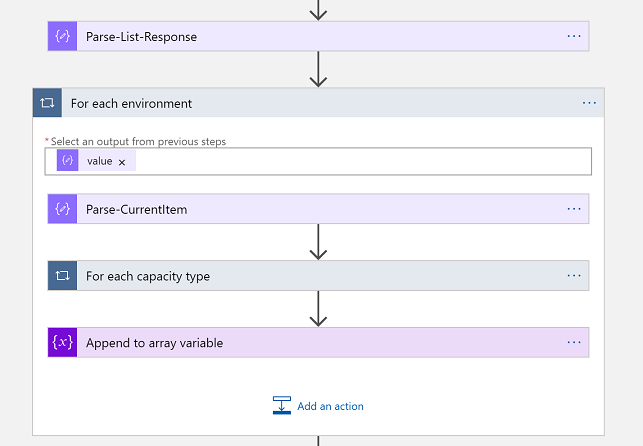
זהו החלק המורכב ביותר של ההדרכה. כאן אנו משתמשים בלולאה בתוך לולאה כדי לחזור על כל סביבה בסביבת הרשימה תגובה, ולכל סביבה יש מערך של פרטי קיבולת שאנו חוזרים גם. זה מאפשר לנו ללכוד את המידע הדרוש עבור כל שורת סביבה בטבלת דוחות הקיבולת שלנו.
For-each וניתוח
בואו נעשה את זה, צעד אחר צעד. ראשית, אנו משתמשים בפקד For Every באמצעות 'ערך' של הפלט Parse-List-Response:
לאחר מכן אנו מנתחים את הסביבה הבודדת הזו לאובייקט מוקלד באמצעות סכימת JSON זו:
{
    "properties": {
        "description": {
            "type": "string"
        },
        "id": {
            "type": "string"
        },
        "location": {
            "type": "string"
        },
        "name": {
            "type": "string"
        },
        "properties": {
            "properties": {
                "addons": {
                    "type": "array"
                },
                "azureRegion": {
                    "type": "string"
                },
                "capacity": {
                    "items": {
                        "properties": {
                            "actualConsumption": {
                                "type": "number"
                            },
                            "capacityType": {
                                "type": "string"
                            },
                            "capacityUnit": {
                                "type": "string"
                            },
                            "ratedConsumption": {
                                "type": "number"
                            },
                            "updatedOn": {
                                "type": "string"
                            }
                        },
                        "required": [
                            "capacityType",
                            "actualConsumption",
                            "ratedConsumption",
                            "capacityUnit",
                            "updatedOn"
                        ],
                        "type": "object"
                    },
                    "type": "array"
                },
                "clientUris": {
                    "properties": {
                        "admin": {
                            "type": "string"
                        },
                        "maker": {
                            "type": "string"
                        }
                    },
                    "type": "object"
                },
                "cluster": {
                    "properties": {
                        "number": {
                            "type": "string"
                        }
                    },
                    "type": "object"
                },
                "connectedGroups": {
                    "type": "array"
                },
                "createdBy": {
                    "properties": {
                        "displayName": {
                            "type": "string"
                        },
                        "id": {
                            "type": "string"
                        },
                        "type": {
                            "type": "string"
                        }
                    },
                    "type": "object"
                },
                "createdTime": {
                    "type": "string"
                },
                "creationType": {
                    "type": "string"
                },
                "databaseType": {
                    "type": "string"
                },
                "displayName": {
                    "type": "string"
                },
                "environmentSku": {
                    "type": "string"
                },
                "isDefault": {
                    "type": "boolean"
                },
                "linkedEnvironmentMetadata": {
                    "properties": {
                        "backgroundOperationsState": {
                            "type": "string"
                        },
                        "baseLanguage": {
                            "type": "integer"
                        },
                        "createdTime": {
                            "type": "string"
                        },
                        "domainName": {
                            "type": "string"
                        },
                        "friendlyName": {
                            "type": "string"
                        },
                        "instanceApiUrl": {
                            "type": "string"
                        },
                        "instanceState": {
                            "type": "string"
                        },
                        "instanceUrl": {
                            "type": "string"
                        },
                        "resourceId": {
                            "type": "string"
                        },
                        "scaleGroup": {
                            "type": "string"
                        },
                        "uniqueName": {
                            "type": "string"
                        },
                        "version": {
                            "type": "string"
                        }
                    },
                    "type": "object"
                },
                "protectionStatus": {
                    "properties": {
                        "keyManagedBy": {
                            "type": "string"
                        }
                    },
                    "type": "object"
                },
                "provisioningState": {
                    "type": "string"
                },
                "retentionDetails": {
                    "properties": {
                        "backupsAvailableFromDateTime": {
                            "type": "string"
                        },
                        "retentionPeriod": {
                            "type": "string"
                        }
                    },
                    "type": "object"
                },
                "retentionPeriod": {
                    "type": "string"
                },
                "runtimeEndpoints": {
                    "properties": {
                        "microsoft.ApiManagement": {
                            "type": "string"
                        },
                        "microsoft.BusinessAppPlatform": {
                            "type": "string"
                        },
                        "microsoft.CommonDataModel": {
                            "type": "string"
                        },
                        "microsoft.Flow": {
                            "type": "string"
                        },
                        "microsoft.PowerApps": {
                            "type": "string"
                        },
                        "microsoft.PowerAppsAdvisor": {
                            "type": "string"
                        }
                    },
                    "type": "object"
                },
                "states": {
                    "properties": {
                        "management": {
                            "properties": {
                                "id": {
                                    "type": "string"
                                }
                            },
                            "type": "object"
                        },
                        "runtime": {
                            "properties": {
                                "id": {
                                    "type": "string"
                                }
                            },
                            "type": "object"
                        }
                    },
                    "type": "object"
                },
                "updateCadence": {
                    "properties": {
                        "id": {
                            "type": "string"
                        }
                    },
                    "type": "object"
                }
            },
            "type": "object"
        },
        "type": {
            "type": "string"
        }
    },
    "type": "object"
}
לאחר מכן, אנו משתמשים בפקד אחר For Every תוך שימוש ב'קיבולת' של הפלט Parse-CurrentItem. לאחר מכן ננתח את זה לאובייקט מוקלד באמצעות סכימת JSON זו:
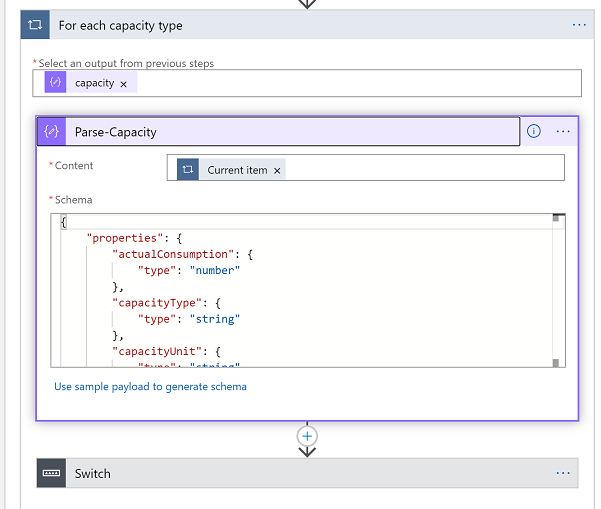
כעת אנו יכולים להשתמש בבקרת המתג במאפיין CapacityType מהפלט Parse-Capacity. זהו הערך של 'מסד נתונים', 'קובץ' או 'יומן'. תחת כל מקרה מתג, לכד את המאפיין הקשור 'actualConsumption' אל המשתנה הקשור. במקרה הבא, אתה רואה שאנחנו לוכדים קיבולת מסד נתונים:
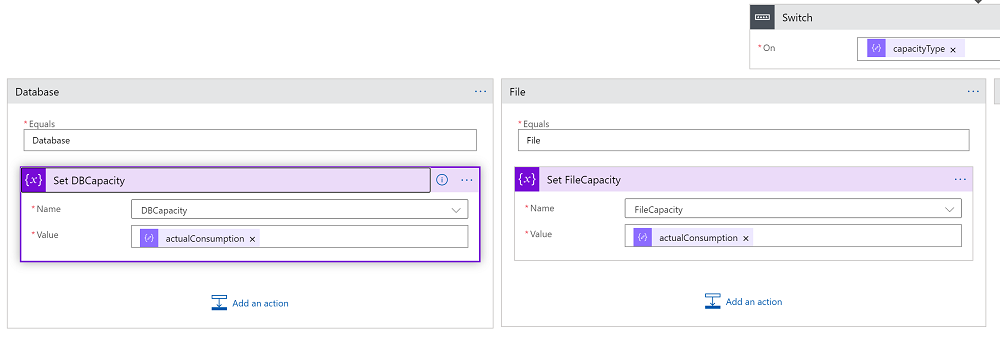
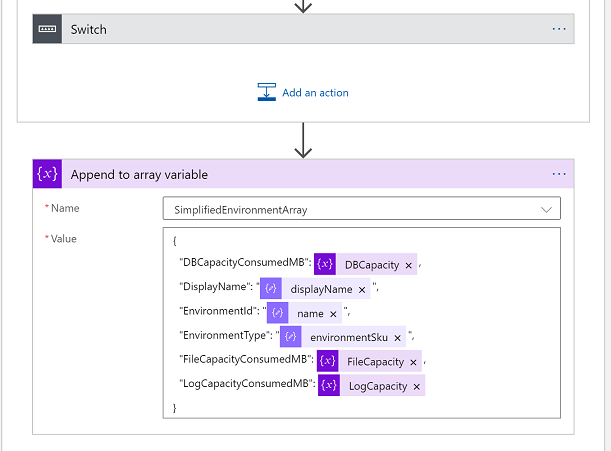
הצעד האחרון בלולאה 'לכל סביבה' הוא ללכוד את פרטי הסביבה עבור שורה זו בדוח. בעזרת 'צירוף לבקרת משתנה מערך', השתמש בסכמת JSON הבאה:
{
    "properties": {
        "actualConsumption": {
            "type": "number"
        },
        "capacityType": {
            "type": "string"
        },
        "capacityUnit": {
            "type": "string"
        },
        "ratedConsumption": {
            "type": "number"
        },
        "updatedOn": {
            "type": "string"
        }
    },
    "type": "object"
}
בניית טבלת דוחות
מזל טוב, הגעת לחלק הקל! כעת, כאשר יש לנו את מערך קיבולת הסביבה המאוכלס במלואו והפשוט שלנו, אנחנו יכולים להציג אותו בתבנית של טבלה.
השתמש במחבר 'טבלת HTML'
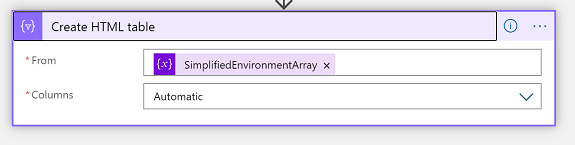
כשמפעילים את יישום הלוגיקה, אפשר לראות עכשיו את הפלט של דוח טבלת HTML:
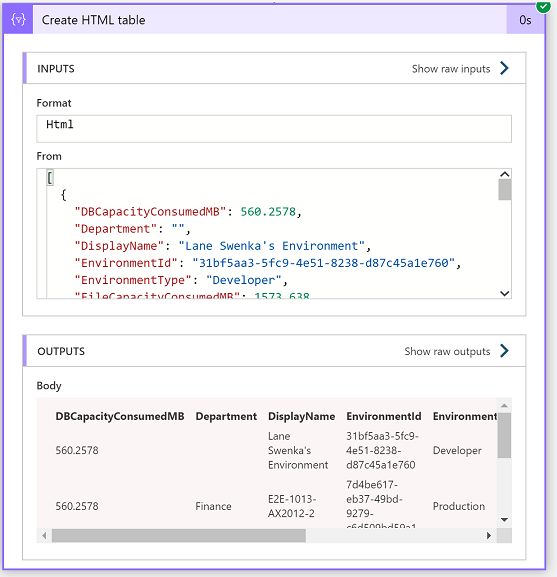
ניתן באופן אופציונלי לשלוח את הדו"ח בדואר אלקטרוני לבעלי העניין בדוגמה זו לצורך חשבונאות עלויות, או לשמור את הנתונים במסד נתונים לצורך ניתוח נוסף ומגמה היסטורית.