הערה
הגישה לדף זה מחייבת הרשאה. באפשרותך לנסות להיכנס או לשנות מדריכי כתובות.
הגישה לדף זה מחייבת הרשאה. באפשרותך לנסות לשנות מדריכי כתובות.
Note
This connector is owned and provided by Databricks.
Summary
| Property | Value |
|---|---|
| Connector |  Databricks Databricks |
| Products | Power BI (semantic models) Power Query Online |
| Release state | General availability |
| Category | Database |
| Authentication kinds | Databricks Client Credentials OAuth (OIDC) Personal Access Token |
| Data source kind | DatabricksMultiCloud |
| Function Reference Documentation | DatabricksMultiCloud.CatalogsDatabricksMultiCloud.Query |
Note
Some capabilities might be present in one product but not others due to deployment schedules and host-specific capabilities.
Important
The Arrow Database Connectivity (ADBC) driver for the Databricks connector in Power BI is generally available as of October 15, 2026. This connector is transitioning from the embedded Simba Spark ODBC driver to the Databricks ADBC driver. For migration guidance, key dates, and admin controls, see Transition from ODBC to ADBC drivers in Power BI and Fabric.
Prerequisites
This connector is only for use with a Databricks SQL Warehouse running on AWS and using OAuth. If you're using Azure Databricks, use the Azure Databricks connector. If you aren't using OAuth with your Databricks SQL Warehouse (on AWS or GCP), use the Azure Databricks connector too. Databricks Community Edition isn't supported.
Supported capabilities
- Import
- DirectQuery (Power BI semantic models)
Parameters
Entry point: DatabricksMultiCloud.Catalogs
Required parameter count: 2
| Parameter | Display name | Required | Type | Group | Description | Sample values | Nullable |
|---|---|---|---|---|---|---|---|
| host | Server Hostname | Yes | text | The hostname of the Databricks server. | "example.azuredatabricks.net" | false | |
| httpPath | HTTP Path | Yes | text | The HTTP path of the cluster. | "/sql/1.0/warehouses/abcdef1234567890" | false | |
| options | Advanced Options | No | nullable record | Advanced Options | true |
Fields in options
| Field | Display name | Required | Type | Group | Description | Declared default | Allowed values | Sample values | Nullable | Optional | Allowed value metadata | Declared allowed values |
|---|---|---|---|---|---|---|---|---|---|---|---|---|
| options.Catalog | Default catalog | No | text | Advanced Options | Select a default catalog for the connection. | false | true | |||||
| options.Database | Database | No | text | Advanced Options | Limit the connection to the selected database. This might make listing tables faster, however it will prevent query folding for queries that hit multiple different databases. | false | true | |||||
| options.QueryTags | Query tags | No | text | Advanced Options | Key-value tags for tracking queries in system.query.history table. | "tag1:value1,tag2:value2" | false | true | ||||
| options.EnableAutomaticProxyDiscovery | Automatic Proxy Discovery | No | text | Advanced Options | This enables automatic Windows System wide automatic Proxy Discovery. | "enabled" (Enabled); "disabled" (Disabled (default)) | false | true | [{"Metadata": {"Documentation.Caption": "Enabled", "Documentation.Name": "AutomaticProxyDiscoveryFlag.Enabled"}, "Value": "enabled"}, {"Metadata": {"Documentation.Caption": "Disabled (default)", "Documentation.Name": "AutomaticProxyDiscoveryFlag.Disabled"}, "Value": "disabled"}] | ["enabled", "disabled"] | ||
| options.Implementation | Implementation | No | text | Advanced Options | Use '2.0 (beta)' to specify ADBC. The 'default' value will use the environment configuration to determine which driver to use. | "2.0" | "2.0" (2.0 - ADBC); null (System Default) | false | true | ["2.0", null] | ||
| options.Protocol | Protocol | No | text | Advanced Options | Specifies the protocol used by the ADBC driver. Select 'REST (SEA)' to use the Statement Execution API. When not set, the driver default (Thrift) is used. | null | null (Default); "rest" (REST (SEA)) | false | true | [null, "rest"] |
Connect from Power Query Desktop
To connect to Databricks from Power Query Desktop, take the following steps:
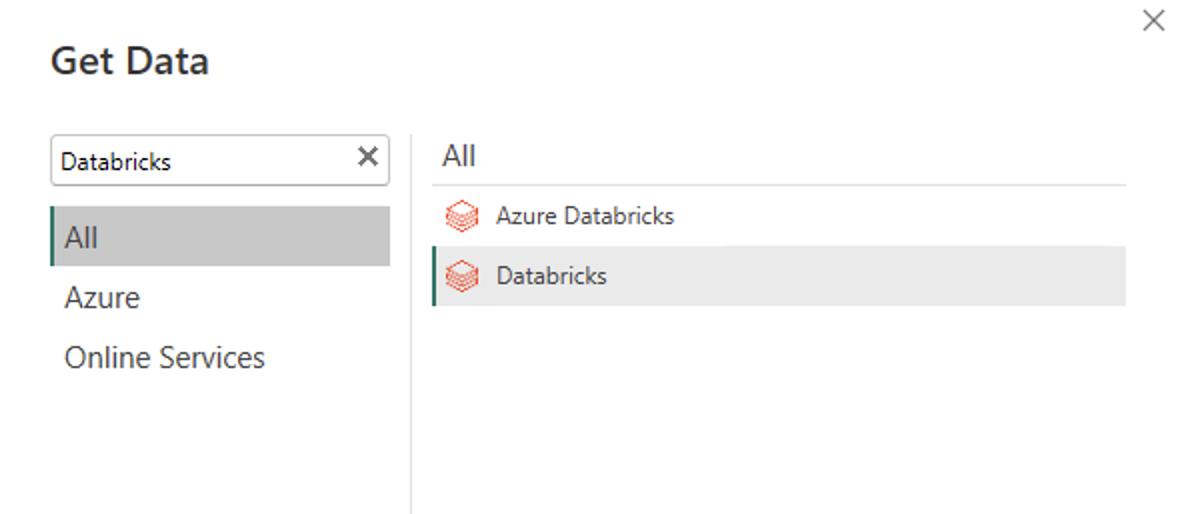
In the Get Data experience, search for Databricks to shortlist the Databricks connector. You should only use the Databricks connector here for your Databricks SQL Warehouse data (running on AWS) if you're using OAuth for authentication.
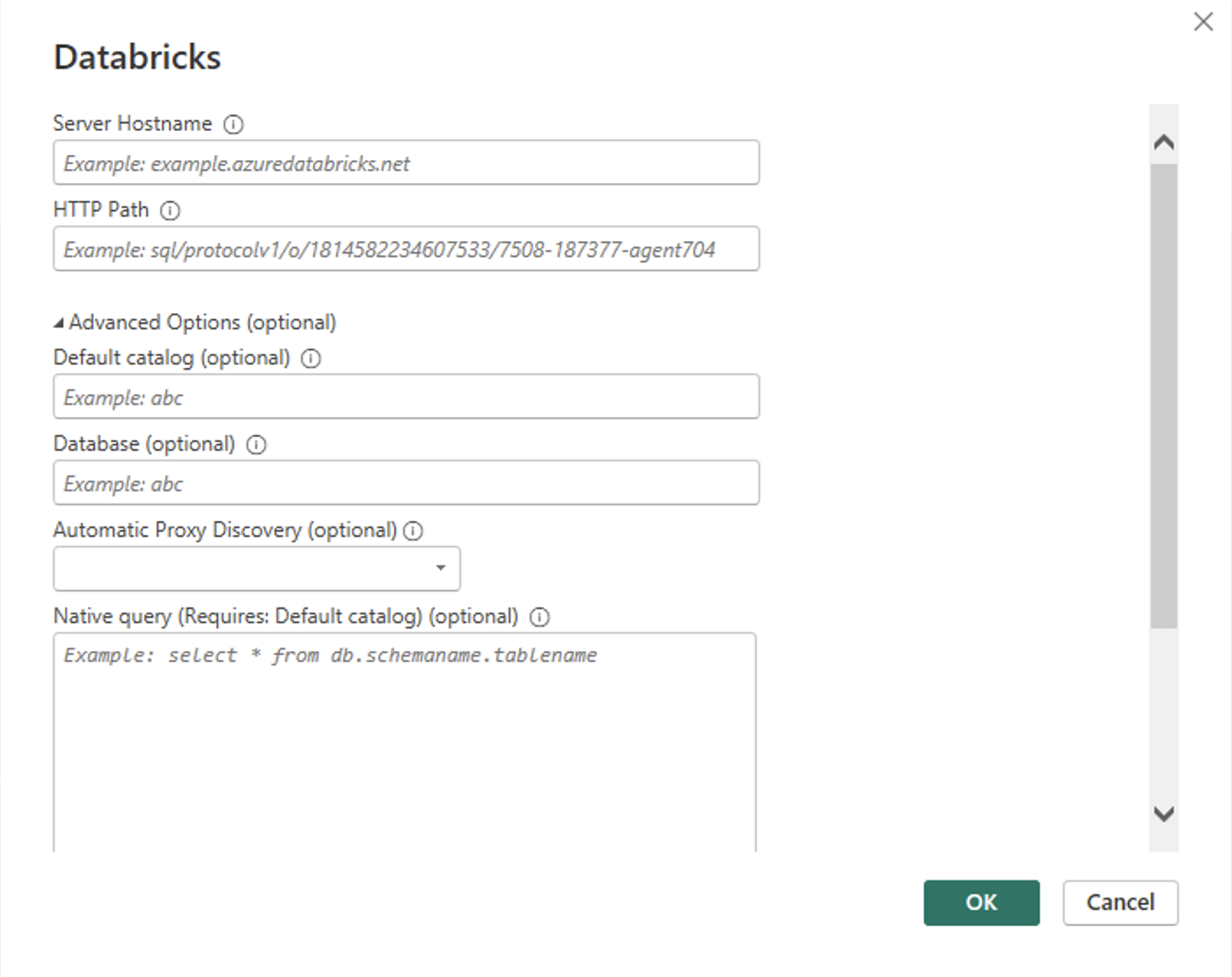
Provide the Server hostname and HTTP Path for your Databricks SQL Warehouse. Refer to Configure the Databricks ODBC and JDBC drivers for instructions to look up your "Server hostname" and "HTTP Path". Enter this information accordingly. You can optionally supply a default catalog and/or database under Advanced options. Select OK to continue.
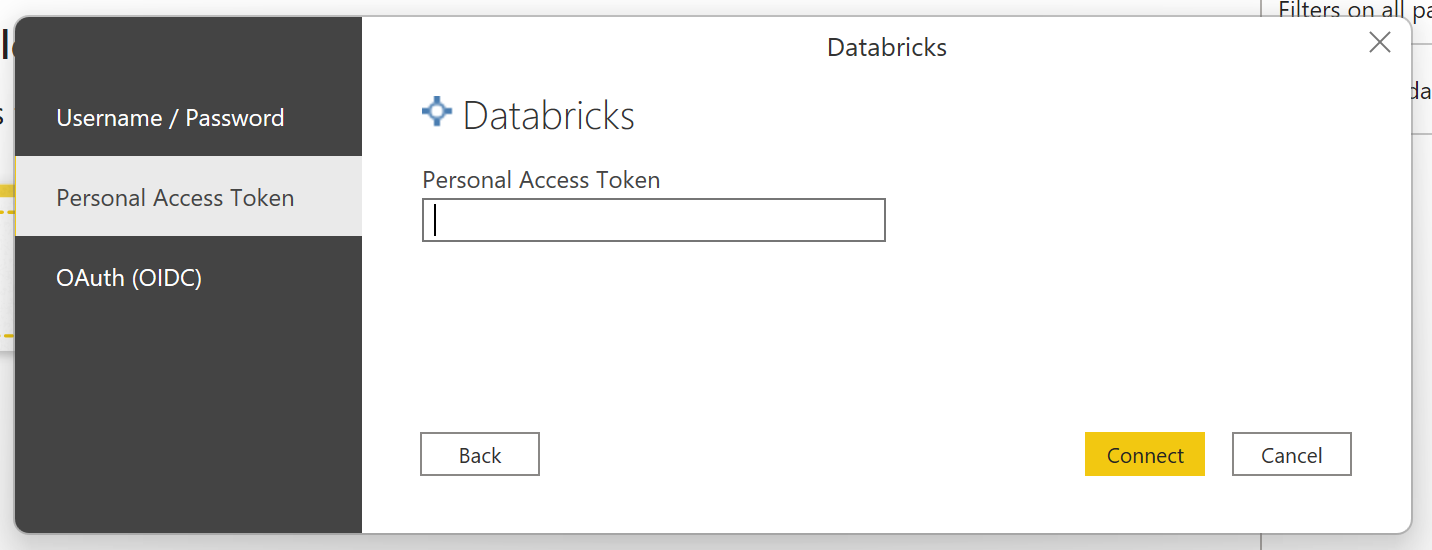
Provide your credentials to authenticate with your Databricks SQL Warehouse. You have three options for credentials:
Databricks Client Credentials. Refer to Databricks OAuth M2M for instructions on generating Databricks OAuth M2M Client Credentials.
Personal Access Token. Refer to Personal access tokens for instructions on generating a Personal Access Token (PAT).
OAuth (OIDC). Sign in to your organizational account using the browser popup.
Note
Once you enter your credentials for a particular Databricks SQL Warehouse, Power BI Desktop caches and reuses those same credentials in subsequent connection attempts. You can modify those credentials by going to File > Options and settings > Data source settings. More information: Change the authentication method
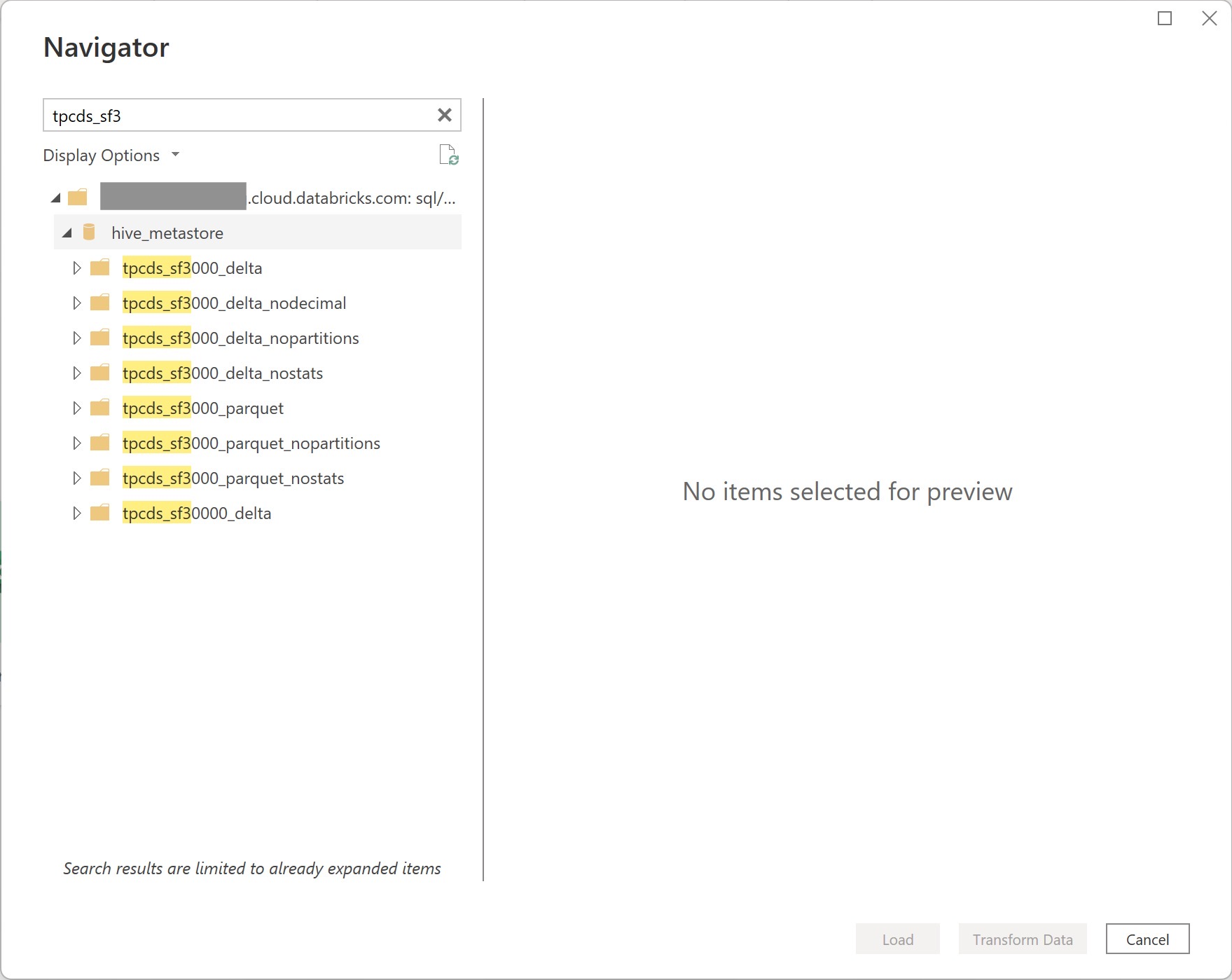
Once you successfully connect, the Navigator shows the data available to you on the cluster. You can choose either Transform Data to transform the data using Power Query or Load to load the data in Power Query Desktop.
Connect from Power Query Online
To connect to Databricks from Power Query Online, take the following steps:
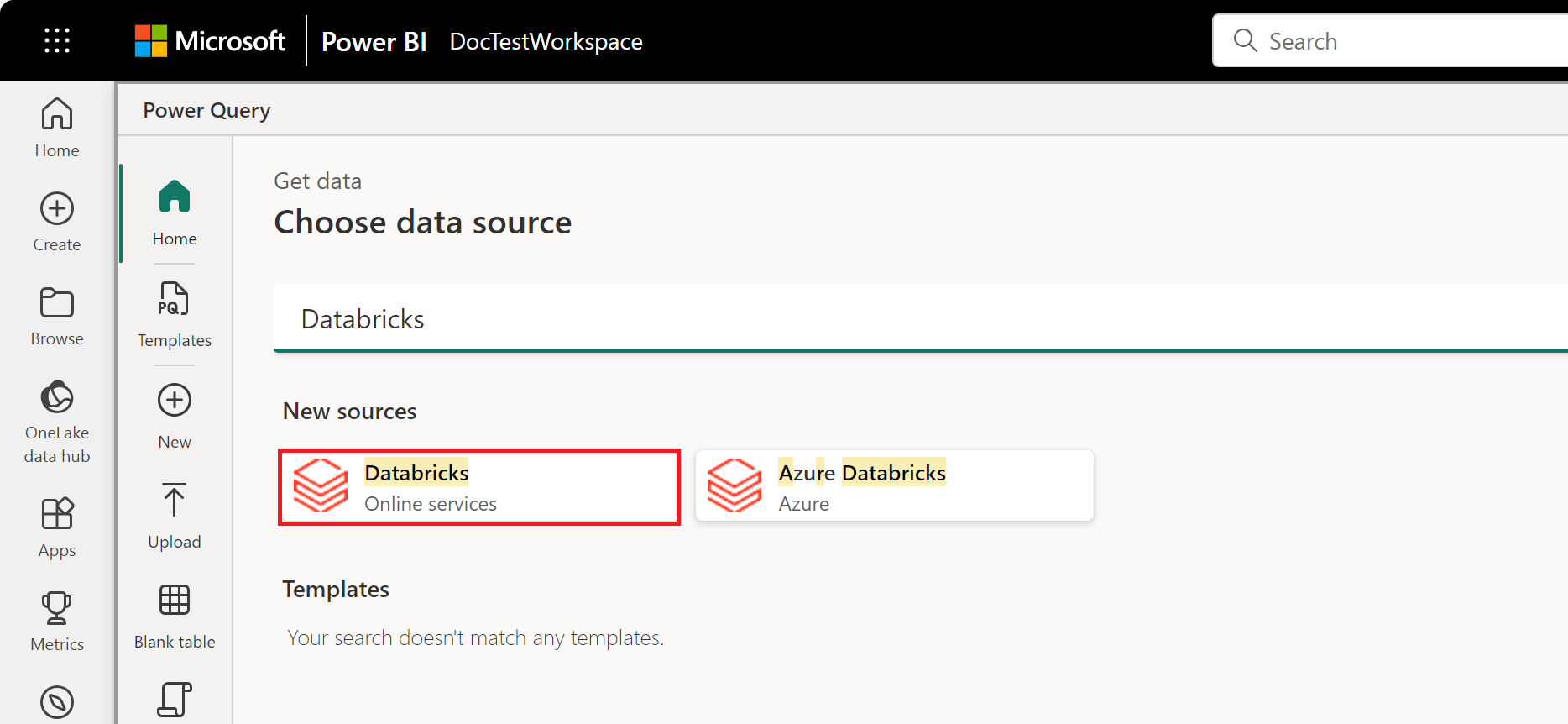
Select the Databricks option in the get data experience. Different apps have different ways of getting to the Power Query Online get data experience. For more information about how to get to the Power Query Online get data experience from your app, go to Where to get data.
Shortlist the available Databricks connector with the search box. Select the Databricks connector for your Databricks SQL Warehouse.
Enter the Server hostname and HTTP Path for your Databricks SQL Warehouse. Refer to Configure the Databricks ODBC and JDBC drivers for instructions to look up your "Server hostname" and "HTTP Path". You can optionally supply a default catalog and/or database under Advanced options.
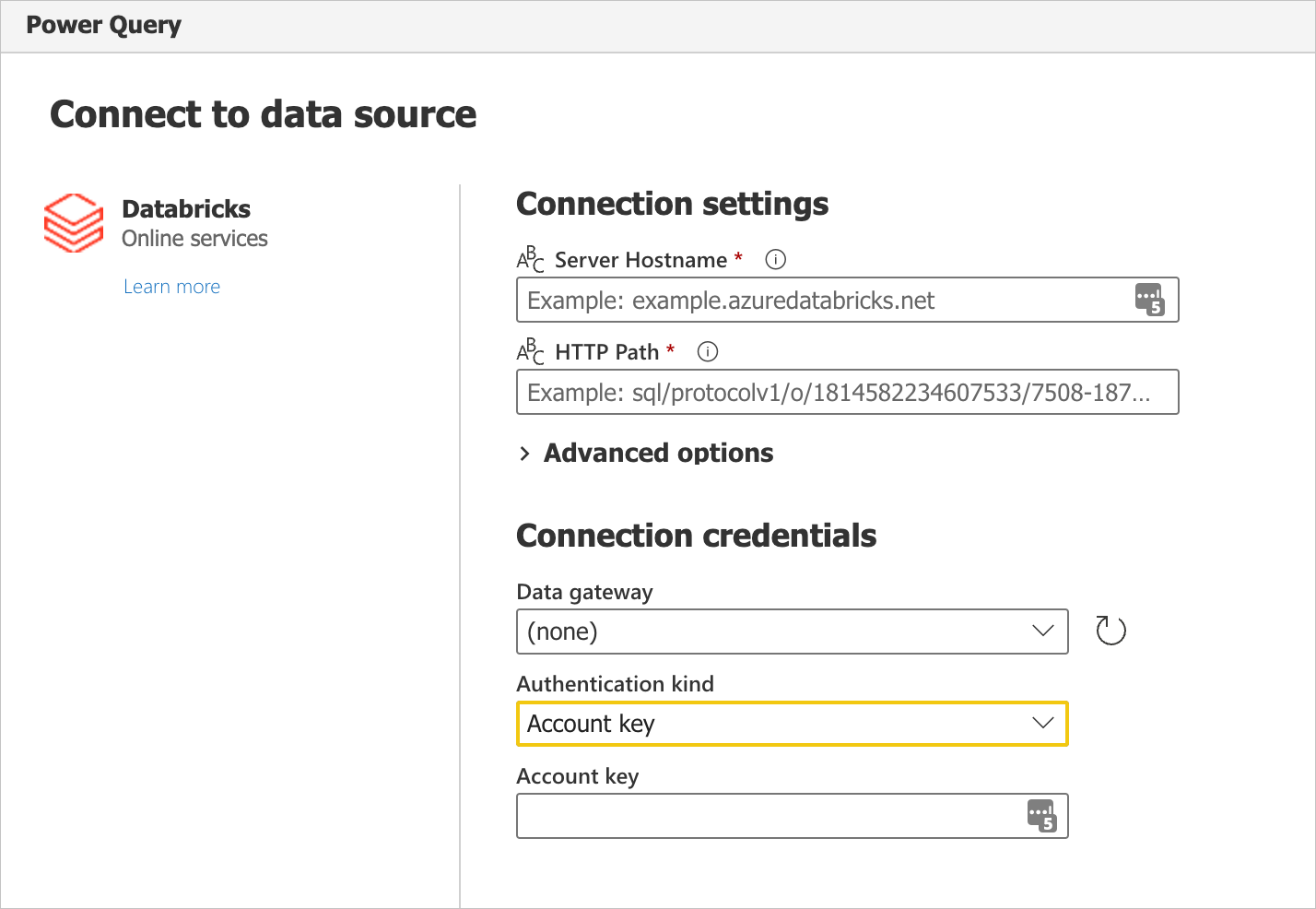
Provide your credentials to authenticate with your Databricks SQL Warehouse. There are three options for credentials:
- Basic. Use this option when authenticating with a user name and password. This option isn't available if your organization/account uses 2FA/MFA.
- Account Key. Use this option when authenticating using a Personal Access Token. Refer to Personal access tokens for instructions on generating a Personal Access Token (PAT).
- Organizational account. Use this option when authenticating with OAuth. Sign in to your organizational account using the browser popup.
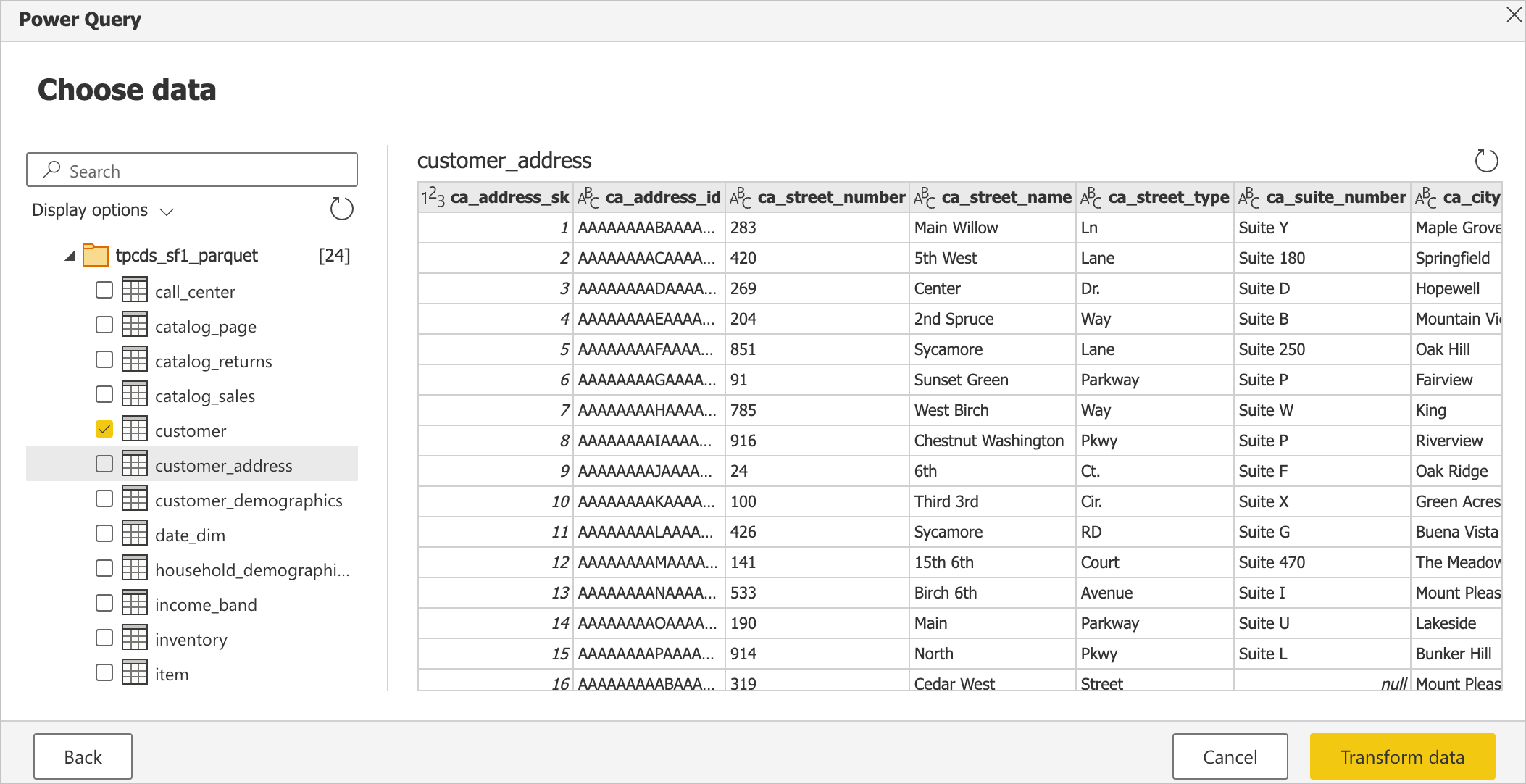
Once you successfully connect, the Navigator appears and displays the data available on the server. Select your data in the navigator. Then select Next to transform the data in Power Query.
Additional information
Arrow Database Connectivity driver connector implementation
The Arrow Database Connectivity (ADBC) driver for the Databricks connector in Power BI is generally available as of October 15, 2026. To use it in Power BI Desktop, update to the latest release. You can also submit product feedback to Databricks.
To switch to the ADBC driver:
Open your desired dashboard in Power BI.
Select Transform Data.
Select Advanced Editor in the Query option section.
Specify
Implementation="2.0"for ADBC.let Source = DatabricksMultiCloud.Catalogs("<instance-name>.cloud.databricks.net", "/sql/1.0/warehouses/<sql-warehouse-id>", [Catalog=null, Database=null, EnableAutomaticProxyDiscovery=null, Implementation="2.0"]), powerbi_Database = Source{[Name="powerbi",Kind="Database"]}[Data], default_Schema = powerbi_Database{[Name="default",Kind="Schema"]}[Data], dashboard_data_Table = default_Schema{[Name="dashboard_data",Kind="Table"]}[Data] in dashboard_data_Table