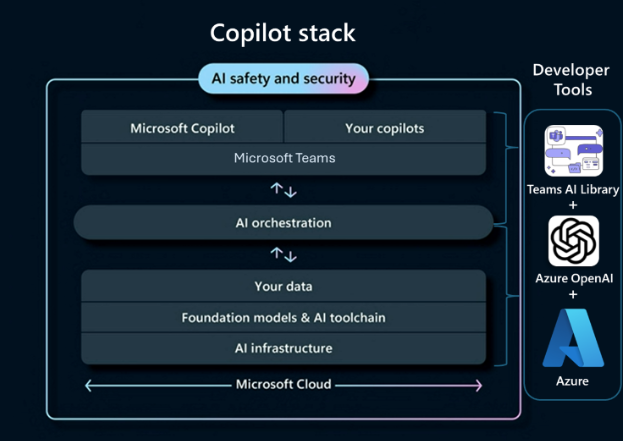
Leverage the Copilot stack to accelerate your AI build
What is a custom agent
Custom engine agents are programmable Copilot agents that give developers full control over orchestration, AI models, and data integrations designed to harness the powerful capabilities of Large Language Models (LLMs) for seamless user interaction. These advanced agents mark a significant departure from traditional bots, offering an extensive range of features that elevate the overall user experience. Custom engine agents utilize LLM technology at their core that allows them to easily understand and respond to user queries, creating dynamic and immersive interactions. Custom engine agents also offer advanced functionalities such as UI manipulation, task execution, and content creation, making them indispensable tools for streamlining workflows and boosting productivity. For developers, custom engine agents provide flexibility in model selection and orchestration, allowing you to leverage your existing Teams bot development skills while ensuring accessibility for all Microsoft 365 users. These agents are highly adaptable for use in customer service, support, and information delivery, with the ability to leverage your contextual data to improve user experiences. They integrate seamlessly within Teams, engaging in natural conversations with users across chats, channels, and meetings, allowing them to meet users directly in the flow of their work.
Understanding the Copilot Stack
Microsoft’s Copilot stack is the end-to-end architecture that underpins Copilot experiences, from the cloud infrastructure and AI models up through the orchestration logic, extensibility layers, and safety systems. When creating a custom AI agent with the Microsoft 365 Agents SDK, you leverage each layer of this stack – often tailoring or swapping components – to build an agent suited to your business scenario. Below, we break down the Copilot stack’s major components and explain how they relate to custom agent development, including which tools and development paths (Azure OpenAI, Teams AI Library, Copilot Studio, etc.) you can use at each layer.
Pro-Code Path: Azure OpenAI and Teams AI Library
For developers building a Teams-centric copilot, this path uses Azure OpenAI Service for hosting the LLM and the Teams AI Library for orchestration inside a Teams app. You write code (e.g. with the Microsoft 365 Agents Toolkit in VS Code) to call your chosen model and handle intents. The Teams AI Library provides conversational scaffolding, an intent planner, memory, and Teams platform integration, so your bot can interpret user prompts and execute actions. This approach offers flexibility to integrate Teams features (message extensions, Adaptive Cards, etc.) and gives you fine-grained control over logic while benefiting from the Copilot stack’s capabilities. Key Components of the Copilot Stack To build a custom copilot, it’s important to understand each layer of the Copilot stack and its role. The stack can be visualized in three tiers:
- the back-end AI infrastructure and models,
- the AI orchestration layer that manages reasoning and tool use
- the front-end user experience where the agent interacts with users.
Custom agents may use Microsoft’s implementations for these layers or introduce custom ones via the SDK. Below in the next section, are the major layers relevant to custom agents:
AI Infrastructure and Foundation Models (Back-End)
At the base of the stack are the large language models (LLMs) and the cloud infrastructure that hosts them and your data. Microsoft 365 Copilot uses hosted GPT-family models (like GPT-4) running on Azure’s AI supercomputing infrastructure. This gives enterprise-grade reliability, security, and compliance (your data is encrypted in transit and at rest, and not used to train Microsoft’s models). It also means content filtering and safety systems are baked in at the model level – Azure OpenAI Service automatically checks prompts and completions against an AI content safety model, blocking or editing outputs that contain disallowed content. For a custom agent, this layer involves choosing and deploying your model. Using the Azure OpenAI Service is a common approach: you can spin up a deployment of GPT-4 or GPT-3.5 (e.g. gpt-35-turbo-16k) in Azure, which gives you a private endpoint and API key to call that model. With Azure OpenAI you can also enable the “Azure OpenAI on Your Data” feature – essentially Retrieval Augmented Generation (RAG) – to attach a Cognitive Search index or vector database of your documents so the model can ground its answers in that data. Alternatively, the Microsoft 365 Agents SDK allows you to bring other model hosts: for example, you could wire in Azure AI Foundry models or even open-source LLMs if needed, giving full flexibility in the foundation model layer. In all cases, your custom agent’s quality and scope depend on this layer – you might pick a model with larger context length for long documents, or a domain-specific model for specialized knowledge. The Microsoft 365 Copilot infrastructure and Azure also contribute essential services here like secure authentication (via Entra ID/AAD), compliance logging, and scaling with powerful GPU hardware.
Orchestration and Reasoning Layer
On top of the raw model, Copilot’s orchestration layer is what turns an LLM into an interactive agent that can carry out multi-step tasks and use tools. Out of the box, Microsoft 365 Copilot has an orchestrator that manages the dialogue: it feeds the model system prompts with user context, decides when to call external plugins, and iterates through planning steps until it produces a final answer. In custom agents, you can rely on Microsoft’s orchestration or implement your own. The Teams AI Library, for instance, provides an orchestration engine for bots: it has a built-in planner that uses the model to interpret user input and map it to an action handler or function in your code. It also maintains conversation state and context across turns, and simplifies prompt engineering by letting you define system instructions and example dialogues for your bot. Essentially, it’s a ready-made controller that wraps around the LLM, enabling complex interactions. With the Microsoft 365 Agents SDK (pro-code), you have more control: you can plug into the orchestration loop via the SDK’s extensibility points or even replace it entirely with a custom orchestration. For instance, advanced scenarios might use Semantic Kernel or a bespoke planner to orchestrate a multi-agent system, where one agent can call another. Microsoft’s architecture charts depict that an agent’s “brain” can be broken into components like Knowledge, Skills, Planning/Autonomy, and the Orchestrator that ties these together. When developing a custom copilot, you decide how much of that brain you build yourself. Many developers start with the provided planner (for example, Teams AI Library’s) to get intent-handling and function calling out-of-the-box, then extend it as needed. Crucially, the orchestration layer is also where Copilot’s system prompts and few-shot examples live – these ensure the model follows instructions (e.g. “you are an assistant that can do X and Y”) and formats responses correctly. The Microsoft 365 Copilot platform provides default system prompts (including content policies), and the SDK lets you augment or modify these instructions to shape your agent’s behavior.
The figure below is an illustration of the Copilot Stack: