नोट
इस पेज तक पहुँच के लिए प्रमाणन की आवश्यकता होती है. आप साइन इन करने या निर्देशिकाओं को बदलने का प्रयास कर सकते हैं.
इस पेज तक पहुँच के लिए प्रमाणन की आवश्यकता होती है. आप निर्देशिकाओं को बदलने का प्रयास कर सकते हैं.
Custom agents are specialist agents that you invoke on demand. Type /agent in chat, select your specialist, and ask your question. This process gives you access to a database expert for SQL problems and a security auditor for threat investigation.
Unlike skills (which are always available), custom agents require explicit invocation. This requirement scopes their expertise to specific tasks.
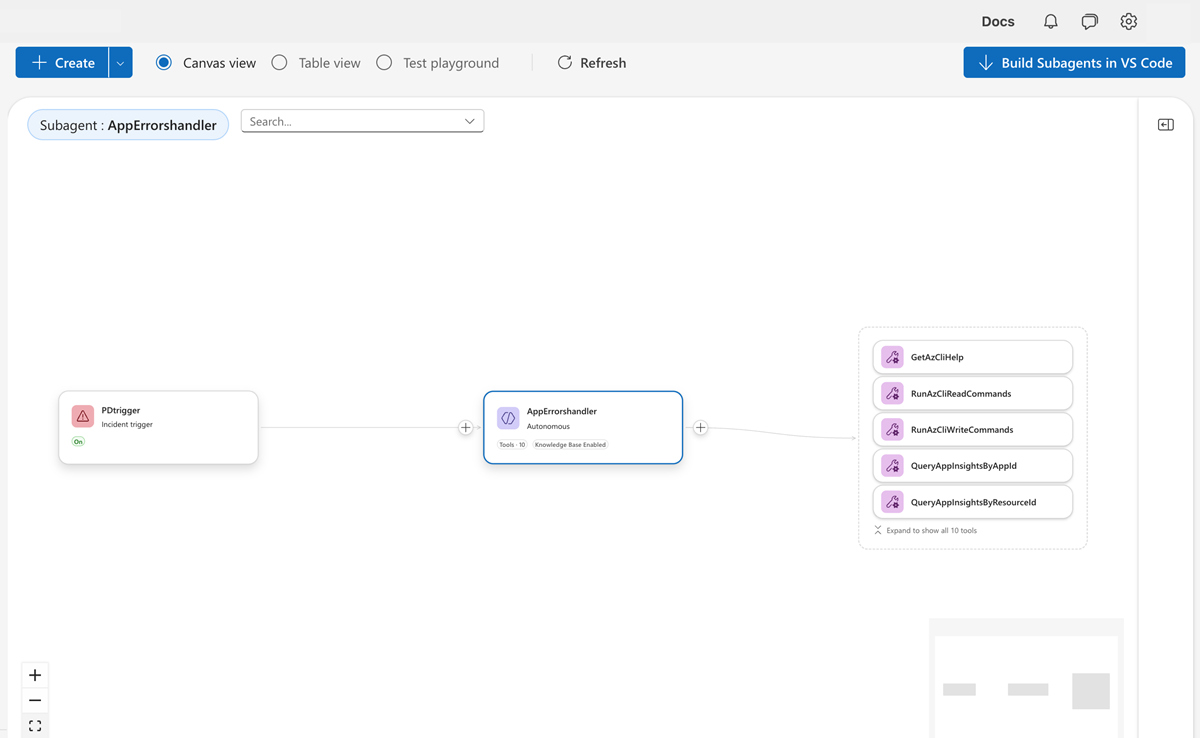
How custom agents work
Invoke a custom agent by using the /agent slash command in chat. The custom agent receives the full conversation context and works with focused expertise.
The following example shows a basic custom agent definition:
name: database_expert
system_prompt: |
  You are a database specialist. Analyze query performance,
  diagnose connection issues, and recommend optimizations.
handoff_description: Handles SQL and database troubleshooting
tools:
  - execute_kusto_query
  - azure_cli
connectors:
  - azure_sql
enable_skills: true  # Can use skills for additional expertise
The key properties include:
system_prompt: The expert persona and instructions.handoff_description: What the orchestrator sees when deciding to delegate.tools: Available capabilities.enable_skills: When you use this property, the custom agent can access skills dynamically.
Tip
Skills are automatic. Your agent uses them whenever relevant. Custom agents are explicit — you invoke them by using /agent when you need focused expertise.
Why use custom agents
Custom agents let you package domain expertise, tools, and knowledge for reuse. Instead of your main agent trying to handle everything, it delegates to specialists.
Consider a database issue: without custom agents, your main agent tries generic troubleshooting. With a "Database Expert" custom agent, you get focused SQL expertise, database-specific runbooks, and tools tuned for query analysis.
Custom agents also enable handoff chains. Your incident triage custom agent classifies an issue, hands off to the appropriate domain expert, who investigates and hands off to a notification router. Each step is specialized.
Create a custom agent
Create custom agents in Builder > Agent Canvas.
Go to your Azure SRE Agent in the Azure portal.
Select the Agent Canvas tab.
Select Create.
Select Custom Agent.
Provide values for the following settings:
Property Value Name Enter a descriptive name for your custom agent. Instructions Provide clear, custom instructions that define how the custom agent should behave. Handoff Description Explain the scenarios when other custom agents should transfer processing to this custom agent, and why. Custom Tools (optional) Choose one or more custom tools for the custom agent to use during its operations. Built-in Tools (optional) Select any built-in system tools you want the custom agent to have access to. Handoff Agents (optional) Specify which custom agent should take over processing after this custom agent completes its tasks. Optionally, you can enable the Knowledge base feature. This option allows you to upload files that your custom agent can use as reference material when answering queries.
Knowledge base management
Enhance your custom agents' knowledge by uploading documentation, runbooks, and procedural guides.
Examples of files you can add to your agent:
- Architecture or system design: Diagrams and documentation that explain system components and data flows.
- Troubleshooting guides: Step-by-step instructions to diagnose and resolve common or recurring issues.
- Runbooks and SOPs: Detailed workflows for routine operations, maintenance, and incident response.
- Incident reports and postmortems: Documentation of past outages, including root cause analysis and lessons learned.
- Release notes and change logs: Summaries of product or service updates, including new features, bug fixes, and changes.
Supported file types
Operational procedures in Markdown (.md) or text (.txt) format.
File management workflow
- Access the knowledge base by going to the Settings > Knowledge Base > Files tab.
- Upload files by dragging and dropping your files or browsing to select files (maximum 50 MB per file).
- Organize content by adding tags and descriptions for better searchability.
- Enable custom agent access by configuring which custom agents can access specific knowledge sources.
- Monitor usage by tracking how custom agents use uploaded knowledge in their responses.
Note
Your custom agents automatically index and make searchable the files you upload. The system supports up to 1,000 files per custom agent instance.
Agent Canvas views
Build custom agents in Builder > Agent Canvas. The following views are available:
| View | Purpose |
|---|---|
| Canvas view | Visual diagram showing custom agents, tools, and trigger connections |
| Table view | List of all custom agents with quick access |
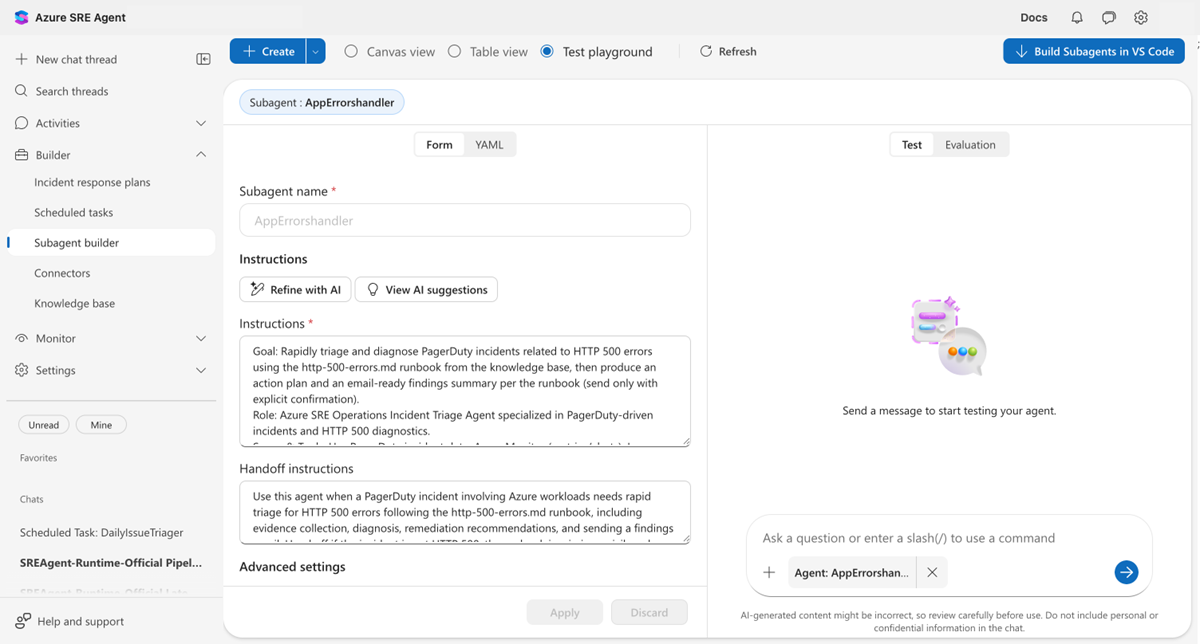
| Test playground | Interactive testing environment |
When to use custom agents
The following table helps you determine when custom agents are the right choice:
| Scenario | Use custom agent? | Why |
|---|---|---|
| Deep domain expertise needed | Yes | Package SQL expertise, networking knowledge, security best practices |
| Multi-step workflows | Yes | Incident triage, deployment validation, backup verification |
| Specialized tool sets | Yes | Database-specific tools, cost optimization tools |
| Simple single operations | No | Use skills instead for simple, repeatable actions |
| Read-only queries | No | Main agent can handle without delegation |
For complete custom agent setup, see Incident response for response automation.
Custom agent handoff
When your main agent hands off to a custom agent, they share a single conversation context. The receiving custom agent sees:
- Full conversation history: all previous messages, tool calls, and results.
- Subtask reasoning: what the handoff is asking this custom agent to accomplish.
- User's original question: preserved throughout the handoff chain.
Note
Custom agents don't get a "clean slate." They continue the same conversation thread. This approach enables handoff chains where each specialist builds on the previous agent's work.
After completing its work, the custom agent hands off to the next agent or returns control to the orchestrator. The conversation context continues to accumulate throughout the chain.
Custom agent patterns
The following table describes common custom agent patterns:
| Pattern | Examples | Use case |
|---|---|---|
| Domain Expert | VM Expert, AKS Expert, Network Expert | Deep expertise in one technology (all VM issues, Kubernetes troubleshooting, VNet/NSG/load balancer) |
| Task Specialist | Log Analyzer, Cost Optimizer, Security Scanner | Focused on specific tasks (parse logs, find savings, identify vulnerabilities) |
| Workflow Executor | Incident Triage, Deployment Validator, Backup Verifier | Multi-step procedures (classify incidents, post-deploy checks, test backup integrity) |
Compare skills, custom agents, and knowledge files
The following table compares each extensibility concept:
| Feature | Skills | Custom agents | Knowledge files |
|---|---|---|---|
| Access | Automatic | /agent command |
Via KB query tool |
| Tools | Can attach | Has tools | No tools |
| Context | Uses thread context | Shares thread context | Reference only |
| Best for | Procedures | Domain specialists | Runbooks, docs |
Use the following guidance to choose the right approach:
- Skill: Team-wide procedure with optional execution (AKS troubleshooting guide + Azure CLI)
- Custom agent: Scoped specialist invoked on demand (PostgreSQL Expert)
- Knowledge file: Reference content for context (architecture docs)
Connect custom agents to triggers
Incidents or scheduled tasks can automatically trigger custom agents. The canvas view shows these connections visually: triggers appear as nodes connected to custom agents, tools are grouped with their parent custom agent, and status badges show active or inactive state.
For setup details, see Incident response for connecting custom agents to incidents, or Scheduled tasks for recurring automation.
Custom agent modes
Each custom agent runs in a mode that controls how much autonomy it has. Set the mode for each response plan or scheduled task.
| Mode | Description |
|---|---|
| Review | Proposes actions, waits for approval |
| Autonomous | Acts without human approval |
Choose the mode based on risk:
- Cost optimization recommendations? Use Review (human approval required).
- Well-tested automation? Use Autonomous (for trusted operations).
Configure modes for each response plan or scheduled task. Don't set modes in the custom agent YAML definition. For more information, see Run modes.
Test and develop custom agents
Test custom agents in the Test playground before deploying. Go to Builder > Agent Canvas and select Test playground from the view toggle. The split-screen layout lets you edit instructions on the left and test in a live chat on the right, with AI-powered evaluation to score your configuration.
For VS Code users, the SRE Agent MCP server extension lets you edit custom agent YAML in your editor with changes syncing to your agent.
For full details, see Agent playground.
Related content
| Resource | Description |
|---|---|
| Skills | Reusable procedures and tools for your agent |
| Send notifications | Send investigation findings to Teams, Outlook, and more |
| Chat from your tools | Interact with your agent from Teams, webhooks, and more |