नोट
इस पेज तक पहुँच के लिए प्रमाणन की आवश्यकता होती है. आप साइन इन करने या निर्देशिकाओं को बदलने का प्रयास कर सकते हैं.
इस पेज तक पहुँच के लिए प्रमाणन की आवश्यकता होती है. आप निर्देशिकाओं को बदलने का प्रयास कर सकते हैं.
The Python notebook is a new experience built on top of notebooks in Fabric. It's a versatile and interactive tool designed for data analysis, visualization, and machine learning. It provides a seamless developing experience for writing and executing Python code. This capability makes it an essential tool for data scientists, analysts, and BI developers, especially for exploration tasks that don't require big data and distributed computing.
By using a Python notebook, you get:
Multiple built-in Python kernels: Python notebooks offer a pure Python coding environment without Spark, with three built-in Python kernel versions: Python 3.10, Python 3.11, and Python 3.12. The environment supports native IPython features such as iPyWidget and magic commands.
Cost effective: The new Python notebook offers cost-saving benefits by running on a single node cluster with 2vCores/16GB memory by default. This setup ensures efficient resource utilization for data exploration projects with smaller data size.
Lakehouse and resources are natively available: The Fabric lakehouse together with notebook built-in resources full functionality are available in Python notebook. This feature enables users to easily bring the data to python notebook, just try drag and drop to get the code snippet.
Mix programming with T-SQL: Python notebook offers an easy way to interact with Data Warehouse and SQL analytics endpoints in explorer. By using notebookutils data connector, you can easily execute the T-SQL scripts under the context of Python.
Support for Popular Data Analytic libraries: Python notebooks come with preinstalled libraries such as DuckDB, Polars, and Scikit-learn, providing a comprehensive toolkit for data manipulation, analysis, and machine learning.
Advanced IntelliSense: Python notebook adopts Pylance as the IntelliSense engine, together with other Fabric customized language service, aiming to provide state of art coding experience for notebook developers.
NotebookUtils and Semantic link: Powerful API toolkits empower you easily use Fabric and Power BI capabilities with code-first experience.
Rich Visualization Capabilities: Except for the popular rich dataframe preview 'Table' function and 'Chart' function, it also supports popular visualization libraries like Matplotlib, Seaborn, and Plotly. The PowerBIClient also supports these libraries to help users better understanding data patterns and insights.
Common Capabilities for Fabric Notebook: All the Notebook level features are naturally applicable for Python notebook, such as editing features, AutoSave, collaboration, sharing and permission management, Git integration, import/export, and more.
Full stack Data Science Capabilities: The advanced low-code toolkit Data Wrangler, the machine learning framework MLFlow, and powerful Copilot are all available on Python notebook.
How to access a Python notebook
After opening a notebook in Fabric, you can switch to Python in the language dropdown menu at the Home tab and convert the entire notebook set-up to Python.
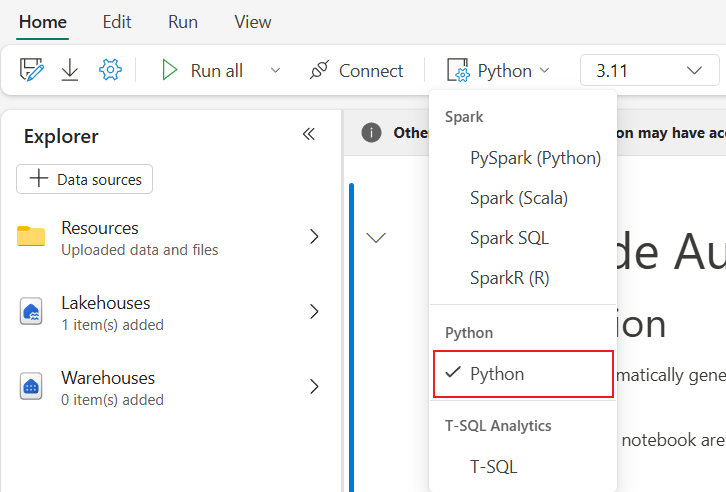
Most of the common features are supported at the notebook level. To learn more, see How to use Fabric notebooks and Develop, execute, and manage Fabric notebooks. This article lists some key capabilities specific for Python scenarios.
Run Python notebooks
Python notebooks support multiple job execution methods:
- Interactive run: You can run a Python notebook interactively like a native Jupyter notebook.
- Schedule run: You can use the lightweight scheduler experience on the notebook settings page to run a Python notebook as a batch job.
- Pipeline run: You can orchestrate Python notebooks as notebook activities in Pipeline. The process generates a snapshot after the job execution.
- Reference run: You can use
notebookutils.notebook.run()ornotebookutils.notebook.runMultiple()to reference run Python notebooks in another Python notebook as batch job. The process generates a snapshot after the reference run finishes. - %run: You can use
%runto reference and execute other notebooks within the same execution context, so you can directly call functions and reuse variables defined in those notebooks. For more details, see the documentation on how to reference run a notebook. - Public API run: You can schedule your Python notebook run with the notebook run public API. The Job Scheduler API supports parameterized runs and returning exit values from notebook executions. Exit values can be used for conditional orchestration and signaling outcomes when orchestrating Python notebooks in automation and CI/CD scenarios. Make sure the language and kernel properties in notebook metadata of the public API payload are set properly. Parameter values passed via the Public API are available to the Python notebook at runtime using the standard parameter access pattern used in Fabric notebooks. For details on the request shape for parameters and exit value retrieval, see Manage and execute notebooks in Fabric with APIs. You can monitor run status and cancel job instances via the Job Scheduler API, complementing the in-UI View all runs experience.
Note
Service principal authentication is supported for the Items REST API (CRUD for notebooks) and the Job Scheduler API (execution), enabling secure unattended automation and CI/CD for Python notebooks. Add the service principal to the workspace with an appropriate role to use these APIs.
You can monitor the Python notebook job run details on the ribbon tab Run -> View all runs.
Note
Currently, %run only supports referencing notebook items on Python notebooks, not code modules (such as .py files) from the notebook resources folder.
Data interaction
You can interact with lakehouse, warehouses, SQL analytics endpoints, and built-in resources folders on Python notebooks.
Note
The Python notebook runtime comes preinstalled with delta‑rs and duckdb libraries to support both reading and writing Delta Lake data. However, some Delta Lake features might not be fully supported. For more details and the latest updates, see the delta‑rs and DuckDB documentation.
Lakehouse interaction
You can set a lakehouse as the default, or you can also add multiple lakehouses to explore and use them in notebooks.
If you're not familiar with reading data objects like Delta table, try dragging and dropping the file and Delta table to the notebook canvas, or use the Load data option in the object's dropdown menu. The notebook automatically inserts a code snippet into a code cell and generates code for reading the target data object.
Note
If you encounter OOM when loading a large volume of data, try using DuckDB, Polars, or PyArrow dataframe instead of pandas.
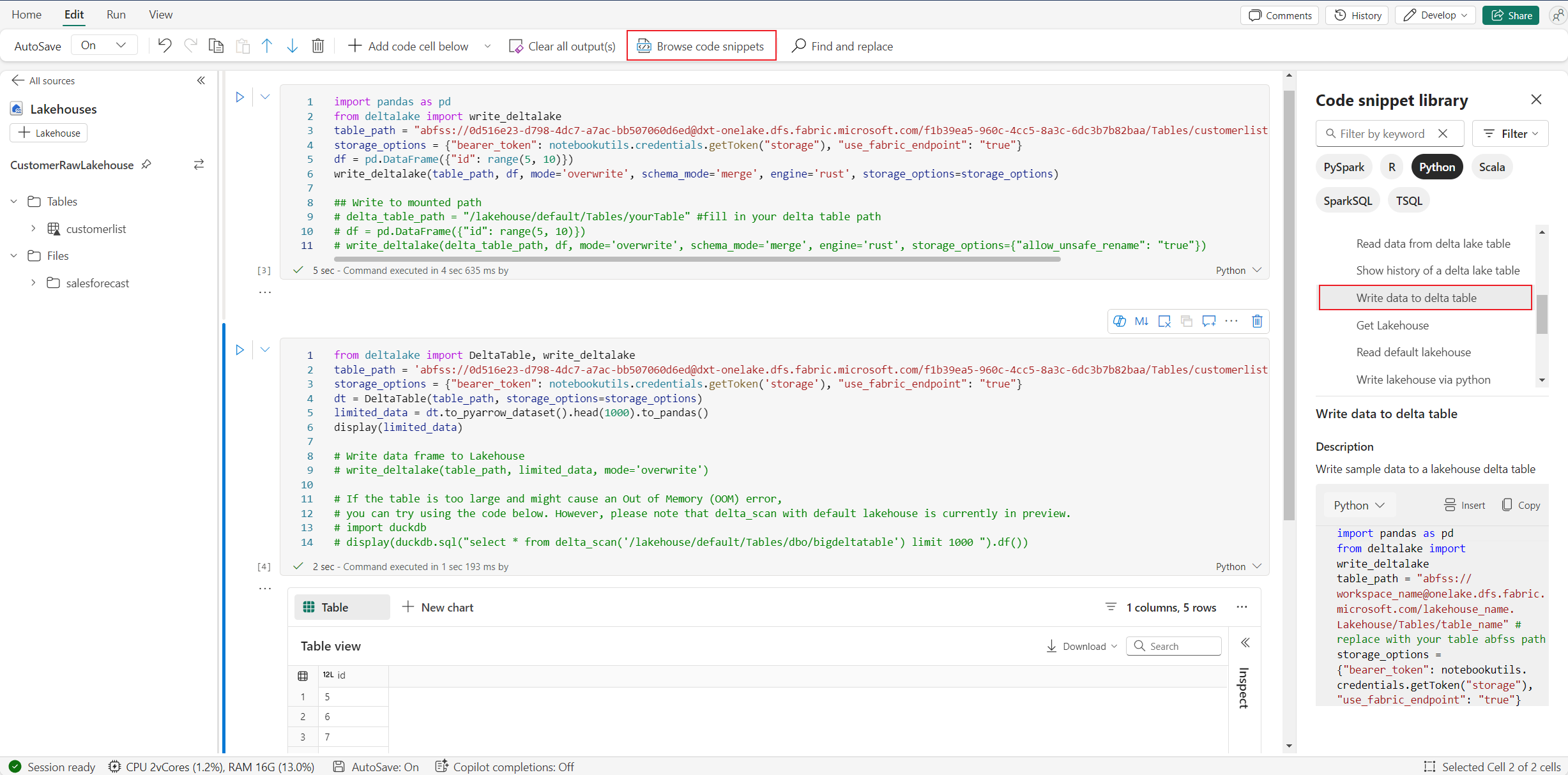
You can find the write lakehouse operation in Browse code snippet -> Write data to Delta table.
Warehouse interaction and mix programming with T-SQL
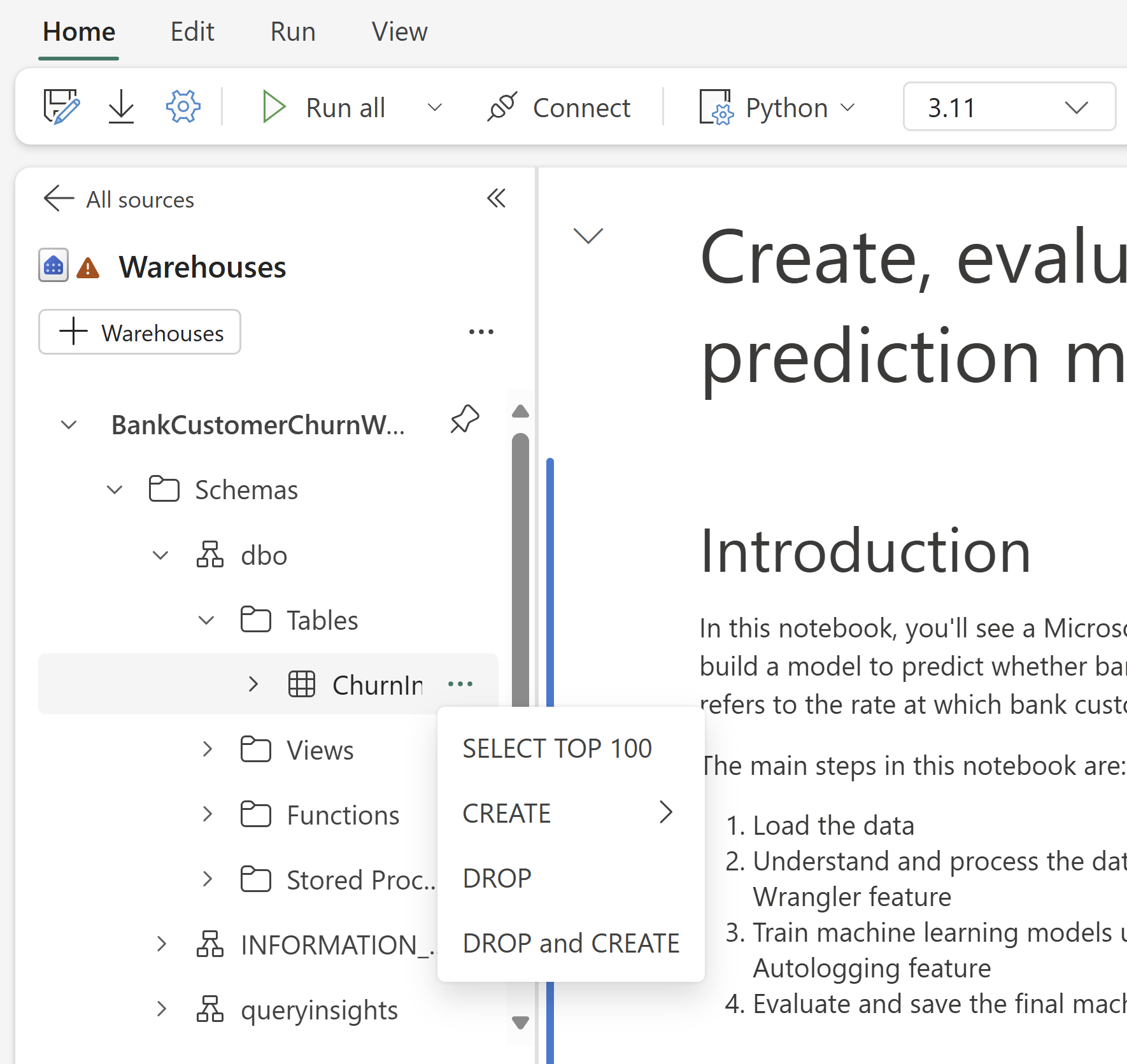
You can add warehouses or SQL analytics endpoints from the Warehouse explorer of notebook. Similarly, you can drag and drop the tables into the notebook canvas, or use the shortcut operations in the table dropdown menu. The notebook automatically generates a code snippet for you. You can use the notebookutils.data utilities to establish a connection with Warehouses and query the data using T-SQL statements in the context of Python.
Note
SQL analytics endpoints are read-only.
Notebook resources folder
The Notebook resources built-in resources folder is natively available on Python notebooks. You can easily interact with the files in the built-in resources folder by using Python code as if you're working with your local file system. Currently, the Environment resource folder isn't supported.
Kernel operations
Python notebooks support three built-in kernels: Python 3.10, Python 3.11, and Python 3.12. The default selected kernel is Python 3.12. You can easily switch between them.
You can interrupt, restart, or switch the kernel on the Home tab of the ribbon. Interrupting the kernel in Python notebooks is the same as canceling a cell in Spark notebook.

An abnormal kernel exit causes code execution to be interrupted and variables to be lost, but it doesn't stop the notebook session.
Some commands can lead to the kernel dying. For example, quit() and exit().
For the support lifecycle of each Python kernel version, including end-of-support dates and migration steps, see Python notebook runtime and kernel lifecycle in Fabric.
Library management
Use the %pip and %conda commands for inline installations. These commands support both public libraries and customized libraries.
For customized libraries, upload the library files to the Built-in resources folder. The platform supports multiple types of libraries, including formats such as Wheel (.whl), JAR (.jar), DLL (.dll), and Python (.py). Just drag and drop the file, and the code snippet is generated automatically.
You might need to restart the kernel to use the updated packages.
To better understand and use similar commands, refer to the following table.
| Command/Syntax | Main purpose | How it works in Jupyter Notebook | Typical use case | Notes |
|---|---|---|---|---|
%pip install package |
Install Python packages | Runs pip in the notebook's Python kernel | Recommended way to install packages | In Python notebooks, same as !pip; doesn't automatically restart kernel |
!pip install package |
Install Python packages via shell | Runs pip as a shell command | Alternative way to install packages | In Python notebooks, same as %pip; doesn't automatically restart kernel |
import sys; sys.exit(0) |
Restart the notebook kernel | Immediately restarts the kernel | Programmatically restart the kernel | Clears all variables and states; not recommended to use directly |
notebookutils.session.restartPython() |
Restart the notebook kernel | Calls sys.exit(0) internally |
Recommended way to restart the kernel | Official API, safer and more compatible than using sys.exit(0) directly |
Note
- In Python notebooks,
%pipand!piphave the same behavior: both install packages into the current kernel's environment, and neither automatically restarts the kernel after installation. - If you need to restart the kernel (for example, after installing certain packages), use
notebookutils.session.restartPython()instead ofimport sys; sys.exit(0).notebookutils.session.restartPython()is an official API that wrapssys.exit(0), and it's safer and more compatible in notebook environments.
- Don't use
sys.exit(0)directly unless necessary.
Python notebook real-time resource usage monitoring
Important
This feature is in preview.
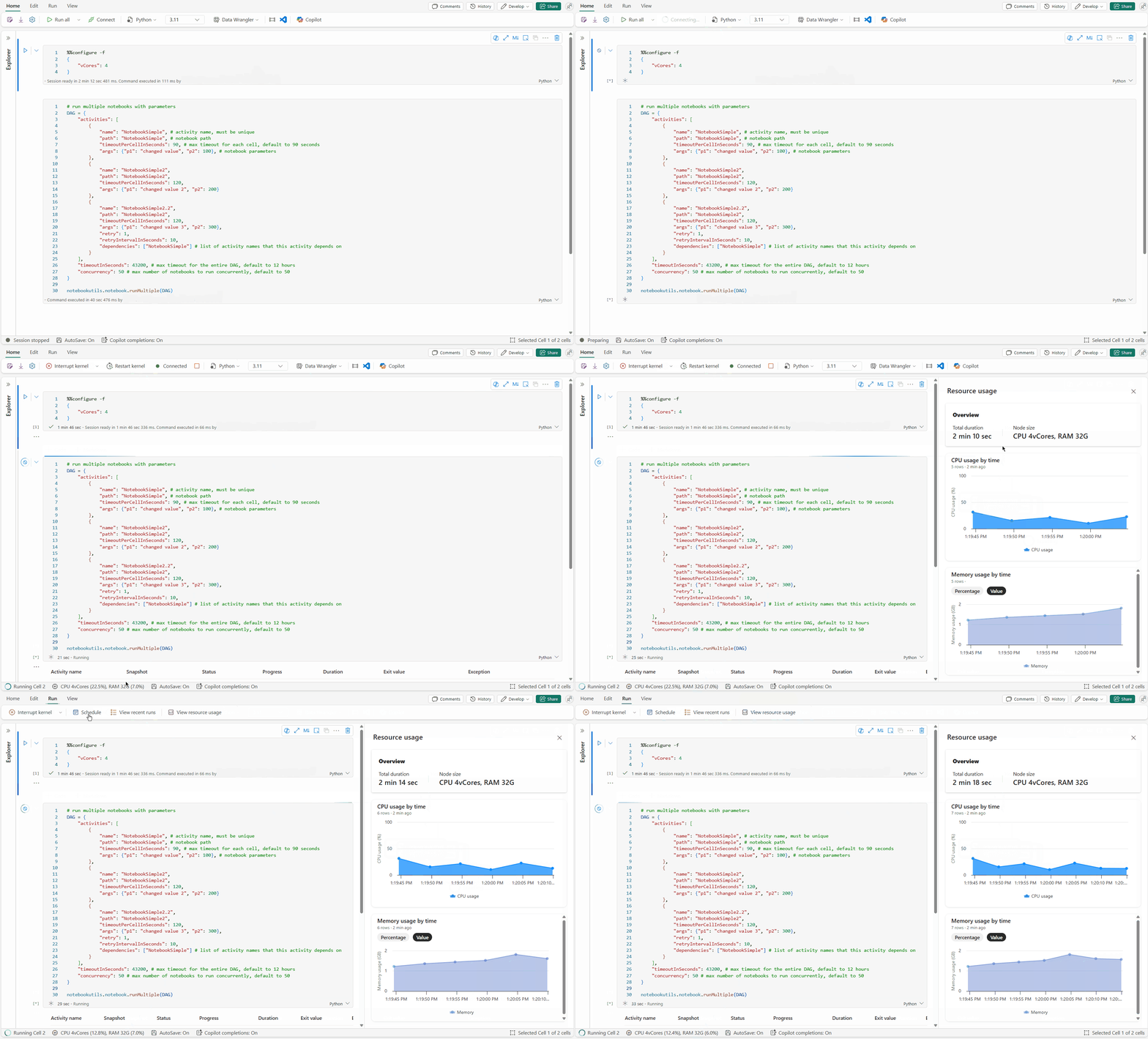
By using the resource monitor pane, you can track critical runtime information such as session duration, compute type, and real-time resource metrics, including CPU and memory consumption, directly within your notebook. This feature provides an immediate overview of your active session and the resources being used.
The resource monitor improves visibility into how Python workloads utilize system resources. It helps you optimize performance, manage costs, and reduce the risk of out-of-memory (OOM) errors. By monitoring metrics in real time, you can identify resource-intensive operations, analyze usage patterns, and make informed decisions about scaling or modifying code.
To start using it, set your notebook language to Python and start a session. You can then open the monitor either by clicking the compute resources in the notebook status bar or by selecting View resource usage from the toolbar. The resource monitor pane appears automatically, providing an integrated monitoring experience for Python code in Fabric notebooks.
Session configuration magic command
Similar to personalizing a Spark session configuration in a notebook, you can also use %%configure in a Python notebook. Python notebooks support customizing compute node size, mount points, and default lakehouse of the notebook session. You can use these settings in both interactive notebooks and pipeline notebook activities. Use the %%configure command at the beginning of your notebook, otherwise you must restart the notebook session to make the settings take effect.
Here are the supported properties in Python notebook %%configure:
%%configure -f
{
    "vCores": 4, // Recommended values: [4, 8, 16, 32, 64], Fabric will allocate matched memory according to the specified vCores.
    "defaultLakehouse": {
        // Will overwrites the default lakehouse for current session
        "name": "<lakehouse-name>",
        "id": "<(optional) lakehouse-id>",
        "workspaceId": "<(optional) workspace-id-that-contains-the-lakehouse>" // Add workspace ID if it's from another workspace
    },
    "mountPoints": [
        {
            "mountPoint": "/myMountPoint",
            "source": "abfs[s]://<file_system>@<account_name>.dfs.core.windows.net/<path>"
        },
        {
            "mountPoint": "/myMountPoint1",
            "source": "abfs[s]://<file_system>@<account_name>.dfs.core.windows.net/<path1>"
        },
    ],
}
You can view the compute resources update on the notebook status bar, and monitor the CPU and memory usage of the compute node in real time.

Note
API-triggered runs honor session configuration such as compute vCores and defaultLakehouse specified via notebook metadata or %%configure. The Job Scheduler API also supports selecting the target lakehouse and environment at run time. For details on the payload fields, see Manage and execute notebooks in Fabric with APIs.
NotebookUtils
Notebook Utilities (NotebookUtils) is a built-in package that helps you easily perform common tasks in Fabric notebook. It's preinstalled on the Python runtime. Use NotebookUtils to work with file systems, get environment variables, chain notebooks together, access external storage, and work with secrets.
Use notebookutils.help() to list available APIs and get help with methods. For more information, see the NotebookUtils documentation.
Data utilities
Note
Currently, the feature is in preview.
Use the notebookutils.data utilities to connect to a data source. Then, you can read and query data by using a T-SQL statement.
Run the following command to get an overview of the available methods:
notebookutils.data.help()
Output:
Help on module notebookutils.data in notebookutils:

NAME
    notebookutils.data - Utility for read/query data from connected data sources in Fabric

FUNCTIONS
    connect_to_artifact(artifact: str, workspace: str = '', artifact_type: str = '', **kwargs)
        Establishes and returns an ODBC connection to a specified artifact within a workspace
        for subsequent data queries using T-SQL.

        :param artifact: The name or ID of the artifact to connect to.
        :param workspace:  Optional; The workspace in which the provided artifact is located, if not provided,
                             use the workspace where the current notebook is located.
        :param artifactType: Optional; The type of the artifact, Currently supported type are Lakehouse, Warehouse and MirroredDatabase.
                                If not provided, the method will try to determine the type automatically.
        :param **kwargs Optional: Additional optional configuration. Supported keys include:
            - tds_endpoint : Allow user to specify a custom TDS endpoint to use for connection.
        :return: A connection object to the specified artifact.

        :raises UnsupportedArtifactException: If the specified artifact type is not supported to connect.
        :raises ArtifactNotFoundException: If the specified artifact is not found within the workspace.

        Examples:
            sql_query = "SELECT DB_NAME()"
            with notebookutils.data.connect_to_artifact("ARTIFACT_NAME_OR_ID", "WORKSPACE_ID", "ARTIFACT_TYPE") as conn:
                df = conn.query(sql_query)
                display(df)

    help(method_name: str = '') -> None
        Provides help for the notebookutils.data module or the specified method.

        Examples:
        notebookutils.data.help()
        notebookutils.data.help("connect_to_artifact")
        :param method_name: The name of the method to get help with.

DATA
    __all__ = ['help', 'connect_to_artifact']

FILE
    /home/trusted-service-user/jupyter-env/python3.10/lib/python3.10/site-packages/notebookutils/data.py
Query data from Lakehouse
conn = notebookutils.data.connect_to_artifact("lakehouse_name_or_id", "optional_workspace_id", "optional_lakehouse_type")
df = conn.query("SELECT * FROM sys.schemas;")
Query data from Warehouse
conn = notebookutils.data.connect_to_artifact("warehouse_name_or_id", "optional_workspace_id", "optional_warehouse_type")
df = conn.query("SELECT * FROM sys.schemas;")
Query data from SQL database
conn = notebookutils.data.connect_to_artifact("sqldb_name_or_id", "optional_workspace_id", "optional_sqldatabase_type")
df = conn.query("SELECT * FROM sys.schemas;")
Note
The Data utilities in NotebookUtils are only available on Python notebooks for now.
Browse code snippets
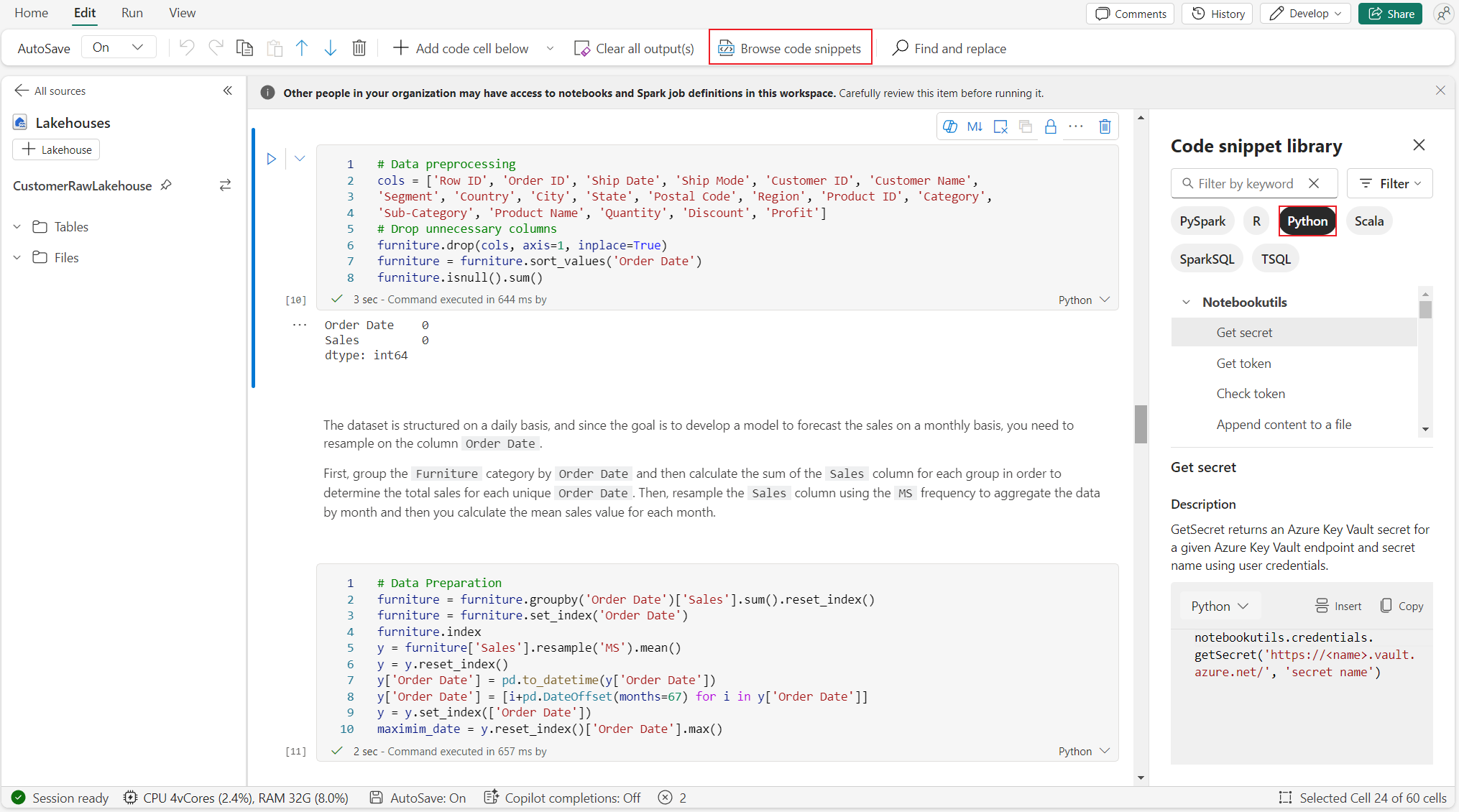
You can find useful Python code snippets on the Edit tab by selecting Browse code snippet. New Python samples are now available. To start exploring the notebook, learn from the Python code snippets.
Semantic link
Use the semantic link feature to connect semantic models and Fabric Data Science. Python notebook natively supports this feature. BI engineers and Power BI developers can use semantic link to connect and manage semantic models easily. To learn more, see What is semantic link.
Visualization
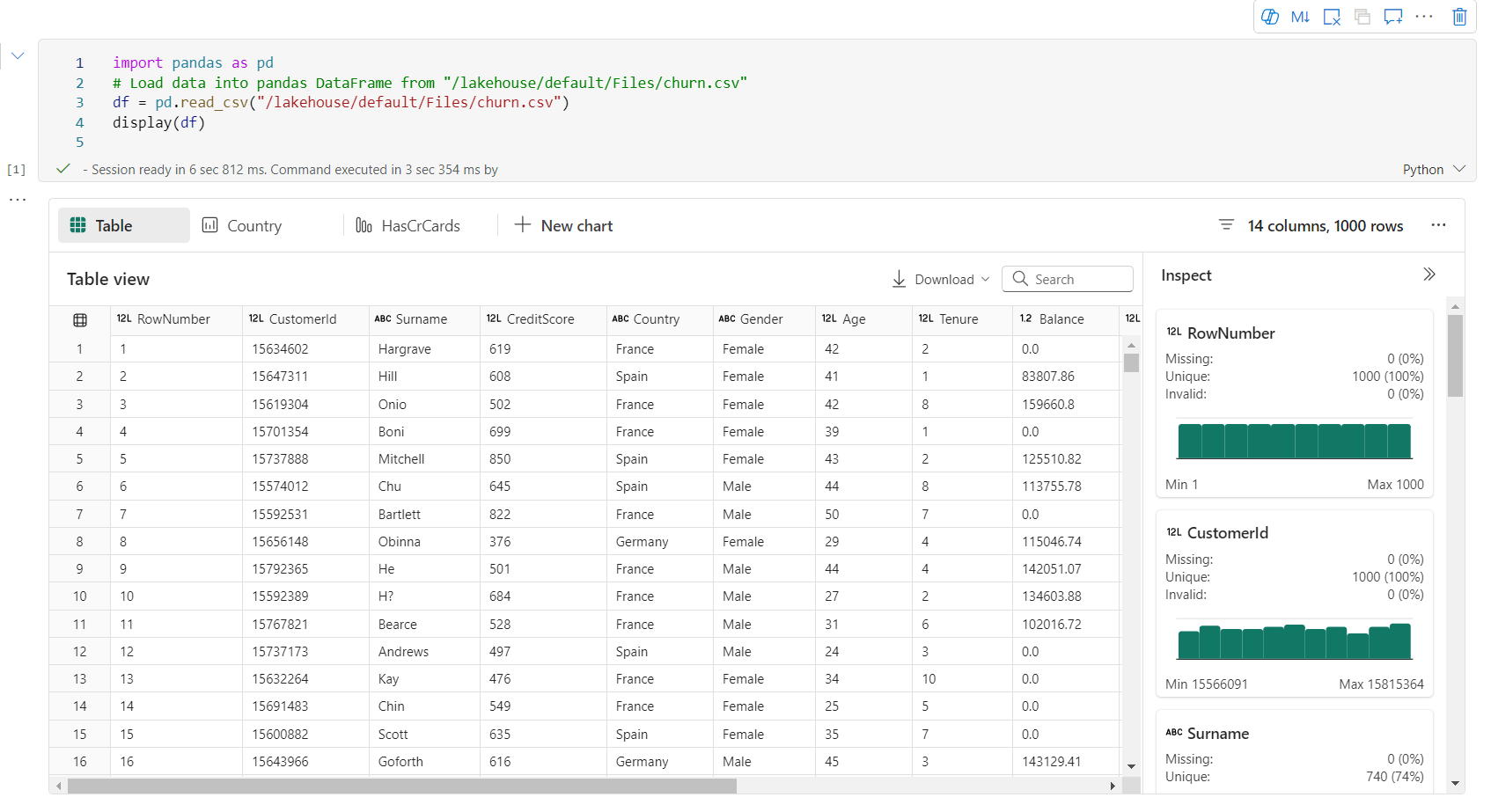
In addition to drawing charts with libraries, the built-in visualization function allows you to turn DataFrames into rich format data visualizations. Use the display() function on dataframes to produce the rich dataframe table view and chart view.
Note
The Python notebook persists the chart configurations. After rerunning the code cell, if the target dataframe schema doesn't change, the saved charts remain.
Code IntelliSense
Python notebooks also use Pylance as the language server. For more information, see Enhance Python development with Pylance.
Data science capabilities
To learn more about data science and AI experiences in Fabric, see Fabric Data Science documentation. This article lists a few key data science features that Python notebooks natively support.
Data Wrangler: Data Wrangler is a notebook-based tool that provides an immersive interface for exploratory data analysis. This feature combines a grid-like data display with dynamic summary statistics, built-in visualizations, and a library of common data cleaning operations. It provides data cleaning, data transformation, and integration, which accelerates data preparation by using Data Wrangler.
MLflow: A machine learning experiment is the primary unit of organization and control for all related machine learning runs. A run corresponds to a single execution of model code.
Fabric Auto Logging: Fabric Data Science includes autologging, which significantly reduces the amount of code required to automatically log the parameters, metrics, and items of a machine learning model during training.
Autologging extends MLflow Tracking capabilities. Autologging can capture various metrics, including accuracy, loss, F1 score, and custom metrics you define. By using autologging, developers and data scientists can easily track and compare the performance of different models and experiments without manual tracking.
Copilot: Copilot for Data Engineering and Data Science notebooks is an AI assistant that helps you analyze and visualize data. Copilot is immediately context-aware without requiring you to start a session. It understands the workspace, attached Lakehouse schemas, tables, and files, notebook structure, and runtime state, and can operate across the entire notebook workflow.
Copilot supports notebook-wide, multistep capabilities: it can generate, refactor, summarize, and validate code across multiple cells and steps in Python notebooks. You can use the Copilot chat panel and chat commands such as
/fixin the notebook.When a cell fails, Fix with Copilot surfaces an error summary, root-cause analysis, and recommended fixes, with an option to auto-apply code changes after showing an approval diff. You can also use the
/fixcommand in Copilot chat for targeted diagnostics on a specific cell or the entire notebook.
Known limitations
The live pool experience isn't guaranteed for every Python notebook run. The session start time can take up to three minutes if the notebook run doesn't hit the live pool. As Python notebook usage grows, intelligent pooling methods gradually increase the live pool allocation to meet the demand.
Environment integration isn't available on Python notebooks.
Set session timeout isn't available.
Copilot has improved context-awareness and assistance for Python notebooks, but it might occasionally suggest Spark code that isn't directly executable in a Python notebook. The Fix with Copilot experience applies to failed Python cells; Spark job diagnostics are out of scope for pure Python runs.
Currently, Copilot on Python notebooks isn't fully supported in several regions. The deployment process is still ongoing. Stay tuned as support rolls out in more regions.