नोट
इस पेज तक पहुँच के लिए प्रमाणन की आवश्यकता होती है. आप साइन इन करने या निर्देशिकाओं को बदलने का प्रयास कर सकते हैं.
इस पेज तक पहुँच के लिए प्रमाणन की आवश्यकता होती है. आप निर्देशिकाओं को बदलने का प्रयास कर सकते हैं.
Applies to:  SQL Server on Linux
This article explains how to operate a SQL Server failover cluster instance (FCI) on Linux. To create a SQL Server FCI on Linux, see Configure failover cluster instance on Linux (RHEL).
Architecture description
The clustering layer is based on the Red Hat Enterprise Linux (RHEL) HA add-on built on top of Pacemaker. Corosync and Pacemaker coordinate cluster communications and resource management. The SQL Server instance is active on one node at a time.
The following diagram illustrates the components in a Linux cluster with SQL Server.
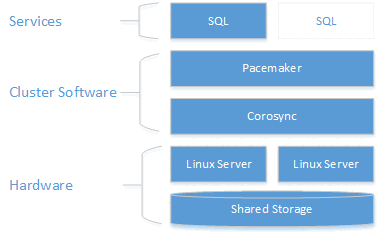
For more information on cluster configuration, resource agent options, and management, visit RHEL reference documentation.
Failover
Failover for FCIs is similar to a Windows Server failover cluster (WSFC). If the cluster node hosting the FCI experiences some sort of failure, the FCI should automatically fail over to another node. Unlike a WSFC, there's no way to set preferred owners, so Pacemaker picks the node that will be the new host for the FCI.
Sometimes you might want to manually fail over the FCI to another node. The process isn't the same as with FCIs on a WSFC. On a WSFC, you fail over resources at the role level. In Pacemaker, you choose a resource to move, and if all the constraints are correct, everything else moves too.
The way to fail over depends on the Linux distribution. Follow the instructions for your Linux distribution.
Manual failover (RHEL or Ubuntu)
To perform a manual failover on Red Hat Enterprise Linux (RHEL) or Ubuntu servers, execute the following steps.
Issue the following command:
sudo pcs resource move <FCIResourceName> <NewHostNode><FCIResourceName>is the Pacemaker resource name for the SQL Server FCI, and<NewHostNode>is the name of the cluster node that you want to host the FCI.During a manual failover, Pacemaker creates a location constraint on the resource that was chosen to move manually. To see this constraint, run
sudo pcs constraint.After the failover is complete, remove the constraint:
sudo pcs resource clear <FCIResourceName>
Manual failover (SLES)
Note
Starting in SQL Server 2025 (17.x), SUSE Linux Enterprise Server (SLES) isn't supported. For SQL Server 2022 (16.x) and earlier versions, only SLES 15 is supported.
In SUSE Linux Enterprise Server (SLES), use the migrate command to manually fail over a SQL Server FCI. For example:
crm resource migrate <FCIResourceName> <NewHostNode>
<FCIResourceName> is the resource name for the failover cluster instance, and <NewHostNode> is the name of the new destination host.
Monitor a failover cluster
View the current cluster status:
sudo pcs status
View live status of the cluster and resources:
sudo crm_mon
View the resource agent logs at /var/log/cluster/corosync.log.
Add a node to a cluster
Check the IP address for each node. The following script shows the IP address of your current node.
ip addr showThe new node needs a unique name that is 15 characters or fewer. Set the computer name by adding it to
/etc/hosts. The following script lets you edit/etc/hostswithvi.sudo vi /etc/hostsThe following example shows
/etc/hostswith additions for three nodes namedsqlfcivm1,sqlfcivm2, andsqlfcivm3.127.0.0.1 localhost localhost4 localhost4.localdomain4 ::1 localhost localhost6 localhost6.localdomain6 10.128.18.128 sqlfcivm1 10.128.16.77 sqlfcivm2 10.128.14.26 sqlfcivm3The file should be the same on every node.
Stop the SQL Server service on the new node.
Follow the instructions to mount the database file directory to the shared location.
From the NFS server, install
nfs-utils:sudo yum -y install nfs-utilsOpen up the firewall on clients and NFS server:
sudo firewall-cmd --permanent --add-service=nfs
sudo firewall-cmd --permanent --add-service=mountd
sudo firewall-cmd --permanent --add-service=rpc-bind
sudo firewall-cmd --reload
Edit the
/etc/fstabfile to include the mount command:<IP OF NFS SERVER>:<shared_storage_path> <database_files_directory_path> nfs timeo=14,intrRun
mount -afor the changes to take effect.On the new node, create a file to store the SQL Server username and password for the Pacemaker login. The following command creates and populates this file:
sudo touch /var/opt/mssql/secrets/passwd
echo "<loginName>" | sudo tee -a /var/opt/mssql/secrets/passwd
echo "<password>" | sudo tee -a /var/opt/mssql/secrets/passwd
sudo chown root:root /var/opt/mssql/secrets/passwd
sudo chmod 600 /var/opt/mssql/secrets/passwd
Caution
Your password should follow the SQL Server default password policy. By default, the password must be at least eight characters long and contain characters from three of the following four sets: uppercase letters, lowercase letters, base-10 digits, and symbols. Passwords can be up to 128 characters long. Use passwords that are as long and complex as possible.
On the new node, open the Pacemaker firewall ports. To open these ports with
firewalld, run the following command:sudo firewall-cmd --permanent --add-service=high-availability sudo firewall-cmd --reloadIf you're using another firewall that doesn't have a built-in high-availability configuration, open the following ports for Pacemaker to communicate with other nodes in the cluster:
- TCP: Ports 2224, 3121, 21064
- UDP: Port 5405
Install Pacemaker packages on the new node.
sudo yum install pacemaker pcs fence-agents-all resource-agentsSet the password for the default user that is created when installing Pacemaker and Corosync packages. Use the same password as the existing nodes.
sudo passwd haclusterEnable and start
pcsdservice and Pacemaker. The new node can rejoin the cluster after a reboot. Run the following command on the new node.sudo systemctl enable pcsd sudo systemctl start pcsd sudo systemctl enable pacemakerInstall the FCI resource agent for SQL Server. Run the following command on the new node.
sudo yum install mssql-server-haOn an existing node in the cluster, authenticate the new node and add it to the cluster:
sudo pcs cluster auth <nodeName3> -u hacluster
sudo pcs cluster node add <nodeName3>
Remove nodes from a cluster
To remove a node from a cluster, run the following command:
sudo pcs cluster node remove <nodeName>
Change the resource monitoring frequency
sudo pcs resource op monitor interval=<interval>s <sqlResourceName>
The following example sets the monitoring interval to 2 seconds for the mssqlha resource:
sudo pcs resource op monitor interval=2s mssqlha
Troubleshoot
When you troubleshoot the cluster, it helps to understand how the three daemons work together to manage cluster resources.
| Daemon | Description |
|---|---|
| Corosync | Provides quorum membership and messaging between cluster nodes. |
| Pacemaker | Resides on top of Corosync and provides state machines for resources. |
| PCSD | Manages both Pacemaker and Corosync through the pcs tools. |
PCSD must be running in order to use pcs tools.
Current cluster status
sudo pcs status returns basic information about the cluster, quorum, nodes, resources, and daemon status for each node.
The following example shows a healthy Pacemaker quorum output:
Cluster name: MyAppSQL
Last updated: Wed Oct 31 12:00:00 2024  Last change: Wed Oct 31 11:00:00 2024 by root via crm_resource on sqlvmnode1
Stack: corosync
Current DC: sqlvmnode1  (version 1.1.13-10.el7_2.4-44eb2dd) - partition with quorum
3 nodes and 1 resource configured

Online: [ sqlvmnode1 sqlvmnode2 sqlvmnode3 ]

Full list of resources:

mssqlha (ocf::sql:fci): Started sqlvmnode1

PCSD Status:
sqlvmnode1: Online
sqlvmnode2: Online
sqlvmnode3: Online

Daemon Status:
corosync: active/disabled
pacemaker: active/enabled
In this example, partition with quorum means that a majority quorum of nodes is online. If the cluster loses a majority quorum of nodes, pcs status returns partition WITHOUT quorum and all resources are stopped.
Online: [sqlvmnode1 sqlvmnode2 sqlvmnode3] returns the name of all nodes currently participating in the cluster. If any nodes aren't participating, pcs status returns OFFLINE: [<nodename>].
PCSD Status shows the cluster status for each node.
Reasons why a node might be offline
Check the following items when a node is offline.
Firewall
Open the following ports on all nodes for Pacemaker to communicate:
- TCP: Ports 2224, 3121, 21064
- UDP: Port 5405
Pacemaker or Corosync services running
Node communication
Node name mappings