नोट
इस पेज तक पहुँच के लिए प्रमाणन की आवश्यकता होती है. आप साइन इन करने या निर्देशिकाओं को बदलने का प्रयास कर सकते हैं.
इस पेज तक पहुँच के लिए प्रमाणन की आवश्यकता होती है. आप निर्देशिकाओं को बदलने का प्रयास कर सकते हैं.
Applies to:  SQL Server 2017 (14.x) and later versions
Learn how to run Python and R scripts in Visual Studio Code notebooks with SQL Server Machine Learning Services. Visual Studio Code is a cross-platform development tool.
Prerequisites
Download and install Visual Studio Code) on your workstation. Visual Studio Code is cross-platform and runs on Windows, macOS, and Linux.
Install the Polyglot Notebooks extension for Visual Studio Code.
A server with SQL Server Machine Learning Services installed and enabled. You can use Machine Learning Services on Windows, Linux, or Big Data Clusters.
Create a SQL notebook
Important
Machine Learning Services runs as part of SQL Server. Therefore, you need to use a SQL kernel and not a Python kernel.
You can use Machine Learning Services in Visual Studio Code with a SQL notebook. To create a new notebook, follow these steps:
Select File and New Notebook to create a new notebook. The notebook uses the SQL kernel by default.
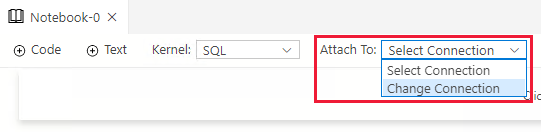
Select Attach To and Change Connection.
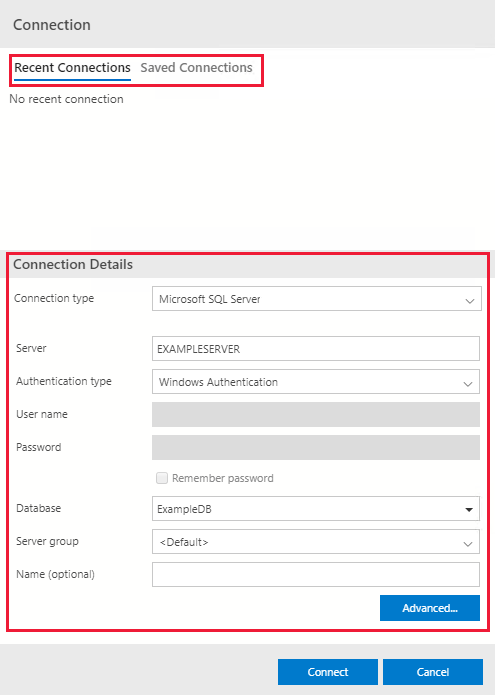
Connect to an existing or new SQL Server. You can either:
Choose an existing connection under Recent Connections or Saved Connections.
Create a new connection under Connection Details. Fill out the connection details to your SQL Server and database.
Run Python or R scripts
SQL Notebooks consist of code and text cells. Use code cells to run Python or R scripts through the stored procedure sp_execute_external_scripts. Use text cells to document your code in the notebook.
Run a Python script
Follow these steps to run a Python script:
Select + Code to add a code cell.

Enter the following script in the code cell:
EXECUTE sp_execute_external_script
    @language = N'Python',
    @script = N'
            a = 1
            b = 2
            c = a/b
            d = a*b
            print(c, d)
            ';
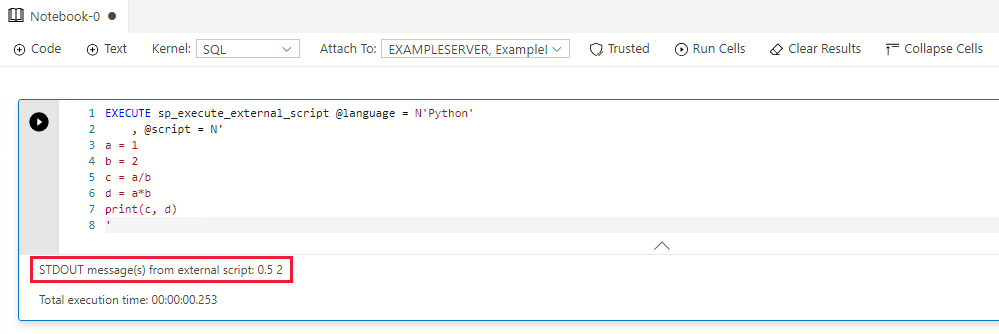
Select Run cell (the round black arrow) or press F5 to run the single cell.
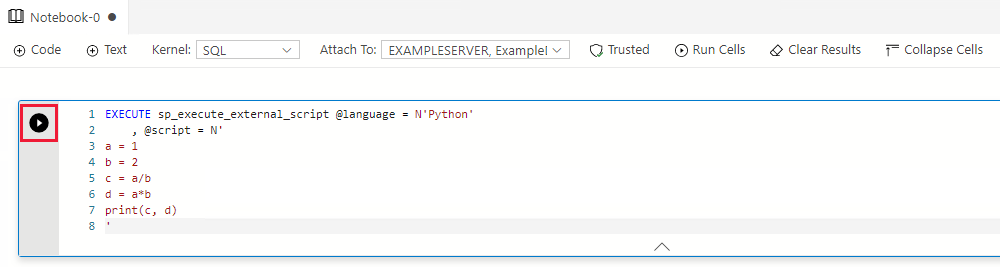
The result appears under the code cell.
Run an R script
Follow these steps to run an R script:
Select + Code to add a code cell.
Enter the following script in the code cell:
EXECUTE sp_execute_external_script
    @language = N'R',
    @script = N'
            a <- 1
            b <- 2
            c <- a/b
            d <- a*b
            print(c(c, d))
            ';
Select Run cell (the round black arrow) or press F5 to run the single cell.
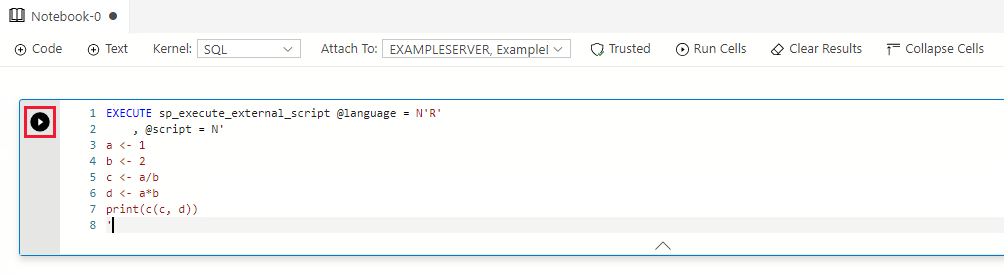
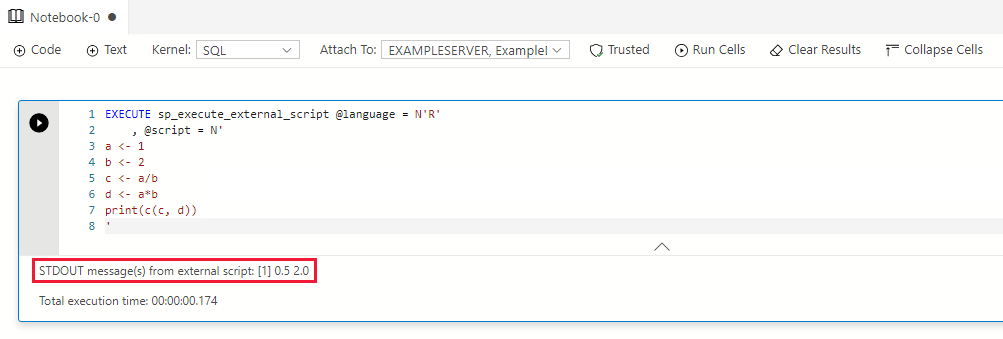
The result appears under the code cell.