Napomena
Za pristup ovoj stranici potrebna je autorizacija. Možete se pokušati prijaviti ili promijeniti direktorije.
Za pristup ovoj stranici potrebna je autorizacija. Možete pokušati promijeniti direktorije.
Overview
Custom controls are a preview capability of Microsoft Entra ID. When you use custom controls, users are redirected to a compatible service to meet authentication requirements outside of Microsoft Entra ID. To meet this control, a user's browser redirects to the external service, performs any required authentication, and then redirects back to Microsoft Entra ID. Microsoft Entra ID verifies the response and, if the user is successfully authenticated or validated, the user continues in the Conditional Access flow.
Important
Custom controls are deprecated. Adding new custom controls and editing existing custom controls will not be allowed starting September 2026. Full retirement is scheduled for early 2027. Start planning your migration now. For more information, see the External MFA GA announcement.
For more information, see Manage external MFA in Microsoft Entra ID.
Creating custom controls
Caution
Custom controls can't be used with:
- Microsoft Entra ID Protection's automation requiring multifactor authentication
- Microsoft Entra self-service password reset (SSPR)
- Satisfying multifactor authentication claim requirements
- Sign-in frequency controls
- Privileged Identity Manager (PIM)
- Intune device enrollment
- Cross-tenant trusts
- Joining devices to Microsoft Entra ID.
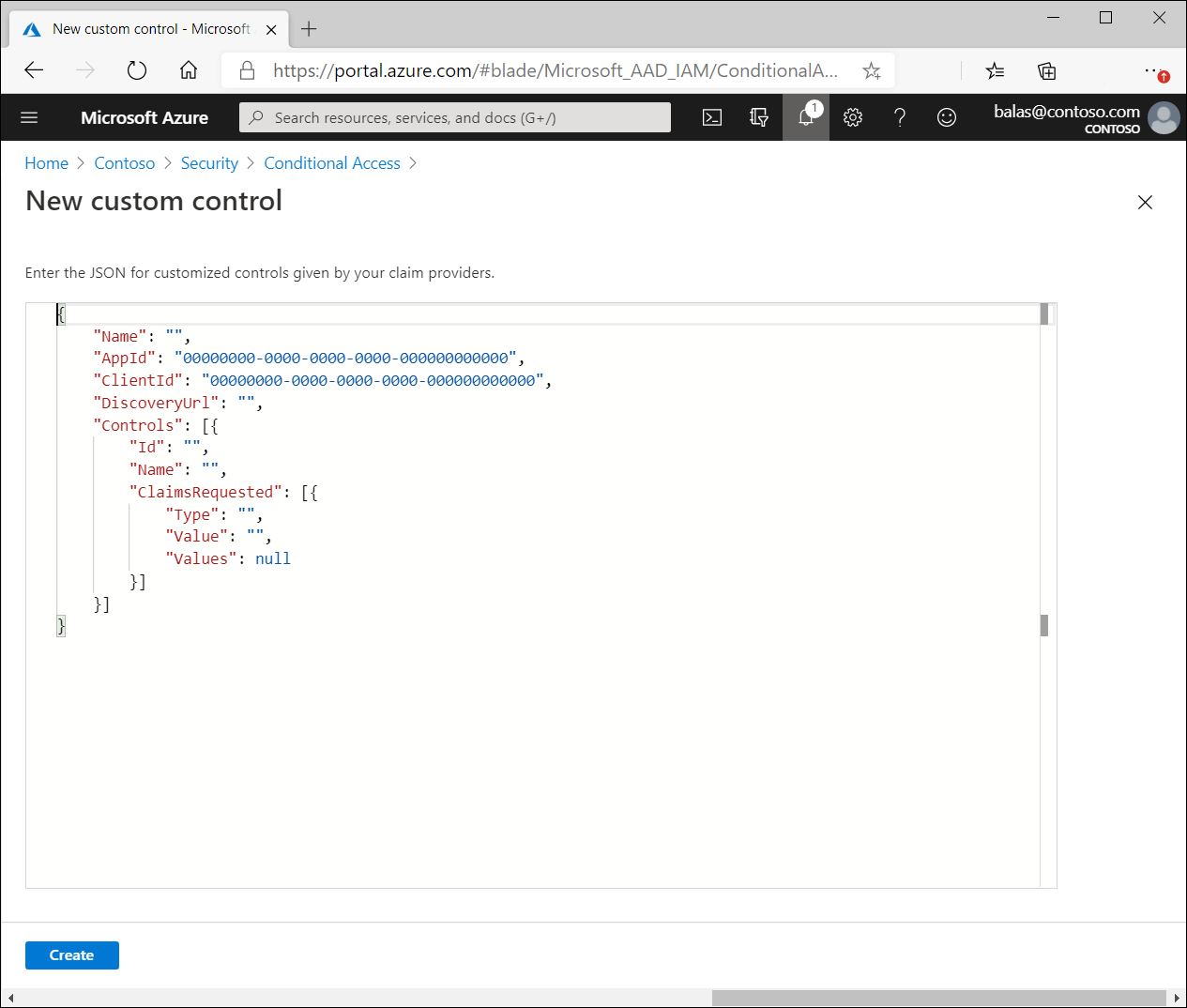
Custom controls work with a limited set of approved authentication providers. To create a custom control, first contact the provider you want to use. Each non-Microsoft provider has its own process and requirements to sign up, subscribe, or join the service, and to indicate that you want to integrate with Conditional Access. At that point, the provider gives you a block of data in JSON format. This data allows the provider and Conditional Access to work together for your tenant, creates the new control and defines how Conditional Access can tell if your users have successfully performed verification with the provider.
Copy the JSON data and paste it into the related textbox. Don't change the JSON unless you fully understand the change you're making. Changing the JSON might break the connection between the provider and Microsoft, potentially locking you and your users out of your accounts.
The option to create a custom control is located in the Manage section of the Conditional Access page.
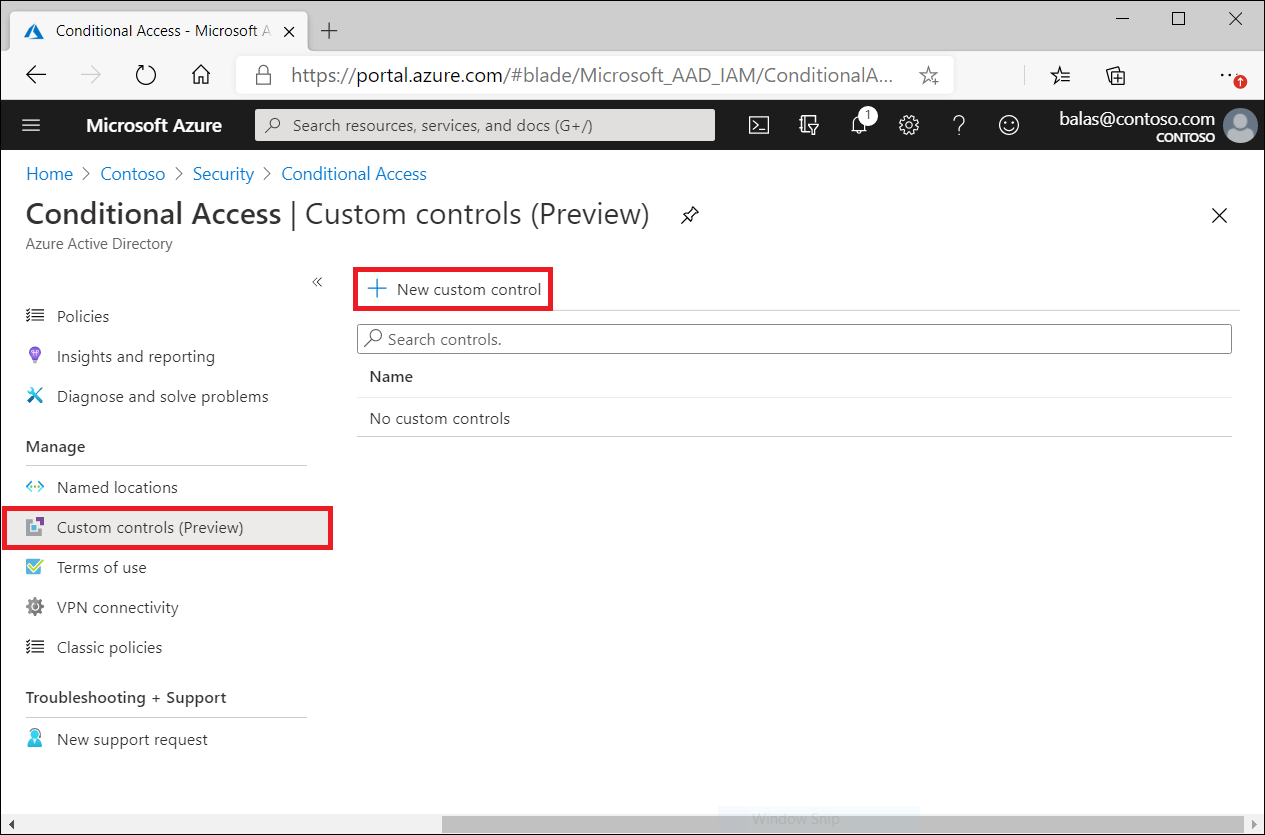
Selecting New custom control opens a page with a textbox for the JSON data of your control.
Deleting custom controls
To delete a custom control, ensure that it isn't being used in any Conditional Access policy. Then follow these steps:
- Go to the Custom controls list.
- Select … .
- Select Delete.
Editing custom controls
To edit a custom control, delete the current control and create a new one with the updated information.
Known limitations
Custom controls can't be used with Microsoft Entra ID Protection's automation requiring Microsoft Entra multifactor authentication, Microsoft Entra self-service password reset (SSPR), satisfying multifactor authentication claim requirements, with sign-in frequency controls, to elevate roles in Privileged Identity Manager (PIM), as part of Intune device enrollment, for cross-tenant trusts, or when joining devices to Microsoft Entra ID.