DrawingGroup.Transform Tulajdonság
Definíció
Fontos
Egyes információk olyan, kiadás előtti termékekre vonatkoznak, amelyek a kiadásig még jelentősen módosulhatnak. A Microsoft nem vállal kifejezett vagy törvényi garanciát az itt megjelenő információért.
Lekéri vagy beállítja az Transform erre alkalmazott elemet DrawingGroup.
public:
 property System::Windows::Media::Transform ^ Transform { System::Windows::Media::Transform ^ get(); void set(System::Windows::Media::Transform ^ value); };
public System.Windows.Media.Transform Transform { get; set; }member this.Transform : System.Windows.Media.Transform with get, setPublic Property Transform As TransformTulajdonság értéke
Az erre DrawingGroupvonatkozó átalakítás. Az alapértelmezett érték a null.
Példák
Ez a példa bemutatja, hogyan alkalmazható egy TransformDrawing. Egy Drawing objektum átalakításához adja hozzá egy DrawingGroup objektumhoz, és állítsa be az Transform objektum tulajdonságát DrawingGroup .
Az DrawingGroup osztály az egyetlen olyan objektumtípus, amely támogatja az Drawing átalakításokat. Ha több átalakítást szeretne alkalmazni egyetlenre DrawingGroup, használjon egy TransformGroup.
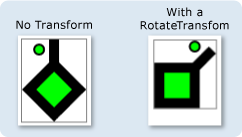
Az alábbi példa egy objektumot DrawingGroup használ több GeometryDrawing objektum összevonására, majd átalakítja őket egy RotateTransform.
Az ábrán az DrawingGroup alkalmazás előtt és után RotateTransform látható.
using System;
using System.Windows;
using System.Windows.Controls;
using System.Windows.Media;
using System.Windows.Media.Animation;
using System.Windows.Shapes;

namespace SDKSample
{
    public class TransformExample : Page
    {

        public TransformExample()
        {

            //
            // Create a GeometryDrawing.
            //

            // Define the drawing's contents.
            PathFigure pLineFigure = new PathFigure();
            pLineFigure.StartPoint = new Point(25, 25);
            PolyLineSegment pLineSegment = new PolyLineSegment();
            pLineSegment.Points.Add(new Point(0, 50));
            pLineSegment.Points.Add(new Point(25, 75));
            pLineSegment.Points.Add(new Point(50, 50));
            pLineSegment.Points.Add(new Point(25, 25));
            pLineSegment.Points.Add(new Point(25, 0));
            pLineFigure.Segments.Add(pLineSegment);
            PathGeometry pGeometry = new PathGeometry();
            pGeometry.Figures.Add(pLineFigure);

            GeometryDrawing drawing1 = new GeometryDrawing(
                    Brushes.Lime,
                    new Pen(Brushes.Black, 10),
                    pGeometry
                );

            //
            // Create another GeometryDrawing.
            //
            GeometryDrawing drawing2 = new GeometryDrawing(
                    Brushes.Lime,
                    new Pen(Brushes.Black, 2),
                    new EllipseGeometry(new Point(10, 10), 5, 5)
                );

            // Create the DrawingGroup and add the
            // geometry drawings.
            DrawingGroup aDrawingGroup = new DrawingGroup();
            aDrawingGroup.Children.Add(drawing1);
            aDrawingGroup.Children.Add(drawing2);

            //
            // Create a RotateTransform and apply it to the
            // drawing group.
            //
            RotateTransform rotation = new RotateTransform(
                45, // Angle
                50, // CenterX
                75  // CenterY
                );
            aDrawingGroup.Transform = rotation;

            // Use an Image control and a DrawingImage to
            // display the drawing.
            DrawingImage aDrawingImage = new DrawingImage(aDrawingGroup);

            // Freeze the DrawingImage for performance benefits.
            aDrawingImage.Freeze();

            Image anImage = new Image();
            anImage.Source = aDrawingImage;
            anImage.Stretch = Stretch.None;
            anImage.HorizontalAlignment = HorizontalAlignment.Left;

            // Create a border around the images and add it to the
            // page.
            Border imageBorder = new Border();
            imageBorder.BorderBrush = Brushes.Gray;
            imageBorder.BorderThickness = new Thickness(1);
            imageBorder.VerticalAlignment = VerticalAlignment.Top;
            imageBorder.HorizontalAlignment = HorizontalAlignment.Left;
            imageBorder.Margin = new Thickness(20);
            imageBorder.Child = anImage;

            this.Background = Brushes.White;
            this.Margin = new Thickness(20);
            this.Content = imageBorder;
        }
    }
}
<Page
  xmlns="http://schemas.microsoft.com/winfx/2006/xaml/presentation"
  xmlns:x="http://schemas.microsoft.com/winfx/2006/xaml"
  xmlns:PresentationOptions="http://schemas.microsoft.com/winfx/2006/xaml/presentation/options"
  xmlns:mc="http://schemas.openxmlformats.org/markup-compatibility/2006"
  mc:Ignorable="PresentationOptions"
  Background="White" Margin="20">

  <Border BorderBrush="Gray" BorderThickness="1"
    HorizontalAlignment="Left" VerticalAlignment="Top"
    Margin="20">
    <Image Stretch="None" HorizontalAlignment="Left">
      <Image.Source>
        <DrawingImage PresentationOptions:Freeze="True">
          <DrawingImage.Drawing>

            <!-- A drawing group with a RotateTransform. -->
            <DrawingGroup>
              <GeometryDrawing Brush="Lime" Geometry="M 25,25 L 0,50 25,75 50,50 25,25 25,0">
                <GeometryDrawing.Pen>
                  <Pen Thickness="10" Brush="Black" />
                </GeometryDrawing.Pen>
              </GeometryDrawing>
              <GeometryDrawing Brush="Lime">
                <GeometryDrawing.Geometry>
                  <EllipseGeometry Center="10,10" RadiusX="5" RadiusY="5" />
                </GeometryDrawing.Geometry>
                <GeometryDrawing.Pen>
                  <Pen Thickness="2" Brush="Black" />
                </GeometryDrawing.Pen>
              </GeometryDrawing>

              <!-- Rotate the drawing 45 degrees about (50,75). -->
              <DrawingGroup.Transform>
                <RotateTransform CenterX="50" CenterY="75" Angle="45" />
              </DrawingGroup.Transform>

            </DrawingGroup>
          </DrawingImage.Drawing>
        </DrawingImage>
      </Image.Source>
    </Image>
  </Border>


</Page>
Megjegyzések
Ha több átalakítást szeretne alkalmazni egyetlenre DrawingGroup, használjon egy TransformGroup.
DrawingGroup a műveletek alkalmazása a következő sorrendben történik:
Függőségi tulajdonság adatai
| Termék | Érték |
|---|---|
| Azonosító mező | TransformProperty |
Metaadat-tulajdonságok beállítása: true |
None |
