Megjegyzés
Az oldalhoz való hozzáféréshez engedély szükséges. Megpróbálhat bejelentkezni vagy módosítani a címtárat.
Az oldalhoz való hozzáféréshez engedély szükséges. Megpróbálhatja módosítani a címtárat.
Create a custom API by using the designer in the plug-in registration tool (PRT). This article shows how to define a custom API, add request parameters and response properties, and view, update, or delete them. The PRT is a Windows client application that's part of the developer tools you can download from NuGet. For information about downloading these tools, see Dataverse development tools.
Connect using the Plug-in Registration tool
Open the Plug-in Registration tool by executing the PAC CLI
pac tool prtcommand.Select +Create new connection to connect to your Dataverse environment.
Make sure Office 365 is checked.
If you are connecting using a Microsoft account other than one you are currently using, select Show Advanced and enter your credentials. Otherwise, leave Sign-in as current user selected.
Note
If your user account employs multifactor authentication (MFA), make sure the Show Advanced checkbox isn't checked.
If your Microsoft Account provides access to multiple environments, select Display list of available organizations.
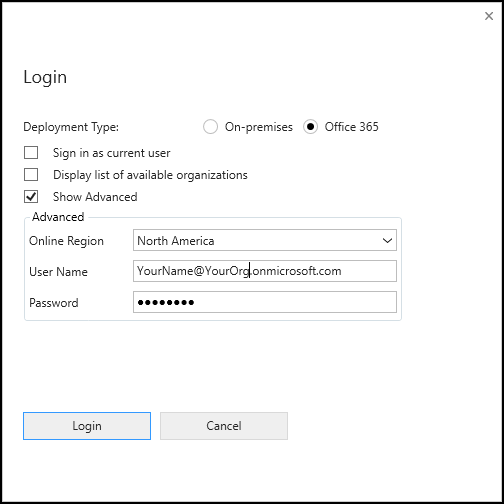
Select Login.
If you selected Display list of available organizations, select the organization you would like to connect to and select Login.
After you're connected, you'll see any existing registered plug-ins, custom workflow activities, and data providers.
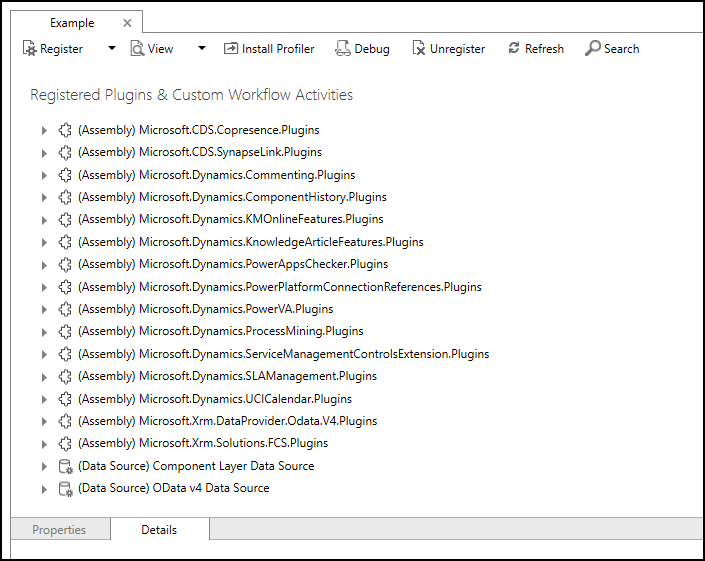
Create a custom API
In the Register menu, select the Register new Custom API command. This action opens the form to create a custom API.
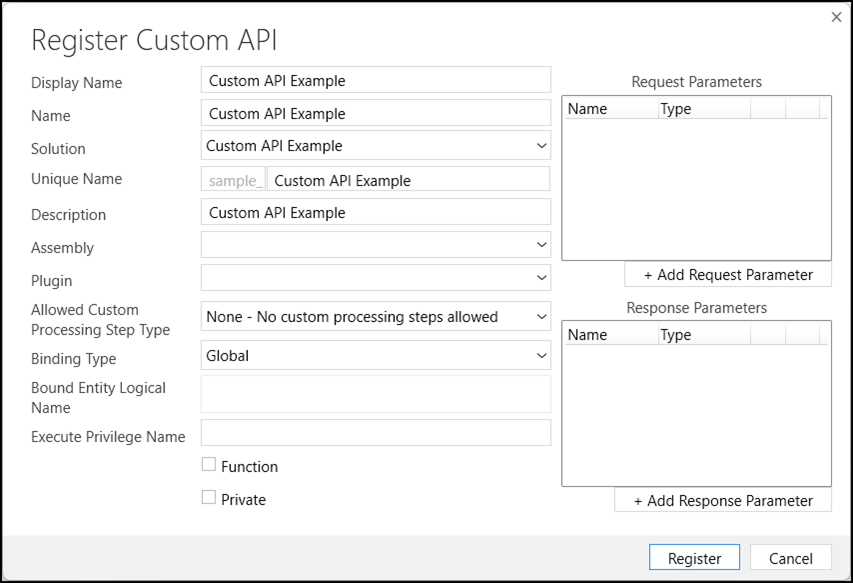
Use the following table to create the Custom API. For more details, see Custom API table columns.
Important
Some options can't be changed after you save the custom API. Ensure you understand the purpose of each setting that you can't change. If you later need to change this setting, you must delete and re-create the custom API. This action also deletes any request parameters or response properties that are associated with it.
| Label | Description | Can be changed |
|---|---|---|
| Display Name | A localizable name. | Yes |
| Name | A friendly, non-localizable name. | Yes |
| Solution | Create a new solution or select an existing one. Setting this value sets the appropriate customization prefix for the Unique Name field. | Yes |
| Unique Name | The name of the custom API. This value should contain only alphanumeric characters and no spaces. The full name includes the customization prefix determined by selecting the solution. |
No |
| Description | A localizable description. Use when the message is exposed to be called in an app. For example, as a ToolTip. | Yes |
| Assembly | Optional. Select an assembly that contains a plug-in type that defines what the custom API does. | Yes |
| Plugin | Optional. Select a plug-in type within the selected assembly. You can set this value later. | Yes |
| Allowed Custom Processing Step Type | Which types of processing steps you allow. More Information: Select a Custom Processing Step Type | No |
| Binding Type | What kind of entity binding. More Information: Select a Binding Type | No |
| Bound Entity Logical Name | If you select Binding Type Entity or EntityCollection, enter the logical name of the table representing that type. | No |
| Execute Privilege Name | The name of a privilege that controls whether someone can use the API. This name must be a valid Name value from the Privilege table. More information: Secure your custom API by requiring a privilege | Yes |
| Function | Whether to create a Function. More Information: When to create a Function | No |
| Private | Whether the custom API should be private. More Information: When to make your custom API private | Yes |
Note
- The PRT custom API designer doesn't expose the Enabled For Workflow (
WorkflowSdkStepEnabled) property. If you want to create a custom API that works for Workflows, use a different method. - The PRT custom API designer doesn't expose the Is Customizable managed property. You can set this property in Power Apps. For more information, see Custom API Customization.
You can continue to add Request Parameters and Response Properties, or save the custom API and add them later.
Create custom API request parameters
A custom API doesn't require request parameters. While creating or editing a custom API, you can add request parameters by selecting + Add Request Parameter. This selection opens the Parameter form.
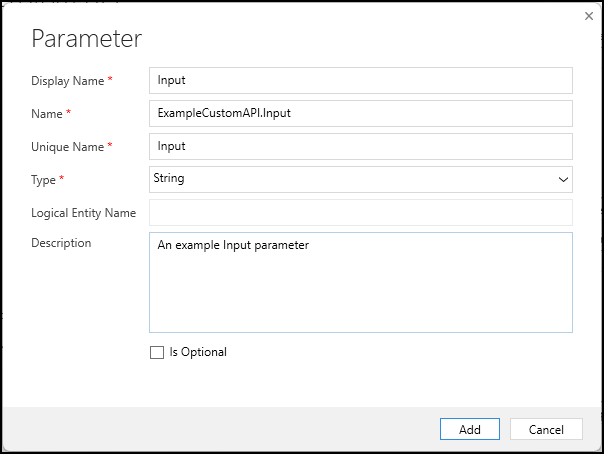
Use the following table to create the request parameter. For more information, see CustomAPIRequestParameter Table Columns.
| Label | Description | Can be changed |
|---|---|---|
| Display Name | Localizable display name. | Yes |
| Name | The primary name of the custom API request parameter. Use this naming convention to differentiate this parameter from others that share a common Unique Name: {Custom API Unique Name}.{Parameter UniqueName} |
Yes |
| Unique Name | The name of the parameter when you call the custom API. | No |
| Type | Select the type of the parameter. Boolean DateTime Decimal Entity EntityCollection EntityReference Float Integer Money Picklist String StringArray Guid |
No |
| Logical Entity Name | When you select Entity, EntityCollection, or EntityReference as the Type, specify the table. | No |
| Description | Localizable description. | Yes |
| Is Optional | Whether the caller must provide a value for the parameter. | No |
Create custom API response properties
A custom API for an action doesn't require any response properties. While creating a custom API or editing an existing one, you can create new response properties by selecting + Add Response Parameter. This selection opens the Parameter form.
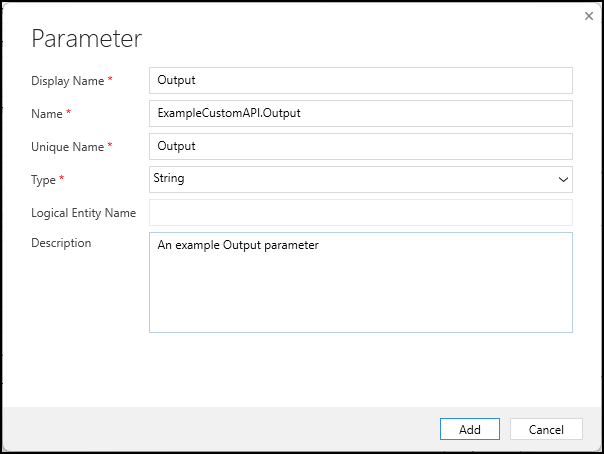
Use the following table to create the response property. For more details, see CustomAPIResponseProperty Table Columns.
| Label | Description | Can be changed |
|---|---|---|
| Display Name | Localizable display name. | Yes |
| Name | The primary name of the custom API response property. Use this naming convention to differentiate this parameter from others that share a common Unique Name: {Custom API Unique Name}.{Property UniqueName} |
Yes |
| Unique Name | This name is the property returned when you call the custom API. | No |
| Type | Select the type of the property. Boolean DateTime Decimal Entity EntityCollection EntityReference Float Integer Money Picklist String StringArray Guid |
No |
| Logical Entity Name | When you select Entity or EntityReference as the Type, specify the table. You can't specify a Logical Entity Name when you choose EntityCollection as the Type. | No |
| Description | Localizable description. | Yes |
View a list of custom APIs
To view a list of custom APIs, select the Display by Message command from the View menu.
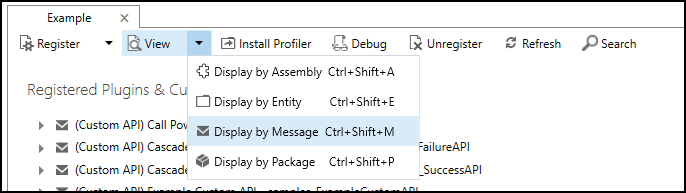
Any messages that you created as a custom API are prefixed by (Custom API).
Delete a custom API
When you view a list of custom APIs, select the API you want to delete and select Unregister.
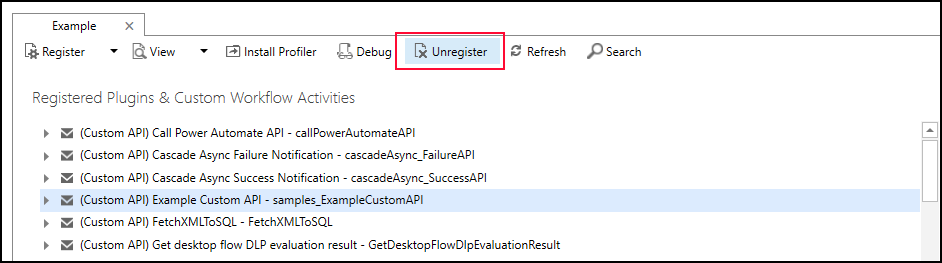
Or, right-click the item and select Unregister from the context menu.
Update custom API request parameters or response properties
In the list of Request parameters or Response properties, select the column you want to edit:
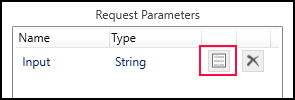
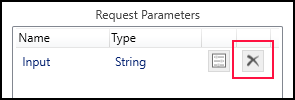
Delete custom API request parameters or response properties
In the list of Request parameters or Response properties, select the column you want to delete:
Next steps
If you don't set the IsPrivate property for your custom API, you can retrieve the service definition after you create your custom API. Use a GET request to get the CSDL $metadata document, even from your browser. If the URL for your environment is https://yourorg.crm.dynamics.com, type this URL in your browser address field to retrieve the $metadata: https://yourorg.crm.dynamics.com/api/data/v9.1/$metadata.
Search the result to find the name of the custom API. You find the Action or Function created together with any related ComplexType to represent the return value. For example:
<ComplexType Name="sample_CustomAPIExampleResponse">
    <Property Name="StringProperty"
        Type="Edm.String"
        Unicode="false"/>
</ComplexType>
<Action Name="sample_CustomAPIExample">
    <Parameter Name="StringParameter"
        Type="Edm.String"
        Nullable="false"
        Unicode="false"/>
    <ReturnType Type="mscrm.sample_CustomAPIExampleResponse"
        Nullable="false"/>
</Action>
Even if you don't set a Plugin for your custom API, you can test it to verify the signature. The response properties return their default values because there's no plug-in to set the values. For more information, see Invoking custom APIs.
If you add a plug-in, you must write it and register the assembly. Then update your custom API to set the Assembly and Plugin to specify what code to run in response to your custom API. For more information, see Write a Plug-in for your custom API.
See also
Create and use custom APIs
Create a custom API in Power Apps
Create a custom API with code
Create a custom API with solution files
Create your own messages
Custom API table columns