Catatan
Akses ke halaman ini memerlukan otorisasi. Anda dapat mencoba masuk atau mengubah direktori.
Akses ke halaman ini memerlukan otorisasi. Anda dapat mencoba mengubah direktori.
This article describes how to submit a support ticket in the Azure portal for Azure Synapse Analytics. Proses ini memungkinkan Anda untuk meminta peningkatan kuota atau mengirimkan permintaan dukungan teknis untuk tim dukungan teknik.
Membuat tiket dukungan
Use the following steps to create a new support request from the Azure portal for Azure Synapse Analytics.
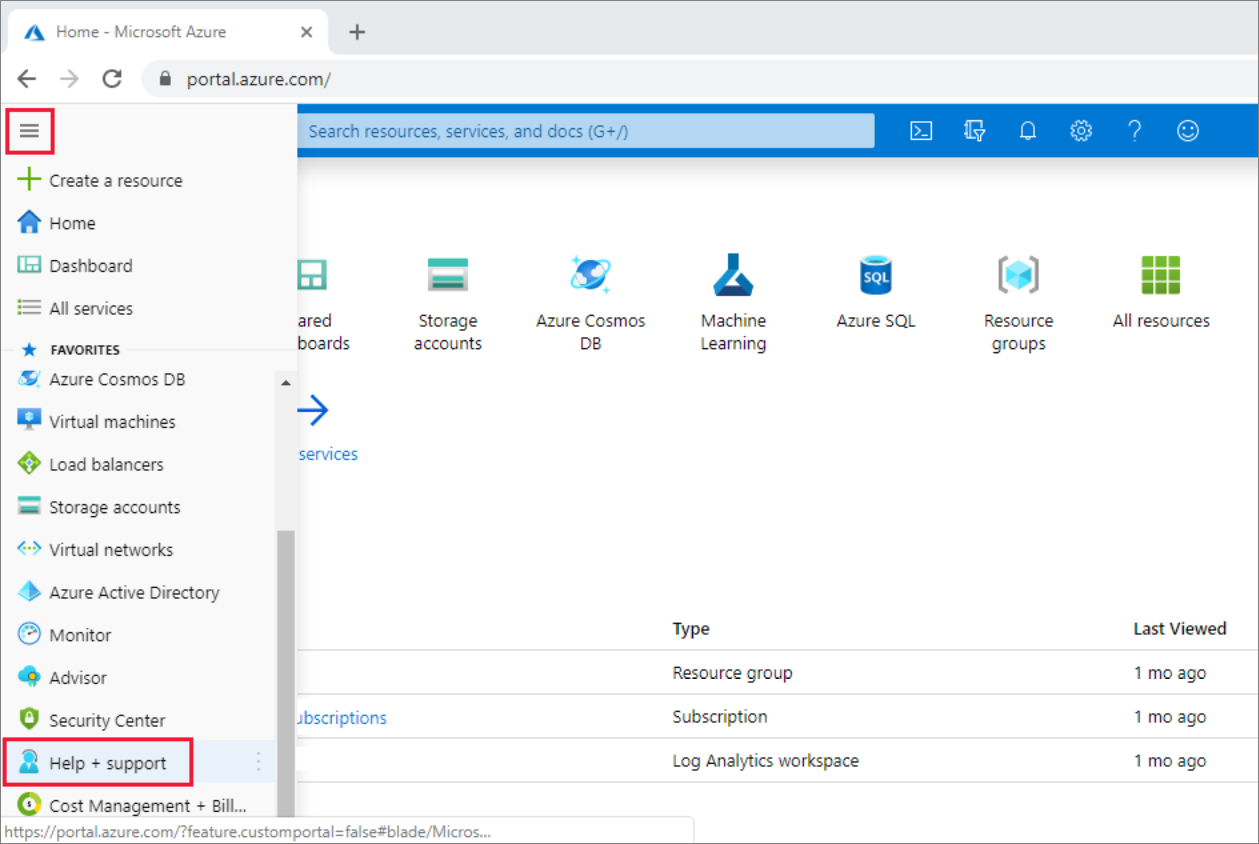
Pada menu portal Microsoft Azure, pilih Bantuan + dukungan.
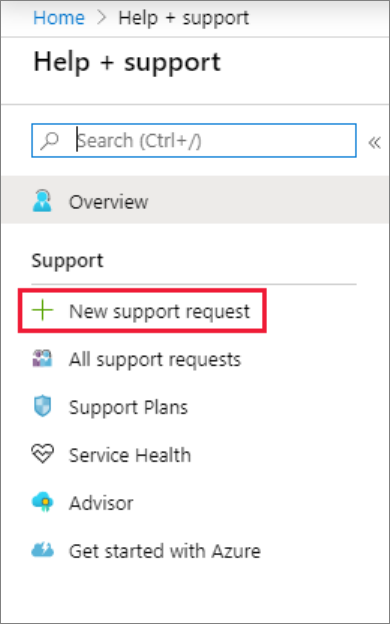
In Help + support, select New support request.
Tinjau paket dukungan Azure Anda.
- Dukungan manajemen tagihan, kuota, dan langganan tersedia di semua tingkat dukungan.
- Dukungan Break-fix disediakan melalui dukungan Pengembang, Standar, Professional Direct, atau Premier. Break-fix issues are problems experienced by customers while using Azure where there is a reasonable expectation that Microsoft caused the problem.
- Mentor pengembang dan layanan penasihat tersedia di tingkat dukungan Professional Direct dan Premier.
If you have a Premier support plan, you can also report Azure Synapse Analytics issues on the Microsoft Premier online portal. Lihat Paket dukungan Azure untuk mempelajari selengkapnya tentang berbagai paket dukungan, termasuk cakupan, waktu respons, harga, dll. Untuk pertanyaan umum tentang dukungan Azure, lihat FAQ dukungan Azure.
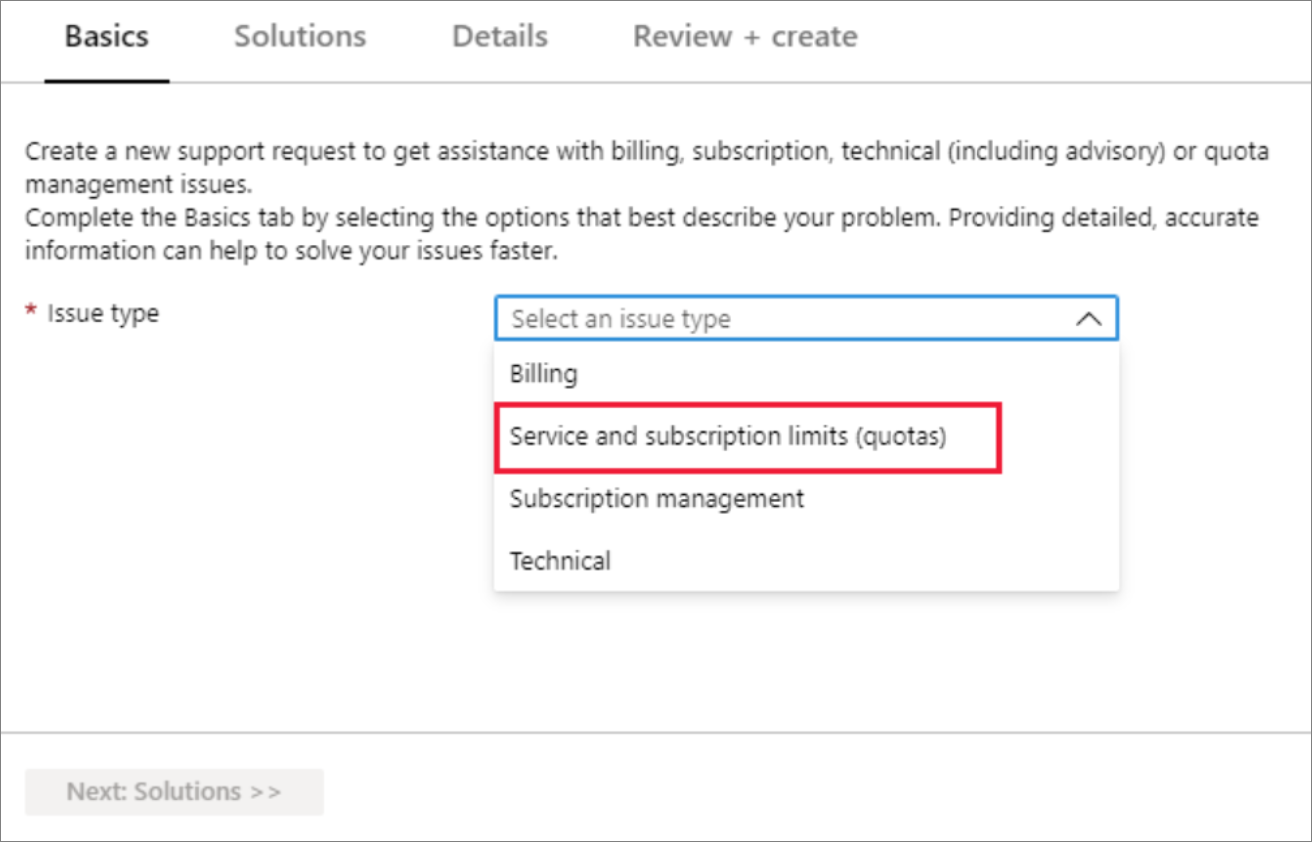
Untuk Jenis masalah, pilih jenis masalah yang sesuai. Untuk masalah perbaikan kerusakan, pilih Teknis. Untuk permintaan penambahan kuota, pilih Batas (kuota) layanan dan langganan.
Nota
Sisa artikel ini berfokus pada permintaan penambahan kuota. Tetapi Anda juga dapat memilih Teknis di sini untuk permintaan dukungan penyelesaian masalah. Jika Anda memilihTeknis, Anda diminta untuk memberikan ringkasan lalu mengidentifikasi jenis masalah dengan memilih Pilih jenis masalah. Anda mungkin melihat solusi untuk membantu mengatasi masalah Anda. Jika solusi yang disajikan tidak mengatasi masalah Anda, pilih Berikutnya:Detail dan lengkapi formulir untuk mengirimkan tiket dukungan.
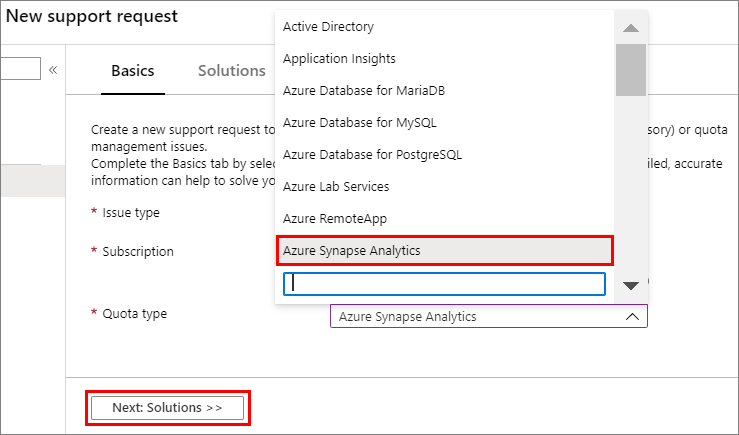
For quota increase requests, select Azure Synapse Analytics for the Quota type. Then select Next: Solutions >>.
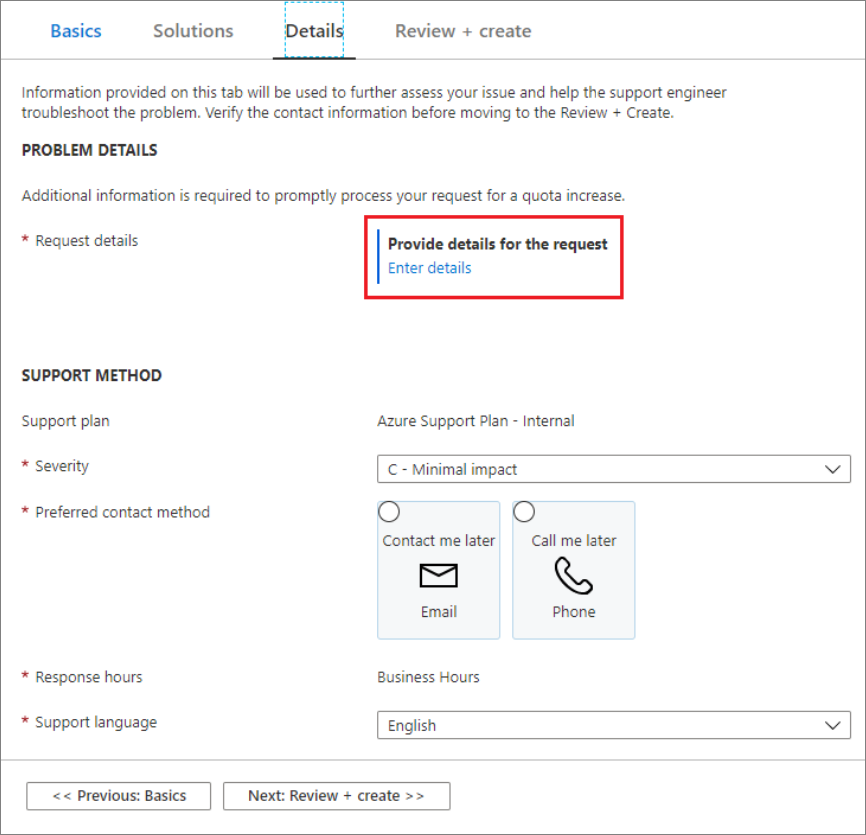
In the Details window, select Enter details to enter additional information.
Quota request types
Selecting Enter details displays the Quota details window that allows you to add additional information. The following sections describe the different quota requests available for Azure Synapse Analytics.
Synapse SQL pool Data Warehouse Units (DWUs) per server
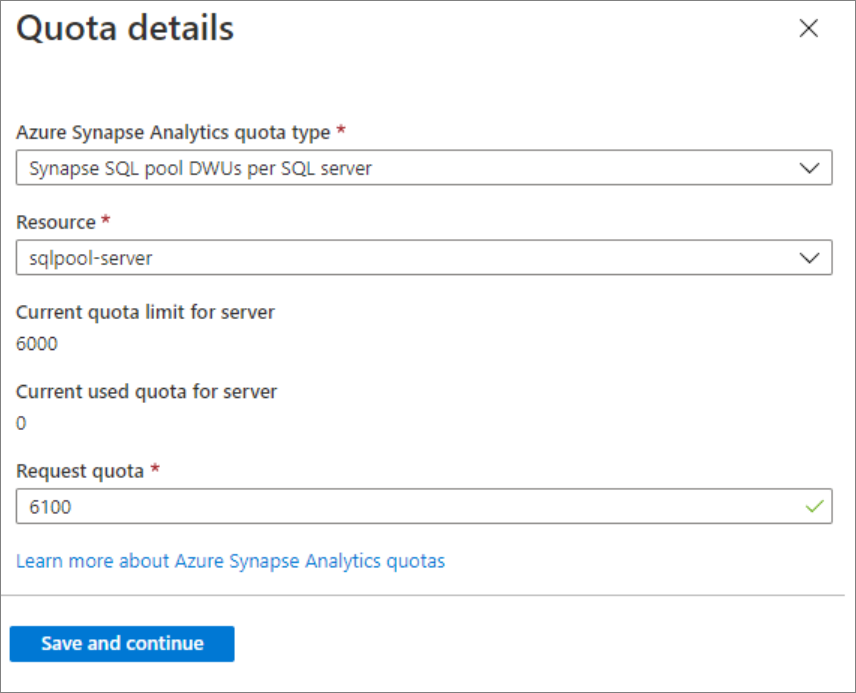
Use the following steps to request an increase in the DWUs per server.
Select the Synapse SQL pool DWUs per server quota type.
Select the Resource you want to apply the quota increase to by using the dropdown list.
Enter your new quota into the Request quota section.
Klik Simpan dan lanjutkan.
Servers per subscription
To request an increase in the number of servers per subscription, you'll need to complete the following steps:
Select the SQL Servers per subscription as the quota type.
In the Location list, select the Azure region to use. The quota is per subscription in each region.
In the Request quota field, enter your request for the maximum number of servers in that region.
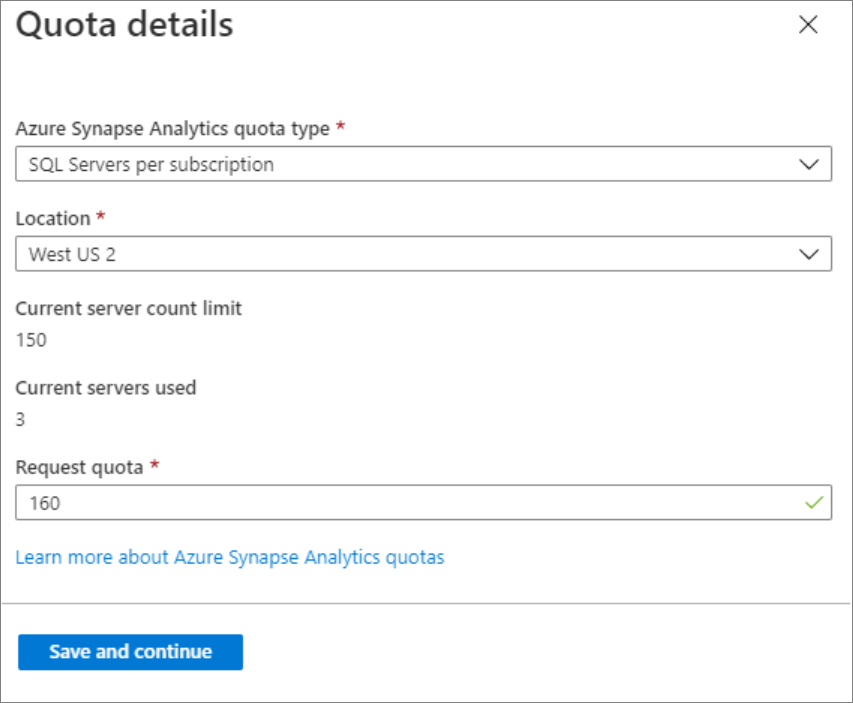
Klik Simpan dan lanjutkan.
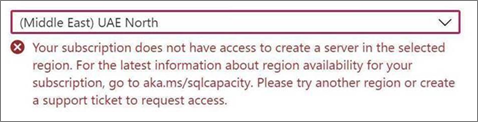
Some offer types aren't available in every region. Anda mungkin melihat kesalahan berikut:
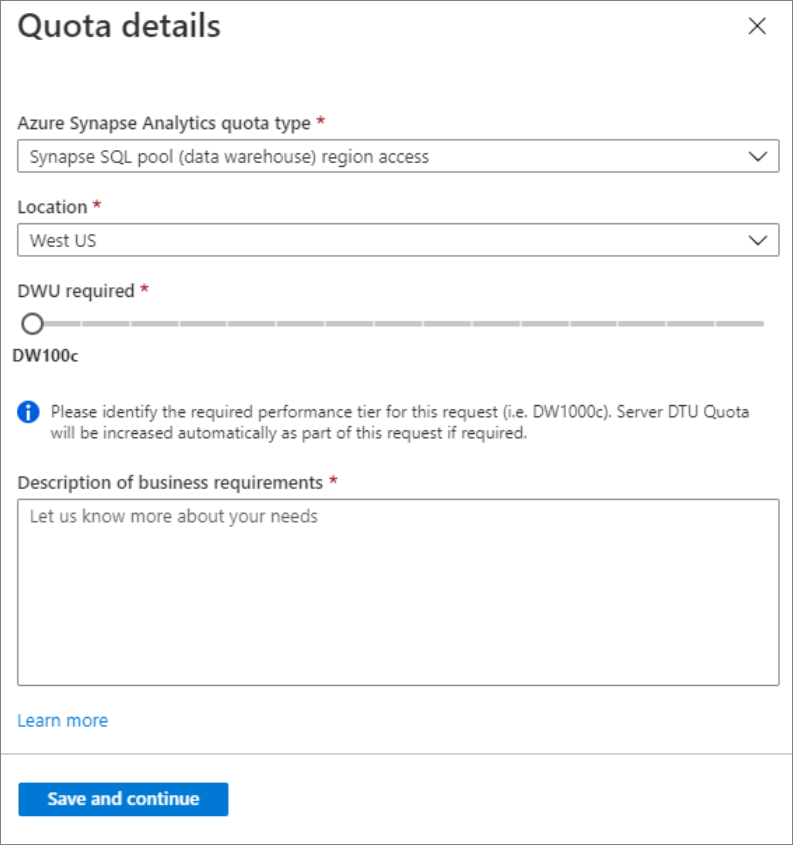
Enable subscription access to a region
To enable region access for a subscription, you'll need to complete the following steps:
Select the Synapse SQL pool (data warehouse) region access quota type.
Select the region by choosing a Location from the dropdown list.
Indicate your DWU performance requirement in the DWU required section.
Enter your Description of business requirements.
Klik Simpan dan lanjutkan.
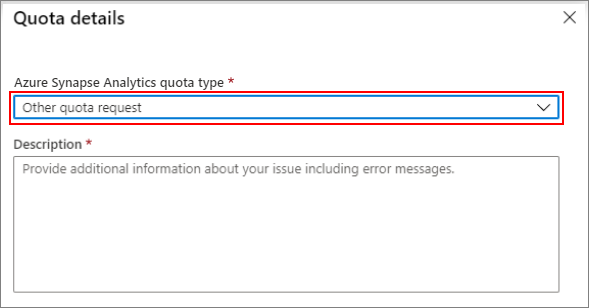
For other quota requests
Select Other quota request from the quota type drop-down menu for other quota request types:
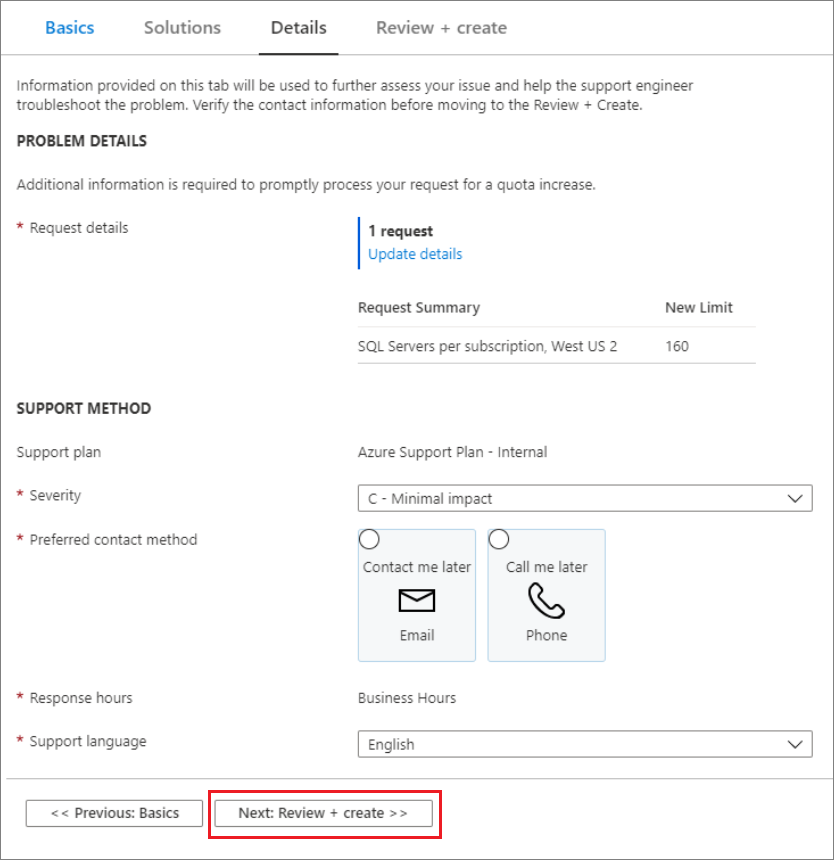
Kirim permintaan Anda
The final step is to fill in the remaining details of your SQL Database support request. Then select Next: Review + create>>.
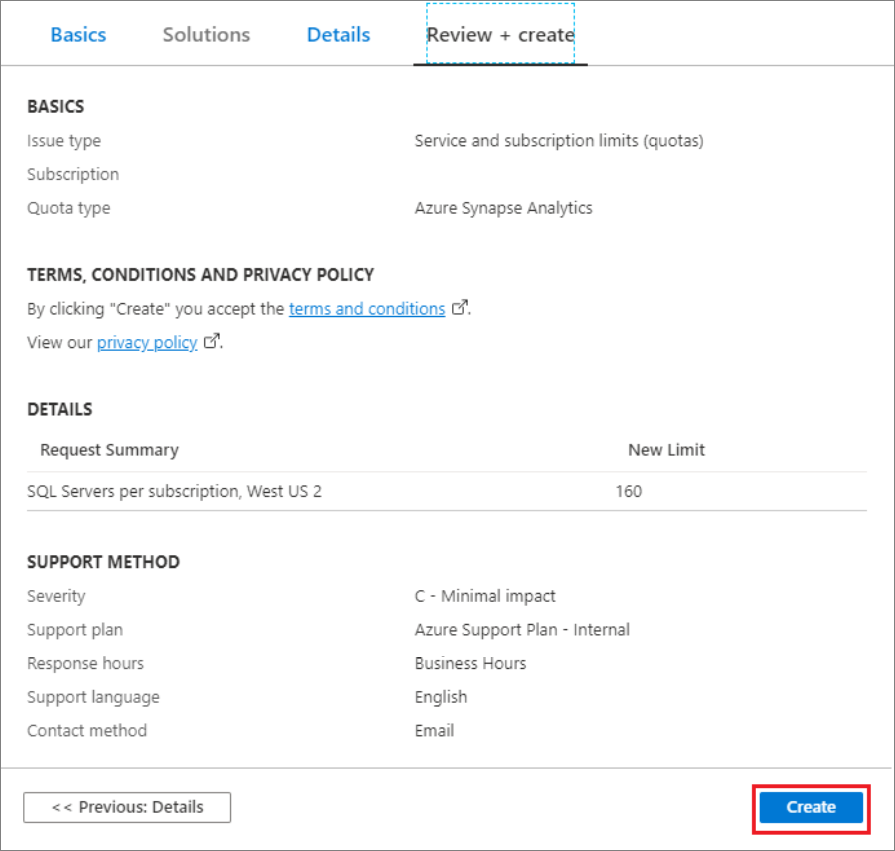
After reviewing the request details, select Create to submit the request.
Pantau tiket dukungan
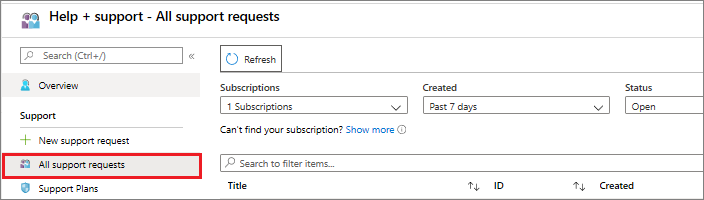
Setelah Anda mengirimkan permintaan dukungan, tim dukungan Azure akan menghubungi Anda. Untuk memeriksa status dan detail permintaan Anda, pilih Semua permintaan dukungan di dasbor.
Sumber daya lainnya
You can also connect with the Azure Synapse Analytics community on Stack Overflow or through the Microsoft Q&A question page for Azure Synapse Analytics.