Catatan
Akses ke halaman ini memerlukan otorisasi. Anda dapat mencoba masuk atau mengubah direktori.
Akses ke halaman ini memerlukan otorisasi. Anda dapat mencoba mengubah direktori.
Gambaran Umum
Elemen <profiles><caching> elemen menentukan profil yang akan digunakan untuk penembolokan output.
Kompatibilitas
| Versi | Catatan |
|---|---|
| IIS 10.0 | Elemen <profiles> tidak dimodifikasi di IIS 10.0. |
| IIS 8.5 | Elemen <profiles> tidak dimodifikasi di IIS 8.5. |
| IIS 8.0 | Elemen <profiles> tidak dimodifikasi di IIS 8.0. |
| IIS 7.5 | Elemen <profiles> tidak dimodifikasi dalam IIS 7.5. |
| IIS 7.0 | Elemen <profiles><caching> elemen diperkenalkan di IIS 7.0. |
| IIS 6.0 | T/A |
Siapkan
Elemen <profiles><caching> elemen disertakan dalam penginstalan default IIS 7.
Bagaimana Caranya
Cara mengonfigurasi penembolokan output halaman
Buka Manajer Layanan Informasi Internet (IIS):
Jika Anda menggunakan Windows Server 2012 atau Windows Server 2012 R2:
- Pada bilah tugas, klik Manajer Server, klik Alat, lalu klik Manajer Layanan Informasi Internet (IIS).
Jika Anda menggunakan Windows 8 atau Windows 8.1:
- Tahan tombol Windows, tekan huruf X, lalu klik Panel Kontrol.
- Klik Alat Administratif, lalu klik dua kali Manajer Layanan Informasi Internet (IIS).
Jika Anda menggunakan Windows Server 2008 atau Windows Server 2008 R2:
- Pada taskbar, klik Mulai, arahkan ke Alat Administratif, lalu klik Manajer Layanan Informasi Internet (IIS).
Jika Anda menggunakan Windows Vista atau Windows 7:
- Pada taskbar, klik Mulai, lalu klik Panel Kontrol.
- Klik dua kali Alat Administratif, lalu klik dua kali Manajer Layanan Informasi Internet (IIS).
Di panel Koneksi , buka koneksi, situs, aplikasi, atau direktori yang ingin Anda konfigurasi penembolokan output halamannya.
Di panel Beranda , gulir ke Penembolokan Output, lalu klik dua kali Penembolokan Output.
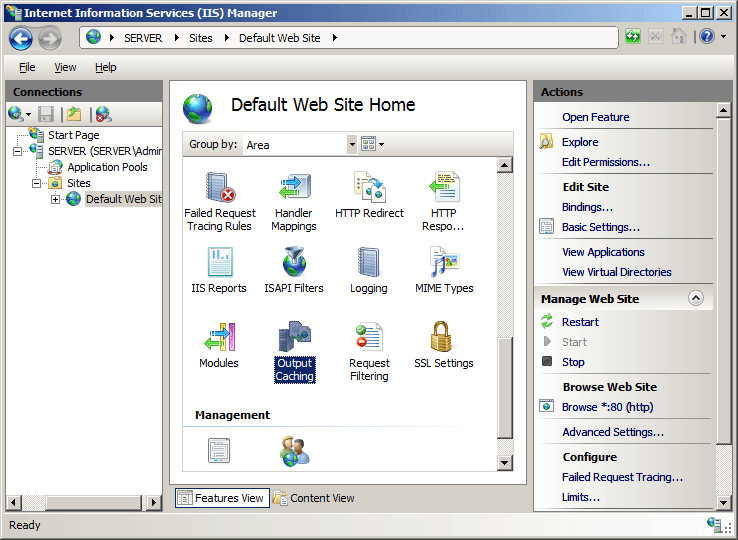
Di panel Tindakan , klik Tambahkan...
Dalam kotak dialog Tambahkan Aturan Cache , ketik ekstensi nama file yang ingin Anda cache dalam kotak Ekstensi nama file , lalu pilih opsi Penembolokan mode pengguna , opsi penembolokan mode Kernel , atau keduanya.
Pilih opsi yang ingin Anda gunakan untuk penembolokan, lalu klik OK.

Konfigurasi
Atribut
Tidak ada.
Elemen Anak
| Elemen | Deskripsi |
|---|---|
add |
Elemen opsional. Menambahkan profil penembolokan output ke kumpulan profil penembolokan output. |
clear |
Elemen opsional. Menghapus semua referensi ke profil penembolokan output dari kumpulan profil penembolokan output. |
remove |
Elemen opsional. Menghapus referensi ke profil penembolokan output dari kumpulan profil penembolokan output. |
Sampel Konfigurasi
Contoh konfigurasi berikut memungkinkan penembolokan mode pengguna dan penembolokan mode kernel, yang keduanya diaktifkan secara default di IIS 7.0. Ini juga menggunakan elemen yang <add> dimuat oleh <profiles> elemen untuk mengaktifkan penembolokan output untuk file dengan ekstensi nama file .asp. Ini juga menggunakan atribut kebijakan untuk menghasilkan cache halaman sampai berubah; ini melakukan hal yang sama untuk penembolokan kernel menggunakan atribut kernelCachePolicy .
<configuration>
   <system.webServer>
      <caching enabled="true" enableKernelCache="true">
         <profiles>
            <add extension=".asp" policy="CacheUntilChange" kernelCachePolicy="CacheUntilChange" />
         </profiles>
      </caching>
   </system.webServer>
</configuration>
Contoh kode berikut mengatur ukuran cache output maksimum menjadi 1 gigabyte dan mengatur ukuran maksimum respons yang dapat disimpan dalam cache output menjadi 512 kilobyte.
<configuration>
   <system.webServer>
      <caching enabled="true" enableKernelCache="true" maxCacheSize="1000" maxResponseSize="512000"/>
   </system.webServer>
</configuration>
Kode Sampel
Contoh berikut mengonfigurasi penembolokan output halaman untuk file dengan ekstensi nama file .asp, dan mengonfigurasi IIS untuk cache dalam mode pengguna dan mode kernel hingga file ASP berubah.
AppCmd.exe
appcmd.exe set config -section:system.webServer/caching /+"profiles.[extension='asp',policy='CacheUntilChange',kernelCachePolicy='CacheUntilChange']" /commit:apphost
Catatan
Anda harus memastikan untuk mengatur parameter penerapan ke apphost saat Anda menggunakan AppCmd.exe untuk mengonfigurasi pengaturan ini. Ini menerapkan pengaturan konfigurasi ke bagian lokasi yang sesuai dalam file ApplicationHost.config.
C#
using System;
using System.Text;
using Microsoft.Web.Administration;

internal static class Sample {
   private static void Main() {
      using(ServerManager serverManager = new ServerManager()) {
         Configuration config = serverManager.GetApplicationHostConfiguration();
         ConfigurationSection cachingSection = config.GetSection("system.webServer/caching");
         ConfigurationElementCollection profilesCollection = cachingSection.GetCollection("profiles");

         ConfigurationElement addElement = profilesCollection.CreateElement("add");
         addElement["extension"] = @"asp";
         addElement["policy"] = @"CacheUntilChange";
         addElement["kernelCachePolicy"] = @"CacheUntilChange";
         profilesCollection.AddAt(0, addElement);

         serverManager.CommitChanges();
      }
   }
}
VB.NET
Imports System
Imports System.Text
Imports Microsoft.Web.Administration

Module Sample
   Sub Main()
      Dim serverManager As ServerManager = New ServerManager
      Dim config As Configuration = serverManager.GetApplicationHostConfiguration
      Dim cachingSection As ConfigurationSection = config.GetSection("system.webServer/caching")
      Dim profilesCollection As ConfigurationElementCollection = cachingSection.GetCollection("profiles")
      Dim addElement As ConfigurationElement = profilesCollection.CreateElement("add")
      addElement("extension") = "asp"
      addElement("policy") = "CacheUntilChange"
      addElement("kernelCachePolicy") = "CacheUntilChange"
      profilesCollection.AddAt(0, addElement)
      serverManager.CommitChanges()
   End Sub
End Module
JavaScript
var adminManager = new ActiveXObject('Microsoft.ApplicationHost.WritableAdminManager');
adminManager.CommitPath = "MACHINE/WEBROOT/APPHOST";
var cachingSection = adminManager.GetAdminSection("system.webServer/caching", "MACHINE/WEBROOT/APPHOST");
var profilesCollection = cachingSection.ChildElements.Item("profiles").Collection;

var addElement = profilesCollection.CreateNewElement("add");
addElement.Properties.Item("extension").Value = "asp";
addElement.Properties.Item("policy").Value = "CacheUntilChange";
addElement.Properties.Item("kernelCachePolicy").Value = "CacheUntilChange";
profilesCollection.AddElement(addElement, 0);

adminManager.CommitChanges();
Vbscript
Set adminManager = createObject("Microsoft.ApplicationHost.WritableAdminManager")
adminManager.CommitPath = "MACHINE/WEBROOT/APPHOST"
Set cachingSection = adminManager.GetAdminSection("system.webServer/caching", "MACHINE/WEBROOT/APPHOST")
Set profilesCollection = cachingSection.ChildElements.Item("profiles").Collection

Set addElement = profilesCollection.CreateNewElement("add")
addElement.Properties.Item("extension").Value = "asp"
addElement.Properties.Item("policy").Value = "CacheUntilChange"
addElement.Properties.Item("kernelCachePolicy").Value = "CacheUntilChange"
profilesCollection.AddElement addElement, 0

adminManager.CommitChanges()