Catatan
Akses ke halaman ini memerlukan otorisasi. Anda dapat mencoba masuk atau mengubah direktori.
Akses ke halaman ini memerlukan otorisasi. Anda dapat mencoba mengubah direktori.
Microsoft Teams Multi-Stream IntelliFrame is an AI (Artificial Intelligence) platform, which allows in-room users to inspire and share experiences for remote users.
IntelliFrame provides an immersive video experience for remote users through a better meeting understanding by identifying the active speaker and a view of the room.
Microsoft Teams Multi-Stream IntelliFrame certified devices, include a speaker, microphone, and an AI camera that can produce multiple video streams and AI-powered active speaker tracking by recognizing facial movements and gestures. The multiple video streams from a multi-stream camera enable the Teams service to match the participant captured on video to their enrolled face profile and display a name label below their video frame. This is an improvement over a regular Teams Rooms camera, which only displays the room name attributed to the video stream.
Prerequisites
- Microsoft Teams Rooms on Windows device
- Microsoft Teams Rooms Pro license
- Microsoft Teams Rooms with Pro license is required to enable IntelliFrame, and people recognition features on Microsoft Teams Rooms.
- Basic license doesn't support IntelliFrame or people recognition. If you have Teams Rooms Basic license, the camera shows only active speaker and panoramic views.
- Check this link to determine if you have the right license.
- End users policy configured to allow Voice and Face Enrollment.
Device provisioning
Supported cameras
These Microsoft Teams Rooms devices support Multi-Stream IntelliFrame and people recognition:
- Jabra Panacast 50
- Lenovo ThnkSmart Bar 180
- Logitech Rally Bar
- Logitech Rally Bar Mini
- Yealink SmartVision 40
- Yealink SmartVision 60
- Yealink MVC S90 Bundle
Note
Additional cameras are certified all the time, check with your camera manufacturer for additional details.
Setting up your certified Multi-Stream IntelliFrame camera to your Microsoft Teams Room
Connect the supplied USB cable to the USB port on your Microsoft Teams Room device.
Sign in to Microsoft Teams Rooms settings as an admin and ensure your camera is selected. You may need to adjust OEM specific camera settings to ignore displays or set tracking zones if you have glass walls in your conference room. Refer to your camera documentation for device specific guidance.
Enabling face enrollment and people recognition
In order for people recognition to function, you need to prepare your organizations by enabling Face enrollment and People recognition.
Important
- You're responsible for compliance with local laws and regulations when you install an AI intelligent camera and use Face Enrollment and People Recognition in a particular jurisdiction, including with respect to obligations around notice, consent, and data retention.
- Please install appropriate signage outside any meeting room, where you install an AI intelligent camera, advising people about the people recognition, face enrollment, and voice recognition features.
- You must first enroll for Voice recognition before you can enroll for Face recognition.
Enabling face enrollment
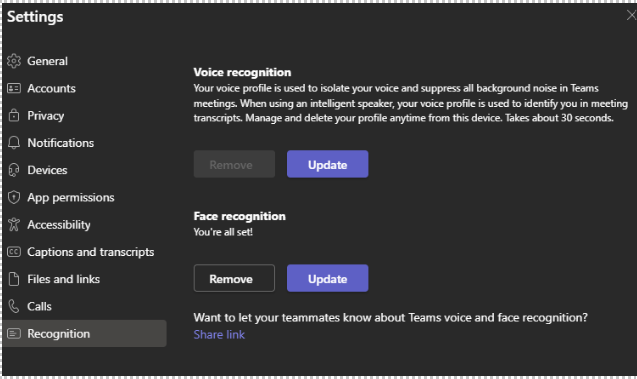
A multi-stream IntelliFrame camera uses face and voice profile information of an enrolled user to recognize who is speaking from the room to enable the following features:
- Name labels on room participant stage videos.
- Roster entry under call room participants.
- Live transcription with recognition (who said what).
CsTeamsAIPolicy is enabled by default to allow end user face enrollment. Learn more here about this policy along with Voice enrollment: Voice and Face Enrollment.
Note
- You must first enroll for Voice recognition before you can enroll for Face recognition.
Enabling people recognition
Enabling people recognition requires configuration within the Teams Rooms device settings or the tenant CsTeamsMeetingPolicy roomPeopleNameUserOverride to be "On" and roomAttributeUserOverride to be Attribute for allowing individual voice and face profiles to be used for recognition in meetings.
For more information on setting meeting policies, see Enable People Recognition and Microsoft Teams PowerShell.
Being identified during a meeting
When you schedule a meeting, the users who wish to be identified must be invited to meeting or meeting forwarded to them before the meeting transcription is started. Identification only works for Face-enrolled users, everyone else will be treated as a participant.
Note
Adhoc or 1:1 meetings won't have face identifications, where there's no Outlook appointment with a list of participants. Always schedule a meeting to use features like IntelliFrame and People recognition.
Known issues
| # | Behavior | Mitigation |
|---|---|---|
| 1 | When the view from the room is an Active speaker view and not IntelliFrame view, the Name label is missing on the participant video. | N/A |
| 2 | Intermittently room participants fail to get added to the Roster. | Option 1: Stop and Start the camera. Option 2: Restart device |
| 3 | The purple bounding box around the room is always highlighted even when there's no voice or sound from the Room. | N/A |
| 4 | Time taken to switch from IntelliFrame to Active speaker, after IntelliFrame toggle, and for Name labels to appear/disappear after people recognition toggle is five to seven seconds. | N/A |
| 5 | For people Identification, the Outlook invite supports a total of 64 users, which includes both users attending online and up to 12 concurrent users in the room for Name labels. | N/A |
| 6 | Room participants get identified: |
N/A |