Add a form to a marketing page
Once the form is live, it will be available for selection on Dynamics 365 Customer Insights - Journeys pages. On the page, you will add a form element and then select the specific form. You will then be able to set submission behaviors for the form such as confirmation message, error message, and redirect URL.
Note
The form type must match the type of marketing page that you are working on (landing page, subscription center, or forward to a friend).
To add a marketing form to a marketing page, go to Outbound marketing > Internet marketing > Marketing pages.
Open the marketing page you want to add the form to.
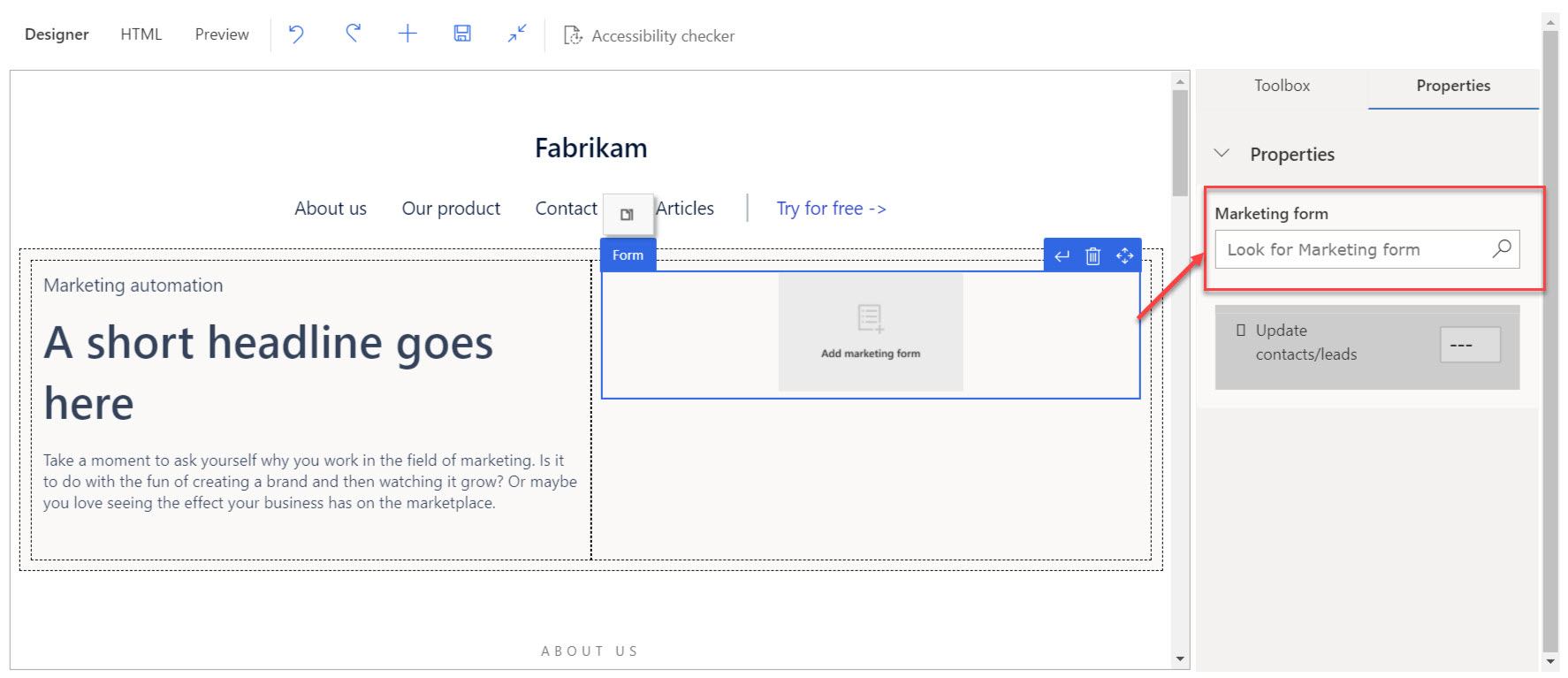
Select the marketing form element on the designer. (If a form element doesn't currently appear on your page, select the Toolbox on the right and drag the Form element onto the page.)
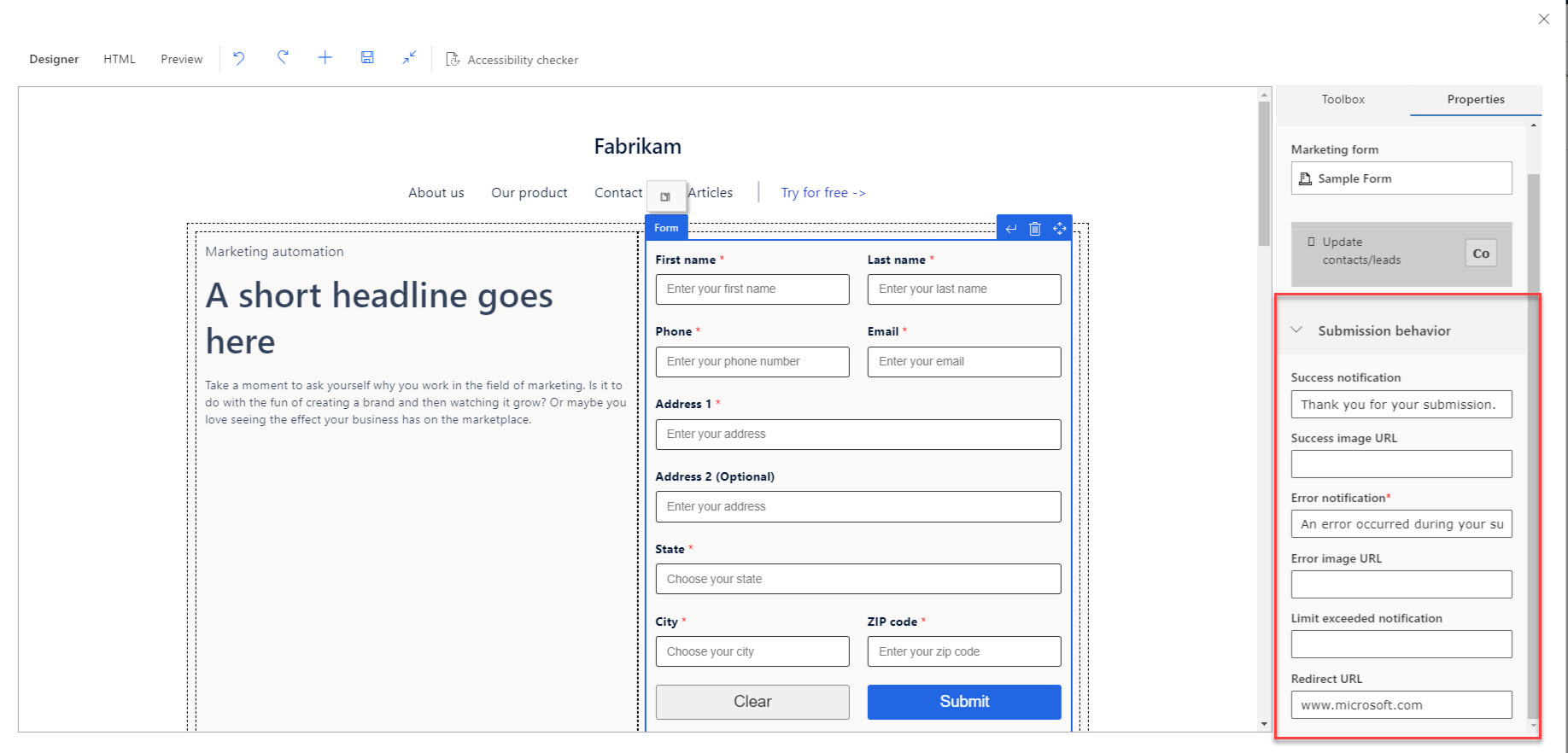
From the Properties menu on the right, select the form in the Marketing form field. Remember that only live forms will be available for selection.
The Submission behavior settings configured on the marketing form will be displayed on the right. You can override those settings as needed.
Note
Currently you can't embed an event registration form from the Designer area of a marketing page. You must use a form script to add the form to the marketing page.
If you choose to embed an event registration form onto a Dynamics 365 Customer Insights - Journeys page, you need to create and go live with the event registration form, relate the form to the corresponding event on the Website and form tab of the event, generate a script for the marketing form, and then add the script directly into the HTML of your Dynamics 365 Customer Insights - Journeys page.
For more information, see Add a form to a marketing page.