Catatan
Akses ke halaman ini memerlukan otorisasi. Anda dapat mencoba masuk atau mengubah direktori.
Akses ke halaman ini memerlukan otorisasi. Anda dapat mencoba mengubah direktori.
Original product version: SQL Server
Original KB number: 231619
Summary
The SQLIOSim tool runs reliability and integrity stress tests on disk subsystems by simulating Microsoft SQL Server I/O patterns. These tests include read, write, checkpoint, backup, sort, and read-ahead activities. Use SQLIOSim to validate your I/O subsystem before you deploy SQL Server on new hardware. The tool operates independently of the SQL Server engine, and doesn't require SQL Server to be running.
Introduction to SQLIOSim
SQLIOSim simulates the read and write patterns (page reads, checkpoint, backup, sort, read-ahead) of a SQL Server system to help identify potential I/O problems. The primary objective of the I/O simulation tests is to verify the reliability of the underlying I/O subsystem before SQL Server starts using it. For more information about SQL Server I/O fundamentals, see SQL Server I/O fundamentals.
SQLIOSim doesn't interact with SQL Server, and doesn't require SQL Server to be running. In most cases, run SQLIOSim when SQL Server isn't running to avoid competition for I/O throughput between the two applications.
Warning
Don't point to or use actual SQL Server database files in your SQLIOSim test because the tool uses random test patterns to overwrite the files.
SQLIOSim doesn't guarantee data security or integrity. The tool provides baseline testing of a system environment, and might expose potential data integrity issues.
For more information about logging and data storage, see Description of logging and data storage algorithms that extend data reliability in SQL Server.
If you have to run performance benchmarks and determine I/O throughput capacity, use the Diskspd tool instead.
Tip
Run SQLIOSim on every new storage configuration before production deployment. This testing helps make sure that the system honors write-order and flush semantics even if caching layers are present. Such layers include controller cache, firmware buffering, and SAN optimizations.
SQLIOSim location
SQLIOSim was previously available as a separate download package. Starting in Microsoft SQL Server 2008, SQLIOSim is included in the SQL Server product installation. When you install SQL Server, you find the SQLIOSim tool in the Binn folder of your SQL Server installation. Use this updated version of the tool to simulate I/O activity on the disk subsystem.
The SQLIOSim package includes three files. The Binn folder contains two executable files, SQLIOSim.com and SQLIOSim.exe. Both executable files provide identical I/O simulation capabilities.
- SQLIOSim.com is a command-line tool. You can configure it to run without user interaction by using command-line parameters, a configuration file, or a combination of both methods.
- SQLIOSim.exe is a graphical (GUI) application that accepts no command-line parameters. However, SQLIOSim.exe loads default configuration data from configuration files.
- Use configuration files to help automate the I/O simulation by using SQLIOSim. For more information, see the SQLIOSim configuration file section.
Use SQLIOSim on a computer without SQL Server
Run SQLIOSim for an extended test on a computer before you install SQL Server. Use it to test the I/O subsystem where you plan to place data and log files and to verify its reliability. To do this, copy the SQLIOSim files from a computer on which SQL Server is installed, and run the tests before you install SQL Server. Copy SQLIOSim.com, SQLIOSim.exe, and optionally one or more of the configuration files if you plan to use preconfigured settings. Then, run the test simulation on that computer.
How to use SQLIOSim
You don't need the SQL Server service to run while you run SQLIOSim. In fact, don't run SQL Server while SQLIOSim is running because the applications can compete for I/O resources.
Warning
To avoid losing your actual SQL Server data, don't specify actual SQL Server database files for testing. The SQLIOSim tool overwrites the data by using random test patterns.
The following examples shows how to run SQLIOSim by using the GUI and command line.
Example 1: Use GUI
Go to C:\Program Files\Microsoft SQL Server\MSSQLXX.<InstanceName>\MSSQL\Binn.
Start the SQLIOSIM.EXE application.
Look in the Files and Configuration window for default settings that you can modify to match your configuration needs.
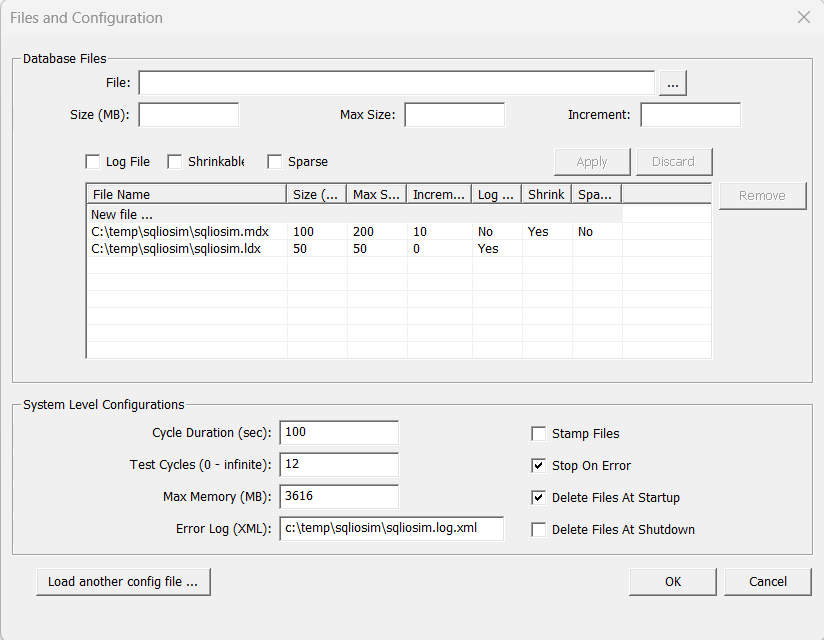
Select the first mdx file in the list, C:\temp\sqliosim\sqliosim.mdx. This file is the equivalent of a data file.
Change the file settings, such as the files location, size, max size, or increment. Keep the Log File option cleared because you want to simulate a data file. Then, select Apply.
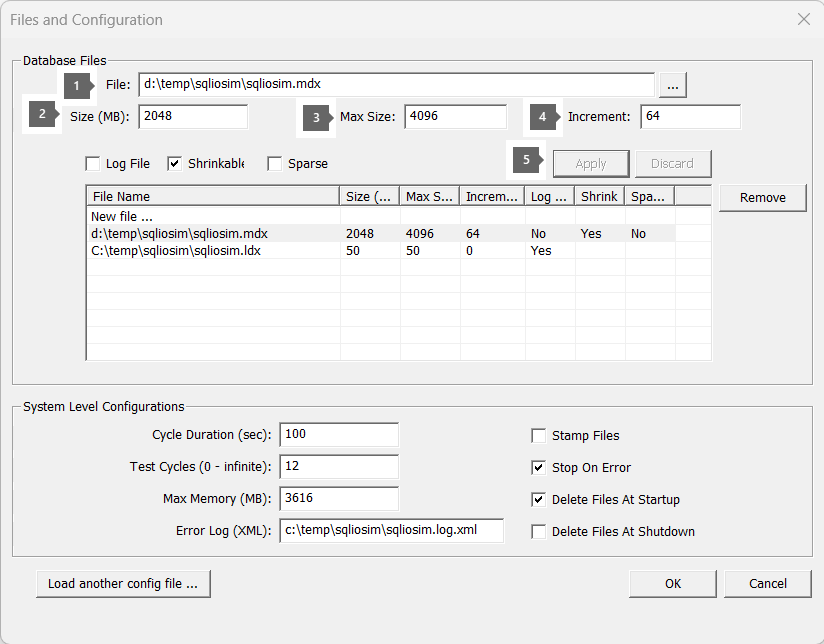
The example shows that the location of the file is changed to D:\temp\sqliosim\sqliosim.mdx, its size is set to 2048 MB, its max size is set to 4096 MB, and its increment size is set to 64 MB.
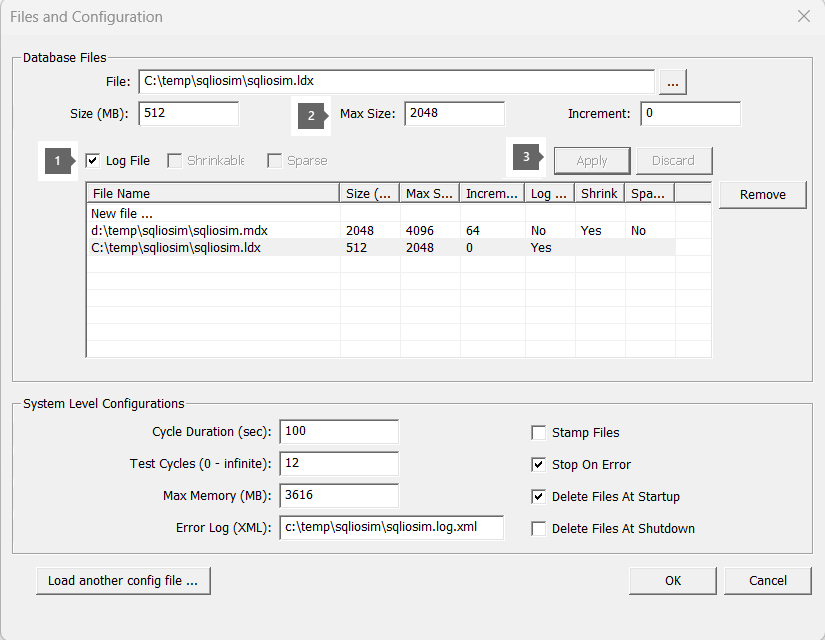
Change the second file, the one that has the ldx suffix. This file represents the equivalent of a transaction log file. Make sure that the Log File option remains selected. After you finish, select Apply.
Add more files to the list by selecting the New File option in the center of the screen inside the tabular grid. Type the file location, and then set the remaining options. After you finish, select Apply. Here's an example.
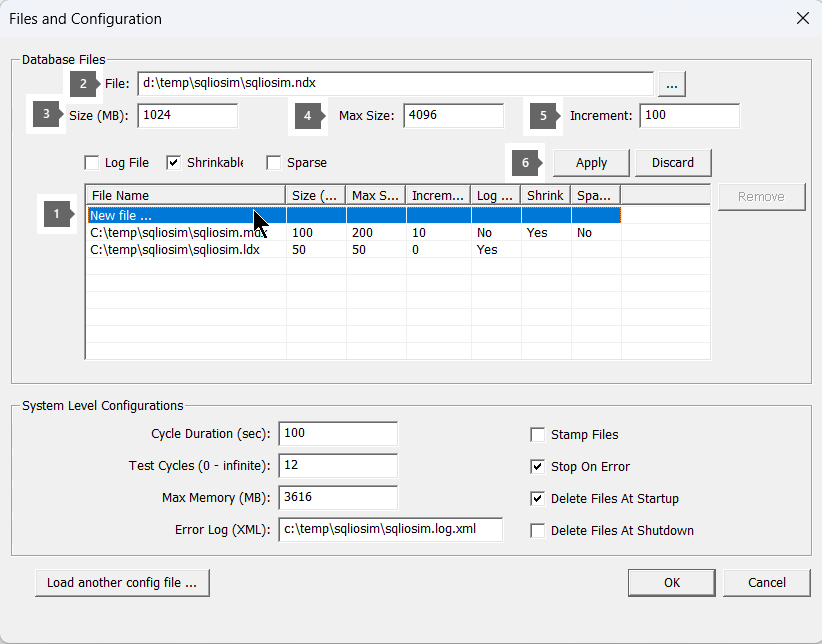
When you're satisfied with your configuration, select OK.
To run the SQL I/O simulation, select Simulator > Start. Alternatively, select F12 or the leftmost button that contains a green circle.
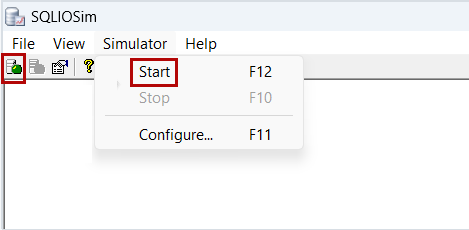
Wait for the simulation to finish, and then examine the output.
Example 2: Use a command-line tool and a configuration file
Edit the sqliosim.default.cfg.ini file. Remove the comments for the
File1andFile2sections, and change theFileNamevalues to new SQLIOSim files. For example:[File1] FileName=D:\sqliosim\sqliosim.mdx InitialSize=100 MaxSize=200 Increment=10 Shrinkable=TRUE LogFile=FALSE Sparse=FALSE [File2] FileName=L:\sqliosim\sqliosim.ldx InitialSize=50 MaxSize=50 Increment=0 Shrinkable=FALSE LogFile=TRUE Sparse=FALSERun SQLIOSIM.COM by using the configuration file, C:\temp\sqliosimconfig\sqliosim.default.cfg.ini:
SQLIOSIM.COM -cfg C:\temp\sqliosimconfig\sqliosim.default.cfg.ini -log C:\temp\sqliosimconfig\sqliosim.log.xml
Example 3: Use a command-line tool with switches
You can test multiple disk volumes at the same time by using the -dir switch. The following example creates 500 MB files, and runs the test for 300 seconds (five minutes):
SQLIOSIM.COM -cfg C:\temp\sqliosimconfig\sqliosim.default.cfg.ini -log C:\temp\sqliosim\sqliosim.log.xml -dir "D:\sqliosim" -dir "F:\sqliosim\testfolder" -size 500 -d 300
Example 4: Use a command-line tool against multiple drives
The following example creates 32 GB files, and runs the test for 600 seconds (10 minutes) by using the sqliosim.hwcache.cfg.ini configuration file:
SQLIOSIM.COM -cfg "D:\Temp\SQLIOSIM\SQLIOSIM_Configs\sqliosim.hwcache.cfg.ini" -d 600 -dir D:\temp\sqliosim -log D:\temp\sqliosim\simlog.xml -size 32768
SQLIOSim.com command-line parameters
SQLIOSIM.COM accepts a limited number of command-line parameters to control basic behavior. The configuration file for the SQLIOSim tool provides advanced behavior control. If command-line parameters and configuration file options overlap, the command-line parameters take precedence.
| Parameter | Description |
|---|---|
-cfg file |
Override the default configuration file Sqliosim.cfg.ini. The SQLIOSim tool generates an error if it can't find the file. |
-save file |
Save the resulting configuration in the configuration file. Use this option to create the initial configuration file. |
-log file |
Specify the error log file name and the error log file path. The default file name is Sqliosim.log.xml. |
-dir dir |
Set the location to create the data (.mdf) file and the log (.ldf) file. You can run this command multiple times. In most cases, this location is a drive root or a volume mount point. This location can be a long path or a UNC path. |
-d seconds |
Set the duration of the main run. This value excludes the preparation phase and the verification phase. |
-size MB |
Set the initial size of the data file in megabytes (MB). The file can grow up to two times the initial size. The size of the log file is calculated as half the size of the data file. However, the log file can't be larger than 50 MB. |
SQLIOSim configuration file
Use a configuration file together with SQLIOSim to help you choose all the settings for the I/O simulation up front. This configuration file can you to automate executions of SQLIOSim.
You can download sample configuration files for various tests from the SQL Server support team's GitHub repo.
You don't have to use a configuration file. If you don't use a configuration file, all parameters take default values except the data file location and the log file location. You must use one of the following methods to specify the data file location and the log file location:
- Use the command-line parameters in the SQLIOSIM.COM file.
- Use the Files and Configuration dialog box after you run the SQLIOSim.exe file.
- Use the File<N> section of the configuration file.
Sample configuration files
Use these five sample configuration files for automated SQLIOSim runs.
| Sample file | Description | Parameters that differ from the default configuration file |
|---|---|---|
| sqliosim.default.cfg.ini | ||
| sqliosim.hwcache.cfg.ini | - Minimizes reads - Keeps files small to retain them fully in memory - No sequential reads |
For the AuditUser section and for the ReadAheadUser section:CacheHitRatio=10000UserCount=0 |
| sqliosim.nothrottle.cfg.ini | - Removes I/O throttling - Minimizes the time to wait to increase I/O volume |
TargetIODuration=1000000AuditDelay=10RADelay=10 |
| sqliosim.seqwrites.cfg.ini | - Minimizes reads - Keeps files small to retain them fully in memory - Makes files non-shrinkable - No sequential reads - No random access - Bulk update in large chunks without delays |
Shrinkable=FALSEFor the AuditUser, ReadAheadUser, and RandomUser sections: CacheHitRatio=10000ForceReadAhead=FALSEBuffersBUMin=600BuffersBUMax=1000BUDelay=1UserCount=0 |
| sqliosim.sparse.cfg.ini | - Uses only 32 MB of memory - Makes target I/O duration large enough to enable many outstanding I/O requests - Disables scatter/gather APIs to issue separate I/O requests for every 8 KB page - Creates a 1 GB non-shrinkable file - Creates a 1 GB nonshrinkable secondary sparse stream in the file |
MaxMemoryMB=32TestCycles=3TestCycleDuration=600TargetIODuration=10000UseScatterGather=FALSE[File1]FileName=sqliosim.mdxInitialSize=1000 MaxSize=1000Increment=10Shrinkable=FALSELogFile=FALSESparse=FALSE[File2]FileName=sqliosim.ldxInitialSize=50MaxSize=50Increment=0Shrinkable=FALSELogFile=TRUESparse=FALSE[File3]FileName=sqliosim.mdx:replicaInitialSize=1000MaxSize=1000Increment=10Shrinkable=FALSELogFile=FALSESparse=TRUE |
Caveats on parameter values
- If the name of the parameter indicates that the parameter is a ratio or a percentage, the value of the parameter is expressed as the percentage or the ratio divided by 0.01. For example, the value of the
CacheHitRatioparameter is10 percent. This value is expressed as1000because 10 divided by 0.01 equals1000. The maximum value of a percentage parameter is10000. - If the parameter type is numeric, and you assign a non-numeric value to the parameter, the SQLIOSim tool sets the parameter to
0. - If the parameter type is boolean, the valid values that you can assign to the parameter are
trueandfalse. Additionally, the values are case-sensitive. The SQLIOSim tool ignores any invalid values. - If a pair of parameters indicates a minimum value and a maximum value, the minimum value must not exceed the maximum value. For example, the value of the
MinIOChainLengthparameter must not be larger than the value of theMaxIOChainLengthparameter. - If the parameter indicates a number of pages, the SQLIOSim tool checks the value that you assign to the parameter against the file that the SQLIOSim tool processes. The SQLIOSim tool performs this check to make sure that the number of pages doesn't exceed the file size.
Configuration file sections
The configuration file contains several sections:
- [CONFIG]
- [RandomUser]
- [AuditUser]
- [ReadAheadUser]
- [BulkUpdateUser]
- [ShrinkUser]
- [File<N>] (the placeholder
<N>is a number)
Each configuration section is described in the following section.
CONFIG section
The SQLIOSim tool uses the values you specify in the CONFIG section of the SQLIOSim configuration file to establish global testing behavior.
| Parameter | Default value | Description | Comments |
|---|---|---|---|
ErrorFile |
sqliosim.log.xml | Name of the XML type log file | |
CPUCount |
Number of CPUs on the computer | Number of logical CPUs to create | The maximum is 64 CPUs. |
Affinity |
0 | Physical CPU affinity mask to apply for logical CPUs | The affinity mask should be within the active CPU mask. A value of 0 means that all available CPUs are used. |
MaxMemoryMB |
Available physical memory when the SQLIOSim tool starts | Size of the buffer pool in MB | The value can't exceed the total amount of physical memory on the computer. |
StopOnError |
true | Stops the simulation when the first error occurs | |
TestCycles |
1 | Number of full test cycles to perform | A value of 0 indicates an infinite number of test cycles. |
TestCycleDuration |
300 | Duration of a test cycle in seconds, excluding the audit pass at the end of the cycle | |
CacheHitRatio |
1000 | Simulated cache hit ratio when the SQLIOSim tool reads from the disk | |
MaxOutstandingIO |
0 | Maximum number of outstanding I/O operations that are allowed process-wide | The value can't exceed 140,000. A value of 0 means that up to approximately 140,000 I/O operations are allowed. This is the limit of the tool. |
TargetIODuration |
100 | Duration of I/O operations, in milliseconds, that's targeted by throttling | If the average I/O duration exceeds the target I/O duration, the SQLIOSim tool throttles the number of outstanding I/O operations to decrease the load and to improve I/O completion time. |
AllowIOBursts |
true | Allow for turning off throttling to post many I/O requests | I/O bursts are enabled during the initial update, initial checkpoint, and final checkpoint passes at the end of test cycles. The MaxOutstandingIO parameter is still honored. You can expect long I/O warnings. |
NoBuffering |
true | Use the FILE_FLAG_NO_BUFFERING option |
SQL Server opens database files by using FILE_FLAG_NO_BUFFERING == true. Some utilities and services, such as Analysis Services, use FILE_FLAG_NO_BUFFERING == false. To fully test a server, run one test for each setting. |
WriteThrough |
true | Use the FILE_FLAG_WRITE_THROUGH option |
SQL Server opens database files by using FILE_FLAG_WRITE_THROUGH == true. However, some tools and services open the database files by using FILE_FLAG_WRITE_THROUGH == false. For example, SQL Server Analysis Services opens the database files by using FILE_FLAG_WRITE_THROUGH == false. To fully test a server, run one test for each setting. |
ScatterGather |
true | Use ReadScatter or WriteGather APIs |
If you set this parameter to true, the NoBuffering parameter is also set to true.SQL Server uses scatter/gather I/Os for most I/O requests. |
ForceReadAhead |
true | Perform a read-ahead operation even if the data is already read. | The SQLIOSim tool issues the read command even if the data page is already in the buffer pool. Microsoft SQL Server Support has successfully used the true setting to expose I/O problems. |
DeleteFilesAtStartup |
true | Delete files at startup if files exist | A file can contain multiple data streams. Only streams that are specified in the File <N> FileName entry are truncated in the file. If the default stream is specified, all streams are deleted. |
DeleteFilesAtShutdown |
false | Delete files after the test is finished | A file can contain multiple data streams. Only data streams you specify in the File <N> FileName entry are truncated in the file. If the default data stream is specified, the SQLIOSim tool deletes all data streams. |
StampFiles |
false | Expand the file by stamping zeros | This process can take a long time if the file is large. If you set this parameter to false, the SQLIOSim tool extends the file by setting a valid data marker. SQL Server 2005 uses the instant file initialization feature for data files. If the data file is a log file, or if instant file initialization isn't enabled, SQL Server performs zero stamping. Versions of SQL Server earlier than SQL Server 2000 always perform zero stamping. You should switch the value of the StampFiles parameter during testing to make sure that both instant file initialization and zero stamping are operating correctly. |
File<N> section
The SQLIOSim tool is designed to allow multiple file testings. The File<N> section is represented as [File1], [File2] for each file in the test.
| Parameter | Default value | Description | Comments |
|---|---|---|---|
FileName |
No default value | File name and path | The FileName parameter can be a long path or a UNC path. It can also include a secondary stream name and type. For example, the FileName parameter can be set to file.mdf:stream2.NOTE In SQL Server 2005, DBCC operations use streams. Stream tests are recommended. |
InitialSize |
No default value | Initial size in MB | If the existing file is larger than the value specified for the InitialSize parameter, the SQLIOSim tool doesn't shrink the existing file. If the existing file is smaller, the SQLIOSim tool expands the existing file. |
MaxSize |
No default value | Maximum size in MB | A file can't grow larger than the value that you specify for the MaxSize parameter. |
Increment |
0 | Size in MB of the increment by which the file grows or shrinks. For more information, see the ShrinkUser section of this article. |
The SQLIOSim tool adjusts the Increment parameter at startup so that the situation is established: Increment * MaxExtents < MaxMemoryMB / NumberOfDataFiles.If the value of Increment is 0, the SQLIOSim tool sets the file as non-shrinkable. |
Shrinkable |
false | Indicates whether the file can be shrunk or expanded | If you set the Increment parameter to 0, you set the file to be non-shrinkable. In this case, you must set the Shrinkable parameter to false. If you set the Increment parameter to a value other than 0, you set the file to be shrinkable. In this case, you must set the Shrinkable parameter to true. |
Sparse |
false | Indicates whether the Sparse attribute should be set on the files |
For existing files, the SQLIOSim tool doesn't clear the Sparse attribute when you set the Sparse parameter to false.SQL Server 2005 uses sparse files to support snapshot databases and the secondary DBCC streams. Enable both the sparse file and the streams and then perform a test pass. NOTE If you set Sparse = true for the file settings, don't specify NoBuffering = false in the config section. If you use these two conflicting combinations, you might receive an error message that resembles the following from the tool:Error:-=====Error: 0x80070467 Error Text: While accessing the hard disk, a disk operation failed even after retries. Description: Buffer validation failed on C:\SQLIOSim.mdx Page: 28097 |
LogFile |
false | Indicates whether a file contains user or transaction log data | Define at least one log file. |
RandomUser section
The SQLIOSim tool uses the values that you specify in the RandomUser section to simulate a SQL Server worker that's performing random query operations, such as Online Transaction Processing (OLTP) I/O patterns.
| Parameter | Default value | Description | Comments |
|---|---|---|---|
UserCount |
-1 | Number of random access threads that are executing at the same time | The value can't exceed the value: CPUCount*1023-100.The total number of all users also can't exceed this value. A value of zero (0) means you can't create random access users. A value of -1 means that you must use the automatic configuration of the value: min(CPUCount*2, 8).NOTE A SQL Server system can have thousands of sessions. Most of the sessions don't have active requests. Use the count(*) function in queries against the sys.dm_exec_requests dynamic management view (DMV) as a baseline for establishing this test parameter value.CPUCount here refers to the value of the CPUCount parameter in the CONFIG section.The min(CPUCount*2, 8) value results in the smaller of the values between CPUCount*2 and 8. |
JumpToNewRegionPercentage |
500 | The chance of a jump to a new region of the file | The start of the region is randomly selected. The size of the region is a random value between the value of the MinIOChainLength parameter and the value of the MaxIOChainLength parameter. |
MinIOChainLength |
1 | Minimum region size in pages | |
MaxIOChainLength |
100 | Maximum region size in pages | SQL Server 2005 Enterprise Edition and SQL Server 2000 Enterprise Edition can read ahead up to 1,024 pages. The minimum value is 0. The maximum value is limited by system memory.Typically, random user activity causes small scanning operations to occur. Use the values specified in the ReadAheadUser section to simulate larger scanning operations. |
RandomUserReadWriteRatio |
9000 | Percentage of pages to be updated | A random-length chain is selected in the region and may be read. This parameter defines the percentage of the pages to be updated and written to disk. |
MinLogPerBuffer |
64 | Minimum log record size in bytes | The value must be either a multiple of the on-disk sector size or a size that fits evenly into the on-disk sector size. |
MaxLogPerBuffer |
8192 | Maximum log record size in bytes | This value can't exceed 64,000. The value must be a multiple of the on-disk sector size. |
RollbackChance |
100 | The chance that an in-memory operation will occur that causes a rollback operation to occur. | When this rollback operation occurs, SQL Server doesn't write to the log file. |
SleepAfter |
5 | Sleep time after each cycle, in milliseconds |
AuditUser section
The SQLIOSim tool takes the values you specify in the AuditUser section to simulate DBCC activity to read and audit the information about the page. Validation occurs even if the value of the UserCount parameter is set to 0.
| Parameter | Default value | Description | Comments |
|---|---|---|---|
UserCount |
2 | Number of Audit threads | The value can't exceed the following value: CPUCount*1023-100.The total number of all users also can't exceed this value. A value of 0 means that you can't create random access users. A value of -1 means that you must use the automatic configuration of the value: min(CPUCount*2, 8).NOTE A SQL Server system miight have thousands of sessions. Most of the sessions don't have active requests. Use the count(*) function in queries against the sys.dm_exec_requests DMV as a baseline for establishing this test parameter value.CPUCount here refers to the value of the CPUCount parameter in the CONFIG section.The min(CPUCount*2, 8) value produces the smaller of the values between CPUCount*2 and 8. |
BuffersValidated |
64 | ||
DelayAfterCycles |
2 | Apply the AuditDelay parameter after the number of BuffersValidated cycles is completed | |
AuditDelay |
200 | Number of milliseconds to wait after each DelayAfterCycles operation |
ReadAheadUser section
The SQLIOSim tool takes the values that are specified in the ReadAheadUser section to simulate SQL Server read-ahead activity. SQL Server takes advantage of read-ahead activity to maximize asynchronous I/O capabilities and to limit query delays.
| Parameter | Default value | Description | Comments |
|---|---|---|---|
UserCount |
2 | Number of read-ahead threads | The value can't exceed the following value: CPUCount*1023-100.The total number of all users also can't exceed this value. A value of 0 means that you can't create random access users. A value of -1 means you must use the automatic configuration of the following value: min(CPUCount*2, 8).NOTE A SQL Server system may have thousands of sessions. Most of the sessions don't have active requests. Use the count(*) function in queries against the sys.dm_exec_requests DMV as a baseline for establishing this test parameter value.CPUCount here refers to the value of the CPUCount parameter in the CONFIG section.The min(CPUCount*2, 8) value results in the smaller of the values between CPUCount*2 and 8. |
BuffersRAMin |
32 | Minimum number of pages to read per cycle | The minimum value is 0. The maximum value is limited by system memory. |
BuffersRAMax |
64 | Maximum number of pages to read per cycle | SQL Server Enterprise editions can read up to 1,024 pages in a single request. If you install SQL Server on a computer that has lots of CPU, memory, and disk resources, increase the file size and the read-ahead size. |
DelayAfterCycles |
2 | Apply the RADelay parameter after the specified number of cycles is completed |
|
RADelay |
200 | Number of milliseconds to wait after each DelayAfterCycles operation |
BulkUpdateUser section
The SQLIOSim tool takes the values that you specify in the BulkUpdateUser section to simulate bulk operations, such as SELECT...INTO operations and BULK INSERT operations.
| Parameter | Default value | Description | Comments |
|---|---|---|---|
UserCount |
-1 | Number of BULK UPDATE threads |
The value can't exceed the following value: CPUCount*1023-100A value of -1 means that you must use the automatic configuration of the following value: min(CPUCount*2, 8).NOTE A SQL Server system may have thousands of sessions. Most of the sessions don't have active requests. Use the count(*) function in queries against the sys.dm_exec_requests DMV as a baseline for establishing this test parameter value.CPUCount here refers to the value of the CPUCount parameter in the CONFIG section.The min(CPUCount*2, 8) value results in the smaller of the values between CPUCount*2 and 8. |
BuffersBUMin |
64 | Minimum number of pages to update per cycle | |
BuffersBUMax |
128 | Maximum number of pages to update per cycle | The minimum value is 0. The maximum value is limited by system memory. |
DelayAfterCycles |
2 | Apply the BUDelay parameter after the specified number of cycles is completed |
|
BUDelay |
10 | Number of milliseconds to wait after each DelayAfterCycles operation |
ShrinkUser section
The SQLIOSim tool takes the values that you specify in the ShrinkUser section to simulate DBCC shrink operations. The SQLIOSim tool can also use the ShrinkUser section to make the file grow.
| Parameter | Default value | Description |
|---|---|---|
MinShrinkInterval |
120 | Minimum interval between shrink operations in seconds |
MaxShrinkInterval |
600 | Maximum interval between shrink operations in seconds |
MinExtends |
1 | Minimum number of increments by which the SQLIOSim tool grows or shrinks the file |
MaxExtends |
20 | Maximum number of increments by which the SQLIOSim tool grows or shrinks the file |
Configuration .ini file comments
The semicolon character (;) at the start of a line in the configuration .ini file causes the line to be treated as a single comment.
File creation
The SQLIOSim tool creates separate data files and log files to simulate the I/O patterns that SQL Server generates in its data file and its log file. The SQLIOSim tool doesn't use the SQL Server engine to perform stress activity. Therefore, you can use the SQLIOSim tool to test a computer before you install SQL Server.
When you run the SQLIOSim tool, make sure that you specify the same file location that you use for your SQL Server database files. When you do this, the tool simulates the same I/O path that your SQL Server database uses.
You can enable the compress or encrypt attributes for the existing test files. You can also enable these attributes for the existing directory where the test files are created. The corresponding options to enable these attributes are located in the Properties dialog box for a file or a directory.
By default, the SQLIOSim tool creates test files that have the .mdx and .ldx file name extensions. Therefore, these files don't overwrite existing data and log files.
Warning
To avoid losing your actual SQL Server data, don't specify actual SQL Server database files for testing. The SQLIOSim tool overwrites the data by using random test patterns.
SQLIOSim error log and handling
The SQLIOSim tool creates the error log file in one of the following locations:
- The location that you specify in the log startup parameter
- The location that you specify in the
ErrorFile=line in the Sqliosim.cfg.ini file
The SQLIOSim.log.xml error log contains details about the execution. These details include error information. Review the log carefully for error information and warning information.
Note
If you experience an error in the SQLIOSim tool, ask your hardware manufacturer to help determine the root cause of the problem. The problem could also be caused by a device driver, file system filter driver (for example, antivirus software), or the OS.
Multiple copies
The SQLIOSim tool supports multiple-file-level testing and multiple-user-level testing. The SQLIOSim tool doesn't require multiple invocations. You can run multiple copies of the SQLIOSim tool if the following conditions are true:
- All copies reference unique testing files for each instance of the tool.
- The
MaxMemoryMBparameter of each instance provides a non-overlapping memory region that's sufficient for each instance.
The sum of the MaxMemoryMB parameter for each instance must be less than or equal to the total physical memory. Some testing phases, such as checkpoint simulation, can be memory-intensive, and might create out-of-memory conditions when you run multiple copies. If you experience out-of-memory errors, reduce the number of tool copies that are running.