Bahasa
Catatan
Akses ke halaman ini memerlukan otorisasi. Anda dapat mencoba masuk atau mengubah direktori.
Akses ke halaman ini memerlukan otorisasi. Anda dapat mencoba mengubah direktori.
Gunakan pemilih file dan folder SDK Aplikasi Windows untuk memungkinkan pengguna menelusuri dan memilih file atau folder di aplikasi WinUI Anda. API pemilih memberikan pengalaman Windows yang akrab yang membantu pengguna menavigasi lokasi penyimpanan perangkat dan cloud mereka. Artikel ini memperlihatkan kepada Anda cara menerapkan pemilih buka file dan pemilih folder, menyesuaikan perilakunya, dan menangani hasil yang dipilih di aplikasi Anda.
Kelas SDK Aplikasi Windows FileOpenPicker dan FileSavePicker membuat dialog pemilih yang memungkinkan pengguna menentukan nama dan lokasi file untuk dibuka atau disimpan. Kelas FolderPicker memungkinkan Anda memilih folder.
Untuk mempelajari cara menggunakan picker (pemilih) untuk menyimpan file, lihat Simpan file dengan picker (pemilih) SDK Aplikasi Windows.
Prerequisites
- SDK Aplikasi Windows 1.8 atau yang lebih baru.
Microsoft.Windows.Storage.PickersAPI yang digunakan dalam artikel ini diperkenalkan di SDK Aplikasi Windows 1.8. Jika proyek Anda ditujukan untuk versi sebelumnya, lihat Menggunakan pemilih WinRT dengan interop HWND untuk pendekatan lama.
API penting
Artikel ini menggunakan API berikut:
Antarmuka pemilih berkas
Pemilih file menampilkan informasi untuk mengorientasi pengguna dan memberikan pengalaman yang konsisten saat membuka atau menyimpan file.
Informasi tersebut meliputi:
- Lokasi saat ini
- Item-item yang dipilih oleh pengguna
- Pohon lokasi yang dapat dijelajahi pengguna. Lokasi ini mencakup lokasi sistem file—seperti folder Musik atau Unduhan—serta aplikasi yang mengimplementasikan kontrak pemilih file (seperti Kamera, Foto, dan Microsoft OneDrive).
Anda mungkin memiliki aplikasi yang memungkinkan pengguna membuka atau menyimpan file. Saat pengguna memulai tindakan tersebut, aplikasi Anda memanggil pemilih file, yang menampilkan UI pemilih file:

Cara kerja pengguna pemilih dengan aplikasi Anda
Dengan pemilih berkas, aplikasi Anda dapat mengakses, menelusuri, dan menyimpan file dan folder di sistem pengguna. Aplikasi Anda menerima pilihan tersebut sebagai objek PickFileResult dan PickFolderResult ringan, yang menyediakan jalur ke file atau folder yang dipilih.
Pemilih menggunakan satu antarmuka terpadu untuk memungkinkan pengguna memilih file dan folder dari sistem file atau dari aplikasi lain. File yang dipilih melalui aplikasi lain serupa dengan file dari sistem file. Secara umum, aplikasi Anda dapat beroperasi dengan cara yang sama seperti objek lain. Aplikasi lain menyediakan file dengan ikut serta dalam kontrak pemilih file.
Misalnya, Anda dapat memanggil pemilih file di aplikasi sehingga pengguna dapat membuka file. Tindakan ini menjadikan aplikasi Anda sebagai aplikasi panggilan. Pemilih file berinteraksi dengan sistem dan aplikasi lain untuk memungkinkan pengguna menavigasi dan memilih file. Saat pengguna Anda memilih file, pemilih file mengembalikan jalur file tersebut ke aplikasi Anda.
Pilih file untuk membuka contoh
Kode berikut menunjukkan cara menggunakan kelas FileOpenPicker untuk memungkinkan pengguna memilih satu file, seperti foto. Kode mengatur properti pada pemilih untuk menyesuaikan tampilan dan perilakunya, lalu menampilkan pemilih kepada pengguna dengan menggunakan metode PickSingleFileAsync . Jika pengguna memilih file, aplikasi membaca konten file dan menyimpannya dalam variabel.
using Microsoft.Windows.Storage.Pickers;

var openPicker = new FileOpenPicker(this.AppWindow.Id)
{
    // (Optional) Specify the initial location for the picker.
    //     If the specified location doesn't exist on the user's machine, it falls back to the DocumentsLibrary.
    //     If not set, it defaults to PickerLocationId.Unspecified, and the system will use its default location.
    SuggestedStartLocation = PickerLocationId.DocumentsLibrary,

    // (Optional) specify the text displayed on the commit button.
    //     If not specified, the system uses a default label of "Open" (suitably translated).
    CommitButtonText = "Choose selected files",

    // (Optional) specify file extension filters. If not specified, defaults to all files (*.*).
    FileTypeFilter = { ".txt", ".pdf", ".doc", ".docx" },

    // (Optional) specify the view mode of the picker dialog. If not specified, defaults to List.
    ViewMode = PickerViewMode.List,
};

var result = await openPicker.PickSingleFileAsync();
if (result is not null)
{
    var content = System.IO.File.ReadAllText(result.Path);
}
else
{
    // Add your error handling here.
}
#include <winrt/Microsoft.Windows.Storage.Pickers.h>
#include <fstream>
#include <string>

using namespace winrt::Microsoft::Windows::Storage::Pickers;

FileOpenPicker openPicker(this->AppWindow().Id());

// (Optional) Specify the initial location for the picker.
//     If the specified location doesn't exist on the user's machine, it falls back to the DocumentsLibrary.
//     If not set, it defaults to PickerLocationId.Unspecified, and the system will use its default location.
openPicker.SuggestedStartLocation(PickerLocationId::DocumentsLibrary);

// (Optional) specify the text displayed on the commit button.
//     If not specified, the system uses a default label of "Open" (suitably translated).
openPicker.CommitButtonText(L"Choose selected files");

// (Optional) specify file extension filters. If not specified, defaults to all files (*.*).
openPicker.FileTypeFilter().ReplaceAll({ L".txt", L".pdf", L".doc", L".docx" });

// (Optional) specify the view mode of the picker dialog. If not specified, defaults to List.
openPicker.ViewMode(PickerViewMode::List);

auto result{ co_await openPicker.PickSingleFileAsync() };
if (result)
{
    std::ifstream fileReader(result.Path().c_str());
    std::string text((std::istreambuf_iterator<char>(fileReader)), std::istreambuf_iterator<char>());
    winrt::hstring hText = winrt::to_hstring(text);
}
else
{
    // Add your error handling here.
}
Pilih beberapa file untuk membuka contoh
Anda juga dapat membiarkan pengguna memilih beberapa file. Kode berikut menunjukkan cara menggunakan kelas FileOpenPicker untuk memungkinkan pengguna memilih beberapa file, seperti foto. Prosesnya sama tetapi metode PickMultipleFilesAsync mengembalikan kumpulan objek PickFileResult . Setiap hasil memiliki properti Path saat Anda memerlukan jalur file asli.
using Microsoft.Windows.Storage.Pickers;

var openPicker = new FileOpenPicker(this.AppWindow.Id);

var results = await openPicker.PickMultipleFilesAsync();
if (results.Count > 0)
{
    var pickedFilePaths = results.Select(f => f.Path);
    foreach (var path in pickedFilePaths)
    {
        var content = System.IO.File.ReadAllText(path);
    }
}
else
{
    // Add your error handling here.
}
#include <winrt/Microsoft.Windows.Storage.Pickers.h>
#include <fstream>
#include <string>

using namespace winrt::Microsoft::Windows::Storage::Pickers;

FileOpenPicker openPicker(this->AppWindow().Id());
auto results{ co_await openPicker.PickMultipleFilesAsync() };
if (results.Size() > 0)
{
    for (auto const& result : results)
    {
        std::ifstream fileReader(result.Path().c_str());
        std::string text((std::istreambuf_iterator<char>(fileReader)), std::istreambuf_iterator<char>());
        winrt::hstring hText = winrt::to_hstring(text);
    }
}
else
{
    // Add your error handling here.
}
Pilih contoh folder
Untuk memilih folder dengan menggunakan kelas FolderPicker , gunakan kode berikut. Kode ini membuat pemilih folder, menunjukkannya kepada pengguna dengan menggunakan metode PickSingleFolderAsync , dan mengambil jalur folder yang dipilih dalam objek PickFolderResult . Jika pengguna memilih folder, aplikasi mengambil jalur folder dan menyimpannya dalam variabel untuk digunakan nanti.
using Microsoft.Windows.Storage.Pickers;

var folderPicker = new FolderPicker(this.AppWindow.Id)
{
    // (Optional) Specify the initial location for the picker.
    //     If the specified location doesn't exist on the user's machine, it falls back to the DocumentsLibrary.
    //     If not set, it defaults to PickerLocationId.Unspecified, and the system will use its default location.
    SuggestedStartLocation = PickerLocationId.DocumentsLibrary,

    // (Optional) specify the text displayed on the commit button.
    //     If not specified, the system uses a default label of "Open" (suitably translated).
    CommitButtonText = "Select Folder",

    // (Optional) specify the view mode of the picker dialog. If not specified, default to List.
    ViewMode = PickerViewMode.List,
};

var result = await folderPicker.PickSingleFolderAsync();

if (result is not null)
{
    var path = result.Path;
}
else
{
    // Add your error handling here.
}
#include <winrt/Microsoft.Windows.Storage.Pickers.h>

using namespace winrt::Microsoft::Windows::Storage::Pickers;

FolderPicker folderPicker(this->AppWindow().Id());

// (Optional) Specify the initial location for the picker.
//     If the specified location doesn't exist on the user's machine, it falls back to the DocumentsLibrary.
//     If not set, it defaults to PickerLocationId.Unspecified, and the system will use its default location.
folderPicker.SuggestedStartLocation(PickerLocationId::DocumentsLibrary);

// (Optional) specify the text displayed on the commit button.
//     If not specified, the system uses a default label of "Open" (suitably translated).
folderPicker.CommitButtonText(L"Select Folder");

// (Optional) specify the view mode of the picker dialog. If not specified, default to List.
folderPicker.ViewMode(PickerViewMode::List);

auto result{ co_await folderPicker.PickSingleFolderAsync() };
if (result)
{
    auto path{ result.Path() };
}
else
{
    // Add your error handling here.
}
Tip
Setiap kali aplikasi Anda mengakses file atau folder melalui pemilih, tambahkan ke FutureAccessList atau MostRecentlyUsedList untuk melacaknya dengan menggunakan API Windows Runtime (WinRT). Untuk informasi selengkapnya, lihat Melacak file dan folder yang baru digunakan.
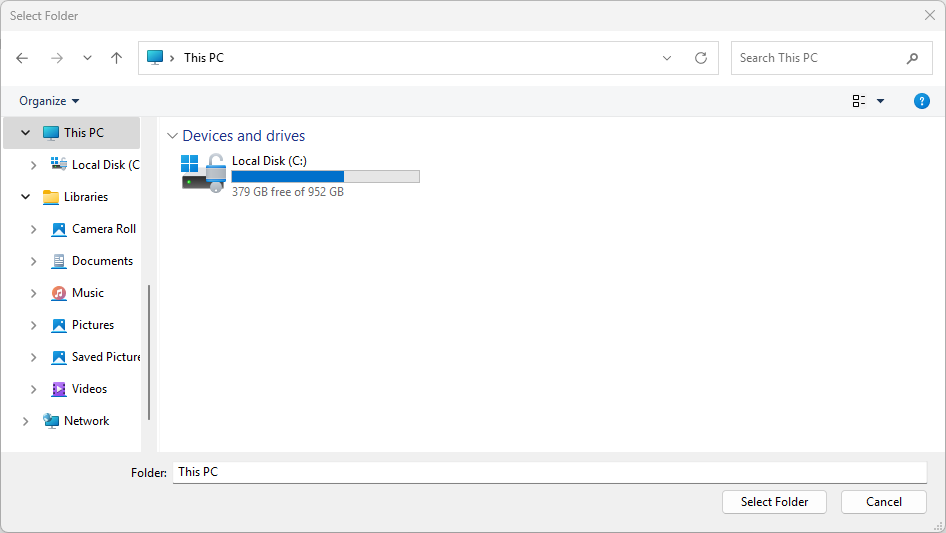
UI pemilih folder terlihat seperti ini:
Gunakan pemilih WinRT dengan interop HWND
Jika proyek Anda menargetkan SDK Aplikasi Windows 1.7 atau yang lebih lama, atau jika Anda menggunakan API Windows.Storage.Pickers lama (misalnya, saat bermigrasi dari UWP), Anda harus menginisialisasi pemilih dengan handle jendela (HWND) sebelum menampilkannya. Tanpa langkah ini, picker akan memunculkan pengecualian atau gagal tanpa pesan di aplikasi desktop (WinUI 3).
Important
Aplikasi desktop WinUI 3 tidak memiliki CoreWindow. Anda harus mengaitkan picker dengan jendela aplikasi Anda dengan memanggil WinRT.Interop.InitializeWithWindow.Initialize (C#) atau IInitializeWithWindow::Initialize (C++/WinRT) sebelum pemanggilan Pick*Async apa pun.
Contoh C# (pemilih WinRT lama)
// This example assumes you have a reference to your app's main window.
// In a Window class, use 'this'. In a Page, use a stored reference like App.MainWindow.

var picker = new Windows.Storage.Pickers.FileOpenPicker();
picker.FileTypeFilter.Add(".png");
picker.FileTypeFilter.Add(".jpg");

// Get the window handle (HWND) for the current WinUI 3 window.
var hwnd = WinRT.Interop.WindowNative.GetWindowHandle(App.MainWindow);

// Associate the picker with the window.
WinRT.Interop.InitializeWithWindow.Initialize(picker, hwnd);

var file = await picker.PickSingleFileAsync();
if (file is null)
{
    // The user cancelled the picker.
}
Contoh C++/WinRT (pemilih WinRT lama)
// pch.h
#include <winrt/Windows.Storage.Pickers.h>
#include <microsoft.ui.xaml.window.h>
#include <shobjidl_core.h>

// MainWindow.xaml.cpp — inside a MainWindow member function
Windows::Storage::Pickers::FileOpenPicker picker;
picker.FileTypeFilter().Append(L".png");
picker.FileTypeFilter().Append(L".jpg");

// Get the window handle (HWND) of the current WinUI 3 window.
auto windowNative{ this->m_inner.as<::IWindowNative>() };
HWND hwnd{ 0 };
windowNative->get_WindowHandle(&hwnd);

// Associate the picker with the window.
auto initializeWithWindow{ picker.as<::IInitializeWithWindow>() };
initializeWithWindow->Initialize(hwnd);

auto file{ co_await picker.PickSingleFileAsync() };
if (!file)
{
    // The user cancelled the picker.
}
Tip
Pendekatan yang direkomendasikan untuk aplikasi baru adalah menggunakan picker SDK Aplikasi Windows (Microsoft.Windows.Storage.Pickers), yang menerima WindowId dalam konstruktornya dan tidak memerlukan pola InitializeWithWindow. Lihat contoh sebelumnya di artikel ini.
Untuk informasi selengkapnya tentang mendapatkan handel jendela, lihat Mendapatkan handel jendela (HWND).
Konten terkait
- namespace Microsoft.Windows.Storage.Pickers
- Menyimpan file menggunakan pemilih file SDK Aplikasi Windows
- File, folder, dan pustaka dengan SDK Aplikasi Windows
- Mengambil sebuah handle jendela (HWND)
- Panggil API interop dari aplikasi .NET
- Menampilkan objek UI WinRT yang bergantung pada CoreWindow
- Contoh pemilih file di Galeri WinUI
Berkolaborasi dengan kami di GitHub
Sumber untuk konten ini dapat ditemukan di GitHub, yang juga dapat Anda gunakan untuk membuat dan meninjau masalah dan menarik permintaan. Untuk informasi selengkapnya, lihat panduan kontributor kami.

Windows developer