Nóta
Aðgangur að þessari síðu krefst heimildar. Þú getur prófað aðskrá þig inn eða breyta skráasöfnum.
Aðgangur að þessari síðu krefst heimildar. Þú getur prófað að breyta skráasöfnum.
Applies to: Azure Logic Apps (Consumption + Standard)
When your automated integration workflow needs to work with resources in your DB2 database, use the DB2 connector. For example, your workflow can read, list rows, add rows, change rows, delete rows, and so on. Your workflow can include actions that return data from your database and make that output available for other actions to use in your workflow.
The DB2 connector includes a Microsoft client that communicates with remote DB2 servers across a TCP/IP network. So, you can use this connector to access cloud databases such as IBM DB2 for Windows running in Azure virtualization.
This guide shows how to connect your workflow to your DB2 database and perform various operations on that database.
Supported platforms and versions
The DB2 connector supports the following IBM DB2 platforms and versions along with IBM DB2 compatible products that support Distributed Relational Database Architecture (DRDA) SQL Access Manager (SQLAM) versions 10 and 11:
| Platform | Version |
|---|---|
| IBM DB2 for z/OS | 12, 11.1, 10.1 |
| IBM DB2 for i | 7.3, 7.2, 7.1 |
| IBM DB2 for LUW | 11, 10.5 |
Connector technical reference
The DB2 connector supports the following database operations, which map to the corresponding actions in the connector:
| Database operation | Connector action |
|---|---|
| List database tables | Get tables |
| Read one row using SELECT | Get row |
| Read all rows using SELECT | Get rows |
| Add one row using INSERT | Insert row |
| Edit one row using UPDATE | Update row |
| Remove one row using DELETE | Delete row |
For more information about the connector and these actions, see DB2 connector.
Prerequisites
An Azure account and subscription. Get a free Azure account.
An IBM DB2 database, either cloud-based or on-premises.
The logic app resource and workflow from where you want to access your DB2 database.
The DB2 connector provides only actions. If you have an empty workflow, you must first add a trigger that works best for your business scenario, to start the workflow.
The examples in this guide use the Recurrence trigger.
For more information, see:
To access on-premises DB2 databases, you need to install and set up the on-premises data gateway.
Add a DB2 action
The following steps show how to add a DB2 action, for example, Get tables, to your workflow.
Note
The steps to add any other DB2 action are similar, except for the action's parameters and values that you provide.
In the Azure portal, open your logic app resource and workflow in the designer.
Follow the general steps to add the DB2 action named Get tables.
The connection information pane opens so you can provide details to connect your DB2 database.
Follow the steps to create a connection for a cloud-based database or on-premises database, then return here to continue.
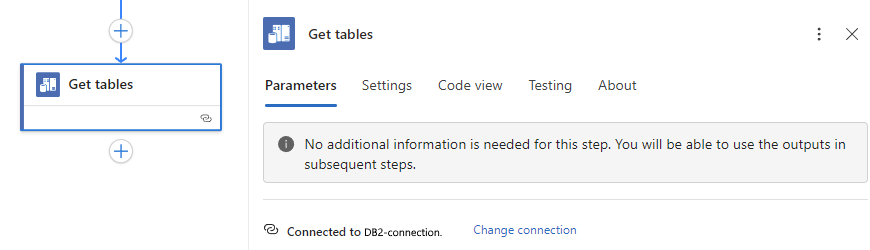
After you successfully create the connection, the Get tables action information pane appears and shows that no other information is necessary:
Continue to Test your workflow and view output tables.
Set up your DB2 connection
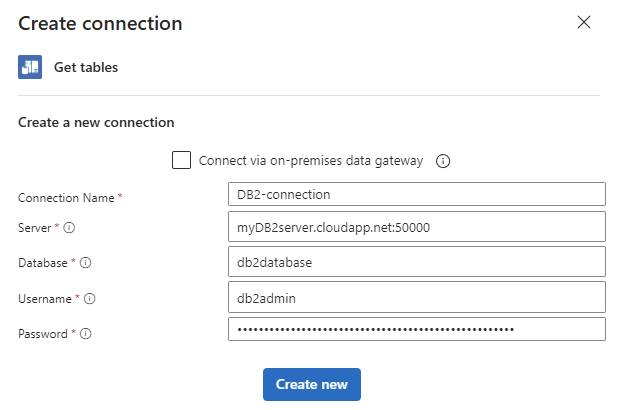
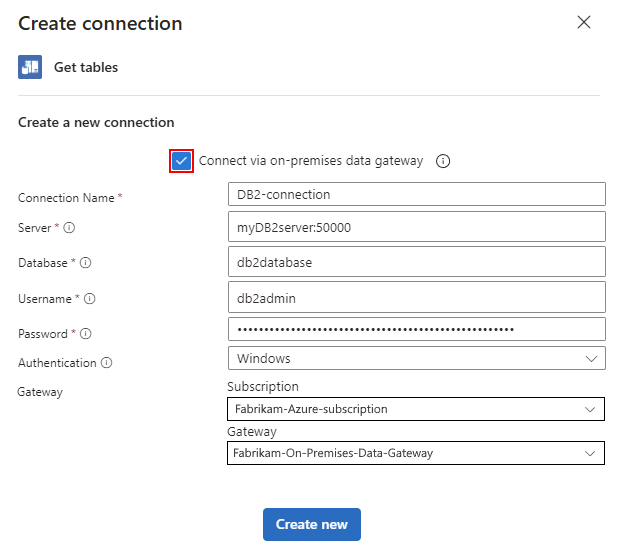
Follow the steps based on whether you have a cloud or on-premises DB2 database. After you provide the necessary connection details, select Create new, and return to the previous steps.
Before you create a connection to an on-premises database, make sure that you install and set up the on-premises data gateway.
| Property | Required | Description |
|---|---|---|
| Connect via on-premises gateway | No | Applies only to on-premises connections. |
| Connection Name | Yes | The name for your connection, for example, DB2-connection. |
| Server | Yes | The address or alias and port number for your DB2 server, for example, myDB2server.cloudapp.net:50000. Note: This value is a string that represents a TCP/IP address or alias, either in IPv4 or IPv6 format, followed by a colon and a TCP/IP port number. |
| Database | Yes | The name for your database. Note: This value is a string that represents a DRDA Relational Database Name (RDBNAM): - DB2 for z/OS accepts a 16-byte string where the database is known as an IBM DB2 for z/OS location. - DB2 for i accepts an 18-byte string where the database is known as an IBM DB2 for i relational database. - DB2 for LUW accepts an 8-byte string. |
| Username | Yes | Your user name for the database. Note: This value is a string whose length is based on the specific database: - DB2 for z/OS accepts an 8-byte string. - DB2 for i accepts a 10-byte string. - DB2 for Linux or UNIX accepts an 8-byte string. - DB2 for Windows accepts a 30-byte string. |
| Password | Yes | Your password for the database. |
For example:
Test your workflow and view output tables
To manually run your workflow, on the designer toolbar, from the Run list, select Run. After your workflow completes, you can view the output from the run.
If the run details page doesn't open, follow these steps based on your logic app:
Consumption: On the logic app sidebar, under Development Tools, select Logic app designer.
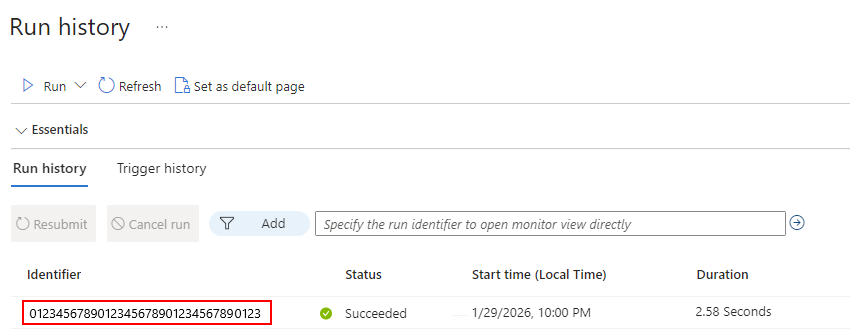
Standard: On the workflow sidebar, select Run history.
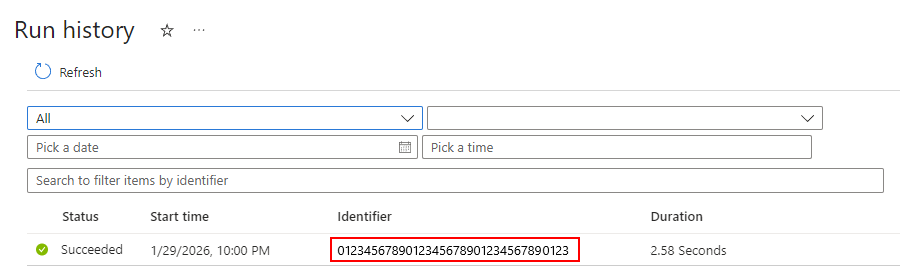
In the Runs history list, select the latest workflow run, for example:
Consumption
Standard
On the run details page, review the status for each step in your workflow. To view the inputs and outputs for each step, select that step, for example:
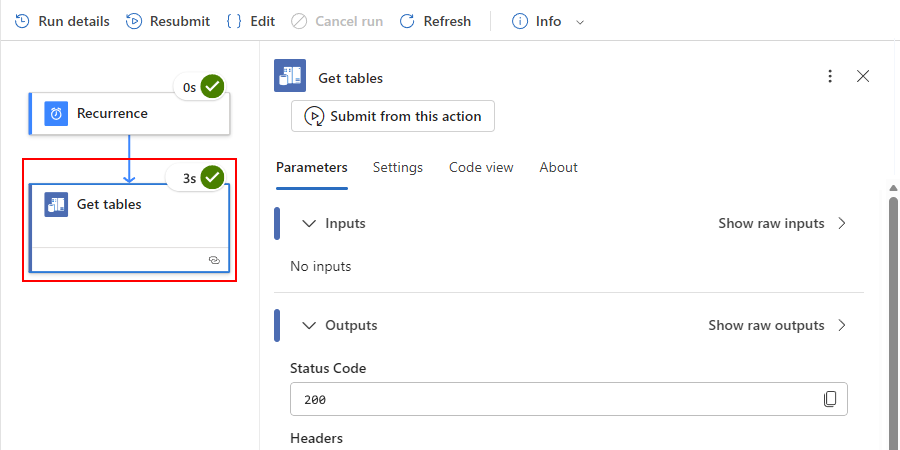
To view the inputs in JSON, select Show raw inputs.
To view the outputs in JSON, select Show raw outputs.
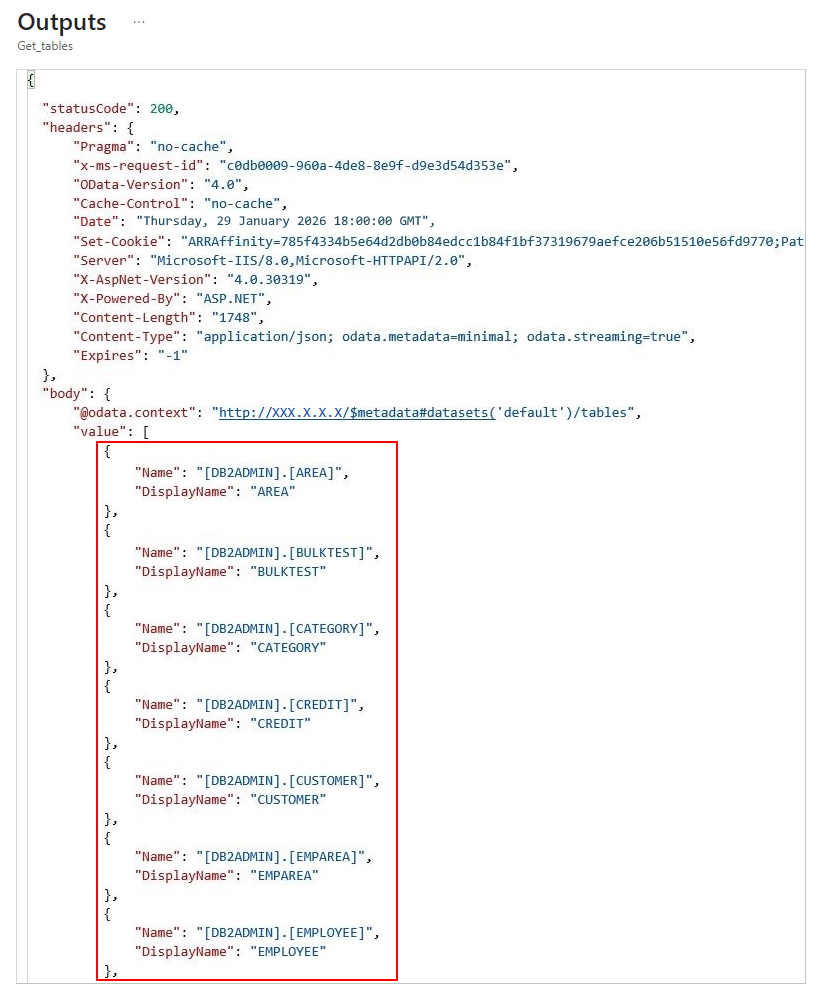
The outputs include a list of tables, for example: