Nóta
Aðgangur að þessari síðu krefst heimildar. Þú getur prófað aðskrá þig inn eða breyta skráasöfnum.
Aðgangur að þessari síðu krefst heimildar. Þú getur prófað að breyta skráasöfnum.
This page describes common errors and unexpected behavior when using Azure Databricks Git folders with a remote Git provider, grouped by category to help you identify the cause more quickly. If none of the guidance here resolves your issue, see Get help.
Authentication errors
These errors occur when Azure Databricks can't verify your identity with the remote Git provider.
Invalid credentials
Try the following:
Confirm that the Git integration settings (Settings > Linked accounts) are correct. You must enter both your Git provider username and token.
Confirm that you selected the correct Git provider in Settings > Linked accounts.
Verify that your personal access token or app password has the correct repo access.
If your Git provider has SSO enabled, authorize your tokens for SSO.
Test your token with the Git command line. Replace the text strings in angle brackets:
git clone https://<username>:<personal-access-token>@github.com/<org>/<repo-name>.git
SSL connection errors
<link>: Secure connection to <link> could not be established because of SSL problems
This error occurs when Azure Databricks can't reach your Git server over HTTPS. It typically indicates a network connectivity issue or a TLS certificate problem on your organization's Git infrastructure.
Before contacting your Azure Databricks account team, have the following information ready:
- The URL of your Git server
- Whether the server uses a self-signed or private CA certificate
- Whether other users in the same workspace see the same error
Microsoft Entra ID credentials error
Encountered an error with your :re[ms-entra-id] credentials. Try logging out of :re[ms-entra-id] and logging back in.
This error can occur when your organization recently enabled a multi-factor authentication (MFA) policy. When MFA enforcement takes effect, existing Microsoft Entra ID sessions might not satisfy the new authentication requirements, and the connection fails.
To resolve the error:
- Go to
portal.azure.comand log out of Microsoft Entra ID. - Log back in. You should see a prompt to complete MFA.
If that doesn't work, log out of all Azure services before logging in again.
Repository state errors
These errors occur when the local Git folder reaches a state that prevents normal operations.
Detached head state
In Git, the "head" refers to the current position in the commit history, and it normally points to a branch. When the head points directly to a specific commit rather than a branch, the repository is in a "detached head" state. Git doesn't track changes made in this state on any branch. If you navigate away without first creating a new branch, those changes might be lost.
A Git folder can enter the detached head state when:
- Someone deletes the remote branch. Azure Databricks tries to recover uncommitted local changes by applying them to the default branch. If there are conflicting changes, Azure Databricks applies them on a snapshot of the default branch, resulting in a detached head.
- A user or service principal checks out a tag using the
update repoAPI.
To recover from this state:
- Click Create branch to create a branch from the current commit, or Select branch to check out an existing branch.
- Commit and push to keep your changes. To discard changes, click the
 kebab menu under Changes.
Inconsistent repository state
There was a problem with deleting folders. The repo could be in an inconsistent state and re-cloning is recommended.
This error indicates that a problem occurred while deleting folders. The repository is now in an inconsistent state. Delete and re-clone the repository to reset its state.
Notebook name conflicts
Notebooks with identical or similar filenames can cause errors when you create a repository or pull request:
Cannot perform Git operation due to conflicting names
A folder cannot contain a notebook with the same name as a notebook, file, or folder (excluding file extensions).
Naming conflicts can occur even with different file extensions. For example, these two files conflict:
notebook.ipynbnotebook.py
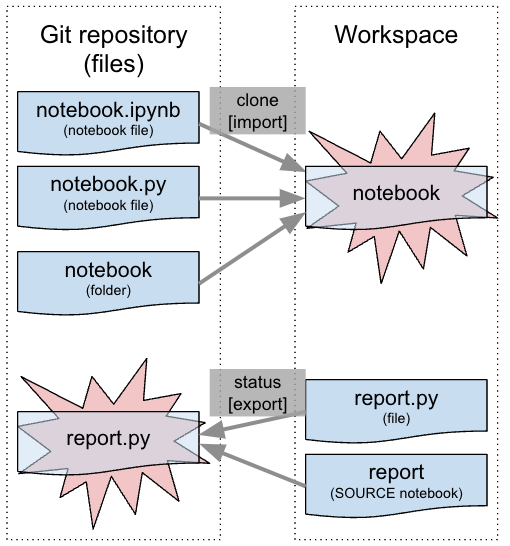
To fix the conflict, rename the notebook, file, or folder that's contributing to the error state. If the error occurs when you clone the repo, rename the notebooks, files, or folders in the remote Git repo.
Unexpected behavior
These issues don't produce a clear error message, but they're signs of a problem that needs investigation.
Timeout errors
Operations like cloning a large repository or checking out a large branch can result in timeout errors. The operation might still complete in the background after the timeout.
If you see a timeout error:
- Wait a few minutes, then refresh the Git folder. If the expected files or branches are present, the operation completed successfully.
- If the workspace was under heavy load, retry the operation after load decreases.
To avoid timeouts with large repositories, use sparse checkout to work with only the files you need.
404 errors
If you get a 404 error when you open a non-notebook file, wait a few minutes and try again. There's a brief delay between when the system enables the workspace and when the webapp picks up the configuration.
Notebooks appear modified without user edits
If every line of a notebook appears modified without any user edits, the changes are likely due to line ending differences. Azure Databricks uses Linux-style line endings (LF), which can differ from files committed on Windows systems (CRLF).
To diagnose this issue, check if you have a .gitattributes file:
- It can't contain
* text eol=crlf. - If you're not using Windows, remove this setting. Both your development environment and Azure Databricks use Linux line endings.
- If you're using Windows, change the setting to
* text=auto. Git then stores files with Linux-style line endings internally, but checks out with platform-specific line endings automatically.
If you already committed files with Windows end-of-line characters into Git:
- Clear any outstanding changes.
- Update the
.gitattributesfile as described above for your environment. - Commit the change.
- Run
git add --renormalize. Commit and push all changes.
Recover deleted files
File recoverability varies by action. Some actions allow recovery through the Trash folder, whereas others don't. To restore files previously committed and pushed to a remote branch, use the remote repository's Git commit history:
| Action | Is the file recoverable? |
|---|---|
| Delete file with workspace browser | Yes, from the Trash folder |
| Discard a new file with the Git folder dialog | Yes, from the Trash folder |
| Discard a modified file with the Git folder dialog | No, the file is gone |
reset (hard) for uncommitted file modifications |
No, file modifications are gone |
reset (hard) for uncommitted, newly created files |
No, file modifications are gone |
| Switch branches with the Git folder dialog | Yes, from the remote Git repo |
| Other Git operations, such as commit or push, from the Git folder dialog | Yes, from the remote Git repo |
PATCH operations updating /repos/id from Repos API |
Yes, from the remote Git repo |
Get help
If none of the guidance on this page resolves your issue, contact Azure Databricks support. When you contact support, include the following:
- The exact error message
- The name of your Git provider and whether the repository is public or private
- Whether the issue affects all users or only some users in your workspace
- The steps you've already tried