Nóta
Aðgangur að þessari síðu krefst heimildar. Þú getur prófað aðskrá þig inn eða breyta skráasöfnum.
Aðgangur að þessari síðu krefst heimildar. Þú getur prófað að breyta skráasöfnum.
Use the Application tool to inspect, modify, and debug a PWA's web app manifests, service workers, and service worker caches.
Detailed contents:
- About Progressive Web Apps (PWAs)
- PWA-related pages in the Application tool
- Web app manifest
- Service workers
- Service worker caches (Cache storage page)
- Clear storage (Storage page)
- See also
About Progressive Web Apps (PWAs)
Progressive Web Apps (PWAs) are modern, high-quality applications built using web technology. PWAs offer similar capabilities to apps on iOS, Android, and desktop:
- PWAs are reliable even in unstable network conditions.
- PWAs are installable to launch-surfaces of operating systems, such as:
- The Applications folder on Mac OS X.
- The Start menu on Windows.
- The home screen on Android and iOS.
- PWAs show up in:
- Activity switchers.
- Device search engines such as the Windows Start menu.
- Sharing dialogs, such as when sharing files between apps. A PWA can trigger share dialogs, and can also appear in share dialogs. See Share content with other apps.
The features that are discussed below are features of the Application tool that are relevant for PWAs. For help on the other features and pages in the Application tool, see:
See also:
PWA-related pages in the Application tool
The  Application tool includes the following pages (accessed via the tree on the left) that cover PWA features:
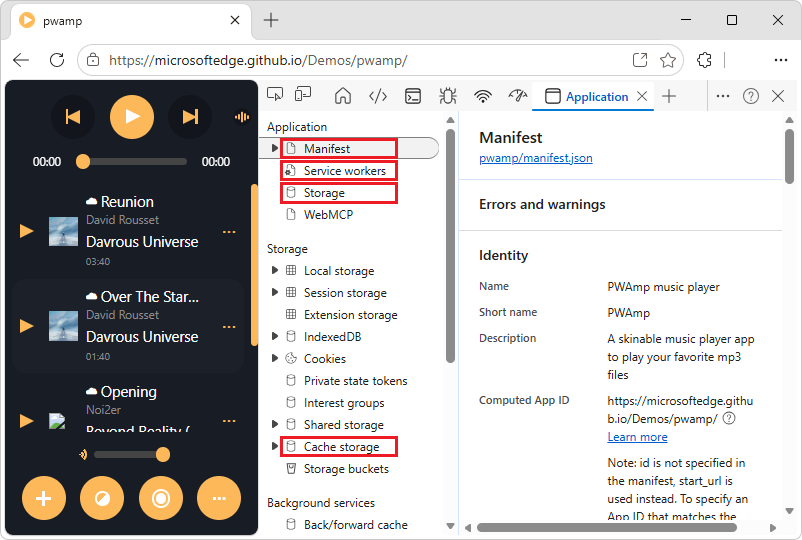
Use the Manifest page to inspect your web app manifest. See Web app manifest, below.
Use the Service workers page for service-worker-related tasks, such as:
- Unregistering or updating a service.
- Emulating push events.
- Going offline.
- Stopping a service worker.
- Unregistering or updating a service worker.
See Service workers, below.
Use the Storage page to view how much data your app is storing on the device, and clear the stored data. See Clear storage (Storage page), below.
Use the Cache storage page to view your service worker cache. See Service worker caches (Cache storage page), below.
Web app manifest
To let users install your app, you need a web app manifest.
The web app manifest defines:
- The app icon and name, when installed on the device.
- Where to direct the user when launching the app from the device.
- What the app looks like when launched.
To inspect a manifest:
Go to a webpage that uses a web app manifest, such as PWAmp, in a new window or tab.
Right-click the webpage, and then select Inspect.
DevTools opens.
In DevTools, select the
Application tool.In the outline on the left, in the Application section, select Manifest.
The Manifest page is displayed:
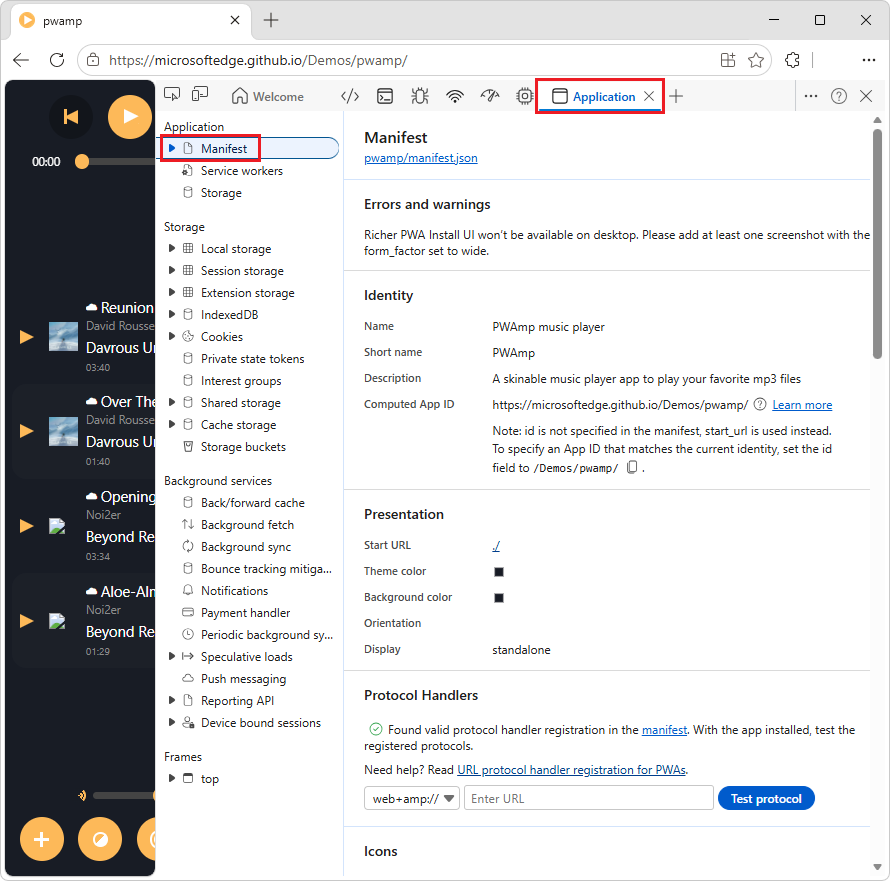
The Manifest page contains the following sections:
- Manifest - contains the manifest link.
- Errors and warnings
- Identity - displays fields from the manifest source file in a user-friendly display.
- Presentation - displays fields from the manifest source file in a user-friendly display.
- Protocol Handlers
- Icons - displays every icon that's been specified in the manifest.
- Window Controls Overlay
- Optionally, screenshot sections, such as Screenshot #1 and Screenshot #2.
Click the link below the App Manifest label, such as
manifest.json.The manifest file opens, such as /pwamp/manifest.json.
See also:
- Use Progressive Web Apps (PWAs) in Microsoft Edge
- The web app manifest (
manifest.json) in Get started developing a PWA.
View and check maskable icons
The Icons section of the Manifest page of the Application tool displays all the icons of your application. In the Icons section, you can also check safe areas for maskable icons, which is the format of icons that adapt to platforms.
To trim the icons so that only the minimum safe area is visible, select the Show only the minimum safe area for maskable icons checkbox:
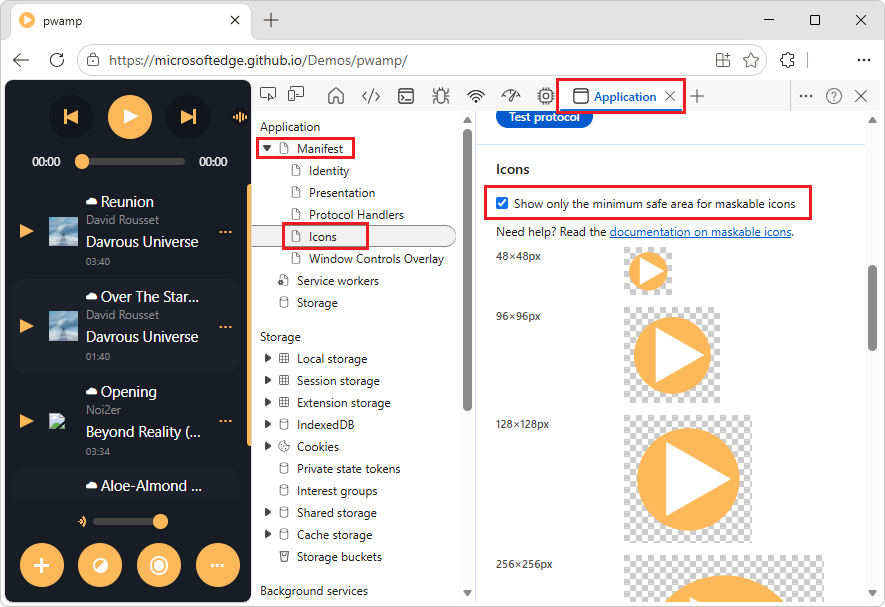
If your entire logo is visible in the safe area, the formatting is valid.
See also:
Inspect shortcuts
App shortcuts let you to provide quick access to a handful of common actions that users need frequently.
To inspect the shortcuts that you defined in your manifest file, scroll to the Shortcut #N sections of the Manifest page in the Application tool. The Shortcut #N sections are below the Windows Control Overlay section of the Manifest page:
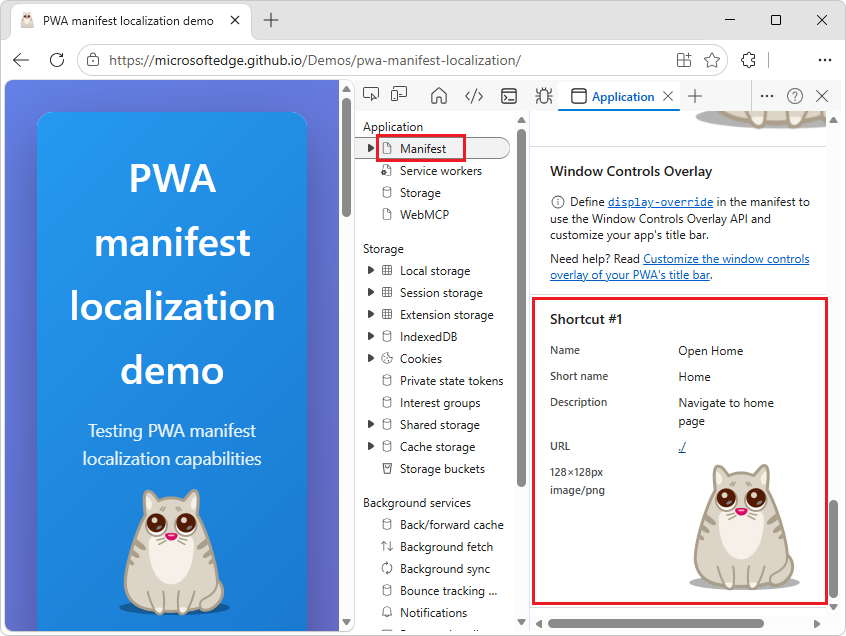
The above screenshot is from the PWA manifest localization demo, which defines a shortcut in its manifest file.
See also:
Test URL protocol handler registration
A PWA can handle links that use a specific protocol, for a more integrated experience. To create a handler, see Handle protocols in a PWA.
The PWAmp demo supports protocol handling, in manifest.json, lines 100-105
To test protocol handling, install the app, and then test in one of two ways, as follows.
Install the PWA
Go to a PWA webpage, such as the PWAmp demo, in a new window or tab.
On the right side of the Address bar, click the App available. Install PWAmp music player (
 ) button.
The Install PWAmp music player app dialog opens.
Click the Install button.
The PWAmp demo opens in a window, and the App installed dialog opens.
Click the Allow button.
The Apps dialog opens, asking "Would you like to pin PWAmp music player to your taskbar?"
Click the Yes button.
Next, test URL protocol handler registration, using either of the following ways.
Test URL protocol handler registration by using DevTools
To test URL protocol handler registration by using DevTools:
Install the PWA, per Install the PWA, above.
Right-click the app, and then select Inspect.
DevTools opens in a dedicated window.
Select the
Application tool.In the tree on the left, expand Manifest, and then select Protocol Handlers.
The Manifest page scrolls down to the Protocol Handlers section.
In the Enter URL text box to the right of
web+amp://, enter the following:remote-song:https://microsoftedge.github.io/Demos/pwamp/songs/OverTheStargates.mp3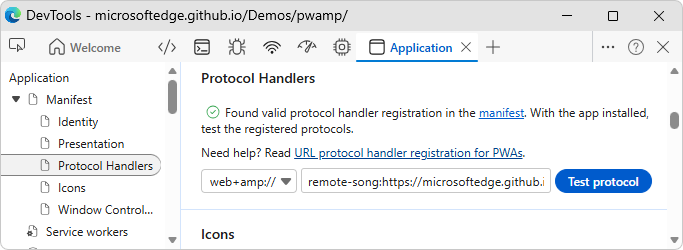
Click the Test protocol button.
The installed PWA opens, demonstrating that the URL protocol handler registration works.
Test URL protocol handler registration by using the Run app
To test URL protocol handler registration by using the Run app:
Install the PWA, per Install the PWA, above.
Open the Start menu.
Type "run", and then press Enter.
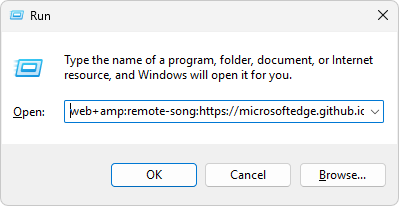
The Run dialog opens.
Enter the following:
web+amp:remote-song:https://microsoftedge.github.io/Demos/pwamp/songs/OverTheStargates.mp3Press Enter:
The Microsoft Edge dialog opens, asking "Allow app to open web+amp links?"
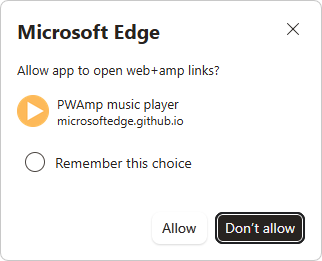
Click the Allow button.
PWAmp launches (as an installed app), proving that its protocol handling works.
See also:
Service workers
Service workers are a fundamental technology in the web platform. A service worker is a script that the browser runs in the background, separate from a webpage. Service worker scripts enable your app to access features that don't need a webpage or user interaction, such as:
- Push notifications.
- Background sync.
- Offline experiences.
See also:
- Debug background services - debugging service workers from DevTools.
- The service worker to cache the app's files on the local device (
sw.js) in Get started developing a PWA. - Re-engage users with push messages
The main place in DevTools to inspect and debug service workers is the Service workers page in the Application tool.
To view service workers:
Go to a webpage that uses service workers, such as the PWAmp demo, in a new window or tab.
Right-click the webpage, and then select Inspect.
DevTools opens.
In DevTools, select the
Application tool.In the outline on the left, in the Application section, select Service workers.
The Service workers page is displayed:
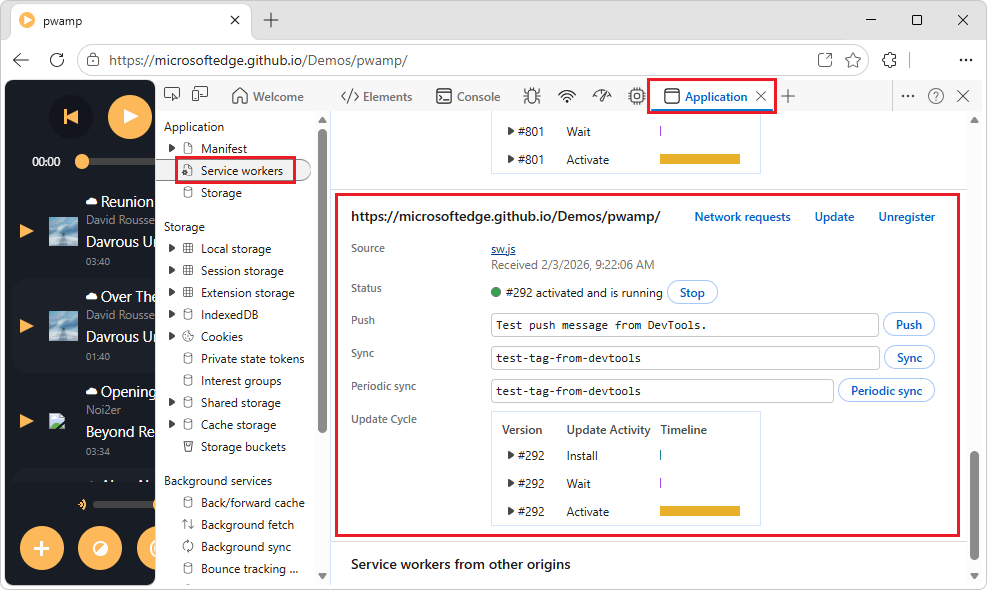
The Service workers page lists the service worker for this PWA (
/pwamp/sw.js). If you previously used other demos that are hosted atmicrosoftedge.github.io, the Service workers page also lists the service workers for these demos, such as/pwa-timer/,/wami/, or/pwa-to-do/. These other service workers are listed because they're part of the same domain name,microsoftedge.github.io. If the demos had separate domains, such aspwamp.com, only the PWAmp service worker would be listed.
UI controls in the Service workers page
Checkboxes:
The Offline checkbox puts DevTools into offline mode. This is equivalent to:
- The offline mode that's available from the
 Network tool.
 - Selecting
Go offlinein the Command Menu. See Run commands in the Command Menu.
- The offline mode that's available from the
The Update on reload checkbox forces the service worker to update on every page load.
The Bypass for network checkbox bypasses the service worker and forces the browser to go to the network for requested resources.
Links in the upper right:
The Network requests link takes you to the Network tool with a list of intercepted requests related to the service worker (the
is:service-worker-interceptedfilter). See Display network requests handled by a service worker, below.The Update button performs a one-time update of the specified service worker.
The Unregister link unregisters the specified service worker. To unregister a service worker and wipe storage and caches with a single button-click, see Clear storage (Storage page), below.
Lines in the service worker's section:
The Source line tells you when the currently running service worker was installed. The link is the name of the source file of the service worker. Clicking the link opens the source code of the service worker in the Sources tool.
The Status line tells you the status of the service worker.
- The number on this line (
#292in the previous screenshot) indicates how many times the service worker has been updated. If you select the Update on reload checkbox, the number increments on every page load. - Next to the status is a Start button (if the service worker is stopped) or a Stop button (if the service worker is running). Service workers are designed to be stopped and started by the browser at any time. Explicitly stopping your service worker by using the Stop button can simulate that. Stopping your service worker is a great way to test how your code behaves when the service worker starts back up again. Stopping your service worker frequently reveals bugs due to faulty assumptions about persistent global state.
- The number on this line (
The Clients line tells you the origin that the service worker is scoped to. The focus button is mostly useful when you have multiple registered service workers. If you click the focus button next to a service worker that is running in a different tab, Microsoft Edge focuses on that tab.
The Push button emulates a push notification without a payload (also known as a tickle). See How push works at web.dev.
The Sync button emulates a background sync event, to test code that uses the Background Sync API. See Use the Background Sync API to synchronize data with the server in Synchronize and update a PWA in the background.
The Periodic sync button emulates a periodic sync event, to test code that uses the Periodic Background Sync API. See Use the Periodic Background Sync API to regularly get fresh content in Synchronize and update a PWA in the background.
The Update Cycle table displays the service worker's activities and their elapsed times, such as Install, Wait, and Activate. To see the exact timestamp of each activity, click the Expand (
 ) buttons.
If the service worker causes any errors, the service worker's section in the Service workers page shows an  error icon with the number of errors next to the Source line (section). The link with the number opens the Console tool in the Quick view panel, which displays all the logged errors.
To see information about all service workers, click the See all registrations link at the bottom of the Service workers page. This link opens edge://serviceworker-internals, where you can further debug the service workers.
See also:
- The service worker lifecycle - at web.dev.
- Service Worker API - at MDN, about service workers.
Display network requests handled by a service worker
In the Service workers page of the Application tool, you can quickly access the list of network requests that are handled by a service worker, through the Network tool.
To display the network requests that are handled by a service worker:
Go to a webpage that uses a service worker, such as PWAmp, in a new window or tab.
Right-click the webpage, and then select Inspect.
DevTools opens.
In DevTools, select the
Application tool.In the outline on the left, in the Application section, select Service workers.
The Service workers page is displayed.
In the upper right of the Service workers page, click the Network requests button.
The
Network tool opens.The Filter text box contains
is:service-worker-intercepted. This filter only displays the requests that were handled by this service worker.Refresh the webpage.
Select one of the requests, such as main.css.
The sidebar appears.
In the sidebar, click the Timing tab.
The Service Worker section displays timing information about the Startup and respondWith phases.
Service worker caches (Cache storage page)
The Cache storage page provides a read-only list of resources that have been cached using the (service worker) Cache API.
To view cache storage information for a service worker:
Go to a page that uses a service worker cache and cache storage, such as the PWAmp demo, in a new window or tab.
Right-click the page, and then select Inspect.
DevTools opens.
In DevTools, select the
Application tool.In the outline on the left, select Cache storage.
The Cache storage page is displayed:
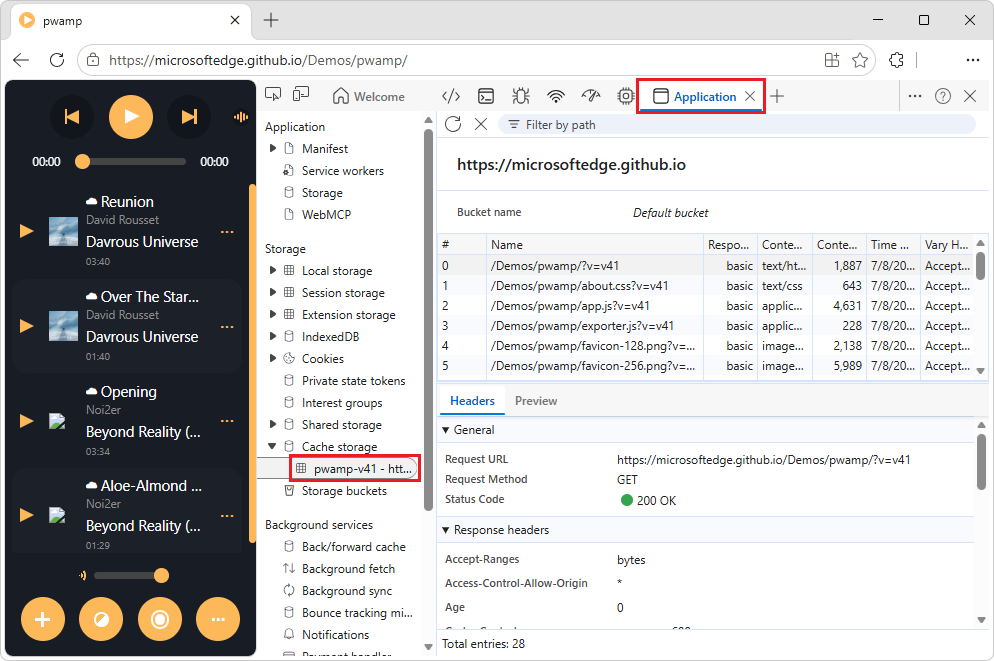
The first time you open a cache and add a resource to it, DevTools might not detect the change. Refresh the page to display the cache.
All open caches are listed under the Cache storage expander.
See also:
- Cache at MDN > Web APIs.
Clear storage (Storage page)
Clearing storage is useful when developing a progressive web app. Clear storage, to unregister service workers and clear all caches and storage.
To clear storage:
Open a PWA, such as the PWAmp demo, in a new window or tab.
Right-click the PWA, and then select Inspect.
The PWA doesn't need to have been installed. A PWA can use a service worker and store data in the cache without being installed.
DevTools opens.
Select the
Application tool.In the tree on the left, select Application > Storage.
The Storage page opens:
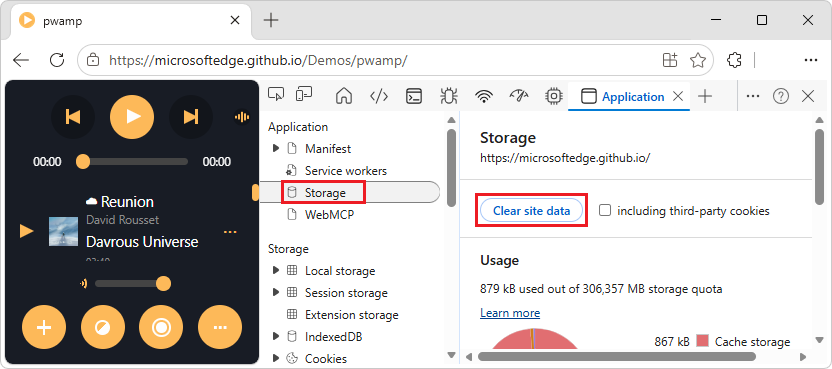
Click the Clear site data button.
See also
DevTools:
- Network tool:
- Application tool:
- Application tool, to manage storage
- View and edit local storage
- Test Progressive Web App (PWA) protocol handling
- Debug background services - debugging service workers from DevTools.
- Command Menu:
- Remote debugging:
Progressive Web Apps (PWAs):
- Overview of Progressive Web Apps (PWAs)
- Use Progressive Web Apps (PWAs) in Microsoft Edge
- The web app manifest (
manifest.json) in Get started developing a PWA. - The service worker to cache the app's files on the local device (
sw.js) in Get started developing a PWA. - Share content with other apps
- Define app shortcuts (long-press or right-click menus)
- Re-engage users with push messages
GitHub:
- PWAmp
- PWA manifest localization demo - defines a shortcut in its manifest file.
MDN:
- Service Worker API
- Cache at MDN > Web APIs.
web.dev:
Note
Portions of this page are modifications based on work created and shared by Google and used according to terms described in the Creative Commons Attribution 4.0 International License. The original page is found here and is authored by Kayce Basques.
 This work is licensed under a Creative Commons Attribution 4.0 International License.