Nóta
Aðgangur að þessari síðu krefst heimildar. Þú getur prófað aðskrá þig inn eða breyta skráasöfnum.
Aðgangur að þessari síðu krefst heimildar. Þú getur prófað að breyta skráasöfnum.
Visual Studio provides several refactorings for extracting code into new constructs or inlining code to simplify your codebase. You can access these refactorings through the Quick Actions and Refactorings menu (Ctrl+.).
Extract method
Applies to: C#, Visual Basic
This refactoring turns a fragment of code into its own method, reducing duplication when the same code needs to be called from multiple places.
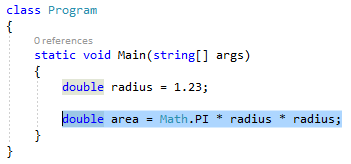
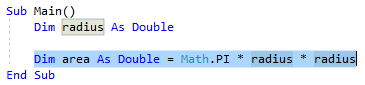
Highlight the code to be extracted:
C#:
Visual Basic:
Next, do one of the following:
- Keyboard
- Press Ctrl+R, then Ctrl+M. (Your keyboard shortcut may be different based on which profile you've selected.)
- Press Ctrl+. to trigger the Quick Actions and Refactorings menu and select Extract Method from the Preview window popup.
- Mouse
- Select Edit > Refactor > Extract Method.
- Right-click the code and select Refactor > Extract > Extract Method.
- Right-click the code, select the Quick Actions and Refactorings menu and select Extract Method from the Preview window popup.
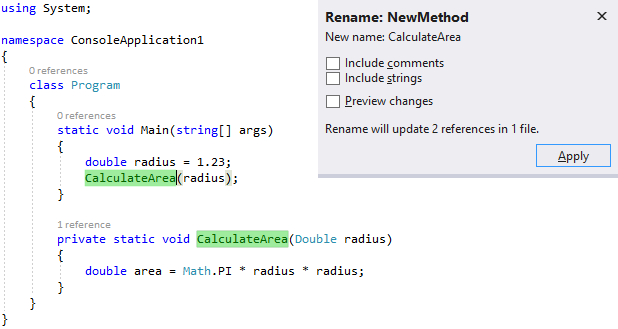
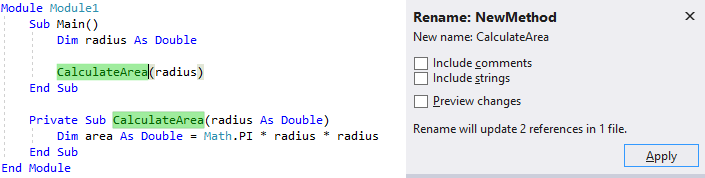
The method will be immediately created. You can now rename the method by typing the new name.
Tip
You can also update comments and other strings to use this new name, as well as preview changes before saving, using the checkboxes in the Rename box that appears at the top right of your IDE.
C#:
Visual Basic:
- Keyboard
When you're happy with the change, choose the Apply button or press Enter and the changes will be committed.
Extract local function
Applies to: C#
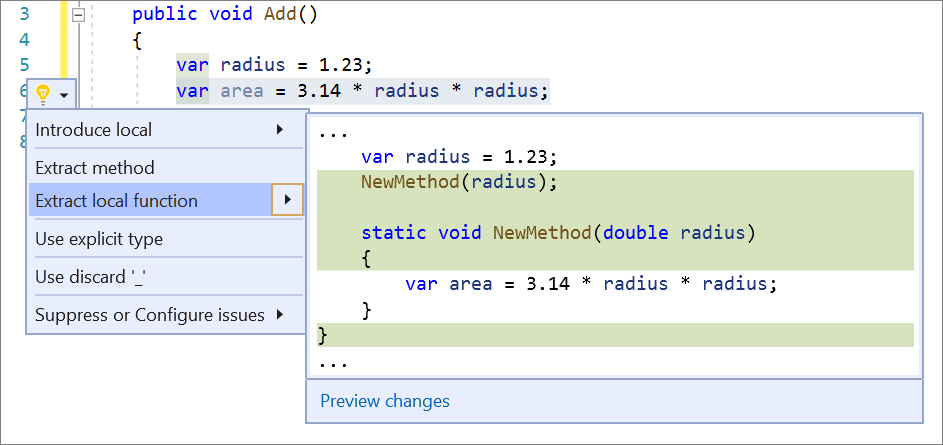
This refactoring turns a fragment of code from an existing method into a local function, useful when the extracted code only needs to be called within the same method.
Highlight the code to be extracted.
Press Ctrl+. to trigger the Quick Actions and Refactorings menu.
Select Extract local function.
Extract base class
Applies to: C#, Visual Basic
This refactoring extracts members from a selected class to a new base class, useful when you want to share members across classes through inheritance.
Place your caret on either the class name or a highlighted member.
Press Ctrl+. to trigger the Quick Actions and Refactorings menu.
Select Pull member(s) up to new base class.
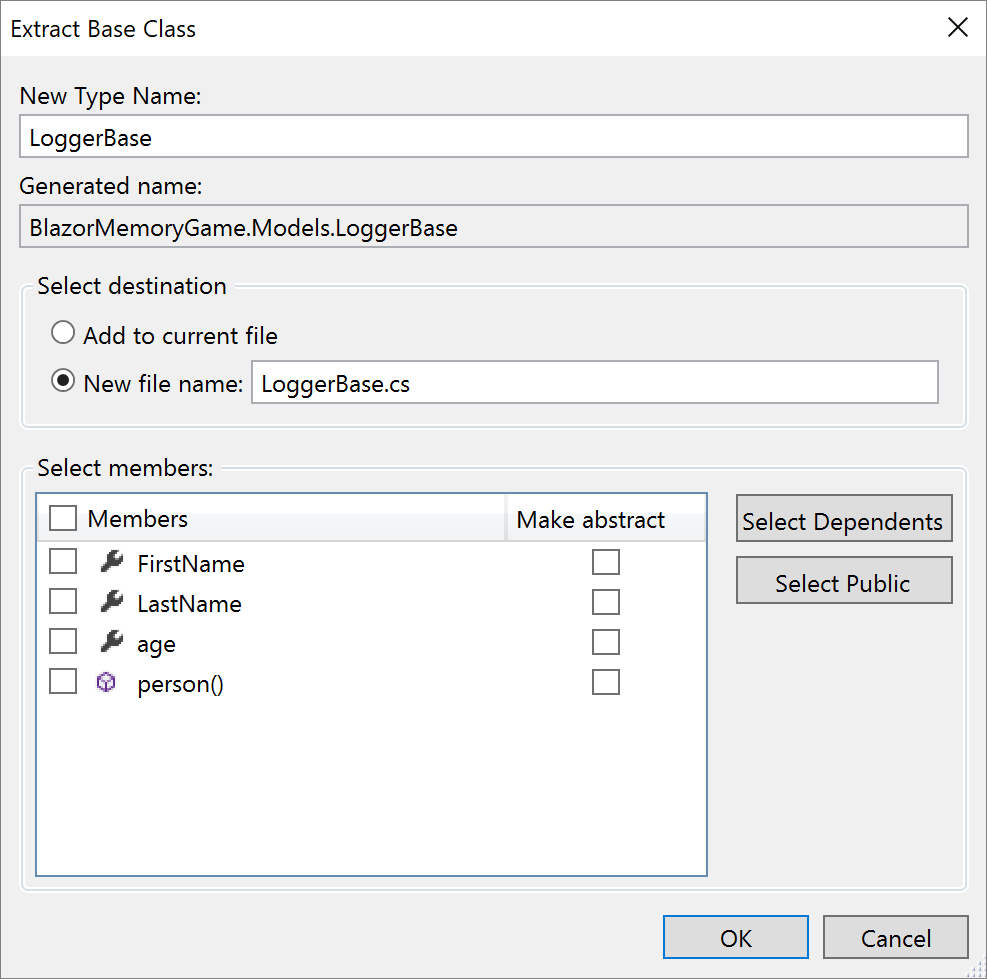
The new Extract Base Class dialog will open where you can specify the name for the base class and location of where it should be placed. You can select the members that you want to transfer to the new base class and choose to make the members abstract by selecting the checkbox in the Make abstract column.
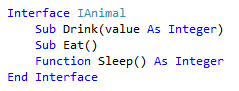
Extract interface
Applies to: C#, Visual Basic
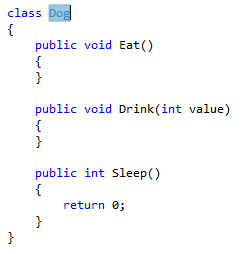
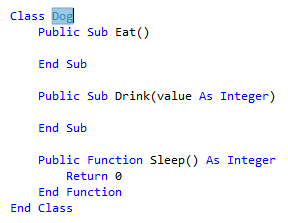
This refactoring creates an interface using existing members from a class, struct, or interface, enabling other types to share a common signature.
Place your cursor in the class name.
C#:
Visual Basic:
Next, do one of the following actions:
- Keyboard
- Press Ctrl+R, then Ctrl+I. (Your keyboard shortcut may be different based on which profile you've selected.)
- Press Ctrl+. to trigger the Quick Actions and Refactorings menu and select Extract Interface from the Preview window popup.
- Mouse
- Select Edit > Refactor > Extract Interface.
- Right-click the name of the class, select the Quick Actions and Refactorings menu and select Extract Interface from the Preview window popup.
- Keyboard
In the Extract Interface dialog box that pops up, enter the information asked:
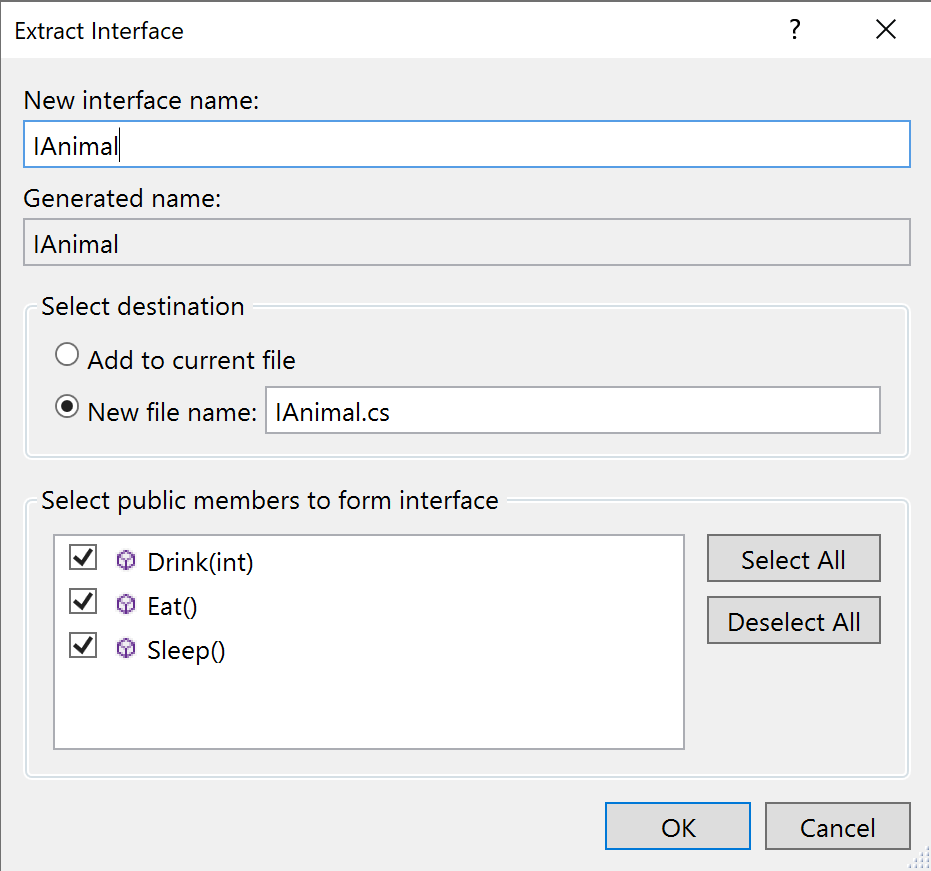
Field Description New interface name The name of the interface to be created. The name will default to IClassName, where ClassName is the name of the class you selected above. New file name The name of the generated file that will contain the interface. As with the interface name, this name will default to IClassName, where ClassName is the name of the class you selected above. You can also select the option to Add to current file. Select public members to form interface The items to extract into the interface. You may select as many as you wish. Choose OK.
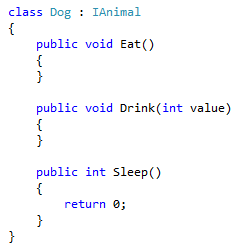
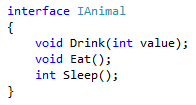
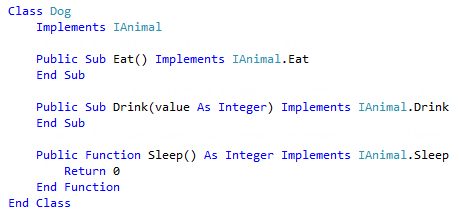
The interface is created in the file of the name specified. Additionally, the class you selected implements that interface.
C#:
Visual Basic:
Inline method
Applies to: C#, Visual Basic
This refactoring replaces usages of a static, instance, or extension method within a single statement body with its implementation, with an option to remove the original method declaration.
Place your caret on the usage of the method.
Press Ctrl+. to trigger the Quick Actions and Refactorings menu.
Select from one of the following options:
Select Inline
<QualifiedMethodName>to remove the inline method declaration: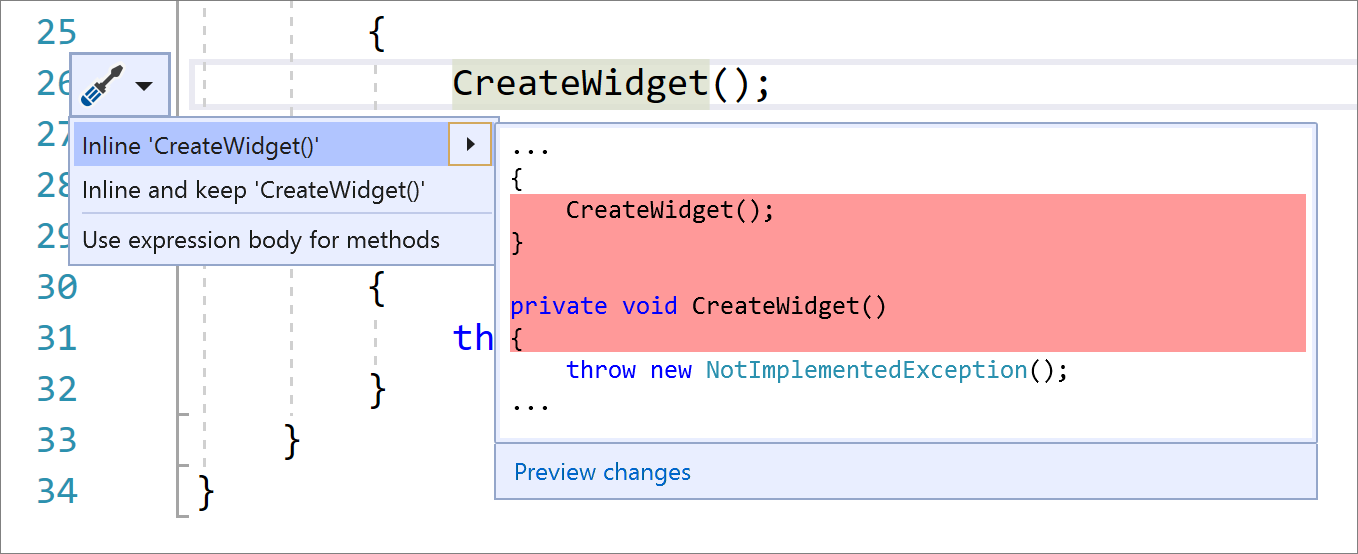
Select Inline and keep
<QualifiedMethodName>to preserve the original method declaration: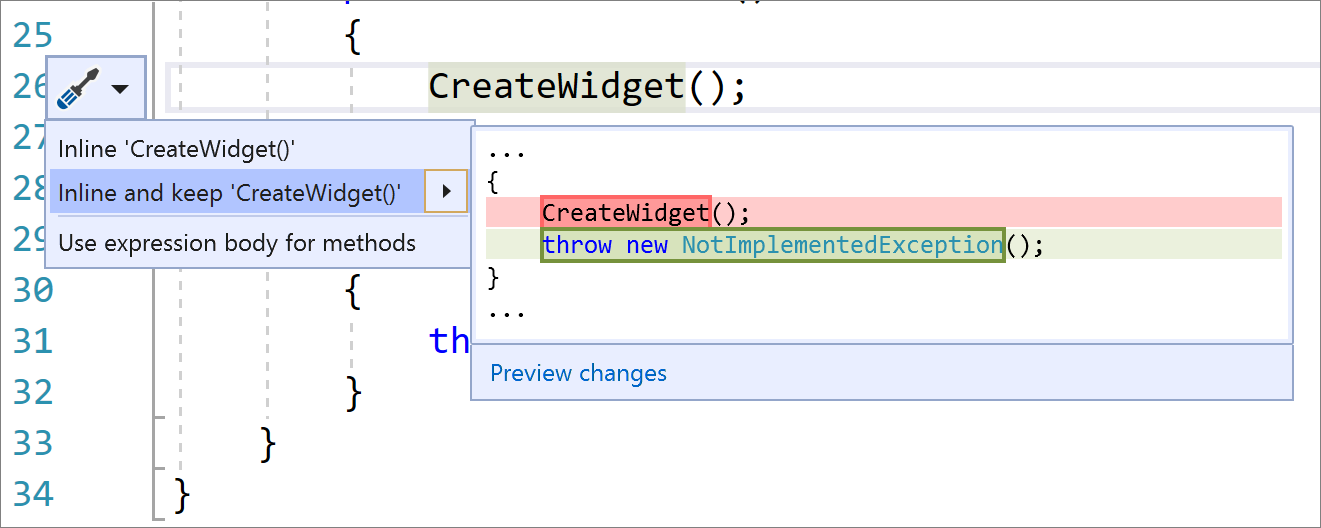
Inline temporary variable
Applies to: C#, Visual Basic
This refactoring removes a temporary variable and replaces it with its value instead, simplifying code when the temporary variable makes the code harder to understand.
Highlight or place the text cursor inside the temporary variable to be inlined:
C#:
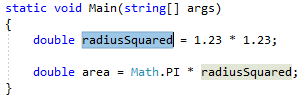
Visual Basic:

Next, do one of the following:
- Keyboard
- Press Ctrl+. to trigger the Quick Actions and Refactorings menu.
- Mouse
- Right-click the code and select the Quick Actions and Refactorings menu.
- Keyboard
Select Inline temporary variable from the Preview window popup.
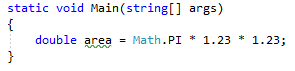
The variable is removed and its usages replaced by the value of the variable.
C#:
Visual Basic:
