Nóta
Aðgangur að þessari síðu krefst heimildar. Þú getur prófað aðskrá þig inn eða breyta skráasöfnum.
Aðgangur að þessari síðu krefst heimildar. Þú getur prófað að breyta skráasöfnum.
This comprehensive guide covers advanced assessment capabilities in GitHub Copilot modernization to help you maximize the value of your application modernization assessment process.
Application assessment is a critical first step in your modernization journey. This article covers the complete assessment workflow to help you effectively work with assessment reports, configure assessments for different scenarios, and manage assessment data throughout your modernization process.
Key capabilities include:
- Multiple reports per run: Each assessment run generates an independent report. You can access previous reports from the report list, so you can track assessment history and compare results over time.
- Two assessment entries for different purposes: GitHub Copilot modernization provides two ways to start an assessment:
- Recommended assessment: Quickly start an assessment by selecting from recommended domains without manual configuration.
- Custom assessment: Configure specific assessment properties to tailor the analysis to your exact needs.
Recommended assessment
Recommended assessment provides a streamlined way to start an assessment without manual configuration. This approach is ideal when you want to quickly evaluate your application's readiness for common migration scenarios.
To run a recommended assessment, use the following steps:
- Select Start Assessment or Open Assessment Dashboard in the QUICKSTART section of the GitHub Copilot modernization pane.
- Select Recommended Assessment.
- Select the domains you want to assess from the list of recommended options. Each domain represents a common migration scenario with preconfigured settings.
- Select OK to start the assessment.
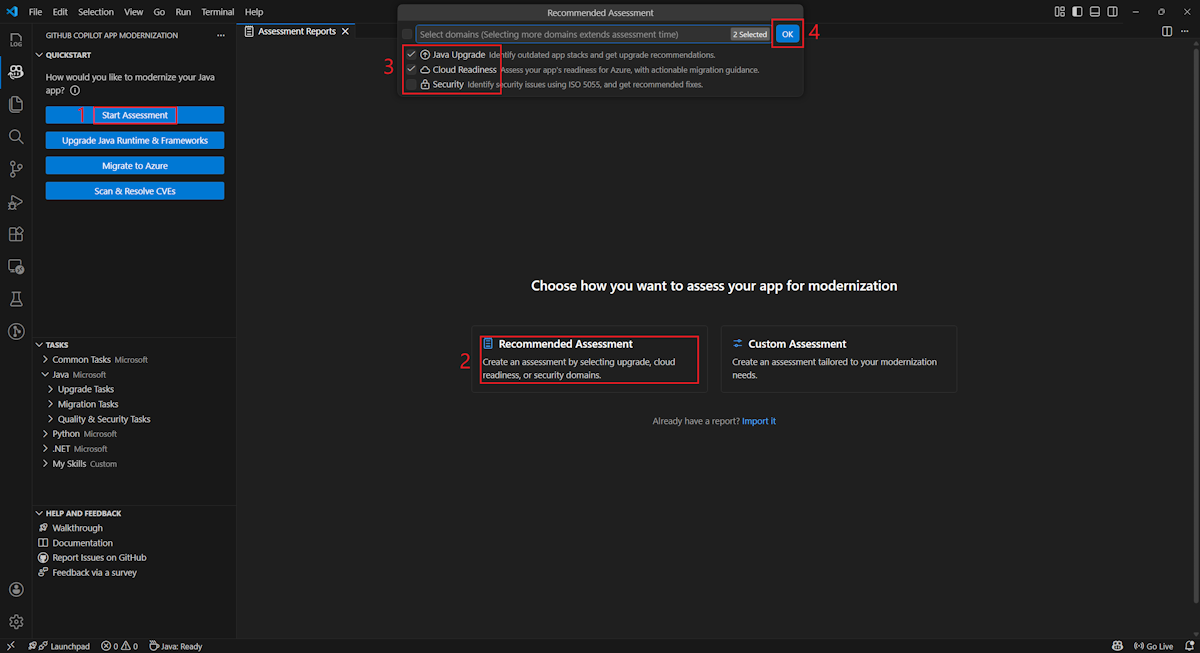
After the assessment completes, the process generates a new report and adds it to the report list. You can view the report by selecting it from the list.
Custom assessment
Custom assessment enables you to tailor the assessment analysis to your specific migration needs. Use this approach when you need fine-grained control over the assessment configuration.
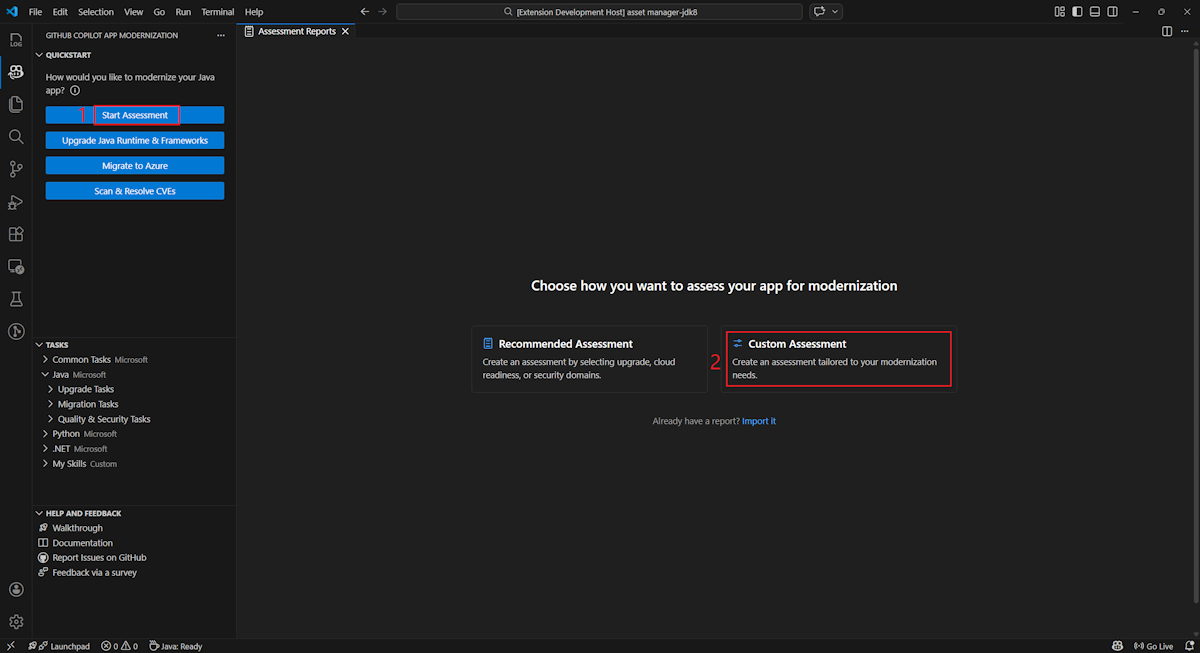
To configure and run a custom assessment, use the following steps:
- Select Start Assessment or Open Assessment Dashboard in the QUICKSTART section of the GitHub Copilot modernization pane.
- Select Custom Assessment.
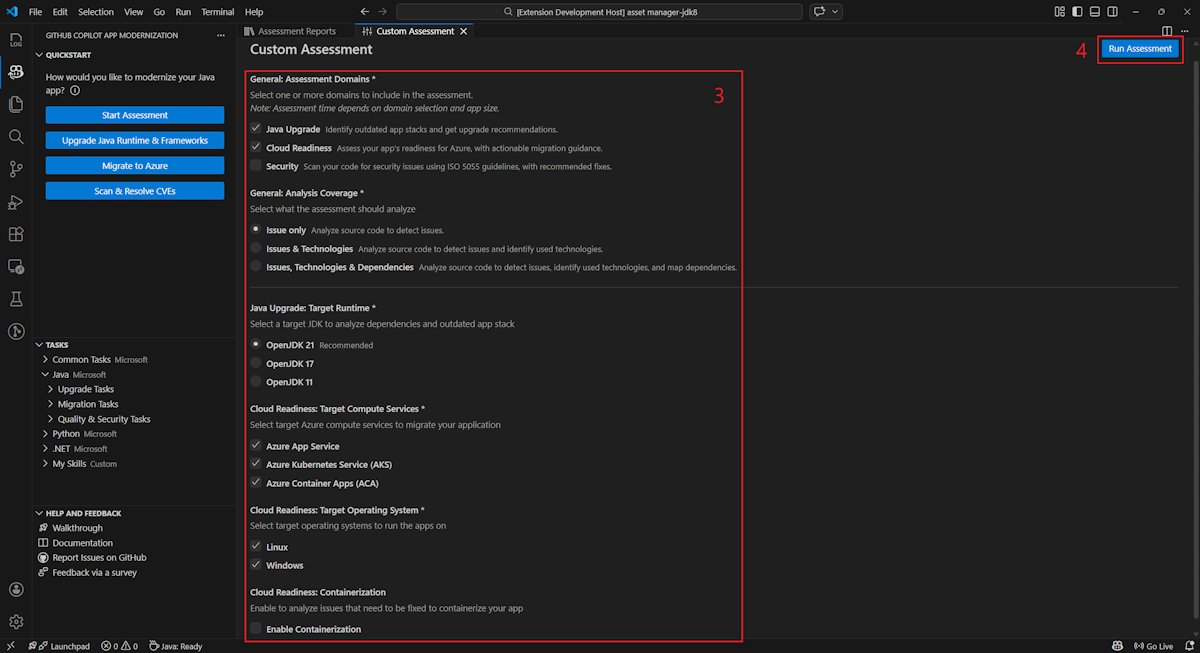
- Configure the assessment properties as described in the following section.
- Select Run to start the assessment.
Configuration properties
The custom assessment configuration form consists of general settings and domain-specific settings. The form displays the domain-specific settings based on the assessment domains you select.
General: Assessment Domains
Select one or more domains to include in the assessment. Assessment time depends on domain selection and app size.
| Domain | Description |
|---|---|
| Java Upgrade | Identify outdated app stacks and get upgrade recommendations. |
| Cloud Readiness | Assess your app's readiness for Azure, with actionable migration guidance. |
| Security | Scan your code for security issues using ISO 5055 guidelines, with recommended fixes. |
General: Analysis Coverage
Select what the assessment should analyze.
| Value | Description |
|---|---|
| Issue only | Analyze source code to detect issues. |
| Issues & Technologies | Analyze source code to detect issues and identify used technologies. |
| Issues, Technologies & Dependencies | Analyze source code to detect issues, identify used technologies, and map dependencies. |
Java Upgrade: Target Runtime
The form displays this setting when you select the Java Upgrade domain. Select a target JDK to analyze dependencies and outdated app stack.
| Value | Description |
|---|---|
| OpenJDK 25 | Best practices for migrating to OpenJDK 25. (Recommended) |
| OpenJDK 21 | Best practices for migrating to OpenJDK 21. |
| OpenJDK 17 | Best practices for migrating to OpenJDK 17. |
| OpenJDK 11 | Best practices for migrating to OpenJDK 11. |
Cloud Readiness: Target Compute Services
The form displays this setting when you select the Cloud Readiness domain. Select target Azure compute services to migrate your application. Choose multiple targets if you haven't decided which one to use. You can then compare the targets on the assessment report.
| Value | Description |
|---|---|
| Azure App Service | Best practices for deploying an app to Azure App Service. |
| Azure Kubernetes Service (AKS) | Best practices for deploying an app to Azure Kubernetes Service. |
| Azure Container Apps (ACA) | Best practices for deploying an app to Azure Container Apps. |
Cloud Readiness: Target Operating System
The form displays this setting when you select the Cloud Readiness domain. Select target operating systems to run the apps on.
| Value | Description |
|---|---|
| Linux | Best practices for migrating applications to the Linux platform. |
| Windows | Best practices for migrating applications to the Windows platform. |
Cloud Readiness: Containerization
The form displays this setting when you select the Cloud Readiness domain. Enable to analyze problems that need to be fixed to containerize your app.
| Value | Description |
|---|---|
| Enable Containerization | Best practices for containerizing applications. |
Examples
The following examples describe some common configuration scenarios:
Example one: You want to migrate your apps to AKS as Linux containers and want to understand what issues need to be fixed. Use the following configuration:
- Assessment Domains: Select Cloud Readiness
- Analysis Coverage: Select Issue only
- Target Compute Services: Select Azure Kubernetes Service (AKS)
- Target Operating System: Select Linux
- Containerization: Select Enable Containerization
Example two: You want to migrate your apps to App Service Linux and want to understand what issues need to be fixed. Use the following configuration:
- Assessment Domains: Select Cloud Readiness
- Analysis Coverage: Select Issue only
- Target Compute Services: Select Azure App Service
- Target Operating System: Select Linux
Example three: You want to modernize your apps to JDK 25 and want to understand what issues need to be fixed. Use the following configuration:
- Assessment Domains: Select Java Upgrade
- Analysis Coverage: Select Issue only
- Target Runtime: Select OpenJDK 25
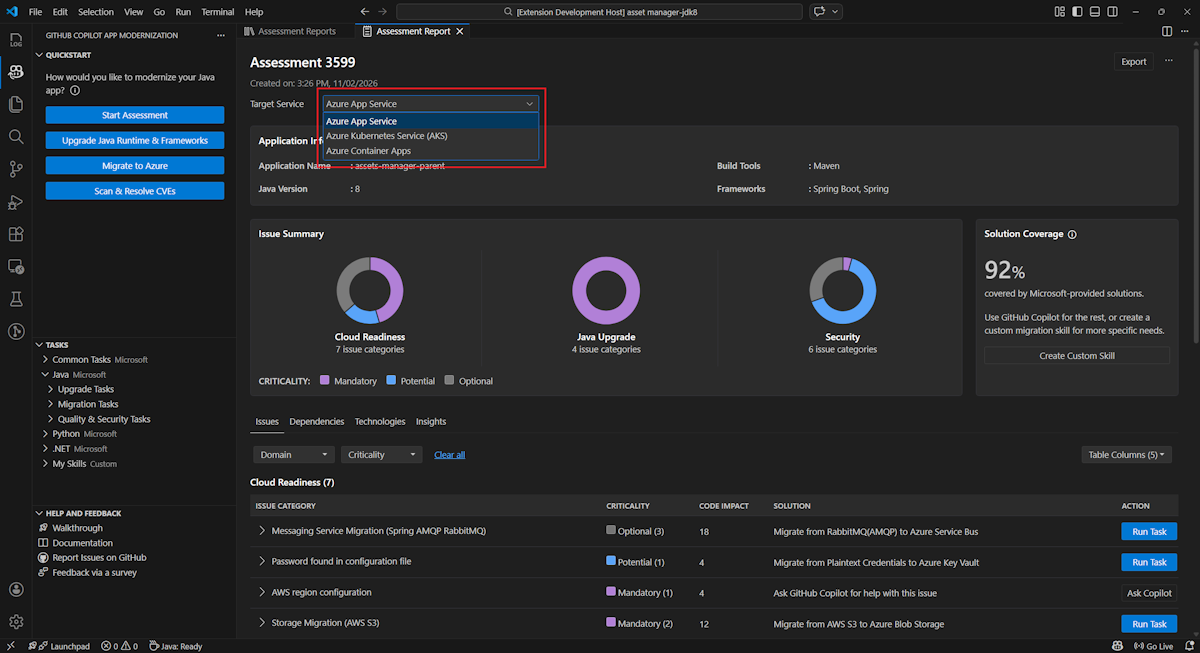
After the tool completes the assessment, it generates a new report and adds it to the report list. The interactive dashboard opens automatically, providing comprehensive analysis results. After you configure multiple Azure service targets, you can easily switch between them to compare migration approaches and view service-specific recommendations.
Interpret the assessment report
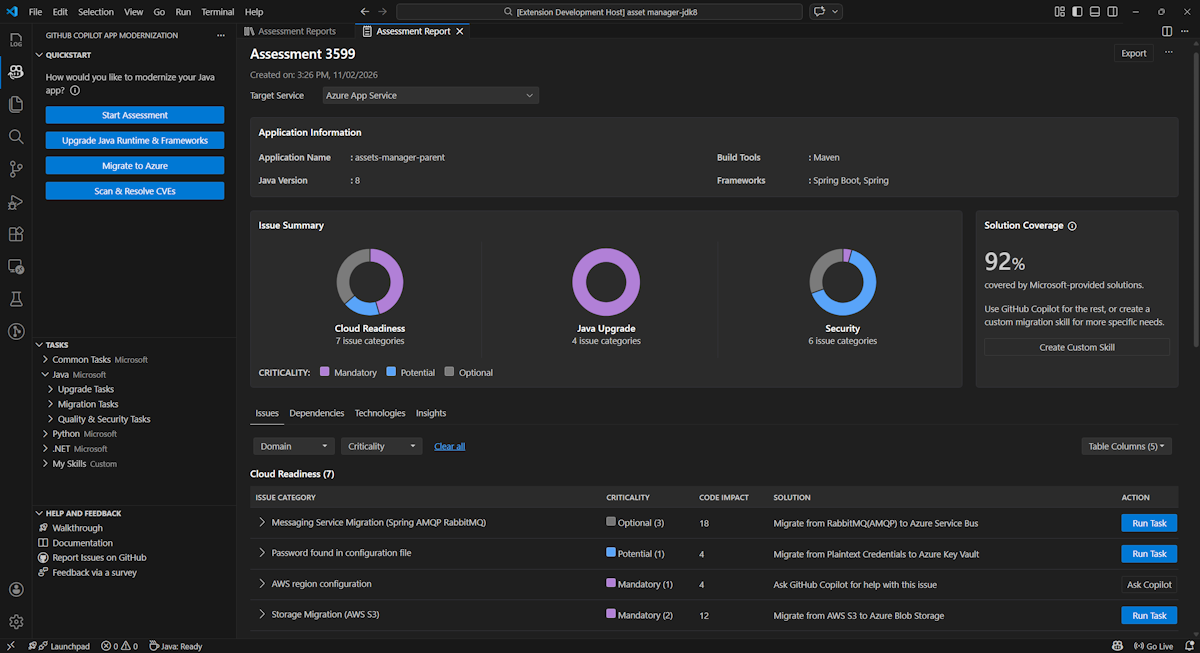
The assessment report provides comprehensive analysis results to help you understand your application's readiness for Azure migration and modernization. This section guides you through the report structure and helps you interpret the findings so you can make informed migration decisions.
Report structure overview
The assessment report consists of several key sections:
- Application Information: Basic information about your application, including Java version, frameworks, build tools, and project structure.
- Issue Summary: Overview of migration issues categorized by domain with criticality percentages.
- Detailed Analysis: The detailed report is organized into the following four subsections.
- Issues: Provides a concise summary of all issues that require attention.
- Dependencies: Displays all Java-packaged dependencies found within the application.
- Technologies: Displays all embedded libraries grouped by functionality, so you can quickly view the technologies used in the application.
- Insights: Displays file details and information to help you understand the detected technologies.
Issues
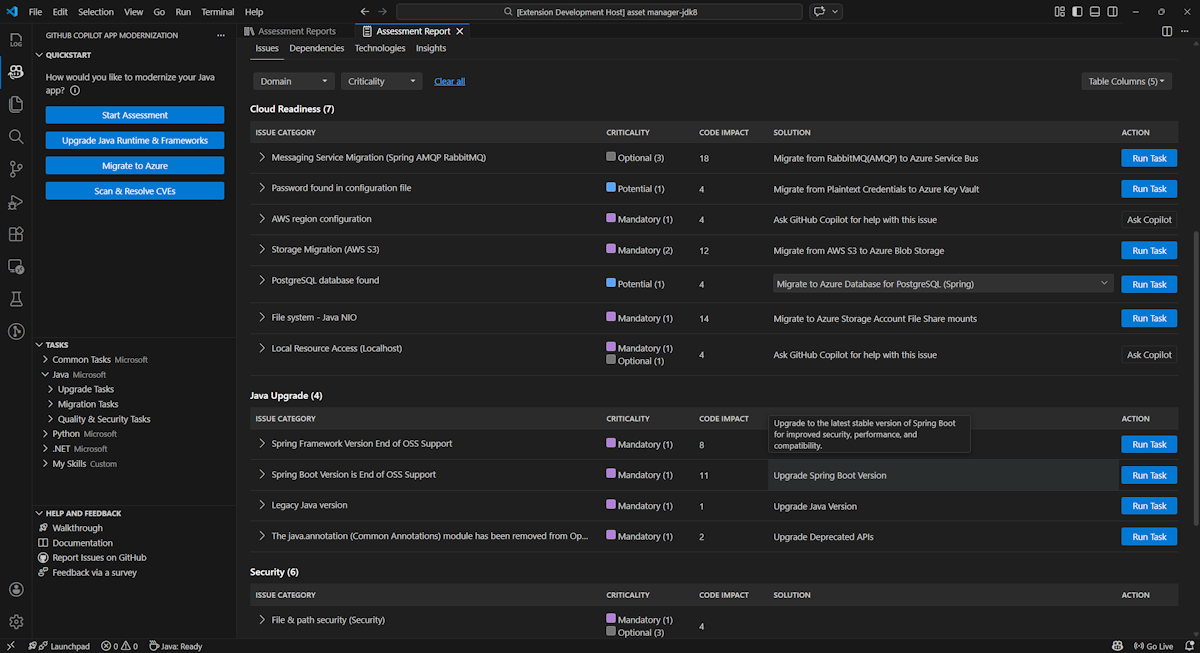
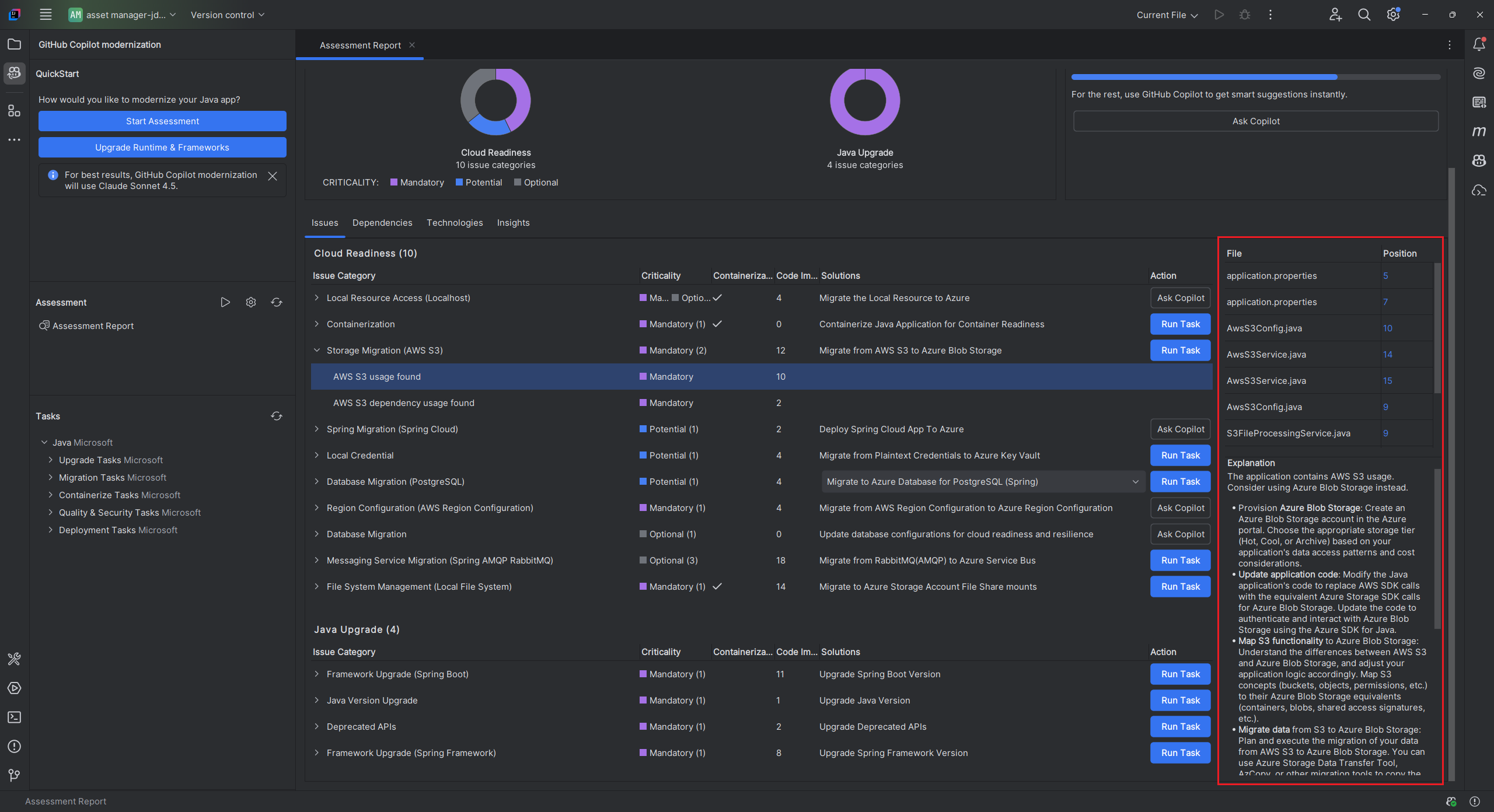
Access this part by selecting the Issues tab. This tab provides a categorized list of issues for various aspects of Cloud Readiness, Java Upgrade, and Security that you need to address to successfully migrate the application to Azure. The following tables describe the Domain and Criticality values:
| Domain | Description |
|---|---|
| Java Upgrade | Identify outdated app stacks and get upgrade recommendations. |
| Cloud Readiness | Assess your app's readiness for Azure, with actionable migration guidance. |
| Security | Scan your code for security issues using ISO 5055 guidelines, with recommended fixes. |
| Criticality | Description |
|---|---|
| Mandatory | Issues that you must fix for migration to Azure. |
| Potential | Issues that might impact migration and need review. |
| Optional | Low-impact issues. Fixing them is recommended but optional. |
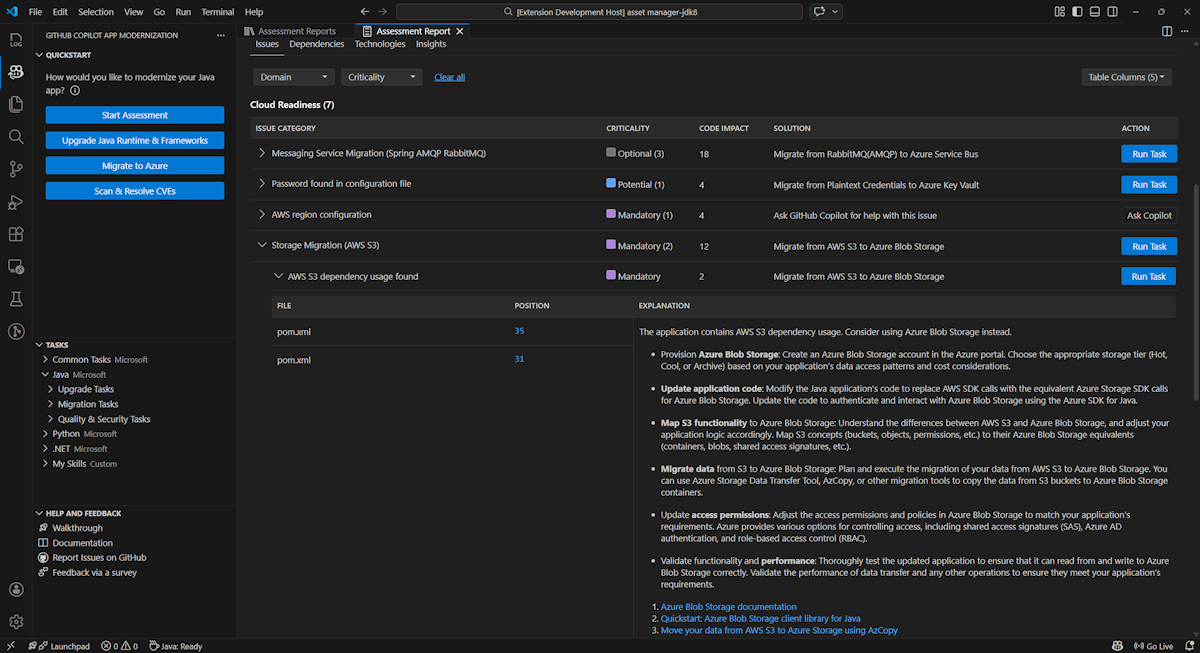
For more information, expand each reported issue by selecting the title. The report provides the following information:
- A list of files where the incidents occurred, along with the number of code lines impacted. If the file is a Java source file, selecting the file line number directs you to the corresponding source report.
- A detailed description of the issue. This description outlines the problem, provides any known solutions, and references supporting documentation regarding either the issue or resolution.
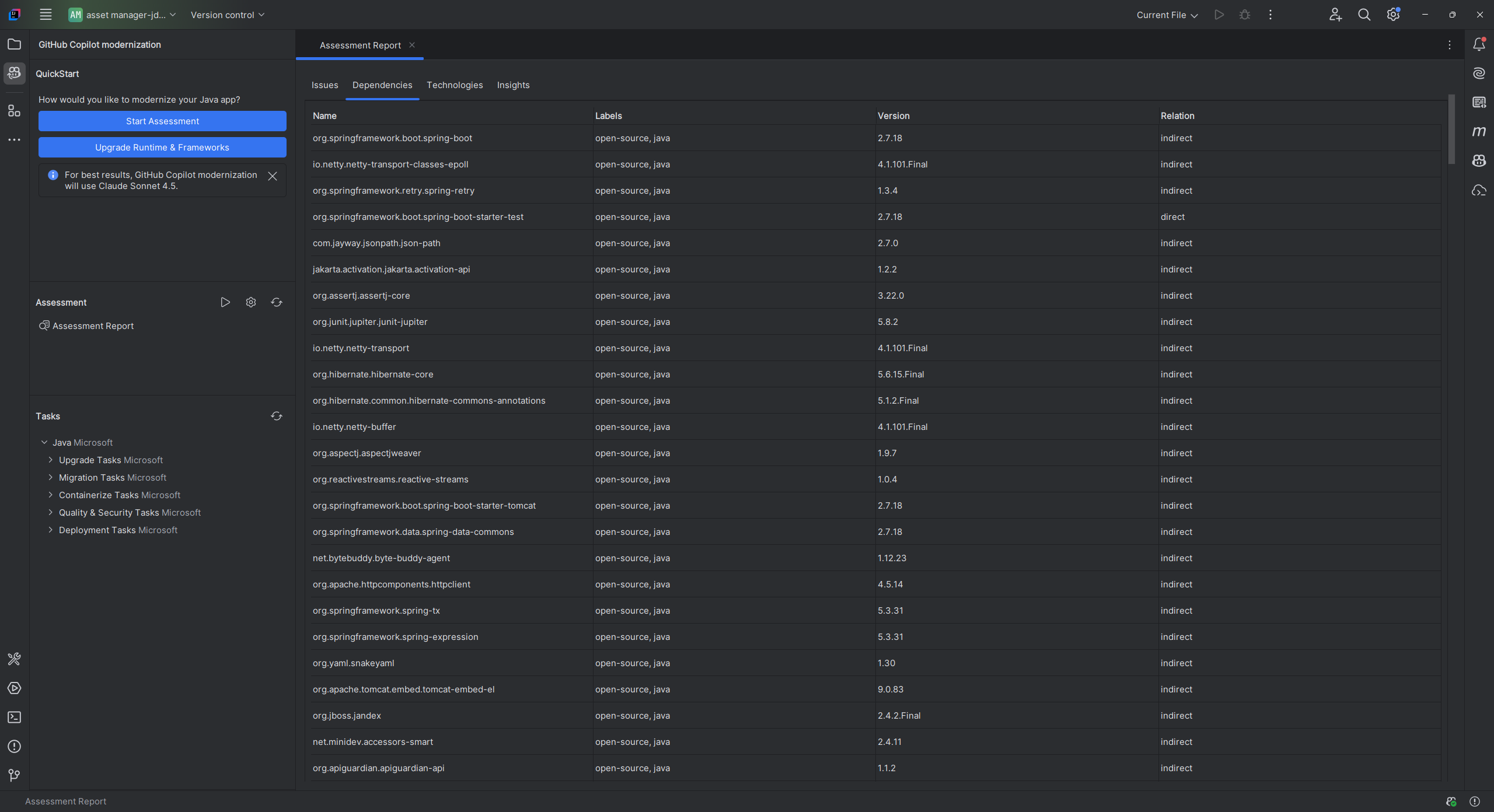
Dependencies
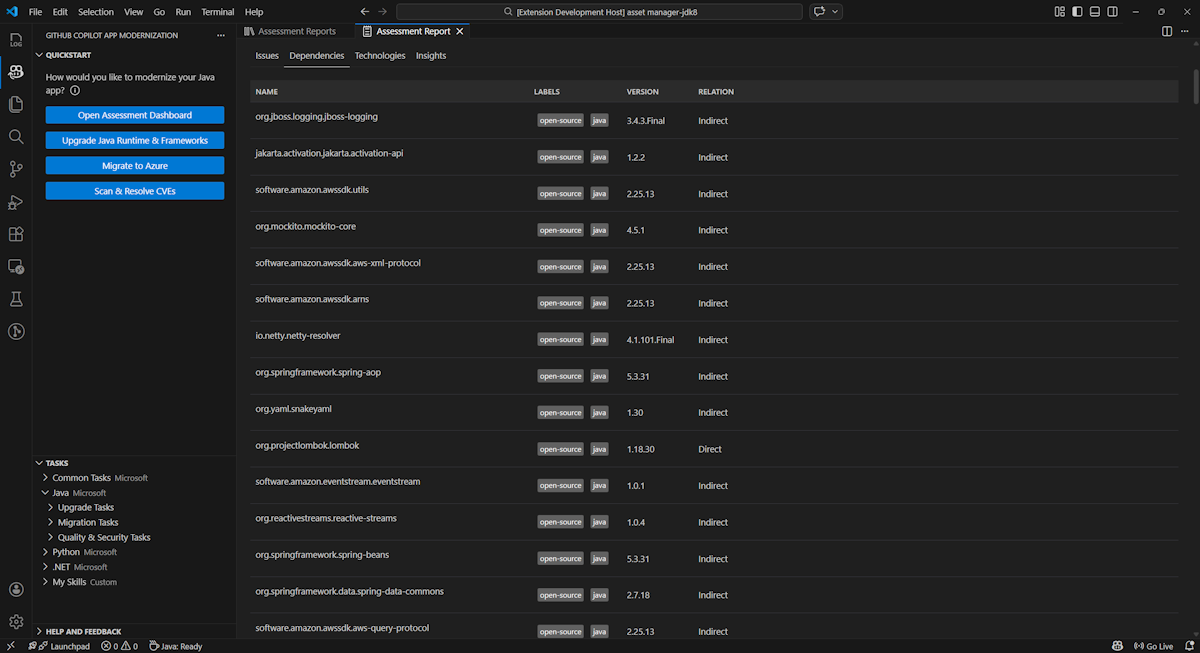
Access this part by selecting the Dependencies tab. This tab displays all Java-packaged dependencies found within the application.
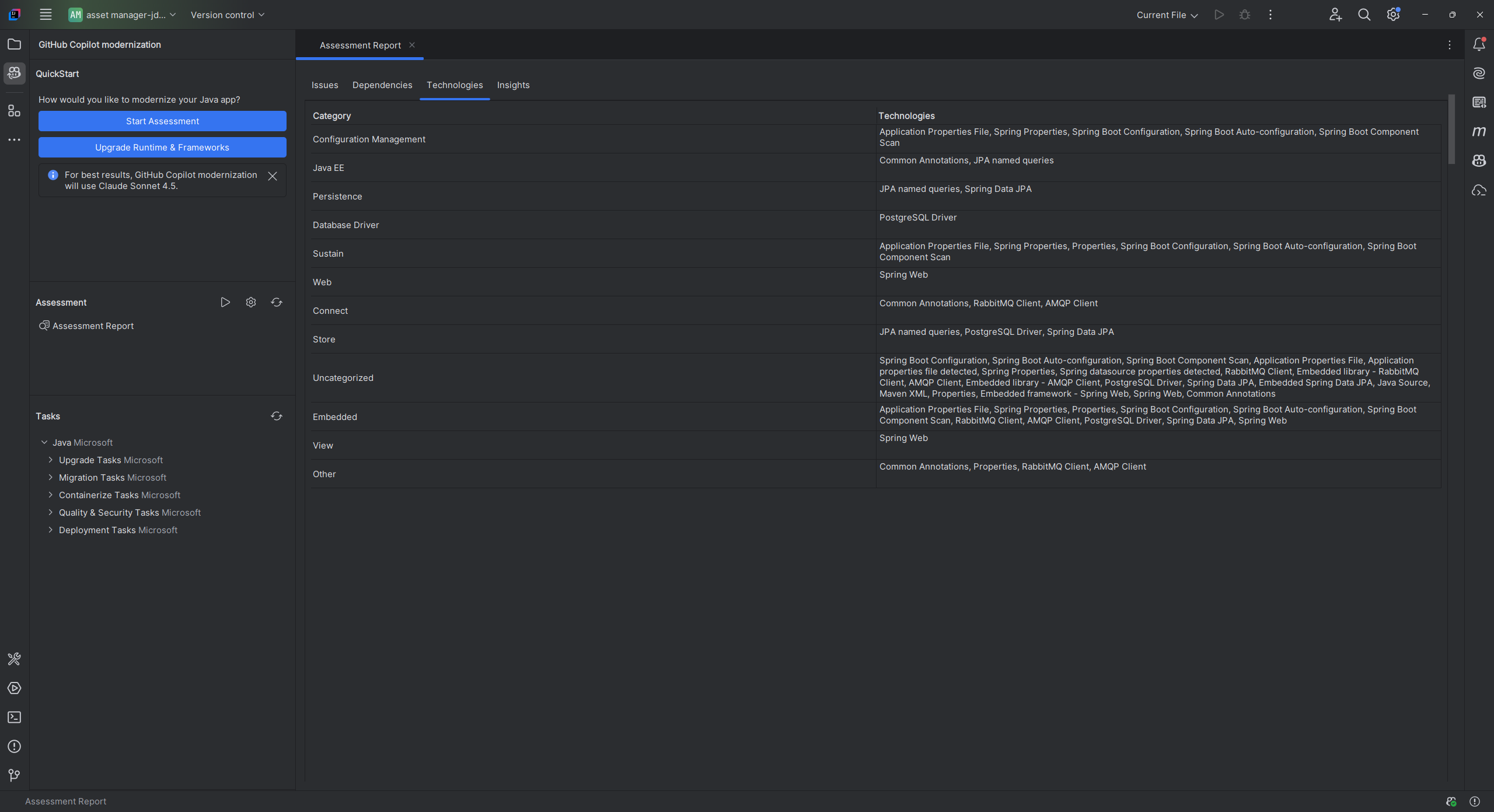
Technologies
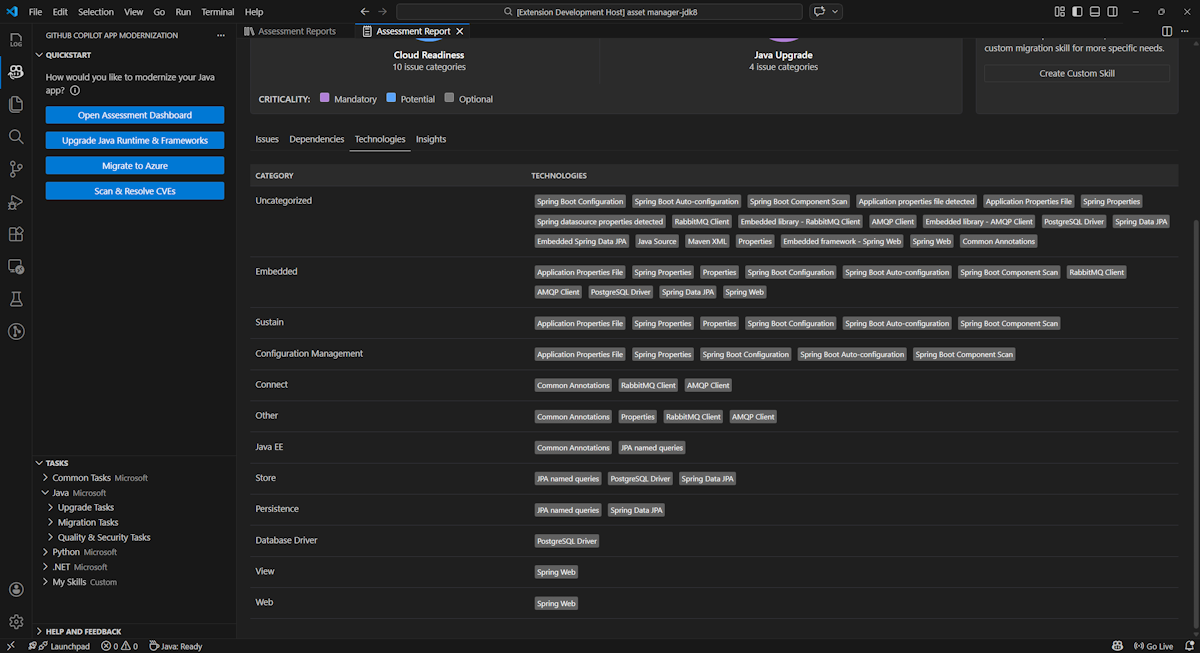
Access this part by selecting the Technologies tab. This tab lists the occurrences of technologies, grouped by function, in the analyzed application. This report provides an overview of the technologies found in the application, and is designed to assist you in quickly understanding each application's purpose.
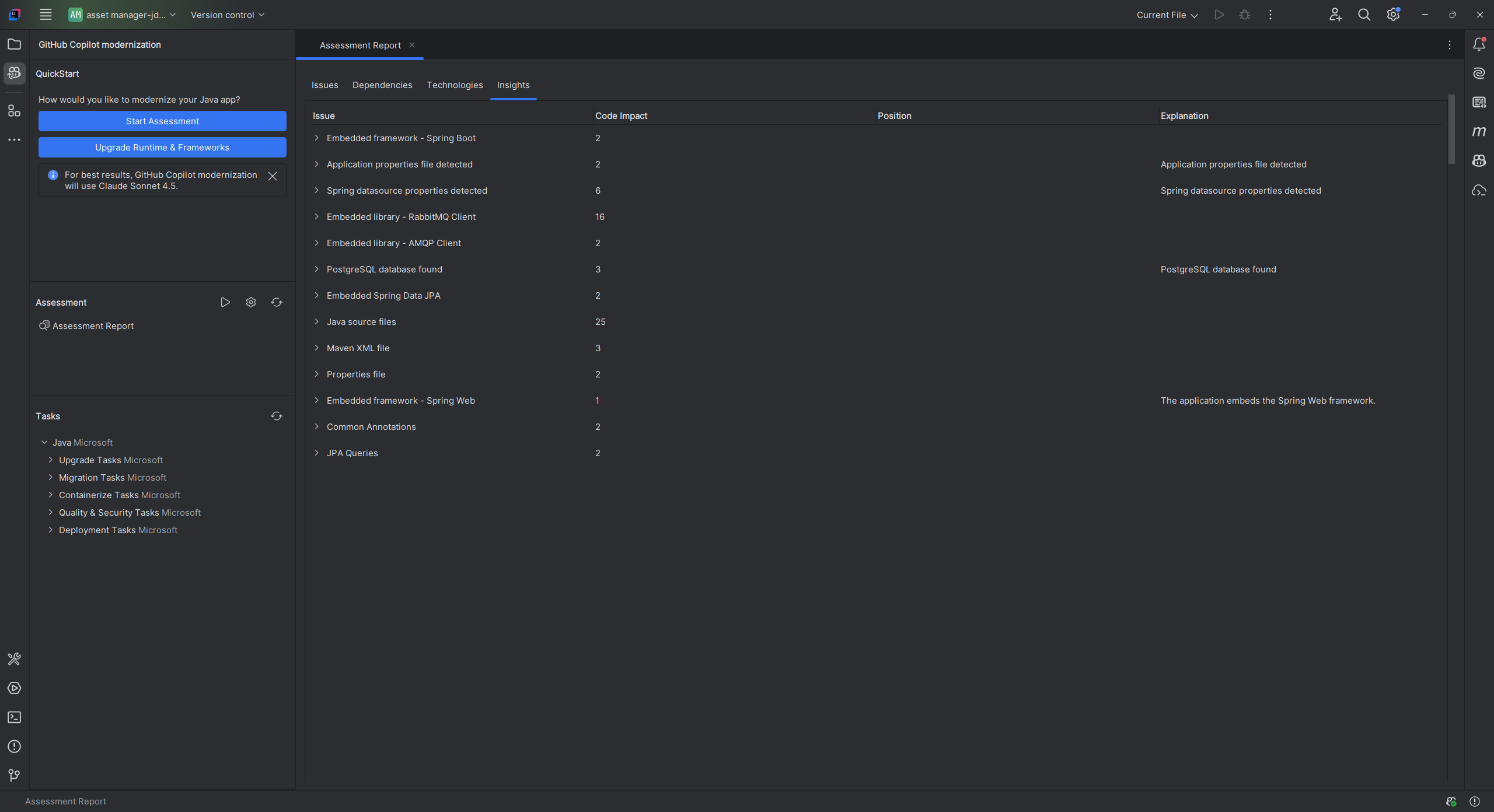
Insights
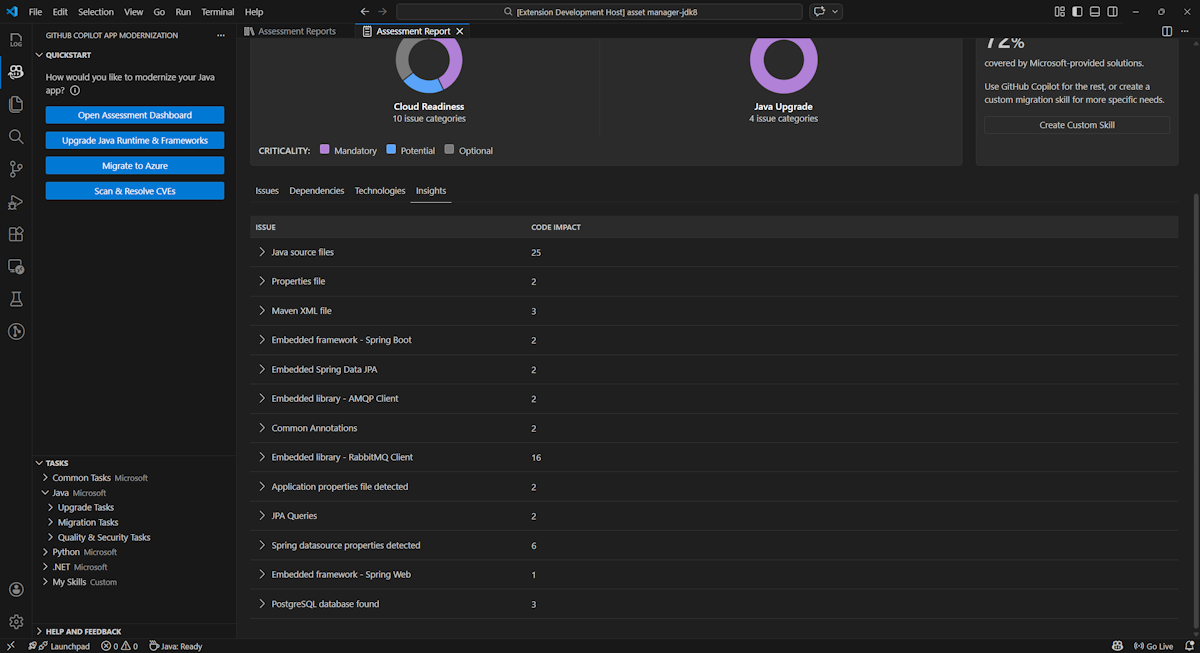
Access this part by selecting the Insights tab. It displays file details and information to help you understand the detected technologies.
Operate assessment reports
Effective report management enables collaboration, maintains assessment history, and integrates with existing workflows. Each assessment run generates an independent report in the report list. You can import, export, or delete individual reports as needed.
Import assessment report
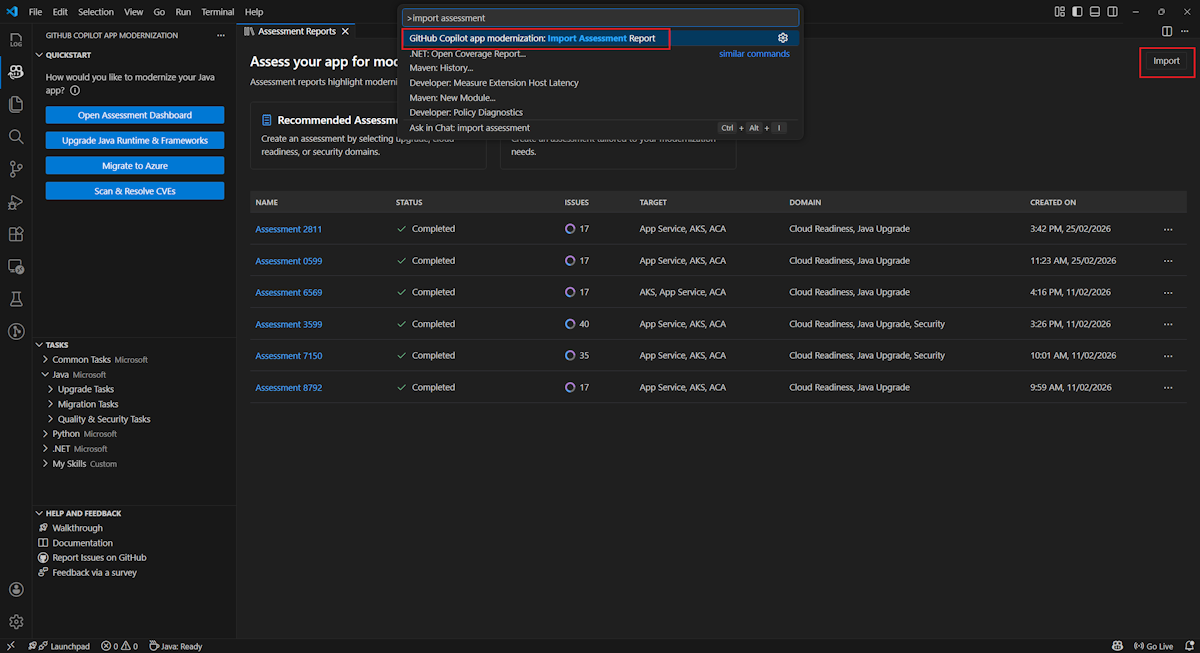
Besides running the assessment directly in GitHub Copilot modernization, you can also import assessment reports. The reports can come from AppCAT CLI results - such as report.json, a GitHub Copilot modernization exported report, or an app context file from Dr. Migrate.
To import an assessment report to GitHub Copilot modernization, select Import in the assessment reports page, or press Ctrl+Shift+P and then search for import assessment report.
Export assessment report
In the assessment dashboard, you can view the issues detected by assessment and choose the migration solution to determine the decision. You can export the report and share it with others. If you export the report, other people don't need to run assessment by themselves and can import the report and view the assessment and migration decision directly.
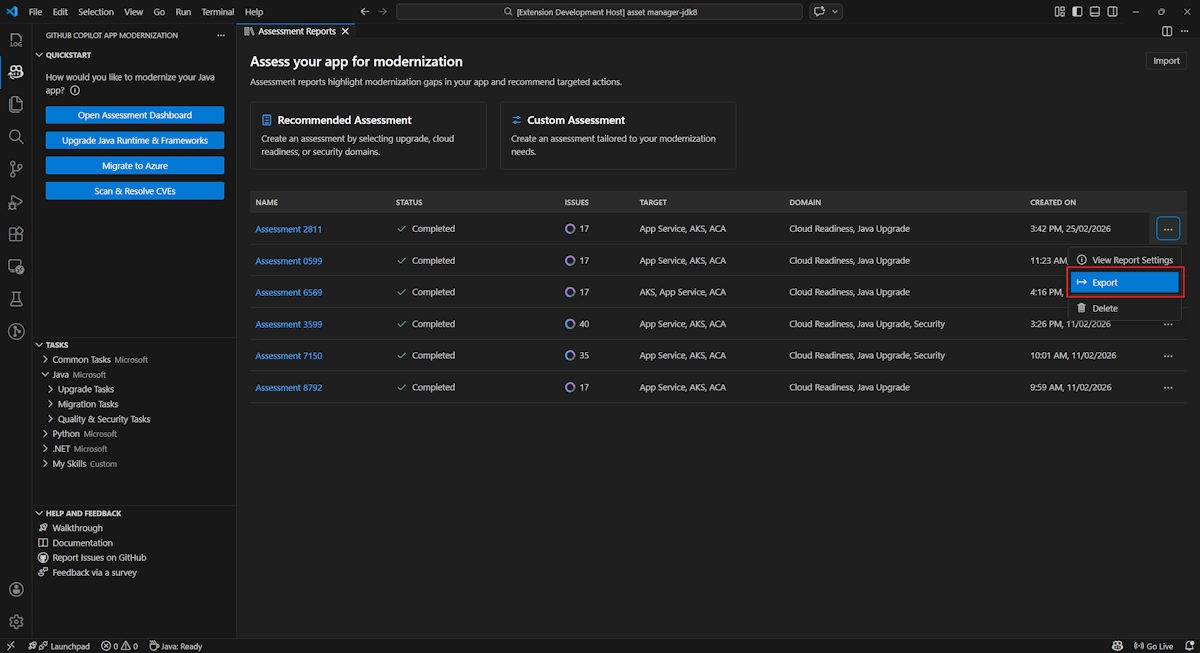
To export an assessment report from GitHub Copilot modernization, select the ... (more actions) button on the target report in the report list and then select Export.
Delete assessment report
If you no longer need a report, you can delete it from the report list.
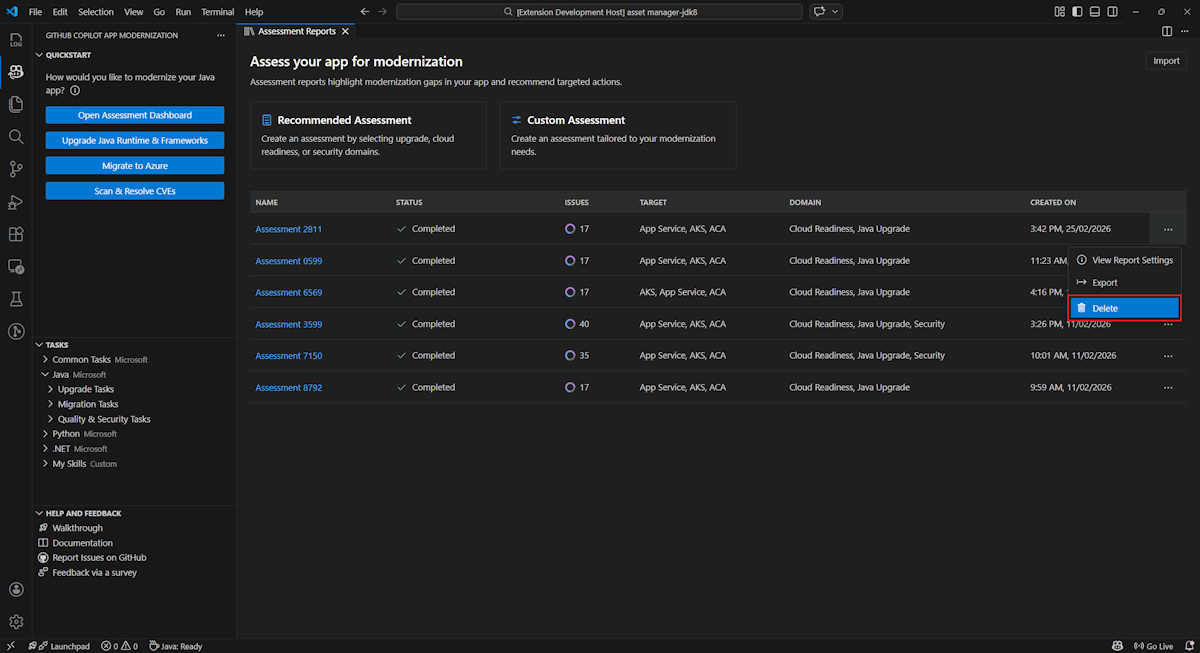
To remove an assessment report, select the ... (more actions) button on the target report in the report list and then select Delete.
Configure before running assessment
Before running the assessment, configure it by selecting Configure Assessment in the GitHub Copilot modernization Assessment pane.

Configuration properties
Currently, you can configure the target, capability, os, and mode properties for the assessment.
By default, the assessment runs with Azure Kubernetes Service (AKS), Azure App Service, and Azure Container Apps (ACA) as the service targets.
target: the Azure compute service to run the apps on. Choose multiple targets if you aren't sure which one to use. You can then compare the targets on the assessment report.Value Description azure-aksBest practices for deploying an app to Azure Kubernetes Service. azure-appserviceBest practices for deploying an app to Azure App Service. azure-container-appsBest practices for deploying an app to Azure Container Apps. capability: the target technology to modernize the apps towards.Value Description containerizationBest practices for containerizing applications. openjdk11Best practices for migrating to OpenJDK 11. openjdk17Best practices for migrating to OpenJDK 17. openjdk21Best practices for migrating to OpenJDK 21. openjdk25Best practices for migrating to OpenJDK 25. os: the target operating system to run the apps on.Value Description linuxBest practices for migrating applications to the Linux platform. windowsBest practices for migrating applications to the Windows platform. mode: the analysis mode.Value Description issue-onlyAnalyze source code to only detect issues. source-onlyAnalyze source code to detect both issues and used technologies. fullAnalyze source code to detect both issues and used technologies, and list dependencies.
Examples
The following examples describe some configurations:
Example one: You want to migrate your apps to AKS as Linux containers and want to understand what issues need to be fixed. Use the following configuration:
appcat:
- target:
    - azure-aks
  os:
    - linux
  mode: issue-only
Example two: You want to migrate your apps to App Service Linux and want to understand what issues need to be fixed. Use the following configuration:
appcat:
- target:
    - azure-appservice
  os:
    - linux
  mode: issue-only
Example three: You want to modernize your apps to JDK 25 and want to understand what issues need to be fixed. Use the following configuration:
appcat:
- capability:
    - openjdk25
  mode: issue-only
After the tool runs an assessment, it automatically opens the interactive dashboard, which provides comprehensive analysis results.
Interpret the assessment report
The assessment report provides comprehensive analysis results to help you understand your application's readiness for Azure migration and modernization. This section guides you through the report structure and helps you interpret the findings to make informed migration decisions.
Report structure overview
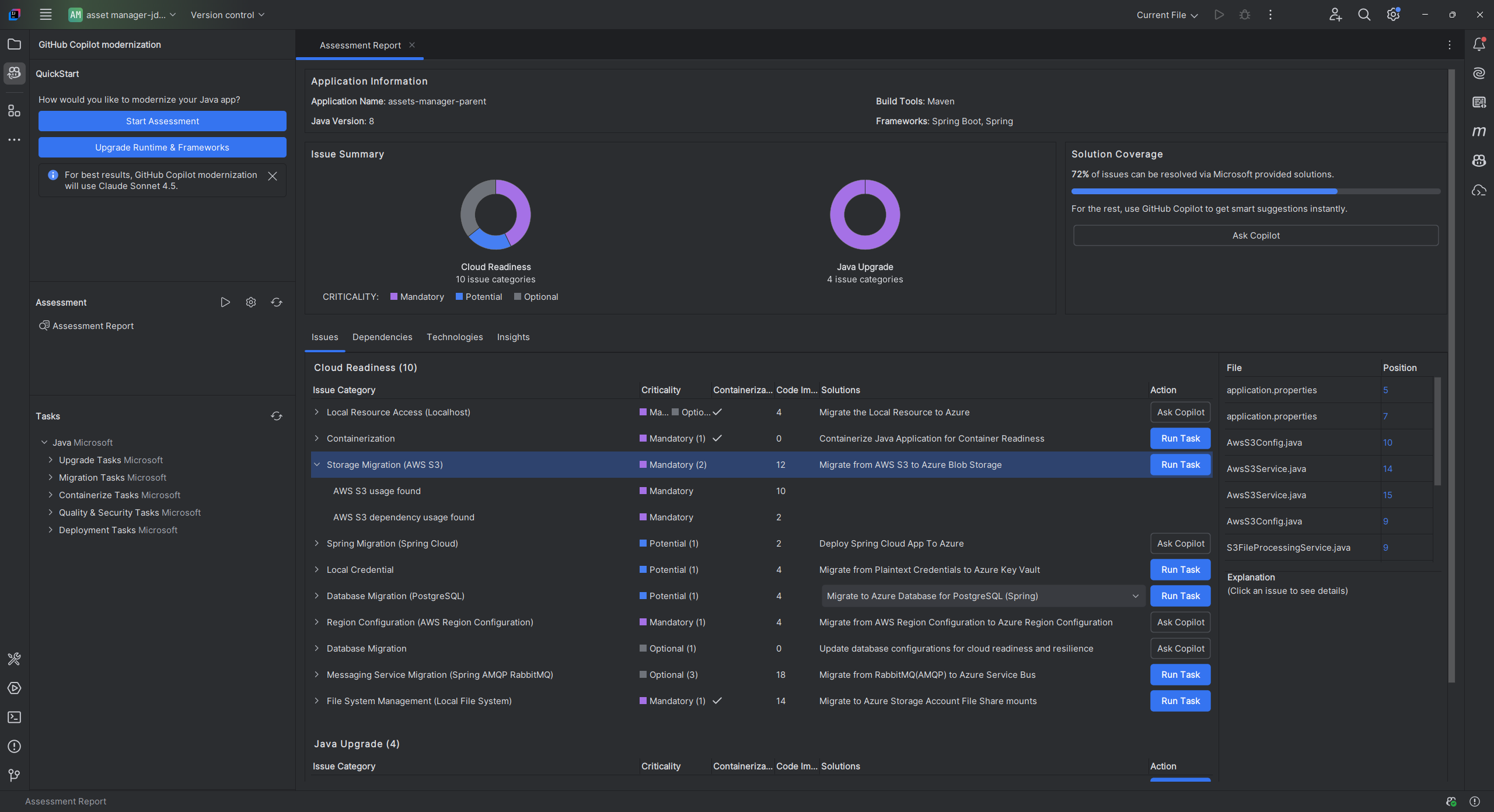
The assessment report consists of several key sections:
- Application Information: Basic information about your application, including Java version, frameworks, build tools, project structure, and target Azure service.
- Issue Summary: Overview of migration issues categorized by domain with criticality percentages.
- Detailed Analysis: The detailed report is organized into the following four subsections.
- Issues: Provides a concise summary of all issues that require attention.
- Dependencies: Displays all Java-packaged dependencies found within the application.
- Technologies: Displays all embedded libraries grouped by functionality, enabling you to quickly view the technologies used in the application.
- Insights: Displays file details and information to help you understand the detected technologies.
Issues
Access this part by selecting the Issues tab. This tab provides a categorized list of issues for various aspects of cloud readiness and Java upgrade that you need to address to successfully migrate the application to Azure. The following tables describe the Domain and Criticality values:
| Domain | Description |
|---|---|
| Cloud Readiness | Evaluates app dependencies to suggest Azure services and ensure cloud-native readiness. |
| Java Upgrade | Identifies JDK and framework issues for version upgrade. |
| Criticality | Description |
|---|---|
| Mandatory | Issues that you must fix for migration to Azure. |
| Potential | Issues that might impact migration and need review. |
| Optional | Low-impact issues. Fixing them is recommended but optional. |
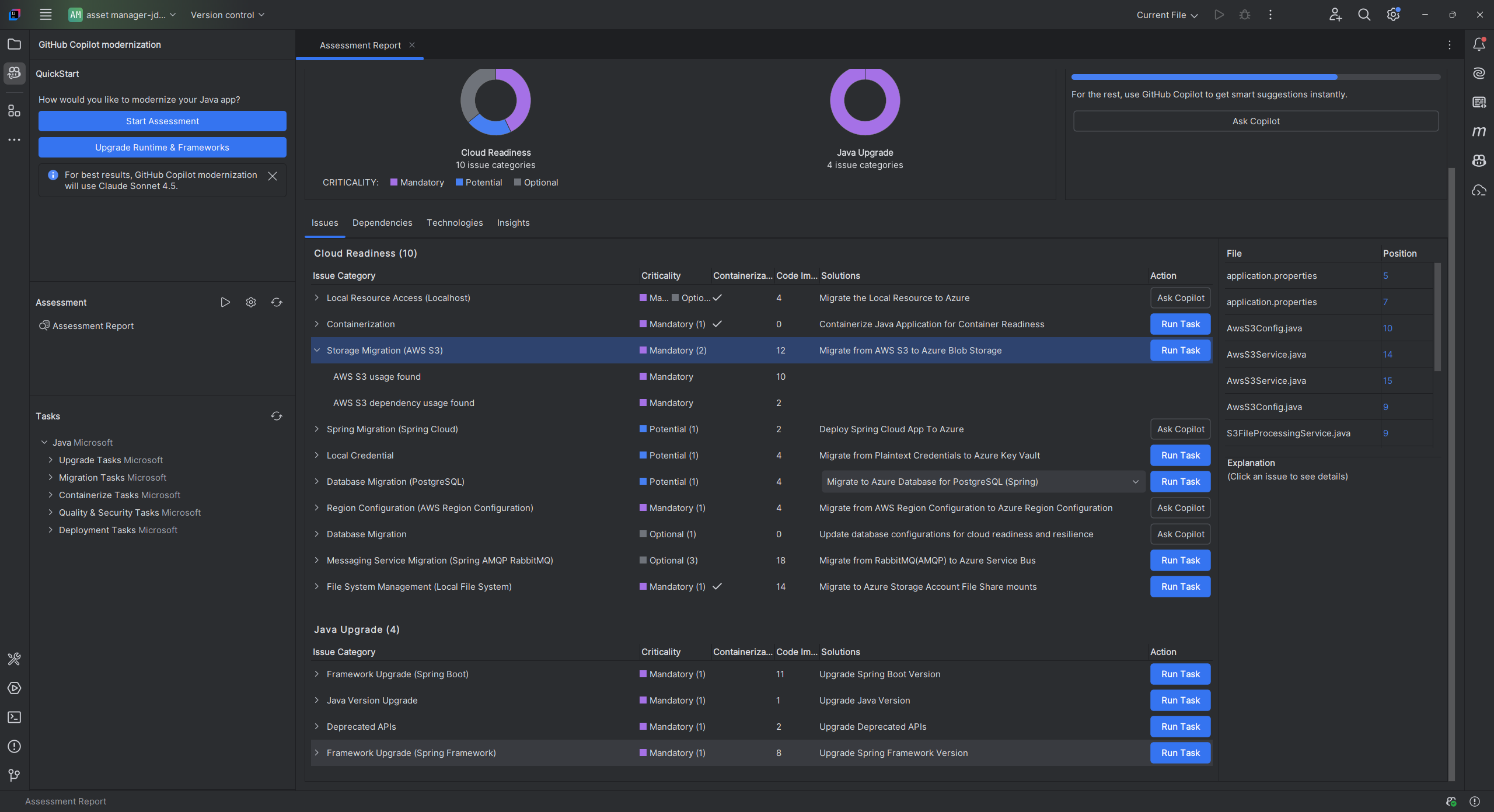
For more information, expand each reported issue by selecting the title. The report provides the following information:
- A list of files where the incidents occurred, along with the number of code lines impacted. If the file is a Java source file, selecting the file line number directs you to the corresponding source report.
- A detailed description of the issue. This description outlines the problem, provides any known solutions, and references supporting documentation regarding either the issue or resolution.
Dependencies
Access this part by selecting the Dependencies tab. This tab displays all Java-packaged dependencies found within the application.
Technologies
Access this part by selecting the Technologies tab. This tab lists the occurrences of technologies, grouped by function, in the analyzed application. This report provides an overview of the technologies found in the application, and is designed to assist you in quickly understanding each application's purpose.
Insights
Access this part by selecting the Insights tab. Displays file details and information to help you understand the detected technologies.
Delete assessment report
If you no longer need the report, you can delete it.
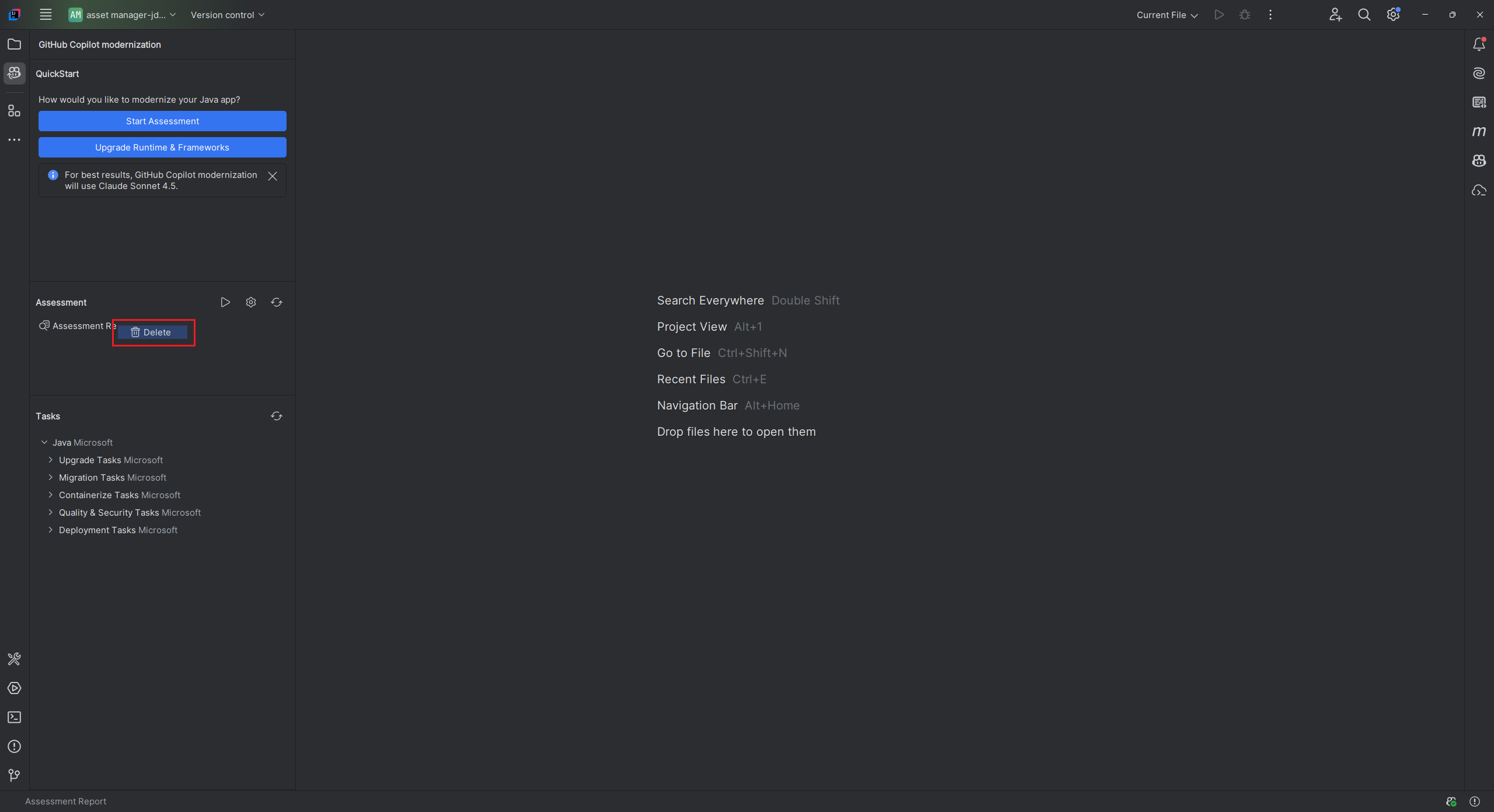
To remove an assessment report, right-click Assessment Report and then select Delete.