Nóta
Aðgangur að þessari síðu krefst heimildar. Þú getur prófað aðskrá þig inn eða breyta skráasöfnum.
Aðgangur að þessari síðu krefst heimildar. Þú getur prófað að breyta skráasöfnum.
By using Copilot Studio, you can enhance your agents with domain-specific knowledge powered by the same trusted, familiar data sources you build through Power Platform connectors.
When you upload external content from your device, OneDrive, or SharePoint, you can enrich your agents with contextual knowledge tailored to your business. Microsoft Dataverse securely stores these files and automatically processes them into semantic indexes and vector embeddings. This configuration enables your agents to generate more accurate, grounded responses based on the information you provide.
Files uploaded in Copilot Studio use Microsoft Dataverse to ingest raw files and create indexes and vector embeddings. These indexes and embeddings help provide quality responses for your agents. You can upload these files from your computer or by connecting to OneDrive or SharePoint.
When you upload files as knowledge sources, you help enrich your agents with extra data, augment the language model's knowledge, and ground the agent in specific information you provide. You can upload various files, which the system semantically indexes as vector embeddings and then uses as knowledge for agents. You can share this knowledge used in agents with authenticated and unauthenticated users of the agent.
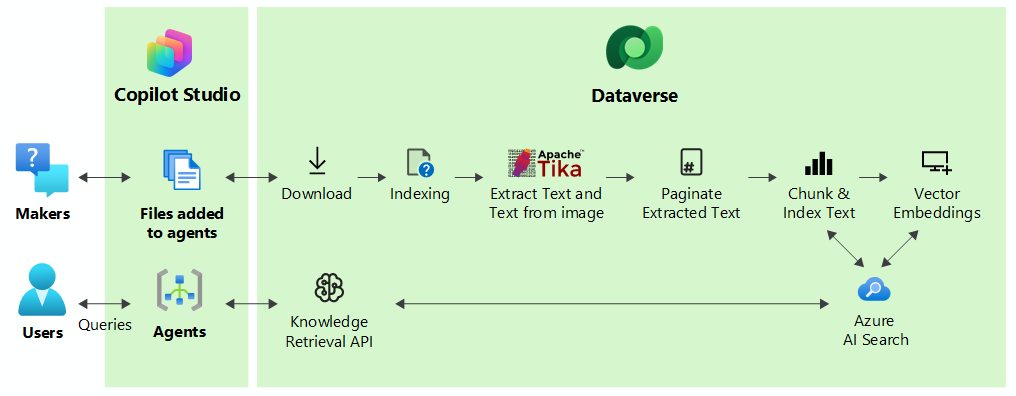
To improve an agent’s responses, the system chunks uploaded files into pieces for faster processing and vector-indexes them to provide semantic matches with the user's query. The system stores the files securely in Dataverse. When a user queries through an agent, Copilot Studio finds the most relevant chunks that match the intent of the user query and returns the results to the user.
Similarly, Dataverse ingests OneDrive and SharePoint files by using the options under file upload. It also ingests unstructured content, such as knowledge base articles from Salesforce, ServiceNow, Confluence, and Zendesk, to provide better semantic results for the agent.
Note
Learn more in Use code interpreter to analyze structured data.
Power Platform connectors for unstructured data
The following Power Platform connectors work with unstructured data sources:
OneDrive
Use the Upload files > OneDrive option with a file selector interface to choose the files and folders you want to include. Once selected, the system retrieves the items into Dataverse and indexes them for use. Folders you add include all of the supported files and subfolders within that folder up to the total file limit.
SharePoint
Use the Upload files > SharePoint option to select files and folders through a file selector interface. After you select these items, the connector retrieves them into Dataverse and indexes them for use. When you add folders, you include all supported files and subfolders within that folder up to the total file limit. Currently, the connector doesn't support Pages.
Note
When you use SharePoint as a knowledge source, Copilot Studio retrieves content through SharePoint search indexing, not by directly reading list views such as AllItems.aspx. Newly added or updated SharePoint items might not be available to the agent until search indexing is complete. Make sure the agent has the required permissions, such as Sites.Read.All and Files.Read.All, and the content is stored in supported file formats.
Salesforce
The Salesforce connector for unstructured data supports retrieving Knowledge Bases that contain knowledge articles. Select a Knowledge Base, and the connector indexes all articles within that Knowledge Base. You can't select individual articles or topics. When querying data, you can't specify a specific article or knowledge base. The Knowledge list shows a single object for all knowledge objects you select when you create the source.
ServiceNow
The ServiceNow connector for unstructured data supports retrieving Knowledge Bases that contain knowledge articles. Knowledge Bases contain articles. Select a Knowledge Base, and the connector indexes all articles within that Knowledge Base. You can't select individual articles. When querying data, you can't specify a knowledge base, folder, or individual article. The Knowledge list shows a single object for all knowledge objects you select when you create the source.
Confluence
The Confluence connector for unstructured data supports retrieving the spaces that contain pages. The connector also supports subfolders. You can't select individual pages. When querying data, you can't specify a page. The Knowledge list shows a single object for all pages within the space.
Zendesk
The Zendesk connector for unstructured data supports retrieving the knowledge base that contains knowledge articles. You can't select individual articles, categories, or sections. When querying data, you can't specify an article, category, or section. The Knowledge list shows a single object for all articles within the knowledge base.
Security
When a user queries an agent that uses a Power Platform Connector source, the system performs authorization checks.
Connector access
When you first use a connector-based source, the system prompts you to select an existing Power Platform connector or add one. This process ensures that you only share data with makers who have the appropriate permissions to access the data source.
Content access
When a user makes a query, the system uses their connection information to check the data source and verify they have permission to see the content. Even though the system stores chunks and indexes locally in Dataverse, it performs a live check on the queries to make sure the current user has access to the data before providing a summary or response.
Note
- The system doesn't return results to users if they don't have permission for specific sets of files or knowledge base articles. Instead, they receive a standard message that says "no results could be found." If users feel there should be results for that source, they need to work with their administrators to ensure they have permissions to the data they're trying to reach. The user needs an appropriate Dataverse security role assigned to them, such as the Basic User role.
- The system doesn't store content permission information locally. It performs all permission checks live with the source to ensure they're the most up-to-date.
Synchronization and file refresh frequency
A scheduled synchronization job keeps connected files from OneDrive and SharePoint, and unstructured knowledge articles fresh. This job runs automatically in the background, refreshing the contents of the files and reindexing the changes to provide accurate results for queries. Refreshes manage not only changes to content, but also ensure any content deleted from the source no longer appears as part of any query responses. Currently, you can't manually trigger a refresh.
For more information about refresh frequency timing, see Copilot Studio unstructured data knowledge source limits.
Licensing
All requests that involve knowledge are charged at the Microsoft Copilot generative answers messaging rates. For more information, see Billing rates and management.
If knowledge sources require data ingestion, the storage of the data and the corresponding indexes to retrieve that data are subject to the storage entitlements the customer has. For more information on Dataverse natural language search, see Enhance AI-powered experiences with Dataverse search.
Limits and limitations
When you first enable unstructured data support, Dataverse might take between 5 and 30 minutes to configure and index before it processes the added files. The length of time depends on the size of the current Dataverse environment.
Each agent can have a maximum of 500 knowledge objects. These objects can be files, folders, knowledge articles, websites, or other sources.
At this time, an agent can use only five different sources at a time. For example, SharePoint, Dataverse, OneDrive, or other sources.
For more information about specific limits and limitations for the supported unstructured data sources, see Copilot Studio unstructured data knowledge source limits.
Note
Copilot Studio agents require Dataverse search to use this knowledge source. If you can't add a Dataverse-enabled file to an agent, ask your administrator to turn on Dataverse search in your environment. For more information about Dataverse search and how to manage it, see What is Dataverse search and Configure Dataverse search for your environment.
To access OneDrive and SharePoint content stored in Dataverse, users must have at least a Basic User license for Power Apps or Dynamics 365. In addition, the Basic User permissions must also include read permissions for the following tables and entities:
- Plug-in Assembly
- Plug-in Type
- Sdk Message
- Sdk Message Processing Step
- Sdk Message Processing Step Image
You can configure these permissions in the Power Platform admin center or the Dynamics 365 admin center.
FAQ
What's the difference between the two SharePoint options in Add knowledge?
In the Add knowledge dialog, you see two SharePoint options.
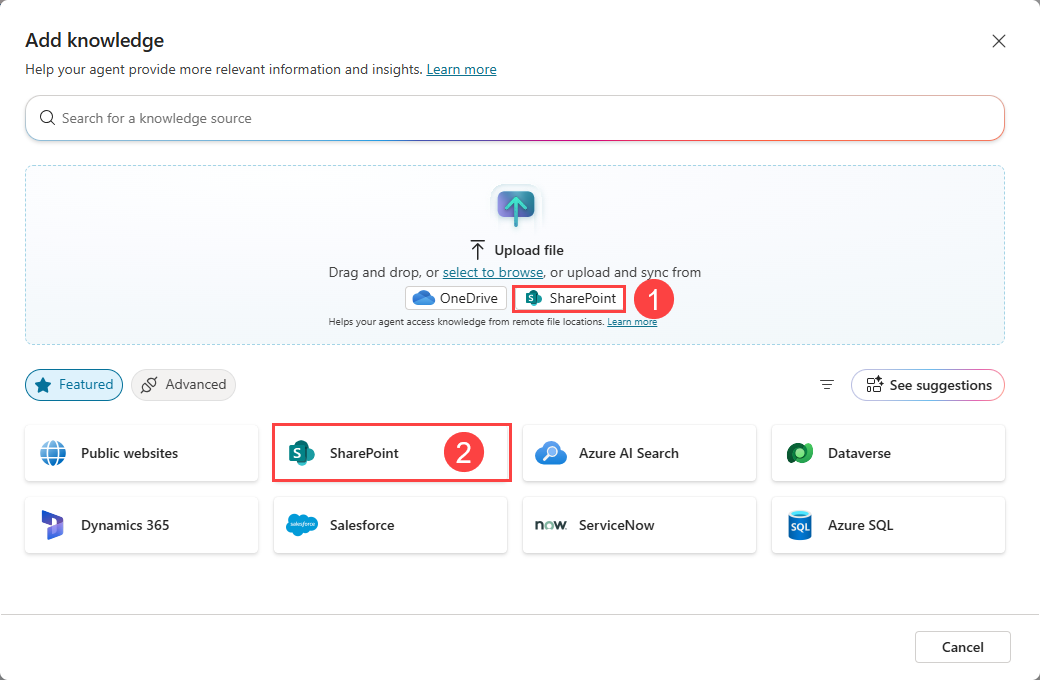
The SharePoint option in the file upload section (1) is for uploading individual SharePoint files or folders to your agent. This option uploads a copy of the file from SharePoint to Dataverse and maintains a synchronous relationship to keep the file up to date. During queries, SharePoint is accessed to validate user permissions for the content. The Dataverse stored files consume data storage but provide a full-document semantic search capability and support for text within images for certain document types like PDF files.
Use option 1 when you want fast synchronization, and not static files uploaded to Dataverse. It automatically updates when source files are changed.
The other SharePoint option (2) provides the full SharePoint integration in Copilot Studio using the SharePoint connector. Use this option when you need full SharePoint connector capabilities, custom authentication configurations, or advanced query options.
Runtime differences
| Scenario | Option 1: file upload | Option 2: SharePoint connector |
|---|---|---|
| Content storage | Copied into Dataverse from SharePoint | Resides in SharePoint |
| Search functionality | Searches a Dataverse semantic index built from embedded vectors of the ingested content copied from SharePoint | Directly queries SharePoint search infrastructure |
| Content freshness | Content is synchronized every four to six hours, based on ingestion completion | Real time, and reflects the latest available content |
| SharePoint lists | Supported | Not supported |
| Dataverse storage consumption | Yes, for copied files and search indexes | No |
| Advanced query filters | Not available | Filter by title, author, modified by, modified date |
Option usage
Use option 1 in the following situations:
- You need support for SharePoint lists
- The agent uses only a specific set of files or folders
- You want high-quality semantic search powered by vector embeddings
- A content refresh interval of four to six hours is sufficient
Use option 2 in the following situations:
- No delay in content synchronization, such as a frequently updated wiki or an announcement site
- Need to avoid Dataverse consumption, particularly for large document libraries
- Use of advanced query filters, such as filtering based on author, modified date, or title
Note
Both options require user authentication. Users might sign in before the agent retrieves results from SharePoint content. Learn more about synchronization timing and file limits in Copilot Studio unstructured data knowledge source limits.
Why isn't the SharePoint icon displayed in the Upload files section of the Add knowledge dialog?
There's a slight delay after installing a solution until it appears in all existing organizations. To initiate a manual update, follow these steps:
Sign in to the Power Platform admin center by using administrator credentials.
On the side bar, select Manage.
From the list of products, select Dynamics 365 Apps.
Search for poweraiextensions.
Select the three dots (…) for Microsoft Dynamics 365 - PowerAIExtensions and select Install.
From the dropdown menu, select your environment and then select Install.
After the installation completes, open Power Apps in a new window.
In the left pane, select Solutions.
Select Details.
Verify that the version of PowerAIExtensions Solution Anchor is set to 1.01.688 or higher.
What happens when I add more than 500 knowledge objects to my agent?
You can't add more objects unless you first delete previous objects.
Does each agent have its own index of the knowledge source?
Dataverse stores knowledge sources for use in the environment where you create them. If multiple agents use the same SharePoint folder, all the agents use a single instance of that folder.
What happens if I add a SharePoint or OneDrive folder that exceeds the maximum number of files, folders, and subfolders?
Copilot Studio retrieves and indexes up to the maximum number of files, folders, and subfolders. It doesn't process the remaining items, and it doesn't indicate which items are or aren't processed.
One of the files I added appears as part of the knowledge source, but I can't get answers from it. Why?
This problem might be related to one of the following reasons:
- The Knowledge page doesn't report the file or folder as Ready.
- The file name includes an unsupported character (specifically for SharePoint files).
- The file has a sensitivity setting of Confidential or Highly Confidential, or has password protection.
- The file type isn't supported.
- The file or folder comes from a different user's OneDrive or SharePoint site, and the user didn't share it with you.
- The file is a knowledge base file, and your account doesn't have the required permissions to view the content in the source system.