Nóta
Aðgangur að þessari síðu krefst heimildar. Þú getur prófað aðskrá þig inn eða breyta skráasöfnum.
Aðgangur að þessari síðu krefst heimildar. Þú getur prófað að breyta skráasöfnum.
Summary
| Item | Description |
|---|---|
| Release State | General Availability |
| Products | Excel Power BI (Semantic models) Power BI (Dataflows) Fabric (Dataflow Gen2) Power Apps (Dataflows) Dynamics 365 Customer Insights Analysis Services |
| Authentication Types Supported | Anonymous Windows Microsoft Account |
| Function Reference Documentation | SharePoint.Contents SharePoint.Files SharePoint.Tables |
Note
Some capabilities might be present in one product but not others due to deployment schedules and host-specific capabilities.
Note
Microsoft Entra ID/OAuth for SharePoint on-premises isn't supported using the on-premises data gateway.
Capabilities supported
- Site URL
Determine the site URL
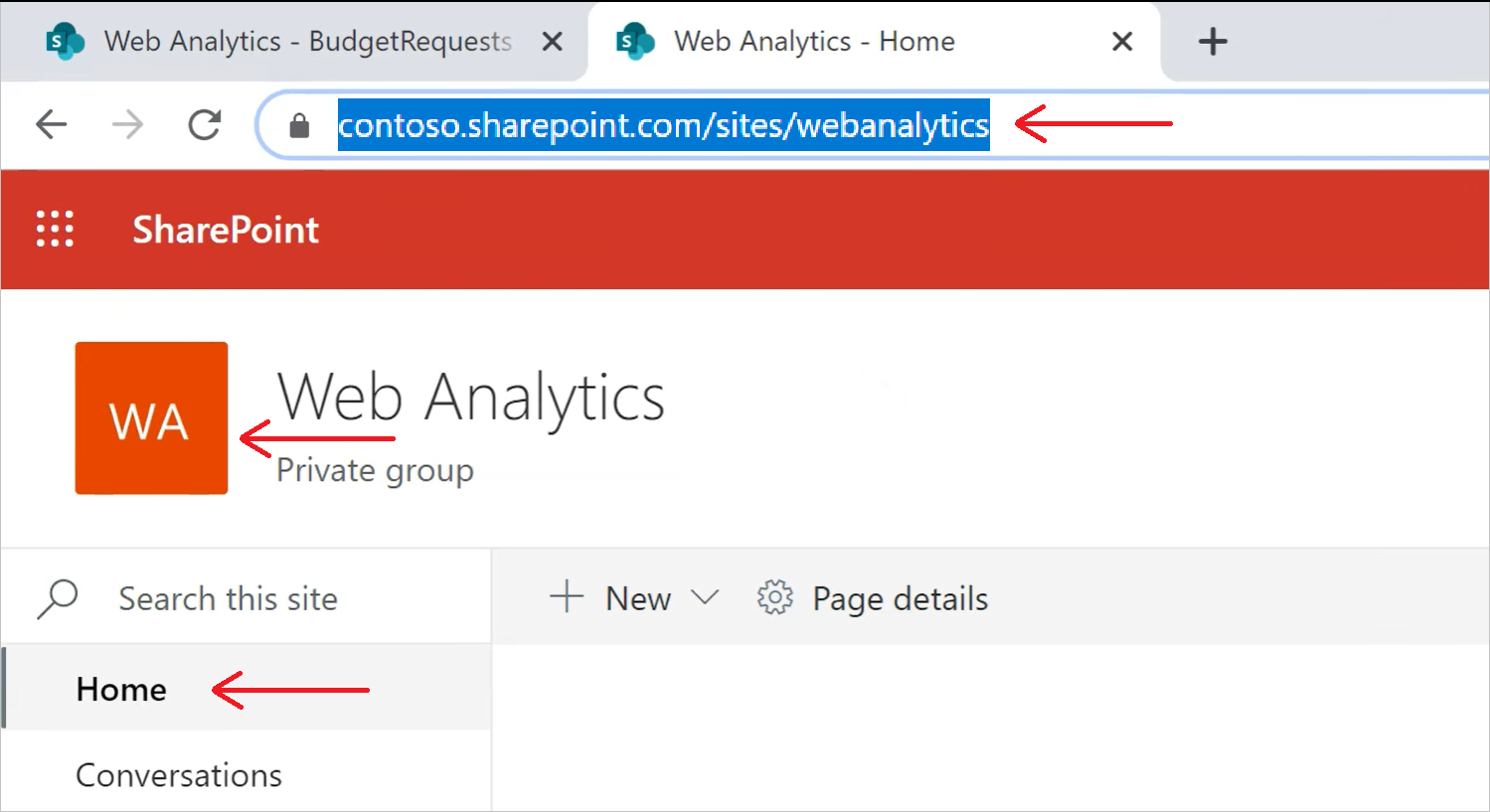
When you're connecting to a SharePoint site, you're asked to enter the site URL. To find the site URL that contains your SharePoint list, first open a page in SharePoint. From a page in SharePoint, you can usually get the site address by selecting Home in the navigation pane, or the icon for the site at the top. Copy the address from your web browser's address bar and save for later.
SharePoint site picker
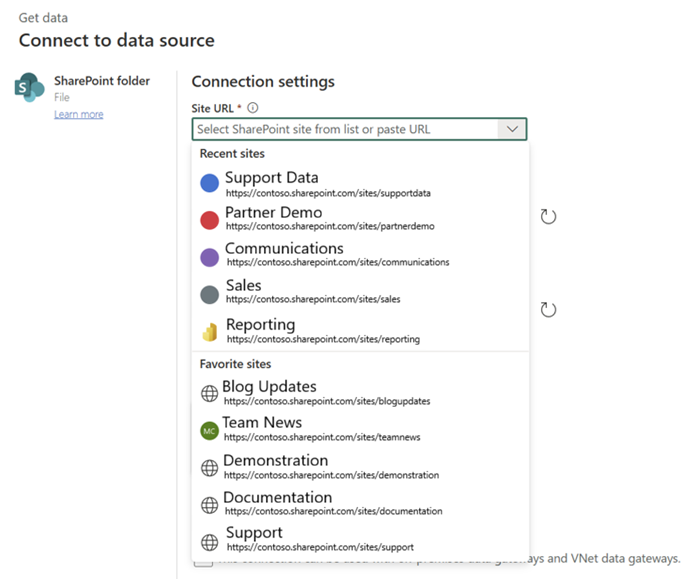
The SharePoint site picker allows you to find and select the correct SharePoint site during connection creation, without navigating to separate pages to locate and copy URLs manually.
Simplified site selection: Instead of copying URLs manually, use the Site URL dropdown to choose from your Recent sites, Favorite sites, and all sites you can access.
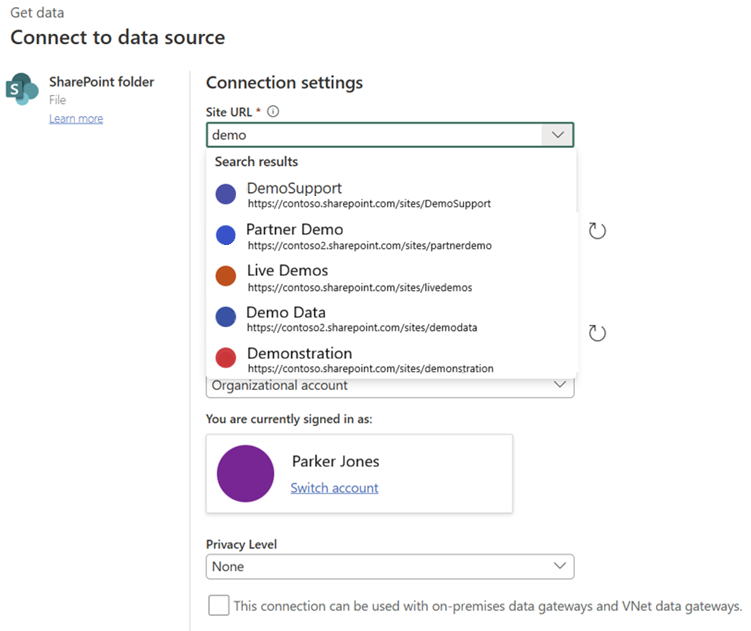
Quick search experience: Type keywords in the dropdown search box to quickly locate relevant sites. After selecting a site, you can immediately proceed to load data for analysis.
Note
- SharePoint site picker is available for SharePoint sources in Dataflow Gen2 and Gen1, Power BI Web modeling, Pipelines, Copy Job, and Lakehouse shortcuts, and as a destination in Dataflow Gen2.
- The first time you use the SharePoint site picker, an authentication window appears. Select the same account you're currently signed in with. If you close or ignore the window, the site picker won't work, though you can still manually paste SharePoint site URLs as before.
- When using the SharePoint site picker, you could encounter issues searching for sites hosted in regions outside your own geography.
Connect to a SharePoint list from Power Query Desktop
To connect to a SharePoint list:
From Get Data, select SharePoint List. For more information, go to Where to get data.
Paste the SharePoint site URL you copied in Determine the site URL to the Site URL field in the open dialog box.
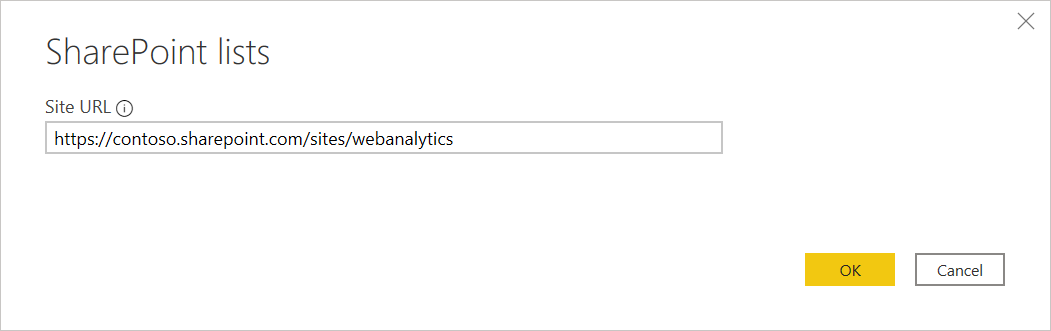
If the URL address you enter is invalid, a
 warning icon appears next to the Site URL textbox.
Select OK to continue.
If you're visiting this site address for the first time, select the appropriate authentication method. Enter your credentials and chose which level to apply these settings to. Then select Connect.
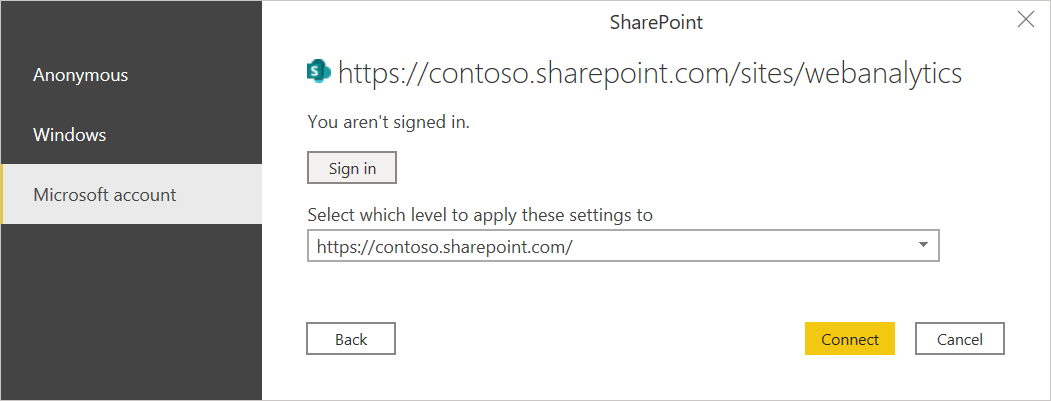
For more information about authentication methods and level settings, go to Authentication with a data source.
From the Navigator, you can select a location, then either transform the data in the Power Query editor by selecting Transform Data, or load the data by selecting Load.
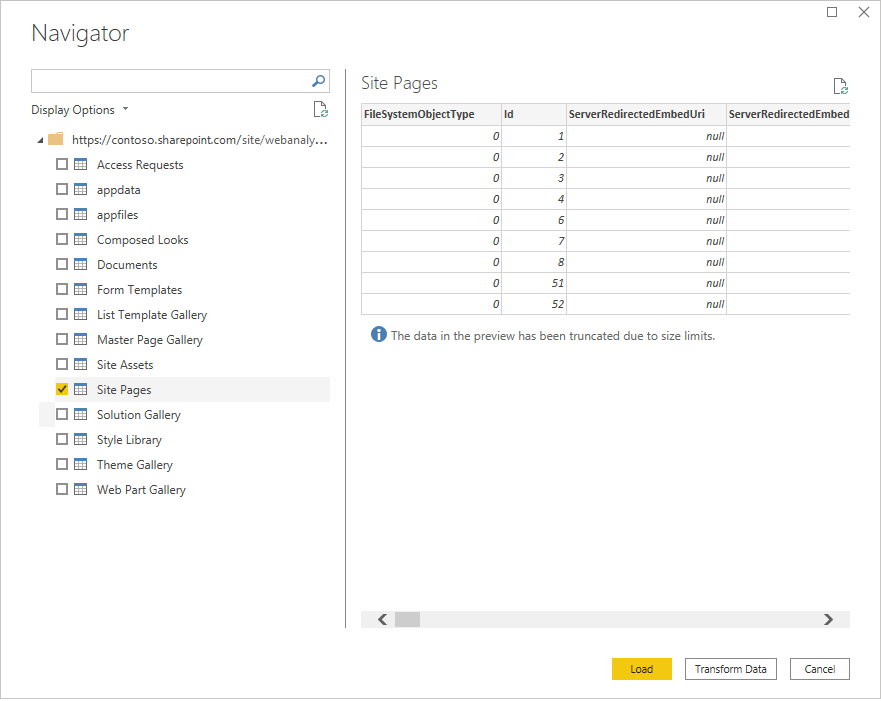
Connect to a SharePoint list from Power Query Online
To connect to a SharePoint list:
From the Data sources page, select SharePoint list. For more information, go to Where to get data.
If you have access to the SharePoint site picker, use it to locate and select the sites directly on the connection settings page. If not, copy the SharePoint site URL and paste it into the Site URL text box in the SharePoint list dialog box.
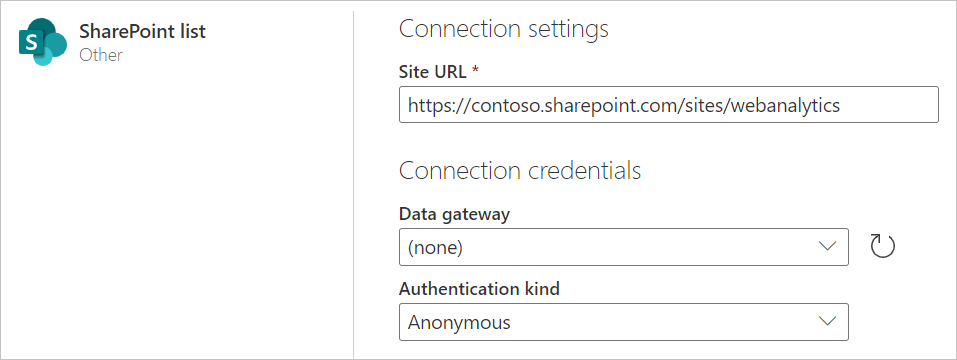
Enter the name of an on-premises data gateway if needed.
Select the authentication kind, and enter any credentials that are required.
Select Next.
From the Navigator, you can select a location, then transform the data in the Power Query editor by selecting Next.
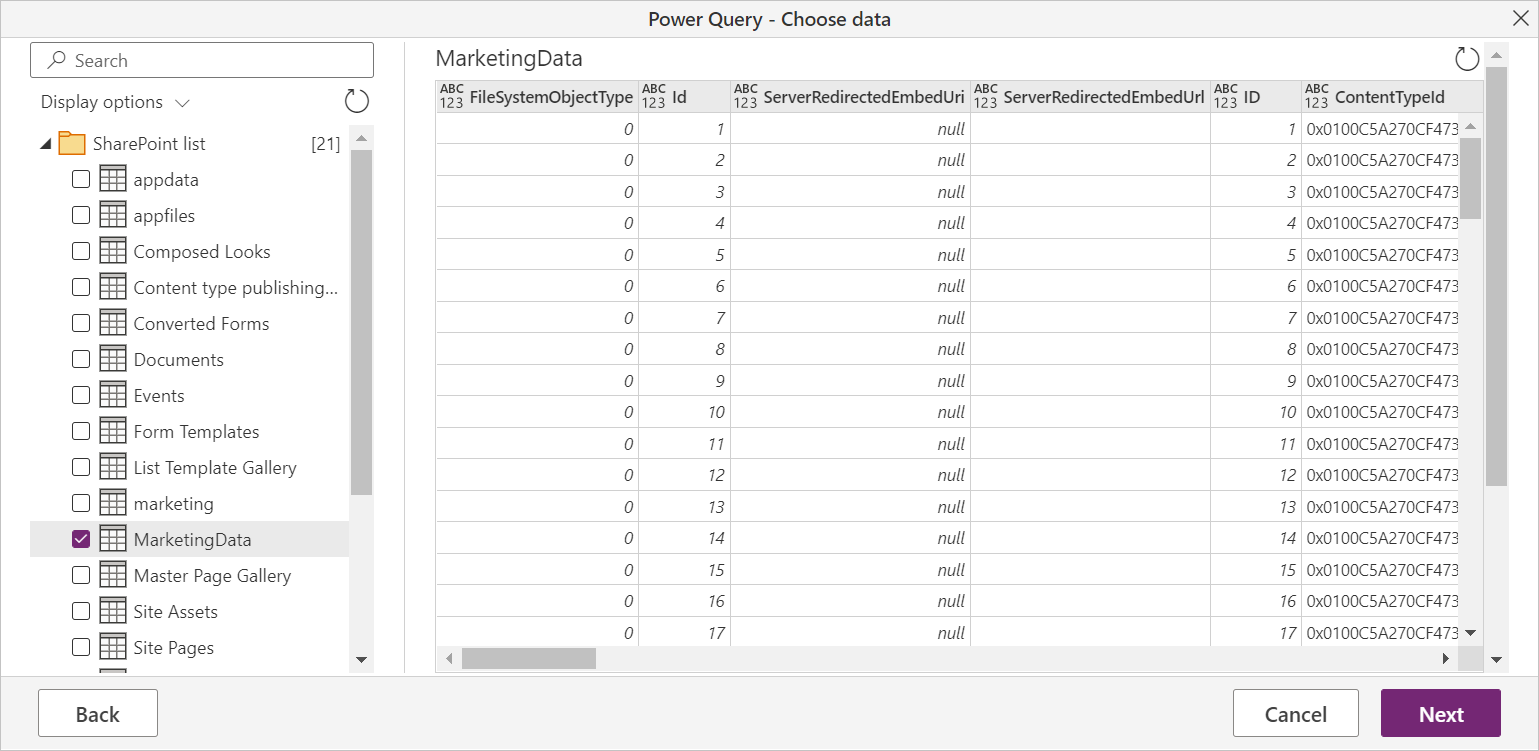
Troubleshooting
Use root SharePoint address
Make sure you supply the root address of the SharePoint site, without any subfolders or documents. For example, use a link similar to the following address: https://contoso.sharepoint.com/teams/ObjectModel/
Inconsistent behavior around boolean data
When you use the SharePoint list connector, Boolean values are represented inconsistently as TRUE/FALSE or 1/0 in Power BI Desktop and Power BI service environments. This inconsistency might result in wrong data, incorrect filters, and empty visuals.
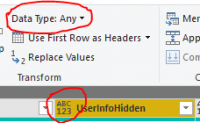
This issue only happens when the Data Type isn't explicitly set for a column in the Query View of Power BI Desktop. You can tell that the data type isn't set by seeing the "ABC 123" image on the column and "Any" data type in the ribbon.
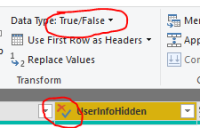
The user can force the interpretation to be consistent by explicitly setting the data type for the column through the Power Query editor. For example, the following image shows the column with an explicit Boolean type.
Using OData to access a SharePoint List
If you use an OData feed to access a SharePoint List, there's an approximately 2100 character limitation to the URL you use to connect. For more information, go to Maximum URL length.
Microsoft Entra ID authentication
Microsoft Entra ID authentication isn't supported for on-premises SharePoint sources.