Nóta
Aðgangur að þessari síðu krefst heimildar. Þú getur prófað aðskrá þig inn eða breyta skráasöfnum.
Aðgangur að þessari síðu krefst heimildar. Þú getur prófað að breyta skráasöfnum.
Applies to:  SQL Server 2017 (14.x) and later versions
Learn how to run Python and R scripts in Visual Studio Code notebooks with SQL Server Machine Learning Services. Visual Studio Code is a cross-platform development tool.
Prerequisites
Download and install Visual Studio Code) on your workstation. Visual Studio Code is cross-platform and runs on Windows, macOS, and Linux.
Install the Polyglot Notebooks extension for Visual Studio Code.
A server with SQL Server Machine Learning Services installed and enabled. You can use Machine Learning Services on Windows, Linux, or Big Data Clusters.
Create a SQL notebook
Important
Machine Learning Services runs as part of SQL Server. Therefore, you need to use a SQL kernel and not a Python kernel.
You can use Machine Learning Services in Visual Studio Code with a SQL notebook. To create a new notebook, follow these steps:
Select File and New Notebook to create a new notebook. The notebook uses the SQL kernel by default.
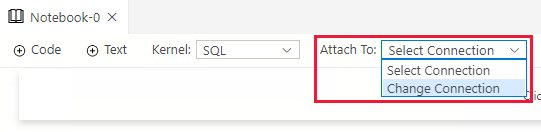
Select Attach To and Change Connection.
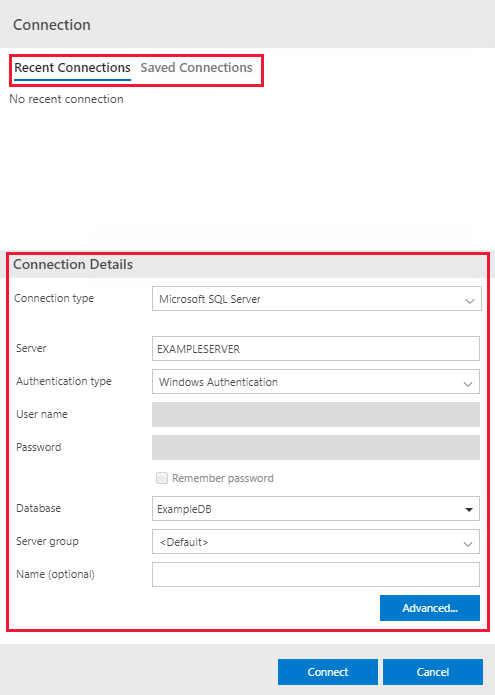
Connect to an existing or new SQL Server. You can either:
Choose an existing connection under Recent Connections or Saved Connections.
Create a new connection under Connection Details. Fill out the connection details to your SQL Server and database.
Run Python or R scripts
SQL Notebooks consist of code and text cells. Use code cells to run Python or R scripts through the stored procedure sp_execute_external_scripts. Use text cells to document your code in the notebook.
Run a Python script
Follow these steps to run a Python script:
Select + Code to add a code cell.

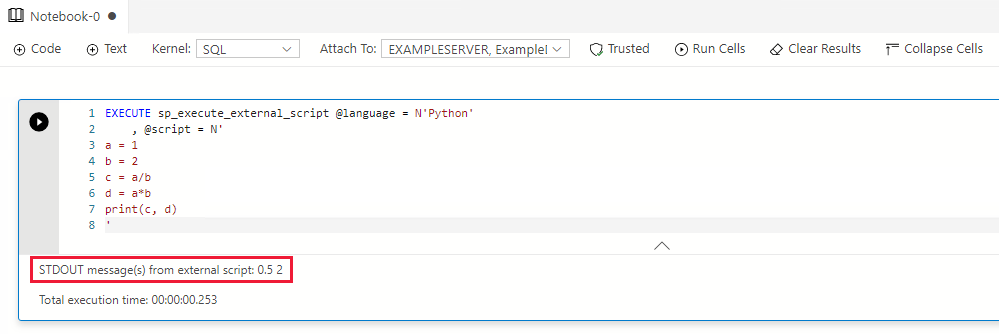
Enter the following script in the code cell:
EXECUTE sp_execute_external_script
    @language = N'Python',
    @script = N'
            a = 1
            b = 2
            c = a/b
            d = a*b
            print(c, d)
            ';
Select Run cell (the round black arrow) or press F5 to run the single cell.
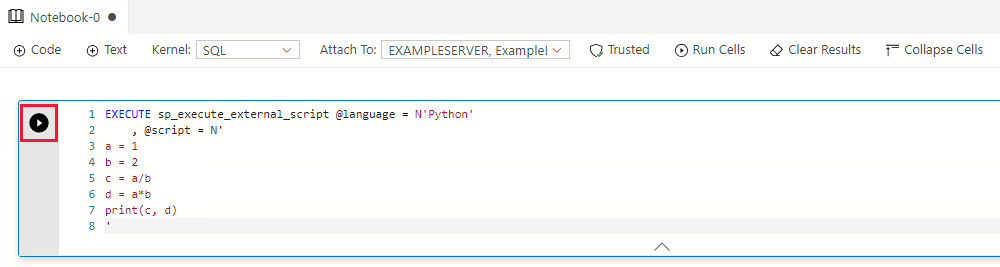
The result appears under the code cell.
Run an R script
Follow these steps to run an R script:
Select + Code to add a code cell.
Enter the following script in the code cell:
EXECUTE sp_execute_external_script
    @language = N'R',
    @script = N'
            a <- 1
            b <- 2
            c <- a/b
            d <- a*b
            print(c(c, d))
            ';
Select Run cell (the round black arrow) or press F5 to run the single cell.
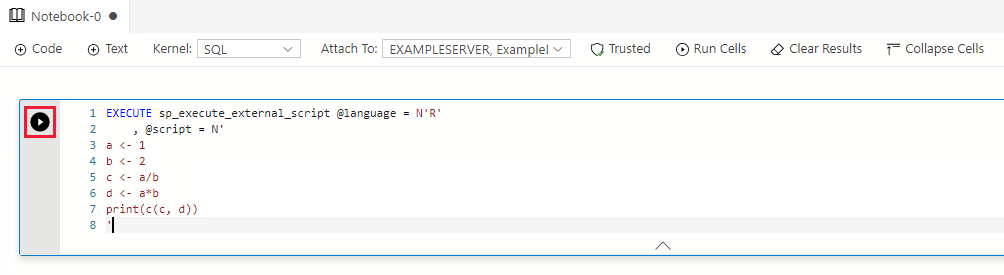
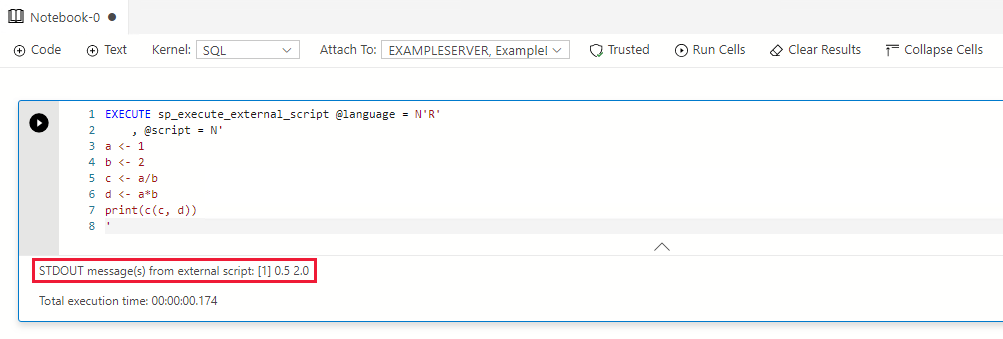
The result appears under the code cell.