Nota
L'accesso a questa pagina richiede l'autorizzazione. È possibile provare ad accedere o modificare le directory.
L'accesso a questa pagina richiede l'autorizzazione. È possibile provare a modificare le directory.
Nell'esercitazione precedente della serie si configura una pagina Web contenente una scena Babylon.js con una fotocamera e una luce. In questa esercitazione viene creato e aggiunto un modello di pianoforte alla scena.
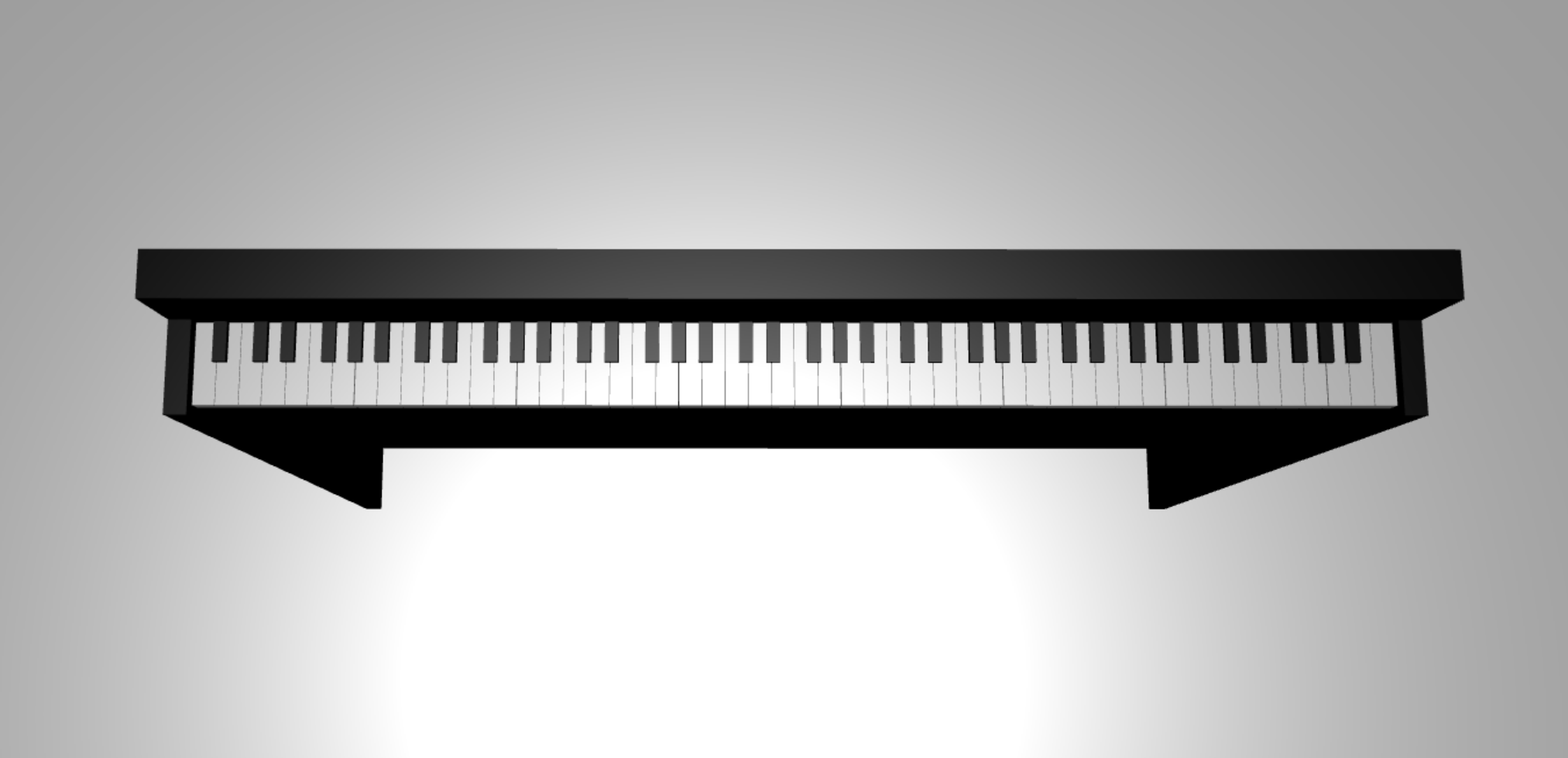
In questa esercitazione si apprenderà come:
- Creare, posizionare e unire mesh
- Creare una tastiera per pianoforte dalle mesh delle caselle
- Importare un modello 3D di una cornice per pianoforte
Prima di iniziare
Assicurarsi di aver completato l'esercitazione precedente nella serie e di essere pronti per continuare ad aggiungere al codice.
index.html
<html>
    <head>
        <title>Piano in BabylonJS</title>
        <script src="https://cdn.babylonjs.com/babylon.js"></script>
        <script src="scene.js"></script>
        <style>
            body,#renderCanvas { width: 100%; height: 100%;}
        </style>
    </head>
    <body>
        <canvas id="renderCanvas"></canvas>
        <script type="text/javascript">
            const canvas = document.getElementById("renderCanvas");
            const engine = new BABYLON.Engine(canvas, true);

            createScene(engine).then(sceneToRender => {
                engine.runRenderLoop(() => sceneToRender.render());
            });

            // Watch for browser/canvas resize events
            window.addEventListener("resize", function () {
                engine.resize();
            });
        </script>
    </body>
</html>
scene.js
const createScene = async function(engine) {
    const scene = new BABYLON.Scene(engine);

    const alpha =  3*Math.PI/2;
    const beta = Math.PI/50;
    const radius = 220;
    const target = new BABYLON.Vector3(0, 0, 0);

    const camera = new BABYLON.ArcRotateCamera("Camera", alpha, beta, radius, target, scene);
    camera.attachControl(canvas, true);

    const light = new BABYLON.HemisphericLight("light", new BABYLON.Vector3(0, 1, 0), scene);
    light.intensity = 0.6;

    const xrHelper = await scene.createDefaultXRExperienceAsync();

    return scene;
}
Introduzione
Iniziamo creando una semplice tastiera per pianoforte con questa struttura:
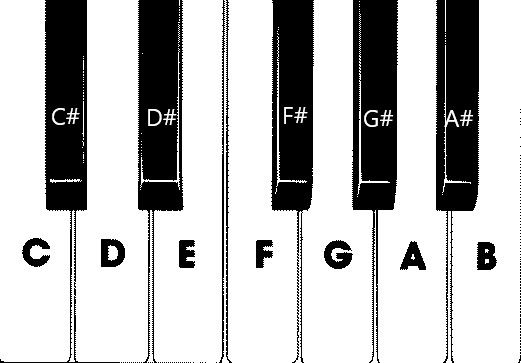
In questa immagine sono presenti sette tasti bianchi e cinque tasti neri, ognuno con il nome della nota. Una tastiera completa per pianoforte a 88 tasti contiene sette ripetizioni complete di questa selezione di tasti (detta anche registro) e quattro tasti aggiuntivi. Ogni registro ha il doppio della frequenza del registro precedente. Ad esempio, la frequenza di pitch di C5 (che significa la nota C nel quinto registro) è doppia di C4, la frequenza di passo di D5 è doppia di D4 e così via.
Visivamente, ogni registro ha esattamente lo stesso aspetto di un altro, quindi possiamo iniziare a studiare come creare una semplice tastiera per pianoforte con questa selezione di tasti. Successivamente, è possibile trovare un modo per espandere l'ambito a una tastiera per pianoforte completa a 88 tasti.
Creare una semplice tastiera per pianoforte
Nota
Anche se è possibile trovare modelli 3D predefiniti di tastiere per pianoforte da origini online e importarli nella pagina Web, la tastiera verrà creata da zero in questa esercitazione per consentire la massima personalizzazione e mostrare come creare modelli 3D tramite Babylon.js.
Prima di iniziare a creare le mesh per la compilazione della tastiera, si noti che ogni tasto nero non è perfettamente allineato al centro dei due tasti bianchi intorno ad esso e non tutti i tasti hanno la stessa larghezza. Ciò significa che è necessario creare e posizionare la mesh per ogni chiave singolarmente.

Per i tasti bianchi, è possibile osservare che ogni chiave bianca è composta da due parti: (1) la parte inferiore sotto i tasti neri e (2) la parte superiore accanto ai tasti neri. Le due parti hanno dimensioni diverse, ma vengono impilate insieme per creare una chiave bianca completa.

Ecco il codice per la creazione di una singola chiave bianca per la nota C (non preoccuparti di aggiungerlo a scene.js ancora):
const whiteKeyBottom = BABYLON.MeshBuilder.CreateBox("whiteKeyBottom", {width: 2.3, height: 1.5, depth: 4.5}, scene);
const whiteKeyTop = BABYLON.MeshBuilder.CreateBox("whiteKeyTop", {width: 1.4, height: 1.5, depth: 5}, scene);
whiteKeyTop.position.z += 4.75;
whiteKeyTop.position.x -= 0.45;

// Parameters of BABYLON.Mesh.MergeMeshes:
// (arrayOfMeshes, disposeSource, allow32BitsIndices, meshSubclass, subdivideWithSubMeshes, multiMultiMaterials)
const whiteKeyV1 = BABYLON.Mesh.MergeMeshes([whiteKeyBottom, whiteKeyTop], true, false, null, false, false);
whiteKeyV1.material = whiteMat;
whiteKeyV1.name = "C4";
Qui abbiamo creato due mesh Box , una per la parte inferiore e una per la parte superiore della chiave bianca. Modifichiamo quindi la posizione della parte superiore per impilarla sopra la parte inferiore e spostarla verso sinistra per lasciare spazio alla chiave nera adiacente (C#).
Infine, queste due parti sono state unite usando la funzione MergeMeshes per diventare una chiave bianca completa. Questa è la mesh risultante che questo codice produrrebbe:

La creazione di una chiave nera è più semplice. Poiché tutti i tasti neri sono della forma di una casella, è possibile creare una chiave nera semplicemente creando una mesh di scatola con un standardMaterial di colore nero.
Nota
Poiché il colore della mesh predefinito è un grigio chiaro simile al bianco, questa esercitazione non include i passaggi per aggiungere un materiale di colore bianco ai tasti bianchi. Tuttavia, è possibile aggiungere il materiale manualmente se si desidera un vero colore bianco brillante sui tasti bianchi.
Ecco il codice per creare la chiave nera C# (non preoccuparti di aggiungerlo a scene.js ):
const blackMat = new BABYLON.StandardMaterial("black");
blackMat.diffuseColor = new BABYLON.Color3(0, 0, 0);

const blackKey = BABYLON.MeshBuilder.CreateBox("C#4", {width: 1.4, height: 2, depth: 5}, scene);
blackKey.position.z += 4.75;
blackKey.position.y += 0.25;
blackKey.position.x += 0.95;
blackKey.material = blackMat;
La chiave nera prodotta da questo codice (insieme alla chiave bianca precedente) avrà un aspetto simile al seguente:

Come si può vedere, la creazione di ogni chiave può comportare molti codici simili poiché è necessario specificare ognuna delle dimensioni e della posizione. Provare a rendere il processo di creazione più efficiente nella sezione successiva.
Creare una semplice tastiera per pianoforte in modo efficiente
Anche se ogni chiave bianca ha una forma leggermente diversa l'una dall'altra, tutte possono essere create combinando una parte superiore e una parte inferiore. Implementare una funzione generica per creare e posizionare qualsiasi chiave bianca.
Aggiungere la funzione seguente a scene.js, all'esterno della
createScene()funzione :const buildKey = function (scene, parent, props) { if (props.type === "white") { /* Props for building a white key should contain: note, topWidth, bottomWidth, topPositionX, wholePositionX, register, referencePositionX As an example, the props for building the middle C white key would be {type: "white", note: "C", topWidth: 1.4, bottomWidth: 2.3, topPositionX: -0.45, wholePositionX: -14.4, register: 4, referencePositionX: 0} */ // Create bottom part const bottom = BABYLON.MeshBuilder.CreateBox("whiteKeyBottom", {width: props.bottomWidth, height: 1.5, depth: 4.5}, scene); // Create top part const top = BABYLON.MeshBuilder.CreateBox("whiteKeyTop", {width: props.topWidth, height: 1.5, depth: 5}, scene); top.position.z = 4.75; top.position.x += props.topPositionX; // Merge bottom and top parts // Parameters of BABYLON.Mesh.MergeMeshes: (arrayOfMeshes, disposeSource, allow32BitsIndices, meshSubclass, subdivideWithSubMeshes, multiMultiMaterials) const key = BABYLON.Mesh.MergeMeshes([bottom, top], true, false, null, false, false); key.position.x = props.referencePositionX + props.wholePositionX; key.name = props.note + props.register; key.parent = parent; return key; } }In questo blocco di codice è stata creata una funzione denominata
buildKey(), che compila e restituisce una chiave bianca seprops.typeè"white". Identificando il tipo di chiave nel parametroprops, è possibile creare chiavi nere e bianche nella stessa funzione diramando usando un'istruzione if.I parametri di
buildKey()sono:- scena: scena in cui si trova la chiave
- padre: padre della mesh (in questo modo è possibile raggruppare tutte le chiavi in un singolo elemento padre)
- props: proprietà della chiave che verrà compilata
L'oggetto
propsper una chiave bianca conterrà gli elementi seguenti:- type: "white"
- name: il nome della nota rappresentata dalla chiave
- topWidth: larghezza della parte superiore
- bottomWidth: larghezza della parte inferiore
- topPositionX: posizione x della parte superiore rispetto alla parte inferiore
- wholePositionX: posizione x dell'intera chiave rispetto al punto finale del registro (il bordo destro della chiave B).
- register: registrare che la chiave appartiene a (un numero compreso tra 0 e 8)
- referencePositionX: coordinata x del punto finale del registro (usato come punto di riferimento).
Separando
wholePositionXereferencePositionX, è possibile inizializzare ipropsparametri necessari per creare un tipo specifico di chiave (ad esempio C) all'interno di qualsiasi registro e quindi aggiungereregisterereferencePositionXapropsquando si crea tale chiave in un registro specifico (ad esempio C4, C5).Analogamente, è anche possibile scrivere una funzione generica per creare una chiave nera. Espandere la funzione per includere tale
buildKey()logica:const buildKey = function (scene, parent, props) { if (props.type === "white") { /* Props for building a white key should contain: note, topWidth, bottomWidth, topPositionX, wholePositionX, register, referencePositionX As an example, the props for building the middle C white key would be {type: "white", note: "C", topWidth: 1.4, bottomWidth: 2.3, topPositionX: -0.45, wholePositionX: -14.4, register: 4, referencePositionX: 0} */ // Create bottom part const bottom = BABYLON.MeshBuilder.CreateBox("whiteKeyBottom", {width: props.bottomWidth, height: 1.5, depth: 4.5}, scene); // Create top part const top = BABYLON.MeshBuilder.CreateBox("whiteKeyTop", {width: props.topWidth, height: 1.5, depth: 5}, scene); top.position.z = 4.75; top.position.x += props.topPositionX; // Merge bottom and top parts // Parameters of BABYLON.Mesh.MergeMeshes: (arrayOfMeshes, disposeSource, allow32BitsIndices, meshSubclass, subdivideWithSubMeshes, multiMultiMaterials) const key = BABYLON.Mesh.MergeMeshes([bottom, top], true, false, null, false, false); key.position.x = props.referencePositionX + props.wholePositionX; key.name = props.note + props.register; key.parent = parent; return key; } else if (props.type === "black") { /* Props for building a black key should contain: note, wholePositionX, register, referencePositionX As an example, the props for building the C#4 black key would be {type: "black", note: "C#", wholePositionX: -13.45, register: 4, referencePositionX: 0} */ // Create black color material const blackMat = new BABYLON.StandardMaterial("black"); blackMat.diffuseColor = new BABYLON.Color3(0, 0, 0); // Create black key const key = BABYLON.MeshBuilder.CreateBox(props.note + props.register, {width: 1.4, height: 2, depth: 5}, scene); key.position.z += 4.75; key.position.y += 0.25; key.position.x = props.referencePositionX + props.wholePositionX; key.material = blackMat; key.parent = parent; return key; } }L'oggetto
propsper una chiave nera contiene gli elementi seguenti:- type: "black"
- name: il nome della nota rappresentata dalla chiave
- wholePositionX: posizione x dell'intera chiave rispetto al punto finale del registro (il bordo destro della chiave B)
- register: registrare che la chiave appartiene a (un numero compreso tra 0 e 8)
- referencePositionX: coordinata x del punto finale del registro (usato come punto di riferimento).
L'oggetto
propsper la creazione di una chiave nera è molto più semplice perché la creazione di una chiave nera comporta solo la creazione di una casella e la larghezza e la posizione z di ogni chiave nera sono uguali.Ora che è disponibile un modo più efficiente per creare i tasti, inizializzare una matrice che archivia per
propsogni tasto che corrisponde a una nota in un registro e quindi chiamare labuildKey()funzione con ognuno di essi per creare una tastiera semplice nel quarto registro.Verrà anche creato un TransformNode denominato
keyboardper fungere da padre di tutti i tasti di pianoforte. Poiché qualsiasi modifica di posizione o ridimensionamento applicata all'elemento padre verrebbe applicata anche agli elementi figlio, il raggruppamento delle chiavi in questo modo consentirà di ridimensionarle o spostarle nel loro complesso.Aggiungere le righe di codice seguenti nella
createScene()funzione :const keyParams = [ {type: "white", note: "C", topWidth: 1.4, bottomWidth: 2.3, topPositionX: -0.45, wholePositionX: -14.4}, {type: "black", note: "C#", wholePositionX: -13.45}, {type: "white", note: "D", topWidth: 1.4, bottomWidth: 2.4, topPositionX: 0, wholePositionX: -12}, {type: "black", note: "D#", wholePositionX: -10.6}, {type: "white", note: "E", topWidth: 1.4, bottomWidth: 2.3, topPositionX: 0.45, wholePositionX: -9.6}, {type: "white", note: "F", topWidth: 1.3, bottomWidth: 2.4, topPositionX: -0.55, wholePositionX: -7.2}, {type: "black", note: "F#", wholePositionX: -6.35}, {type: "white", note: "G", topWidth: 1.3, bottomWidth: 2.3, topPositionX: -0.2, wholePositionX: -4.8}, {type: "black", note: "G#", wholePositionX: -3.6}, {type: "white", note: "A", topWidth: 1.3, bottomWidth: 2.3, topPositionX: 0.2, wholePositionX: -2.4}, {type: "black", note: "A#", wholePositionX: -0.85}, {type: "white", note: "B", topWidth: 1.3, bottomWidth: 2.4, topPositionX: 0.55, wholePositionX: 0}, ] // Transform Node that acts as the parent of all piano keys const keyboard = new BABYLON.TransformNode("keyboard"); keyParams.forEach(key => { buildKey(scene, keyboard, Object.assign({register: 4, referencePositionX: 0}, key)); })Come probabilmente si è notato, in questo blocco di codice vengono inserite tutte le chiavi relative all'origine dello spazio.
Ecco il codice che scene.js contiene finora:
const buildKey = function (scene, parent, props) { if (props.type === "white") { /* Props for building a white key should contain: note, topWidth, bottomWidth, topPositionX, wholePositionX, register, referencePositionX As an example, the props for building the middle C white key would be {type: "white", note: "C", topWidth: 1.4, bottomWidth: 2.3, topPositionX: -0.45, wholePositionX: -14.4, register: 4, referencePositionX: 0} */ // Create bottom part const bottom = BABYLON.MeshBuilder.CreateBox("whiteKeyBottom", {width: props.bottomWidth, height: 1.5, depth: 4.5}, scene); // Create top part const top = BABYLON.MeshBuilder.CreateBox("whiteKeyTop", {width: props.topWidth, height: 1.5, depth: 5}, scene); top.position.z = 4.75; top.position.x += props.topPositionX; // Merge bottom and top parts // Parameters of BABYLON.Mesh.MergeMeshes: (arrayOfMeshes, disposeSource, allow32BitsIndices, meshSubclass, subdivideWithSubMeshes, multiMultiMaterials) const key = BABYLON.Mesh.MergeMeshes([bottom, top], true, false, null, false, false); key.position.x = props.referencePositionX + props.wholePositionX; key.name = props.note + props.register; key.parent = parent; return key; } else if (props.type === "black") { /* Props for building a black key should contain: note, wholePositionX, register, referencePositionX As an example, the props for building the C#4 black key would be {type: "black", note: "C#", wholePositionX: -13.45, register: 4, referencePositionX: 0} */ // Create black color material const blackMat = new BABYLON.StandardMaterial("black"); blackMat.diffuseColor = new BABYLON.Color3(0, 0, 0); // Create black key const key = BABYLON.MeshBuilder.CreateBox(props.note + props.register, {width: 1.4, height: 2, depth: 5}, scene); key.position.z += 4.75; key.position.y += 0.25; key.position.x = props.referencePositionX + props.wholePositionX; key.material = blackMat; key.parent = parent; return key; } } const createScene = async function(engine) { const scene = new BABYLON.Scene(engine); const alpha = 3*Math.PI/2; const beta = Math.PI/50; const radius = 220; const target = new BABYLON.Vector3(0, 0, 0); const camera = new BABYLON.ArcRotateCamera("Camera", alpha, beta, radius, target, scene); camera.attachControl(canvas, true); const light = new BABYLON.HemisphericLight("light", new BABYLON.Vector3(0, 1, 0), scene); light.intensity = 0.6; const keyParams = [ {type: "white", note: "C", topWidth: 1.4, bottomWidth: 2.3, topPositionX: -0.45, wholePositionX: -14.4}, {type: "black", note: "C#", wholePositionX: -13.45}, {type: "white", note: "D", topWidth: 1.4, bottomWidth: 2.4, topPositionX: 0, wholePositionX: -12}, {type: "black", note: "D#", wholePositionX: -10.6}, {type: "white", note: "E", topWidth: 1.4, bottomWidth: 2.3, topPositionX: 0.45, wholePositionX: -9.6}, {type: "white", note: "F", topWidth: 1.3, bottomWidth: 2.4, topPositionX: -0.55, wholePositionX: -7.2}, {type: "black", note: "F#", wholePositionX: -6.35}, {type: "white", note: "G", topWidth: 1.3, bottomWidth: 2.3, topPositionX: -0.2, wholePositionX: -4.8}, {type: "black", note: "G#", wholePositionX: -3.6}, {type: "white", note: "A", topWidth: 1.3, bottomWidth: 2.3, topPositionX: 0.2, wholePositionX: -2.4}, {type: "black", note: "A#", wholePositionX: -0.85}, {type: "white", note: "B", topWidth: 1.3, bottomWidth: 2.4, topPositionX: 0.55, wholePositionX: 0}, ] // Transform Node that acts as the parent of all piano keys const keyboard = new BABYLON.TransformNode("keyboard"); keyParams.forEach(key => { buildKey(scene, keyboard, Object.assign({register: 4, referencePositionX: 0}, key)); }) const xrHelper = await scene.createDefaultXRExperienceAsync(); return scene; }Questo è l'aspetto della tastiera risultante:

Espansione a un pianoforte a 88 tasti
In questa sezione si espande l'utilizzo delle funzioni di creazione dei tasti per generare una tastiera completa con 88 tasti.
Come accennato in precedenza, una tastiera per pianoforte completa a 88 tasti contiene sette registri ripetuti e altre quattro note. Tre di queste note aggiuntive sono nel registro 0 (estremità sinistra della tastiera) e 1 è nel registro 8 (estremità destra della tastiera).

Prima di tutto si lavorerà alla creazione delle sette ripetizioni complete aggiungendo un ciclo aggiuntivo intorno al ciclo scritto in precedenza. Sostituire il ciclo precedente per la
buildKey()funzione con il codice seguente:// Register 1 through 7 var referencePositionX = -2.4*14; for (let register = 1; register <= 7; register++) { keyParams.forEach(key => { buildKey(scene, keyboard, Object.assign({register: register, referencePositionX: referencePositionX}, key)); }) referencePositionX += 2.4*7; }In questo ciclo vengono compilate le chiavi per il registro da 1 a 7 e si incrementa la posizione di riferimento ogni volta che si passa al registro successivo.
Verrà quindi creato il resto delle chiavi. Aggiungere il frammento di codice seguente alla
createScene()funzione :// Register 0 buildKey(scene, keyboard, {type: "white", note: "A", topWidth: 1.9, bottomWidth: 2.3, topPositionX: -0.20, wholePositionX: -2.4, register: 0, referencePositionX: -2.4*21}); keyParams.slice(10, 12).forEach(key => { buildKey(scene, keyboard, Object.assign({register: 0, referencePositionX: -2.4*21}, key)); }) // Register 8 buildKey(scene, keyboard, {type: "white", note: "C", topWidth: 2.3, bottomWidth: 2.3, topPositionX: 0, wholePositionX: -2.4*6, register: 8, referencePositionX: 84});Si noti che il tasto più a sinistra e il tasto più a destra della tastiera del pianoforte non rientrano nelle dimensioni degli oggetti di scena definiti in
keyParams(perché non sono accanto a un tasto nero sul bordo), quindi è necessario definire un nuovopropsoggetto per ognuno di essi per specificare la loro forma speciale.La tastiera prodotta dovrebbe essere simile alla seguente dopo aver apportato le modifiche:

Aggiunta di una cornice per pianoforte
La scena sembra un po 'strana con solo una tastiera mobile nello spazio. Aggiungiamo una cornice per pianoforte intorno alla tastiera per creare l'aspetto di un pianoforte in piedi.
Analogamente a come sono stati creati i tasti, è anche possibile creare il frame posizionando e combinando un gruppo di mesh di caselle.
Tuttavia, lasceremo a te la sfida di provare da solo e usare BABYLON. SceneLoader.ImportMesh per importare una mesh predefinita di una cornice di piano standup. Aggiungere questo frammento di codice a
createScene():// Transform node that acts as the parent of all piano components const piano = new BABYLON.TransformNode("piano"); keyboard.parent = piano; // Import and scale piano frame BABYLON.SceneLoader.ImportMesh("frame", "https://raw.githubusercontent.com/MicrosoftDocs/mixed-reality/docs/mixed-reality-docs/mr-dev-docs/develop/javascript/tutorials/babylonjs-webxr-piano/files/", "pianoFrame.babylon", scene, function(meshes) { const frame = meshes[0]; frame.parent = piano; });Si noti che, ancora una volta, stiamo creando un elemento padre
TransformNodedenominatopianoper raggruppare la tastiera e la cornice nel suo complesso. Questo renderà lo spostamento o il ridimensionamento dell'intero pianoforte molto più facile se abbiamo mai bisogno di farlo.Una volta importato il fotogramma, si noti che la tastiera si trova nella parte inferiore del fotogramma (poiché le coordinate y dei tasti sono 0 per impostazione predefinita). Si solleva la tastiera in modo che si adatti al telaio del pianoforte in piedi:
// Lift piano keys
keyboard.position.y += 80;
Poiché
keyboardè l'elemento padre di tutti i tasti del pianoforte, è possibile sollevare tutti i tasti del pianoforte semplicemente modificando la posizione y dikeyboard.Il codice finale di scene.js dovrebbe essere simile al seguente:
const buildKey = function (scene, parent, props) {
    if (props.type === "white") {
        /*
        Props for building a white key should contain:
        note, topWidth, bottomWidth, topPositionX, wholePositionX, register, referencePositionX

        As an example, the props for building the middle C white key would be
        {type: "white", note: "C", topWidth: 1.4, bottomWidth: 2.3, topPositionX: -0.45, wholePositionX: -14.4, register: 4, referencePositionX: 0}
        */

        // Create bottom part
        const bottom = BABYLON.MeshBuilder.CreateBox("whiteKeyBottom", {width: props.bottomWidth, height: 1.5, depth: 4.5}, scene);

        // Create top part
        const top = BABYLON.MeshBuilder.CreateBox("whiteKeyTop", {width: props.topWidth, height: 1.5, depth: 5}, scene);
        top.position.z =  4.75;
        top.position.x += props.topPositionX;

        // Merge bottom and top parts
        // Parameters of BABYLON.Mesh.MergeMeshes: (arrayOfMeshes, disposeSource, allow32BitsIndices, meshSubclass, subdivideWithSubMeshes, multiMultiMaterials)
        const key = BABYLON.Mesh.MergeMeshes([bottom, top], true, false, null, false, false);
        key.position.x = props.referencePositionX + props.wholePositionX;
        key.name = props.note + props.register;
        key.parent = parent;

        return key;
    }
    else if (props.type === "black") {
        /*
        Props for building a black key should contain:
        note, wholePositionX, register, referencePositionX

        As an example, the props for building the C#4 black key would be
        {type: "black", note: "C#", wholePositionX: -13.45, register: 4, referencePositionX: 0}
        */

        // Create black color material
        const blackMat = new BABYLON.StandardMaterial("black");
        blackMat.diffuseColor = new BABYLON.Color3(0, 0, 0);

        // Create black key
        const key = BABYLON.MeshBuilder.CreateBox(props.note + props.register, {width: 1.4, height: 2, depth: 5}, scene);
        key.position.z += 4.75;
        key.position.y += 0.25;
        key.position.x = props.referencePositionX + props.wholePositionX;
        key.material = blackMat;
        key.parent = parent;

        return key;
    }
}

const createScene = async function(engine) {
    const scene = new BABYLON.Scene(engine);

    const alpha =  3*Math.PI/2;
    const beta = Math.PI/50;
    const radius = 220;
    const target = new BABYLON.Vector3(0, 0, 0);

    const camera = new BABYLON.ArcRotateCamera("Camera", alpha, beta, radius, target, scene);
    camera.attachControl(canvas, true);

    const light = new BABYLON.HemisphericLight("light", new BABYLON.Vector3(0, 1, 0), scene);
    light.intensity = 0.6;

    const keyParams = [
        {type: "white", note: "C", topWidth: 1.4, bottomWidth: 2.3, topPositionX: -0.45, wholePositionX: -14.4},
        {type: "black", note: "C#", wholePositionX: -13.45},
        {type: "white", note: "D", topWidth: 1.4, bottomWidth: 2.4, topPositionX: 0, wholePositionX: -12},
        {type: "black", note: "D#", wholePositionX: -10.6},
        {type: "white", note: "E", topWidth: 1.4, bottomWidth: 2.3, topPositionX: 0.45, wholePositionX: -9.6},
        {type: "white", note: "F", topWidth: 1.3, bottomWidth: 2.4, topPositionX: -0.55, wholePositionX: -7.2},
        {type: "black", note: "F#", wholePositionX: -6.35},
        {type: "white", note: "G", topWidth: 1.3, bottomWidth: 2.3, topPositionX: -0.2, wholePositionX: -4.8},
        {type: "black", note: "G#", wholePositionX: -3.6},
        {type: "white", note: "A", topWidth: 1.3, bottomWidth: 2.3, topPositionX: 0.2, wholePositionX: -2.4},
        {type: "black", note: "A#", wholePositionX: -0.85},
        {type: "white", note: "B", topWidth: 1.3, bottomWidth: 2.4, topPositionX: 0.55, wholePositionX: 0},
    ]

    // Transform Node that acts as the parent of all piano keys
    const keyboard = new BABYLON.TransformNode("keyboard");

    // Register 1 through 7
    var referencePositionX = -2.4*14;
    for (let register = 1; register <= 7; register++) {
        keyParams.forEach(key => {
            buildKey(scene, keyboard, Object.assign({register: register, referencePositionX: referencePositionX}, key));
        })
        referencePositionX += 2.4*7;
    }

    // Register 0
    buildKey(scene, keyboard, {type: "white", note: "A", topWidth: 1.9, bottomWidth: 2.3, topPositionX: -0.20, wholePositionX: -2.4, register: 0, referencePositionX: -2.4*21});
    keyParams.slice(10, 12).forEach(key => {
        buildKey(scene, keyboard, Object.assign({register: 0, referencePositionX: -2.4*21}, key));
    })

    // Register 8
    buildKey(scene, keyboard, {type: "white", note: "C", topWidth: 2.3, bottomWidth: 2.3, topPositionX: 0, wholePositionX: -2.4*6, register: 8, referencePositionX: 84});

    // Transform node that acts as the parent of all piano components
    const piano = new BABYLON.TransformNode("piano");
    keyboard.parent = piano;

    // Import and scale piano frame
    BABYLON.SceneLoader.ImportMesh("frame", "https://raw.githubusercontent.com/MicrosoftDocs/mixed-reality/docs/mixed-reality-docs/mr-dev-docs/develop/javascript/tutorials/babylonjs-webxr-piano/files/", "pianoFrame.babylon", scene, function(meshes) {
        const frame = meshes[0];
        frame.parent = piano;
    });

    // Lift the piano keyboard
    keyboard.position.y += 80;

    const xrHelper = await scene.createDefaultXRExperienceAsync();

    return scene;
}
Ora dovremmo avere un pianoforte standup simile al seguente: