このチュートリアルでは、Azure Function と統合されたリアルタイム NASDAQ インデックス アプリケーションを作成して、Python のサーバーレス モードでデータを Socket.IO クライアントに発行する方法について説明します。
このチュートリアルで使用されている完全なコード サンプルを見つけます。
Important
既定モードには永続的なサーバーが必要です。既定モードの web PubSub for Socket.IO を Azure 関数と統合することはできません。
[前提条件]
- アクティブなサブスクリプションを持つ Azure アカウント。 お持ちでない場合は、 無料アカウントを作成できます。
- Azure 関数のコア ツール
- Socket.IO ライブラリに関するある程度の知識。
サーバーレス モードで Socket.IO リソース用の Web PubSub を作成する
Socket.IO 用の Web PubSub を作成するには、次の Azure CLI コマンドを使用できます。
az webpubsub create -g <resource-group> -n <resource-name>---kind socketio --service-mode serverless --sku Premium_P1
Azure 関数プロジェクトをローカルに作成する
手順に従って、ローカルの Azure 関数プロジェクトを開始する必要があります。
手順に従って、最新の Azure 関数コア ツールをインストールします
ターミナル ウィンドウまたはコマンド プロンプトで次のコマンドを実行して、
SocketIOProjectフォルダーにプロジェクトを作成します。func init SocketIOProject --worker-runtime pythonこのコマンドは、Python ベースの関数プロジェクトを作成します。 次のコマンドを実行するには、フォルダー
SocketIOProjectを入力します。現時点では、関数バンドルには関数バインド Socket.IO 含まれていないため、パッケージを手動で追加する必要があります。
関数バンドル参照を削除するには、host.json ファイルを編集し、次の行を削除します。
"extensionBundle": {
    "id": "Microsoft.Azure.Functions.ExtensionBundle",
    "version": "[4.*, 5.0.0)"
}
次のコマンドを実行します。
func extensions install -p Microsoft.Azure.WebJobs.Extensions.WebPubSubForSocketIO -v 1.0.0-beta.4
function_app.py内のコンテンツを次のコードに置き換えます。import random import azure.functions as func from azure.functions.decorators.core import DataType from azure.functions import Context import json app = func.FunctionApp() current_index= 14000 @app.timer_trigger(schedule="* * * * * *", arg_name="myTimer", run_on_startup=False, use_monitor=False) @app.generic_output_binding("sio", type="socketio", data_type=DataType.STRING, hub="hub") def publish_data(myTimer: func.TimerRequest, sio: func.Out[str]) -> None: change = round(random.uniform(-10, 10), 2) global current_index current_index = current_index + change sio.set(json.dumps({ 'actionName': 'sendToNamespace', 'namespace': '/', 'eventName': 'update', 'parameters': [ current_index ] })) @app.function_name(name="negotiate") @app.route(auth_level=func.AuthLevel.ANONYMOUS) @app.generic_input_binding("negotiationResult", type="socketionegotiation", hub="hub") def negotiate(req: func.HttpRequest, negotiationResult) -> func.HttpResponse: return func.HttpResponse(negotiationResult) @app.function_name(name="index") @app.route(auth_level=func.AuthLevel.ANONYMOUS) def index(req: func.HttpRequest) -> func.HttpResponse: path = './index.html' with open(path, 'rb') as f: return func.HttpResponse(f.read(), mimetype='text/html')これらの関数の説明を次に示します。
publish_data:この関数は、NASDAQインデックスをランダムな変更で毎秒更新し、Socket.IO 出力バインディングを使用して接続されたクライアントにブロードキャストします。negotiate: この関数は、ネゴシエーションの結果をクライアントに応答します。index: この関数は静的 HTML ページを返します。
次に、
index.htmlファイルを追加しますコンテンツを含む index.html ファイルを作成します。
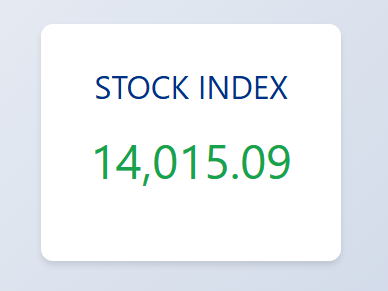
<!DOCTYPE html> <html lang="en"> <head> <meta charset="UTF-8"> <meta name="viewport" content="width=device-width, initial-scale=1.0"> <title>Nasdaq Index</title> <style> /* Reset some default styles */ * { margin: 0; padding: 0; box-sizing: border-box; } body { font-family: 'Segoe UI', Tahoma, Geneva, Verdana, sans-serif; background: linear-gradient(135deg, #f5f7fa, #c3cfe2); height: 100vh; display: flex; justify-content: center; align-items: center; } .container { background-color: white; padding: 40px; border-radius: 12px; box-shadow: 0 4px 6px rgba(0,0,0,0.1); text-align: center; max-width: 300px; width: 100%; } .nasdaq-title { font-size: 2em; color: #003087; margin-bottom: 20px; } .index-value { font-size: 3em; color: #16a34a; margin-bottom: 30px; transition: color 0.3s ease; } .update-button { padding: 10px 20px; font-size: 1em; color: white; background-color: #003087; border: none; border-radius: 6px; cursor: pointer; transition: background-color 0.3s ease; } .update-button:hover { background-color: #002070; } </style> </head> <body> <div class="container"> <div class="nasdaq-title">STOCK INDEX</div> <div id="nasdaqIndex" class="index-value">14,000.00</div> </div> <script src="https://cdn.socket.io/4.7.5/socket.io.min.js"></script> <script> function updateIndexCore(newIndex) { newIndex = parseFloat(newIndex); currentIndex = parseFloat(document.getElementById('nasdaqIndex').innerText.replace(/,/g, '')) change = newIndex - currentIndex; // Update the index value in the DOM document.getElementById('nasdaqIndex').innerText = newIndex.toLocaleString('en-US', {minimumFractionDigits: 2, maximumFractionDigits: 2}); // Optionally, change the color based on increase or decrease const indexElement = document.getElementById('nasdaqIndex'); if (change > 0) { indexElement.style.color = '#16a34a'; // Green for increase } else if (change < 0) { indexElement.style.color = '#dc2626'; // Red for decrease } else { indexElement.style.color = '#16a34a'; // Neutral color } } async function init() { const negotiateResponse = await fetch(`/api/negotiate`); if (!negotiateResponse.ok) { console.log("Failed to negotiate, status code =", negotiateResponse.status); return; } const negotiateJson = await negotiateResponse.json(); socket = io(negotiateJson.endpoint, { path: negotiateJson.path, query: { access_token: negotiateJson.token} }); socket.on('update', (index) => { updateIndexCore(index); }); } init(); </script> </body> </html>index.htmlの重要な部分は次のとおりです。async function init() { const negotiateResponse = await fetch(`/api/negotiate`); if (!negotiateResponse.ok) { console.log("Failed to negotiate, status code =", negotiateResponse.status); return; } const negotiateJson = await negotiateResponse.json(); socket = io(negotiateJson.endpoint, { path: negotiateJson.path, query: { access_token: negotiateJson.token} }); socket.on('update', (index) => { updateIndexCore(index); }); }最初に関数アプリとネゴシエートして、Uri とサービスへのパスを取得します。 インデックスを更新するためのコールバックを登録します。
アプリをローカルで実行する方法
コードの準備が完了したら、手順に従ってサンプルを実行します。
Azure 関数用に Azure Storage を設定する
Azure Functions では、ローカルで実行されている場合でも、ストレージ アカウントが機能する必要があります。 次の 2 つのオプションのいずれかを選択します。
- 無料の Azurite エミュレーターを実行します。
- Azure Storage サービスを使用します。 引き続き使用すると、コストが発生する可能性があります。
Azurite をインストールする
npm install -g azuriteAzurite ストレージ エミュレーターを起動します。
azurite -l azurite -d azurite\debug.loglocal.settings.jsonの
AzureWebJobsStorageがUseDevelopmentStorage=trueに設定されていることを確認します。
Socket.IO の Web PubSub の構成を設定する
Function APP に接続文字列を追加します。
func settings add WebPubSubForSocketIOConnectionString "<connection string>"
サンプル アプリの実行
トンネル ツールが実行されたら、関数アプリをローカルで実行できます。
func start
また、 http://localhost:7071/api/indexの Web ページにアクセスしてください。
次のステップ
次に、Bicep を使用して、ID ベースの認証を使用してアプリをオンラインでデプロイできます。