テスト プラットフォームは、テスト フレームワークと拡張ポイントの両方に貴重なサービスを提供します。 これらのサービスは、構成へのアクセス、コマンド ライン引数の解析と取得、ログ ファクトリの取得、ログ システムへのアクセスなどの一般的なニーズに対応します。
IServiceProvider は、テスト プラットフォームの サービス ロケーター パターン を実装します。
IServiceProviderは基底クラス ライブラリから直接派生します。
namespace System
{
    public interface IServiceProvider
    {
        object? GetService(Type serviceType);
    }
}
テスト プラットフォームには、既知のサービス オブジェクトをaccessするための便利な拡張メソッドが用意されています。 これらのメソッドはすべて、 Microsoft.Testing.Platform.Services 名前空間内の静的クラスに格納されます。
public static class ServiceProviderExtensions
{
    public static TService GetRequiredService<TService>(
        this IServiceProvider provider)

    public static TService? GetService<TService>(
        this IServiceProvider provider)

    public static IMessageBus GetMessageBus(
        this IServiceProvider serviceProvider)

    public static IConfiguration GetConfiguration(
        this IServiceProvider serviceProvider)

    public static ICommandLineOptions GetCommandLineOptions(
        this IServiceProvider serviceProvider)

    public static ILoggerFactory GetLoggerFactory(
        this IServiceProvider serviceProvider)

    public static IOutputDevice GetOutputDevice(
        this IServiceProvider serviceProvider)

    // ... and more
}
拡張ポイントによって公開される登録ファクトリのほとんどは、IServiceProviderにaccessを提供します。たとえば、テスト フレームワークを登録する場合、IServiceProviderがファクトリ メソッドにパラメーターとして渡されます。
ITestApplicationBuilder RegisterTestFramework(
    Func<IServiceProvider, ITestFrameworkCapabilities> capabilitiesFactory,
    Func<ITestFrameworkCapabilities, IServiceProvider, ITestFramework> adapterFactory);
前のコードでは、 capabilitiesFactory と adapterFactory の両方がパラメーターとして IServiceProvider を指定します。
IConfiguration サービス
IConfiguration インターフェイスは、IServiceProvider を使用して取得でき、テスト フレームワークと任意の拡張ポイントの構成設定にaccessを提供します。 既定では、これらの構成が以下から読み込まれます。
- コマンド ライン オプション。
commandLineOptions:セクションの下に表示されます。 - 環境変数。
- [appname] という名前の JSON ファイル.testconfig.jsonテスト アプリケーション実行可能ファイルの横にあります。
コマンド ライン オプションは環境変数よりも優先され、[ appname].testconfig.jsonの値よりも優先されます。 MTP はすべてのソースを読み込み、各キーを提供する最初のソースを選択します。
commandLineOptions:値の場合、MTP は完全なオプションのソースを選択するため、インデックス付き引数はソース間で結合されません。 構成ファイルの検出と優先順位の詳細については、 MTP 構成設定を参照してください。
インターフェイスは、文字列の単純なキーと値のペアです。
public interface IConfiguration
{
    string? this[string key] { get; }
}
MTP 2.4.0 以降では、構成サービスは IConfigurationRoot インターフェイスも実装します。
GetSectionを使用してIConfigurationSectionを取得し、GetChildrenを使用して直接子セクションを列挙します。 セクションは、その Key、完全な Path、オプションのスカラー Value、および HasValue 状態を公開します。 プロバイダーは、列挙によってキーが表示される前に IHierarchicalConfigurationProvider を実装する必要がありますが、任意のプロバイダーから既知のパスを取得できます。
JSON 構成ファイル
JSON ファイルは階層構造に従います。 子プロパティをaccessするには、: 区切り記号を使用する必要があります。 たとえば、次のような潜在的なテスト フレームワークの構成を考えてみましょう。
{
  "CustomTestingFramework": {
    "DisableParallelism": true
  }
}
コード スニペットは次のようになります。
IServiceProvider serviceProvider = null; // Get the service provider...

var configuration = serviceProvider.GetConfiguration();

if (bool.TryParse(configuration["CustomTestingFramework:DisableParallelism"], out var value) && value is true)
{
    // ...
}
配列の場合は、次のようになります。
{
  "CustomTestingFramework": {
    "Engine": [
      "ThreadPool",
      "CustomThread"
    ]
  }
}
最初の要素 ("ThreadPool") にアクセスする構文は次のとおりです。
IServiceProvider serviceProvider = null; // Get the service provider...

var configuration = serviceProvider.GetConfiguration();

var fistElement = configuration["CustomTestingFramework:Engine:0"];
環境変数
: の区切り記号は、すべてのプラットフォームの環境変数階層キーには対応していません。
__とは、二重アンダースコアです。
- すべてのプラットフォームでサポートされています。 たとえば、
:区切り記号は Bash ではサポートされていませんが、__はサポートされています。 - 自動的に a に置き換えられます。
:
たとえば、環境変数は次のように設定できます (この例は Windows に適用されます)。
setx CustomTestingFramework__DisableParallelism=True
ITestApplicationBuilderの作成時に環境変数構成ソースを使用しないことを選択できます。
var options = new TestApplicationOptions();

options.Configuration.ConfigurationSources.RegisterEnvironmentVariablesConfigurationSource = false;

var builder = await TestApplication.CreateBuilderAsync(args, options);
ICommandLineOptions サービス
ICommandLineOptions サービスは、プラットフォームが解析したコマンド ライン オプションに関する詳細をフェッチするために使用されます。 使用できる API は次のとおりです。
public interface ICommandLineOptions
{
    bool IsOptionSet(string optionName);

    bool TryGetOptionArgumentList(
        string optionName,
        out string[]? arguments);
}
ICommandLineOptionsは、ICommandLineOptionsProvider などの特定の API を使用して取得することも、拡張メソッド を使用して serviceProvider.GetCommandLineOptions() からそのインスタンスを取得することもできます。
ICommandLineOptions.IsOptionSet(string optionName): このメソッドを使用すると、特定のオプションが指定されているかどうかを確認できます。
optionNameを指定するときは、--プレフィックスを省略します。 たとえば、ユーザーが --myOption入力した場合は、単に myOptionを渡す必要があります。
ICommandLineOptions.TryGetOptionArgumentList(string optionName, out string[]? arguments): このメソッドを使用すると、特定のオプションが設定されているかどうかを確認し、設定されている場合は、対応する値 (アリティが複数の場合) を取得できます。 前のケースと同様に、optionName プレフィックスなしで--を指定する必要があります。
IArtifactNamingService サービス
MTP 2.4.0 以降、 IArtifactNamingService では、MTP レポート拡張機能で使用されるのと同じクロスプラットフォーム ファイル名テンプレートが拡張機能に提供されます。
serviceProvider.GetArtifactNamingService()で取得し、テンプレートを使用してResolveFileNameを呼び出します。
サービスは、 {pname}、 {pid}、 {asm}、 {tfm}、 {arch}、および {time}を拡張します。 ディレクトリ セグメントを保持し、現在のオペレーティング システムのリーフ ファイル名をサニタイズします。 不明なプレースホルダーは変更されません。 プレースホルダーの説明については、「 レポート ファイル名」を参照してください。
ILoggerFactory サービス
テスト プラットフォームには、ログ ファイルを生成する統合ログ システムが付属しています。
--help コマンドを実行すると、ログ オプションを表示できます。
選択できるオプションは次のとおりです。
--diagnostic                             Enable the diagnostic logging. The default log level is 'Trace'. The file will be written in the output directory with the name log_[MMddHHssfff].diag
--diagnostic-synchronous-write Force the built-in file logger to write the log synchronously. Useful for scenario where you don't want to lose any log (i.e. in case of crash). Note that this is slowing down the test execution.
--diagnostic-output-directory            Output directory of the diagnostic logging, if not specified the file will be generated inside the default 'TestResults' directory.
--diagnostic-file-prefix           Prefix for the log file name that will replace '[log]_.'
--diagnostic-verbosity                   Define the level of the verbosity for the --diagnostic. The available values are 'Trace', 'Debug', 'Information', 'Warning', 'Error', and 'Critical'
コーディングの観点から、情報をログに記録するには、ILoggerFactoryからIServiceProviderを取得する必要があります。
ILoggerFactory API は次のとおりです。
public interface ILoggerFactory
{
    ILogger CreateLogger(string categoryName);
}

public static class LoggerFactoryExtensions
{
    public static ILogger<TCategoryName> CreateLogger<TCategoryName>(this ILoggerFactory factory);
}
ロガー ファクトリを使用すると、ILogger API を使用してCreateLogger オブジェクトを作成できます。 カテゴリ名として使用されるジェネリック引数を受け入れる便利な API もあります。
public interface ILogger
{
    Task LogAsync<TState>(
        LogLevel logLevel,
        TState state,
        Exception? exception,
        Func<TState, Exception?, string> formatter);

    void Log<TState>(
        LogLevel logLevel,
        TState state,
        Exception? exception,
        Func<TState, Exception?, string> formatter);

    bool IsEnabled(LogLevel logLevel);
}

public interface ILogger<out TCategoryName> : ILogger
{
}

public static class LoggingExtensions
{
    public static Task LogCriticalAsync(this ILogger logger, string message);
    public static Task LogDebugAsync(this ILogger logger, string message);
    public static Task LogErrorAsync(this ILogger logger, Exception ex);
    public static Task LogErrorAsync(this ILogger logger, string message, Exception ex);
    public static Task LogErrorAsync(this ILogger logger, string message);
    public static Task LogInformationAsync(this ILogger logger, string message);
    public static Task LogTraceAsync(this ILogger logger, string message);
    public static Task LogWarningAsync(this ILogger logger, string message);
    public static void LogCritical(this ILogger logger, string message);
    public static void LogDebug(this ILogger logger, string message);
    public static void LogError(this ILogger logger, Exception ex);
    public static void LogError(this ILogger logger, string message, Exception ex);
    public static void LogError(this ILogger logger, string message);
    public static void LogInformation(this ILogger logger, string message);
    public static void LogTrace(this ILogger logger, string message);
    public static void LogWarning(this ILogger logger, string message);
}
ILoggerによって作成される ILoggerFactory オブジェクトには、さまざまなレベルで情報をログに記録するための API が用意されています。 これらのログ 記録レベルは次のとおりです。
public enum LogLevel
{
    Trace,
    Debug,
    Information,
    Warning,
    Error,
    Critical,
    None,
}
ログ記録 API の使用方法の例を次に示します。
...
IServiceProvider provider = null; // Get the service provider...

var factory = provider.GetLoggerFactory();

var logger = factory.CreateLogger<TestingFramework>();

// ...

if (logger.IsEnabled(LogLevel.Information))
{
    await logger.LogInformationAsync(
        $"Executing request of type '{context.Request}'");
}

// ...
不要な割り当てを防ぐには、 API を使用してレベルがILogger.IsEnabled(LogLevel)になっているかどうかを確認する必要があることに注意してください。
IDiagnosticLoggingInformation サービス
MTP 2.5 プレビュー以降では、 serviceProvider.GetDiagnosticLoggingInformation() を呼び出して、組み込みの診断ファイル ロガーに関する試験的な情報を取得します。 診断ログが有効になっていない場合、このメソッドは null を返します。
IDiagnosticLoggingInformation サービスによって公開される内容は次のとおりです。
-
LogFileは、現在診断エントリを受け取るファイルです。 -
LogLevel: ファイルに書き込まれる最小レベル。 -
SynchronousWrite: ファイル ロガーがエントリを同期的に書き込むかどうかを示します。
サービスはライブです。 テスト アプリケーションの構築中に、MTP はログを有効な結果ディレクトリに再配置できます。 最初のFileInfoをキャッシュするのではなく、パスが必要な場合は、サービスを保持し、LogFileを読み取ります。 ログの回復によってファイルの一部が元の場所に残された場合、 LogFile は新しいエントリを受け取る置換ファイルを識別します。
Von Bedeutung
この API では、 TPEXP 診断 ID が使用され、今後のリリースで変更または削除される可能性があります。
IMessageBus サービス
メッセージ バス サービスは、テスト フレームワークとその拡張機能の間の情報exchangeを容易にする中心的なメカニズムです。
テスト プラットフォームのメッセージ バスでは、 パブリッシュ/サブスクライブ パターンが採用されています。
共有バスの包括的な構造は次のとおりです。
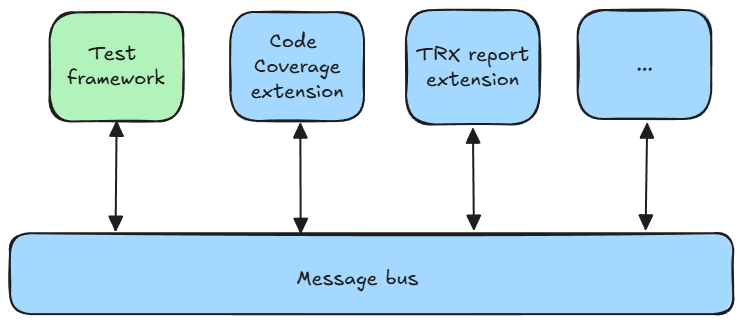
拡張機能とテスト フレームワークを含む図に示すように、バスに情報をプッシュするか、バスから情報を使用するかの 2 つの潜在的なアクションがあります。
IMessageBusバスへのプッシュ アクションを満たしており、API は次のとおりです。
public interface IMessageBus
{
    Task PublishAsync(
        IDataProducer dataProducer,
        IData data);
}

public interface IDataProducer : IExtension
{
    Type[] DataTypesProduced { get; }
}

public interface IData
{
    string DisplayName { get; }
    string? Description { get; }
}
パラメーターの詳細については、次の点を考慮してください。
IDataProducer:IDataProducerは、提供できる情報のTypeをメッセージ バスに通信し、基本インターフェイス IExtension からの継承を通じて所有権を確立します。 これは、メッセージ バスに無差別にデータをプッシュできないことを意味します。事前に生成されたデータ型を宣言する必要があります。 予期しないデータをプッシュすると、例外がトリガーされます。IData: このインターフェイスは、名前や説明などの説明の詳細のみを指定する必要があるプレースホルダーとして機能します。 インターフェイスでは、意図的なデータの性質についてはあまり明らかにされません。 これは、テスト フレームワークと拡張機能が任意の種類のデータをバスにプッシュできることを意味します。このデータは、登録されている拡張機能またはテスト フレームワーク自体で使用できます。
このアプローチにより、情報交換プロセスの進化を促進し、拡張機能が新しいデータに対応していない場合に破壊的な変更を防ぐことができます。 これにより、異なるバージョンの拡張機能とテスト フレームワークが相互理解に基づいて調和して動作できるようになります。
バスの反対側の端は コンシューマ と呼ばれ、特定の種類のデータを購読して消費できます。
Von Bedeutung
常にawaitを使用してPublishAsyncの呼び出しを行ってください。 そうしないと、テスト プラットフォームと拡張機能によって IData が正しく処理されず、微妙なバグが発生する可能性があります。
await から戻って初めて、IData がメッセージバスでの処理のためにキューに入れられていることを確認できます。 作業中の拡張ポイントに関係なく、拡張機能を終了する前に、すべての PublishAsync 呼び出しを待機していることを確認します。 たとえば、testing frameworkを実装する場合は、そのCompleteのすべての呼び出しを待機するまで、要求に対してPublishAsyncを呼び出さないでください。
IOutputDevice サービス
テスト プラットフォームは 、出力デバイスの概念をカプセル化し、現在利用されているディスプレイ システムに任意の種類のデータを送信することで、テスト フレームワークと拡張機能が情報を 提示 できるようにします。
出力デバイスの最も従来の例は、コンソール出力です。
注
テスト プラットフォームはカスタム 出力デバイスをサポートするように設計されていますが、現時点では、この拡張ポイントは使用できません。
出力デバイスにデータを送信するには、IOutputDeviceからIServiceProviderを取得する必要があります。
API は次で構成されます。
public interface IOutputDevice
{
    Task DisplayAsync(
        IOutputDeviceDataProducer producer,
        IOutputDeviceData data,
        CancellationToken cancellationToken);
}

public interface IOutputDeviceDataProducer : IExtension
{
}

public interface IOutputDeviceData
{
}
IOutputDeviceDataProducerはIExtensionを拡張し、送信側に関する情報を出力デバイスに提供します。
IOutputDeviceDataはプレースホルダー インターフェイスとして機能します。
IOutputDeviceの背後にある概念は、単なる色付きのテキストよりも複雑な情報に対応するためです。 たとえば、グラフィカルに表すことができる複雑なオブジェクトである可能性があります。
テスト プラットフォームでは、既定で、 IOutputDeviceData オブジェクトの従来の色付きテキスト モデルが提供されます。
public class TextOutputDeviceData : IOutputDeviceData
{
    public TextOutputDeviceData(string text)
    public string Text { get; }
}

public sealed class FormattedTextOutputDeviceData : TextOutputDeviceData
{
    public FormattedTextOutputDeviceData(string text)
    public IColor? ForegroundColor { get; init; }
    public IColor? BackgroundColor { get; init; }
}

public sealed class SystemConsoleColor : IColor
{
    public ConsoleColor ConsoleColor { get; init; }
}
アクティブな出力デバイスで色付きのテキストを使用する方法の例を次に示します。
IServiceProvider provider = null; // Get the service provider...

var outputDevice = provider.GetOutputDevice();

await outputDevice.DisplayAsync(
    this,
    new FormattedTextOutputDeviceData($"TestingFramework version '{Version}' running tests with parallelism of {_dopValue}")
    {
        ForegroundColor = new SystemConsoleColor
        {
            ConsoleColor = ConsoleColor.Green
        }
    },
    CancellationToken.None);
色付きテキストの標準的な使用以外に、 IOutputDevice と IOutputDeviceData の主な利点は、 出力デバイス が完全に独立しており、ユーザーに知られていないということです。 これにより、複雑なユーザー インターフェイスを開発できます。 たとえば、テストの進行状況を表示する リアルタイム Web アプリケーションを実装することは完全に可能です。
IPlatformInformation サービス
試験的な IPlatformInformation サービスは、プラットフォームの Name、オプションの Version、オプションの CommitHash、およびオプションの BuildDateを提供します。
GitHub で Microsoft と共同作業する
このコンテンツのソースは GitHub にあります。そこで、issue や pull request を作成および確認することもできます。 詳細については、共同作成者ガイドを参照してください。

.NET