適用対象:  外部テナント (詳細)
このチュートリアルでは、ネイティブ認証の JavaScript SDK を使用して、React シングルページ アプリケーション (SPA) に多要素認証 (MFA) を追加する方法について説明します。
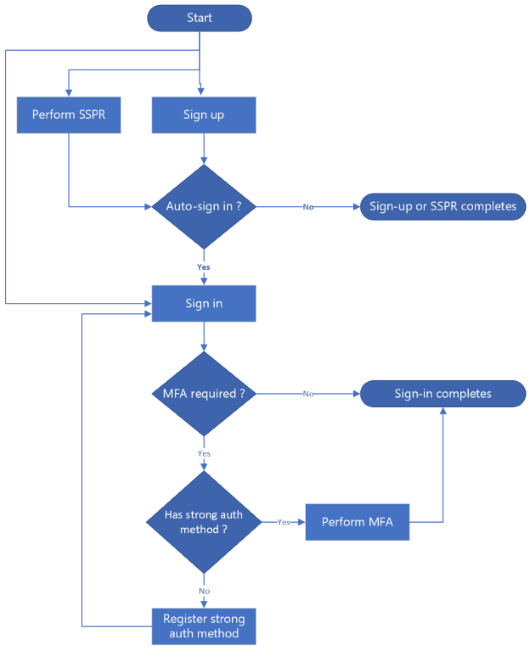
強力な認証方法の登録と同様に、MFA フローは次の 3 つのシナリオで発生します。
- サインイン中: ユーザーはサインインし、強力な認証方法が登録されています。
- サインアップ後: ユーザーがサインアップを完了したら、サインインに進みます。 新しいユーザーは、MFA チャレンジ の前に強力な認証方法を登録 する必要があります。 強力な認証方法も登録中に検証されるため、追加の MFA チャレンジを求められない場合があります。
- セルフサービス パスワード リセット (SSPR) 後: ユーザーはパスワードを正常にリセットし、自動的にサインインに進みます。 ユーザーに強力な認証方法が登録されている場合は、MFA チャレンジを完了するように求められます。
MFA が必要な場合、ユーザーは登録済みの方法の一覧から MFA チャレンジ方法を選択します。 使用できるオプションは、ユーザーが以前に登録した内容に応じて、 電子メール ワンタイム パスコード、 SMS ワンタイム パスコード、またはその両方です。
次のフロー図は、次の 3 つのシナリオを示しています。
[前提条件]
- サインアップ、サインイン、パスワードリセット、および強力な認証方法の登録に関するチュートリアルの手順を完了します。
- Visual Studio Code または別のコード エディター。
- Node.js.
- アプリの多要素認証 (MFA) を有効にします。
アプリで多要素認証を処理できるようにする
React アプリで MFA を有効にするには、必要な機能を追加してアプリの構成を更新します。
src/config/auth-config.ts ファイルを見つけます。
customAuthオブジェクトで、次のコード スニペットに示すように、capabilitiesプロパティを追加または更新して、配列にmfa_required値を含めます。const customAuthConfig: CustomAuthConfiguration = { customAuth: { ... capabilities: ["mfa_required"], ... }, ... };
機能の値 mfa_required は、アプリが MFA フローを処理できることをMicrosoft Entraに通知します。
ネイティブ認証チャレンジの種類と機能の詳細について説明します。
UI コンポーネントを作成する
MFA フローをサポートするには、アプリのフォーム コンポーネントが必要です。 これらのコンポーネントをアプリに追加するには、次の手順に従います。
- 再利用可能なコンポーネント用の新しいフォルダー src/app/shared/components を作成します (まだ存在しない場合)。
- 新しいフォルダーで、 MfaAuthMethodSelectionForm.tsx という名前のファイルを作成して、ユーザーが登録済みの強力な認証方法を選択できるフォームを表示します。 MfaAuthMethodSelectionForm 内のコードをファイルに追加します。
- 新しいフォルダーで、 MfaChallengeForm.tsx という名前の別のファイルを作成し、ユーザーが受け取るワンタイム パスコードを使用して強力な認証方法を確認するためのフォームを表示します。 MfaChallengeForm のコードをファイルに追加します。
必要に応じて、サインインに再利用可能なコンポーネントをインポートして使用したり、サインアップ後にサインインしたり、SSPR フロー後にサインインしたりすることができます。
サインイン時に多要素認証を処理する
サインイン中にアプリが MFA フローを処理できるように 、src/app/sign-in/page.tsx ファイルを更新します。 page.tsxの完全なコードを参照してください。
次のコード スニペットに示すように、必要な型とコンポーネントをインポートします。
import {
    CustomAuthPublicClientApplication,
    ICustomAuthPublicClientApplication,
    SignInCodeRequiredState,
    SignInCompletedState,
    AuthFlowStateBase,
    MfaAwaitingState,
    MfaVerificationRequiredState,
} from "@azure/msal-browser/custom-auth";
import { MfaAuthMethodSelectionForm } from "../components/shared/MfaAuthMethodSelectionForm";
import { MfaChallengeForm } from "../components/shared/MfaChallengeForm";
MFA の新しい状態変数を追加します。
export default function SignIn() { ... // MFA states const [mfaAuthMethods, setMfaAuthMethods] = useState<AuthenticationMethod[]>([]); const [selectedMfaAuthMethod, setSelectedMfaAuthMethod] = useState<AuthenticationMethod | undefined>(undefined); const [mfaChallenge, setMfaChallenge] = useState(""); // ... initialization code }startSignIn、handlePasswordSubmit、およびhandleCodeSubmit関数を更新して、MFA が必要かどうかを確認します。const startSignIn = async (e: React.FormEvent) => { // Start the sign-in flow const result = await authClient.signIn({ username, }); ... if (result.isMfaRequired()) { const methods = result.state.getAuthMethods(); setMfaAuthMethods(methods); setSelectedMfaAuthMethod(methods.length > 0 ? methods[0] : undefined); } ... }; const handlePasswordSubmit = async (e: React.FormEvent) => { if (signInState instanceof SignInPasswordRequiredState) { const result = await signInState.submitPassword(password); ... // Check for MFA requirement if (result.isMfaRequired()) { const methods = result.state.getAuthMethods(); setMfaAuthMethods(methods); setSelectedMfaAuthMethod(methods.length > 0 ? methods[0] : undefined); setSignInState(result.state); } ... } }; const handleCodeSubmit = async (e: React.FormEvent) => { if (signInState instanceof SignInCodeRequiredState) { const result = await signInState.submitCode(code); ... // Check for MFA requirement if (result.isMfaRequired()) { const methods = result.state.getAuthMethods(); setMfaAuthMethods(methods); setSelectedMfaAuthMethod(methods.length > 0 ? methods[0] : undefined); setSignInState(result.state); } ... } };各関数で、次のコード スニペットを使用して MFA が必要かどうかを確認します。
if (result.isMfaRequired()) {...}MFA チャレンジ選択のハンドラーを追加します。
const handleMfaAuthMethodSubmit = async (e: React.FormEvent) => {
    e.preventDefault();
    setError("");
    setLoading(true);

    if (!selectedMfaAuthMethod) {
        setError("Please select an authentication method.");
        setLoading(false);
        return;
    }

    if (signInState instanceof MfaAwaitingState) {
        const result = await signInState.requestChallenge(selectedMfaAuthMethod.id);

        if (result.isFailed()) {
            if (result.error?.isInvalidInput()) {
                setError("Incorrect verification contact.");
            } else {
                setError(
                    result.error?.errorData?.errorDescription ||
                        "An error occurred while verifying the authentication method"
                );
            }
        }

        if (result.isVerificationRequired()) {
            setSignInState(result.state);
        }
    }

    setLoading(false);
};
MFA チャレンジ検証のハンドラーを追加します。
const handleMfaChallengeSubmit = async (e: React.FormEvent) => { e.preventDefault(); setError(""); setLoading(true); if (!mfaChallenge) { setError("Please enter a code."); setLoading(false); return; } if (signInState instanceof MfaVerificationRequiredState) { const result = await signInState.submitChallenge(mfaChallenge); if (result.isFailed()) { if (result.error?.isIncorrectChallenge()) { setError("Incorrect code."); } else { setError( result.error?.errorData?.errorDescription || "An error occurred while verifying the challenge response" ); } } if (result.isCompleted()) { setData(result.data); setCurrentSignInStatus(true); setSignInState(result.state); } } setLoading(false); };renderForm()関数を更新して、正しい MFA チャレンジ フォーム (MFA チャレンジ方法の選択または MFA チャレンジ方法の検証) を表示します。const renderForm = () => { if (loadingAccountStatus) { return; } ... // Display MfaAuthMethodSelectionForm if the current state is MFA awaiting state if (signInState instanceof MfaAwaitingState) { return ( <MfaAuthMethodSelectionForm onSubmit={handleMfaAuthMethodSubmit} authMethods={mfaAuthMethods} selectedAuthMethod={selectedMfaAuthMethod} setSelectedAuthMethod={setSelectedMfaAuthMethod} loading={loading} styles={styles} /> ); } // Display MfaChallengeForm if the current state is MFA verification required state if (signInState instanceof MfaVerificationRequiredState) { return ( <MfaChallengeForm onSubmit={handleMfaChallengeSubmit} challenge={mfaChallenge} setChallenge={setMfaChallenge} loading={loading} styles={styles} /> ); } ... };
サインアップまたはパスワードのリセット後に多要素認証を処理する
サインアップとパスワードのリセット後の MFA フローは、サインイン フローの MFA と同様に機能します。 サインアップまたはパスワードのリセットが成功すると、SDK は自動的にサインイン フローを続行できます。 ユーザーに強力な認証方法が登録されている場合、フローは MFA チャレンジ検証に移行します。
サインアップ後の多要素認証の処理
サインアップ後の MFA フローの場合は、 /src/app/sign-up/page.tsx ファイルを更新する 必要があります。 page.tsxの完全なコードを参照してください。
必要な型とコンポーネントをインポートしてください。
サインイン フローで発生するのと同様の方法で MFA 要件の状態を処理します。サインアップが正常に完了したら、次のコード スニペットに示すように、結果を使用して自動的にサインイン フローをトリガーします。
// In your sign-up completion handler
if (signUpState instanceof SignUpCompletedState) {
    // Continue with sign-in using the continuation token
    const result = await signUpState.signIn();

    ...

    if (result.isMfaRequired()) {
        const methods = result.state.getAuthMethods();
        setMfaAuthMethods(methods);
        setSelectedMfaAuthMethod(methods.length > 0 ? methods[0] : undefined);
        setSignUpState(state);
    }

    ...
}

// Then use the same renderForm logic to display MfaAuthMethodSelectionForm
// and MfaChallengeForm components
パスワードリセット後の多要素認証の処理
SSPR 後の MFA フローの場合は、 /src/app/reset-password/page.tsx ファイルを更新する 必要があります。 page.tsxの完全なコードを参照してください。
必要な型とコンポーネントをインポートしてください。
サインイン フローと同様の方法で MFA 要件の状態を処理します。 SSPRS が正常に完了したら、次のコード スニペットに示すように、結果を使用して自動的にサインインをトリガーできます。
// In your password reset completion handler
if (resetPasswordState instanceof ResetPasswordCompletedState) {
    // Continue with sign-in using the continuation token
    const result = await signUpState.signIn();

    ...

    if (result.isMfaRequired()) {
        const methods = result.state.getAuthMethods();
        setMfaAuthMethods(methods);
        setSelectedMfaAuthMethod(methods.length > 0 ? methods[0] : undefined);
        setResetState(state);
    }

    ...
}

// Then use the same renderForm logic to display MfaAuthMethodSelectionForm
// and MfaChallengeForm components
アプリを実行してテストする
アプリをテストする前に、強力な認証方法が登録されているユーザー アカウントがあることを確認します。 アプリの実行とテストの手順を参照してアプリを実行しますが、今回は MFA フローのテストに重点を置きます。