UIPickerView を使用すると、ホイールに似たインターフェイスの個々のコンポーネントをスクロールすることで、リストから値を選択できます。
ピッカーは、日付と時刻を選択するために頻繁に使用されます。Apple からは、この目的のために UIDatePicker クラスが提供されています。
この記事では、UIPickerView および UIDatePicker コントロールを実装して使用する方法について説明します。
UIPickerView
ピッカーの実装
UIPickerView の新しいインスタンスを作成して、ピッカーを実装します。
UIPickerView pickerView = new UIPickerView(
    new CGRect(
        UIScreen.MainScreen.Bounds.X - UIScreen.MainScreen.Bounds.Width,
        UIScreen.MainScreen.Bounds.Height - 230,
        UIScreen.MainScreen.Bounds.Width,
        180
    )
);
ピッカーとストーリーボード
iOS デザイナーでピッカーを作成するには、[ツールボックス] からデザイン画面にピッカー ビューをドラッグします。
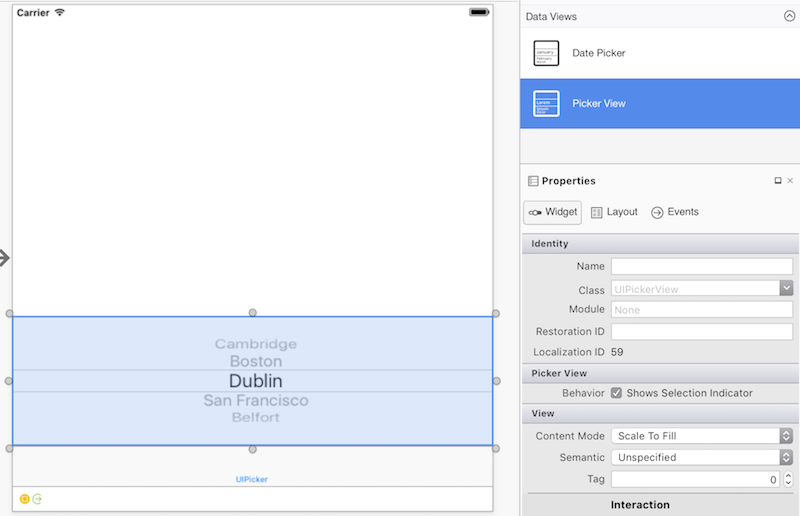
ピッカー コントロールの操作
ピッカーでデータを操作するには、"モデル" を使用します。
public override void ViewDidLoad()
{
    base.ViewDidLoad();
    var pickerModel = new PeopleModel(personLabel);
    personPicker.Model = pickerModel;
}
UIPickerViewModel 基底クラスで実装する 2 つのインターフェイスである、IUIPickerDataSource と IUIPickerViewDelegate により、ピッカーのデータと対話処理方法を指定するさまざまなメソッドを宣言します。
public class PeopleModel : UIPickerViewModel
{
    public string[] names = new string[] {
            "Amy Burns",
            "Kevin Mullins",
            "Craig Dunn",
            "Joel Martinez",
            "Charles Petzold",
            "David Britch",
            "Mark McLemore",
            "Tom Opegenorth",
            "Joseph Hill",
            "Miguel De Icaza"
        };

    private UILabel personLabel;

    public PeopleModel(UILabel personLabel)
    {
        this.personLabel = personLabel;
    }

    public override nint GetComponentCount(UIPickerView pickerView)
    {
        return 2;
    }

    public override nint GetRowsInComponent(UIPickerView pickerView, nint component)
    {
        return names.Length;
    }

    public override string GetTitle(UIPickerView pickerView, nint row, nint component)
    {
        if (component == 0)
            return names[row];
        else
            return row.ToString();
    }

    public override void Selected(UIPickerView pickerView, nint row, nint component)
    {
        personLabel.Text = $"This person is: {names[pickerView.SelectedRowInComponent(0)]},\n they are number {pickerView.SelectedRowInComponent(1)}";
    }

    public override nfloat GetComponentWidth(UIPickerView picker, nint component)
    {
        if (component == 0)
            return 240f;
        else
            return 40f;
    }

    public override nfloat GetRowHeight(UIPickerView picker, nint component)
    {
        return 40f;
    }
ピッカーには、複数の列または "コンポーネント" を含めることができます。 コンポーネントはピッカーを複数のセクションに分割し、より簡単でより明確なデータ選択を可能にします。
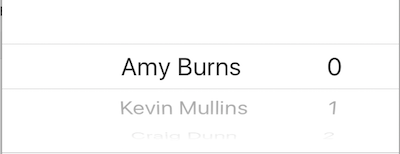
ピッカー内のコンポーネントの数を指定するには、以下を使用します: GetComponentCount メソッド。
ピッカーの外観のカスタマイズ
ピッカーの外観をカスタマイズするには、UIPickerView.UIPickerViewAppearance クラスを使用するか、UIPickerViewModel で GetView および GetRowHeight メソッドをオーバーライドします。
UIDatePicker
日付ピッカーの実装
日付ピッカーを実装するには、UIDatePicker のインスタンスを作成します。
UIPickerView pickerView = new UIPickerView(
    new CGRect(
        UIScreen.MainScreen.Bounds.X - UIScreen.MainScreen.Bounds.Width,
        UIScreen.MainScreen.Bounds.Height - 230,
        UIScreen.MainScreen.Bounds.Width,
        180
     )
);
日付ピッカーとストーリーボード
iOS デザイナーで日付ピッカーを作成するには、[ツールボックス] からデザイン画面に日付ピッカーをドラッグします。
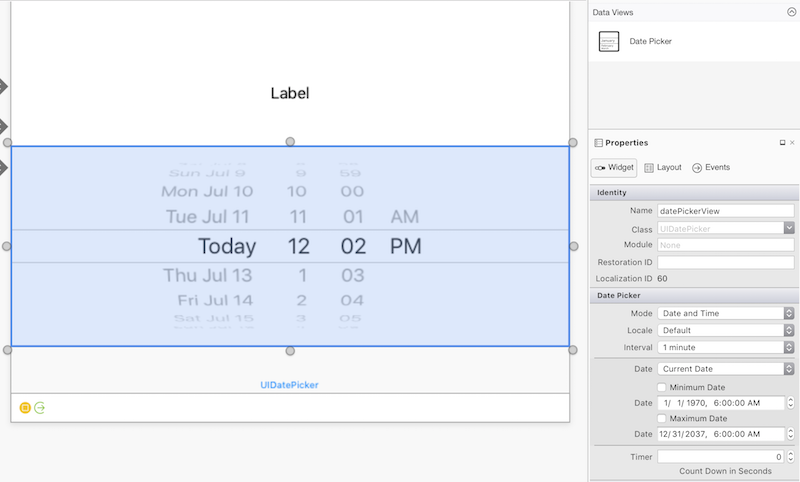
日付ピッカーのプロパティ
日付の最小値と最大値
MinimumDate と MaximumDate は、日付ピッカーで選択できる日付の範囲を制限します。 たとえば、次のコードは日付ピッカーを現時点までの 60 年間に制約します。
var calendar = new NSCalendar(NSCalendarType.Gregorian);
var currentDate = NSDate.Now;
var components = new NSDateComponents();
components.Year = -60;
NSDate minDate = calendar.DateByAddingComponents(components, currentDate, NSCalendarOptions.None);
datePickerView.MinimumDate = minDate;
datePickerView.MaximumDate = currentDate;
ヒント
明示的に DateTime を NSDate にキャストできます。
DatePicker.MinimumDate = (NSDate)DateTime.Today.AddDays (-7);
DatePicker.MaximumDate = (NSDate)DateTime.Today.AddDays (7);
分の間隔
MinuteInterval プロパティは、ピッカーに分を表示する間隔を設定します。
datePickerView.MinuteInterval = 10;
モード
日付ピッカーでは、次に示す 4 つのモードがサポートされています。
UIDatePickerMode.Time
UIDatePickerMode.Time は、時間と分のセレクターとオプションの AM または PM の指定を含めて時刻を表示します。
datePickerView.Mode = UIDatePickerMode.Time;
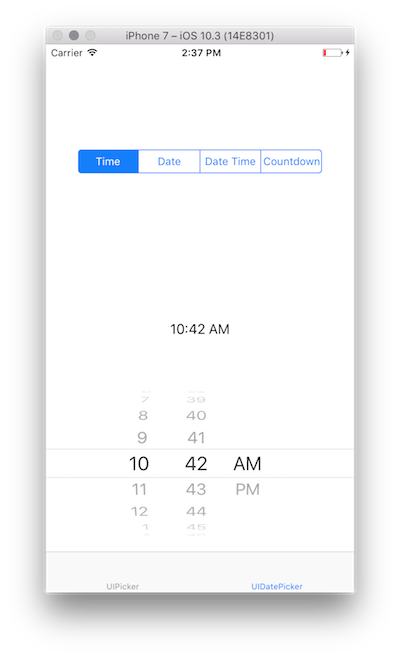
UIDatePickerMode.Date
UIDatePickerMode.Date は、月、日、年セレクターを含めて日付を表示します。
datePickerView.Mode = UIDatePickerMode.Date;
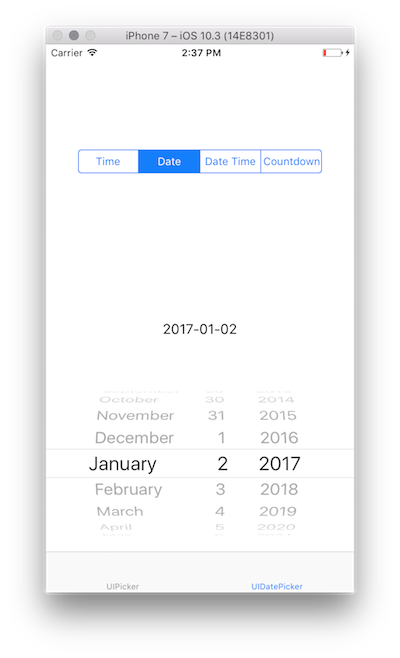
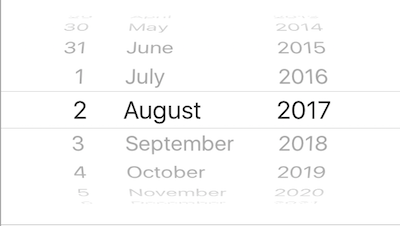
セレクターの順序は日付ピッカーのロケールによって異なり、既定ではシステム ロケールが使用されます。 上の図は en_US ロケールでのセレクターのレイアウトを示していますが、以下では順序が 日 | 月 | 年 に変わっています。
datePickerView.Locale = NSLocale.FromLocaleIdentifier("en_GB");
UIDatePickerMode.DateAndTime
UIDatePickerMode.DateAndTime には、日付の短縮ビュー、時間と分での時刻、オプションの AM または PM の指定が表示されます (12 と 24 のどちらの時間制が使用されているかによって異なります)。
datePickerView.Mode = UIDatePickerMode.DateAndTime;
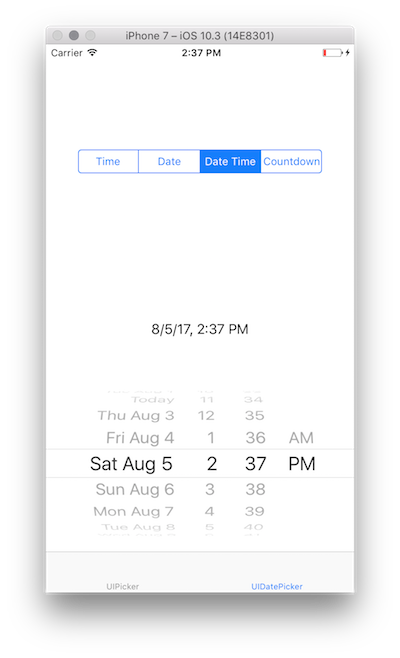
UIDatePickerMode.Date と同様に、セレクターの順序と 12 または 24 時間制の使用は、日付ピッカーのロケールによって異なります。
ヒント
Date プロパティを使用して、モード UIDatePickerMode.Time、UIDatePickerMode.Date、または UIDatePickerMode.DateAndTime で日付ピッカーの値を取得します。 この値は、NSDate として保存されます。
UIDatePickerMode.CountDownTimer
UIDatePickerMode.CountDownTimer は、時間と分の値を表示します。
datePickerView.Mode = UIDatePickerMode.CountDownTimer;
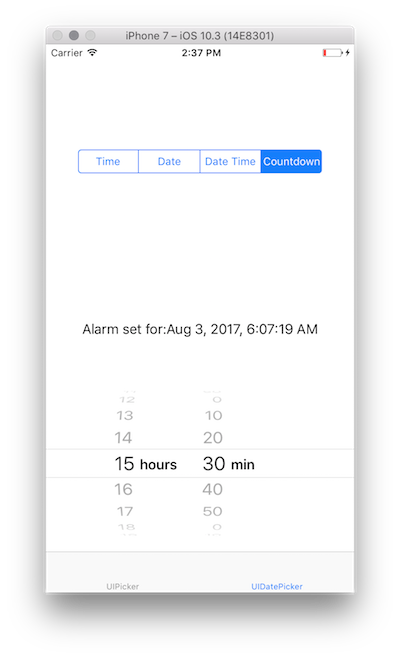
CountDownDuration プロパティは、日付ピッカーの値を UIDatePickerMode.CountDownTimer モードで取得します。 たとえば、カウントダウン値を現在の日付に追加するには、次のようにします。
var currentTime = NSDate.Now;
var countDownTimerTime = datePickerView.CountDownDuration;
var finishCountdown = currentTime.AddSeconds(countDownTimerTime);

dateLabel.Text = "Alarm set for:" + coundownTimeformat.ToString(finishCountdown);
NSDateFormatter
NSDate を書式設定するには、NSDateFormatter を使用します。
NSDateFormatter を使用するには、その ToString メソッドを呼び出します。 次に例を示します。
var date = NSDate.Now;
var formatter = new NSDateFormatter();
formatter.DateStyle = NSDateFormatterStyle.Full;
formatter.TimeStyle = NSDateFormatterStyle.Full;
var formattedDate = formatter.ToString(d);
// Tuesday, August 14, 2018 at 11:20:42 PM Mountain Daylight Time
DateFormat
NSDateFormatter の DateFormat プロパティ (文字列) を使用して、カスタマイズ可能な日付形式を指定できます。
NSDateFormatter dateFormat = new NSDateFormatter();
dateFormat.DateFormat = "yyyy-MM-dd";
TimeStyle
NSDateFormatter の TimeStyle プロパティ (NSDateFormatterStyle) は、事前に定義されたスタイルに基づいて時刻の書式を指定します。
NSDateFormatter timeFormat = new NSDateFormatter();
timeFormat.TimeStyle = NSDateFormatterStyle.Short;
さまざまな NSDateFormatterStyle 値により、次のように時刻を表示します。
NSDateFormatterStyle.Full: 7:46:00 PM 東部夏時間NSDateFormatterStyle.Long: 7:47:00 PM EDTNSDateFormatterStyle.Medium: 7:47:00 PMNSDateFormatterSytle.Short: 7:47 PM
DateStyle
NSDateFormatter の DateStyle プロパティ (NSDateFormatterStyle) は、事前に定義されたスタイルに基づいて日付の書式を指定します。
NSDateFormatter dateTimeformat = new NSDateFormatter();
dateTimeformat.DateStyle = NSDateFormatterStyle.Long;
さまざまな NSDateFormatterStyle 値により、次のように日付が表示されます。
NSDateFormatterStyle.Full: Wednesday, August 2, 2017 at 7:48 PMNSDateFormatterStyle.Long: August 2, 2017 at 7:49 PMNSDateFormatterStyle.Medium: Aug 2, 2017, 7:49 PMNSDateFormatterStyle.Short: 8/2/17, 7:50 PM
Note
DateFormat と DateStyle/TimeStyle は、日付と時刻の書式を指定するさまざまな方法を提供します。 最後に設定したプロパティによって、日付フォーマッタの出力が決まります。