Model-View-ViewModel アーキテクチャでは、データ バインディングは、ViewModel のプロパティ (一般に、INotifyPropertyChanged の派生クラスです) と、View のプロパティ (一般に、XAML ファイルです) の間で定義されます。 アプリケーションでは、ViewModel 内の何かに影響を与えるコマンドをユーザーが開始しなければならないようにすることで、これらのプロパティ バインディングを拡張することが必要な場合があります。 通常、このようなコマンドはボタンのクリックや指のタップによって通知され、従来は、Button の Clicked のイベントまたは TapGestureRecognizer の Tapped イベントに対するハンドラーの分離コード ファイル内で処理されます。
コマンド実行インターフェイスでは、MVVM アーキテクチャにいっそうよく適した代わりのコマンド実装方法が提供されます。 ViewModel 自体にコマンドを含めることができます。その場合のコマンドは、Button クリックのような View 内の特定のアクティビティに対応して実行されるメソッドです。 データ バインディングは、これらのコマンドと Button の間で定義されます。
Button と ViewModel の間のデータ バインディングを可能にするには、Button で 2 つのプロパティを定義します。
Command(System.Windows.Input.ICommand型)CommandParameter(Object型)
コマンド インターフェイスを使用するには、ソースが ViewModel 内の ICommand 型のプロパティで、ターゲットが Button の Command プロパティであるデータ バインディングを定義します。 ViewModel にはその ICommand プロパティに関連付けられたコードが含まれており、ボタンがクリックされると実行されます。 複数のボタンがすべて ViewModel 内の同じ ICommand プロパティにバインドされている場合、CommandParameter に任意のデータを設定して、ボタンを区別できます。
Command プロパティと CommandParameter プロパティは、次のクラスで定義することもできます。
MenuItem、従ってMenuItemから派生するToolbarItemTextCell、従ってTextCellから派生するImageCellTapGestureRecognizer
SearchBar では、ICommand 型の SearchCommand プロパティと、SearchCommandParameter プロパティが定義されています。 ListView の RefreshCommand プロパティも ICommand 型です。
これらのコマンドはすべて、View 内の特定のユーザー インターフェイス オブジェクトに依存しない方法で、ViewModel 内で処理できます。
ICommand インターフェイス
System.Windows.Input.ICommand インターフェイスは、Xamarin.Forms の一部ではありません。 System.Windows.Input 名前空間内で定義されており、2 つのメソッドと 1 つのイベントで構成されます。
public interface ICommand
{
    public void Execute (Object parameter);

    public bool CanExecute (Object parameter);

    public event EventHandler CanExecuteChanged;
}
コマンド インターフェイスを使用するには、ViewModel に ICommand 型のプロパティを組み込みます。
public ICommand MyCommand { private set; get; }
ViewModel では、ICommand インターフェイスを実装するクラスも参照する必要があります。 このクラスについては後で説明します。 View では、Button の Command プロパティがそのプロパティにバインドされます。
<Button Text="Execute command"
        Command="{Binding MyCommand}" />
ユーザーが Button をクリックすると、Button では、その Command プロパティにバインドされた ICommand オブジェクトの Execute メソッドが呼び出されます。 それは、コマンド実行インターフェイスの最もシンプルな部分です。
CanExecute メソッドはもっと複雑です。 Button の Command プロパティでバインディングが最初に定義されるとき、およびどこかでデータ バインディングが変更されるときに、Button は ICommand オブジェクトの CanExecute メソッドを呼び出します。 CanExecute から false が返されると、Button はそれ自体を無効にします。 これは、特定のコマンドが現在使用できないか無効であることを示します。
また、Button では、ICommand の CanExecuteChanged イベントでハンドラーがアタッチされます。 そのイベントは ViewModel 内から生成されます。 そのイベントが生成されると、Button では CanExecute が再び呼び出されます。 CanExecute から true が返されると Button は有効になり、CanExecute から false が返されると無効になります。
重要
コマンド インターフェイスを使用している場合は、Button の IsEnabled プロパティを使用しないでください。
Command クラス
ViewModel で ICommand 型のプロパティを定義するときは、ICommand インターフェイスを実装するクラスも ViewModel に含まれるか、または ViewModel で参照されている必要があります。 このクラスでは、Execute および CanExecute メソッドが含まれるか参照されていて、CanExecute メソッドで異なる値が返されたときは常に CanExecuteChanged イベントが生成される必要があります。
このようなクラスは、自分で作成しても、他で作成されたものを使用してもかまいません。 ICommand は Microsoft Windows の一部なので、何年も Windows MVVM アプリケーションで使用されてきました。 ICommand を実装する Windows クラスを使用すると、Windows アプリケーションと Xamarin.Forms アプリケーションの間で、ViewModel を共有できます。
Windows と Xamarin.Forms の間で ViewModel を共有する必要がない場合は、Xamarin.Forms に含まれる Command または Command<T> クラスを使用して、ICommand インターフェイスを実装できます。 これらのクラスを使用すると、クラスのコンストラクターで Execute および CanExecute メソッドの本体を指定できます。 同じ ICommand プロパティにバインドされている複数のビューを区別するために CommandParameter プロパティを使用する必要がある場合は Command<T> を使用し、その必要がない場合はより単純な Command クラスを使用します。
基本的なコマンド実行
Person Entry ページでは、ViewModel に実装されたいくつかの簡単なコマンドのデモが行われます。
PersonViewModel では、人を定義する Name、Age、Skills という名前の 3 つのプロパティが定義されています。 このクラスには、ICommand プロパティは含まれて "いません"。
public class PersonViewModel : INotifyPropertyChanged
{
    string name;
    double age;
    string skills;

    public event PropertyChangedEventHandler PropertyChanged;

    public string Name
    {
        set { SetProperty(ref name, value); }
        get { return name; }
    }

    public double Age
    {
        set { SetProperty(ref age, value); }
        get { return age; }
    }

    public string Skills
    {
        set { SetProperty(ref skills, value); }
        get { return skills; }
    }

    public override string ToString()
    {
        return Name + ", age " + Age;
    }

    bool SetProperty<T>(ref T storage, T value, [CallerMemberName] string propertyName = null)
    {
        if (Object.Equals(storage, value))
            return false;

        storage = value;
        OnPropertyChanged(propertyName);
        return true;
    }

    protected void OnPropertyChanged([CallerMemberName] string propertyName = null)
    {
        PropertyChanged?.Invoke(this, new PropertyChangedEventArgs(propertyName));
    }
}
次に示す PersonCollectionViewModel では、PersonViewModel 型の新しいオブジェクトを作成して、ユーザーがデータを入力できるようにしています。 そのため、クラスでは、bool 型の IsEditing プロパティと、PersonViewModel 型の PersonEdit プロパティが定義されています。 さらに、クラスでは、ICommand 型の 3 つのプロパティと、Persons という名前の IList<PersonViewModel> 型のプロパティが定義されています。
public class PersonCollectionViewModel : INotifyPropertyChanged
{
    PersonViewModel personEdit;
    bool isEditing;

    public event PropertyChangedEventHandler PropertyChanged;

    ···

    public bool IsEditing
    {
        private set { SetProperty(ref isEditing, value); }
        get { return isEditing; }
    }

    public PersonViewModel PersonEdit
    {
        set { SetProperty(ref personEdit, value); }
        get { return personEdit; }
    }

    public ICommand NewCommand { private set; get; }

    public ICommand SubmitCommand { private set; get; }

    public ICommand CancelCommand { private set; get; }

    public IList<PersonViewModel> Persons { get; } = new ObservableCollection<PersonViewModel>();

    bool SetProperty<T>(ref T storage, T value, [CallerMemberName] string propertyName = null)
    {
        if (Object.Equals(storage, value))
            return false;

        storage = value;
        OnPropertyChanged(propertyName);
        return true;
    }

    protected void OnPropertyChanged([CallerMemberName] string propertyName = null)
    {
        PropertyChanged?.Invoke(this, new PropertyChangedEventArgs(propertyName));
    }
}
この要約されたリストには、クラスのコンストラクターは含まれていません。ICommand 型の 3 つのプロパティが定義されているコンストラクターは後で示します。 ICommand 型の 3 つのプロパティおよび Persons プロパティが変更されても、PropertyChanged イベントが生成されないことに注意してください。 これらのプロパティはすべて、クラスが最初に作成されるときに設定され、その後は変更されません。
PersonCollectionViewModel クラスのコンストラクターを調べる前に、Person Entry プログラムの XAML ファイルを見てみましょう。 これには、BindingContext プロパティが PersonCollectionViewModel に設定された Grid が含まれています。 Grid には、ViewModel の NewCommand プロパティに Command プロパティがバインドされていて New というテキストが表示される Button、プロパティが IsEditing にバインドされている入力フォーム、PersonViewModel のプロパティ、および ViewModel の SubmitCommand プロパティと CancelCommand プロパティにバインドされている他の 2 つのボタンが含まれます。 最終的な ListView には、既に入力された人のコレクションが表示されます。
<ContentPage xmlns="http://xamarin.com/schemas/2014/forms"
             xmlns:x="http://schemas.microsoft.com/winfx/2009/xaml"
             xmlns:local="clr-namespace:DataBindingDemos"
             x:Class="DataBindingDemos.PersonEntryPage"
             Title="Person Entry">
    <Grid Margin="10">
        <Grid.BindingContext>
            <local:PersonCollectionViewModel />
        </Grid.BindingContext>

        <Grid.RowDefinitions>
            <RowDefinition Height="Auto" />
            <RowDefinition Height="Auto" />
            <RowDefinition Height="Auto" />
            <RowDefinition Height="*" />
        </Grid.RowDefinitions>

        <!-- New Button -->
        <Button Text="New"
                Grid.Row="0"
                Command="{Binding NewCommand}"
                HorizontalOptions="Start" />

        <!-- Entry Form -->
        <Grid Grid.Row="1"
              IsEnabled="{Binding IsEditing}">

            <Grid BindingContext="{Binding PersonEdit}">
                <Grid.RowDefinitions>
                    <RowDefinition Height="Auto" />
                    <RowDefinition Height="Auto" />
                    <RowDefinition Height="Auto" />
                </Grid.RowDefinitions>

                <Grid.ColumnDefinitions>
                    <ColumnDefinition Width="Auto" />
                    <ColumnDefinition Width="*" />
                </Grid.ColumnDefinitions>

                <Label Text="Name: " Grid.Row="0" Grid.Column="0" />
                <Entry Text="{Binding Name}"
                       Grid.Row="0" Grid.Column="1" />

                <Label Text="Age: " Grid.Row="1" Grid.Column="0" />
                <StackLayout Orientation="Horizontal"
                             Grid.Row="1" Grid.Column="1">
                    <Stepper Value="{Binding Age}"
                             Maximum="100" />
                    <Label Text="{Binding Age, StringFormat='{0} years old'}"
                           VerticalOptions="Center" />
                </StackLayout>

                <Label Text="Skills: " Grid.Row="2" Grid.Column="0" />
                <Entry Text="{Binding Skills}"
                       Grid.Row="2" Grid.Column="1" />

            </Grid>
        </Grid>

        <!-- Submit and Cancel Buttons -->
        <Grid Grid.Row="2">
            <Grid.ColumnDefinitions>
                <ColumnDefinition Width="*" />
                <ColumnDefinition Width="*" />
            </Grid.ColumnDefinitions>

            <Button Text="Submit"
                    Grid.Column="0"
                    Command="{Binding SubmitCommand}"
                    VerticalOptions="CenterAndExpand" />

            <Button Text="Cancel"
                    Grid.Column="1"
                    Command="{Binding CancelCommand}"
                    VerticalOptions="CenterAndExpand" />
        </Grid>

        <!-- List of Persons -->
        <ListView Grid.Row="3"
                  ItemsSource="{Binding Persons}" />
    </Grid>
</ContentPage>
そのしくみを次に示します。ユーザーは最初に [New] ボタンを押します。 これにより、入力フォームは有効になりますが、[New] ボタンは無効になります。 その後、ユーザーは名前、年齢、スキルを入力します。 編集中いつでも、ユーザーは [Cancel] ボタンを押して最初からやり直すことができます。 名前と有効な年齢が入力された場合にのみ、[Submit] ボタンが有効になります。 この [Submit] ボタンを押して、ListView に表示されているコレクションにユーザーを転送します。 [Cancel] または [Submit] ボタンを押すと、入力フォームがクリアされ、[New] ボタンが再び有効になります。
左側の iOS の画面には、有効な年齢を入力する前のレイアウトが表示されています。 Android 画面には、年齢を設定した後で有効になった [Submit] ボタンが表示されています。
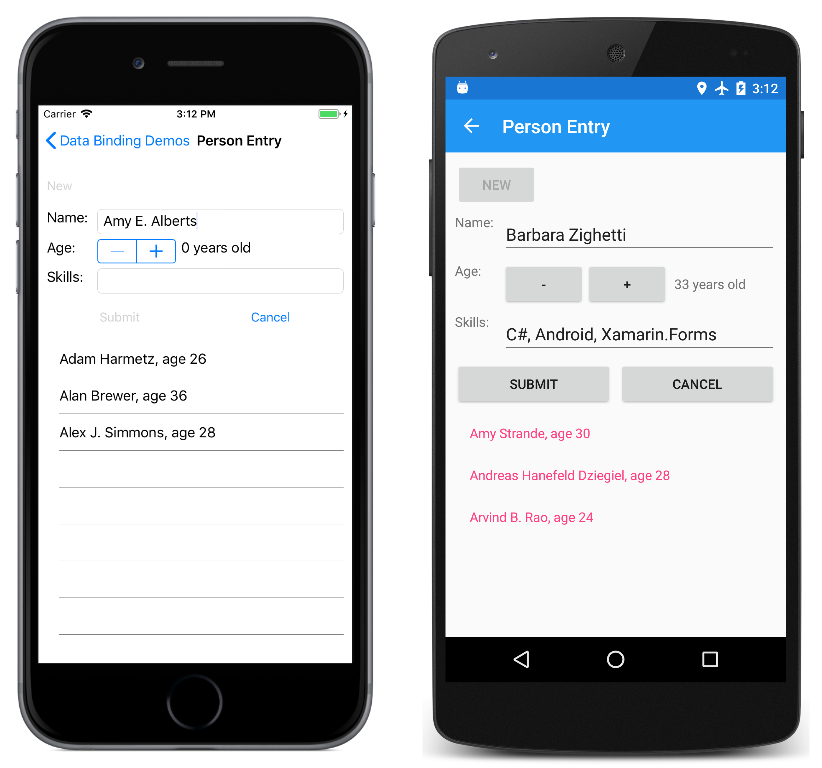
プログラムには既存のエントリを編集する機能はなく、別のページに移動するときにエントリが保存されません。
[New]、[Submit]、[Cancel] ボタンに対するすべてのロジックは、NewCommand、SubmitCommand、CancelCommand プロパティの定義によって PersonCollectionViewModel で処理されます。 PersonCollectionViewModel のコンストラクターでは、これら 3 つのプロパティに Command 型のオブジェクトが設定されます。
Command クラスのコンストラクターでは、Execute および CanExecute メソッドに対応する Action および Func<bool> 型の引数を渡すことができます。 Command コンストラクター内で直接ラムダ関数としてこれらのアクションと関数を定義するのが最も簡単です。 NewCommand プロパティに対する Command オブジェクトの定義を次に示します。
public class PersonCollectionViewModel : INotifyPropertyChanged
{

    ···

    public PersonCollectionViewModel()
    {
        NewCommand = new Command(
            execute: () =>
            {
                PersonEdit = new PersonViewModel();
                PersonEdit.PropertyChanged += OnPersonEditPropertyChanged;
                IsEditing = true;
                RefreshCanExecutes();
            },
            canExecute: () =>
            {
                return !IsEditing;
            });

        ···

    }

    void OnPersonEditPropertyChanged(object sender, PropertyChangedEventArgs args)
    {
        (SubmitCommand as Command).ChangeCanExecute();
    }

    void RefreshCanExecutes()
    {
        (NewCommand as Command).ChangeCanExecute();
        (SubmitCommand as Command).ChangeCanExecute();
        (CancelCommand as Command).ChangeCanExecute();
    }

    ···

}
ユーザーが [New] ボタンをクリックすると、Command コンストラクターに渡された execute 関数が実行されます。 これにより、新しい PersonViewModel オブジェクトが作成され、そのオブジェクトの PropertyChanged イベントにハンドラーが設定されて、IsEditing が true に設定された後、コンストラクターの後に定義されている RefreshCanExecutes メソッドが呼び出されます。
ICommand インターフェイスを実装するだけでなく、Command クラスでは ChangeCanExecute という名前のメソッドも定義されています。 ViewModel では、CanExecute メソッドの戻り値が変更されることが発生したときは常に、ICommand プロパティの ChangeCanExecute を呼び出す必要があります。 ChangeCanExecute を呼び出すと、Command クラスで CanExecuteChanged イベントが発生します。 Button では、そのイベントに対してハンドラーがアタッチされており、応答として CanExecute が再び呼び出され、そのメソッドの戻り値に基づいてそれ自体が有効にされます。
NewCommand の execute メソッドで RefreshCanExecutes が呼び出されると、NewCommand プロパティは ChangeCanExecute の呼び出しを取得します。Button では canExecute メソッドが呼び出されて、IsEditing プロパティが true であるためメソッドは false を返します。
新しい PersonViewModel オブジェクトの PropertyChanged ハンドラーでは、SubmitCommand の ChangeCanExecute メソッドが呼び出されます。 そのコマンド プロパティの実装方法を次に示します。
public class PersonCollectionViewModel : INotifyPropertyChanged
{

    ···

    public PersonCollectionViewModel()
    {

        ···

        SubmitCommand = new Command(
            execute: () =>
            {
                Persons.Add(PersonEdit);
                PersonEdit.PropertyChanged -= OnPersonEditPropertyChanged;
                PersonEdit = null;
                IsEditing = false;
                RefreshCanExecutes();
            },
            canExecute: () =>
            {
                return PersonEdit != null &&
                       PersonEdit.Name != null &&
                       PersonEdit.Name.Length > 1 &&
                       PersonEdit.Age > 0;
            });

        ···
    }

    ···

}
編集されている PersonViewModel オブジェクトでプロパティが変更されるたびに、SubmitCommand の canExecute 関数が呼び出されます。 それは、Name プロパティが 1 文字以上の長さで、Age が 0 より大きい場合にのみ、true を返します。 その時点で、[Submit] ボタンが有効になります。
[Submit] の execute 関数では、プロパティ変更ハンドラーが PersonViewModel から削除され、オブジェクトが Persons コレクションに追加されて、すべてのものが初期状態に戻されます。
[Cancel] ボタンの execute 関数で行われることは、コレクションへのオブジェクトの追加を除き、[Submit] ボタンで行われることと同じです。
public class PersonCollectionViewModel : INotifyPropertyChanged
{

    ···

    public PersonCollectionViewModel()
    {

        ···

        CancelCommand = new Command(
            execute: () =>
            {
                PersonEdit.PropertyChanged -= OnPersonEditPropertyChanged;
                PersonEdit = null;
                IsEditing = false;
                RefreshCanExecutes();
            },
            canExecute: () =>
            {
                return IsEditing;
            });
    }

    ···

}
canExecute メソッドでは、PersonViewModel が編集されているときは常に true が返されます。
これらの手法は、さらに複雑なシナリオに適用できます。既存の項目の編集用に ListView の SelectedItem プロパティに PersonCollectionViewModel のプロパティをバインドすることができ、項目を削除するために [Delete] ボタンを追加できます。
execute および canExecute メソッドをラムダ関数として定義する必要はありません。 ViewModel で通常のプライベート メソッドとして記述し、Command のコンストラクターでそれを参照できます。 ただし、この方法では、ViewModel 内で 1 回だけ参照されるメソッドが多くなる傾向があります。
コマンド パラメーターの使用
複数のボタン (または他のユーザー インターフェイス オブジェクト) で ViewModel の同じ ICommand プロパティを共有すると便利な場合があります。 この場合、CommandParameter プロパティを使用してボタンを区別します。
これらの共有 ICommand プロパティに対しては、Command クラスを引き続き使用できます。 クラスでは、Object 型のパラメーターを持つ execute および canExecute メソッドを受け付ける代替コンストラクターを定義します。 これが、これらのメソッドに CommandParameter を渡す方法です。
ただし、CommandParameter を使用するときは、ジェネリック Command<T> クラスを使用して、オブジェクトの型を CommandParameter に設定するように指定するのが最も簡単です。 指定した execute および canExecute メソッドは、その型のパラメーターを持つようになります。
Decimal Keyboard ページでは、10 進数を入力するためのキーパッドを実装する方法によって、この手法が示されています。 Grid に対する BindingContext は DecimalKeypadViewModel です。 この ViewModel の Entry プロパティは、Label の Text プロパティにバインドされます。 すべての Button オブジェクトは、ViewModel のさまざまなコマンド (ClearCommand、BackspaceCommand、DigitCommand) にバインドされます。
<ContentPage xmlns="http://xamarin.com/schemas/2014/forms"
xmlns:x="http://schemas.microsoft.com/winfx/2009/xaml"
xmlns:local="clr-namespace:DataBindingDemos"
x:Class="DataBindingDemos.DecimalKeypadPage"
Title="Decimal Keyboard">
<Grid WidthRequest="240"
HeightRequest="480"
ColumnSpacing="2"
RowSpacing="2"
HorizontalOptions="Center"
VerticalOptions="Center">
<Grid.BindingContext>
<local:DecimalKeypadViewModel />
</Grid.BindingContext>
<Grid.Resources>
<ResourceDictionary>
<Style TargetType="Button">
<Setter Property="FontSize" Value="32" />
<Setter Property="BorderWidth" Value="1" />
<Setter Property="BorderColor" Value="Black" />
</Style>
</ResourceDictionary>
</Grid.Resources>
<Label Text="{Binding Entry}"
Grid.Row="0" Grid.Column="0" Grid.ColumnSpan="3"
FontSize="32"
LineBreakMode="HeadTruncation"
VerticalTextAlignment="Center"
HorizontalTextAlignment="End" />
<Button Text="CLEAR"
Grid.Row="1" Grid.Column="0" Grid.ColumnSpan="2"
Command="{Binding ClearCommand}" />
<Button Text="⇦"
Grid.Row="1" Grid.Column="2"
Command="{Binding BackspaceCommand}" />
<Button Text="7"
Grid.Row="2" Grid.Column="0"
Command="{Binding DigitCommand}"
CommandParameter="7" />
<Button Text="8"
Grid.Row="2" Grid.Column="1"
Command="{Binding DigitCommand}"
CommandParameter="8" />
<Button Text="9"
Grid.Row="2" Grid.Column="2"
Command="{Binding DigitCommand}"
CommandParameter="9" />
<Button Text="4"
Grid.Row="3" Grid.Column="0"
Command="{Binding DigitCommand}"
CommandParameter="4" />
<Button Text="5"
Grid.Row="3" Grid.Column="1"
Command="{Binding DigitCommand}"
CommandParameter="5" />
<Button Text="6"
Grid.Row="3" Grid.Column="2"
Command="{Binding DigitCommand}"
CommandParameter="6" />
<Button Text="1"
Grid.Row="4" Grid.Column="0"
Command="{Binding DigitCommand}"
CommandParameter="1" />
<Button Text="2"
Grid.Row="4" Grid.Column="1"
Command="{Binding DigitCommand}"
CommandParameter="2" />
<Button Text="3"
Grid.Row="4" Grid.Column="2"
Command="{Binding DigitCommand}"
CommandParameter="3" />
<Button Text="0"
Grid.Row="5" Grid.Column="0" Grid.ColumnSpan="2"
Command="{Binding DigitCommand}"
CommandParameter="0" />
<Button Text="·"
Grid.Row="5" Grid.Column="2"
Command="{Binding DigitCommand}"
CommandParameter="." />
</Grid>
</ContentPage>
10 桁の数字と小数点を示す 11 個のボタンは、DigitCommand へのバインディングを共有します。 CommandParameter によって、これらのボタンが区別されます。 一般に、CommandParameter に設定される値はボタンによって表示されるテキストと同じですが、小数点だけは例外で、わかりやすくするために中黒の記号で表示されます。
動作中のプログラムを次に示します。
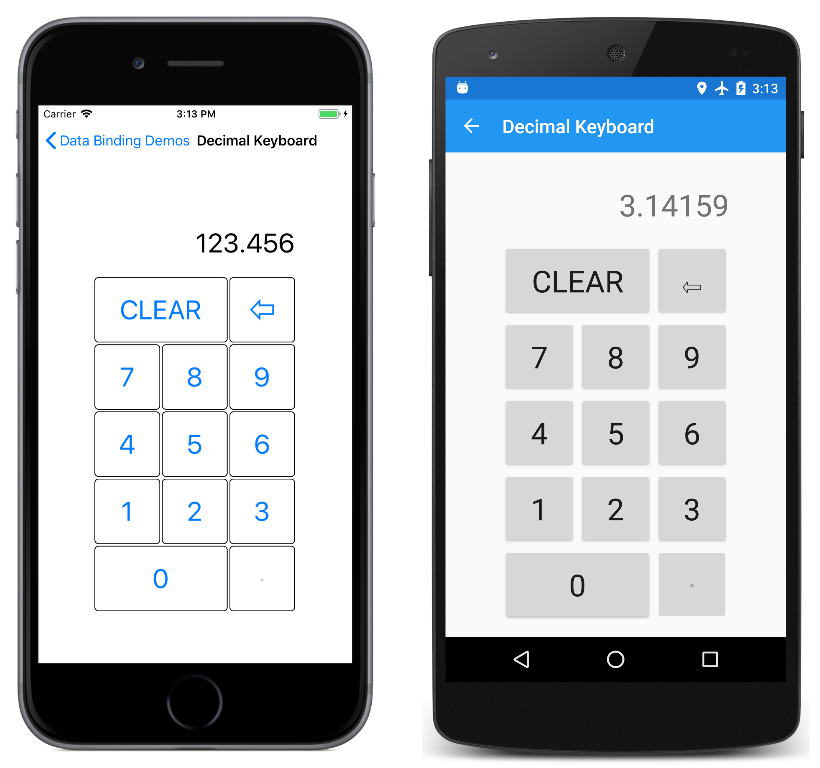
3 つのスクリーンショットすべてで、入力された数値に小数点が既に含まれているため、小数点のボタンが無効になっていることに注意してください。
DecimalKeypadViewModel では、string 型の Entry プロパティ (PropertyChanged イベントをトリガーする唯一のプロパティです) と、ICommand 型の 3 つのプロパティが定義されています。
public class DecimalKeypadViewModel : INotifyPropertyChanged
{
    string entry = "0";

    public event PropertyChangedEventHandler PropertyChanged;

    ···

    public string Entry
    {
        private set
        {
            if (entry != value)
            {
                entry = value;
                PropertyChanged?.Invoke(this, new PropertyChangedEventArgs("Entry"));
            }
        }
        get
        {
            return entry;
        }
    }

    public ICommand ClearCommand { private set; get; }

    public ICommand BackspaceCommand { private set; get; }

    public ICommand DigitCommand { private set; get; }
}
ClearCommand に対応するボタンは常に有効になっており、単にエントリを "0" に戻します。
public class DecimalKeypadViewModel : INotifyPropertyChanged
{

    ···

    public DecimalKeypadViewModel()
    {
        ClearCommand = new Command(
            execute: () =>
            {
                Entry = "0";
                RefreshCanExecutes();
            });

        ···

    }

    void RefreshCanExecutes()
    {
        ((Command)BackspaceCommand).ChangeCanExecute();
        ((Command)DigitCommand).ChangeCanExecute();
    }

    ···

}
ボタンは常に有効になっているため、Command コンストラクターで canExecute 引数を指定する必要はありません。
数字の入力とバックスペースのロジックは、数字が入力されていない場合は Entry プロパティが文字列 "0" であるため、少し注意が必要です。 ユーザーがさらに 0 を入力しても、Entry には 0 が 1 つ含まれるだけです。 ユーザーが他の数字を入力すると、0 はその数字に置き換わります。 ただし、ユーザーが他の数字の前に小数点を入力した場合は、Entry は文字列 "0." になります。
バックスペース ボタンは、入力の長さが 1 より大きい場合、または Entry が文字列 "0" と等しくない場合にのみ、有効になります。
public class DecimalKeypadViewModel : INotifyPropertyChanged
{

    ···

    public DecimalKeypadViewModel()
    {

        ···

        BackspaceCommand = new Command(
            execute: () =>
            {
                Entry = Entry.Substring(0, Entry.Length - 1);
                if (Entry == "")
                {
                    Entry = "0";
                }
                RefreshCanExecutes();
            },
            canExecute: () =>
            {
                return Entry.Length > 1 || Entry != "0";
            });

        ···

    }

    ···

}
バックスペース ボタンの execute 関数のロジックでは、Entry が少なくとも文字列 "0" であることが確認されます。
DigitCommand は 11 個のボタンにバインドされており、それぞれが CommandParameter プロパティで識別されます。 DigitCommand を通常の Command クラスのインスタンスに設定することもできますが、Command<T> ジェネリック クラスを使用する方が簡単です。 XAML でコマンド実行インターフェイスを使用する場合、CommandParameter プロパティは通常は文字列であり、ジェネリック引数の型です。 execute 関数と canExecute 関数の引数は string 型です。
public class DecimalKeypadViewModel : INotifyPropertyChanged
{

    ···

    public DecimalKeypadViewModel()
    {

        ···

        DigitCommand = new Command<string>(
            execute: (string arg) =>
            {
                Entry += arg;
                if (Entry.StartsWith("0") && !Entry.StartsWith("0."))
                {
                    Entry = Entry.Substring(1);
                }
                RefreshCanExecutes();
            },
            canExecute: (string arg) =>
            {
                return !(arg == "." && Entry.Contains("."));
            });
    }

    ···

}
execute メソッドは、Entry プロパティに文字列引数を追加します。 ただし、結果が 0 で始まる場合は (ただし、0 でも小数でもない)、Substring 関数を使用して最初の 0 を削除する必要があります。
canExecute メソッドは、引数が小数点であり (小数点が押されたことを示す)、Entry に小数点が既に含まれる場合にのみ、false を返します。
すべての execute メソッドは RefreshCanExecutes を呼び出し、それはさらに DigitCommand と ClearCommand の両方に対して ChangeCanExecute を呼び出します。 これにより、現在入力されている数字のシーケンスに基づいて、小数点ボタンとバックスペース ボタンが有効または無効になります。
ナビゲーション メニューのための非同期コマンド実行
コマンド実行は、ナビゲーション メニューを実装する場合に便利です。 MainPage.xaml の一部を次に示します。
<?xml version="1.0" encoding="utf-8" ?>
<ContentPage xmlns="http://xamarin.com/schemas/2014/forms"
             xmlns:x="http://schemas.microsoft.com/winfx/2009/xaml"
             xmlns:local="clr-namespace:DataBindingDemos"
             x:Class="DataBindingDemos.MainPage"
             Title="Data Binding Demos"
             Padding="10">
    <TableView Intent="Menu">
        <TableRoot>
            <TableSection Title="Basic Bindings">

                <TextCell Text="Basic Code Binding"
                          Detail="Define a data-binding in code"
                          Command="{Binding NavigateCommand}"
                          CommandParameter="{x:Type local:BasicCodeBindingPage}" />

                <TextCell Text="Basic XAML Binding"
                          Detail="Define a data-binding in XAML"
                          Command="{Binding NavigateCommand}"
                          CommandParameter="{x:Type local:BasicXamlBindingPage}" />

                <TextCell Text="Alternative Code Binding"
                          Detail="Define a data-binding in code without a BindingContext"
                          Command="{Binding NavigateCommand}"
                          CommandParameter="{x:Type local:AlternativeCodeBindingPage}" />

                ···

            </TableSection>
        </TableRoot>
    </TableView>
</ContentPage>
XAML でコマンド実行を使用する場合、通常、CommandParameter プロパティは文字列に設定されます。 ただし、このケースでは、CommandParameter が System.Type 型になるように XAML マークアップ拡張が使用されています。
各 Command プロパティは、NavigateCommand という名前のプロパティにバインドされています。 そのプロパティは、分離コード ファイル MainPage.xaml.cs で定義されています。
public partial class MainPage : ContentPage
{
    public MainPage()
    {
        InitializeComponent();

        NavigateCommand = new Command<Type>(
            async (Type pageType) =>
            {
                Page page = (Page)Activator.CreateInstance(pageType);
                await Navigation.PushAsync(page);
            });

        BindingContext = this;
    }

    public ICommand NavigateCommand { private set; get; }
}
コンストラクターでは、NavigateCommand プロパティに、System.Type パラメーターをインスタンス化してからそれに移動する execute メソッドが設定されます。 PushAsync の呼び出しでは await 演算子が必要であるため、execute メソッドには非同期のフラグを設定する必要があります。 これは、パラメーター リストの前で async キーワードを使用して行います。
また、コンストラクターでは、バインドがこのクラスの NavigateCommand を参照するように、ページの BindingContext がそれ自体に設定されます。
このコンストラクターのコードの順序により違いが生じます。InitializeComponent の呼び出しでは XAML が解析されますが、その時点では、BindingContext が null に設定されているため、NavigateCommand という名前のプロパティに対するバインドを解決することはできません。 NavigateCommand が設定される "前に" BindingContext がコンストラクターで設定される場合は、BindingContext が設定されているときはバインドを解決できますが、その時点では、NavigateCommand がまだ null です。 BindingContext の後で NavigateCommand を設定すると、NavigateCommand に対する変更によって PropertyChanged イベントが発生せず、NavigateCommand が有効になったことをバインドが認識しないため、バインドに対する効果はありません。
InitializeComponent を呼び出す前に NavigateCommand と BindingContext の両方を (任意の順序で) 設定すると動作します。これは、XAML パーサーがバインド定義を検出した時点で、バインドの両方のコンポーネントが設定されているためです。
データ バインドは複雑な場合がありますが、この一連の記事で説明したように、強力で用途が広く、ユーザー インターフェイスから基になるロジックを分離することで、コードを整理する助けになります。