ImageButton は画像を表示し、特定のタスクを実行するようアプリケーションに指示するタップまたはクリックに応答します。
ImageButton ビューは、Button ビューと Image ビューを結合して、コンテンツが画像のボタンを作成します。 ユーザーは ImageButton を指で押すかマウスでクリックして、特定のタスクを実行するようにアプリケーションに指示します。 ただし、Button ビューとは異なり、ImageButton ビューにはテキストやテキストの外観の概念がありません。
Note
Button ビューは Image プロパティを定義し、これによって Button に画像を表示できます。このプロパティは、Button テキストの横に小さなアイコンを表示するときに使用することを目的としています。
画像ソースの設定
ImageButton は、ボタンに表示する画像に設定する必要がある Source プロパティを定義します。画像ソースはファイル、URI、リソース、またはストリームのいずれかです。 さまざまなソースから画像を読み込む方法の詳細については、「Xamarin.Forms の画像」を参照してください。
次の例は、XAML で ImageButton をインスタンス化する方法を示しています。
<ContentPage xmlns="http://xamarin.com/schemas/2014/forms"
             xmlns:x="http://schemas.microsoft.com/winfx/2009/xaml"
             x:Class="FormsGallery.XamlExamples.ImageButtonDemoPage"
             Title="ImageButton Demo">
    <StackLayout>
        <Label Text="ImageButton"
               FontSize="50"
               FontAttributes="Bold"
               HorizontalOptions="Center" />

       <ImageButton Source="XamarinLogo.png"
                    HorizontalOptions="Center"
                    VerticalOptions="CenterAndExpand" />
    </StackLayout>
</ContentPage>
Source プロパティでは、ImageButton に表示するテキストを指定します。 この例では、各プラットフォーム プロジェクトから読み込まれるローカル ファイルに設定されており、次のスクリーンショットのようになります。
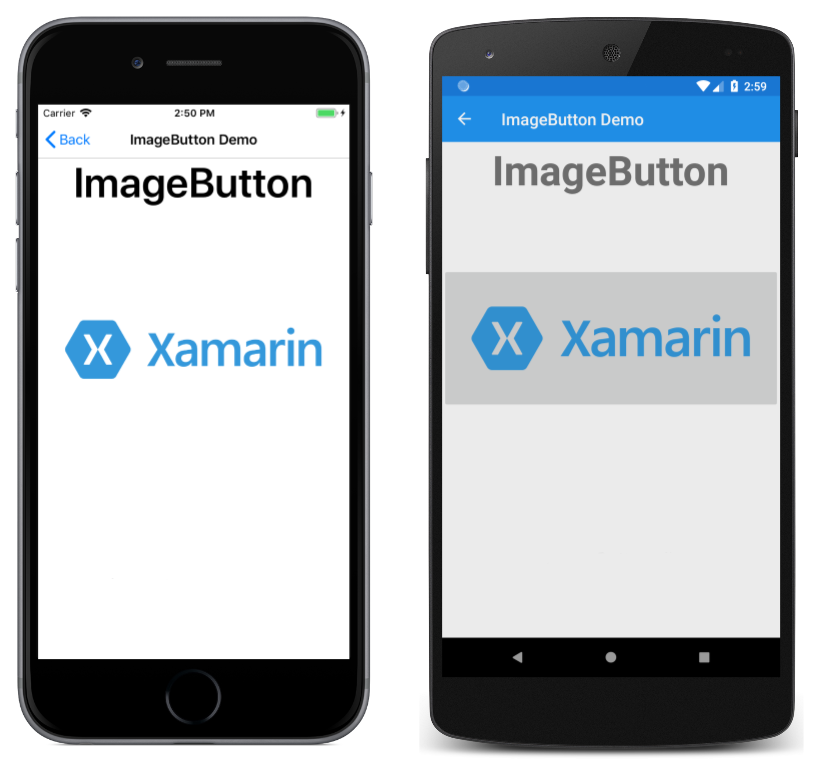
既定では、ImageButton は四角形ですが、CornerRadius プロパティを使用して角を丸くすることができます。 ImageButton の外観の詳細については、「ImageButton の外観」を参照してください。
Note
ImageButton はアニメーション GIF を読み込むことができますが、GIF の最初のフレームのみが表示されます。
次の例は、前の XAML と機能的に同等のページを作成する方法を示していますが、すべて C# で記述されています。
public class ImageButtonDemoPage : ContentPage
{
    public ImageButtonDemoPage()
    {
        Label header = new Label
        {
            Text = "ImageButton",
            FontSize = 50,
            FontAttributes = FontAttributes.Bold,
            HorizontalOptions = LayoutOptions.Center
        };

        ImageButton imageButton = new ImageButton
        {
            Source = "XamarinLogo.png",
            HorizontalOptions = LayoutOptions.Center,
            VerticalOptions = LayoutOptions.CenterAndExpand
        };

        // Build the page.
        Title = "ImageButton Demo";
        Content = new StackLayout
        {
            Children = { header, imageButton }
        };
    }
}
ImageButton クリックの処理
ImageButton は、ユーザーが ImageButton を指またはマウス ポインターでタップすると発生する Clicked イベントを定義します。 イベントは、指またはマウス ボタンが ImageButton の表面から離されたときに発生します。 ImageButton がタップに応答するには、IsEnabled プロパティが true に設定されている必要があります。
次の例は、XAML で ImageButton のインスタンスを作成して Clicked イベントを処理する方法を示しています。
<ContentPage xmlns="http://xamarin.com/schemas/2014/forms"
             xmlns:x="http://schemas.microsoft.com/winfx/2009/xaml"
             x:Class="FormsGallery.XamlExamples.ImageButtonDemoPage"
             Title="ImageButton Demo">
    <StackLayout>
        <Label Text="ImageButton"
               FontSize="50"
               FontAttributes="Bold"
               HorizontalOptions="Center" />

       <ImageButton Source="XamarinLogo.png"
                    HorizontalOptions="Center"
                    VerticalOptions="CenterAndExpand"
                    Clicked="OnImageButtonClicked" />

        <Label x:Name="label"
               Text="0 ImageButton clicks"
               FontSize="Large"
               HorizontalOptions="Center"
               VerticalOptions="CenterAndExpand" />
    </StackLayout>
</ContentPage>
Clicked イベントは、分離コード ファイルにある OnImageButtonClicked という名前のイベント ハンドラーに設定されています。
public partial class ImageButtonDemoPage : ContentPage
{
    int clickTotal;

    public ImageButtonDemoPage()
    {
        InitializeComponent();
    }

    void OnImageButtonClicked(object sender, EventArgs e)
    {
        clickTotal += 1;
        label.Text = $"{clickTotal} ImageButton click{(clickTotal == 1 ? "" : "s")}";
    }
}
ImageButton をタップすると、OnImageButtonClicked メソッドが実行されます。 引数 sender は、このイベントに責任を持つ ImageButton です。 これを使用して、ImageButton オブジェクトにアクセスしたり、同じ Clicked イベントを共有する複数の ImageButton オブジェクトを区別したりできます。
この特定の Clicked ハンドラーは、カウンターの値を増やし、Label にカウンターの値を表示します。

次の例は、前の XAML と機能的に同等のページを作成する方法を示していますが、すべて C# で記述されています。
public class ImageButtonDemoPage : ContentPage
{
    Label label;
    int clickTotal = 0;

    public ImageButtonDemoPage()
    {
        Label header = new Label
        {
            Text = "ImageButton",
            FontSize = 50,
            FontAttributes = FontAttributes.Bold,
            HorizontalOptions = LayoutOptions.Center
        };

        ImageButton imageButton = new ImageButton
        {
            Source = "XamarinLogo.png",
            HorizontalOptions = LayoutOptions.Center,
            VerticalOptions = LayoutOptions.CenterAndExpand
        };
        imageButton.Clicked += OnImageButtonClicked;

        label = new Label
        {
            Text = "0 ImageButton clicks",
            FontSize = Device.GetNamedSize(NamedSize.Large, typeof(Label)),
            HorizontalOptions = LayoutOptions.Center,
            VerticalOptions = LayoutOptions.CenterAndExpand
        };

        // Build the page.
        Title = "ImageButton Demo";
        Content = new StackLayout
        {
            Children =
            {
                header,
                imageButton,
                label
            }
        };
    }

    void OnImageButtonClicked(object sender, EventArgs e)
    {
        clickTotal += 1;
        label.Text = $"{clickTotal} ImageButton click{(clickTotal == 1 ? "" : "s")}";
    }
}
ImageButton の無効化
アプリケーションが特定の ImageButton クリックが有効な操作ではない特定の状態にある場合があります。 そのような場合は、ImageButton の IsEnabled プロパティを false に設定して無効にする必要があります。
コマンド インターフェイスの使用
アプリケーションで、Clicked イベントを処理することなく ImageButton タップに応答できるようにすることが可能です。 ImageButton は、コマンド インターフェイスまたはコマンド実行インターフェイスと呼ばれる別の通知メカニズムを実装します。 これは、次の 2 つのプロパティで構成されます。
ICommand型のCommand(System.Windows.Input名前空間で定義されたインターフェイス)Object型のCommandParameterプロパティ
このアプローチはデータ バインディングに関して適しており、特に Model-View-ViewModel (MVVM) アーキテクチャを実装する場合に適しています。
コマンド インターフェイスの使用の詳細については、「ボタン」ガイドの「コマンド インターフェイスの使用」を参照してください。
ImageButton を押して離す
Clicked イベントのほかに、ImageButton は Pressed イベントと Released イベントも定義します。 Pressed イベントは、指で ImageButton を押すか、ポインターが ImageButton 上にあるときにマウス ボタンを押すと発生します。 Released イベントは、指またはマウス ボタンが離されると発生します。 通常、Clicked イベントは Released イベントと同時に発生しますが、指またはマウス ポインターを離す前に ImageButton の表面から移動してしまうと、Clicked イベントが発生しない場合があります。
これらのイベントの詳細については、「ボタン」ガイドの「ボタンを押して離す」を参照してください。
ImageButton の外観
ImageButton が View クラスから継承するプロパティに加えて、ImageButton では、外観に影響するいくつかのプロパティも定義されます。
Aspectは、表示領域に合わせて画像を拡大縮小する方法を示します。BorderColorはImageButtonを囲む領域の色を示します。BorderWidthは境界の幅を示します。CornerRadiusはImageButtonの角の半径を示します。
Aspect プロパティは、Aspect 列挙型メンバーのいずれかに設定する必要があります。
Fill-ImageButtonを完全かつ正確に埋めるように画像を伸ばします。 これにより、画像の歪みが発生する可能性があります。AspectFill- 縦横比を維持したまま、ImageButtonを満たすように画像をクリップします。AspectFit- 画像全体がImageButtonに収まるように画像をレターボックス化します(必要に応じて)。画像の幅が広いか高いかに応じて、上下または左右に空白スペースが追加されます。 これは、Aspect列挙型の既定値です。
Note
ImageButton クラスには、ImageButton のレイアウトの動作を制御する Margin プロパティと Padding プロパティもあります。 詳細については「Margin and Padding」 (余白とスペース) を参照してください。
ImageButton の表示状態
ImageButtonには、ユーザーが押したときにImageButtonへの視覚的な変更を開始するために使用できるPressed VisualStateがあります (有効になっている場合)。
次の XAML の例は、Pressed 状態の表示状態を定義する方法を示しています。
<ImageButton Source="XamarinLogo.png"
             ...>
    <VisualStateManager.VisualStateGroups>
        <VisualStateGroup x:Name="CommonStates">
            <VisualState x:Name="Normal">
                <VisualState.Setters>
                    <Setter Property="Scale"
                            Value="1" />
                </VisualState.Setters>
            </VisualState>

            <VisualState x:Name="Pressed">
                <VisualState.Setters>
                    <Setter Property="Scale"
                            Value="0.8" />
                </VisualState.Setters>
            </VisualState>

        </VisualStateGroup>
    </VisualStateManager.VisualStateGroups>
</ImageButton>
Pressed VisualStateは、ImageButtonが押されると、そのScaleプロパティが既定値の 1 から 0.8 に変更されることを指定します。 Normal VisualState は ImageButton が通常状態の場合、その Scale プロパティが 1 に設定されることを指定します。 したがって、全体的な効果は、ImageButton が押されると、少し小さいサイズに再スケーリングされ、ImageButton が離されると既定のサイズに再スケーリングされることです。
ビジュアルの状態の詳細については、「Xamarin.FormsVisual State Manager」を参照してください。