Explore the interface
After you sign in and choose a course, you can explore the Visual Studio Code for Education interface.
The following sections describe the layout of the platform and the tools that you use to complete lessons and provide feedback.
Lesson detail page
The lesson detail page is the first page that you see when you open a new lesson. Under the lesson name, select the tabs to learn more about the course. You can review an overview, objectives, standards, and prerequisites.
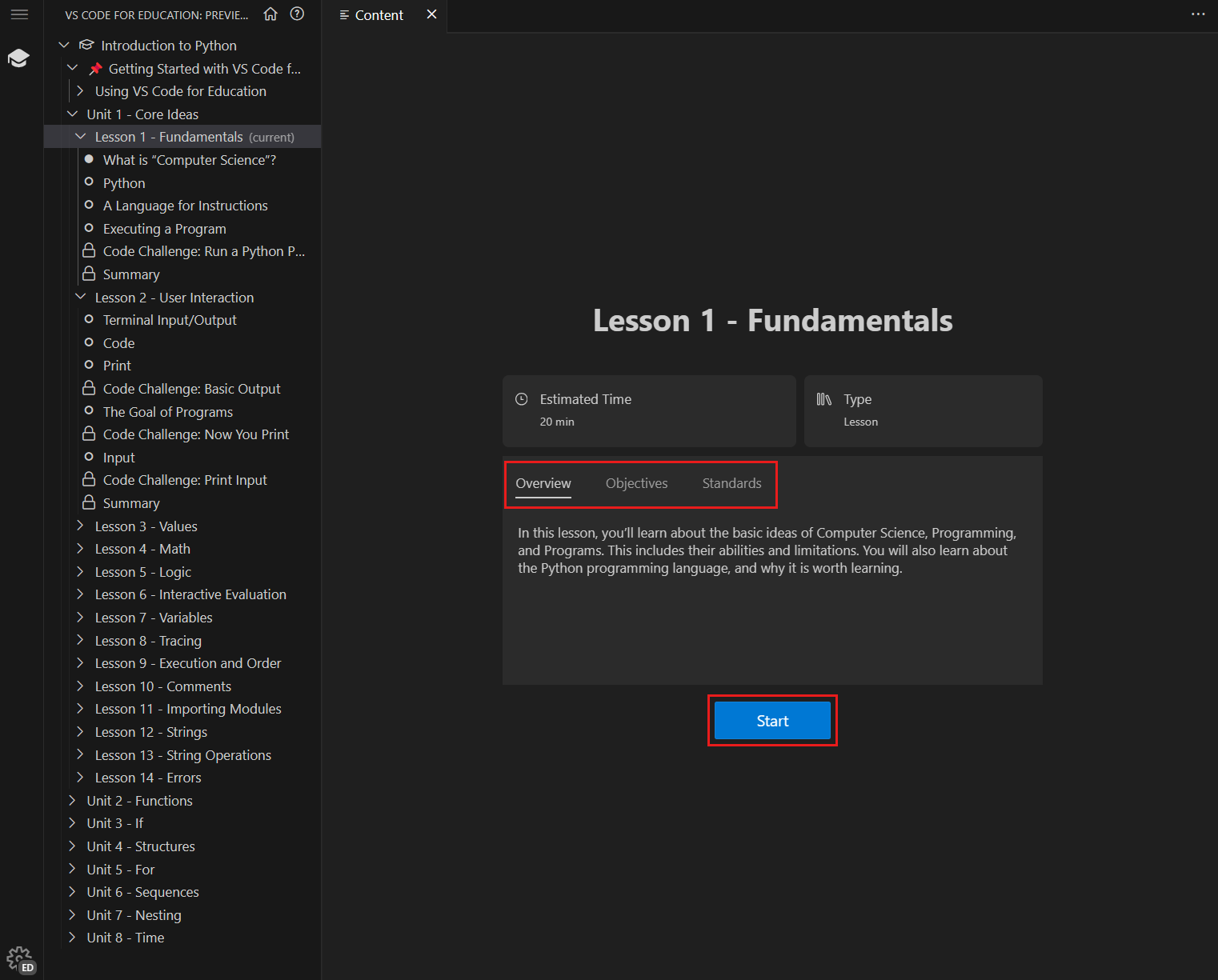
Overview: A brief summary of what the lesson covers. The overview helps you understand what the lesson is all about before you dive into the details.
Objectives: The goals that you'll achieve by the end of the lesson. The objectives outline what you can expect to learn or accomplish during the lesson.
Standards: A list of the education and learning standards that the lesson targets. Each lesson covers important topics and concepts that align with the expected knowledge and skills in computer science education. Connecting to industry and education standards ensures that students receive a comprehensive and well-rounded education in the field of computer science.
Prerequisites: The foundational knowledge or skills that are necessary to understand and successfully engage with the lesson. Complete the prerequisites to ensure that you have the background knowledge and skills you need to benefit from the current lesson.
When you're ready to begin, select the Start button. If you see a Sign In button, select it and sign in to access the course.
Table of contents and lesson content
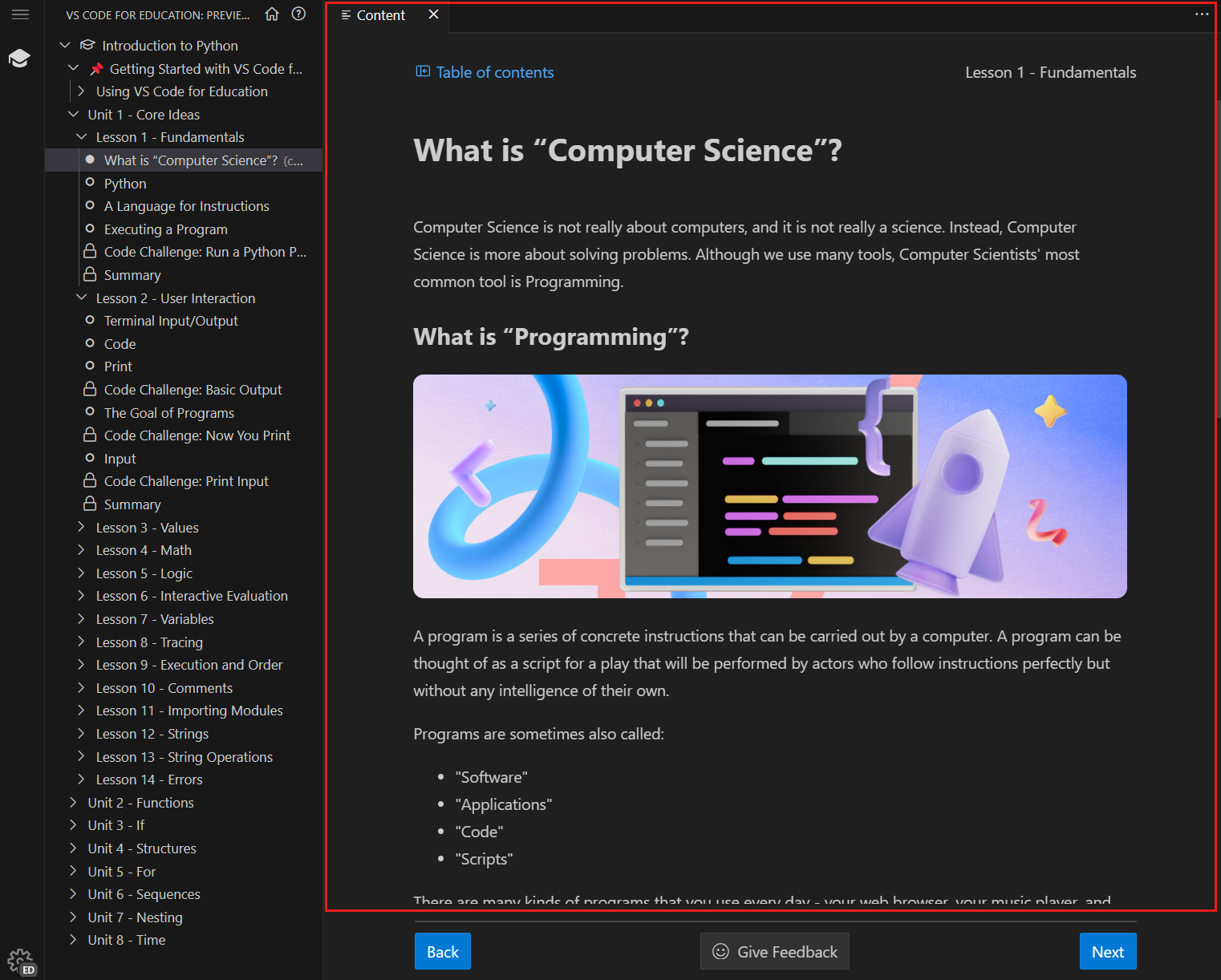
Each lesson page shows two panes. The table of contents panel is on the left side of the window. It's one of the tools you can use to navigate through the course.
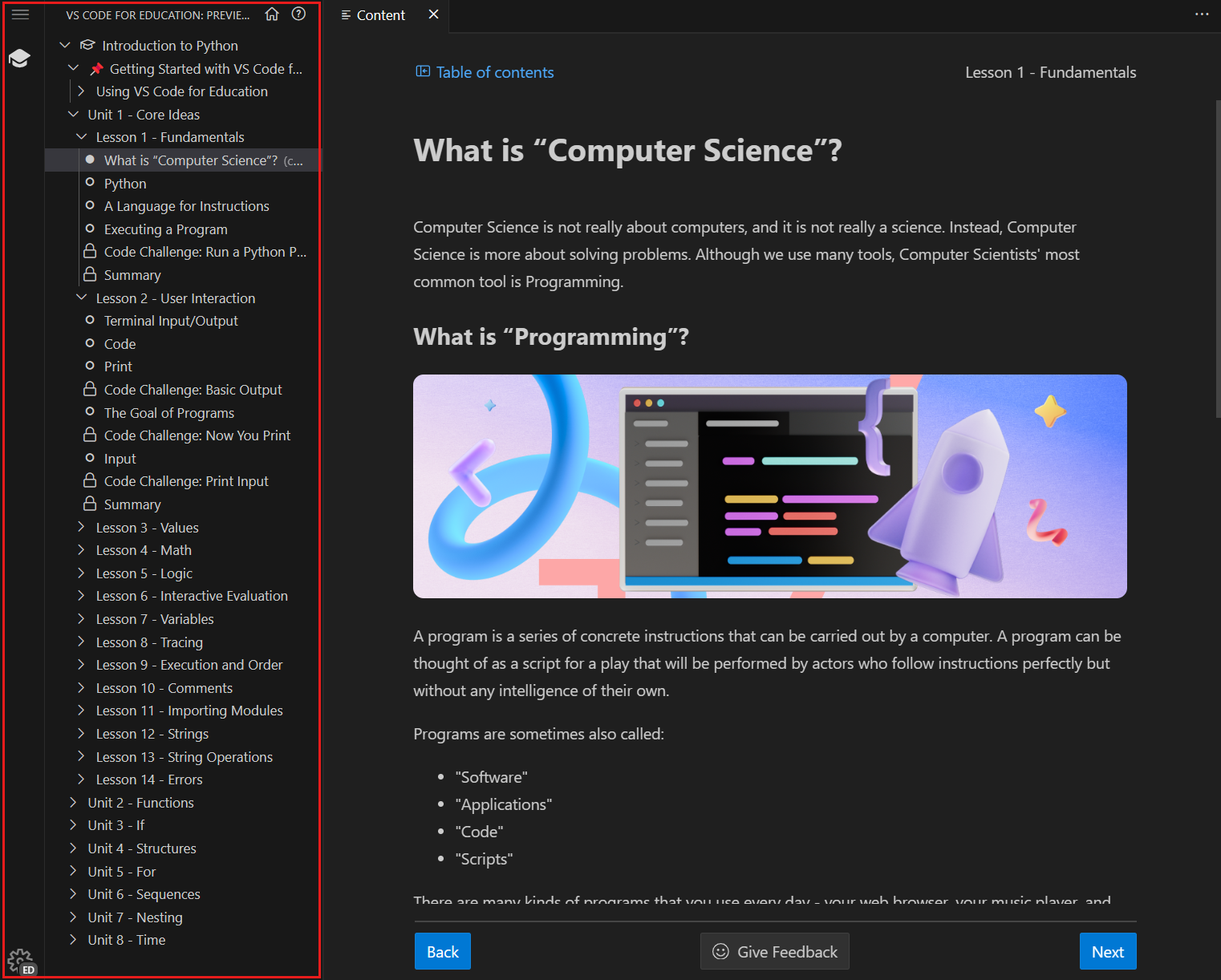
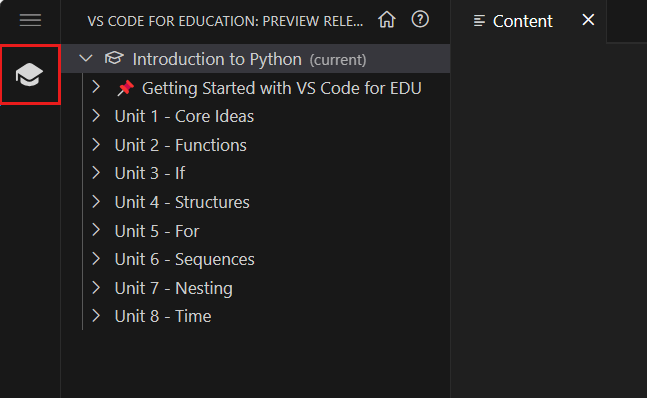
You can collapse and expand the table of contents panel by selecting the graduation cap icon.
Find the lesson content panel to the right of the table of contents. The lesson content panel shows all of the learning materials in the course.
Course navigation
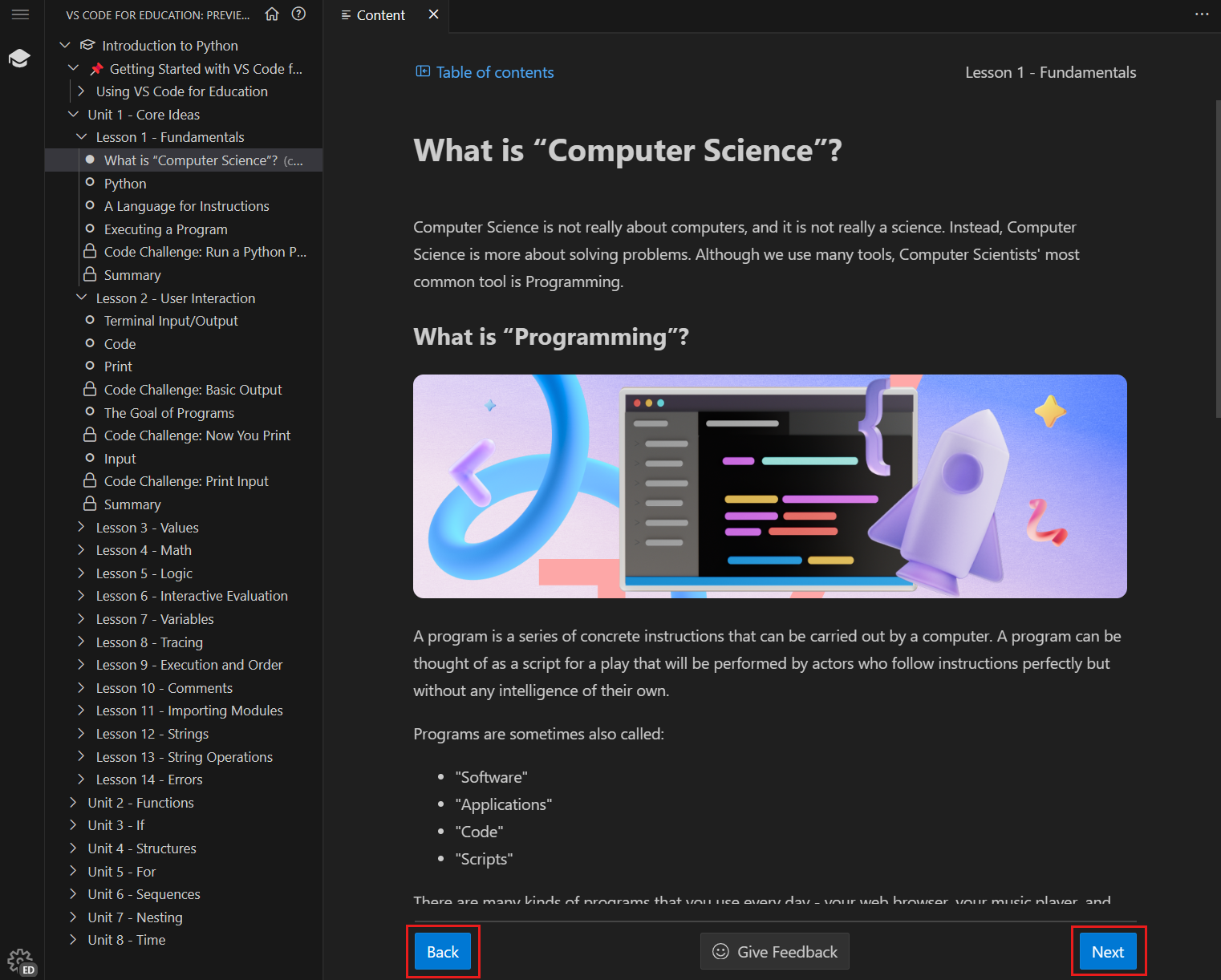
Another way to navigate through the course is to use the Next and Back buttons. Find these buttons at the bottom of the lesson pane. Select the Next button to go to the next page, and select the Back button to go to the previous page.
Track lesson progress
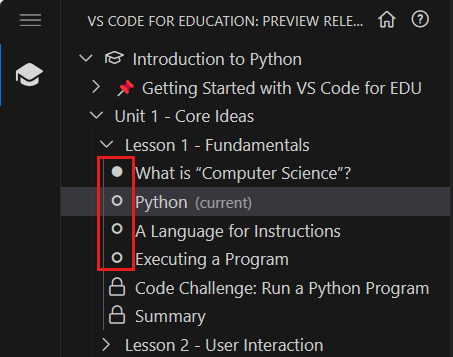
As you advance through the course, you see open circles and solid circles in the table of contents. Open circles mean that you haven't completed the page. Solid circles mean that the page is complete.
If you close and reopen the course, it automatically opens to the page where you left off.
Locked pages
Lessons might include prerequisite pages or lessons. In the following example, the Code Challenge: Run a Python Program and Summary pages are locked. To unlock them, you need to complete the previous pages in the lesson.
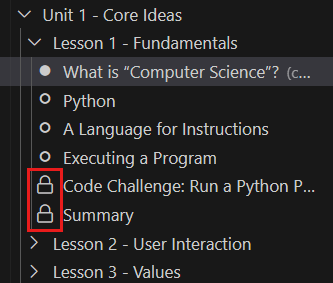
If you're unsure of what you need to complete, select the locked page to see your next steps. For example, when you select Code Challenge: Run a Python Program, the following message appears:
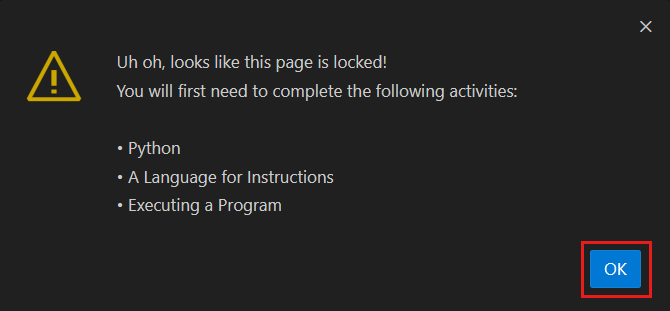
Select OK and go back to finish the listed activities.
Editor
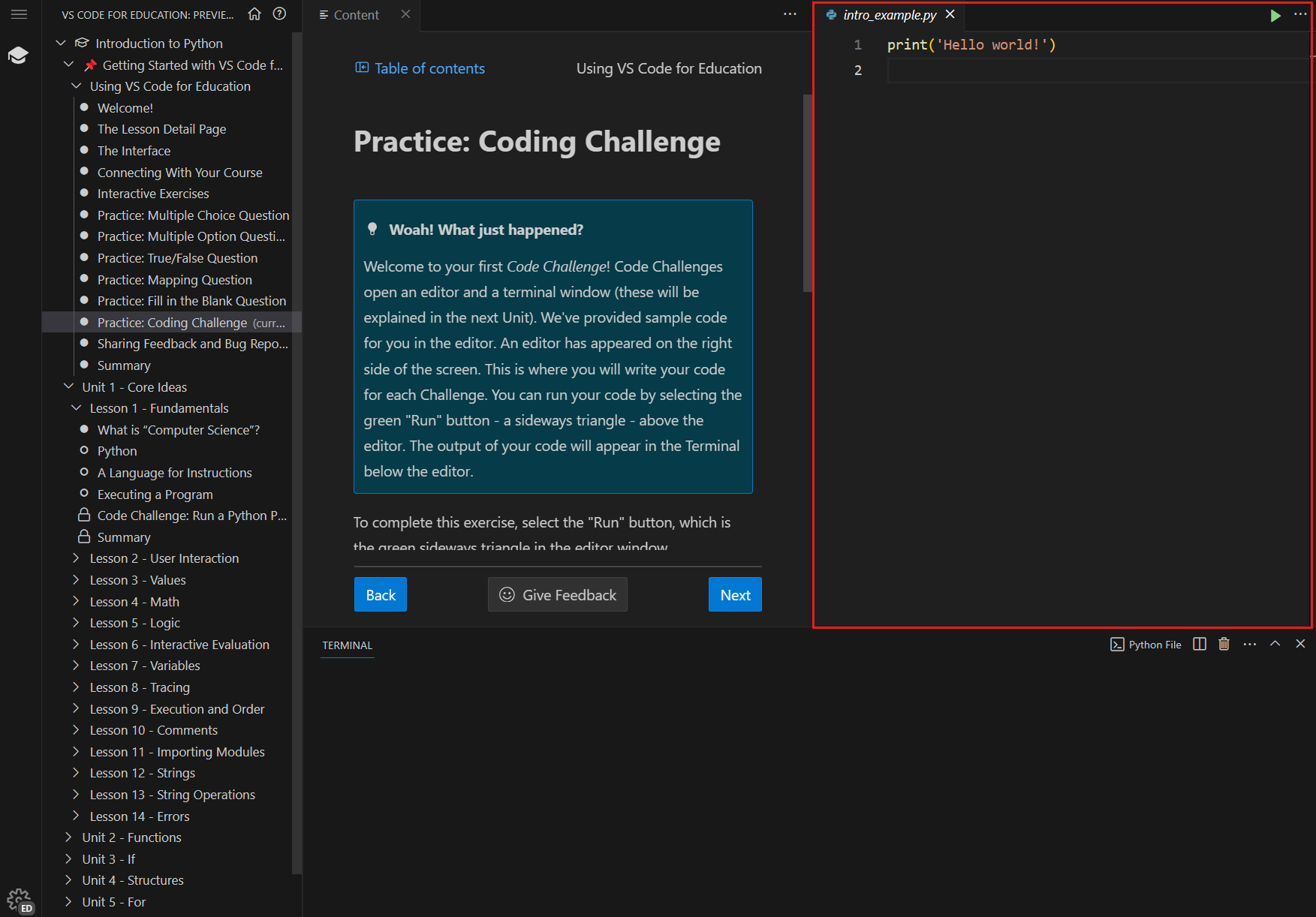
In lessons that include coding challenges, the platform automatically opens an editor to the right of the lesson content. Think of the editor as your space to write and explore code.
Terminal
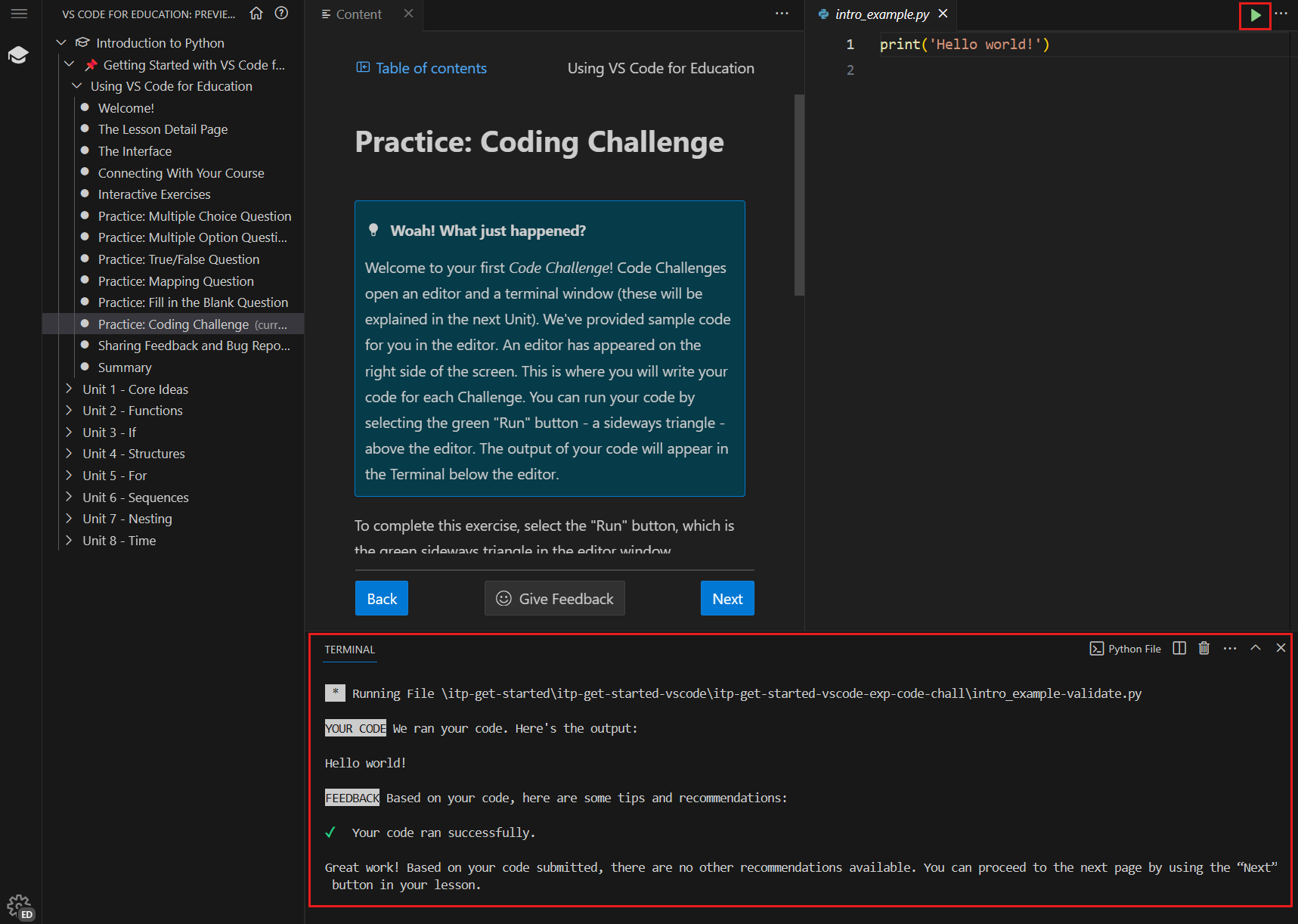
In lessons that include coding challenges, the platform also opens a terminal environment. As you work on a coding challenge, you can run your code by selecting the Run button, which is a green triangle in the upper-right corner of the editor. The output of your code appears in the terminal.
Summary and feedback
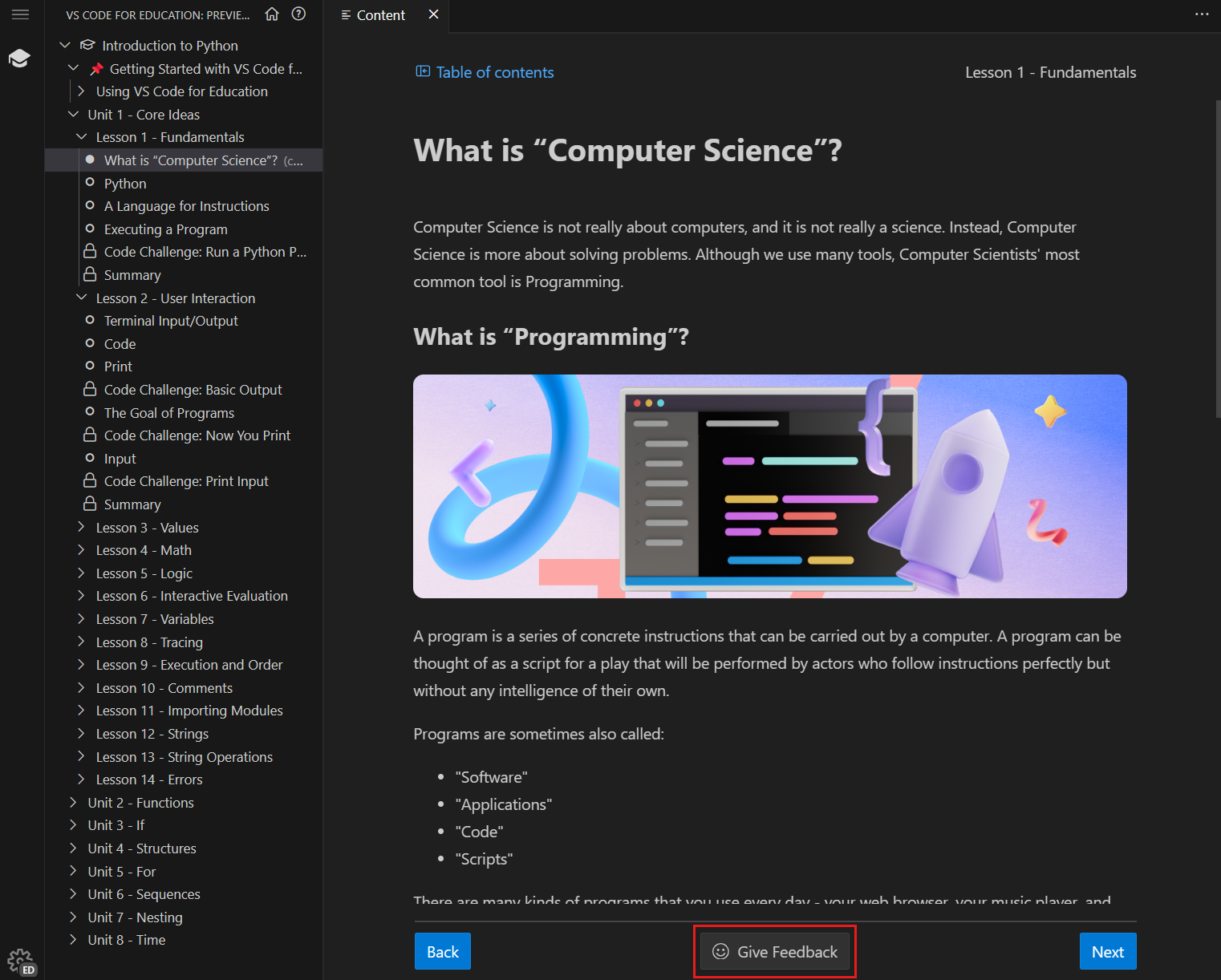
Each lesson ends with a summary page that provides a recap of the lesson. The summary page also asks for your feedback. To let the Visual Studio Code for Education team know how the lesson went for you, select the emoji that best describes your experience.
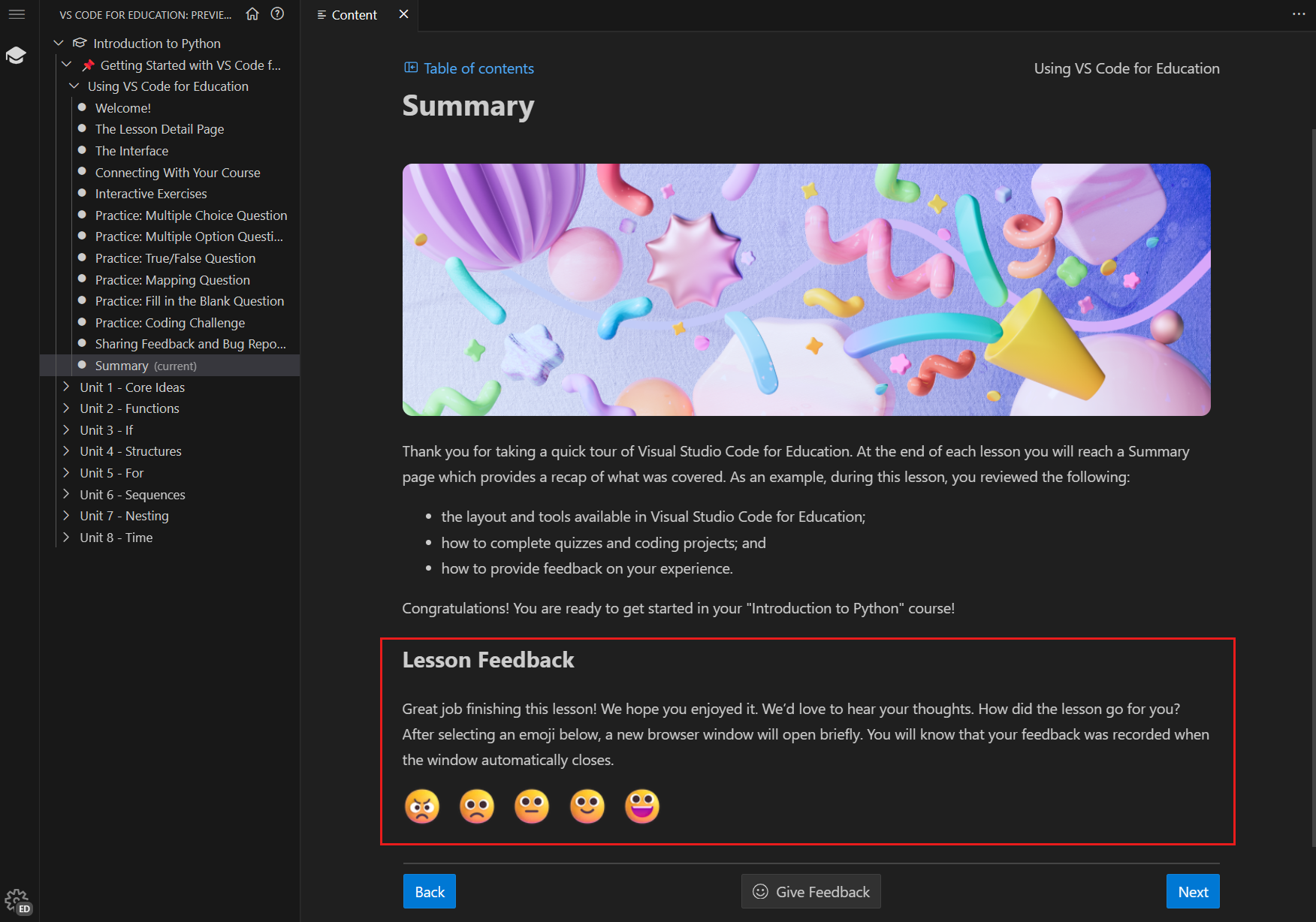
You can also submit course feedback at any time during a lesson. To report a bug, share an idea, or comment on something that you liked or didn't like, select the Give Feedback button below the lesson content.