音声認識を使用して入力を提供し、アクションまたはコマンドを指定し、タスクを実行します。
重要なAPI: Windows.Media.SpeechRecognition
音声認識は、音声認識ランタイム、ランタイムをプログラミングするための認識 API、ディクテーションと Web 検索用のすぐに使用できる文法、およびユーザーが音声認識機能を検出して使用するのに役立つ既定のシステム UI で構成されています。
音声認識を構成する
アプリで音声認識をサポートするには、ユーザーがデバイスでマイクを接続して有効にし、アプリにマイクを使用するためのアクセス許可を付与する Microsoft プライバシー ポリシーを受け入れる必要があります。
マイクの音声フィードにアクセスして利用するための許可をシステムダイアログでユーザーに自動的に要求するには、次の例(Speech 認識と音声合成のサンプル)を参考にして、マイクロフォンデバイス機能をアプリケーション パッケージ マニフェストで設定してください。 詳細については、「 アプリ機能の宣言」を参照してください。
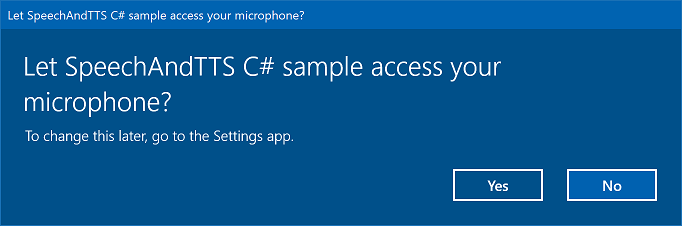
ユーザーが [はい] をクリックしてマイクへのアクセスを許可すると、[設定] -> [プライバシー] -> [マイク] ページの承認済みアプリケーションの一覧にアプリが追加されます。 ただし、ユーザーはいつでもこの設定をオフにすることを選択できるため、マイクを使用する前に、アプリがマイクにアクセスできることを確認する必要があります。
ディクテーション、Cortana、またはその他の音声認識サービス (トピックの制約で 定義された定義済みの文法 など) もサポートする場合は、 オンライン音声認識 ([設定] -> [プライバシー] -> 音声) が有効になっていることを確認する必要があります。
このスニペットは、マイクが存在するかどうか、およびマイクを使用するアクセス許可があるかどうかをアプリで確認する方法を示しています。
public class AudioCapturePermissions
{
    // If no microphone is present, an exception is thrown with the following HResult value.
    private static int NoCaptureDevicesHResult = -1072845856;

    /// <summary>
    /// Note that this method only checks the Settings->Privacy->Microphone setting, it does not handle
    /// the Cortana/Dictation privacy check.
    ///
    /// You should perform this check every time the app gets focus, in case the user has changed
    /// the setting while the app was suspended or not in focus.
    /// </summary>
    /// <returns>True, if the microphone is available.</returns>
    public async static Task<bool> RequestMicrophonePermission()
    {
        try
        {
            // Request access to the audio capture device.
            MediaCaptureInitializationSettings settings = new MediaCaptureInitializationSettings();
            settings.StreamingCaptureMode = StreamingCaptureMode.Audio;
            settings.MediaCategory = MediaCategory.Speech;
            MediaCapture capture = new MediaCapture();

            await capture.InitializeAsync(settings);
        }
        catch (TypeLoadException)
        {
            // Thrown when a media player is not available.
            var messageDialog = new Windows.UI.Popups.MessageDialog("Media player components are unavailable.");
            await messageDialog.ShowAsync();
            return false;
        }
        catch (UnauthorizedAccessException)
        {
            // Thrown when permission to use the audio capture device is denied.
            // If this occurs, show an error or disable recognition functionality.
            return false;
        }
        catch (Exception exception)
        {
            // Thrown when an audio capture device is not present.
            if (exception.HResult == NoCaptureDevicesHResult)
            {
                var messageDialog = new Windows.UI.Popups.MessageDialog("No Audio Capture devices are present on this system.");
                await messageDialog.ShowAsync();
                return false;
            }
            else
            {
                throw;
            }
        }
        return true;
    }
}
/// <summary>
/// Note that this method only checks the Settings->Privacy->Microphone setting, it does not handle
/// the Cortana/Dictation privacy check.
///
/// You should perform this check every time the app gets focus, in case the user has changed
/// the setting while the app was suspended or not in focus.
/// </summary>
/// <returns>True, if the microphone is available.</returns>
IAsyncOperation<bool>^  AudioCapturePermissions::RequestMicrophonePermissionAsync()
{
    return create_async([]()
    {
        try
        {
            // Request access to the audio capture device.
            MediaCaptureInitializationSettings^ settings = ref new MediaCaptureInitializationSettings();
            settings->StreamingCaptureMode = StreamingCaptureMode::Audio;
            settings->MediaCategory = MediaCategory::Speech;
            MediaCapture^ capture = ref new MediaCapture();

            return create_task(capture->InitializeAsync(settings))
                .then([](task<void> previousTask) -> bool
            {
                try
                {
                    previousTask.get();
                }
                catch (AccessDeniedException^)
                {
                    // Thrown when permission to use the audio capture device is denied.
                    // If this occurs, show an error or disable recognition functionality.
                    return false;
                }
                catch (Exception^ exception)
                {
                    // Thrown when an audio capture device is not present.
                    if (exception->HResult == AudioCapturePermissions::NoCaptureDevicesHResult)
                    {
                        auto messageDialog = ref new Windows::UI::Popups::MessageDialog("No Audio Capture devices are present on this system.");
                        create_task(messageDialog->ShowAsync());
                        return false;
                    }

                    throw;
                }
                return true;
            });
        }
        catch (Platform::ClassNotRegisteredException^ ex)
        {
            // Thrown when a media player is not available.
            auto messageDialog = ref new Windows::UI::Popups::MessageDialog("Media Player Components unavailable.");
            create_task(messageDialog->ShowAsync());
            return create_task([] {return false; });
        }
    });
}
var AudioCapturePermissions = WinJS.Class.define(
    function () { }, {},
    {
        requestMicrophonePermission: function () {
            /// <summary>
            /// Note that this method only checks the Settings->Privacy->Microphone setting, it does not handle
            /// the Cortana/Dictation privacy check.
            ///
            /// You should perform this check every time the app gets focus, in case the user has changed
            /// the setting while the app was suspended or not in focus.
            /// </summary>
            /// <returns>True, if the microphone is available.</returns>
            return new WinJS.Promise(function (completed, error) {

                try {
                    // Request access to the audio capture device.
                    var captureSettings = new Windows.Media.Capture.MediaCaptureInitializationSettings();
                    captureSettings.streamingCaptureMode = Windows.Media.Capture.StreamingCaptureMode.audio;
                    captureSettings.mediaCategory = Windows.Media.Capture.MediaCategory.speech;

                    var capture = new Windows.Media.Capture.MediaCapture();
                    capture.initializeAsync(captureSettings).then(function () {
                        completed(true);
                    },
                    function (error) {
                        // Audio Capture can fail to initialize if there's no audio devices on the system, or if
                        // the user has disabled permission to access the microphone in the Privacy settings.
                        if (error.number == -2147024891) { // Access denied (microphone disabled in settings)
                            completed(false);
                        } else if (error.number == -1072845856) { // No recording device present.
                            var messageDialog = new Windows.UI.Popups.MessageDialog("No Audio Capture devices are present on this system.");
                            messageDialog.showAsync();
                            completed(false);
                        } else {
                            error(error);
                        }
                    });
                } catch (exception) {
                    if (exception.number == -2147221164) { // REGDB_E_CLASSNOTREG
                        var messageDialog = new Windows.UI.Popups.MessageDialog("Media Player components not available on this system.");
                        messageDialog.showAsync();
                        return false;
                    }
                }
            });
        }
    })
音声入力を認識する
制約は、アプリが音声入力で認識する単語と語句 (ボキャブラリ) を定義します。 制約は音声認識の中核であり、アプリで音声認識の精度をより高く制御できます。
音声入力を認識するには、次の種類の制約を使用できます。
定義済みの文法
定義済みのディクテーションと Web 検索文法は、文法を作成しなくてもアプリの音声認識を提供します。 これらの文法を使用する場合、音声認識はリモート Web サービスによって実行され、結果がデバイスに返されます。
既定のフリー テキストディクテーション文法では、ユーザーが特定の言語で言うことができるほとんどの単語や語句を認識でき、短い語句を認識するように最適化されています。 定義済みのディクテーション文法は、SpeechRecognizer オブジェクトの制約を指定しない場合に使用されます。 フリー テキストディクテーションは、ユーザーが言える内容の種類を制限したくない場合に便利です。 一般的な用途としては、ノートの作成やメッセージのコンテンツのディクテーションなどがあります。
ディクテーション文法のような Web 検索文法には、ユーザーが言う可能性のある多数の単語や語句が含まれています。 ただし、ユーザーが Web を検索するときに通常使用する用語を認識するように最適化されています。
注
定義済みのディクテーションと Web 検索の文法は大きくなる可能性があり、オンラインであるため (デバイス上にないため)、デバイスにカスタム文法がインストールされている場合ほどパフォーマンスが速くない可能性があります。
これらの定義済みの文法は、最大 10 秒の音声入力を認識するために使用でき、作成作業は必要ありません。 ただし、ネットワークへの接続が必要です。
Web サービスの制約を使用するには、[設定] ->] の [Get to know me] オプションをオンにして、[> で音声入力とディクテーションのサポートを有効にする必要があります。
ここでは、音声入力が有効かどうかをテストし、[設定] -> [プライバシー] -> 音声、手描き入力、および入力ページを開く方法について説明します。有効でない場合は、そのページを開きます。
最初に、グローバル変数 (HResultPrivacyStatementDeclined) を 0x80045509 の HResult 値に初期化します。 C# または Visual Basic での
private static uint HResultPrivacyStatementDeclined = 0x80045509;
次に、認識中に標準の例外をキャッチし、HResult 値が HResultPrivacyStatementDeclined 変数の値と等しいかどうかをテストします。 その場合は、警告を表示し、await Windows.System.Launcher.LaunchUriAsync(new Uri("ms-settings:privacy-accounts")); を呼び出して [設定] ページを開きます。
catch (Exception exception)
{
  // Handle the speech privacy policy error.
  if ((uint)exception.HResult == HResultPrivacyStatementDeclined)
  {
    resultTextBlock.Visibility = Visibility.Visible;
    resultTextBlock.Text = "The privacy statement was declined." +
      "Go to Settings -> Privacy -> Speech, inking and typing, and ensure you" +
      "have viewed the privacy policy, and 'Get To Know You' is enabled.";
    // Open the privacy/speech, inking, and typing settings page.
    await Windows.System.Launcher.LaunchUriAsync(new Uri("ms-settings:privacy-accounts"));
  }
  else
  {
    var messageDialog = new Windows.UI.Popups.MessageDialog(exception.Message, "Exception");
    await messageDialog.ShowAsync();
  }
}
「SpeechRecognitionTopicConstraint を参照してください。
プログラムによるリストの制約
プログラムによるリスト制約は、単語または語句のリストを使用して簡単な文法を作成するための軽量なアプローチを提供します。 リスト制約は、短い個別の語句を認識する場合に適しています。 文法内のすべての単語を明示的に指定すると、音声認識エンジンは一致を確認するために音声のみを処理する必要があります。そのため、認識の精度も向上します。 一覧はプログラムで更新することもできます。
リスト制約は、アプリが認識操作に受け入れる音声入力を表す文字列の配列で構成されます。 音声認識リスト制約オブジェクトを作成し、文字列の配列を渡すことで、アプリでリスト制約を作成できます。 次に、そのオブジェクトを認識エンジンの制約コレクションに追加します。 音声認識エンジンが配列内の文字列のいずれかを認識すると、認識が成功します。
「SpeechRecognitionListConstraint を参照してください。
SRGS 文法
音声認識文法仕様 (SRGS) 文法は、プログラムによるリスト制約とは異なり、 SRGS バージョン 1.0 で定義された XML 形式を使用する静的ドキュメントです。 SRGS 文法では、1 回の認識で複数のセマンティック意味をキャプチャできるため、音声認識エクスペリエンスを最大限に制御できます。
「SpeechRecognitionGrammarFileConstraint を参照してください。
音声コマンドの制約
音声コマンド定義 (VCD) XML ファイルを使用して、ユーザーがアプリのアクティブ化時にアクションを開始するように言うことができるコマンドを定義します。 「SpeechRecognitionVoiceCommandDefinitionConstraint を参照してください。
手記 使用する制約の種類は、作成する認識エクスペリエンスの複雑さによって異なります。 特定の認識タスクに最適な選択肢は任意であり、アプリ内のすべての種類の制約の用途が見つかる場合があります。
制約の概要については、「 カスタム認識制約の定義」を参照してください。
定義済みのユニバーサル Windows アプリのディクテーション文法では、言語のほとんどの単語と短い語句が認識されます。 音声認識エンジン オブジェクトがカスタム制約なしでインスタンス化されると、既定でアクティブになります。
この例では、次の方法を示します。
- 音声認識エンジンを作成します。
- 既定のユニバーサル Windows アプリの制約をコンパイルします (音声認識エンジンの文法セットに文法が追加されていません)。
- RecognizeWithUIAsync メソッドによって提供される基本的な認識 UI と TTS フィードバックを使用して、音声のリッスンを開始します。 既定の UI が必要ない場合は、 RecognizeAsync メソッドを使用します。
private async void StartRecognizing_Click(object sender, RoutedEventArgs e)
{
    // Create an instance of SpeechRecognizer.
    var speechRecognizer = new Windows.Media.SpeechRecognition.SpeechRecognizer();

    // Compile the dictation grammar by default.
    await speechRecognizer.CompileConstraintsAsync();

    // Start recognition.
    Windows.Media.SpeechRecognition.SpeechRecognitionResult speechRecognitionResult = await speechRecognizer.RecognizeWithUIAsync();

    // Do something with the recognition result.
    var messageDialog = new Windows.UI.Popups.MessageDialog(speechRecognitionResult.Text, "Text spoken");
    await messageDialog.ShowAsync();
}
認識 UI をカスタマイズする
アプリが SpeechRecognizer.RecognizeWithUIAsync を呼び出して音声認識を試みると、いくつかの画面が次の順序で表示されます。
定義済みの文法 (ディクテーションまたは Web 検索) に基づく制約を使用している場合:
- リスニング 画面。
- [考える] 画面。
- 「あなたの発言を聞いた」画面、またはエラー画面。
単語または語句の一覧に基づく制約、または SRGS 文法ファイルに基づく制約を使用している場合:
- リスニング 画面。
- ユーザーの発言が複数の結果として解釈される可能性がある場合は、「言いましたか」画面が表示されます。
- 「あなたの発言を聞いた」画面、またはエラー画面。
次の図は、SRGS 文法ファイルに基づく制約を使用する音声認識エンジンの画面間のフローの例を示しています。 この例では、音声認識が成功しました。
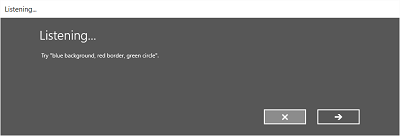
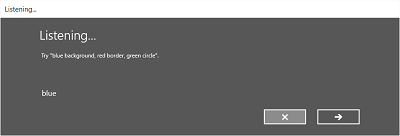
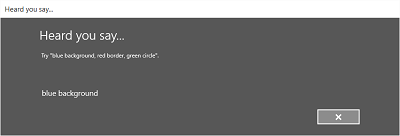
リッスン画面では、アプリが認識できる単語や語句の例を提供できます。 ここでは、SpeechRecognizerUIOptions クラスのプロパティ (SpeechRecognizer.UIOptions プロパティを呼び出すことで取得) を利用して、Listening 画面のコンテンツをカスタマイズする方法を示します。
private async void WeatherSearch_Click(object sender, RoutedEventArgs e)
{
    // Create an instance of SpeechRecognizer.
    var speechRecognizer = new Windows.Media.SpeechRecognition.SpeechRecognizer();

    // Listen for audio input issues.
    speechRecognizer.RecognitionQualityDegrading += speechRecognizer_RecognitionQualityDegrading;

    // Add a web search grammar to the recognizer.
    var webSearchGrammar = new Windows.Media.SpeechRecognition.SpeechRecognitionTopicConstraint(Windows.Media.SpeechRecognition.SpeechRecognitionScenario.WebSearch, "webSearch");


    speechRecognizer.UIOptions.AudiblePrompt = "Say what you want to search for...";
    speechRecognizer.UIOptions.ExampleText = @"Ex. 'weather for London'";
    speechRecognizer.Constraints.Add(webSearchGrammar);

    // Compile the constraint.
    await speechRecognizer.CompileConstraintsAsync();

    // Start recognition.
    Windows.Media.SpeechRecognition.SpeechRecognitionResult speechRecognitionResult = await speechRecognizer.RecognizeWithUIAsync();
    //await speechRecognizer.RecognizeWithUIAsync();

    // Do something with the recognition result.
    var messageDialog = new Windows.UI.Popups.MessageDialog(speechRecognitionResult.Text, "Text spoken");
    await messageDialog.ShowAsync();
}
関連資料
サンプル