この記事では、InteractionTracker の SourceModifier 機能を使用する方法について詳しく説明し、カスタムのプル対更新コントロールを作成してその使用方法を示します。
前提条件
ここでは、これらの記事で説明されている概念を理解していることを前提としています。
SourceModifier とは何ですか。なぜ役に立つのですか?
InertiaModifiers と同様に、SourceModifiers を使用すると、InteractionTracker のモーションをより細かく制御できます。 ただし、InteractionTracker が慣性に入った後にモーションを定義する InertiaModifiers とは異なり、InteractionTracker がまだ対話状態にある間は、SourceModifiers によってモーションが定義されます。 このような場合は、従来の "指にくっつく" とは異なるエクスペリエンスが必要です。
この典型的な例は、プルツーリフレッシュエクスペリエンスです。ユーザーがリストを引っ張ってコンテンツを更新し、リストが指と同じ速度でパンし、特定の距離の後に停止すると、動きは突然機械的に感じるでしょう。 より自然なエクスペリエンスは、ユーザーが積極的にリストを操作している間に抵抗感を導入することにあります。 この小さな微妙な違いは、リストを操作する全体的なエンド ユーザー エクスペリエンスをより動的で魅力的なものにするのに役立ちます。 「例」セクションでは、これを構築する方法について詳しく説明します。
ソース修飾子には、次の 2 種類があります。
- DeltaPosition – タッチ パン操作中の、現在のフレーム位置と指の前のフレーム位置の間の差分です。 このソース修飾子を使用すると、さらに処理するために対話を送信する前に、対話のデルタ位置を変更できます。 これは Vector3 型パラメーターであり、開発者は InteractionTracker に渡す前に、位置の X 属性または Y 属性または Z 属性のいずれかを変更することを選択できます。
- DeltaScale - 現在のフレーム スケールと、タッチ ズーム操作中に適用された以前のフレーム スケールの間の差分です。 このソース修飾子を使用すると、操作のズーム レベルを変更できます。 これは、開発者が InteractionTracker に渡す前に変更できる float 型属性です。
InteractionTracker が対話状態になると、割り当てられている各ソース修飾子が評価され、いずれかが適用されるかどうかを判断します。 つまり、InteractionTracker に複数のソース修飾子を作成して割り当てることができます。 ただし、それぞれを定義するときは、次の操作を行う必要があります。
- 条件を定義します。この特定のソース修飾子を適用する場合に条件ステートメントを定義する式です。
- DeltaPosition/DeltaScale を定義する – 上記の定義された条件が満たされたときに DeltaPosition または DeltaScale を変更するソース修飾子式。
例
次に、ソース修飾子を使用して、既存の WinUI XAML ListView コントロールを使用してカスタムのプルツーリフレッシュ エクスペリエンスを作成する方法を見てみましょう。 このエクスペリエンスを構築するために、XAML ListView の上にスタックされる "更新パネル" として Canvas を使用します。
エンド ユーザー エクスペリエンスでは、ユーザーがリストをアクティブにパン (タッチ) し、位置が特定のポイントを超えた後にパンを停止するため、"抵抗" の効果を作成したいと考えています。
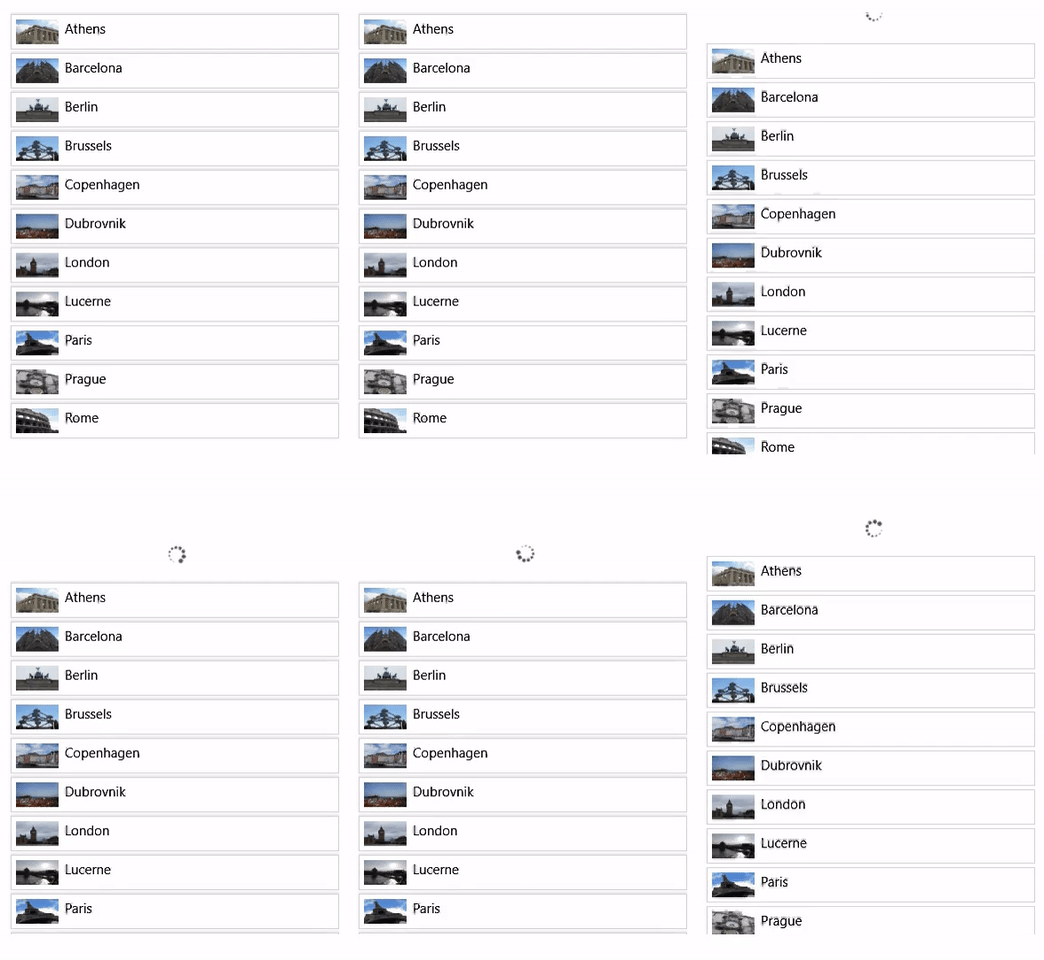
このエクスペリエンスの動作コードは、 GitHub の Window UI Dev Labs リポジトリにあります。 このエクスペリエンスを構築する手順を次に示します。 XAML マークアップ コードには、次の内容があります。
<StackPanel Height="500" MaxHeight="500" x:Name="ContentPanel" HorizontalAlignment="Left" VerticalAlignment="Top" >
 <Canvas Width="400" Height="100" x:Name="RefreshPanel" >
<Image x:Name="FirstGear" Source="ms-appx:///Assets/Loading.png" Width="20" Height="20" Canvas.Left="200" Canvas.Top="70"/>
 </Canvas>
 <ListView x:Name="ThumbnailList"
 MaxWidth="400"
 Height="500"
ScrollViewer.VerticalScrollMode="Enabled" ScrollViewer.IsScrollInertiaEnabled="False" ScrollViewer.IsVerticalScrollChainingEnabled="True" >
 <ListView.ItemTemplate>
 ……
 </ListView.ItemTemplate>
 </ListView>
</StackPanel>
ListView (ThumbnailList) は既にスクロールする XAML コントロールであるため、一番上の項目に到達し、スクロールできなくなったときに、スクロールを親 (ContentPanel) までチェーンする必要があります。 (ContentPanel は、ソース修飾子を適用する場所です)。そのためには、ListView マークアップで ScrollViewer.IsVerticalScrollChainingEnabled を true に設定する必要があります。 また、VisualInteractionSource のチェーン モードを Always に設定する必要があります。
handledEventsToo パラメーターを true にして PointerPressedEvent ハンドラーを設定する必要があります。 このオプションがないと、PointerPressedEvent は ContentPanel にチェーンされません。ListView コントロールはこれらのイベントを処理済みとしてマークし、ビジュアル チェーンに送信されません。
//The PointerPressed handler needs to be added using AddHandler method with the //handledEventsToo boolean set to "true"
//instead of the XAML element's "PointerPressed=Window_PointerPressed",
//because the list view needs to chain PointerPressed handled events as well.
ContentPanel.AddHandler(PointerPressedEvent, new PointerEventHandler( Window_PointerPressed), true);
これで、これを InteractionTracker と結び付ける準備ができました。 まず、InteractionTracker の位置を活用する式、ならびに InteractionTracker と VisualInteractionSource を設定します。
// InteractionTracker and VisualInteractionSource setup.
_root = ElementCompositionPreview.GetElementVisual(Root);
_compositor = _root.Compositor;
_tracker = InteractionTracker.Create(_compositor);
_interactionSource = VisualInteractionSource.Create(_root);
_interactionSource.PositionYSourceMode = InteractionSourceMode.EnabledWithInertia;
_interactionSource.PositionYChainingMode = InteractionChainingMode.Always;
_tracker.InteractionSources.Add(_interactionSource);
float refreshPanelHeight = (float)RefreshPanel.ActualHeight;
_tracker.MaxPosition = new Vector3((float)Root.ActualWidth, 0, 0);
_tracker.MinPosition = new Vector3(-(float)Root.ActualWidth, -refreshPanelHeight, 0);

// Use the Tacker's Position (negated) to apply to the Offset of the Image.
// The -{refreshPanelHeight} is to hide the refresh panel
m_positionExpression = _compositor.CreateExpressionAnimation($"-tracker.Position.Y - {refreshPanelHeight} ");
m_positionExpression.SetReferenceParameter("tracker", _tracker);
_contentPanelVisual.StartAnimation("Offset.Y", m_positionExpression);
この設定により、更新パネルはビューポートの開始位置から外れ、ユーザーには listView のみが表示されます。パン操作が ContentPanel に到達すると、PointerPressed イベントが発生します。その際、システムに InteractionTracker を使用して操作エクスペリエンスを管理するよう依頼します。
private void Window_PointerPressed(object sender, PointerRoutedEventArgs e)
{
if (e.Pointer.PointerDeviceType == Windows.Devices.Input.PointerDeviceType.Touch) {
 // Tell the system to use the gestures from this pointer point (if it can).
 _interactionSource.TryRedirectForManipulation(e.GetCurrentPoint(null));
 }
}
注
Handled イベントのチェーンが必要ない場合は、属性 (PointerPressed="Window_PointerPressed") を使用して XAML マークアップを使用して PointerPressedEvent ハンドラーを直接追加できます。
次の手順では、ソース修飾子を設定します。 この動作を取得するには、2 つのソース修飾子を使用します。 抵抗 と 停止。
- 抵抗 – DeltaPosition.Y を RefreshPanel の高さに達するまで半分の速度で移動します。
CompositionConditionalValue resistanceModifier = CompositionConditionalValue.Create (_compositor);
ExpressionAnimation resistanceCondition = _compositor.CreateExpressionAnimation(
 $"-tracker.Position.Y < {pullToRefreshDistance}");
resistanceCondition.SetReferenceParameter("tracker", _tracker);
ExpressionAnimation resistanceAlternateValue = _compositor.CreateExpressionAnimation(
 "source.DeltaPosition.Y / 3");
resistanceAlternateValue.SetReferenceParameter("source", _interactionSource);
resistanceModifier.Condition = resistanceCondition;
resistanceModifier.Value = resistanceAlternateValue;
- 停止 – RefreshPanel 全体が画面に表示された後、移動を停止します。
CompositionConditionalValue stoppingModifier = CompositionConditionalValue.Create (_compositor);
ExpressionAnimation stoppingCondition = _compositor.CreateExpressionAnimation(
 $"-tracker.Position.Y >= {pullToRefreshDistance}");
stoppingCondition.SetReferenceParameter("tracker", _tracker);
ExpressionAnimation stoppingAlternateValue = _compositor.CreateExpressionAnimation("0");
stoppingModifier.Condition = stoppingCondition;
stoppingModifier.Value = stoppingAlternateValue;
Now add the 2 source modifiers to the InteractionTracker.
List<CompositionConditionalValue> modifierList = new List<CompositionConditionalValue>()
{ resistanceModifier, stoppingModifier };
_interactionSource.ConfigureDeltaPositionYModifiers(modifierList);
次の図は、SourceModifiers のセットアップを視覚化したものです。
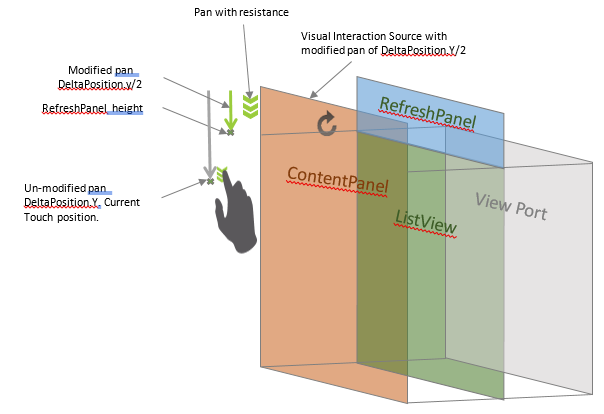
SourceModifiers を使用すると、ListView を下にパンして一番上の項目に到達すると、RefreshPanel の高さに達するまで更新パネルがパンの半分のペースでプルダウンされ、移動が停止します。
完全なサンプルでは、RefreshPanel キャンバスでの操作中に、キーフレーム アニメーションを使用してアイコンを回転させます。 任意のコンテンツをその場所で使用することも、InteractionTracker の位置を利用してそのアニメーションを個別に駆動することもできます。
GitHub で Microsoft と共同作業する
このコンテンツのソースは GitHub にあります。そこで、issue や pull request を作成および確認することもできます。 詳細については、共同作成者ガイドを参照してください。

Windows developer