ディスプレイの向きとデバイスの向き
センサーの参照軸を理解するには、ディスプレイの向きとデバイスの向きを区別する必要があります。 表示の向きは、テキストや画像が画面に表示される向きであるのに対し、デバイスの向きはデバイスの物理的な向きです。
Note
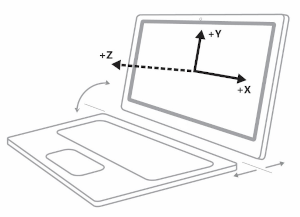
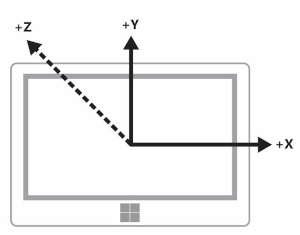
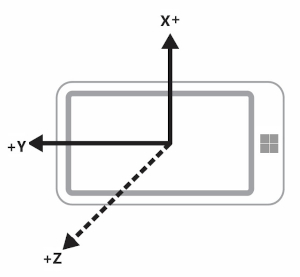
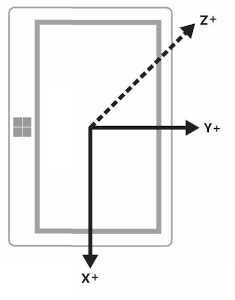
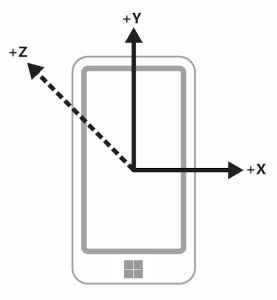
次の図に示すように、正の z 軸はデバイス画面から伸びています。
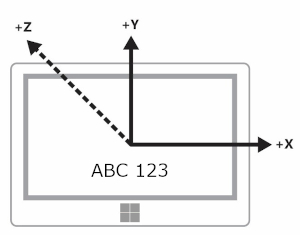
次の図では、デバイスと表示の向きの両方が Landscape にあります (示されているセンサー軸は横向きに固有です)。
この図は、Landscape での表示とデバイスの向きの両方を示しています。
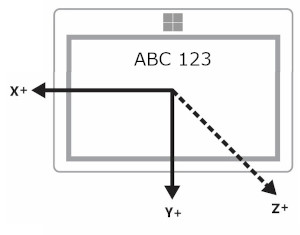
次の図は、LandscapeFlipped での表示とデバイスの向きの両方を示しています。
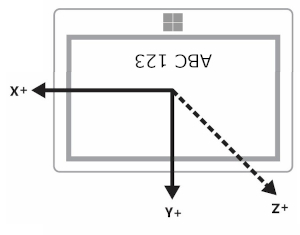
この最後の図は、デバイスの向きが LandscapeFlipped の場合の、Landscape での表示方向を示しています。
DisplayInformation クラスを使用して、GetForCurrentView メソッドと CurrentOrientation プロパティを使用して、方向の値を照会できます。 次に、DisplayOrientations 列挙型と比較してロジックを作成できます。 サポートする方向ごとに、参照軸からその方向への変換をサポートする必要があります。
横向き優先デバイス対縦向き優先デバイス
製造元は、横向き優先デバイスと縦向き優先デバイスの両方を生成します。 参照フレームは、横向き優先デバイス (デスクトップやノート PC など) と縦向き優先デバイス (携帯電話や一部のタブレットなど) によって異なります。 次の表は、横向き優先デバイスと縦優先デバイスの両方のセンサー軸を示しています。
| オリエンテーション | 横向き優先 | 縦優先 |
|---|---|---|
| 風景 |
|
|
| Portrait |
|
|
| LandscapeFlipped |
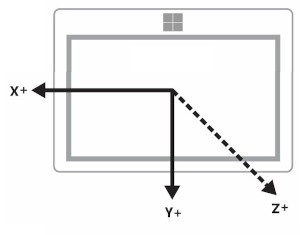
|
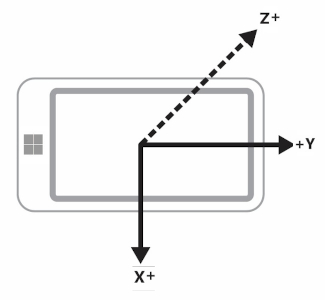
|
| PortraitFlipped |
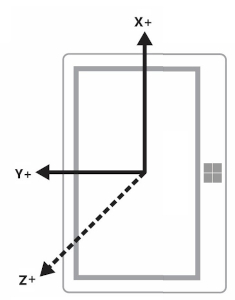
|
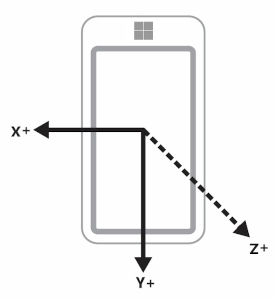
|
ディスプレイおよびヘッドレス デバイスをブロードキャストするデバイス
一部のデバイスには、ディスプレイを別のデバイスにブロードキャストする機能があります。 たとえば、タブレットを使用して、横向きのプロジェクターにディスプレイをブロードキャストできます。 このシナリオでは、デバイスの向きは、ディスプレイを表示するデバイスではなく、元のデバイスに基づいていることに注意することが重要です。 そのため、加速度計はタブレットのデータを報告します。
さらに、一部のデバイスにはディスプレイがありません。 これらのデバイスでは、これらのデバイスの既定の向きは縦向きです。
画面の向きとコンパスの方位
コンパスの見出しは参照軸に依存するため、デバイスの向きに応じて変化します。 このテーブルに基づいて補正します (ユーザーが北に向いていると仮定します)。
| 表示の向き | コンパス方位の基準軸 | 北を向いているときの API のコンパス方位(横向き優先) | 北に向いているときの API コンパス方位(縦向き) | コンパス方位補正(横向き優先) | コンパスの方位補正(縦向き優先) |
|---|---|---|---|---|---|
| 横 | -Z | 0 | 270 | 見出し | (方位 + 90) % 360 |
| 縦 | Y | 90 | 0 | (見出し + 270) % 360 | 見出し |
| LandscapeFlipped | Z | 180 | 90 | (ヘディング + 180) % 360 | (見出し + 270) % 360 |
| PortraitFlipped | Y | 270 | 180 | (方位 + 90) % 360 | (ヘディング + 180) % 360 |
正しく見出しを表示するには、表に示すようにコンパスの見出しを変更します。 次のコード スニペットは、これを行う方法を示しています。
private void ReadingChanged(object sender, CompassReadingChangedEventArgs e)
{
    double heading = e.Reading.HeadingMagneticNorth;
    double displayOffset;

    // Calculate the compass heading offset based on
    // the current display orientation.
    // In WinUI 3 desktop apps, use interop to get DisplayInformation for the current window.
    var hWnd = WinRT.Interop.WindowNative.GetWindowHandle(App.Window);
    DisplayInformation displayInfo = DisplayInformation.CreateForWindowId(
        Microsoft.UI.Win32Interop.GetWindowIdFromWindow(hWnd));

    switch (displayInfo.CurrentOrientation)
    {
        case DisplayOrientations.Landscape:
            displayOffset = 0;
            break;
        case DisplayOrientations.Portrait:
            displayOffset = 270;
            break;
        case DisplayOrientations.LandscapeFlipped:
            displayOffset = 180;
            break;
        case DisplayOrientations.PortraitFlipped:
            displayOffset = 90;
            break;
     }

    double displayCompensatedHeading = (heading + displayOffset) % 360;

    // Update the UI...
}
加速度計とジャイロメーターを使用して向きを表示する
次の表は、加速度計とジャイロメーターのデータを表示方向に変換します。
| 参照軸 | X | Y | Z |
|---|---|---|---|
| 風景 | X | Y | Z |
| Portrait | Y | -X | Z |
| LandscapeFlipped | -X | -Y | Z |
| PortraitFlipped | -Y | X | Z |
次のコード例では、これらの変換をジャイロメーターに適用します。
private void ReadingChanged(object sender, GyrometerReadingChangedEventArgs e)
{
    double x_Axis;
    double y_Axis;
    double z_Axis;

    GyrometerReading reading = e.Reading;

    // Calculate the gyrometer axes based on
    // the current display orientation.
    // In WinUI 3 desktop apps, use interop to get DisplayInformation for the current window.
    var hWnd = WinRT.Interop.WindowNative.GetWindowHandle(App.Window);
    DisplayInformation displayInfo = DisplayInformation.CreateForWindowId(
        Microsoft.UI.Win32Interop.GetWindowIdFromWindow(hWnd));
    switch (displayInfo.CurrentOrientation)
    {
        case DisplayOrientations.Landscape:
            x_Axis = reading.AngularVelocityX;
            y_Axis = reading.AngularVelocityY;
            z_Axis = reading.AngularVelocityZ;
            break;
        case DisplayOrientations.Portrait:
            x_Axis = reading.AngularVelocityY;
            y_Axis = -1 * reading.AngularVelocityX;
            z_Axis = reading.AngularVelocityZ;
            break;
        case DisplayOrientations.LandscapeFlipped:
            x_Axis = -1 * reading.AngularVelocityX;
            y_Axis = -1 * reading.AngularVelocityY;
            z_Axis = reading.AngularVelocityZ;
            break;
        case DisplayOrientations.PortraitFlipped:
            x_Axis = -1 * reading.AngularVelocityY;
            y_Axis = reading.AngularVelocityX;
            z_Axis = reading.AngularVelocityZ;
            break;
     }

    // Update the UI...
}
ディスプレイの向きとデバイスの向き
OrientationSensor データは、別の方法で変更する必要があります。 これらの異なる向きは、z 軸に対して反時計回りの回転と考えてください。そのため、ユーザーの向きを取り戻すには、回転を逆にする必要があります。 四元数データの場合、Euler の数式を使用して、参照四元数を持つ回転を定義し、参照回転行列を使用することもできます。
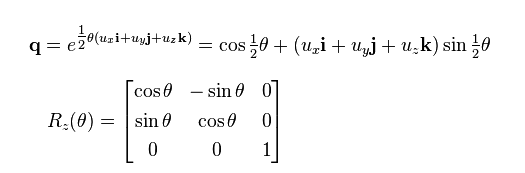
目的の相対方向を取得するには、参照オブジェクトを絶対オブジェクトに乗算します。 この数学は可換ではないことに注意してください。
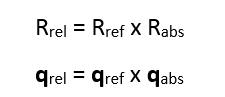
前の式では、センサー データによって絶対オブジェクトが返されます。
| 表示の向き | Z 回りの反時計回りの回転 | 基準四元数(逆回転) | 参照回転行列 (逆回転) |
|---|---|---|---|
| 風景 | 0 | 1 + 0i + 0j + 0k | [1 0 0 0 1 0 0 0 1] |
| Portrait | 90 | cos(-45⁰) + (i + j + k)*sin(-45⁰) | [0 1 0 -1 0 0 0 0 1] |
| LandscapeFlipped | 180 | 0 - i - j - k | [1 0 0 0 1 0 0 0 1] |
| PortraitFlipped | 270 | cos(-135⁰) + (i + j + k)*sin(-135⁰) | [0 -1 0 1 0 0 0 0 1] |
こちらも参照ください
GitHub で Microsoft と共同作業する
このコンテンツのソースは GitHub にあります。そこで、issue や pull request を作成および確認することもできます。 詳細については、共同作成者ガイドを参照してください。

Windows developer