Note
ამ გვერდზე წვდომა ავტორიზაციას მოითხოვს. შეგიძლიათ სცადოთ შესვლა ან დირექტორიების შეცვლა.
ამ გვერდზე წვდომა ავტორიზაციას მოითხოვს. შეგიძლიათ სცადოთ დირექტორიების შეცვლა.
Chat in Genie One is a unified, full-screen natural-language interface for business users to ask data questions. It first searches available Genie Agents for a match, then searches across dashboards, queries, and metric views. You can also connect external sources (such as Google Drive and SharePoint) so chat can answer from your company documents and schedule recurring chat tasks that post results back as a thread.
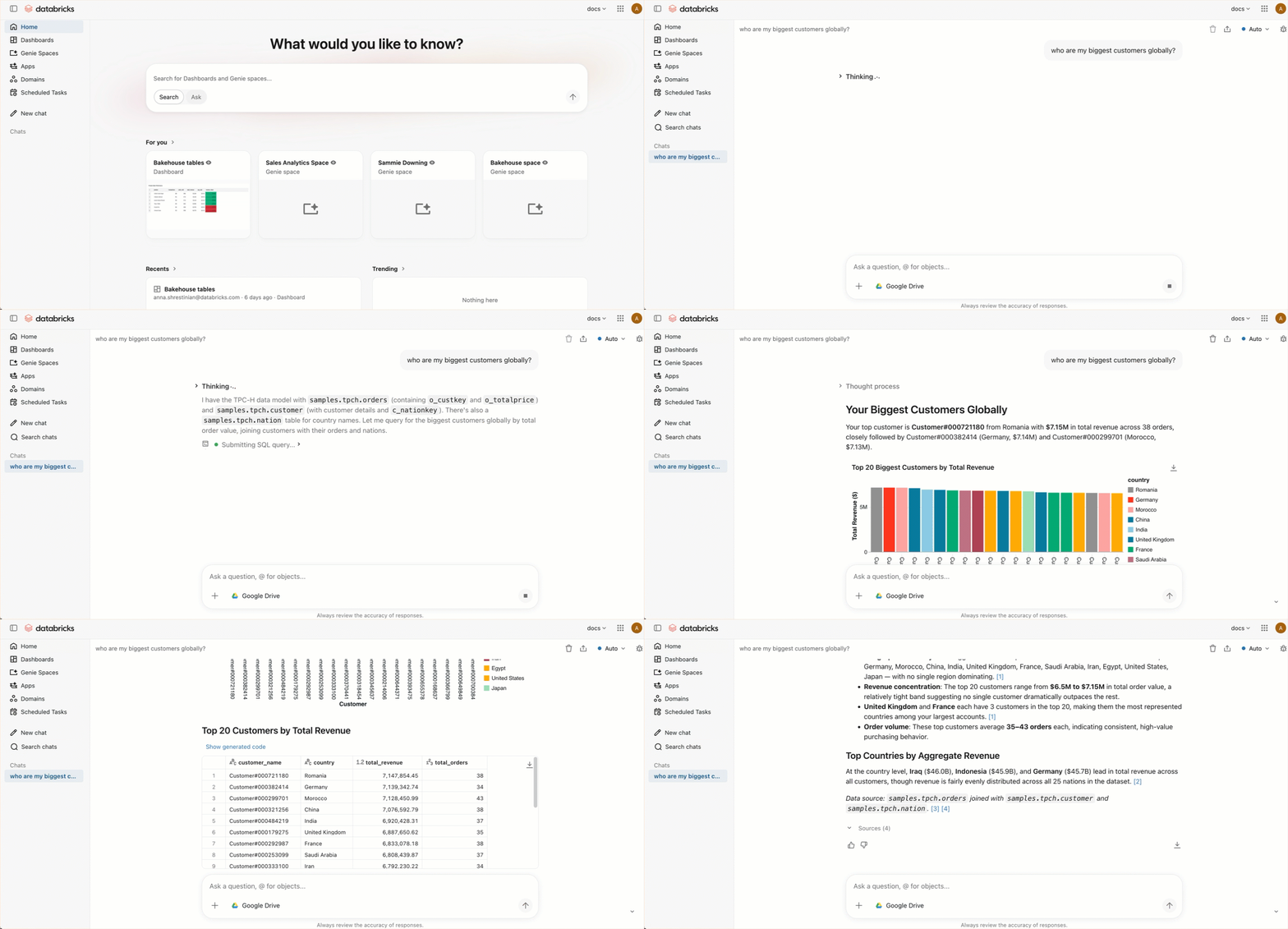
How chat works
When you submit a question to chat:
- It searches available Genie Agents for one relevant to your question.
- If a matching Genie Agent is found, it uses that space to generate a response.
- If no matching Genie Agent is found, it searches for relevant data assets to answer your question.
To give chat access to your company documents, connect external data sources such as Google Drive, SharePoint, GitHub, Glean, and Atlassian. See Connect to external tools and sources.
To open chat, click New chat from the sidebar or use Ask mode in the search bar. You must have the CAN USE permission on at least one SQL warehouse to use chat.
Select compute
Chat uses Auto compute by default, which automatically selects the best available SQL warehouse and is recommended for most users. To use a specific warehouse instead:
- Click ••• in the top right.
- Click Manage compute.
- Select your SQL warehouse.
Create a Genie Agent from a conversation
You can turn the context from a chat conversation into a reusable Genie Agent. This is helpful when a conversation builds up context that you want to save and apply to future questions, such as a sales KPI analysis, business report formatting guidance, or other domain-specific instructions.
Note
To create a Genie Agent from Genie One, you must have the Workspace access and Databricks SQL access entitlement, or both. Users with only Consumer access and account users without workspace membership can't create Genie Agents from Genie One. See Manage entitlements.
Create an agent
You can create a Genie Agent from a conversation in two ways:
- Ask Genie One to save the conversation's context as an agent.
- Click the overflow menu (•••) under an answer, then click Create Agent.
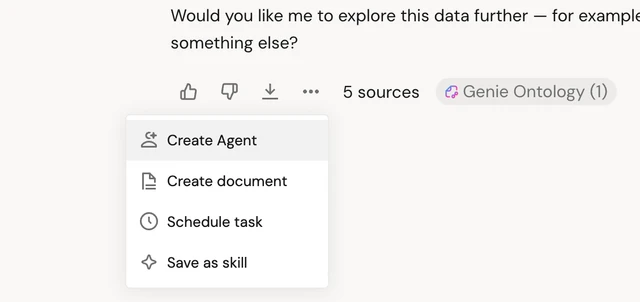
To create an agent in a conversation, tell Genie One what you want the agent to capture:
Tip
Save this sales KPI analysis as an agent so I can reuse it.
After Genie One creates the agent, you can open it in your workspace to fine-tune its context, instructions, and data assets. To learn more about Genie Agents, see Genie Agents.
Edit an agent
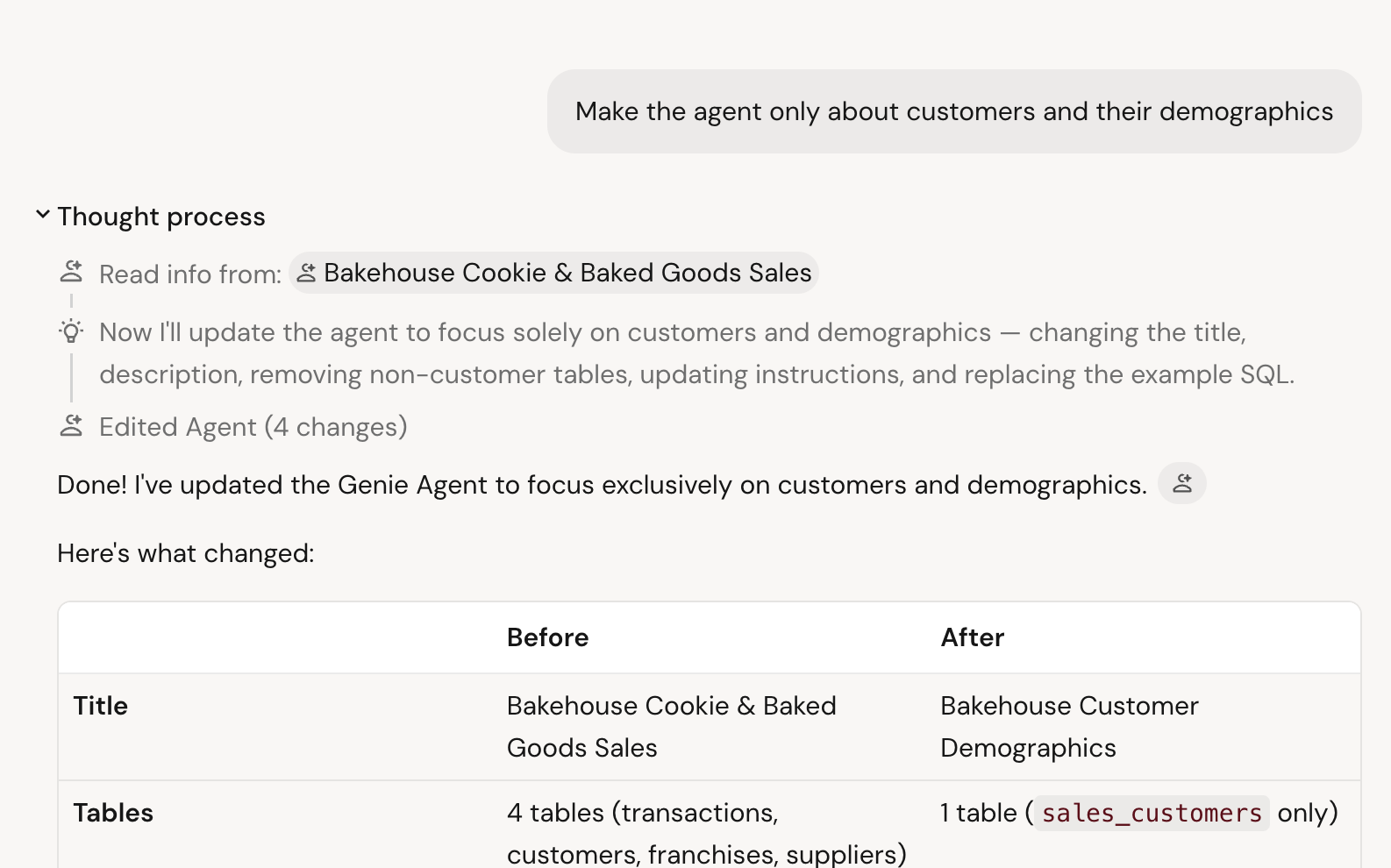
You can ask Genie One to change an agent's context in a conversation. For example, you can add tables or change an agent's instructions in natural language.
Tip
Add the sales.forecast table to my sales KPI agent.
Delete an agent
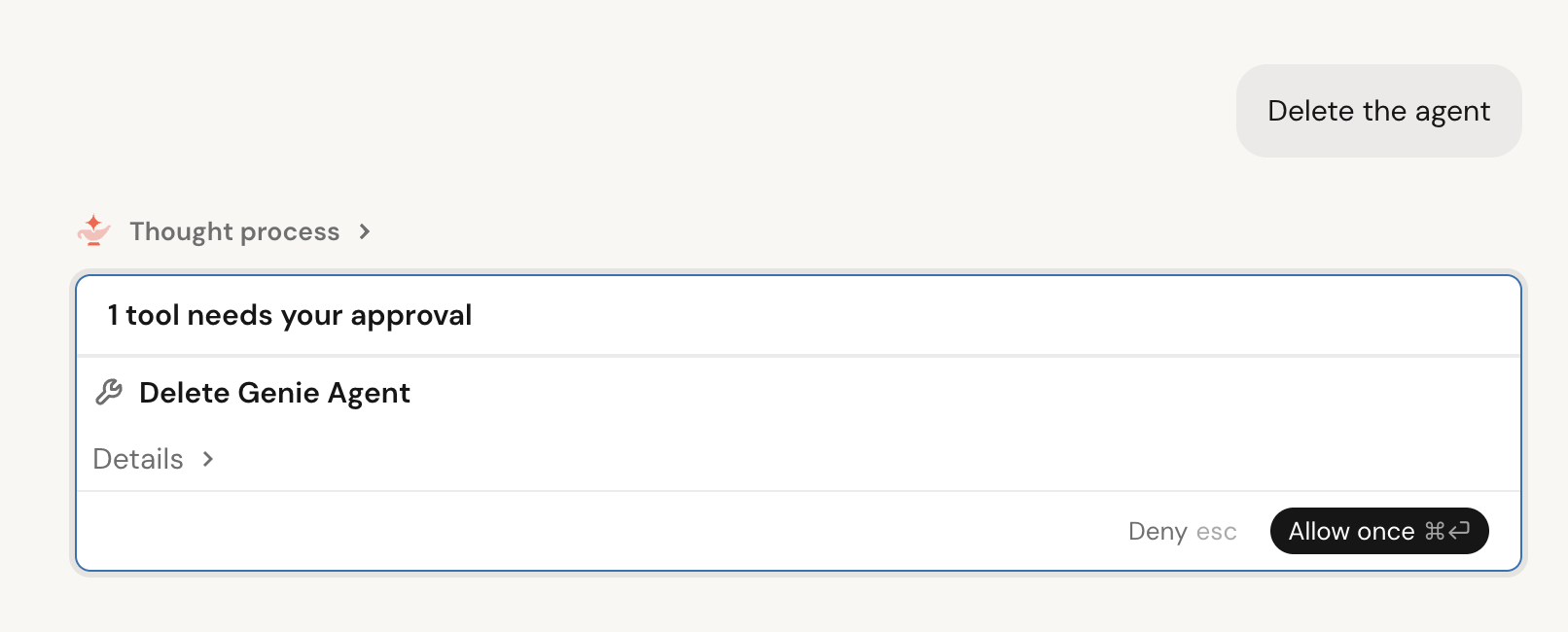
You can ask Genie One to delete an agent in a conversation. Genie One asks you to confirm before it deletes the agent.
Tip
Delete my sales KPI agent.
Genie Ontology
Important
This feature is in Public Preview. To join this preview, contact your Azure Databricks account team.
The Ontology is a map of your data and business, automatically generated and maintained by Genie One.
Genie One automatically extracts snippets of knowledge from your tables, queries, dashboards, docs, and connected apps. For example, snippets can include:
- Metric definitions: For example, "An 'active user' is a distinct user, deduplicated across all platforms."
- Authoritative sources: For example, "Revenue should be pulled from the main.finance.certified table."
- Business rules: For example, "A 'qualified lead' only counts once a demo is booked."
Each snippet gets an authority score based on where it was generated from, how often it is used, and how fresh it is. Snippets are also gated using Unity Catalog permissions. When you ask a question, Genie One ranks the most relevant snippets, resolves conflicts, and answers using only the sources you are permitted to see. This generates more accurate responses and reduces latency by reducing the amount of data Genie One needs to crawl and query.
To see which knowledge sources Genie One used to answer your question, click the  citation icons in a response.
Add workspace instructions for chat
Important
This feature is in Beta.
Workspace admins can add custom instructions that apply to every chat conversation in the workspace. Instructions can include information about your organization's data conventions, preferred terminology, or guidelines for how chat should respond.
To add workspace instructions, create a Markdown file at the following path in your workspace:
/Workspace/.genie_workspace_instructions.md
Instructions must be under 20,000 characters. Chat reads this file automatically with no additional configuration required. Instructions apply to chat only and do not affect Genie Agents or Genie Code.
For best practices on adding custom instructions, see Best practices for Genie Code instructions.
User skills
User skills let you extend chat in Genie One with custom capabilities tailored to your personal needs. Skills are available only to you and are loaded automatically when Genie One determines they are relevant to your request. You can also invoke a skill manually by typing / followed by its name.
Note
For agent skills in Genie Code, see Extend Genie Code with agent skills.
Create a user skill
Tip
Tell Genie One to do this for you:
Create a user skill that summarizes weekly sales trends for my region.
Genie One creates the skill and saves it to your workspace at /Workspace/Users/{email}/.assistant/skills/.
Edit a user skill
To edit a user skill, ask Genie One to make changes in a conversation, or open the skill in Canvas and edit it directly.
To rename or delete a user skill, access the skill file directly in your workspace at /Workspace/Users/{email}/.assistant/skills/.
Invoke a user skill
Genie One automatically loads skills when they are relevant to your request. To invoke a skill, type / followed by its name in the chat input.
Scheduled tasks
Scheduled tasks run automatically at a specified time and post the results in a chat thread. When a task runs, chat sends you an email with the results.
You can create a scheduled task in two ways:
Type a request in natural language in chat, for example: "Send me a daily briefing of all new customer reviews for my store location." Chat might ask clarifying questions, such as the time or which location to use, then creates the task and adds it to the Schedules section.
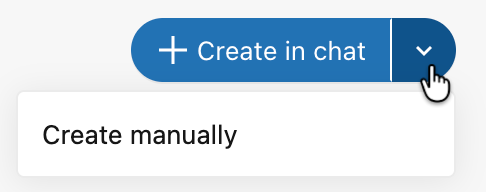
In the sidebar, click Schedules, then click the drop-down menu next to + Create in chat and select Create manually.
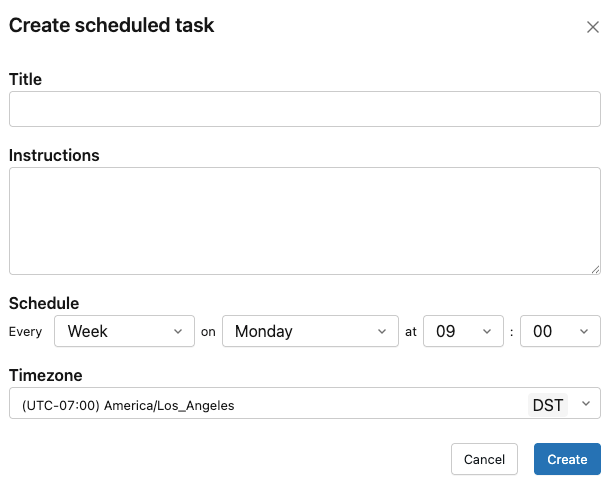
Fill in the Title, Instructions, Connections, Schedule, and Timezone, then click Create.
To view past runs, edit, or delete a scheduled task, click the task in the Scheduled tasks section. Each run opens in a chat thread.
When you author a scheduled task, select Run now to run it immediately without waiting for the next scheduled time.
To reference a scheduled task in a new request, @mention it in chat.
Recall past conversations
Genie One remembers your past conversations and can draw on them to shape its answers, so you can build on earlier work without repeating yourself. Genie One only references your own conversations. This capability is always available and requires no setup.
Most of the time, Genie One draws on your conversation history automatically when earlier context is relevant, rather than only when you ask it to recall a past thread. When a previous conversation is used for context, it adds a citation that links back to the original conversation, just like any other source.
You can also draw on your past conversations yourself in two ways:
- Bring past context into your current conversation. Reference an earlier conversation to pull its context into the chat you're already in, without navigating away.
- Find and reopen a past conversation. Search by content to locate an earlier conversation, then reopen it to continue that thread.
For example, to drill down from a past conversation without leaving your current one:
Tip
Remember when we talked about ARR last quarter? Let's drill down from that conversation and break it out by region.
Add to Genie One's memory
Important
This feature is in Beta. To access it, a workspace admin must enable the Genie One Memory preview from the workspace Previews page.
Genie One can retain specific facts you provide as memories and apply them in later conversations, so you don't need to repeat the same context every time you chat. Genie One's memories are private to you and aren't shared with other users.
Genie One saves a memory only when you explicitly ask it to. To create a memory, tell Genie One what to remember in a conversation:
Tip
Remember that I report all revenue in USD and my fiscal year starts in February.
Genie One automatically applies your saved memories to future conversations.
When Genie One applies a memory, it includes a citation for the memory it used. You can give that memory a thumbs-up or thumbs-down to let Genie One know whether it's helpful. If a memory is wrong or out of date, ask Genie One to update or delete it directly in a conversation.
Documents
Ask Genie One to draft a shareable document from any chat conversation. The document opens in a canvas pane alongside the chat, where you can edit and share it. See Documents in Genie One.
Connect to external tools and sources
Connect external data sources such as Google Drive, SharePoint, GitHub, Glean, and Atlassian to a chat conversation in Genie One. See Connect to external tools and sources.
Share a chat
You can share a chat conversation with all users in your account as read-only.
Click Share in the upper-right corner of the conversation.
Select Anyone in this account.
Click
 Copy link and share the link with others.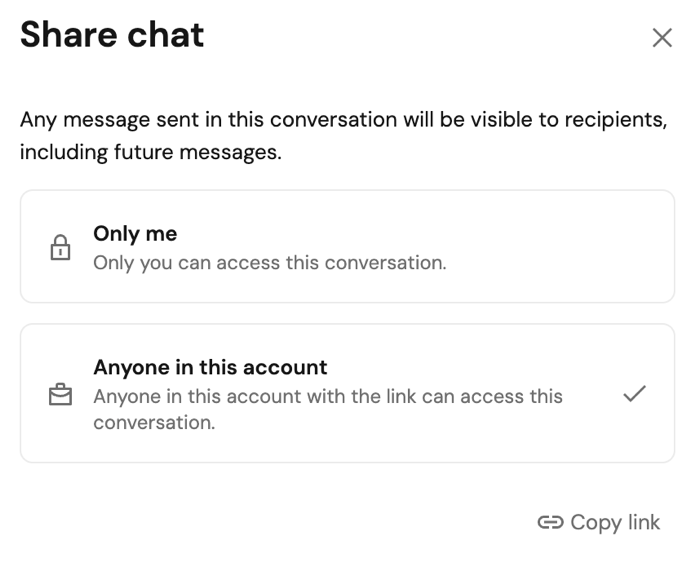
To make a conversation private again, click Share and select Only me.
Limitations
- Workspaces with many Genie Agents might experience reduced routing accuracy.