Note
ამ გვერდზე წვდომა ავტორიზაციას მოითხოვს. შეგიძლიათ სცადოთ შესვლა ან დირექტორიების შეცვლა.
ამ გვერდზე წვდომა ავტორიზაციას მოითხოვს. შეგიძლიათ სცადოთ დირექტორიების შეცვლა.
You can submit feedback by opening Microsoft Defender for Endpoint on macOS on your device and by navigating to Help > Send feedback.
Another option is to submit feedback via the Microsoft Defender XDR by launching security.microsoft.com and selecting the Give feedback tab.
This article provides information on how to troubleshoot issues with the system extension that's installed as part of Microsoft Defender for Endpoint on macOS.
Starting with macOS BigSur (11), Apple's macOS requires all system extensions to be explicitly approved before they're allowed to run on the device.
Symptom
You notice that the Microsoft Defender for Endpoint has an x symbol in the shield, as shown in the following screenshot:

If you select the shield with the x symbol, you get options as shown in the following screenshot:
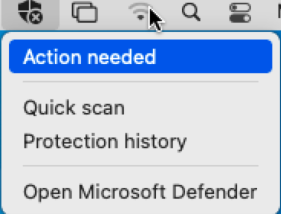
Select Action needed.
The screen as shown in the following screenshot appears:
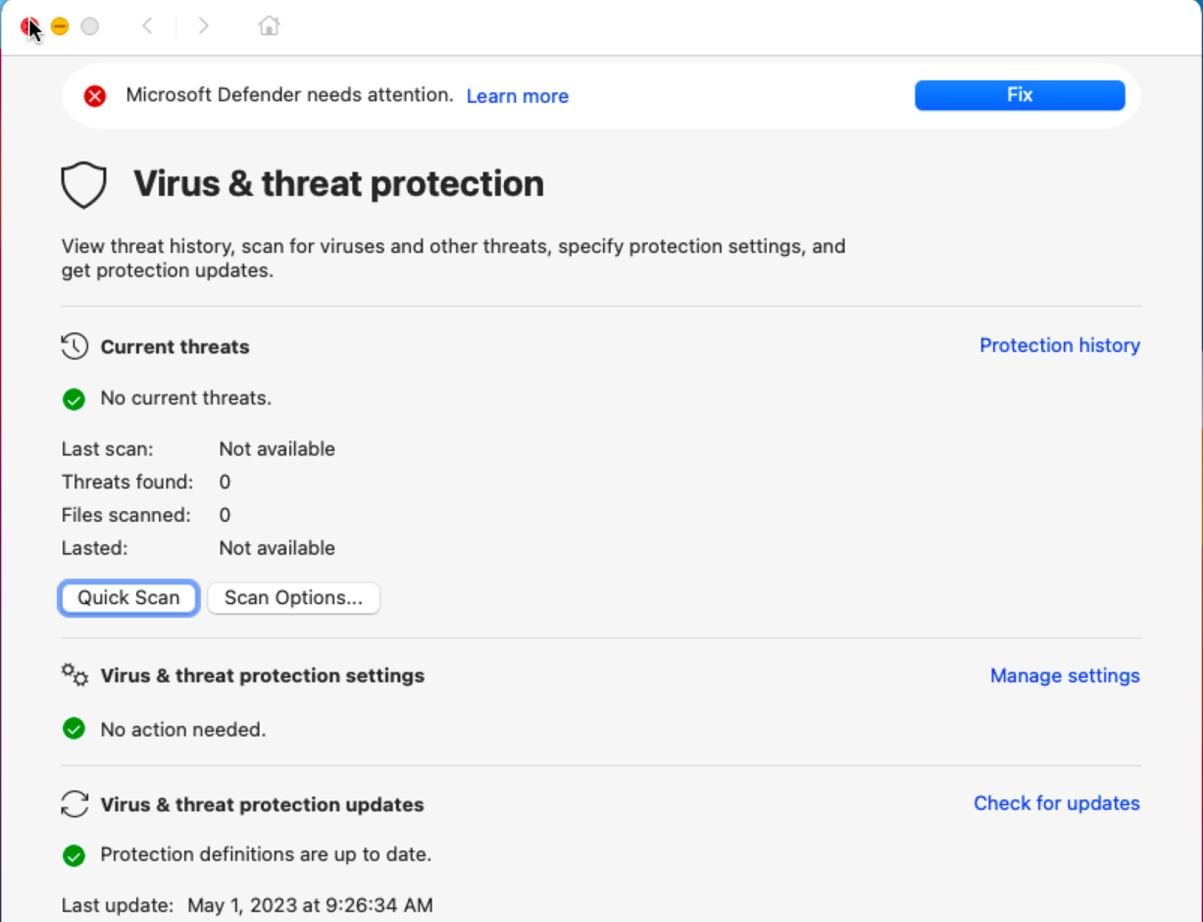
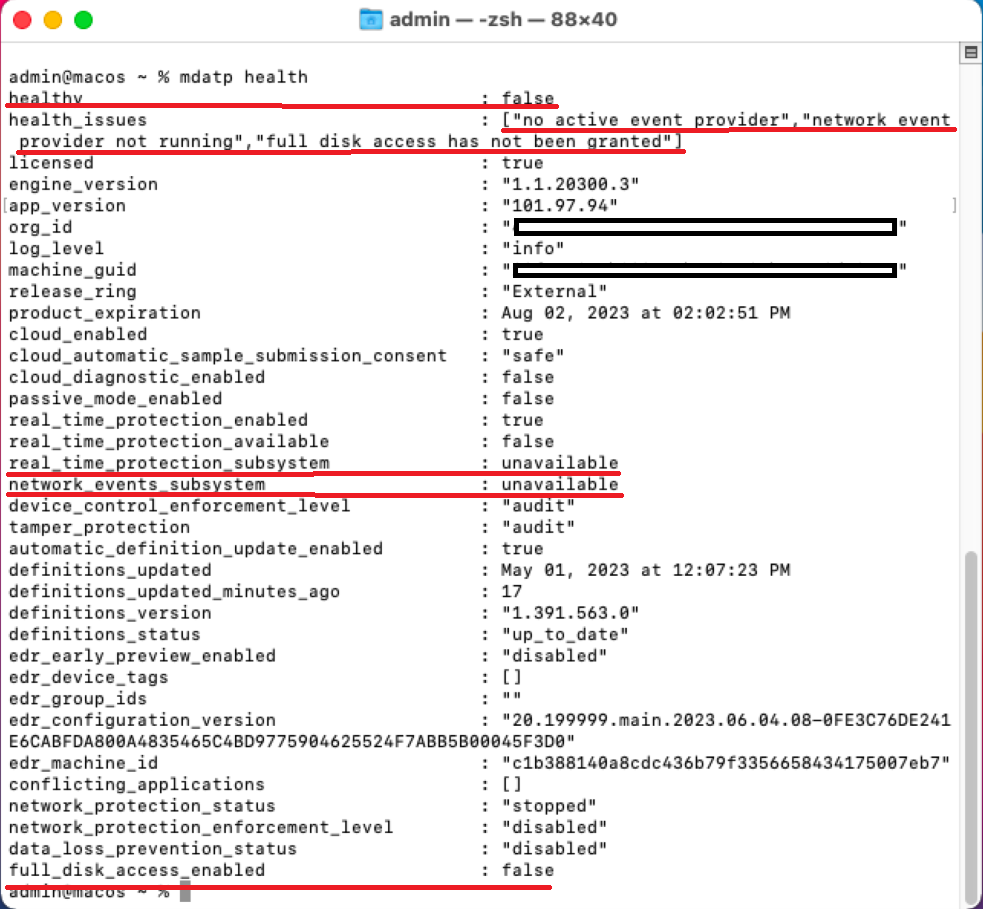
You can also run mdatp health: It reports if real-time protection is enabled but not available. This report indicates that the system extension isn't approved to run on your device.
mdatp health
The output on running mdatp health is:
healthy                            : false
health_issues                    : ["no active event provider", "network event provider not running", "full disk access has not been granted"]
...
real_time_protection_enabled    : unavailable
real_time_protection_available: unavailable
...
full_disk_access_enabled        : false
The output report displayed on running mdatp health is shown in the following screenshot:
Cause
macOS requires that a user manually and explicitly approves certain functions that an application uses, for example, system extensions, running in background, sending notifications, full disk access, and so on. Microsoft Defender for Endpoint relies on these applications and can't properly function until all these consents are received from a user.
If you didn't approve the system extension during the deployment/installation of Microsoft Defender for Endpoint on macOS, perform the following steps:
Check the system extensions by running the following command in the terminal:
systemextensionsctl list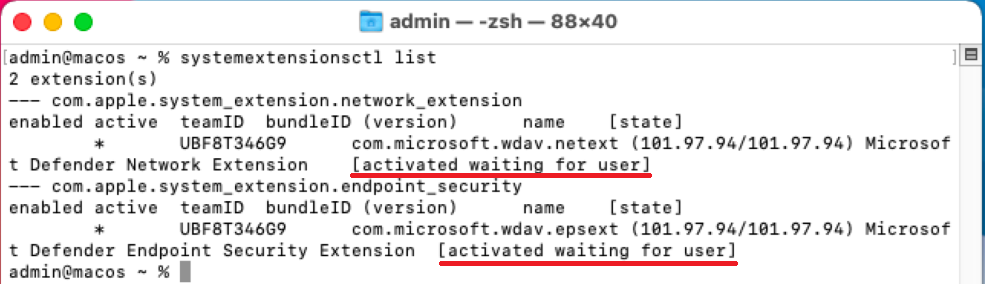
You notice that both Microsoft Defender for Endpoint on macOS extensions is in the [activated waiting for user] state.
In the terminal, run the following command:
mdatp health --details system_extensionsYou get the following output:
network_extension_enabled                 : false
network_extension_installed                 : true
endpoint_security_extension_ready           : false
endpoint_security_extension_installed        : true
This output is shown in the following screenshot:

The following files might be missing if you're managing it via Intune, JamF, or another MDM solution:
| MobileConfig (Plist) | "mdatp health" console command output | macOS setting needed for MDE on macOS to function properly |
|---|---|---|
| "/Library/Managed Preferences/com.apple.system-extension-policy.plist" | real_time_protection_subsystem | System extension |
| "/Library/Managed Preferences/com.apple.webcontent-filter.plist" | network_events_subsystem | Network Filter extension |
| "/Library/Managed Preferences/com.apple.TCC.configuration-profile-policy.plist" | full_disk_access_enabled | Privacy Preference Policy Controls (PPPC, aka TCC (Transparency, Consent & Control), Full Disk Access (FDA)) |
| "/Library/Managed Preferences/com.apple.notificationsettings.plist" | n/a | End-user notifications |
| "/Library/Managed Preferences/servicemanagement.plist" | n/a | Background services |
| "/Library/Managed Preferences/com.apple.TCC.configuration-profile-policy.plist" | full_disk_access_enabled (for DLP) | Accessibility |
To troubleshoot the issue of missing files to make Microsoft Defender for Endpoint on macOS work properly Microsoft Defender for Endpoint on macOS.
Solution
Approve functions (for example, system extensions, background services, notifications, and full disk access) using the following methods:
-
Note
Intune policy support for macOS extensions was deprecated in the August 2024 service release (2048). Existing Intune policies with macOS extensions continue to work, but you can't create new policies with macOS extensions in Intune.
Instead, use the settings catalog to create new Intune policies for macOS that configure the System Extension payload. For more information, see Use the Intune settings catalog to configure settings.
Prerequisites
Prior to approving the system extension (using any of the specified management tools), ensure that the following prerequisites are fulfilled:
Step 1: Are the profiles coming down to your macOS?
If you're using Intune, see Manage macOS software update policies in Intune.
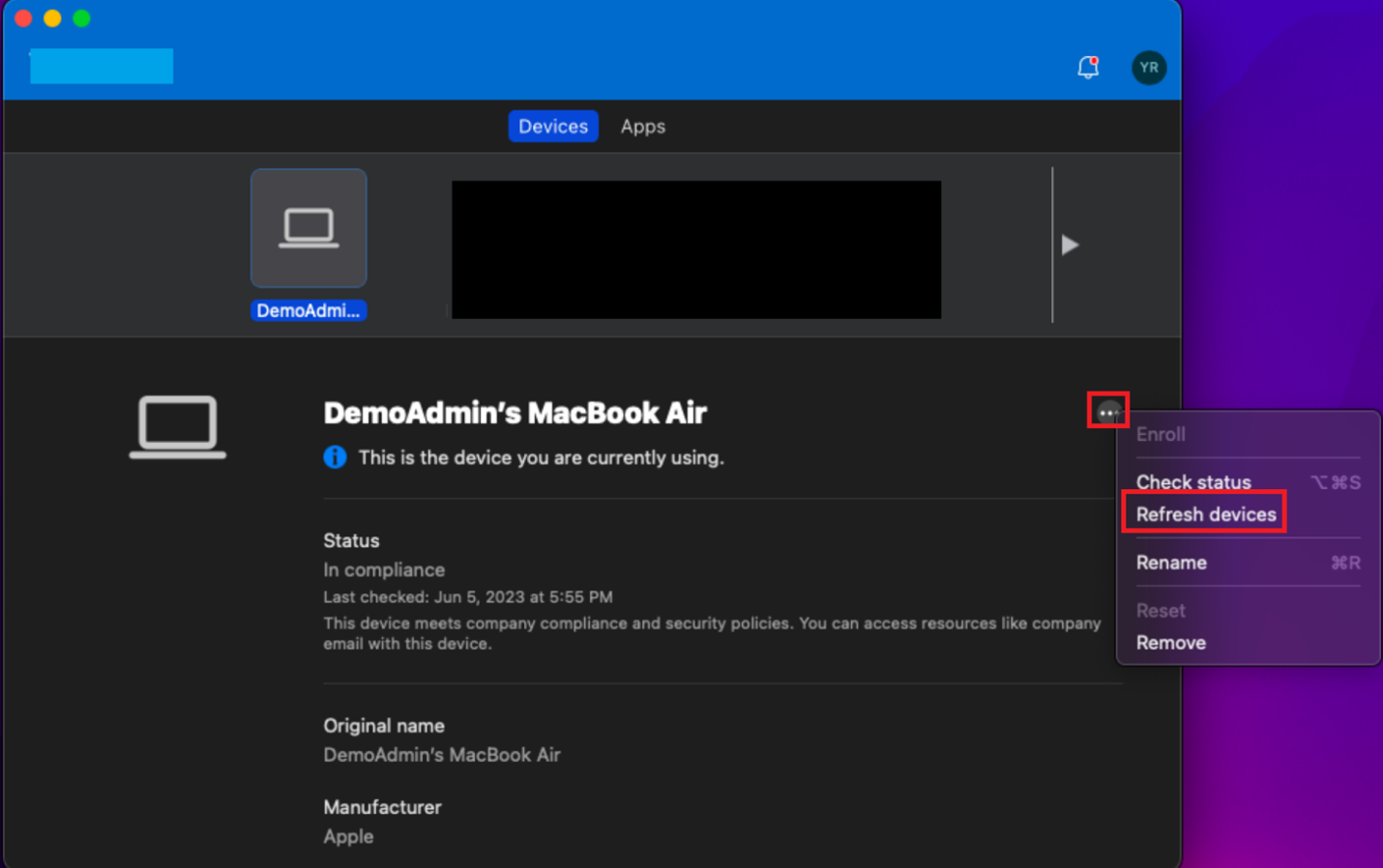
Select the ellipses (three dots).
Select Refresh devices. The screen as shown in the following screenshot appears:
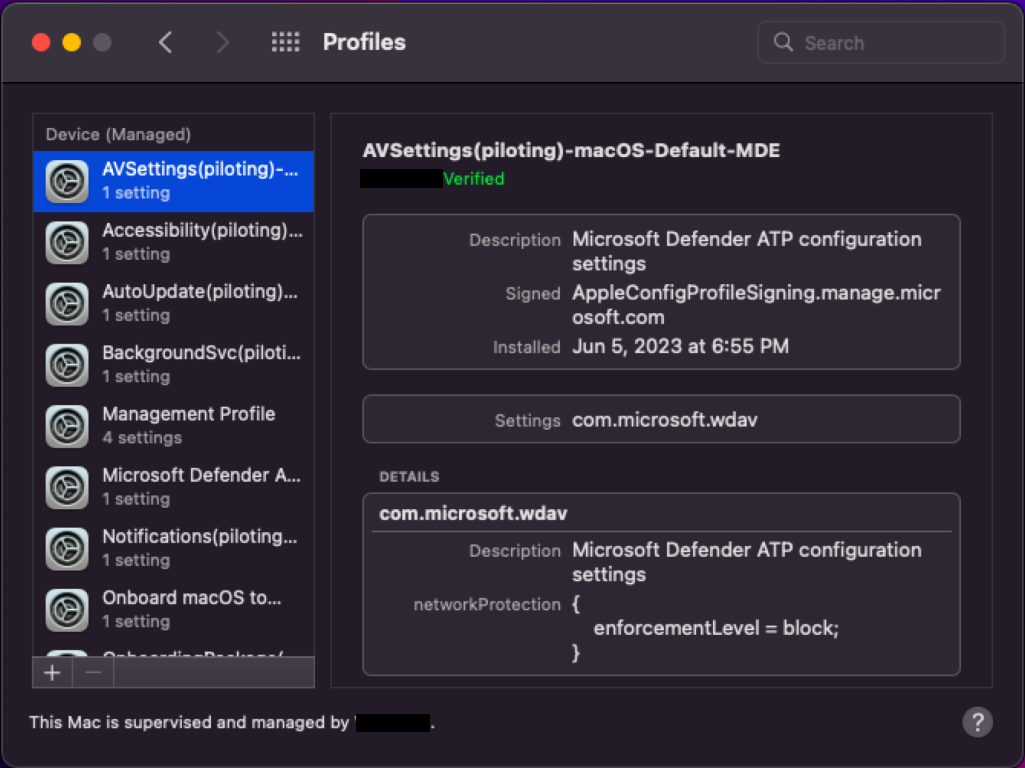
In Launchpad, type System Preferences.
Double-click Profiles.
Note
If you aren't MDM joined, you won't see Profiles as an option. Contact your MDM support team to see why the Profiles option isn't visible. You should be able to see the different profiles such as System Extensions, Accessibility, Background Services, Notifications, Microsoft AutoUpdate, and so on, as shown in the preceding screenshot.
If you're using JamF, use sudo jamf policy. For more information, see Policy Management.
Step 2: Ensure that the profiles needed for Microsoft Defender for Endpoint are enabled
The section Sections that provide guidance on enabling profiles needed for Microsoft Defender for Endpoint provides guidance on how to address this issue, depending on the method that you used to deploy Microsoft Defender for Endpoint on macOS.
Note
A proper naming convention for your configuration profiles is a real advantage. We recommend the following naming scheme:
Name of the Setting(s) [(additional info)] -Platform - Set - Policy-Type
For example: FullDiskAccess (piloting) - macOS - Default - MDE
Using the recommended naming convention enables you to confirm that the correct profiles are dropping down at the time of checking.
Tip
To ensure that the correct profiles are coming down, instead of typing.mobileconfig (plist)**, you can download this profile from GitHub, to avoid typos elongated hyphens.
In terminal, use the following syntax:
curl -O https://URL
For example:
curl -O https://raw.githubusercontent.com/microsoft/mdatp-xplat/master/macos/mobileconfig/profiles/sysext.mobileconfig
Sections that provide guidance on enabling profiles needed for Microsoft Defender for Endpoint
-
- Function: Approve System Extensions
- Mobile config (plist):
https://github.com/microsoft/mdatp-xplat/blob/master/macos/mobileconfig/profiles/sysext.mobileconfig - Applicable to:
- Intune: Yes
- JamF: Yes
- Other MDM: Yes
- Manual: Must approve the extension by going to Security Preferences or System Preferences > Security & Privacy and then selecting Allow.
-
- Function: Network Filter
- Mobile config (plist):
https://github.com/microsoft/mdatp-xplat/blob/master/macos/mobileconfig/profiles/netfilter.mobileconfig - Applicable to:
- Intune: Yes
- JamF: Yes
- Other MDM: Yes
- Manual: Must approve the extension by going to Security Preferences or System Preferences > Security & Privacy and then selecting Allow.
-
- Function: Privacy Preference Policy Controls (PPPC, aka TCC (Transparency, Consent & Control), Full Disk Access (FDA))
- Mobile config (plist):
https://github.com/microsoft/mdatp-xplat/blob/master/macos/mobileconfig/profiles/fulldisk.mobileconfig - Applicable to:
- Intune: Yes
- JamF: Yes
- Other MDM: Yes
- Manual: Must approve the extension by going to Security Preferences or System Preferences > Security & Privacy > Privacy > Full Disk Access and then selecting Allow, and checking the box next to the following:
- Microsoft Defender
- Microsoft Defender Security Extension
-
- Function: Running in background
- Mobile config (plist):
https://github.com/microsoft/mdatp-xplat/blob/master/macos/mobileconfig/profiles/background_services.mobileconfig - Applicable to:
- Intune: Yes
- JamF: Yes
- Other MDM: Yes
- Manual: Not applicable
-
- Function: Sending notifications
- Mobile config (plist):
https://github.com/microsoft/mdatp-xplat/blob/master/macos/mobileconfig/profiles/notif.mobileconfig - Applicable to:
- Intune: Yes
- JamF: Yes
- Other MDM: Yes
- Manual: Not applicable
-
- Function: Accessibility
- Mobile config (plist):
https://github.com/microsoft/mdatp-xplat/blob/master/macos/mobileconfig/profiles/accessibility.mobileconfig - Applicable to:
- Intune: Yes
- JamF: Yes
- Other MDM: Yes
- Manual: Not applicable
Step 3: Test the installed profiles using macOS built-in 'profile' tool
The tool compares your profiles with what we have published in GitHub, and reports inconsistent or missing profiles.
Download the script from https://github.com/microsoft/mdatp-xplat/tree/master/macos/mdm.
Select Raw. The new URL is https://raw.githubusercontent.com/microsoft/mdatp-xplat/master/macos/mdm/analyze_profiles.py.
Save it as analyze_profiles.py to Downloads by running the following command in terminal:
curl -O https://raw.githubusercontent.com/microsoft/mdatp-xplat/master/macos/mdm/analyze_profiles.pyDo one of the the following steps. Sudo permissions are required:
Run the profile analyzer python3 script without any parameters by running the following commands in terminal:
cd /Downloads

sudo python3 analyze_profiles.py
OR
Run the script directly from the Web by running the following commands:
sudo curl https://raw.githubusercontent.com/microsoft/mdatp-xplat/master/macos/mdm/analyze_profiles.py

| python3 -
The output shows all potential issues with profiles.
Recommended content
- Deploying Microsoft Defender for Endpoint on macOS with Jamf Pro: Learn how to deploy Microsoft Defender for Endpoint on macOS with Jamf Pro.
- Set up the Microsoft Defender for Endpoint on macOS policies in Jamf Pro: Learn how to set up the Microsoft Defender for Endpoint on macOS policies in Jamf Pro.
- Set up device groups in Jamf Pro: Learn how to set up device groups in Jamf Pro for Microsoft Defender for Endpoint on macOS.
- Sign-in to Jamf Pro