Ескертпе
Бұл бетке кіру үшін қатынас шегін айқындау қажет. Жүйеге кіруді немесе каталогтарды өзгертуді байқап көруге болады.
Бұл бетке кіру үшін қатынас шегін айқындау қажет. Каталогтарды өзгертуді байқап көруге болады.
This tutorial is the third in a series that shows you how to work with plug-ins.
- Tutorial: Write and register a plug-in
- Tutorial: Debug a plug-in
- Tutorial: Update a plug-in (This tutorial)
For a detailed explanation of supporting concepts and technical details, see:
Goal
This tutorial describes common tasks you perform with plug-ins. In this tutorial, you:
- Update a plug-in assembly
- Create and register a synchronous plug-in
- Use configuration data in the plug-in
- Throw an error to show to the user
- Configure and use a pre-entity image in your code
- Unregister an assembly, a plug-in, or a step
The goal of this tutorial is to:
- Create a synchronous plug-in registered on the pre-validation stage of the Update message of the account table.
- Evaluate a set of string values passed as configuration data when the plug-in is registered.
- If the name of the account is changed to one of these values and the previous value didn't contain the new name, cancel the operation and send an error message back to the user.
Prerequisites
- Complete Tutorial: Write and register a plug-in.
- Tutorial: Debug a plug-in is recommended but not required.
Note
Because many basic steps are described in detail in Tutorial: Write and register a plug-in, this tutorial doesn't include the same level of detail for those steps.
Create a new plug-in class
- In Visual Studio, add a new class to the BasicPlugin project named
ValidateAccountName.cs.Note
When you make a significant change to an assembly, update the assembly version. This step is particularly important if you plan to update an assembly that's part of a managed solution. The version is part of the fully qualified name of the assembly, which is a unique identifier of the assembly. The solution update process might not recognize that the assembly changed when the fully qualified name of the assembly doesn't change.
- Add the following code to the class and rebuild the assembly.
using Microsoft.Xrm.Sdk;
using System;
using System.Collections.Generic;
using System.Linq;

namespace BasicPlugin
{
  public class ValidateAccountName : IPlugin
  {
    //Invalid names from unsecure configuration
    private List<string> invalidNames = new List<string>();

    // Constructor to capture the unsecure configuration
    public ValidateAccountName(string unsecure)
    {
      // Parse the configuration data and set invalidNames
      if (!string.IsNullOrWhiteSpace(unsecure))
        unsecure.Split(',').ToList().ForEach(s =>
        {
          invalidNames.Add(s.Trim());
        });
    }
    public void Execute(IServiceProvider serviceProvider)
    {

      // Obtain the tracing service
      ITracingService tracingService =
      (ITracingService)serviceProvider.GetService(typeof(ITracingService));
      try
      {

        // Obtain the execution context from the service provider.
        IPluginExecutionContext context = (IPluginExecutionContext)
            serviceProvider.GetService(typeof(IPluginExecutionContext));

        // Verify all the requirements for the step registration
        if (context.InputParameters.Contains("Target") && //Is a message with Target
            context.InputParameters["Target"] is Entity && //Target is an entity
            ((Entity)context.InputParameters["Target"]).LogicalName.Equals("account") && //Target is an account
            ((Entity)context.InputParameters["Target"])["name"] != null && //account name is passed
            context.MessageName.Equals("Update") && //Message is Update
            context.PreEntityImages["a"] != null && //PreEntityImage with alias 'a' included with step
            context.PreEntityImages["a"]["name"] != null) //account name included with PreEntityImage with step
        {
          // Obtain the target entity from the input parameters.
          var entity = (Entity)context.InputParameters["Target"];
          var newAccountName = (string)entity["name"];
          var oldAccountName = (string)context.PreEntityImages["a"]["name"];

          if (invalidNames.Count > 0)
          {
            tracingService.Trace("ValidateAccountName: Testing for {0} invalid names:", invalidNames.Count);

            if (invalidNames.Contains(newAccountName.ToLower().Trim()))
            {
              tracingService.Trace("ValidateAccountName: new name '{0}' found in invalid names.", newAccountName);

              // Test whether the old name contained the new name
              if (!oldAccountName.ToLower().Contains(newAccountName.ToLower().Trim()))
              {
                tracingService.Trace("ValidateAccountName: new name '{0}' not found in '{1}'.", newAccountName, oldAccountName);

                string message = string.Format("You can't change the name of this account from '{0}' to '{1}'.", oldAccountName, newAccountName);

                throw new InvalidPluginExecutionException(message);
              }

              tracingService.Trace("ValidateAccountName: new name '{0}' found in old name '{1}'.", newAccountName, oldAccountName);
            }

            tracingService.Trace("ValidateAccountName: new name '{0}' not found in invalidNames.", newAccountName);
          }
          else
          {
            tracingService.Trace("ValidateAccountName: No invalid names passed in configuration.");
          }
        }
        else
        {
          tracingService.Trace("ValidateAccountName: The step for this plug-in is not configured correctly.");
        }
      }
      catch (Exception ex)
      {
        tracingService.Trace("BasicPlugin: {0}", ex.ToString());
        throw;
      }
    }
  }
}
About the code
- This class includes a constructor to capture the unsecure configuration that you set when you configure a step.
- This class requires specific step configuration to work correctly:
- Update message
- On the account table
- With the account name included in the attributes
- With PreEntityImage using specific alias 'a'
- With PreEntityImage including the name columns.
- If the step configuration isn't correct, the plug-in writes to the trace that it isn't configured correctly.
- If you don't set invalid names in the configuration, the plug-in writes to the trace that no invalid names were passed to the configuration.
- If the new name matches any of the invalid names that you set by using the configuration and the original name doesn't contain the new name, the plug-in throws an InvalidPluginExecutionException with the message that this operation isn't allowed.
Update the plug-in assembly registration
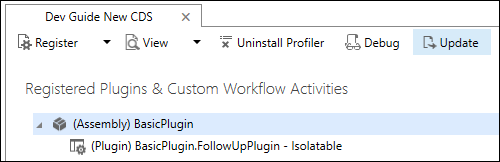
You already registered the existing assembly from Tutorial: Write and register a plug-in. To add the new ValidateAccountName plug-in without unregistering the existing assembly, update it.
Select the (Assembly) Basic Plugin and select Update.
In the Update Assembly: Basic Plugin dialog, specify the location of the assembly by selecting the ellipses (…). The assembly loads.
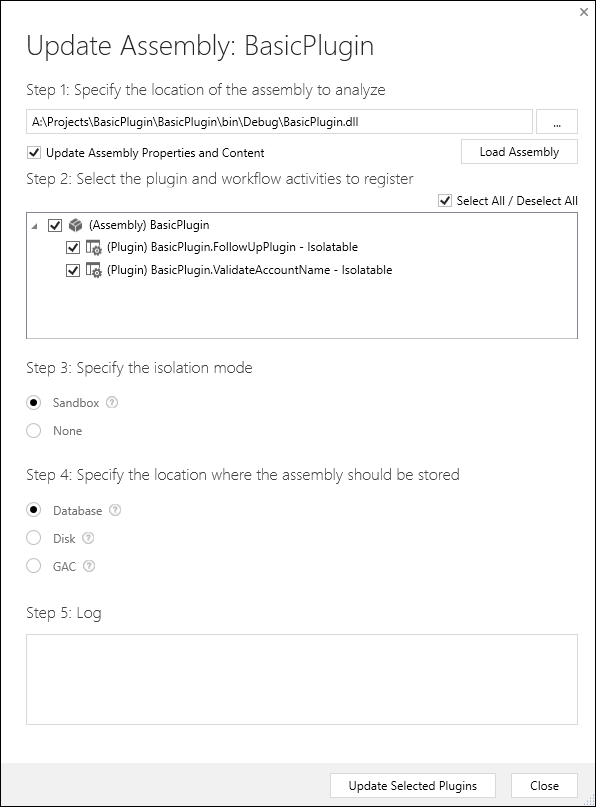
Verify that the assembly and both plug-ins are selected and select Update Selected Plugins.
Configure a new step
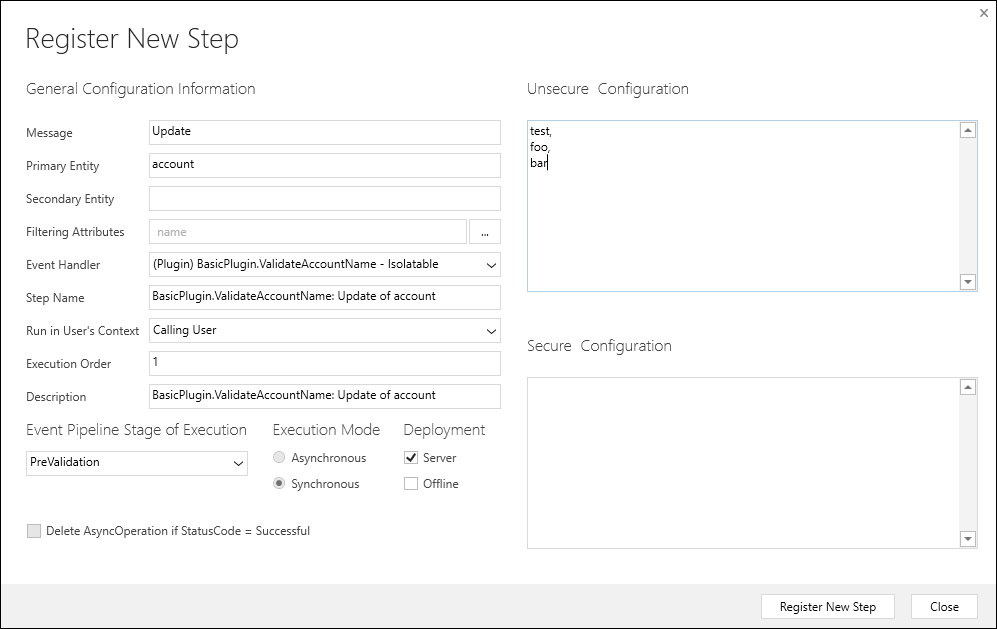
Configure the ValidateAccountName plug-in using these settings:
| Setting | Value |
|---|---|
| Message | Update |
| Primary Entity | account |
| Filtering Attributes | name |
| Event Pipeline Stage of Execution | PreValidation |
| Execution Mode | Synchronous |
| Unsecure Configuration | test, foo, bar |
Add an image
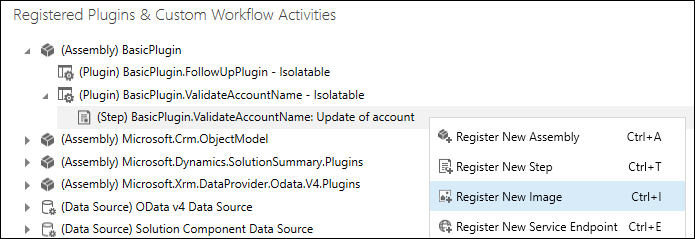
Right-click the step you just registered and select Register New Image.
In the Register New Image dialog, configure the image with these settings:
Setting Value Image Type Pre Image Name account Entity Alias a Parameters name 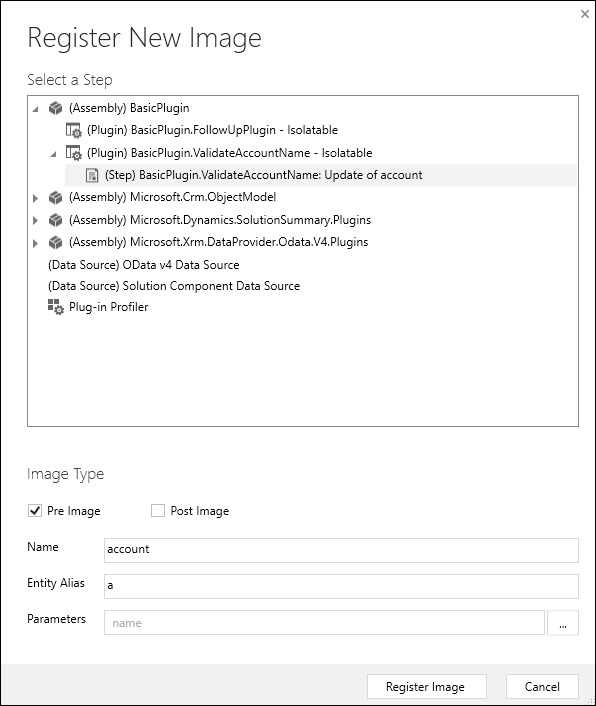
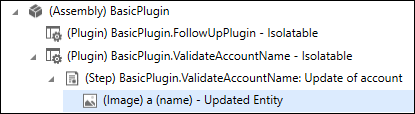
When you register the image, you see it in the Plug-in Registration tool.
Important
The default behavior when you create an entity image is to select all columns. However, this selection can reduce web service performance. Include only the columns you need.
Test the plug-in
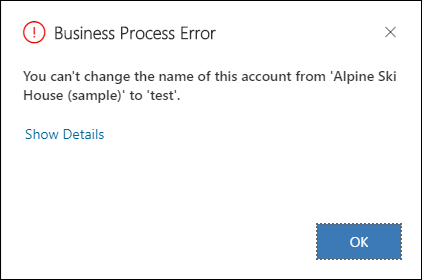
Open the application and attempt to update an existing account name to
test,foo, orbar.When you try to save, you should see the following message:
If you update an existing account with a name that includes
test,foo, orbar, then update the account totest,foo, orbaryou should not see the message.
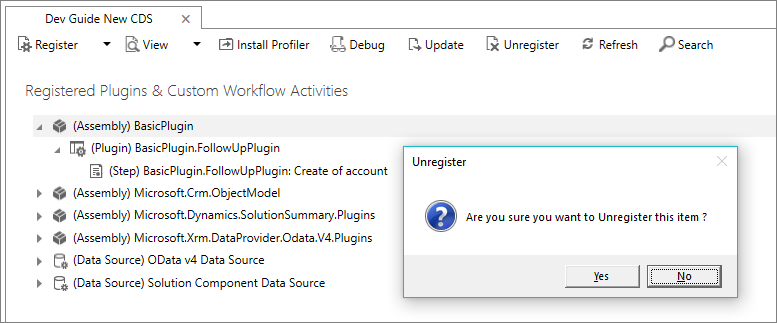
Unregister assembly, plug-in, and step
Use the Plug-in Registration tool to Unregister (delete) any assembly, plug-in, or step. Deleting an assembly deletes all plug-ins and steps for that assembly.