이 빠른 시작에서는 GeoCatalog의 위성 이미지 및 지리 공간적 데이터를 대화형 맵에 표시하는 웹 애플리케이션을 빌드합니다. 브라우저 JavaScript에서 Microsoft Entra ID로 사용자를 인증하고, STAC 컬렉션을 쿼리하고, 지도 타일을 렌더링합니다.
학습한 내용:
- MSAL.js 사용하여 사용자 인증 및 액세스 토큰 획득
- STAC API를 쿼리하여 컬렉션 및 항목 검색
- 권한 부여 헤더를 사용하여 MapLibre GL 맵에 래스터 타일 표시
- 전체 컬렉션에서 원활한 모자이크 레이어 만들기
- SAS 토큰을 사용하여 원시 자산 다운로드
코드 패턴은 모든 최신 JavaScript 프레임워크(React, Vue, Angular) 또는 바닐라 JavaScript에서 작동합니다. GeoCatalog API는 전체 CORS 지원을 지원하므로 개발 중에 직접 localhost 호출할 수 있으며 프록시가 필요하지 않습니다.
Microsoft 플래네터리 컴퓨터 프로 공용 GitHub 리포지토리에서 이 코드를 다운로드하고 테스트할 수 있습니다.
필수 조건
- 활성 구독이 있는 Azure 계정. 무료로 계정을 만듭니다.
- 항목을 포함하는 컬렉션이 하나 이상 있는 배포된 GeoCatalog 리소스 입니다.
- 사용자 신원은 GeoCatalog 리소스에 대한 GeoCatalog Reader (또는 그 이상) 권한이 있어야 합니다. GeoCatalog 리소스에 대한 액세스 관리를 참조하세요.
- Node.js 버전 18 이상.
아키텍처 개요
일반적인 GeoCatalog 웹 애플리케이션은 다음 아키텍처를 따릅니다.
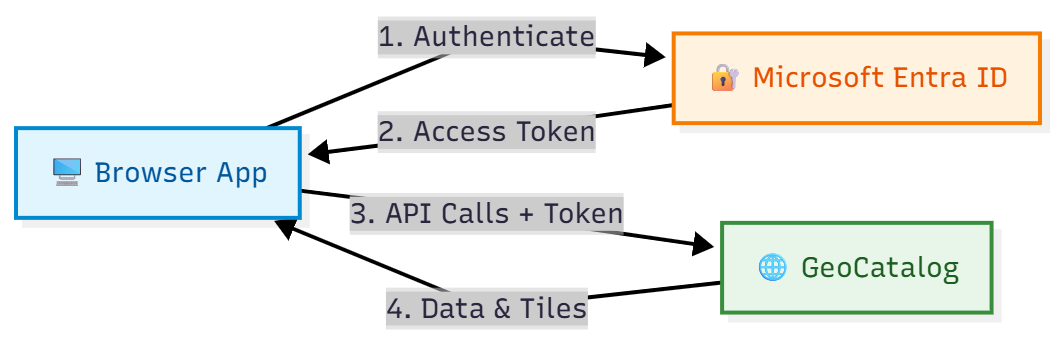
Microsoft Entra ID에 애플리케이션 등록
웹 애플리케이션이 사용자를 인증하기 전에 Microsoft Entra ID에 등록합니다. 이 빠른 시작에서는 클라이언트 쪽 JavaScript 애플리케이션 및 로컬 개발에 적합한 SPA(단일 페이지 애플리케이션) 등록을 사용합니다. 이후 단계에 표시된 API 통합 패턴은 모든 애플리케이션 유형에서 작동합니다.
비고
백 엔드 서버가 있는 프로덕션 애플리케이션의 경우 다른 등록 유형(웹, 네이티브 등)을 선택하는 것이 좋습니다. 시나리오에 적합한 방법을 선택하는 방법에 대한 지침은 애플리케이션 인증 구성 을 참조하세요.
단일 페이지 애플리케이션으로 등록
- Azure Portal에서 Microsoft Entra ID 로 이동합니다.
- 측면 패널에서 앱 등록 을 선택합니다.
- 새 등록선택합니다.
- 애플리케이션의 이름(예: "GeoCatalog 웹앱")을 입력합니다.
- 지원되는 계정 유형에서 이 조직 디렉터리의 계정만 선택합니다.
-
리디렉션 URI에서 SPA(단일 페이지 애플리케이션)를 선택하고 개발 URL(예:
http://localhost:5173)을 입력합니다. - 등록을 선택합니다.
등록 후 개요 페이지에서 다음 값을 확인합니다.
- 애플리케이션(클라이언트) ID
- 디렉터리(테넌트) ID
자세한 내용은 빠른 시작 앱 등록을 검토하세요.
API 권한 부여
애플리케이션에 로그인한 사용자를 대신하여 GeoCatalog API를 호출할 수 있는 권한이 필요합니다.
- 앱 등록에서 API 권한> 선택합니다.
- 조직에서 사용하는 API를 선택하고 Azure Orbital Spatio를 검색합니다.
- 위임된 권한을 선택하고 user_impersonation 확인합니다.
- 권한 추가를 선택합니다.
- 관리자인 경우 테넌트의 모든 사용자를 대신하여 동의하도록 관리자 동의 부여 를 선택합니다.
애플리케이션 사용
애플리케이션에는 다음과 같은 구성 값이 필요합니다. 이러한 값을 제공하는 방법은 빌드 도구(환경 변수, 구성 파일 등)에 따라 달라집니다.
| 구성 / 설정 | 가치 | Description |
|---|---|---|
| 카탈로그 URL | https://{name}.{region}.geocatalog.spatio.azure.com |
GeoCatalog 엔드포인트 |
| 임차인 ID | 앱 등록에서 | 당신의 Microsoft Entra 테넌트 |
| 클라이언트 ID | 앱 등록에서 | 애플리케이션의 클라이언트 ID |
| API 범위 | https://geocatalog.spatio.azure.com/.default |
항상 이 정확한 값 사용 |
종속성 설치
브라우저 애플리케이션 및 지도 라이브러리에 대한 MSAL(Microsoft 인증 라이브러리)을 설치합니다.
npm install @azure/msal-browser maplibre-gl
- @azure/msal-browser - Microsoft Entra ID를 사용하여 OAuth 2.0 인증 처리
- maplibre-gl - 타일 시각화를 위한 오픈 소스 맵 라이브러리
팁 (조언)
프로젝트 구조: 이 빠른 시작의 코드 샘플은 원하는 방식으로 구성할 수 있는 독립 실행형 함수입니다. 일반적인 패턴:
-
auth.js: MSAL 구성 및 토큰 함수 -
api.js: STAC API, Tiler API 및 SAS 토큰 함수 -
map.js: MapLibre 초기화 및 타일 계층 관리 -
App.js또는main.js: UI와 함께 모든 것을 연결
각 함수는 해당 종속성(액세스 토큰, URL)을 매개 변수로 수신하므로 프레임워크 또는 프로젝트 구조에 쉽게 통합할 수 있습니다.
MSAL 인증 구현

브라우저 인증을 위해 MSAL을 구성합니다. 다음 예제에서는 키 구성 및 토큰 획득 패턴을 보여 줍니다.
import { PublicClientApplication, InteractionRequiredAuthError } from '@azure/msal-browser';

// Configuration - replace with your values or load from environment/config
const msalConfig = {
  auth: {
    clientId: 'YOUR_CLIENT_ID',
    authority: 'https://login.microsoftonline.com/YOUR_TENANT_ID',
    redirectUri: window.location.origin,
  },
  cache: {
    cacheLocation: 'sessionStorage',
    storeAuthStateInCookie: false,
  },
};

// Create MSAL instance
const msalInstance = new PublicClientApplication(msalConfig);

// GeoCatalog API scope - always use this exact value
const scopes = ['https://geocatalog.spatio.azure.com/.default'];

/**
 * Acquire an access token for GeoCatalog API calls.
 * Tries silent acquisition first, falls back to popup if needed.
 */
async function getAccessToken() {
  const account = msalInstance.getActiveAccount() || msalInstance.getAllAccounts()[0];

  if (!account) {
    throw new Error('No authenticated account. Call login() first.');
  }

  try {
    // Try silent token acquisition (uses cached token)
    const result = await msalInstance.acquireTokenSilent({ account, scopes });
    return result.accessToken;
  } catch (error) {
    // If silent fails (token expired), fall back to popup
    if (error instanceof InteractionRequiredAuthError) {
      const result = await msalInstance.acquireTokenPopup({ scopes });
      return result.accessToken;
    }
    throw error;
  }
}

/**
 * Sign in the user via popup.
 */
async function login() {
  const result = await msalInstance.loginPopup({ scopes });
  msalInstance.setActiveAccount(result.account);
  return result.account;
}

/**
 * Sign out the user.
 */
function logout() {
  msalInstance.logoutPopup();
}
STAC API: 컬렉션 및 항목 쿼리
GeoCatalog STAC API는 지리 공간적 데이터를 검색하고 쿼리하기 위한 엔드포인트를 제공합니다. 모든 요청에는 Authorization에서 가져온 전달자 토큰이 있는 헤더가 필요합니다.
컬렉션 나열

const API_VERSION = '2026-04-15';

async function listCollections(accessToken, catalogUrl) {
  const url = `${catalogUrl}/stac/collections?api-version=${API_VERSION}`;

  const response = await fetch(url, {
    headers: {
      'Authorization': `Bearer ${accessToken}`,
    },
  });

  if (!response.ok) {
    throw new Error(`Failed to list collections: ${response.statusText}`);
  }

  const data = await response.json();
  return data.collections; // Array of STAC Collection objects
}
컬렉션의 항목 나열
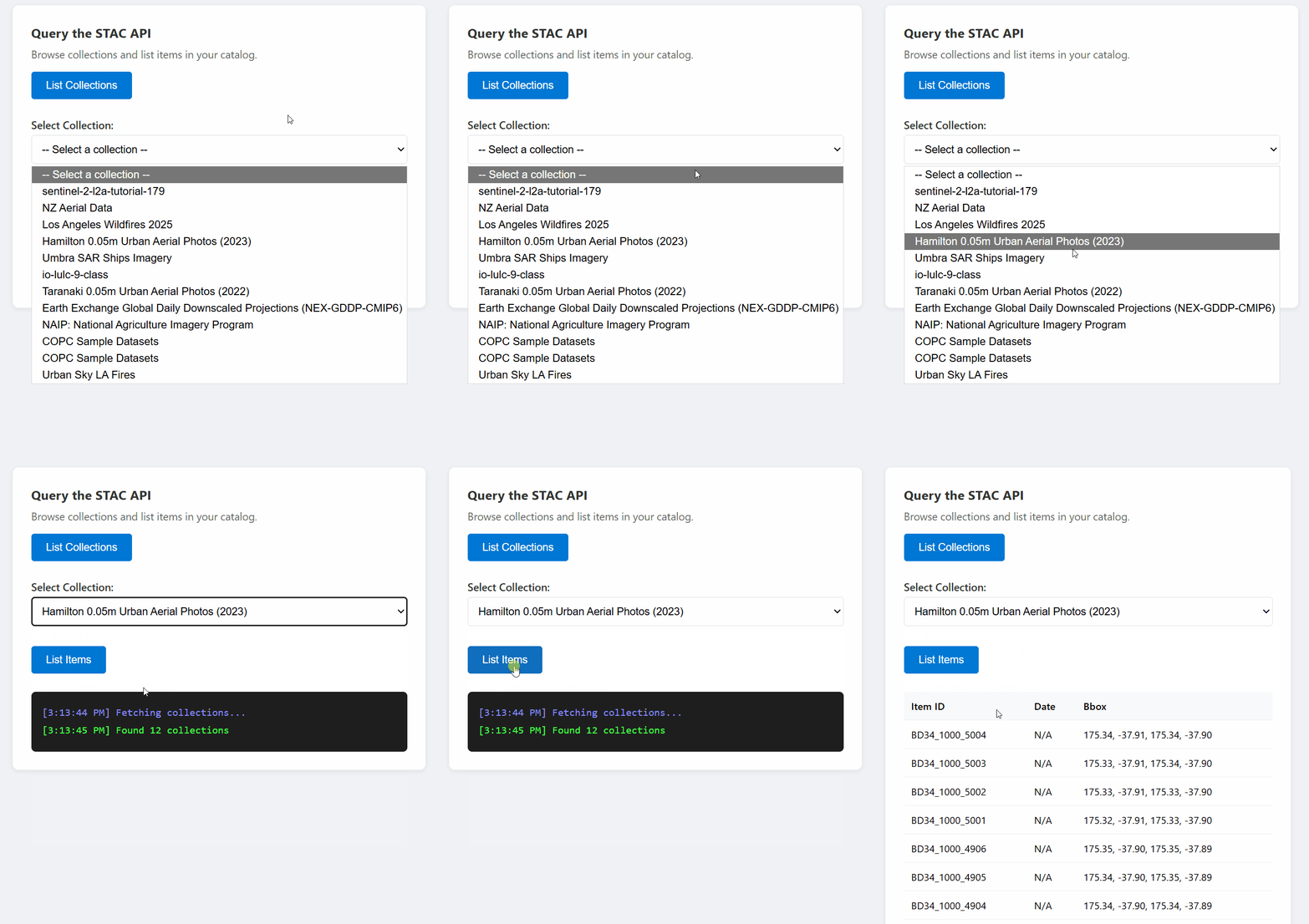
const API_VERSION = '2026-04-15';

async function listItems(accessToken, catalogUrl, collectionId, limit = 10) {
  const url = `${catalogUrl}/stac/collections/${collectionId}/items?limit=${limit}&api-version=${API_VERSION}`;

  const response = await fetch(url, {
    headers: {
      'Authorization': `Bearer ${accessToken}`,
    },
  });

  if (!response.ok) {
    throw new Error(`Failed to list items: ${response.statusText}`);
  }

  const data = await response.json();
  return data.features; // Array of STAC Item objects
}
컬렉션에서 검색

const API_VERSION = '2026-04-15';

async function searchItems(accessToken, catalogUrl, searchParams) {
  const url = `${catalogUrl}/stac/search?api-version=${API_VERSION}`;

  const response = await fetch(url, {
    method: 'POST',
    headers: {
      'Authorization': `Bearer ${accessToken}`,
      'Content-Type': 'application/json',
    },
    body: JSON.stringify(searchParams),
  });

  if (!response.ok) {
    throw new Error(`Search failed: ${response.statusText}`);
  }

  return await response.json();
}

// Example usage:
const results = await searchItems(token, catalogUrl, {
  collections: ['my-collection'],
  bbox: [-122.5, 37.5, -122.0, 38.0],  // [west, south, east, north]
  datetime: '2024-01-01/2024-12-31',
  limit: 20,
});
타일 URL: 지도 시각화를 위한 빌드 URL
GeoCatalog Tiler API는 래스터 데이터를 지도 타일로 제공합니다. 다음 패턴을 사용하여 타일 URL을 생성합니다.
단일 항목 타일
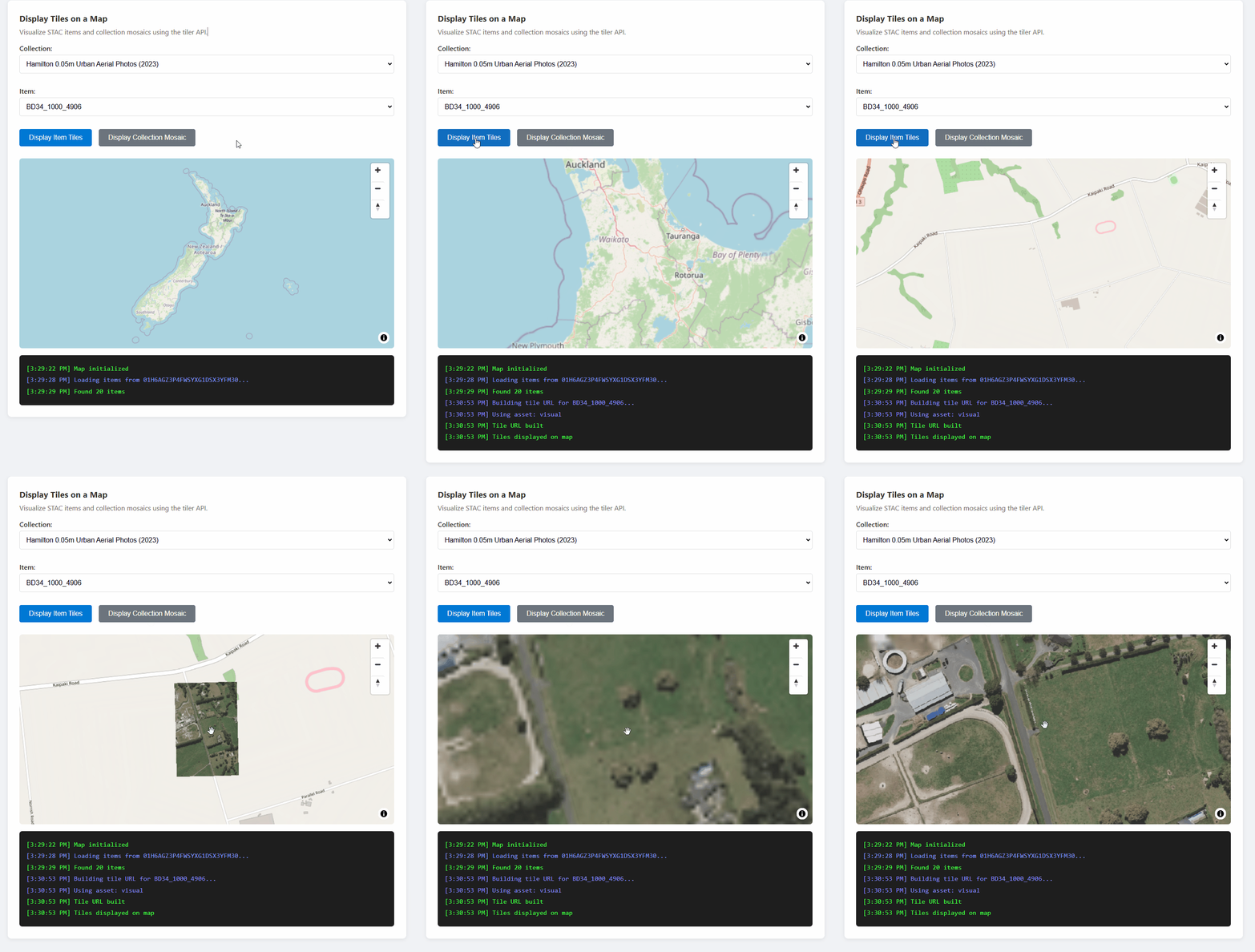
{catalogUrl}/data/mosaic/collections/{collectionId}/items/{itemId}/tiles/{z}/{x}/{y}@1x.png
  ?api-version=2026-04-15
  &tileMatrixSetId=WebMercatorQuad
  &assets=visual
타일 URL 작성기 함수
const API_VERSION = '2026-04-15';

/**
 * Build a tile URL template for a STAC item.
 * Returns a URL with {z}/{x}/{y} placeholders for use with map libraries.
 */
function buildTileUrl(catalogUrl, collectionId, itemId, options = {}) {
  const { assets = 'visual', colormap, rescale } = options;

  const base = `${catalogUrl}/data/mosaic/collections/${collectionId}/items/${itemId}/tiles/{z}/{x}/{y}@1x.png`;

  const params = new URLSearchParams();
  params.set('api-version', API_VERSION);
  params.set('tileMatrixSetId', 'WebMercatorQuad');
  params.set('assets', assets);

  if (colormap) params.set('colormap_name', colormap);
  if (rescale) params.set('rescale', rescale);

  return `${base}?${params.toString()}`;
}

// Example usage:
const tileUrl = buildTileUrl(
  'https://mygeocatalog.northcentralus.geocatalog.spatio.azure.com',
  'aerial-imagery',
  'image-001',
  { assets: 'visual' }
);
키 타일 매개 변수
| 매개 변수 | 필수 | Description |
|---|---|---|
api-version |
Yes | API 버전(2026-04-15) |
tileMatrixSetId |
Yes | 웹 맵에 사용 WebMercatorQuad |
assets |
Yes | 렌더링할 자산 이름(예: visual, image) |
colormap_name |
아니오 | 명명된 컬러맵(colormap)(예: viridis, terrain) |
rescale |
아니오 | 크기 조정을 위한 값 범위(예: 0,255) |
asset_bidx |
아니오 | 밴드 인덱스(예: image\|1,2,3 RGB의 경우) |
비고
4개 밴드 이미지가 있는 컬렉션(예: RGB + NIR이 있는 NAIP)의 경우 RGB 밴드만 선택하는 데 사용합니다 asset_bidx=image|1,2,3 . 타일러는 4개의 밴드를 PNG로 인코딩할 수 없습니다.
지도 통합: MapLibre GL을 사용하여 타일 표시
MapLibre GL, 전단지 및 OpenLayers와 같은 지도 라이브러리는 래스터 타일을 표시할 수 있습니다. 주요 과제는 이러한 라이브러리가 타일을 직접 가져오기 때문에 타일 요청에 권한 부여 헤더를 추가하는 것입니다.
MapLibre GL 예제
MapLibre GL은 헤더를 transformRequest 삽입하는 옵션을 제공합니다.
import maplibregl from 'maplibre-gl';
import 'maplibre-gl/dist/maplibre-gl.css';

// Store the current access token
let currentAccessToken = null;

function initializeMap(containerId, accessToken) {
  currentAccessToken = accessToken;

  const map = new maplibregl.Map({
    container: containerId,
    style: {
      version: 8,
      sources: {
        osm: {
          type: 'raster',
          tiles: ['https://tile.openstreetmap.org/{z}/{x}/{y}.png'],
          tileSize: 256,
          attribution: '© OpenStreetMap contributors',
        },
      },
      layers: [{ id: 'osm', type: 'raster', source: 'osm' }],
    },
    center: [0, 0],
    zoom: 2,
    // Add authorization header to tile requests
    transformRequest: (url, resourceType) => {
      // Only add auth for GeoCatalog tile requests
      if (url.includes('geocatalog.spatio.azure.com') && currentAccessToken) {
        return {
          url,
          headers: { 'Authorization': `Bearer ${currentAccessToken}` },
        };
      }
      return { url };
    },
  });

  return map;
}

function addTileLayer(map, tileUrl, bounds) {
  // Remove existing layer and source if present
  if (map.getLayer('data-layer')) {
    map.removeLayer('data-layer');
  }
  if (map.getSource('data-tiles')) {
    map.removeSource('data-tiles');
  }

  // Add tile source
  map.addSource('data-tiles', {
    type: 'raster',
    tiles: [tileUrl],
    tileSize: 256,
    minzoom: 10,  // Many aerial collections require zoom 10+
    maxzoom: 18,
  });

  // Add tile layer
  map.addLayer({
    id: 'data-layer',
    type: 'raster',
    source: 'data-tiles',
  });

  // Zoom to bounds [west, south, east, north]
  if (bounds) {
    map.fitBounds([[bounds[0], bounds[1]], [bounds[2], bounds[3]]], { padding: 50 });
  }
}
중요합니다
함수는 transformRequest 모든 타일 요청에 대해 호출됩니다. 액세스 가능한 변수 transformRequest 에 액세스 토큰을 저장하고 토큰이 새로 고쳐지면 업데이트합니다.
모자이크 타일: 컬렉션 전체 이미지 표시
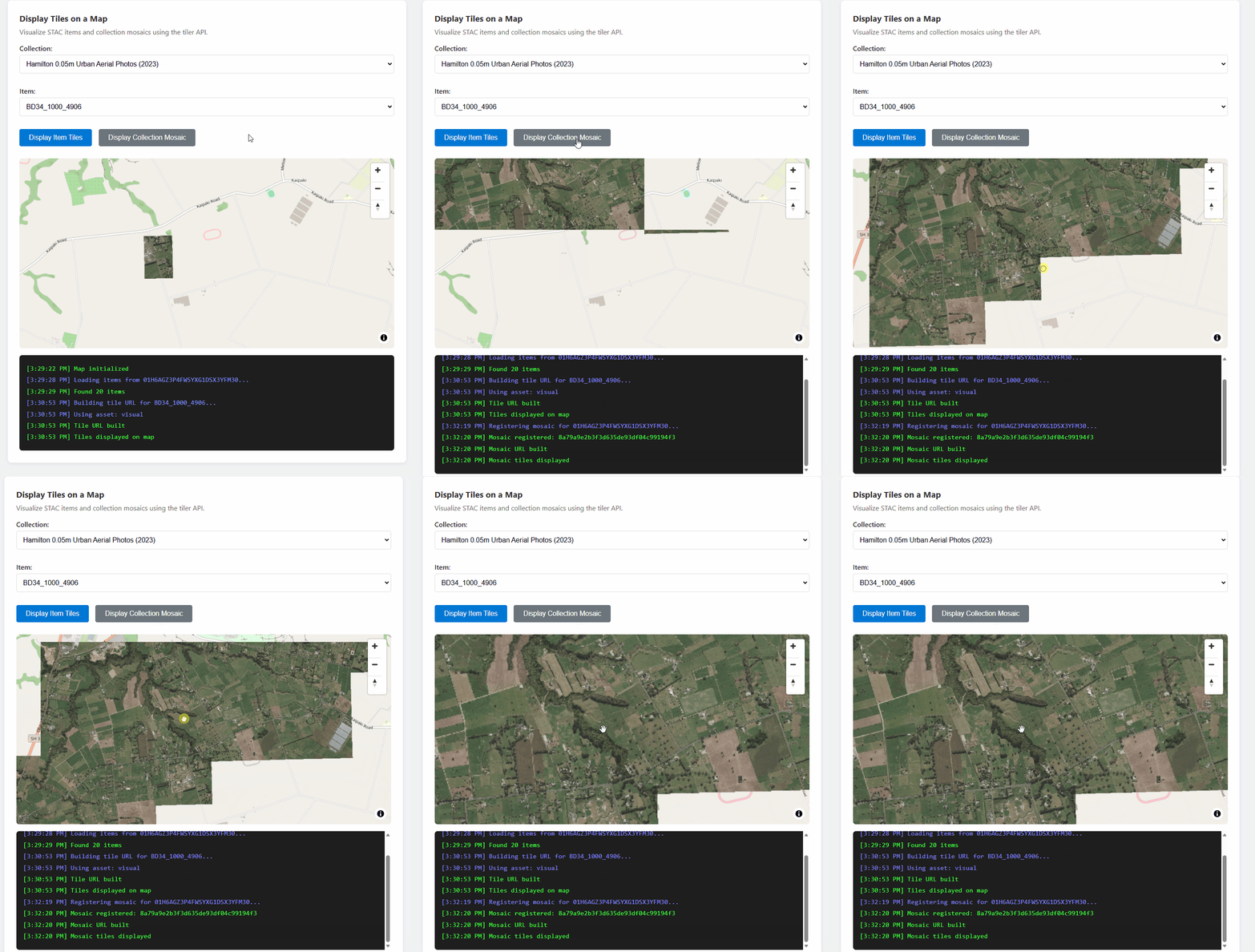
컬렉션의 모든 항목을 원활한 계층으로 보려면 모자이크 검색을 등록하고 반환된 검색 ID를 사용합니다.
const API_VERSION = '2026-04-15';

/**
 * Register a mosaic search for a collection.
 * Returns a search ID that can be used to fetch mosaic tiles.
 */
async function registerMosaic(catalogUrl, collectionId, accessToken) {
  const url = `${catalogUrl}/data/mosaic/register?api-version=${API_VERSION}`;

  const response = await fetch(url, {
    method: 'POST',
    headers: {
      'Authorization': `Bearer ${accessToken}`,
      'Content-Type': 'application/json',
    },
    body: JSON.stringify({
      collections: [collectionId],
    }),
  });

  if (!response.ok) {
    throw new Error(`Failed to register mosaic: ${response.statusText}`);
  }

  const data = await response.json();
  // Note: API returns 'searchid' (lowercase), not 'searchId'
  return data.searchid;
}

/**
 * Build a mosaic tile URL template.
 */
function buildMosaicTileUrl(catalogUrl, searchId, collectionId, options = {}) {
  const { assets = 'visual' } = options;

  const base = `${catalogUrl}/data/mosaic/searches/${searchId}/tiles/{z}/{x}/{y}@1x.png`;

  const params = new URLSearchParams();
  params.set('api-version', API_VERSION);
  params.set('tileMatrixSetId', 'WebMercatorQuad');
  params.set('collection', collectionId);
  params.set('assets', assets);

  return `${base}?${params.toString()}`;
}
SAS 토큰: 원시 자산 다운로드
SAS API는 Azure Blob Storage에서 직접 원시 자산 파일(GeoTIFF, COG 및 기타 파일)을 다운로드하기 위한 시간 제한 토큰을 제공합니다. 렌더링된 타일 대신 원본 원본 파일이 필요한 경우 이 옵션을 사용합니다.
중요합니다
SAS 토큰은 브라우저 애플리케이션에서 다운로드만 가능하게 합니다. Azure Blob Storage CORS 정책으로 인해 브라우저는 JavaScript fetch()를 통해 Blob 데이터를 읽을 수 없습니다.
브라우저 제한 사항 섹션을 참조하세요.
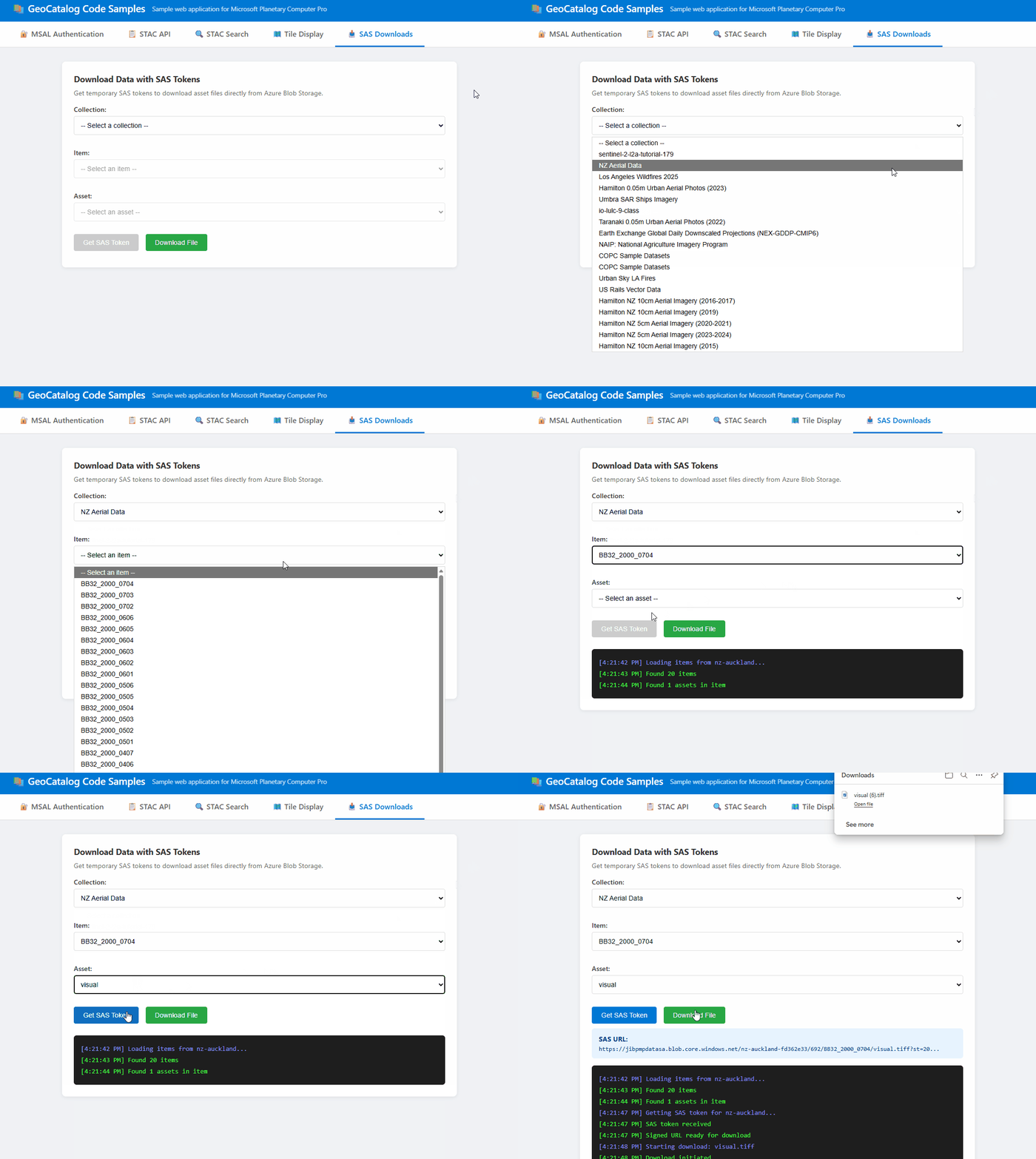
SAS 토큰 가져오기
const API_VERSION = '2026-04-15';

/**
 * Get a SAS token for accessing assets in a collection.
 * Returns a token string that can be appended to asset URLs.
 */
async function getCollectionSasToken(accessToken, catalogUrl, collectionId) {
  const url = `${catalogUrl}/sas/token/${collectionId}?api-version=${API_VERSION}`;

  const response = await fetch(url, {
    headers: {
      'Authorization': `Bearer ${accessToken}`,
    },
  });

  if (!response.ok) {
    throw new Error(`Failed to get SAS token: ${response.statusText}`);
  }

  const data = await response.json();
  return data.token; // SAS token string
}
서명된 다운로드 URL 빌드
/**
 * Build a signed URL for downloading an asset.
 * Appends the SAS token to the asset's href.
 */
function buildSignedAssetUrl(assetHref, sasToken) {
  const separator = assetHref.includes('?') ? '&' : '?';
  return `${assetHref}${separator}${sasToken}`;
}

// Example usage:
const sasToken = await getCollectionSasToken(accessToken, catalogUrl, 'my-collection');
const assetHref = item.assets['visual'].href;
const signedUrl = buildSignedAssetUrl(assetHref, sasToken);
파일 다운로드를 시작하다
/**
 * Trigger a browser download for an asset file.
 * Works by creating a temporary anchor element.
 */
function downloadAsset(signedUrl, filename) {
  const link = document.createElement('a');
  link.href = signedUrl;
  link.download = filename || 'download';
  document.body.appendChild(link);
  link.click();
  document.body.removeChild(link);
}

// Example: Download an asset
downloadAsset(signedUrl, 'aerial-image.tif');
브라우저 제한 사항
SAS 토큰은 브라우저에서 서버 쪽 코드와 다르게 작동합니다.
| 사용 사례 | Browser | 서버 쪽 |
|---|---|---|
| 파일 다운로드(사용자가 링크를 선택) | ✅ 작동 | ✅ 작동 |
fetch()를 통해 Blob 데이터를 읽기 |
❌ CORS 차단됨 | ✅ 작동 |
| JavaScript에서 원시 픽셀 처리 | ❌ 불가능 | ✅ 작동 |
탐색(링크 클릭)이 CORS를 무시하므로 브라우저 다운로드가 작동합니다. 그러나 fetch() 스토리지 계정에 CORS 정책에 애플리케이션의 원본이 포함되지 않으므로 Azure Blob Storage에 대한 요청이 차단됩니다.
애플리케이션이 브라우저에서 원시 자산 데이터를 읽고 처리해야 하는 경우 서버 쪽 프록시를 구현합니다.
비고
다음 코드는 프록시 패턴을 설명하는 간소화된 예제입니다. 프로덕션 애플리케이션의 경우 프록시 엔드포인트는 요청을 인증하고(예: 사용자의 전달자 토큰을 전달하거나 세션 인증을 사용하여) 요청된 리소스에 액세스할 권한이 있는지 확인해야 합니다.
// ❌ Browser: This fails due to CORS
const response = await fetch(signedUrl);
const data = await response.arrayBuffer(); // Error!

// ✅ Browser: Call your backend instead
const response = await fetch('/api/proxy-asset', {
  method: 'POST',
  body: JSON.stringify({ collectionId, itemId, assetName })
});
const data = await response.json(); // Works!
백 엔드는 SAS 토큰을 사용하여 Blob을 가져오고 처리된 결과를 반환할 수 있습니다.
개발 고려 사항
CORS 지원
GeoCatalog API에는 전체 CORS 지원이 포함됩니다Access-Control-Allow-Origin: *. 브라우저 기반 애플리케이션은 개발 중인 http://localhost을 포함하여 모든 출처에서 GeoCatalog로 직접 요청을 보낼 수 있습니다. 프록시 또는 해결 방법이 필요하지 않습니다.
API는 Authorization CORS 요청에서 헤더를 허용하므로 인증된 호출은 fetch() 브라우저 JavaScript에서 직접 작동합니다.
올바른 데이터 액세스 방법 선택
| 메서드 | 브라우저 fetch() |
브라우저 다운로드 | 서버 쪽 | 적합한 대상 |
|---|---|---|---|---|
| Tiler API | ✅ 완벽하게 지원 | ✅ 예 | ✅ 예 | 지도 시각화 |
| SAS 토큰 | ❌ CORS 차단됨 | ✅ 예 | ✅ 예 | 원시 파일 다운로드 |
Tiler API: 지도에 이미지를 표시하는 데 사용합니다. 전체 CORS 지원을 사용하여 렌더링된 PNG 또는 WebP 타일을 반환합니다. 타일 URL 및 맵 통합을 참조하세요.
SAS 토큰: 원본 원본 파일(GeoTIFF, COG)을 다운로드하는 데 사용합니다. 브라우저 다운로드는 작동하지만
fetch()Azure Blob Storage CORS 정책에 의해 차단됩니다. 자세한 내용 및 해결 방법은 SAS 토큰 을 참조하세요.
토큰 새로 고침
액세스 토큰은 일반적으로 1시간 후에 만료됩니다. 애플리케이션은 다음을 수행해야 합니다.
- 새 토큰을 획득하여 401 오류를 처리합니다.
- 만료된 토큰을 자동으로 새로 고치는 MSAL의 자동 토큰 획득을 사용합니다.
- 맵에서 사용하는 토큰 참조를 업데이트합니다
transformRequest.
오류 처리
일반적인 오류 시나리오 처리:
| HTTP 상태 | 원인 | 해결 방법 |
|---|---|---|
| 401 | 토큰이 만료되었거나 잘못되었습니다. | 액세스 토큰 새로 고침 |
| 404 | 항목 또는 컬렉션을 찾을 수 없음 | ID가 있는지 확인 |
| 424 | 데이터 범위를 벗어난 타일 | 예상된 상황 - 원활하게 처리 |
Troubleshooting
| 오류 | 원인 | 해결 방법 |
|---|---|---|
| "AADSTS50011: 회신 URL 불일치" | 코드의 리디렉션 URI가 Microsoft Entra ID 등록과 일치하지 않음 | 앱 등록에서 SPA 리디렉션 URI로 개발 URL(예 http://localhost:3000: )을 추가합니다. |
| 잘못된 범위 오류 | API 범위 대신 GeoCatalog URL 사용 |
https://geocatalog.spatio.azure.com/.default을(를) 범위로 사용 |
| 401 타일 요청에 대한 권한 없음 | 인증 헤더를 포함하지 않는 지도 라이브러리 | 전달자 토큰을 추가하려면(MapLibre)를 사용합니다 transformRequest . 토큰이 최신인지 확인합니다. |
| 타일이 베이스맵에 맞지 않음 | 잘못된 타일 행렬 집합 | Web Mercator 프로젝션(EPSG:3857)에 tileMatrixSetId=WebMercatorQuad를 사용하십시오. |
| "이미지를 디코딩할 수 없습니다." | 잘못된 자산 이름, 멀티밴드 이미지, 또는 외부 데이터 범위 | 유효한 이름은 item_assets을 확인하고, RGB에는 asset_bidx=image\|1,2,3를 사용하십시오. 404/424는 적용 범위 외에서 발생하는 것이 정상입니다. |