This article explains default page modules and describes how to add them to page templates in Microsoft Dynamics 365 Commerce.
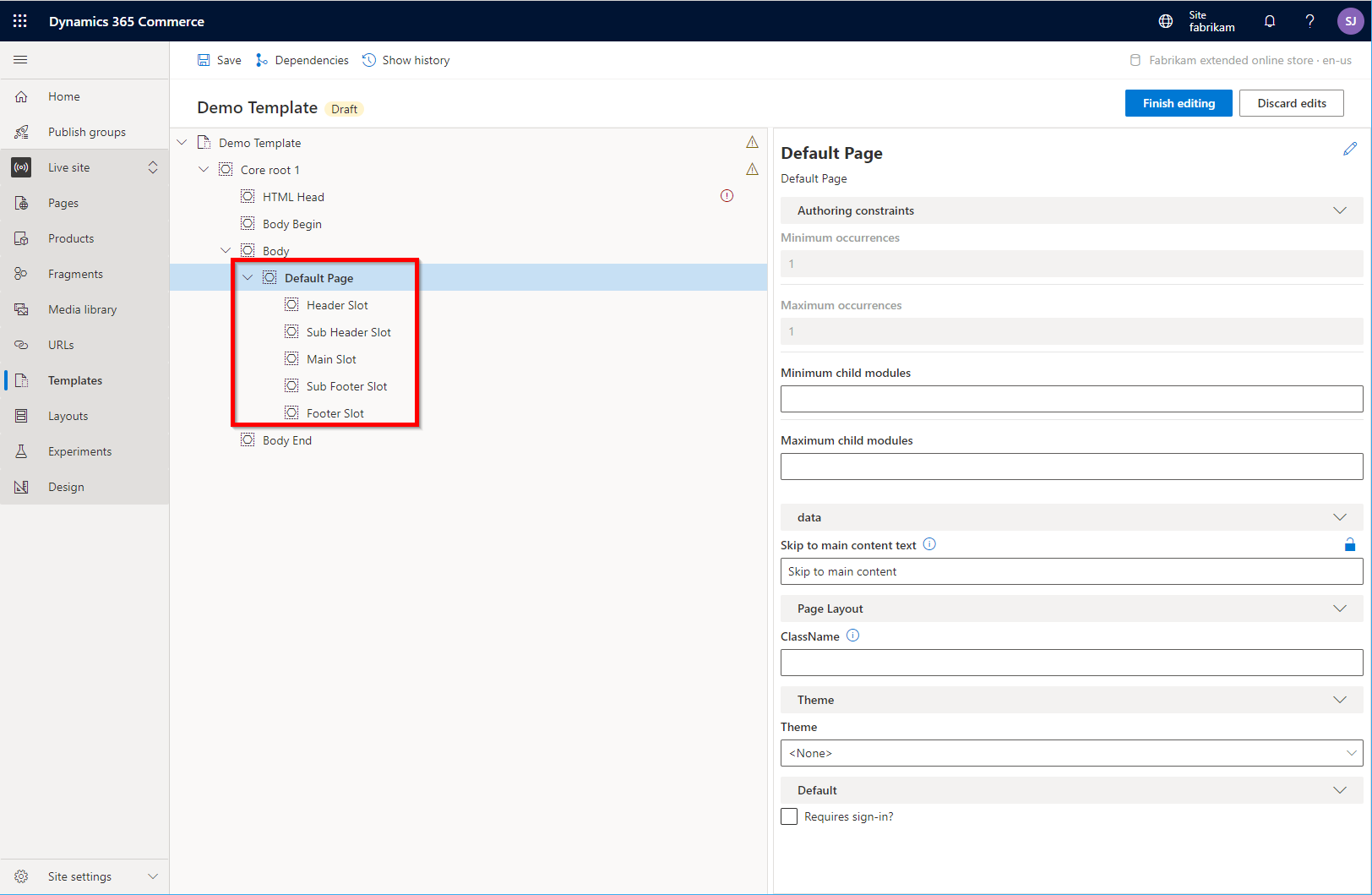
The default page module is a special module that becomes the root container of a page. You can only add it to a template's Body slot. The default page module defines the core slots (Header Slot, Sub Header Slot, Main Slot, Sub Footer Slot, and Footer Slot) that appear in the Commerce site builder page editor, as shown in the following example illustration.
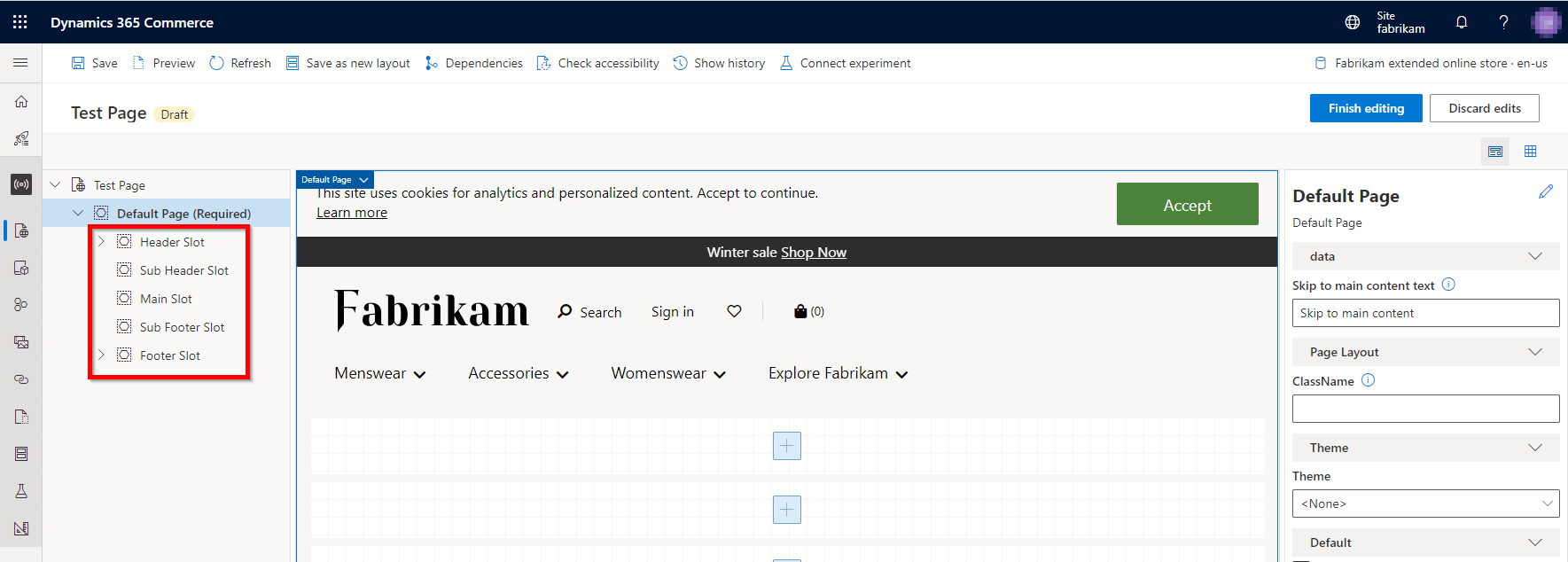
The Commerce module library provides only one type of default page module. However, you can use the Commerce online channel extensibility software development kit (SDK) to create more custom default page modules as needed.
Page module properties
| Property name | Values | Description |
|---|---|---|
| Skip to main content text | Text | The link text that appears in the "skip to main content" link on the page. The default value is Skip to main content. |
| Theme | A theme that you select from a list of available themes | The theme to use for the pages that are derived from this template. Note: This property is deprecated and will be removed in a future release. Set themes only at the site level. |
| Requires sign-in? | True or False | This Boolean property controls whether access to the page requires user sign-in. If you set it to True, users who aren't signed in are redirected to the sign-in page. |
Add a default page module to a template
To add a default page module to a template, follow these steps:
In Commerce site builder for your site, select Templates.
Select a template, and then select Edit.
In the Body slot, select the ellipsis (...), and then select Add module.

In the Select modules dialog box, select the Default Page module, and then select OK.
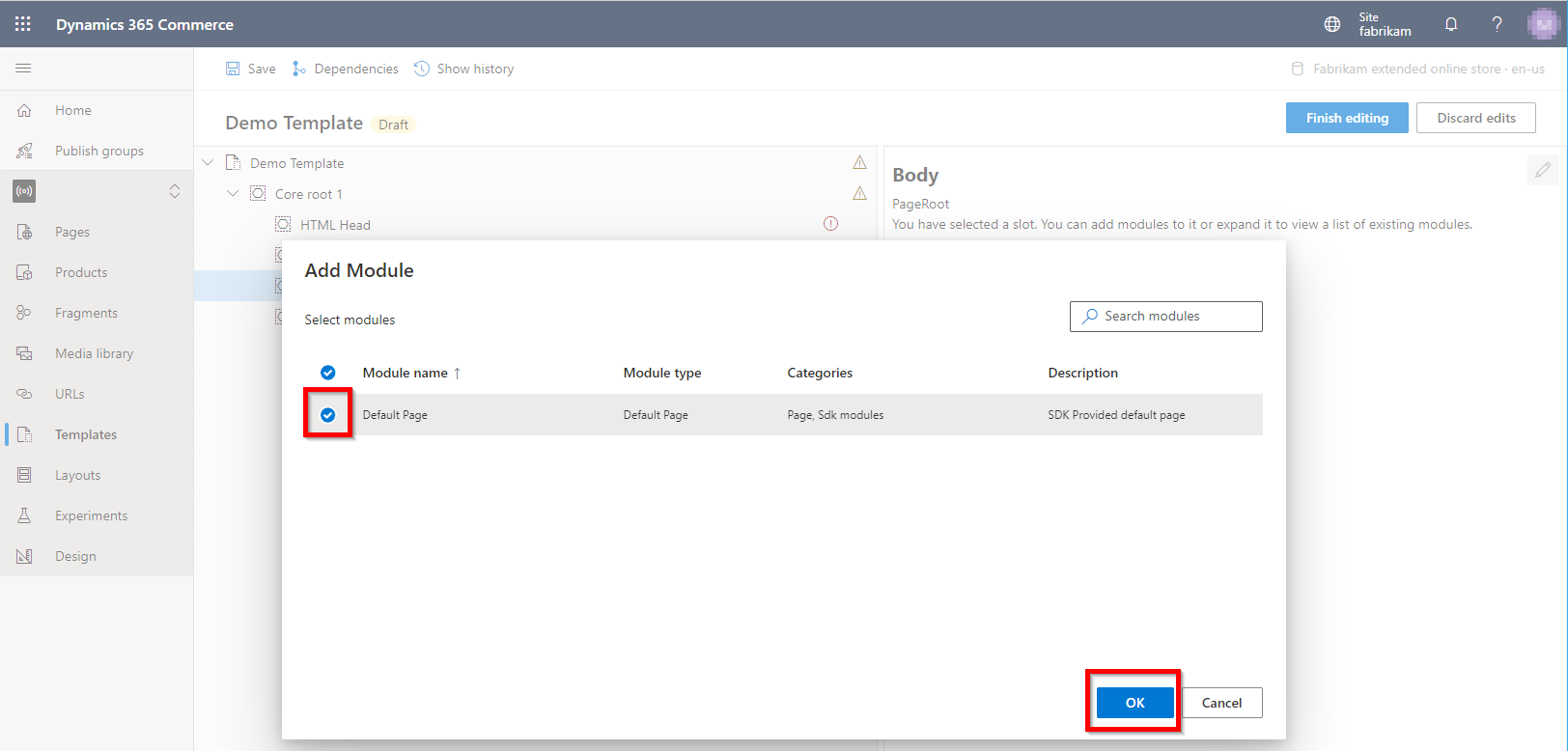
After you add the default page module, it should resemble the example in the following illustration. You can now configure the module, and save and publish the template.