This article covers page summary modules and describes how to add them to templates in Microsoft Dynamics 365 Commerce.
Page summary modules help simplify the entry of page summary metadata that search engines and social sharing sites can use. This metadata includes canonical links.
The Dynamics 365 Commerce module library contains several page summary modules, such as page summary, category page summary, list page summary, and product page summary modules. Each page summary module has search engine optimization (SEO) metadata that is tuned for the specific page types that the module supports. All summary page modules share the same set of properties, which are described in the next section.
Note
The product page summary module, included with Commerce module library version 9.27 and higher, uses the Schema.org product schema to insert basic JSON product metadata into a product page's header section. This metadata is automatically generated by using the same Commerce Runtime (CRT) API data actions used by the buy box module and other product page metadata. Major search engines often use Schema.org structured product metadata to render rich search results. By default, the product page summary module includes the product name, product description, offer (currency and pricing) information, and default image location per the Schema.org product schema specification. If necessary, you can extend this module and the data actions it uses by using the Commerce online SDK to augment or modify metadata requirements.
Summary page module properties
| Property name | Values | Description |
|---|---|---|
| Title | Text | The title of the site page. |
| Description | Text | A brief description of the site page's contents. |
| Keywords | Text | A series of comma-separated keywords that are relevant to the site page. |
| Disable Twitter Tags | True or False | If you set this property to True, the HTML doesn't include Twitter tags. |
| Sharing image | An image that you select from a list of available images | The image to use when the site page is shared. |
| Disable Facebook OG tags | True or False | If you set this property to True, the HTML doesn't include Facebook Open Graph (OG) tags. |
| Ignore the prefix and suffix specified in the application settings | True or False | If you set this property to True, the site-level prefix and suffix settings are ignored. |
Add a page summary module to a template
To add a page summary module to a template, follow these steps:
- In Commerce site builder for your site, select Templates.
- Select a template, and then select Edit.
- In the HTML Head slot, select the ellipsis (...), and then select Add module.
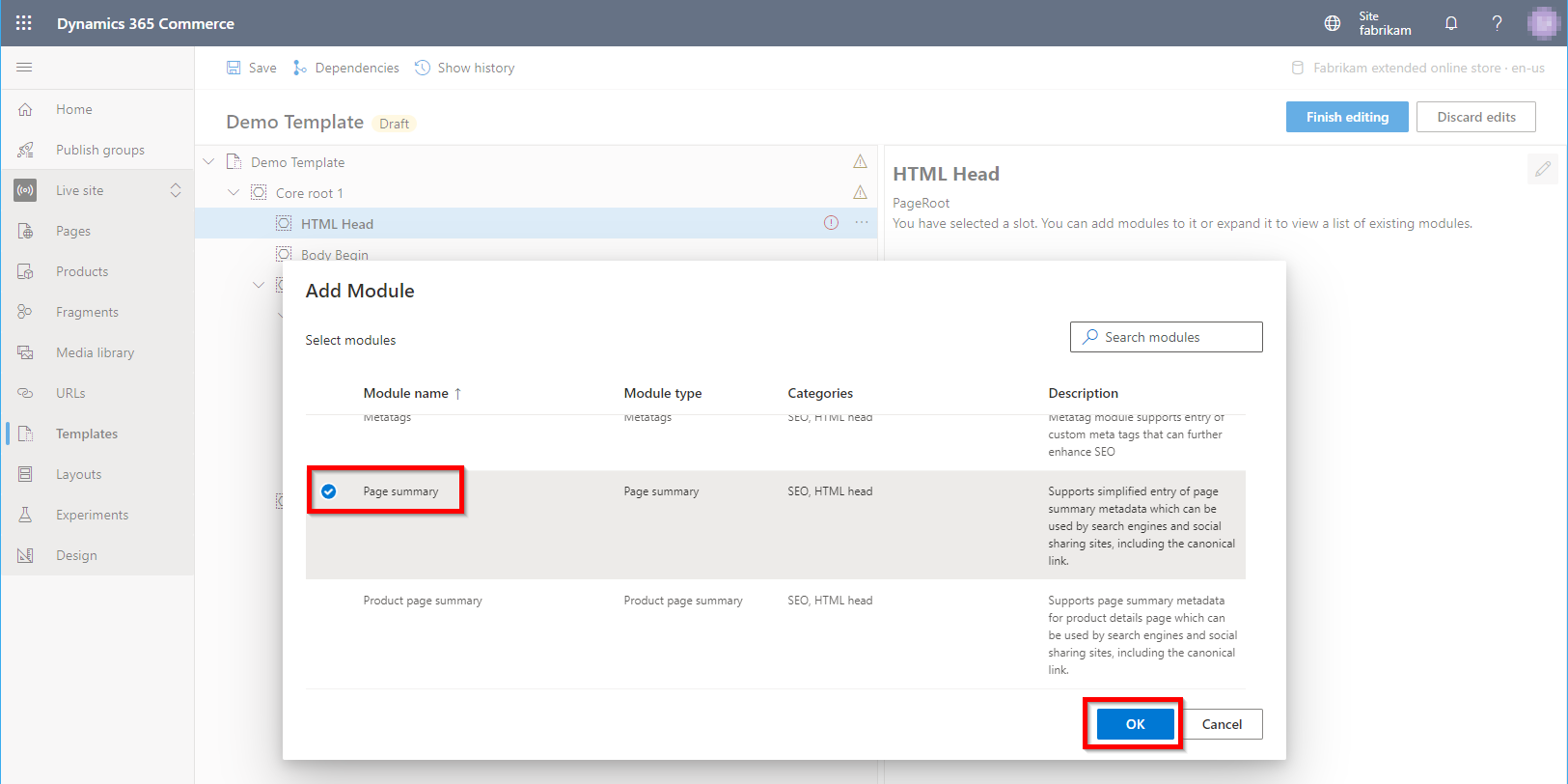
- In the Add Module dialog box, select the Page summary module (or another page summary module, such as List page summary), and then select OK. Make sure that you add the appropriate page summary module for the page types that the template is used for.
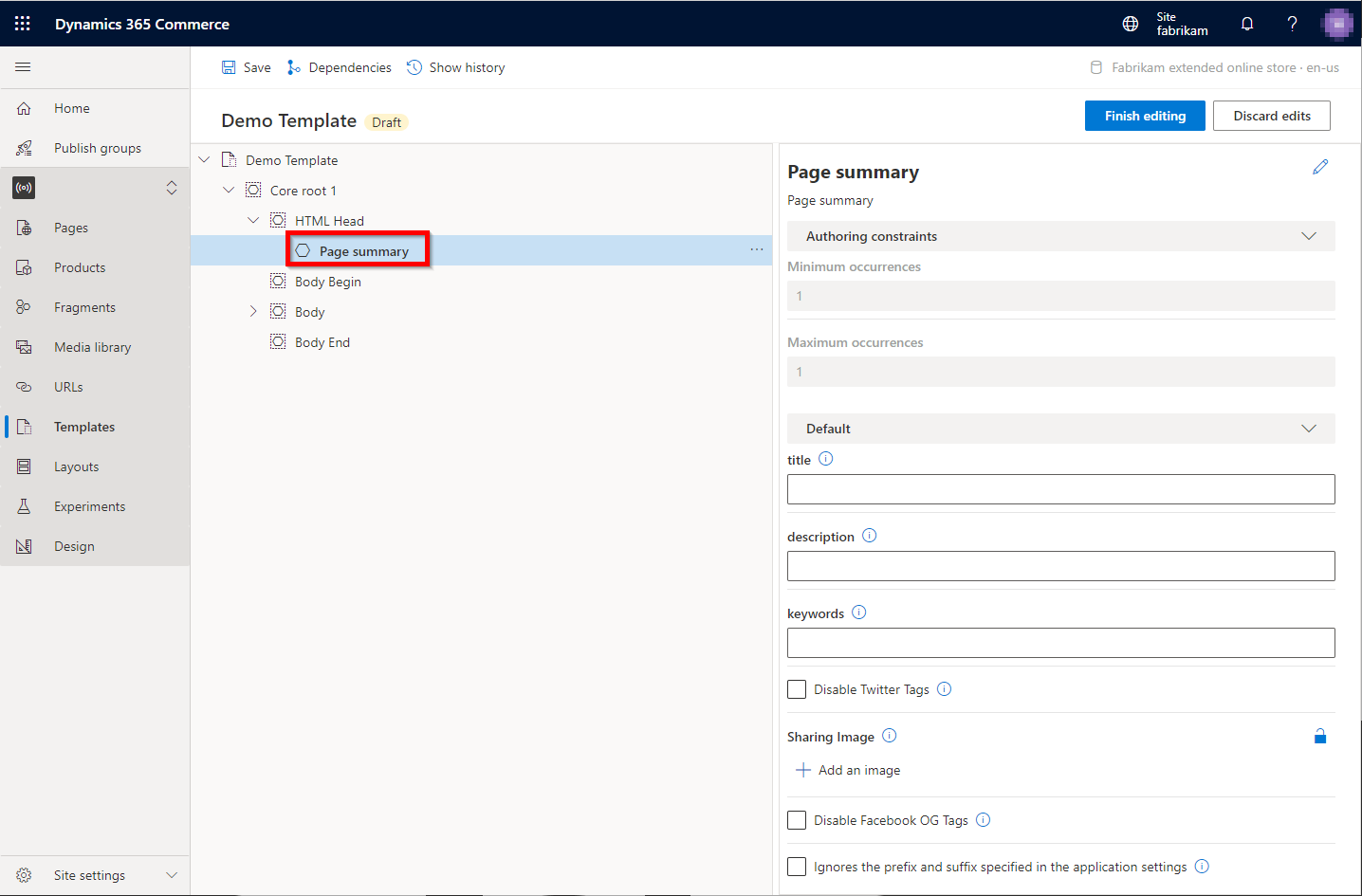
After you add the summary module, it should resemble the example in the following illustration. You can now configure the module, and save and publish the template.
Note
Although you can set default values in the template, users can override those values on pages that use the template.