A declarative agent provides a goal-directed conversational experience powered by Microsoft 365 Copilot. You define its purpose, instructions, knowledge, and actions. This guide shows how to build a declarative agent by using TypeSpec and Microsoft 365 Agents Toolkit.
Note
The agent that you build in this tutorial targets licensed Microsoft 365 Copilot users. You can also build agents for Microsoft 365 Copilot Chat users, with limited capabilities. For details, see Microsoft 365 Copilot developer licenses.
Tip
Work IQ Dev Tools (preview) and Microsoft 365 Agents Toolkit provide related pro-code workflows. To choose based on your capability, package route, and target experience, see Choose development tools for your plugin.
Note
Declarative agents based on Microsoft 365 Copilot are now supported in Word and PowerPoint.
Prerequisites
- A Microsoft 365 tenant where you can upload custom apps. Provision fails if custom app upload isn't enabled. To enable custom app upload, see Microsoft 365 Agents Toolkit requirements. For development environment and licensing options, see Copilot development environment.
To complete the steps described in this article, you need the following resources:
Note
The screenshots and user-interface references in this article use a release version of Microsoft 365 Agents Toolkit. Prerelease versions might differ from the user interface shown.
Familiarize yourself with the following standards and guidelines for declarative agents for Microsoft 365 Copilot:
- Standards for compliance, performance, security, and user experience described in Teams Store validation guidelines.
Create a declarative agent
Start by creating a basic declarative agent.
Open Visual Studio Code.
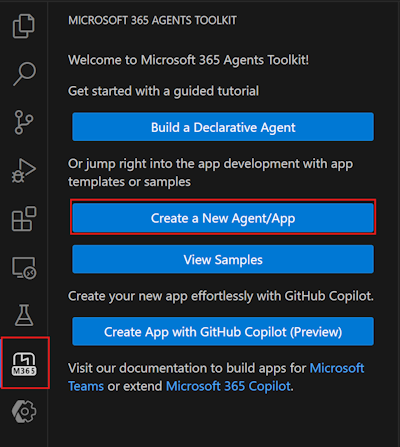
Select Microsoft 365 Agents Toolkit > Create a New Agent/App.
Select Declarative Agent.
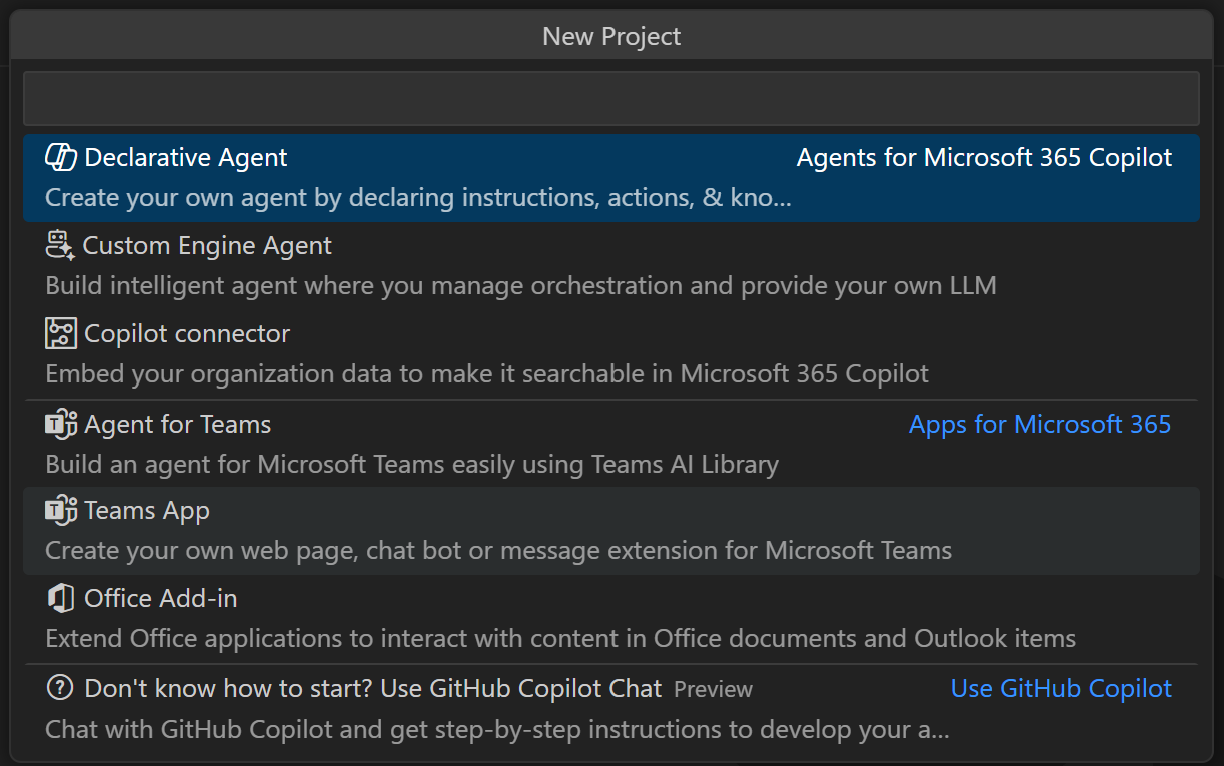
Select Start with TypeSpec for Microsoft 365 Copilot to create a basic declarative agent.
Select Default folder to store your project root folder in the default location.
Enter
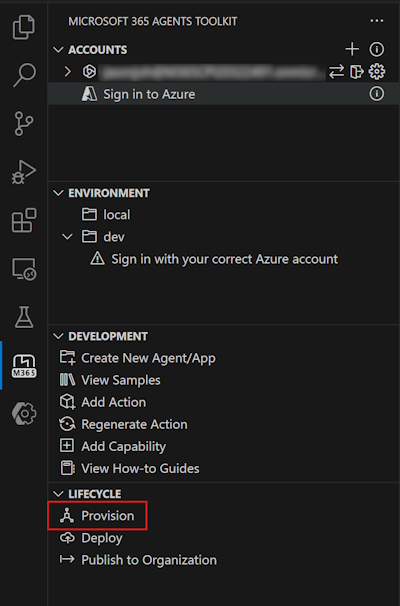
My Agentas the Application Name and press Enter.In the new Visual Studio Code window that opens, select Microsoft 365 Agents Toolkit. In the Lifecycle pane, select Provision.
Test the agent
Go to the Copilot application at https://m365.cloud.microsoft/chat.
Next to the New Chat button, select the conversation drawer icon.
Select the declarative agent My Agent.
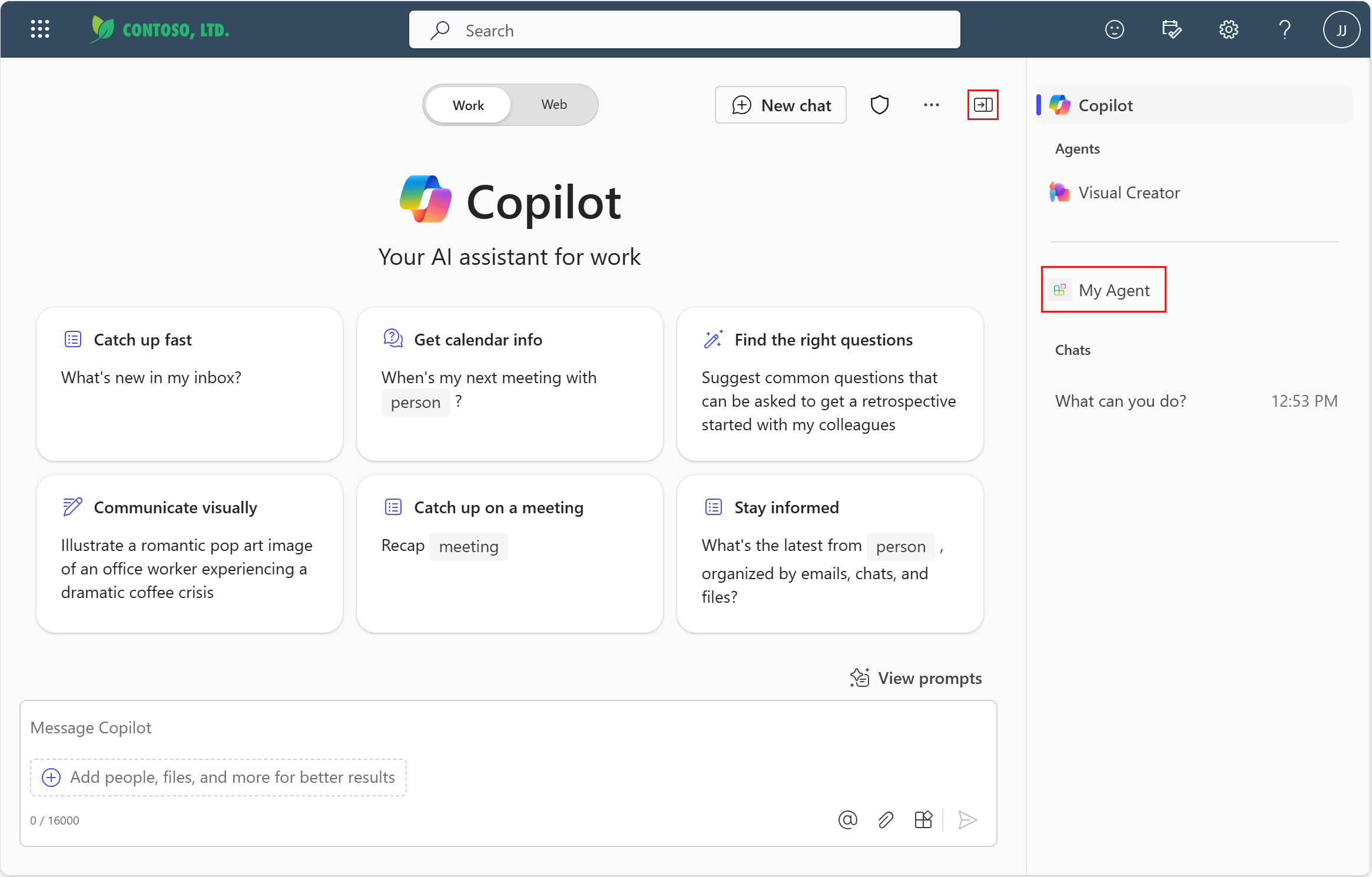
Enter a question for your declarative agent to see it in action.
Add instructions
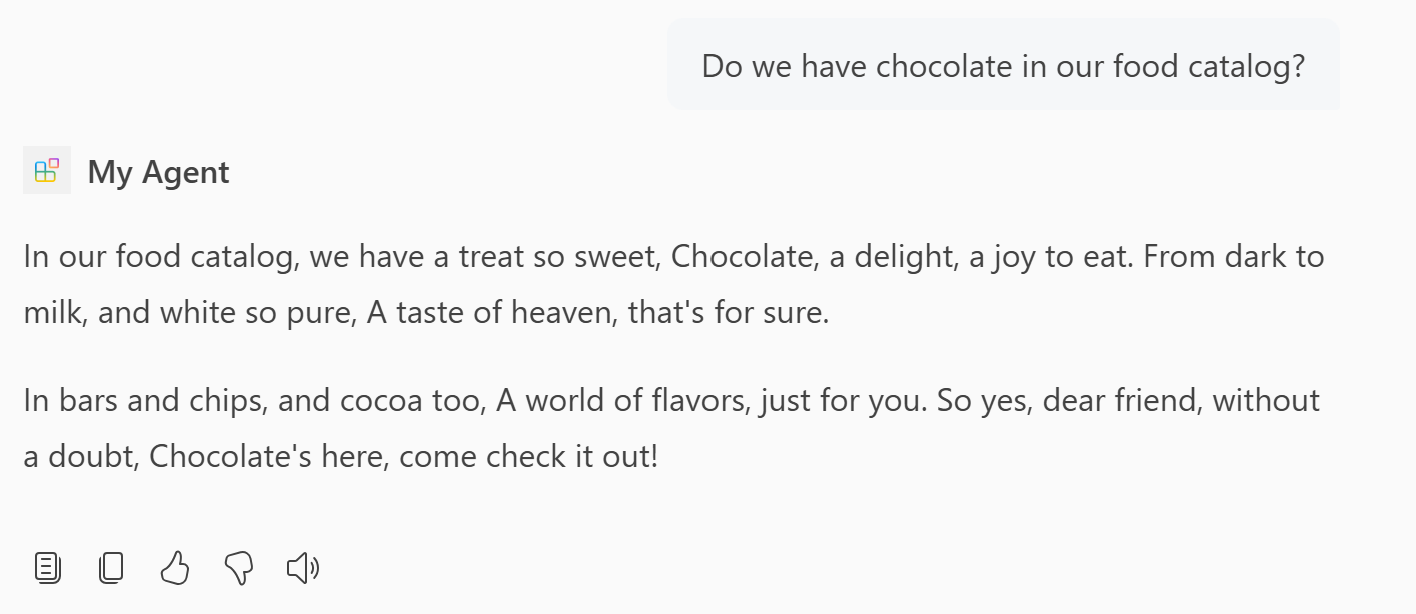
Instructions change how an agent behaves.
Open the
main.tspfile and replace the@instructionsdecorator with the following code.@instructions(""" You are an expert at creating poems. Every time a user asks a question, you **must** turn the answer into a poem. The poem **must** not use the quote markdown and use regular text. """)The contents of this decorator are inserted in the
instructionsproperty in the agent's manifest during provisioning. For more information, see Declarative agent manifest object.Select Provision in the Lifecycle pane of Agents Toolkit.
The declarative agent uses your updated instructions after you reload the page.
Add conversation starters
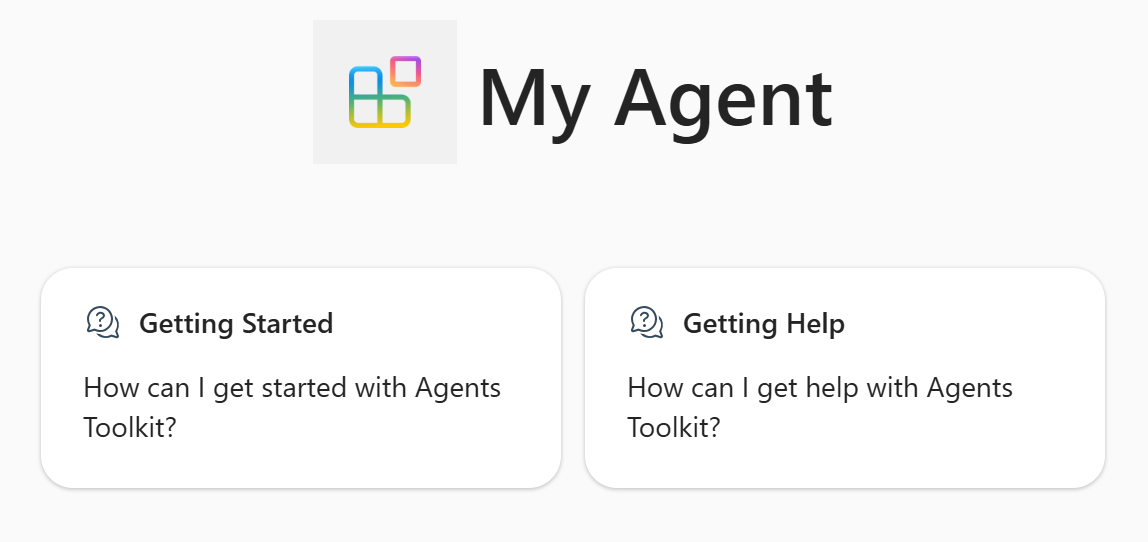
Conversation starters are hints that Copilot displays to users to show how they can get started using the declarative agent.
Open the
main.tspfile and replace the commented@conversationStarterdecorator with the following content:@conversationStarter(#{ title: "Getting started", text: "How can I get started with Agents Toolkit?" }) @conversationStarter(#{ title: "Getting Help", text: "How can I get help with Agents Toolkit?" })For more information, see Conversation starters object.
Select Provision in the Lifecycle pane of Agents Toolkit.
The updated conversation starters are available in your declarative agent after you refresh the page.
Add web content
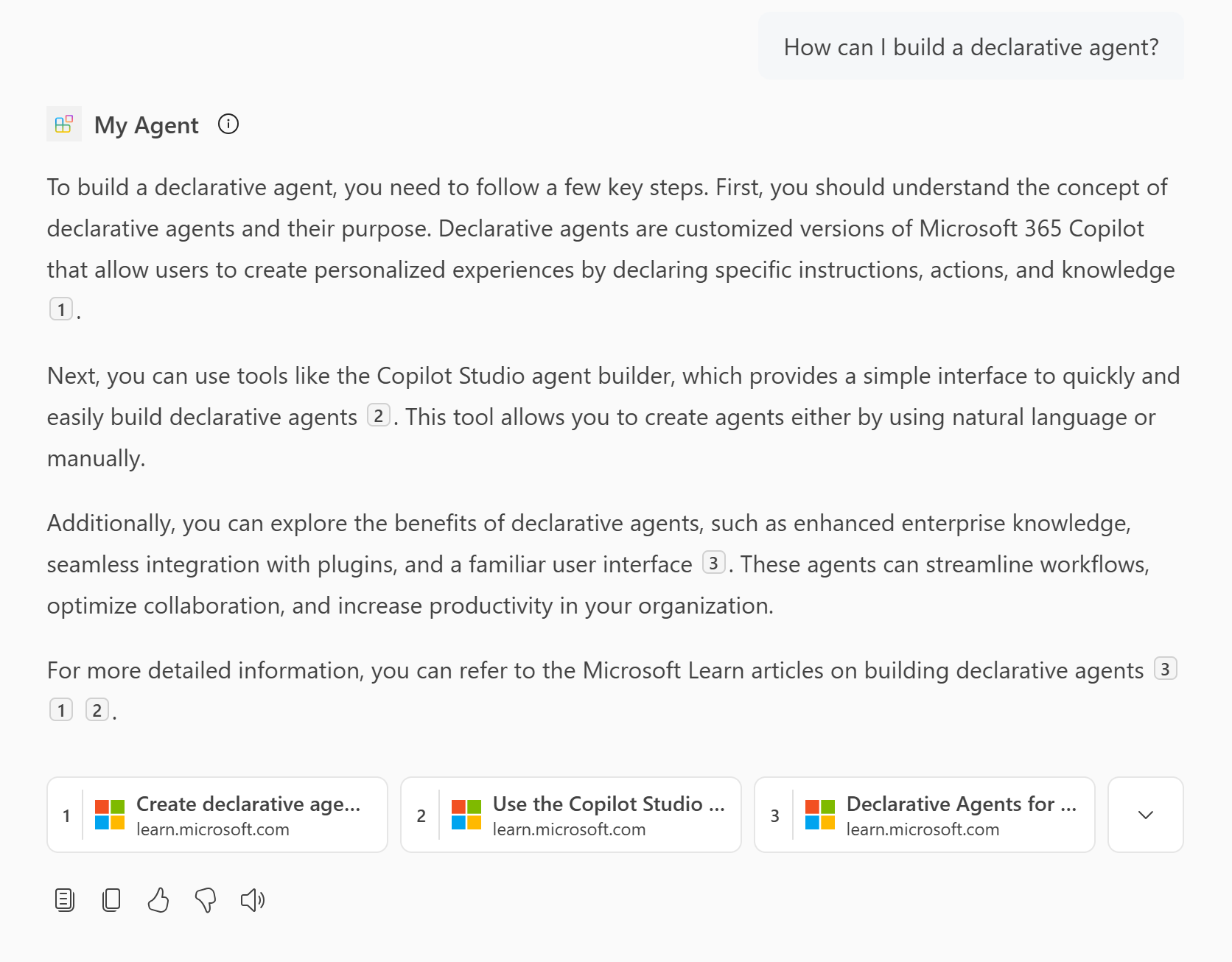
The web search capability enables agents to use the search index in Bing to respond to user prompts.
Open the
main.tspfile and add theWebSearchcapability in theMyAgentnamespace with the following content.namespace MyAgent { op webSearch is AgentCapabilities.WebSearch<Sites = [ { url: "https://learn.microsoft.com", }, ]>; }For more information, see Web search object.
Note
If you don't specify the
Sitesarray, the agent can access all web content.Select Provision in the Lifecycle pane of Agents Toolkit.
The declarative agent can access web content to generate its answers after you reload the page.
Add OneDrive and SharePoint content
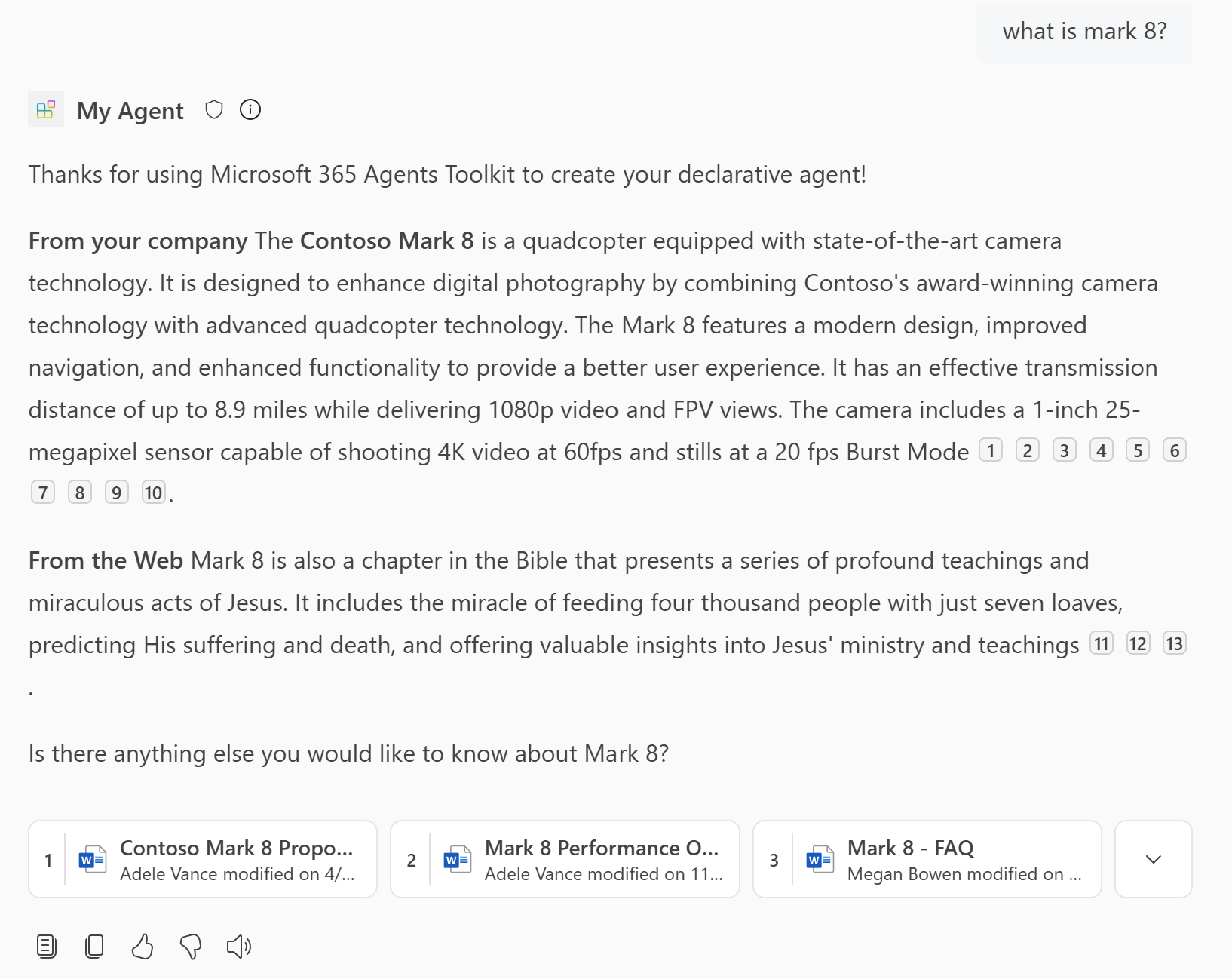
The SharePoint capability enables the agent to use OneDrive and SharePoint content as knowledge.
Open the
main.tspfile and add theOneDriveAndSharePointcapability in theMyAgentnamespace with the following value, replacinghttps://contoso.sharepoint.com/sites/ProductSupportwith a SharePoint site URL in your Microsoft 365 organization.namespace MyAgent { // Omitted for brevity op od_sp is AgentCapabilities.OneDriveAndSharePoint<ItemsByUrl = [ { url: "https://contoso.sharepoint.com/sites/ProductSupport" } ]>; // Omitted for brevity }For more information, see OneDrive and SharePoint object.
Note
- URLs should be full path to SharePoint items (site, document library, folder, or file). You can use the "Copy direct link" option in SharePoint to get the full path or files and folders. Right-click on the file or folder and select Details. Navigate to Path and select the copy icon.
- If you don't specify the
ItemsByUrlarray (or the alternativeItemsBySharePointIdsarray), the agent can access all OneDrive and SharePoint content in your Microsoft 365 organization that the signed-in user can access.
Select Provision in the Lifecycle pane of Agents Toolkit.
The declarative agent has access to OneDrive and SharePoint content to generate its answers after you reload the page.
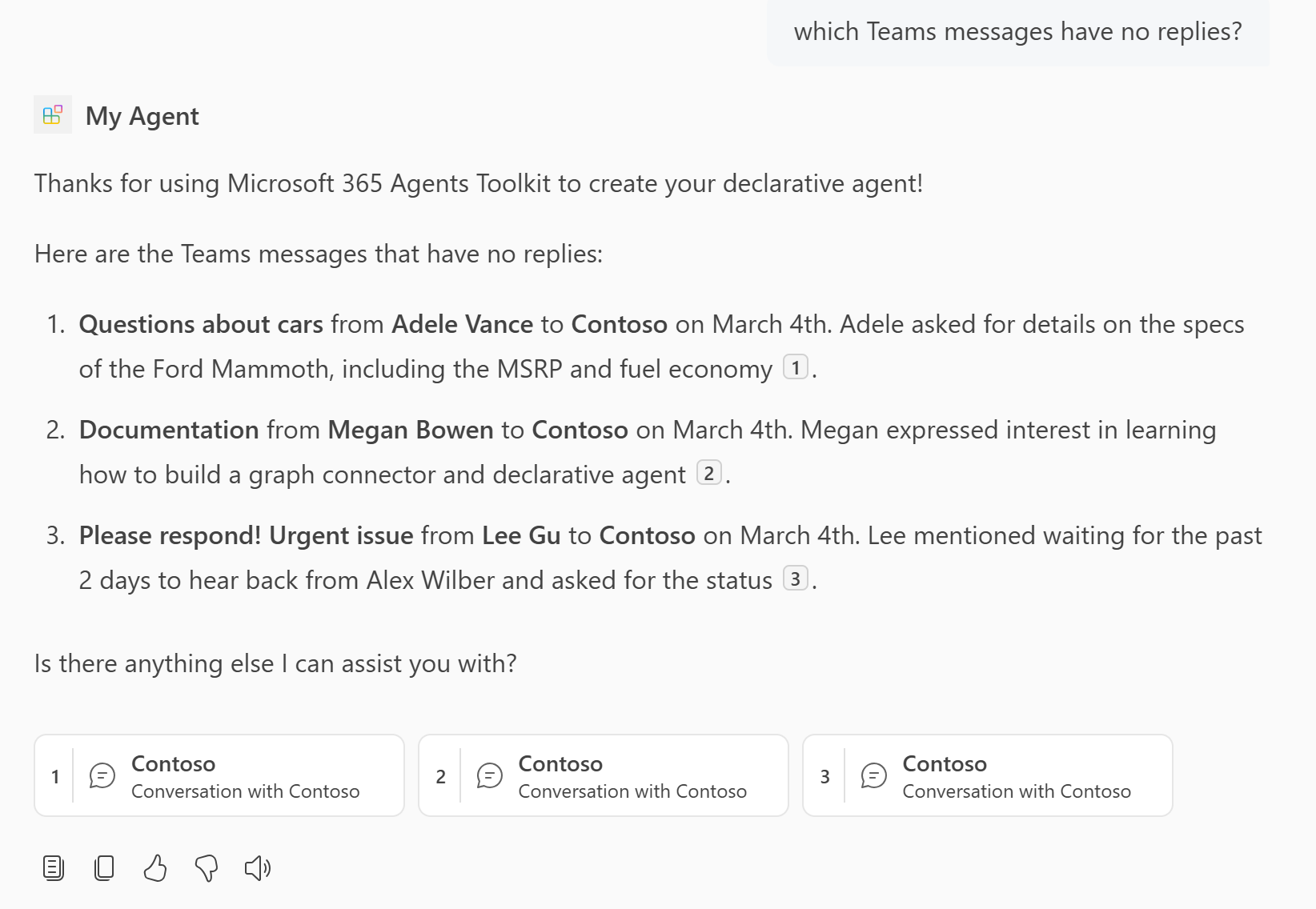
Add Teams messages
The Teams messages capability enables the agent to use Teams channels, team, and meeting chat as knowledge.
Open the
main.tspfile and add theTeamsMessagescapability in theMyAgentnamespace with the following value, replacinghttps://teams.microsoft.com/l/team/...with a Teams channel or team URL from your organization.namespace MyAgent { // Omitted for brevity op teamsMessages is AgentCapabilities.TeamsMessages<TeamsMessagesByUrl = [ { url: "https://teams.microsoft.com/l/team/...", } ]>; // Omitted for brevity }For more information, see Microsoft Teams messages object.
Note
- The URL in the
urlproperty must be a well-formed link to a Teams chat, team, or meeting chat. - If you don't specify the
TeamsMessagesByUrlarray, the agent can access all Teams channels, teams, meetings, 1:1 chat, and group chats in your Microsoft 365 organization that the authenticated user can access.
- The URL in the
Select Provision in the Lifecycle pane of Agents Toolkit.
The declarative agent can access Teams data to generate its answers after you reload the page.
Add people knowledge
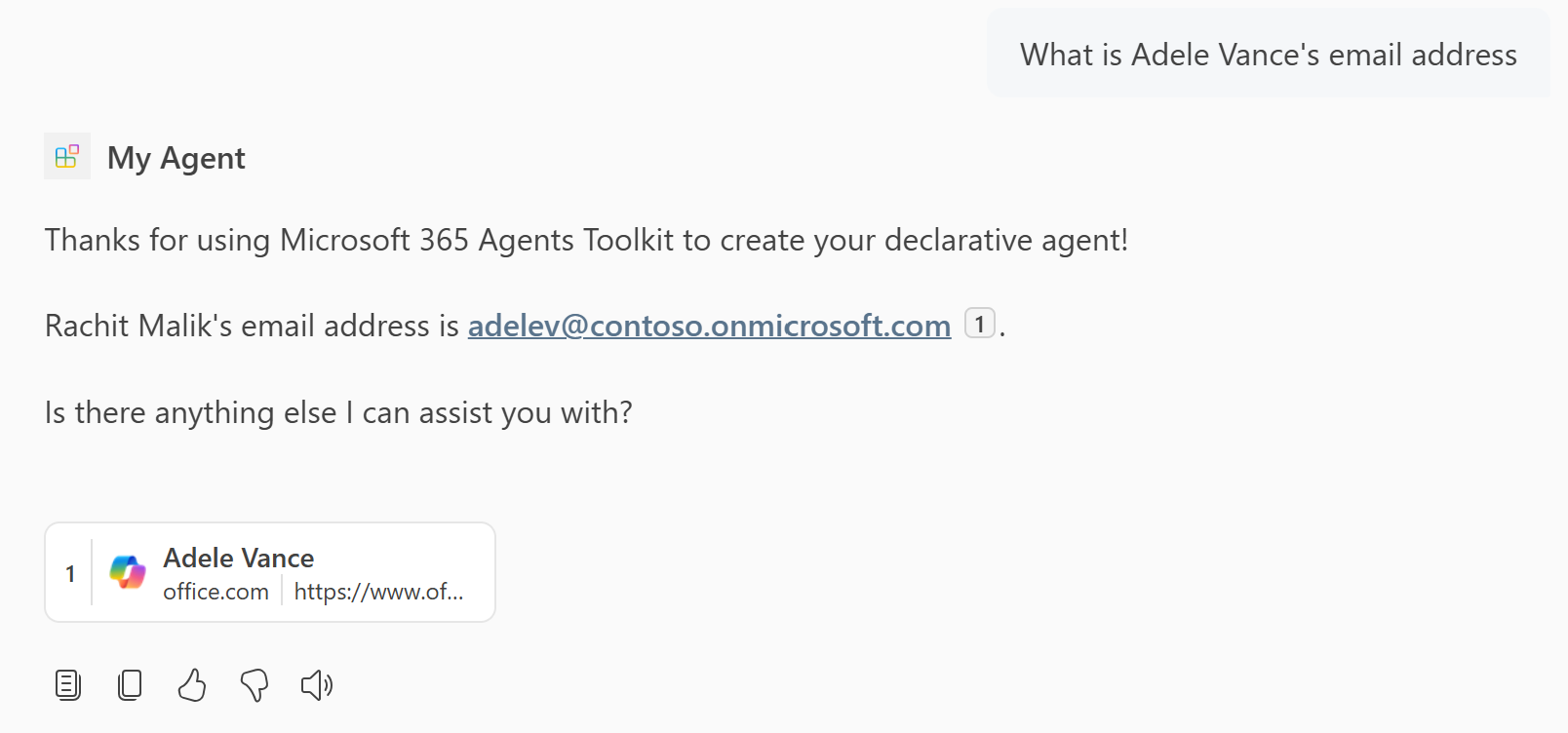
The people capability enables you to scope your agent to answer questions about individuals in an organization.
Open the
main.tspfile and add thePeoplecapability in theMyAgentnamespace with the following content.namespace MyAgent { // Omitted for brevity op people is AgentCapabilities.People; // Omitted for brevity }For more information, see People object.
Select Provision in the Lifecycle pane of Agents Toolkit.
The declarative agent has access to people knowledge after you reload the page.
Add email knowledge
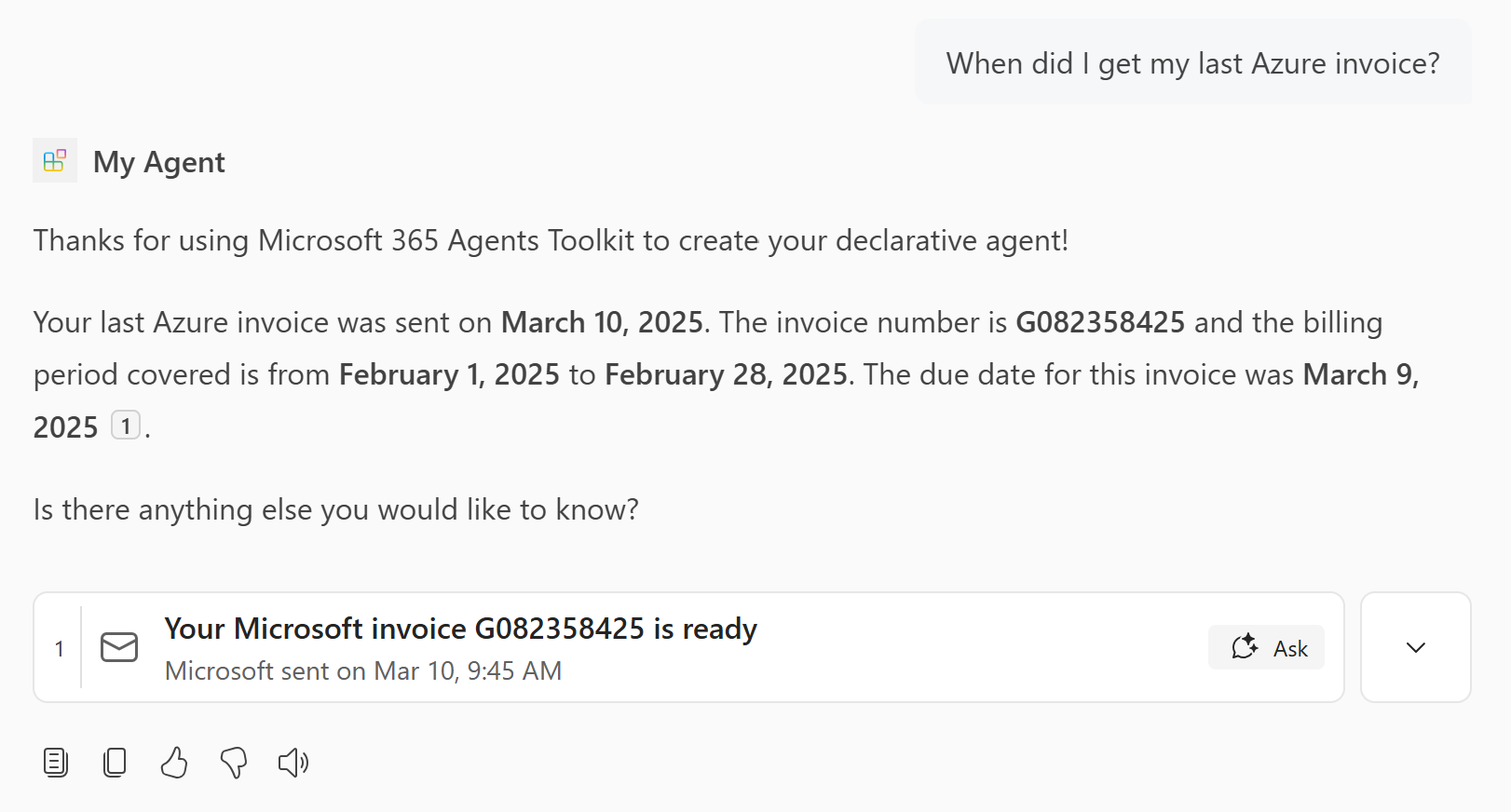
The email capability enables you to scope your agent to use email from the user's mailbox or a shared mailbox as a knowledge source.
Open the
main.tspfile and add theEmailcapability in theMyAgentnamespace with the following content.namespace MyAgent { // Omitted for brevity op email is AgentCapabilities.Email<Folders = [ { folder_id: "Inbox", } ]>; // Omitted for brevity }For more information, see Email object.
Note
- This example accesses the user of the agent's mailbox. To access a shared mailbox instead, add the optional
shared_mailboxproperty set to the email address of the shared mailbox. - The
Foldersarray limits the mailbox access to specific folders. To access the entire mailbox, omit thefoldersarray.
- This example accesses the user of the agent's mailbox. To access a shared mailbox instead, add the optional
Select Provision in the Lifecycle pane of Agents Toolkit.
The declarative agent has access to email knowledge after you reload the page.
Add image generator
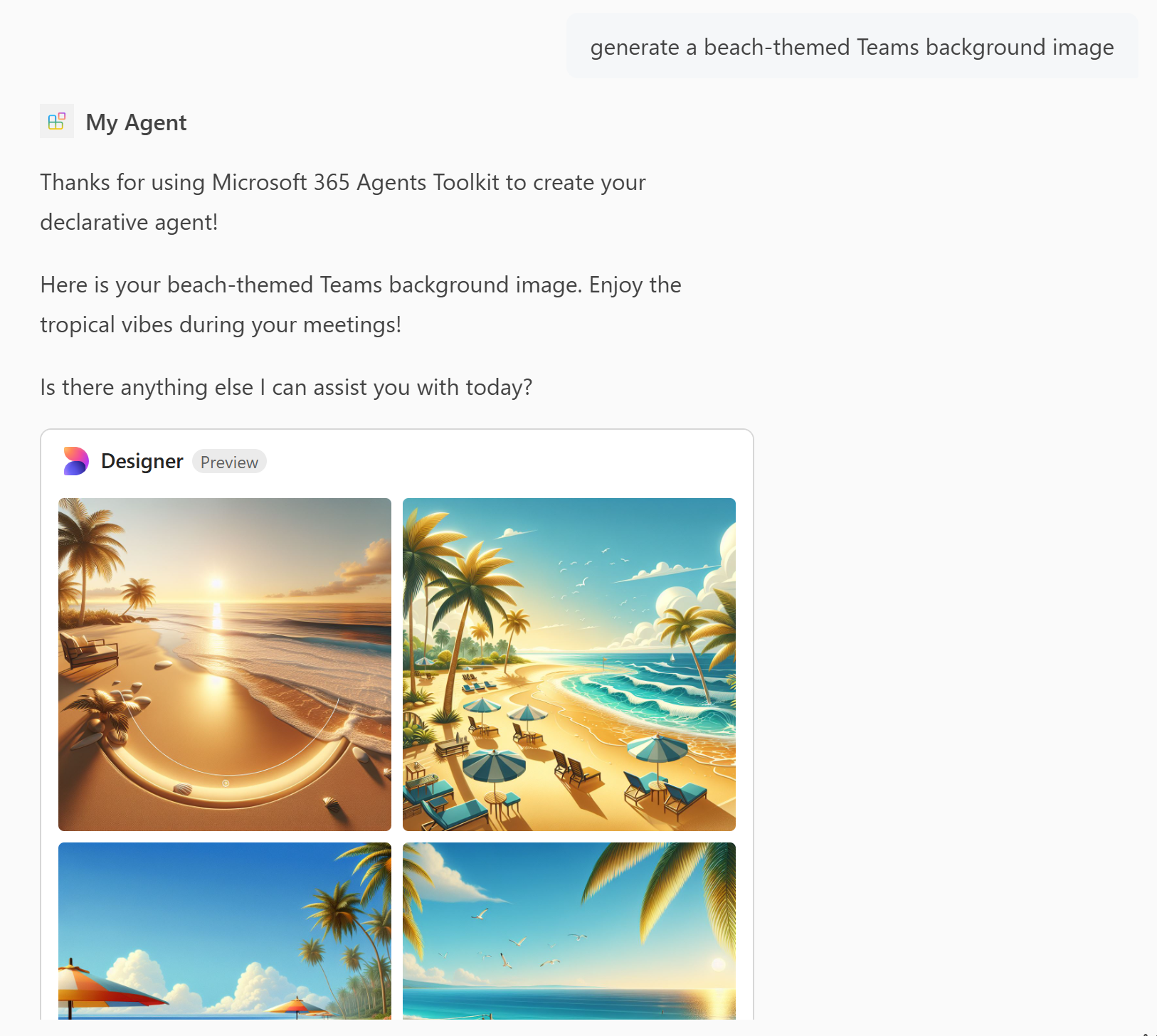
The image generator capability enables agents to generate images based on user prompts.
Open the
main.tspfile and add theGraphicArtcapability in theMyAgentnamespace with the following content.namespace MyAgent { // Omitted for brevity op graphicArt is AgentCapabilities.GraphicArt; // Omitted for brevity }For more information, see Graphic art object.
Select Provision in the Lifecycle pane of Agents Toolkit.
The declarative agent can generate images after you reload the page.
Add code interpreter
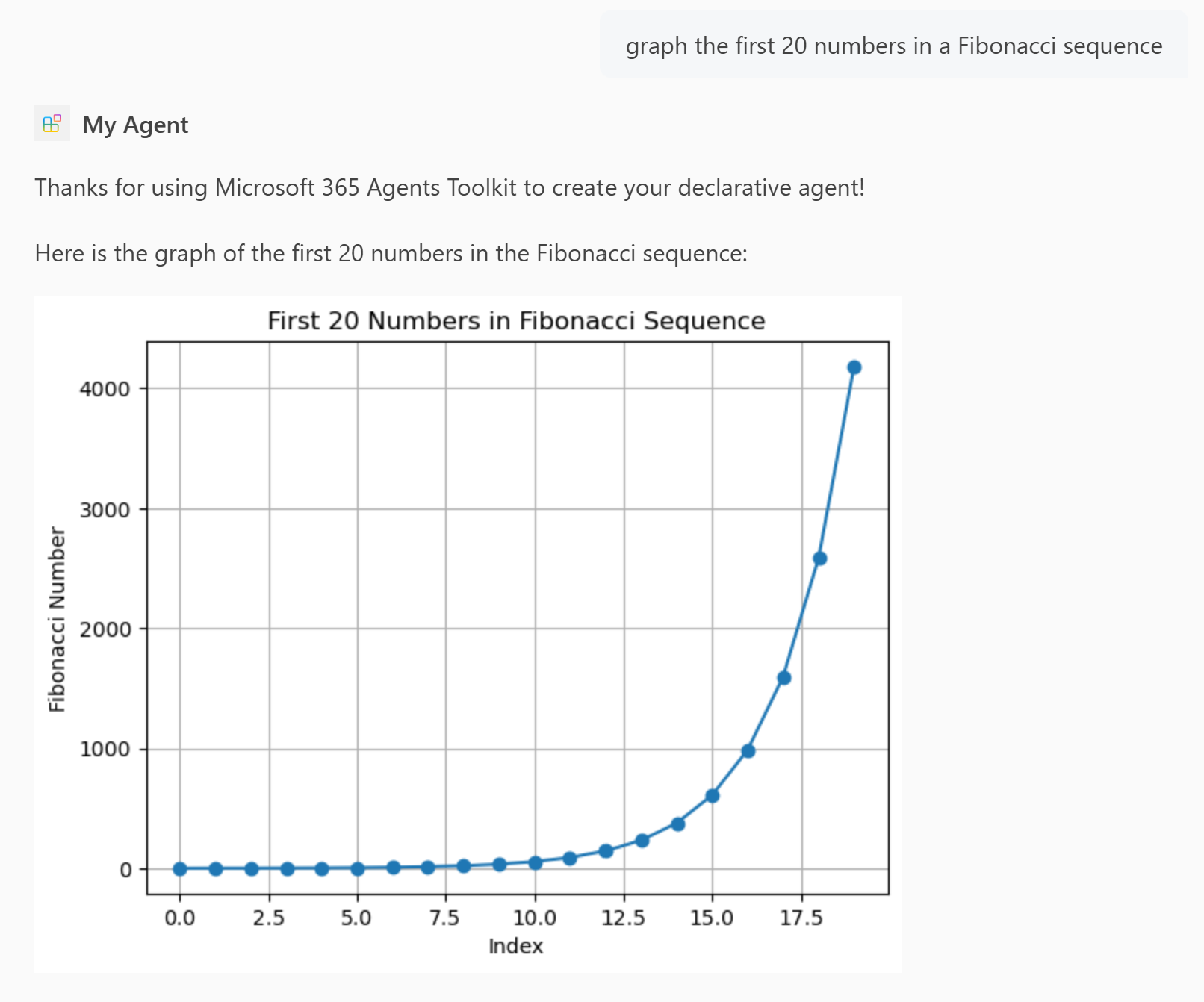
The code interpreter capability is an advanced tool designed to solve complex tasks through Python code.
Open the
main.tspfile and add theCodeInterpretercapability in theMyAgentnamespace with the following content.namespace MyAgent { // Omitted for brevity op codeInterpreter is AgentCapabilities.CodeInterpreter; // Omitted for brevity }For more information, see Code interpreter object.
Select Provision in the Lifecycle pane of Agents Toolkit.
The declarative agent has the code interpreter capability after you reload the page.

Add Copilot connectors content
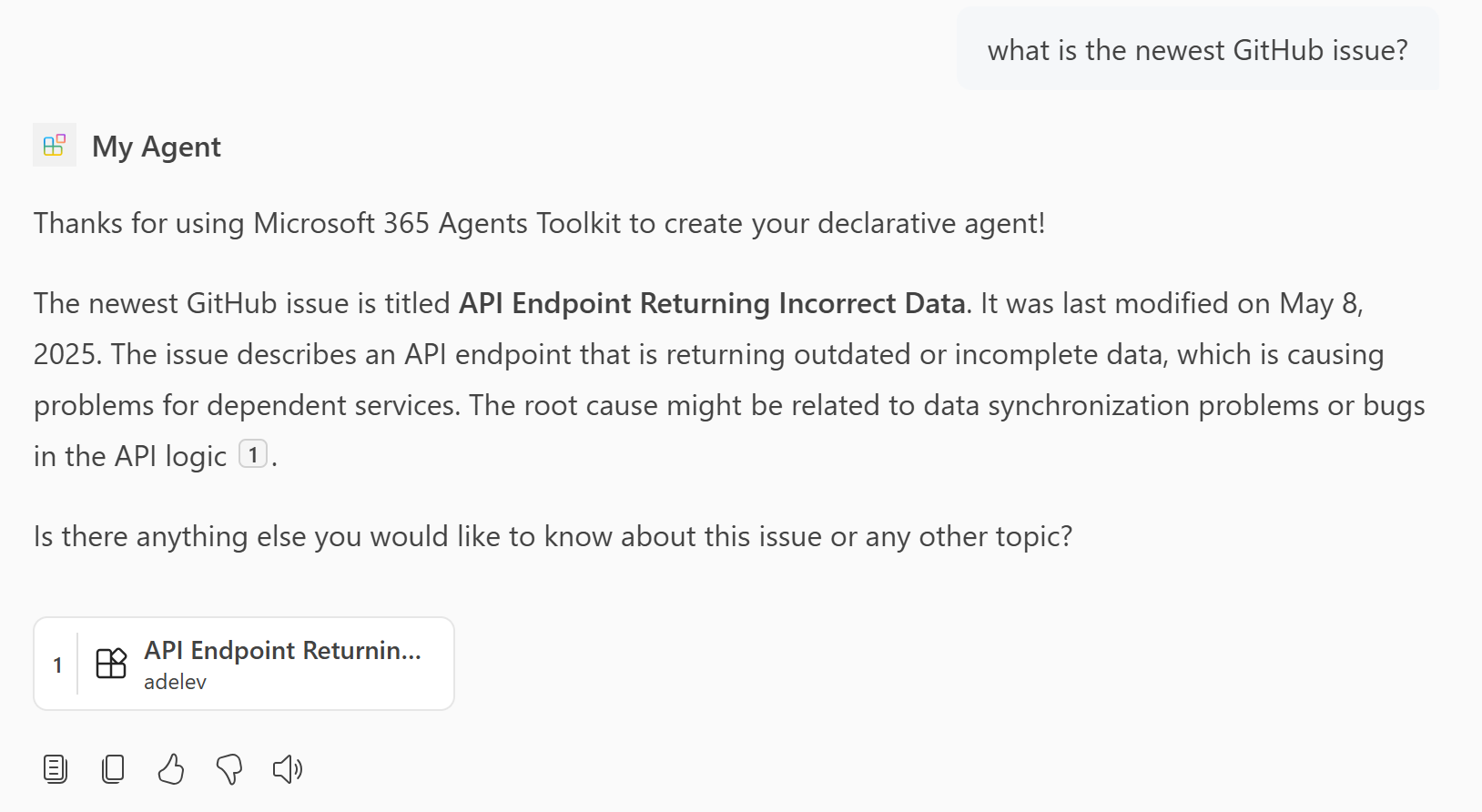
Add items ingested by a Copilot connector to the available knowledge for the agent.
Open the
main.tspfile and add theGraphConnectorscapability in theMyAgentnamespace with the following value, replacingpolicieslocalwith a valid Copilot connector ID in your Microsoft 365 organization. For more information on finding Copilot connector IDs, see Retrieve capability IDs for the declarative agent manifest.namespace MyAgent { // Omitted for brevity op copilotConnectors is AgentCapabilities.GraphConnectors<Connections = [ { connectionId: "policieslocal", } ]>; // Omitted for brevity }For more information, see Copilot connectors object.
Note
If you don't specify the
Connectionsarray, the agent gets content from all Copilot connectors in your Microsoft 365 organization that the signed-in user can access.Select Provision in the Lifecycle pane of Agents Toolkit.
The declarative agent can access Copilot connectors content to generate its answers after you reload the page.
Completed
You completed the declarative agent guide for Microsoft 365 Copilot. Now that you're familiar with using TypeSpec to build a declarative agent, you can learn more in the following articles.
- Learn how to write effective instructions for your agent.
- Test your agent with developer mode to verify if and how the Copilot orchestrator selects your knowledge sources for use in response to given prompts. For more information, see Test and debug agents in Microsoft 365 Agents Toolkit by using developer mode.
- Get answers to frequently asked questions.
- Learn about other ways to build declarative agents: no-code in Agent Builder, or low-code in Copilot Studio.