참고
프리뷰 기능은 생산용으로 만들어진 것이 아니므로 기능이 제한될 수 있습니다. 이런 기능은 공식 릴리스 전에 사용할 수 있으므로 고객이 조기에 액세스하고 피드백을 제공할 수 있습니다.
애플리케이션 수명 주기 관리(ALM)는 초기 개념부터 개발, 테스트, 배포 및 지속적인 유지 관리까지 애플리케이션의 수명 주기를 관리하는 포괄적인 접근 방식입니다. Power Platform의 맥락에서 Test Engine을 사용한 자동화 테스트를 ALM 프로세스에 통합하면 개발의 각 단계에서 애플리케이션을 철저히 테스트하여 더 높은 품질의 릴리스를 얻을 수 있습니다.
ALM에서 테스트 자동화 이해하기
테스트 자동화는 다음과 같은 측면에서 ALM 프로세스에서 중요한 역할을 합니다.
-
품질 보장 - 배포 전에 애플리케이션이 예상대로 기능하는지 확인
-
위험 감소 - 문제가 프로덕션 환경에 도달하기 전에 조기에 문제를 포착합니다.
-
지속적인 통합 활성화 - 자동화된 빌드 검증 테스트 지원
-
제어된 배포 촉진 - 릴리스 파이프라인에 품질 게이트 추가
Power Apps Test Engine을 사용하면 사용하는 CI/CD 도구에 관계없이 기존 Power Platform ALM 워크플로에 자동화된 테스트를 통합할 수 있습니다.
테스트 자동화 라이프사이클
테스트 엔진은 ALM 프로세스와 통합되는 완전한 테스트 라이프사이클을 지원합니다.
-
개발 - 앱 개발 중에 로컬로 테스트를 생성하고 실행합니다.
-
빌드 검증 - 자동화된 빌드 검증의 일부로 테스트 실행
-
릴리스 게이트 - 테스트 결과를 제어된 배포를 위한 품질 게이트로 사용
-
생산 검증 - 생산 환경에서 중요한 기능을 검증합니다.
ALM에서 테스트 자동화 시작하기
ALM 프로세스에 테스트 엔진을 통합하려면 다음을 수행하세요.
-
테스트 계획 만들기 - 솔루션을 위한 YAML 테스트 계획 을 디자인하세요. Power Platform
-
로컬에서 테스트 실행 - 개발 환경에서 테스트가 작동하는지 확인하세요
-
인증 설정 - 로컬 실행 및 파이프라인 환경에 적합한 인증을 구성합니다. ...
-
파이프라인과 통합 - Test Engine을 기존 ALM 파이프라인에 연결하세요
-
품질 게이트 구현 - 테스트 결과를 사용하여 솔루션 홍보를 제어합니다.
팁
중요한 사용자 여정부터 시작하여 Test Engine에 익숙해짐에 따라 자동화 테스트 범위를 점진적으로 확장하세요.
테스트 엔진의 소스 코드 버전(선택 사항)
Test Engine의 소스 코드 버전을 사용하는 경우 다음도 필요합니다.
통합 옵션
테스트 엔진은 다양한 ALM 도구 및 프로세스와 완벽하게 통합됩니다.
Test Engine을 Power Platform의 내장 파이프라인과 쉽게 통합하여 네이티브 통합 환경을 구축할 수 있습니다.
-
솔루션 파이프라인 - 솔루션 파이프라인 에 자동화된 테스트를 추가하여 각 단계의 품질을 보장합니다.
-
환경 전략 - 프로덕션으로 승격하기 전에 개발 및 테스트 환경에서 테스트
-
파이프라인 템플릿 - 파이프라인 템플릿 을 사용하여 조직 전체에서 테스트를 표준화합니다.
사용자 지정 파이프라인 호스트를 사용하면 자동화된 테스트 실행을 트리거할 수 있습니다.
- 파이프라인 이벤트에 따라 트리거되는 클라우드 흐름을 생성합니다. Power Automate
- CI/CD 시스템에 연결하여 테스트를 실행하세요.
- 테스트 결과를 처리하고 파이프라인 상태를 업데이트합니다.
다음 다이어그램은 이 통합 패턴의 예를 보여줍니다.
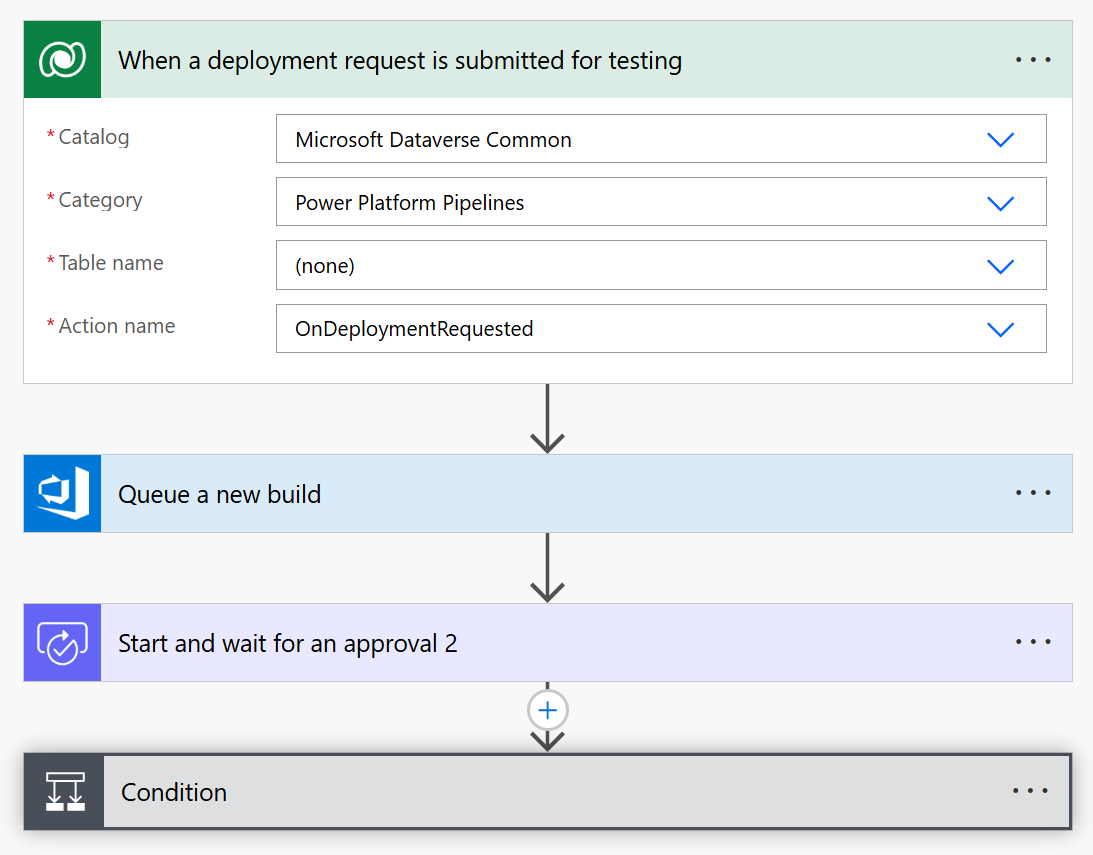
이 흐름에서는 다음을 사용합니다.
사용자 정의 CI/CD 통합 Power Automate
기존 CI/CD 툴을 사용하는 조직의 경우 Test Engine은 사용자 지정 호스트 기능을 사용하여 사용자 지정 파이프라인과 통합됩니다. Power Automate Power Platform 사용자 지정 호스트 방식을 사용하면 다음을 수행할 수 있습니다.
- 자동화된 테스트를 실행하는 사용자 정의 파이프라인 호스트 를 정의합니다.
- 배포 이벤트에서 자동으로 트리거되는 클라우드 흐름을 생성합니다. Power Automate
- 소스 제어에 저장된 테스트를 실행하기 위해 클라우드 흐름에서 직접 명령을 실행합니다.
pac test run
- 선호하는 CI/CD 시스템(Azure DevOps, GitHub Actions 등)에 연결합니다.
- 테스트 결과에 따라 승인 워크플로 구현
- 테스트 결과에 따라 배포 상태 업데이트
이 통합을 통해 기존 CI/CD 투자를 유지하면서도 ALM 프로세스에 Test Engine의 기능을 추가할 수 있습니다. 사용자 지정 호스트는 Power Platform의 기본 ALM 기능과 외부 테스트 인프라 간의 다리 역할을 합니다.
사용자 지정 호스트를 사용하여 파이프라인을 확장하거나 pac 테스트 실행 명령을 직접 통합하여 빌드 스크립트를 실행할 수 있습니다. Power Platform...
다음은 테스트 엔진 테스트를 설정하고 실행하는 방법을 보여주는 파이프라인 YAML 파일의 예입니다. Azure DevOps Power Apps
trigger:
- main

pool:
  vmImage: 'windows-latest'

variables:
  - group: PowerPlatformTestVariables # Create a variable group with these variables
  # Required variables in the variable group:
  # ClientId - Service Principal App ID
  # ClientSecret - Service Principal Secret (mark as secret)
  # TenantId - Microsoft Entra Tenant ID
  # EnvironmentUrl - Power Platform Environment URL
  # EnvironmentId - Power Platform Environment ID

steps:
# Download the test plan file from secure files
- task: DownloadSecureFile@1
  name: testPlan
  displayName: 'Download Test Plan File'
  inputs:
    secureFile: 'testplan.te.yaml' # Upload your test plan to Secure Files in Azure DevOps

# Install Power Platform CLI
- task: PowerShell@2
  displayName: 'Install Power Platform CLI'
  inputs:
    targetType: 'inline'
    script: |
      Write-Host "Installing Power Platform CLI..."
      $pacUrl = "https://aka.ms/PowerAppsCLI"
      $pacZip = "$env:TEMP\pac.zip"
      $pacDestination = "$env:TEMP\pac"

      # Create the destination folder if it doesn't exist
      if (-not (Test-Path $pacDestination)) {
          New-Item -ItemType Directory -Path $pacDestination -Force | Out-Null
      }

      # Download PAC CLI
      Invoke-WebRequest -Uri $pacUrl -OutFile $pacZip

      # Extract PAC CLI
      Expand-Archive -Path $pacZip -DestinationPath $pacDestination -Force

      # Add PAC CLI to PATH
      $env:PATH = "$pacDestination;$env:PATH"

      # Verify installation
      pac help

# Install Azure CLI and authenticate with service principal
- task: PowerShell@2
  displayName: 'Install Azure CLI and Authenticate'
  inputs:
    targetType: 'inline'
    script: |
      Write-Host "Installing Azure CLI..."
      $azureCliUrl = "https://aka.ms/installazurecliwindows"
      $azureCliInstaller = "$env:TEMP\AzureCLI.msi"

      # Download Azure CLI installer
      Invoke-WebRequest -Uri $azureCliUrl -OutFile $azureCliInstaller

      # Install Azure CLI silently
      Start-Process -FilePath msiexec.exe -Args "/i $azureCliInstaller /quiet /norestart" -Wait

      # Reload PATH to include Azure CLI
      $env:PATH = [System.Environment]::GetEnvironmentVariable("PATH", "Machine") + ";" + [System.Environment]::GetEnvironmentVariable("PATH", "User")

      # Authenticate with service principal
      Write-Host "Authenticating with Azure CLI..."
      az login --service-principal -u "$(ClientId)" -p "$(ClientSecret)" --tenant "$(TenantId)" --allow-no-subscriptions

# Authenticate PAC CLI with service principal
- task: PowerShell@2
  displayName: 'Authenticate PAC CLI'
  inputs:
    targetType: 'inline'
    script: |
      Write-Host "Authenticating PAC CLI..."

      # Create authentication profile
      pac auth create --name TestEngineAuth --url "$(EnvironmentUrl)" --applicationId "$(ClientId)" --clientSecret "$(ClientSecret)" --tenant "$(TenantId)"

      # Select the authentication profile
      pac auth select --name TestEngineAuth

# Run the tests
- task: PowerShell@2
  displayName: 'Execute Test Engine Tests'
  inputs:
    targetType: 'inline'
    script: |
      Write-Host "Running Test Engine tests..."

      # Create output directory
      $outputDir = "$(Build.ArtifactStagingDirectory)\TestResults"
      New-Item -ItemType Directory -Path $outputDir -Force | Out-Null

      # Run the tests
      pac test run `
        --test-plan-file "$(testPlan.secureFilePath)" `
        --environment-id "$(EnvironmentId)" `
        --tenant "$(TenantId)" `
        --logConsole info `
        --trx `
        --outputDirectory $outputDir

      if ($LASTEXITCODE -ne 0) {
          Write-Error "Test execution failed with exit code $LASTEXITCODE"
          exit $LASTEXITCODE
      }

# Publish test results
- task: PublishTestResults@2
  displayName: 'Publish Test Results'
  inputs:
    testResultsFormat: 'VSTest'
    testResultsFiles: '$(Build.ArtifactStagingDirectory)\TestResults\*.trx'
    mergeTestResults: true
    testRunTitle: 'Power Apps Test Engine Results'
  condition: always() # Ensure results are published even if tests fail

# Publish test artifacts
- task: PublishBuildArtifacts@1
  displayName: 'Publish Test Artifacts'
  inputs:
    PathtoPublish: '$(Build.ArtifactStagingDirectory)\TestResults'
    ArtifactName: 'TestArtifacts'
    publishLocation: 'Container'
  condition: always()
참조 구성 요소
다음 참조 구성 요소는 자동화 테스트 파이프라인을 구축할 때 유용할 수 있습니다.
동일한 테스트 실행 프로세스를 수행하는 GitHub Actions 워크플로의 예는 다음과 같습니다.
name: Test Engine Execution

on:
  push:
    branches: [ main ]
  pull_request:
    branches: [ main ]
  workflow_dispatch:  # Allow manual triggering

jobs:
  test:
    runs-on: windows-latest

    env:
      TENANT_ID: ${{ secrets.TENANT_ID }}
      CLIENT_ID: ${{ secrets.CLIENT_ID }}
      CLIENT_SECRET: ${{ secrets.CLIENT_SECRET }}
      ENVIRONMENT_URL: ${{ secrets.ENVIRONMENT_URL }}
      ENVIRONMENT_ID: ${{ secrets.ENVIRONMENT_ID }}

    steps:
    - name: Checkout repository
      uses: actions/checkout@v3

    - name: Install Power Platform CLI
      run: |
        Write-Host "Installing Power Platform CLI..."
        $pacUrl = "https://aka.ms/PowerAppsCLI"
        $pacZip = "$env:TEMP\pac.zip"
        $pacDestination = "$env:TEMP\pac"

        # Create the destination folder if it doesn't exist
        if (-not (Test-Path $pacDestination)) {
            New-Item -ItemType Directory -Path $pacDestination -Force | Out-Null
        }

        # Download PAC CLI
        Invoke-WebRequest -Uri $pacUrl -OutFile $pacZip

        # Extract PAC CLI
        Expand-Archive -Path $pacZip -DestinationPath $pacDestination -Force

        # Add PAC CLI to PATH
        $env:PATH = "$pacDestination;$env:PATH"
        echo "$pacDestination" >> $env:GITHUB_PATH

        # Verify installation
        pac help

    - name: Install Azure CLI
      run: |
        Write-Host "Installing Azure CLI..."
        $ProgressPreference = 'SilentlyContinue'
        Invoke-WebRequest -Uri https://aka.ms/installazurecliwindows -OutFile .\AzureCLI.msi
        Start-Process msiexec.exe -Wait -ArgumentList '/I AzureCLI.msi /quiet'
        rm .\AzureCLI.msi

    - name: Azure CLI Authentication
      run: |
        Write-Host "Authenticating with Azure CLI..."
        az login --service-principal -u "$env:CLIENT_ID" -p "$env:CLIENT_SECRET" --tenant "$env:TENANT_ID" --allow-no-subscriptions

    - name: PAC CLI Authentication
      run: |
        Write-Host "Authenticating PAC CLI..."
        # Create authentication profile
        pac auth create --name TestEngineAuth --url "$env:ENVIRONMENT_URL" --applicationId "$env:CLIENT_ID" --clientSecret "$env:CLIENT_SECRET" --tenant "$env:TENANT_ID"

        # Select the authentication profile
        pac auth select --name TestEngineAuth

    - name: Run Test Engine tests
      run: |
        Write-Host "Running Test Engine tests..."

        # Create output directory
        $outputDir = "./TestResults"
        New-Item -ItemType Directory -Path $outputDir -Force | Out-Null

        # Run the tests
        pac test run `
          --test-plan-file "./TestPlan/testplan.te.yaml" `
          --environment-id "$env:ENVIRONMENT_ID" `
          --tenant "$env:TENANT_ID" `
          --logConsole info `
          --trx `
          --outputDirectory $outputDir

        if ($LASTEXITCODE -ne 0) {
            Write-Error "Test execution failed with exit code $LASTEXITCODE"
            exit $LASTEXITCODE
        }

    - name: Upload test results
      uses: actions/upload-artifact@v3
      if: always()
      with:
        name: test-results
        path: ./TestResults

    - name: Publish Test Results
      uses: EnricoMi/publish-unit-test-result-action@v2
      if: always()
      with:
        files: ./TestResults/**/*.trx
관련 문서
테스트 엔진 YAML 구문에 대해 알아보세요
테스트에 대한 인증을 설정하세요
테스트 캔버스 애플리케이션, 모델 기반 애플리케이션 또는 Dataverse 확장
ALM을 이해하세요 Power Platform