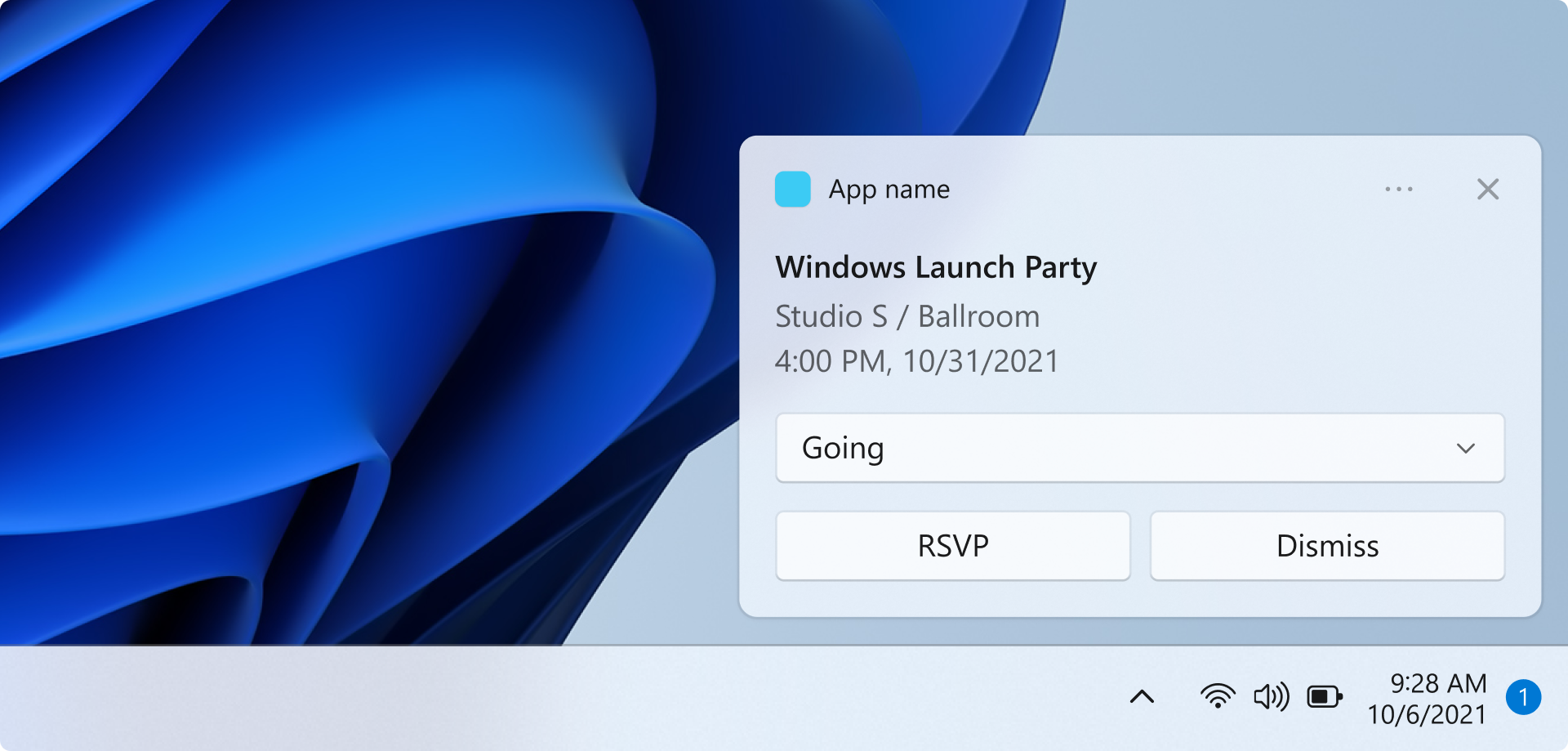
이 빠른 시작에서는 Windows 앱 SDK 사용하여 로컬 앱 알림을 보내고 응답하는 WinUI 앱을 만듭니다.
앱 알림을 구현하는 전체 샘플 앱은 GitHub
Important
관리자(관리자) 앱에는 앱 알림이 지원되지 않습니다.
Prerequisites
- Visual Studio 2022 설치(v17.6 이상)
- C++용 C++ 워크로드 또는 C# 개발을 위한 .NET 워크로드를 포함합니다.
- .NET 데스크톱 개발에서 MSIX 패키징 도구가 선택되어 있는지 확인합니다.
- Windows 애플리케이션 개발이 선택되어 있는지 확인합니다.
- Windows UI 애플리케이션 개발이 선택되어 있는지 확인합니다.
Visual Studio 워크로드를 관리하는 방법에 대한 자세한 내용은 Visual Studio 워크로드, 구성 요소 및 언어 팩 수정 참조하세요. WinUI 시작에 대한 자세한 내용은 WinUI 시작 정보를 참조하세요. 기존 프로젝트에 Windows 앱 SDK 추가하려면 기존 프로젝트에서 Windows 앱 SDK 사용 참조하세요.
Visual Studio 새 WinUI 앱 프로젝트 만들기
- Visual Studio 새 프로젝트를 만듭니다.
- 새 프로젝트 만들기 대화 상자에서 언어 필터를 "C#" 또는 "C++"로 설정하고 플랫폼 필터를 "WinUI"로 설정한 다음, "빈 앱, 패키지됨(데스크톱의 WinUI 3)" 프로젝트 템플릿을 선택합니다.
- 새 프로젝트의 이름을 "AppNotificationsExample"로 지정합니다.
로컬 앱 알림 보내기
이 섹션에서는 클릭할 때 로컬 앱 알림을 보내는 단추를 앱에 추가합니다. 알림에는 텍스트 콘텐츠와 앱 로고 이미지가 포함됩니다. 또한 사용자가 알림을 클릭할 때 활성화 인수를 표시하는 두 개의 읽기 전용 텍스트 상자를 추가합니다.
먼저 버튼 컨트롤과 두 개의 TextBox 컨트롤을 MainWindow.xaml에 추가합니다.
<!-- MainWindow.xaml -->
<Button x:Name="SendNotificationButton" Content="Send App Notification" Click="SendNotificationButton_Click"/>

<TextBlock Text="Activation arguments:" FontWeight="SemiBold" Margin="0,12,0,0"/>
<TextBox x:Name="ActionTextBox" Header="action" IsReadOnly="True" PlaceholderText="(none)"/>
<TextBox x:Name="ExampleEventIdTextBox" Header="exampleEventId" IsReadOnly="True" PlaceholderText="(none)"/>
앱 알림 API는 Microsoft.Windows.AppNotifications 및 Microsoft.Windows.AppNotifications.Builder 네임스페이스에 있습니다. 프로젝트에 다음 참조를 추가합니다.
// MainWindow.xaml.cs
using Microsoft.Windows.AppNotifications;
using Microsoft.Windows.AppNotifications.Builder;
이제 단추 클릭 처리기에 다음 코드를 추가합니다. 이 예제 에서는 AppNotificationBuilder 를 사용하여 사용자가 알림, 앱 로고 이미지 및 텍스트를 클릭할 때 앱에 다시 전달되는 인수를 포함하여 알림 콘텐츠를 생성합니다. 알림에는 앱의 UI를 시작하지 않고 작업을 수행하는 것을 보여 주는 단추도 포함되어 있습니다. BuildNotification 메서드는 AppNotification 개체를 만들고 AppNotificationManager.Show는 이를 사용자에게 표시합니다.
// MainWindow.xaml.cs
private void SendNotificationButton_Click(object sender, RoutedEventArgs e)
{
    var appNotification = new AppNotificationBuilder()
        .AddArgument("action", "NotificationClick")
        .AddArgument("exampleEventId", "1234")
        .SetAppLogoOverride(new System.Uri("ms-appx:///Assets/Square150x150Logo.png"), AppNotificationImageCrop.Circle)
        .AddText("This is text content for an app notification.")
        .AddButton(new AppNotificationButton("Perform action without launching app")
            .AddArgument("action", "BackgroundAction"))
        .BuildNotification();

    AppNotificationManager.Default.Show(appNotification);
}
이 시점에서 앱을 빌드하고 실행할 수 있습니다. 앱 알림 보내기 단추를 클릭하여 알림을 표시합니다. 알림을 클릭하면 아직 아무 작업도 수행되지 않습니다. 다음 섹션에서는 사용자가 알림을 클릭할 때 앱이 응답할 수 있도록 앱 활성화를 처리하는 방법을 알아봅니다.
Note
앱이 관리자 권한(상승)으로 실행되는 경우 앱 알림은 지원되지 않습니다. 표시 가 자동으로 실패하고 알림이 표시되지 않습니다. 알림을 테스트할 때 권한 상승 없이 앱을 실행해야 합니다.
앱 패키지 매니페스트 파일 업데이트
이 파일은 Package.appmanifest 앱에 대한 MSIX 패키지의 세부 정보를 제공합니다. 사용자가 앱 알림과 상호 작용할 때 앱을 시작할 수 있도록 하려면 앱이 앱 알림 활성화의 대상으로 시스템에 등록되도록 앱 패키지 매니페스트 파일을 업데이트해야 합니다. 앱 패키지 매니페스트에 대한 자세한 내용은 앱 패키지 매니페스트를 참조하세요.
- 솔루션 탐색기 파일을 마우스 오른쪽 단추로 클릭하고
View Code 선택하여Package.appxmanifest 파일을 편집합니다. - 네임스페이스
xmlns:com="http://schemas.microsoft.com/appx/manifest/com/windows10"및xmlns:desktop="http://schemas.microsoft.com/appx/manifest/desktop/windows10"을(를)<Package>에 추가하십시오. -
<desktop:Extension>아래에 요소를 추가합니다<Extensions>.Category속성을"windows.toastNotificationActivation"로 설정하여 앱이 앱 알림으로 활성화될 수 있음을 선언합니다.-
<desktop:ToastNotificationActivation>자식 요소를 추가하고ToastActivatorCLSID앱을 고유하게 식별하는 GUID로 설정합니다. - 도구 > GUID 만들기로 이동하여 Visual Studio GUID를 생성할 수 있습니다.
-
-
<com:Extension>아래에<Extensions>요소를 추가하고 특성을Category.로 설정합니다"windows.comServer". 아래에 표시된 예제 매니페스트 파일은 이 요소의 구문을 보여줍니다.- 요소의
Executable<com:ExeServer>특성을 실행 파일 이름으로 업데이트합니다. 이 예제에서는 이름이 .입니다"AppNotificationsExample.exe". - Windows 앱 SDK 알림의 페이로드를 AppNotification 종류로 처리할 수 있도록
Arguments="----AppNotificationActivated:"지정합니다. -
Id요소의 특성을<com:Class>요소에 사용한 것과 동일한 GUID로 설정합니다.
- 요소의
<!--package.appxmanifest-->

<Package
  xmlns:com="http://schemas.microsoft.com/appx/manifest/com/windows10"
  xmlns:desktop="http://schemas.microsoft.com/appx/manifest/desktop/windows10"
  ...
  <Applications>
    <Application>
      ...
      <Extensions>

        <!--Specify which CLSID to activate when notification is clicked-->
        <desktop:Extension Category="windows.toastNotificationActivation">
          <desktop:ToastNotificationActivation ToastActivatorCLSID="replaced-with-your-guid-C173E6ADF0C3" />
        </desktop:Extension>

        <!--Register COM CLSID-->
        <com:Extension Category="windows.comServer">
          <com:ComServer>
            <com:ExeServer Executable="SampleApp.exe" DisplayName="SampleApp" Arguments="----AppNotificationActivated:">
              <com:Class Id="replaced-with-your-guid-C173E6ADF0C3" />
            </com:ExeServer>
          </com:ComServer>
        </com:Extension>

      </Extensions>
    </Application>
  </Applications>
 </Package>
앱 알림에서 활성화 처리
사용자가 알림 내에서 앱 알림 또는 단추를 클릭하면 앱이 적절하게 응답해야 합니다. 다음과 같은 두 가지 일반적인 활성화 시나리오가 있습니다.
- UI를 사용하여 시작 - 사용자가 알림 본문을 클릭하면 앱이 시작되거나 포그라운드로 이동하여 관련 콘텐츠를 표시합니다.
- 백그라운드 작업 - 사용자가 앱 UI를 표시하지 않고 동작(예: 회신 보내기)을 트리거하는 알림의 단추를 클릭합니다.
두 시나리오를 모두 지원하려면 앱의 활성화 흐름에서 OnLaunched 주 창을 만들어야 하지만 즉시 활성화 하지는 않아야 합니다. 대신 AppNotificationManager.NotificationInvoked 이벤트를 등록하고 AppNotificationManager.Register를 호출한 다음 AppInstance.GetActivatedEventArgs 를 확인하여 앱이 알림에서 시작되었는지 또는 일반 시작에서 시작되었는지 확인합니다. 알림에 의해 시작이 트리거된 경우 코드는 알림 인수를 검사하고 창을 표시할지 아니면 작업을 자동으로 처리할지를 결정하고 종료할 수 있습니다.
이벤트는 NotificationInvoked 앱이 이미 실행 중인 동안 발생하는 클릭을 처리합니다. 앱이 실행되고 있지 않으면 Windows는 COM 활성화를 통해 앱을 시작하고 활성화 종류는 AppNotification가 아니라 Launch로 보고됩니다. 그러면 알림 인수가 이벤트를 통해 NotificationInvoked 전달됩니다.
Important
AppInstance.GetActivatedEventArgs를 호출하기 전에 AppNotificationManager.Register를 호출해야 합니다.
Important
알림 XML 페이로드의 activationType="background" 설정은 데스크톱 앱에 대해 무시됩니다. 코드에서 활성화 인수를 처리하고 창을 표시할지 여부를 결정해야 합니다.
// App.xaml.cs
using Microsoft.UI.Xaml;
using Microsoft.Windows.AppLifecycle;
using Microsoft.Windows.AppNotifications;

namespace AppNotificationsExample;

public partial class App : Application
{
    private Window? _window;

    public App()
    {
        InitializeComponent();
    }

    protected override void OnLaunched(Microsoft.UI.Xaml.LaunchActivatedEventArgs args)
    {
        _window = new MainWindow();

        AppNotificationManager.Default.NotificationInvoked += OnNotificationInvoked;
        AppNotificationManager.Default.Register();

        var activatedArgs = AppInstance.GetCurrent().GetActivatedEventArgs();

        if (activatedArgs.Kind == ExtendedActivationKind.AppNotification)
        {
            // App was launched by clicking a notification
            var notificationArgs = (AppNotificationActivatedEventArgs)activatedArgs.Data;
            HandleNotification(notificationArgs);
        }
        else
        {
            // Normal launch
            _window.Activate();
        }
    }

    private void OnNotificationInvoked(AppNotificationManager sender, AppNotificationActivatedEventArgs args)
    {
        // Notification clicked while app is already running
        HandleNotification(args);
    }

    private void HandleNotification(AppNotificationActivatedEventArgs args)
    {
        var action = args.Arguments.ContainsKey("action") ? args.Arguments["action"] : "(none)";
        var exampleEventId = args.Arguments.ContainsKey("exampleEventId") ? args.Arguments["exampleEventId"] : "(none)";

        _window!.DispatcherQueue.TryEnqueue(() =>
        {
            switch (action)
            {
                case "BackgroundAction":
                    // Handle the action without showing the app window.
                    // If the window was never shown, exit the app.
                    if (!_window.Visible)
                    {
                        Application.Current.Exit();
                    }
                    break;

                default:
                    // Bring the app to the foreground and display the notification arguments.
                    _window.Activate();
                    ((MainWindow)_window).UpdateNotificationUI(action, exampleEventId);
                    break;
            }
        });
    }
}
먼저 추가한 텍스트 상자에 알림 인수를 표시하기 위해 UpdateNotificationUI 메서드를 MainWindow에 추가합니다.
// MainWindow.xaml.cs
public void UpdateNotificationUI(string action, string exampleEventId)
{
    DispatcherQueue.TryEnqueue(() =>
    {
        ActionTextBox.Text = action;
        ExampleEventIdTextBox.Text = exampleEventId;
    });
}
다음 단계
- 앱 알림 콘텐츠 - 알림에 이미지, 단추, 입력 및 기타 UI 요소를 추가하는 방법을 알아봅니다.
- 앱 알림 제거 - 알림 에 태그를 지정하고, 제거하고, 만료를 설정하는 방법을 알아봅니다.
참고하십시오
GitHub에서 Microsoft와 공동 작업
이 콘텐츠의 원본은 GitHub에서 찾을 수 있으며, 여기서 문제와 끌어오기 요청을 만들고 검토할 수도 있습니다. 자세한 내용은 참여자 가이드를 참조하세요.

Windows developer