중요 API: Windows.UI.Xaml.Controls.Frame 클래스, Windows.UI.Xaml.Controls.Page 클래스, Windows.UI.Xaml.Navigation 네임스페이스, OnNavigatedTo
앱에서 뒤로 탐색을 구현하려면 앱 UI의 왼쪽 위 모서리에 뒤로 단추를 배치합니다. 사용자는 뒤로 버튼이 앱의 탐색 기록에서 이전 화면으로 이동하기를 기대합니다. 기본적으로 프레임 컨트롤은 BackStack 및 ForwardStack의 탐색 작업을 기록합니다. 그러나 탐색 기록에 추가되는 탐색 작업을 수정할 수 있습니다.
여러 페이지가 있는 대부분의 앱의 경우 NavigationView 컨트롤을 사용하여 앱에 대한 탐색 프레임워크를 제공하는 것이 좋습니다. 이 컨트롤은 다양한 화면 크기에 맞게 조정되고 ‘위쪽’ 및 ‘왼쪽’ 탐색 스타일을 둘 다 지원합니다. 앱에서 NavigationView 컨트롤을 사용하는 경우 NavigationView의 기본 제공 뒤로 단추를 사용할 수 있습니다.
비고
이 문서의 지침과 예제는 NavigationView 컨트롤을 사용하지 않고 탐색을 구현할 때 사용해야 합니다. 사용하는 NavigationView경우 이 정보는 유용한 배경 지식을 제공하지만 NavigationView 문서의 특정 지침 및 예제를 사용해야 합니다.
뒤로 버튼
뒤로 단추를 만들려면 단추 컨트롤을 스타일과 함께 NavigationBackButtonNormalStyle 사용하고 앱 UI의 왼쪽 위 모서리에 단추를 배치합니다(자세한 내용은 아래 XAML 코드 예제 참조).
앱의 UI 왼쪽 위에 있는 
<Page>
    <Grid>
        <Grid.RowDefinitions>
            <RowDefinition Height="Auto"/>
            <RowDefinition Height="*"/>
        </Grid.RowDefinitions>

        <Button x:Name="BackButton"
                Style="{StaticResource NavigationBackButtonNormalStyle}"
                IsEnabled="{x:Bind Frame.CanGoBack, Mode=OneWay}"
                ToolTipService.ToolTip="Back"/>

    </Grid>
</Page>
앱에 최상위 CommandBar가 있는 경우 해당 영역에 컨트롤을 Button 배치합니다 CommandBar.Content .
<Page>
    <Grid>
        <Grid.RowDefinitions>
            <RowDefinition Height="Auto"/>
            <RowDefinition Height="*"/>
        </Grid.RowDefinitions>

        <CommandBar>
            <CommandBar.Content>
                <Button x:Name="BackButton"
                        Style="{StaticResource NavigationBackButtonNormalStyle}"
                        IsEnabled="{x:Bind Frame.CanGoBack, Mode=OneWay}"
                        ToolTipService.ToolTip="Back"
                        VerticalAlignment="Top"/>
            </CommandBar.Content>

            <AppBarButton Icon="Delete" Label="Delete"/>
            <AppBarButton Icon="Save" Label="Save"/>
        </CommandBar>
    </Grid>
</Page>
UI 요소의 이동을 최소화하려면 앱의 백스택(IsEnabled="{x:Bind Frame.CanGoBack, Mode=OneWay}")에 아무 것도 없을 때 비활성화된 뒤로가기 버튼을 표시하세요. 그러나 앱에 백스택이 없을 것으로 예상하는 경우 뒤로 단추를 전혀 표시할 필요가 없습니다.

다양한 디바이스 및 입력에 최적화
이 뒤로 탐색 디자인 지침은 모든 디바이스에 적용할 수 있지만 다양한 폼 팩터 및 입력 방법에 최적화하면 사용자에게 도움이 됩니다. 뒤로 탐색에 가장 일반적인 입력을 지원하려면 뒤로 단추 클릭 외에 다음 이벤트를 처리하는 것이 좋습니다.
| 이벤트 | 입력 |
|---|---|
| CoreDispatcher.가속키활성화됨 | Alt+왼쪽 화살표, 가상키.뒤로가기 |
| SystemNavigationManager.BackRequested | Windows + 백스페이스, 게임패드 B 버튼 태블릿 모드 뒤로가기 버튼 하드웨어 뒤로 버튼 |
| CoreWindow.PointerPressed | VirtualKey.XButton1 (예를 들어, 일부 마우스에서 찾을 수 있는 뒤로 가기 버튼) |
코드 예제
이 섹션에서는 다양한 입력을 사용하여 뒤로 탐색을 처리하는 방법을 보여 줍니다.
뒤로 버튼 및 뒤로 이동
최소한 뒤로 단추 Click 이벤트를 처리하고 뒤로 이동을 수행하는 코드를 제공해야 합니다. 백스택이 비어 있는 경우에도 뒤로 단추를 사용하지 않도록 설정해야 합니다.
이 예제 코드는 뒤로 단추를 사용하여 뒤로 탐색 동작을 구현하는 방법을 보여 줍니다. 코드는 Button Click 이벤트에 응답하여 탐색을 수행합니다. 새 페이지로 이동할 때 호출되는 OnNavigatedTo 메서드에서 뒤로 단추를 사용하거나 사용하지 않도록 설정합니다.
코드 MainPage가 표시되지만, 뒤로 가기 기능을 지원하는 각 페이지에 이 코드를 추가합니다. 중복을 방지하려면 App 클래스에 탐색 관련 코드를 App.xaml.* 코드 비하인드 페이지에 배치할 수 있습니다.
<!-- MainPage.xaml -->
<Page x:Class="AppName.MainPage">
...
        <Button x:Name="BackButton" Click="BackButton_Click"
                Style="{StaticResource NavigationBackButtonNormalStyle}"
                IsEnabled="{x:Bind Frame.CanGoBack, Mode=OneWay}"
                ToolTipService.ToolTip="Back"/>
...
<Page/>
코드 비하인드:
// MainPage.xaml.cs
private void BackButton_Click(object sender, RoutedEventArgs e)
{
    App.TryGoBack();
}

// App.xaml.cs
//
// Add this method to the App class.
public static bool TryGoBack()
{
    Frame rootFrame = Window.Current.Content as Frame;
    if (rootFrame.CanGoBack)
    {
        rootFrame.GoBack();
        return true;
    }
    return false;
}
// MainPage.h
#include "App.h"

namespace winrt::AppName::implementation
{
    struct MainPage : MainPageT<MainPage>
    {
        MainPage();

        void MainPage::BackButton_Click(IInspectable const&, RoutedEventArgs const&)
        {
            App::TryGoBack();
        }
    };
}

// App.h
#include "winrt/Windows.UI.Core.h"
#include "winrt/Windows.System.h"
#include "winrt/Windows.UI.Input.h"
#include "winrt/Windows.UI.Xaml.Input.h"

using namespace winrt;
using namespace Windows::Foundation;
using namespace Windows::UI::Core;
using namespace Windows::UI::Input;
using namespace Windows::UI::Xaml;
using namespace Windows::UI::Xaml::Controls;

struct App : AppT<App>
{
    App();

    // ...

    // Perform back navigation if possible.
    static bool TryGoBack()
    {
        Frame rootFrame{ nullptr };
        auto content = Window::Current().Content();
        if (content)
        {
            rootFrame = content.try_as<Frame>();
            if (rootFrame.CanGoBack())
            {
                rootFrame.GoBack();
                return true;
            }
        }
        return false;
    }
};
액세스 키 지원
키보드 지원은 다양한 기술, 능력 및 기대치를 가진 사용자에게 애플리케이션이 제대로 작동하도록 하는 데 필수적입니다. 탐색할 때 가속기 키를 사용하는 사용자는 앞으로 가거나 뒤로 가는 둘 다의 기능을 기대하므로, 두 방향 모두 가속기 키를 지원할 것을 권장합니다. 자세한 내용은 키보드 조작 및 키보드가속기를 참조하세요.
앞으로 및 뒤로 탐색을 위한 일반적인 가속기 키는 Alt+오른쪽 화살표(앞으로) 및 Alt+왼쪽 화살표(뒤로)입니다. 탐색을 위해 이러한 키를 지원하고자 할 경우, CoreDispatcher.AcceleratorKeyActivated 이벤트를 처리하세요. 페이지의 요소가 아닌 창에 직접 있는 이벤트를 처리하여 포커스가 있는 요소에 관계없이 앱이 가속기 키에 응답하도록 합니다.
여기에 표시된 것처럼 클래스에 App 코드를 추가하여 가속기 키와 앞으로 탐색을 지원합니다. (뒤로 단추를 지원하는 이전 코드가 이미 추가된 것으로 가정합니다.) 코드 예제 섹션의 끝에서 모든 App 코드를 함께 볼 수 있습니다.
// App.xaml.cs
// Add event handler in OnLaunched.
protected override void OnLaunched(LaunchActivatedEventArgs e)
{
    // ...
    // Do not repeat app initialization when the Window already has content,
    // just ensure that the window is active
    if (rootFrame == null)
    {
        // ...
        // rootFrame.NavigationFailed += OnNavigationFailed;

        // Add support for accelerator keys.
        // Listen to the window directly so the app responds
        // to accelerator keys regardless of which element has focus.
        Window.Current.CoreWindow.Dispatcher.AcceleratorKeyActivated +=
            CoreDispatcher_AcceleratorKeyActivated;

        // ...

    }
}

// ...

// Add this code after the TryGoBack method added previously.
// Perform forward navigation if possible.
private bool TryGoForward()
{
    Frame rootFrame = Window.Current.Content as Frame;
    if (rootFrame.CanGoForward)
    {
        rootFrame.GoForward();
        return true;
    }
    return false;
}

// Invoked on every keystroke, including system keys such as Alt key combinations.
// Used to detect keyboard navigation between pages even when the page itself
// doesn't have focus.
private void CoreDispatcher_AcceleratorKeyActivated(CoreDispatcher sender, AcceleratorKeyEventArgs e)
{
    // When Alt+Left are pressed navigate back.
    // When Alt+Right are pressed navigate forward.
    if (e.EventType == CoreAcceleratorKeyEventType.SystemKeyDown
        && (e.VirtualKey == VirtualKey.Left || e.VirtualKey == VirtualKey.Right)
        && e.KeyStatus.IsMenuKeyDown == true
        && !e.Handled)
    {
        if (e.VirtualKey == VirtualKey.Left)
        {
            e.Handled = TryGoBack();
        }
        else if (e.VirtualKey == VirtualKey.Right)
        {
            e.Handled = TryGoForward();
        }
    }
}
// App.cpp
void App::OnLaunched(LaunchActivatedEventArgs const& e)
{
    // ...
    // Do not repeat app initialization when the Window already has content,
    // just ensure that the window is active
    if (rootFrame == nullptr)
    {
        // ...
        // rootFrame.NavigationFailed({ this, &App::OnNavigationFailed });

        // Add support for accelerator keys.
        // Listen to the window directly so the app responds
        // to accelerator keys regardless of which element has focus.
        Window::Current().CoreWindow().Dispatcher().
            AcceleratorKeyActivated({ this, &App::CoreDispatcher_AcceleratorKeyActivated });

        // ...
    }
}

// App.h
struct App : AppT<App>
{
    App();

    // ...
    // Add this code after the TryGoBack method added previously.

private:
    // Perform forward navigation if possible.
    bool TryGoForward()
    {
        Frame rootFrame{ nullptr };
        auto content = Window::Current().Content();
        if (content)
        {
            rootFrame = content.try_as<Frame>();
            if (rootFrame.CanGoForward())
            {
                rootFrame.GoForward();
                return true;
            }
        }
        return false;
    }


    // Invoked on every keystroke, including system keys such as Alt key combinations.
    // Used to detect keyboard navigation between pages even when the page itself
    // doesn't have focus.
    void CoreDispatcher_AcceleratorKeyActivated(CoreDispatcher const& /* sender */, AcceleratorKeyEventArgs const& e)
    {
        // When Alt+Left are pressed navigate back.
        // When Alt+Right are pressed navigate forward.
        if (e.EventType() == CoreAcceleratorKeyEventType::SystemKeyDown
            && (e.VirtualKey() == Windows::System::VirtualKey::Left || e.VirtualKey() == Windows::System::VirtualKey::Right)
            && e.KeyStatus().IsMenuKeyDown
            && !e.Handled())
        {
            if (e.VirtualKey() == Windows::System::VirtualKey::Left)
            {
                e.Handled(TryGoBack());
            }
            else if (e.VirtualKey() == Windows::System::VirtualKey::Right)
            {
                e.Handled(TryGoForward());
            }
        }
    }
};
시스템 백 요청 처리
Windows 디바이스는 시스템에서 앱에 백 탐색 요청을 전달할 수 있는 다양한 방법을 제공합니다. 몇 가지 일반적인 방법은 게임 패드의 B 단추, Windows 키 + 백스페이스 키 바로 가기 또는 태블릿 모드의 시스템 뒤로 단추입니다. 사용 가능한 정확한 옵션은 디바이스에 따라 다릅니다.
SystemNavigationManager.BackRequested 이벤트에 대한 수신기를 등록하여 하드웨어 및 소프트웨어 시스템 백 키에서 시스템 제공 백 요청을 지원할 수 있습니다.
시스템에서 제공하는 뒤로 가기 요청을 지원하기 위해 App 클래스에 추가된 코드는 다음과 같습니다. (뒤로 단추를 지원하는 이전 코드가 이미 추가된 것으로 가정합니다.) 코드 예제 섹션의 끝에서 모든 App 코드를 함께 볼 수 있습니다.
// App.xaml.cs
// Add event handler in OnLaunced.
protected override void OnLaunched(LaunchActivatedEventArgs e)
{
    // ...
    // Do not repeat app initialization when the Window already has content,
    // just ensure that the window is active
    if (rootFrame == null)
    {
        // ...
        // Add support for accelerator keys.
        // ... (Previously added code.)

        // Add support for system back requests.
        SystemNavigationManager.GetForCurrentView().BackRequested
            += System_BackRequested;

        // ...

    }
}

// ...
// Handle system back requests.
private void System_BackRequested(object sender, BackRequestedEventArgs e)
{
    if (!e.Handled)
    {
        e.Handled = TryGoBack();
    }
}
// App.cpp
void App::OnLaunched(LaunchActivatedEventArgs const& e)
{
    // ...
    // Do not repeat app initialization when the Window already has content,
    // just ensure that the window is active
    if (rootFrame == nullptr)
    {
        // ...
        // Add support for accelerator keys.
        // ... (Previously added code.)

        // Add support for system back requests.
        SystemNavigationManager::GetForCurrentView().
            BackRequested({ this, &App::System_BackRequested });

        // ...
    }
}

// App.h
struct App : AppT<App>
{
    App();

    // ...

private:
    // ...

    // Handle system back requests.
    void System_BackRequested(IInspectable const& /* sender */, BackRequestedEventArgs const& e)
    {
        if (!e.Handled())
        {
            e.Handled(TryGoBack());
        }
    }
};
이전 버전과의 호환성을 위한 시스템의 뒤로 가기 동작
이전에는 UWP 앱이 SystemNavigationManager.AppViewBackButtonVisibility AppViewBackButtonVisibility에서 제공하는 뒤로 가기 버튼을 사용하는 것을 권장하지 않습니다. 대신 이 문서에 설명된 대로 앱 내에서 뒤로 가기 버튼을 제공해야 합니다.
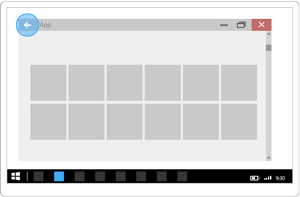
AppViewBackButtonVisibility 을 계속 사용하는 경우, 시스템 UI는 제목 표시줄 내에 시스템 뒤로 가기 버튼을 렌더링합니다. (뒤로 단추의 모양과 사용자 상호 작용은 이전 빌드와 변경되지 않습니다.)
마우스 네비게이션 버튼 처리
일부 마우스는 앞으로 및 뒤로 탐색을 위한 하드웨어 탐색 단추를 제공합니다. 이러한 마우스 단추는 CoreWindow.PointerPressed 이벤트를 처리하고 IsXButton1Pressed(뒤로) 또는 IsXButton2Pressed(앞으로) 확인하면 지원할 수 있습니다.
마우스 단추 탐색을 지원하기 위해 클래스에 App 추가된 코드는 다음과 같습니다. (뒤로 단추를 지원하는 이전 코드가 이미 추가된 것으로 가정합니다.) 코드 예제 섹션의 끝에서 모든 App 코드를 함께 볼 수 있습니다.
// App.xaml.cs
// Add event handler in OnLaunced.
protected override void OnLaunched(LaunchActivatedEventArgs e)
{
    // ...
    // Do not repeat app initialization when the Window already has content,
    // just ensure that the window is active
    if (rootFrame == null)
    {
        // ...
        // Add support for system back requests.
        // ... (Previously added code.)

        // Add support for mouse navigation buttons.
        Window.Current.CoreWindow.PointerPressed += CoreWindow_PointerPressed;

        // ...

    }
}

// ...

// Handle mouse back button.
private void CoreWindow_PointerPressed(CoreWindow sender, PointerEventArgs e)
{
    // For this event, e.Handled arrives as 'true'.
    if (e.CurrentPoint.Properties.IsXButton1Pressed)
    {
        e.Handled = !TryGoBack();
    }
    else if (e.CurrentPoint.Properties.IsXButton2Pressed)
    {
        e.Handled = !TryGoForward();
    }
}
// App.cpp
void App::OnLaunched(LaunchActivatedEventArgs const& e)
{
    // ...
    // Do not repeat app initialization when the Window already has content,
    // just ensure that the window is active
    if (rootFrame == nullptr)
    {
        // ...
        // Add support for system back requests.
        // ... (Previously added code.)

        // Add support for mouse navigation buttons.
        Window::Current().CoreWindow().
            PointerPressed({ this, &App::CoreWindow_PointerPressed });

        // ...
    }
}

// App.h
struct App : AppT<App>
{
    App();

    // ...

private:
    // ...

    // Handle mouse forward and back buttons.
    void CoreWindow_PointerPressed(CoreWindow const& /* sender */, PointerEventArgs const& e)
    {
        // For this event, e.Handled arrives as 'true'.
        if (e.CurrentPoint().Properties().IsXButton1Pressed())
        {
            e.Handled(!TryGoBack());
        }
        else if (e.CurrentPoint().Properties().IsXButton2Pressed())
        {
            e.Handled(!TryGoForward());
        }
    }
};
앱 클래스에 추가된 모든 코드
// App.xaml.cs
//
// (Add event handlers in OnLaunched override.)
protected override void OnLaunched(LaunchActivatedEventArgs e)
{
    // ...
    // Do not repeat app initialization when the Window already has content,
    // just ensure that the window is active
    if (rootFrame == null)
    {
        // ...
        // rootFrame.NavigationFailed += OnNavigationFailed;

        // Add support for accelerator keys.
        // Listen to the window directly so the app responds
        // to accelerator keys regardless of which element has focus.
        Window.Current.CoreWindow.Dispatcher.AcceleratorKeyActivated +=
            CoreDispatcher_AcceleratorKeyActivated;

        // Add support for system back requests.
        SystemNavigationManager.GetForCurrentView().BackRequested
            += System_BackRequested;

        // Add support for mouse navigation buttons.
        Window.Current.CoreWindow.PointerPressed += CoreWindow_PointerPressed;

        // ...

    }
}

// ...

// (Add these methods to the App class.)
public static bool TryGoBack()
{
    Frame rootFrame = Window.Current.Content as Frame;
    if (rootFrame.CanGoBack)
    {
        rootFrame.GoBack();
        return true;
    }
    return false;
}

// Perform forward navigation if possible.
private bool TryGoForward()
{
    Frame rootFrame = Window.Current.Content as Frame;
    if (rootFrame.CanGoForward)
    {
        rootFrame.GoForward();
        return true;
    }
    return false;
}

// Invoked on every keystroke, including system keys such as Alt key combinations.
// Used to detect keyboard navigation between pages even when the page itself
// doesn't have focus.
private void CoreDispatcher_AcceleratorKeyActivated(CoreDispatcher sender, AcceleratorKeyEventArgs e)
{
    // When Alt+Left are pressed navigate back.
    // When Alt+Right are pressed navigate forward.
    if (e.EventType == CoreAcceleratorKeyEventType.SystemKeyDown
        && (e.VirtualKey == VirtualKey.Left || e.VirtualKey == VirtualKey.Right)
        && e.KeyStatus.IsMenuKeyDown == true
        && !e.Handled)
    {
        if (e.VirtualKey == VirtualKey.Left)
        {
            e.Handled = TryGoBack();
        }
        else if (e.VirtualKey == VirtualKey.Right)
        {
            e.Handled = TryGoForward();
        }
    }
}

// Handle system back requests.
private void System_BackRequested(object sender, BackRequestedEventArgs e)
{
    if (!e.Handled)
    {
        e.Handled = TryGoBack();
    }
}

// Handle mouse back button.
private void CoreWindow_PointerPressed(CoreWindow sender, PointerEventArgs e)
{
    // For this event, e.Handled arrives as 'true'.
    if (e.CurrentPoint.Properties.IsXButton1Pressed)
    {
        e.Handled = !TryGoBack();
    }
    else if (e.CurrentPoint.Properties.IsXButton2Pressed)
    {
        e.Handled = !TryGoForward();
    }
}
// App.cpp
void App::OnLaunched(LaunchActivatedEventArgs const& e)
{
    // ...
    // Do not repeat app initialization when the Window already has content,
    // just ensure that the window is active
    if (rootFrame == nullptr)
    {
        // ...
        // rootFrame.NavigationFailed({ this, &App::OnNavigationFailed });

        // Add support for accelerator keys.
        // Listen to the window directly so the app responds
        // to accelerator keys regardless of which element has focus.
        Window::Current().CoreWindow().Dispatcher().
            AcceleratorKeyActivated({ this, &App::CoreDispatcher_AcceleratorKeyActivated });

        // Add support for system back requests.
        SystemNavigationManager::GetForCurrentView().
            BackRequested({ this, &App::System_BackRequested });

        // Add support for mouse navigation buttons.
        Window::Current().CoreWindow().
            PointerPressed({ this, &App::CoreWindow_PointerPressed });

        // ...
    }
}

// App.h
#include "winrt/Windows.UI.Core.h"
#include "winrt/Windows.System.h"
#include "winrt/Windows.UI.Input.h"
#include "winrt/Windows.UI.Xaml.Input.h"

using namespace winrt;
using namespace Windows::Foundation;
using namespace Windows::UI::Core;
using namespace Windows::UI::Input;
using namespace Windows::UI::Xaml;
using namespace Windows::UI::Xaml::Controls;

struct App : AppT<App>
{
    App();

    // ...

    // Perform back navigation if possible.
    static bool TryGoBack()
    {
        Frame rootFrame{ nullptr };
        auto content = Window::Current().Content();
        if (content)
        {
            rootFrame = content.try_as<Frame>();
            if (rootFrame.CanGoBack())
            {
                rootFrame.GoBack();
                return true;
            }
        }
        return false;
    }
private:
    // Perform forward navigation if possible.
    bool TryGoForward()
    {
        Frame rootFrame{ nullptr };
        auto content = Window::Current().Content();
        if (content)
        {
            rootFrame = content.try_as<Frame>();
            if (rootFrame.CanGoForward())
            {
                rootFrame.GoForward();
                return true;
            }
        }
        return false;
    }

    // Invoked on every keystroke, including system keys such as Alt key combinations.
    // Used to detect keyboard navigation between pages even when the page itself
    // doesn't have focus.
    void CoreDispatcher_AcceleratorKeyActivated(CoreDispatcher const& /* sender */, AcceleratorKeyEventArgs const& e)
    {
        // When Alt+Left are pressed navigate back.
        // When Alt+Right are pressed navigate forward.
        if (e.EventType() == CoreAcceleratorKeyEventType::SystemKeyDown
            && (e.VirtualKey() == Windows::System::VirtualKey::Left || e.VirtualKey() == Windows::System::VirtualKey::Right)
            && e.KeyStatus().IsMenuKeyDown
            && !e.Handled())
        {
            if (e.VirtualKey() == Windows::System::VirtualKey::Left)
            {
                e.Handled(TryGoBack());
            }
            else if (e.VirtualKey() == Windows::System::VirtualKey::Right)
            {
                e.Handled(TryGoForward());
            }
        }
    }

    // Handle system back requests.
    void System_BackRequested(IInspectable const& /* sender */, BackRequestedEventArgs const& e)
    {
        if (!e.Handled())
        {
            e.Handled(TryGoBack());
        }
    }

    // Handle mouse forward and back buttons.
    void CoreWindow_PointerPressed(CoreWindow const& /* sender */, PointerEventArgs const& e)
    {
        // For this event, e.Handled arrives as 'true'.
        if (e.CurrentPoint().Properties().IsXButton1Pressed())
        {
            e.Handled(!TryGoBack());
        }
        else if (e.CurrentPoint().Properties().IsXButton2Pressed())
        {
            e.Handled(!TryGoForward());
        }
    }
};
재개 중
사용자가 다른 앱으로 전환하고 앱으로 돌아오면 탐색 기록의 마지막 페이지로 돌아가는 것이 좋습니다.